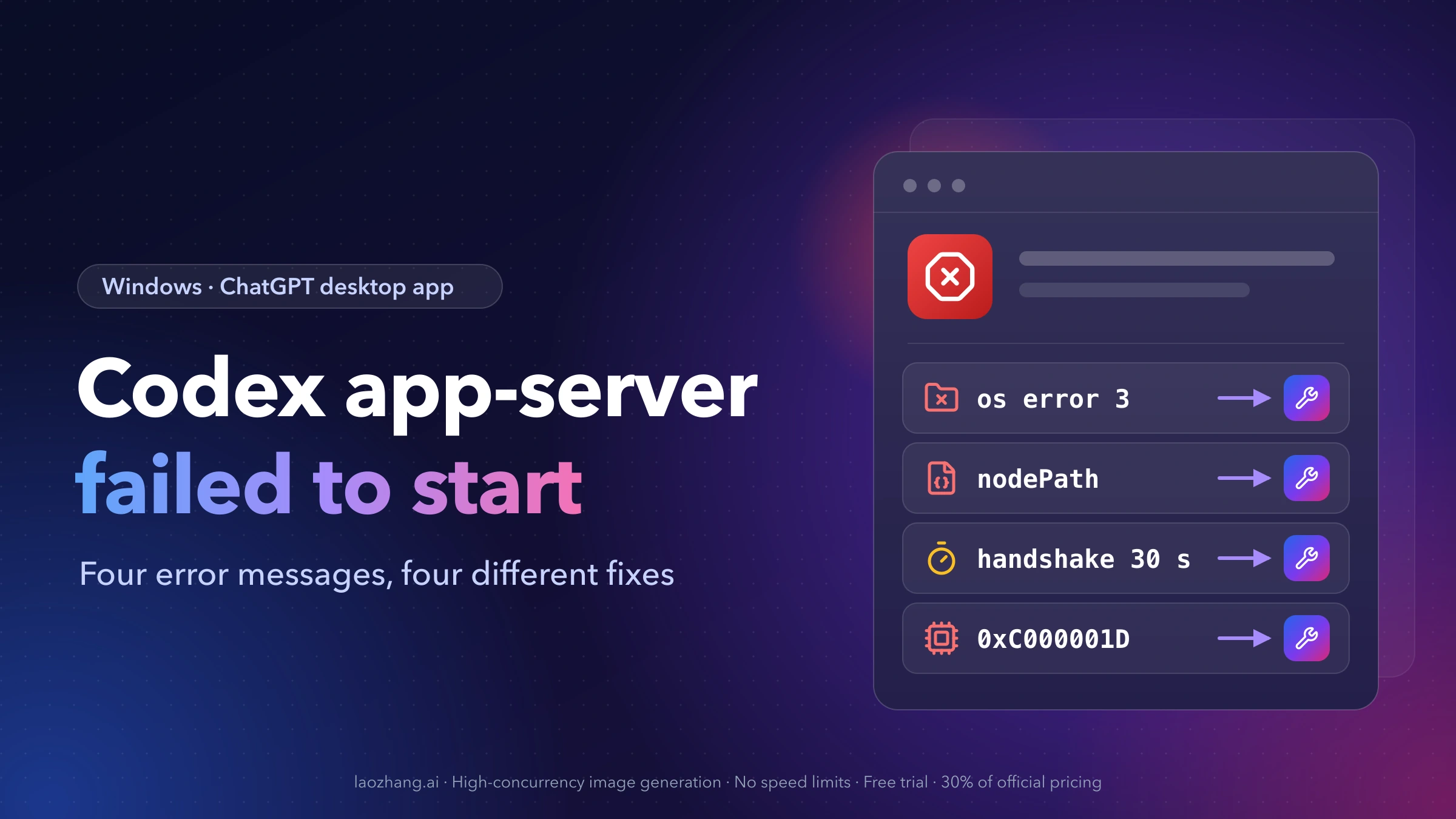
Failed to start codex app-server on Windows means the ChatGPT desktop app could not bring up codex.exe, the background process that its chat window, Browser Use and the ChatGPT browser extension all depend on. Four messages describe four different reasons it did not come up, so the exact text decides the fix:
The system cannot find the path specified. (os error 3)andmanifest entry is missing required path nodePath(orresourcesPath): a file path recorded before an auto-update now points at a folder the update deleted. Correct the path.Codex app-server initialize handshake timed out:codex.exestarted but did not answer within 30 seconds, usually because of a huge or corrupt local database, leftover processes, or WSL mode. Make startup lighter.0xC000001D(shown ascode=3221225501):codex.execrashed on an illegal CPU instruction. Check which module crashed before you change anything.
Two things hold for all four. Reinstalling the app rarely helps, because your settings and history live in %USERPROFILE%\.codex, outside the app package, and reinstalling leaves that folder alone. And deleting .codex can cost you your local chat history without fixing anything. As of October 9, 2026, OpenAI has not named a release that fixes any of these four errors, so the fixes below are user-tested workarounds unless a step says otherwise.
A note on names: Codex became part of the ChatGPT desktop app on July 9, 2026 (changelog). The Windows package is still OpenAI.Codex and the dialogs now say "ChatGPT failed to start", but it is the same app many people still call the Codex app or Codex Desktop. It is not "ChatGPT Classic", a separate package that has no app-server at all.
Codex app-server error lookup: message, cause and first fix
| Exact text you see | Where it shows up | Most likely cause | First fix | How solid the evidence is |
|---|---|---|---|---|
failed to start codex app-server: The system cannot find the path specified. (os error 3) (also os error 2) | Browser Use, the in-app browser, the Chrome plugin; tabs list but navigation and screenshots fail | config.toml or CODEX_CLI_PATH points to a helper folder an update removed | Point the node_repl entries and CODEX_CLI_PATH at the current folder, then fully quit and reopen | Several reporters per fix; issues open since April 2026 |
Unable to start ChatGPT / Codex app-server manifest entry is missing required path nodePath (or resourcesPath, codexCliPath) | ChatGPT extension side panel in Chrome, Edge or Brave | chrome-native-hosts-v2.json still lists runtime paths from an older build | Start the desktop app first and wait; if that fails, back up and correct the JSON | Several reporters; broke again after the October 3 and October 8 updates |
Codex app-server initialize handshake timed out | "ChatGPT failed to start" dialog with Check for Updates and Quit | Startup work took longer than the app's 30-second limit | Quit from the tray, end leftover processes, move logs_2.sqlite* aside | Several reporters for the log database; single reporters for the rest |
code=3221225501 / 0xC000001D / Codex app-server websocket closed | "ChatGPT failed to start" right after launch | An injected DLL (most often Astrill VPN) or a CPU instruction the build needs | Read the faulting module in Event Viewer | Many reporters for Astrill; the CPU case has no fix you can apply on the desktop |
If your text is not in the table, check nearby startup messages: those variants look similar but need something else.
Before any fix: quit from the tray and copy .codex
Closing the window does not stop Codex. The app stays resident in the system tray (changelog), and codex.exe plus about ten helper processes keep running and keep the databases open (#39015). Edits to files they hold may not stick, and moving a database that is in use can fail halfway.
- Right-click the ChatGPT icon in the system tray and quit. Close any IDE with the Codex extension too.
- Make a dated copy of your Codex home folder. It holds
config.toml,auth.json, the thread indexstate_5.sqliteand your local conversations insessions\:
$stamp = Get-Date -Format "yyyyMMdd-HHmmss"
Copy-Item "$env:USERPROFILE\.codex" "$env:USERPROFILE\Desktop\codex-backup-$stamp" -Recurse
If sessions is many gigabytes, copy to another drive instead of the Desktop.
OpenAI's support staff gave the same advice on the community forum: avoid deleting %USERPROFILE%\.codex unless it is backed up, because it can contain config, auth and session state (forum reply).
failed to start codex app-server (os error 3): stale helper paths
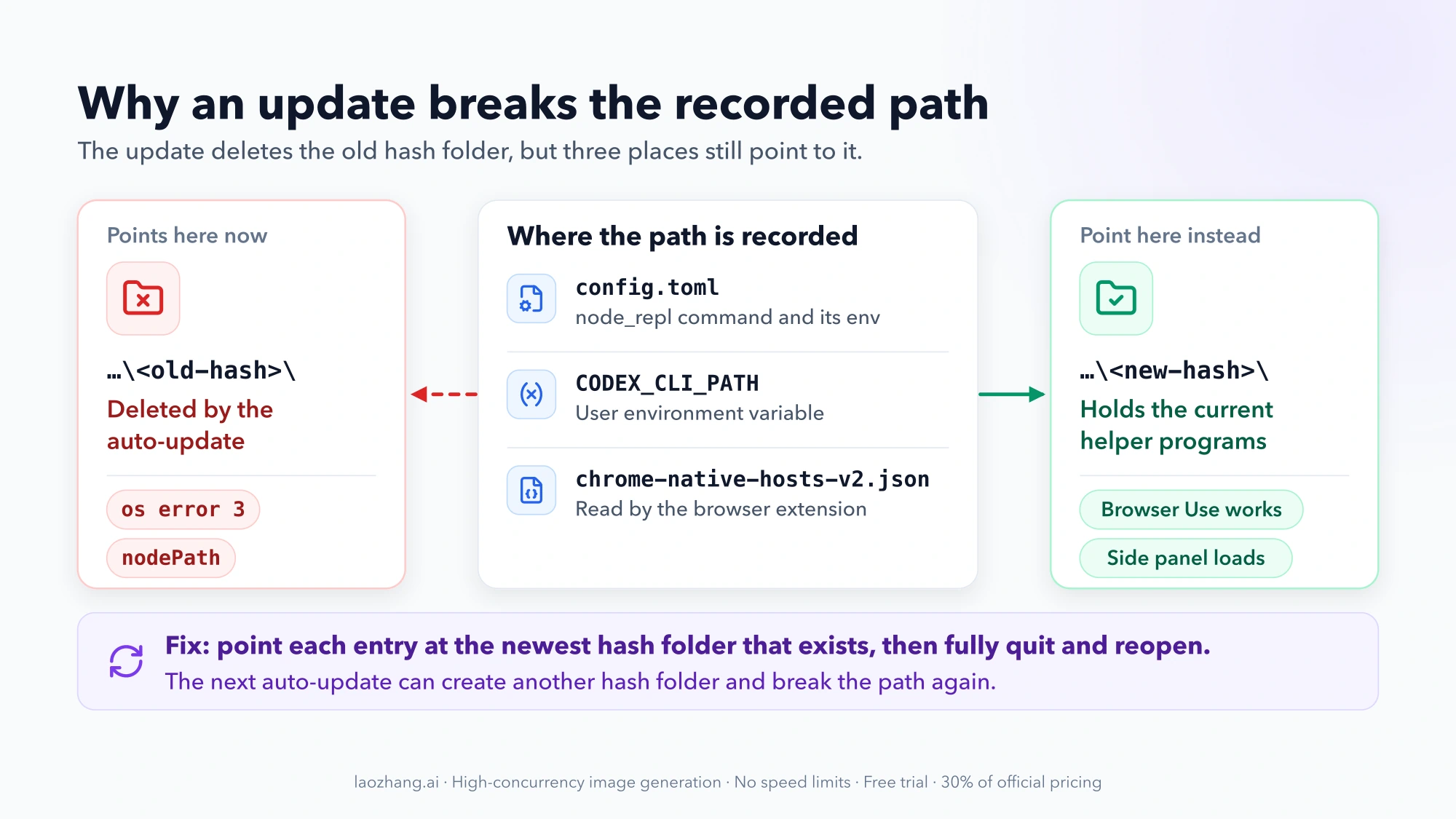
Windows error 3 is "path not found". The app copies its helper programs out of the protected C:\Program Files\WindowsApps\OpenAI.Codex_... folder into per-user folders named by a hash, such as %LOCALAPPDATA%\OpenAI\Codex\bin\<hash>\. Several places then record that hash path:
%USERPROFILE%\.codex\config.toml, in[mcp_servers.node_repl] commandand[mcp_servers.node_repl.env] CODEX_CLI_PATH- the user environment variable
CODEX_CLI_PATH chrome-native-hosts-v2.json, in%LOCALAPPDATA%\OpenAI\Codex\and%USERPROFILE%\.codex\
When an auto-update deletes the old hash folder, any of those can point at nothing. Browser Use then tries to start codex app-server --listen stdio:// from a path that no longer exists (#20048, #26011).
Find which recorded path is dead
After quitting from the tray, run this in PowerShell. It lists the helper folders that exist now and checks every path recorded in the places above:
# Helper folders that exist right now, newest first
Get-ChildItem "$env:LOCALAPPDATA\OpenAI\Codex\bin" -Directory -ErrorAction SilentlyContinue |
  Sort-Object LastWriteTime -Descending | Select-Object Name, LastWriteTime

# The user-level variable, if set
$cli = [Environment]::GetEnvironmentVariable('CODEX_CLI_PATH', 'User')
if ($cli) { "$cli -> exists: $(Test-Path $cli)" }

# Paths written into config.toml
Select-String -Path "$env:USERPROFILE\.codex\config.toml" -Pattern 'node_repl|CODEX_CLI_PATH'
Any exists: False, or a hash in config.toml that is not among the folders listed, is your culprit.
Point the paths at the current folder
Open config.toml in a text editor and change the node_repl command and its CODEX_CLI_PATH to the newest hash folder that actually contains node_repl.exe and codex.exe. For the environment variable, either set it to the current codex.exe or remove it:
[Environment]::SetEnvironmentVariable('CODEX_CLI_PATH', $null, 'User')Then start the app again and retry the Browser Use task. Several users fixed os error 3 this way (#26011, #28474, #20206). In #28474 the same stale path even showed up as a misleading "enterprise network policy" block. Keep in mind that the next auto-update can create a new hash folder and break the path again.
If the bin folder does not exist at all
On some April and May 2026 builds, %LOCALAPPDATA%\OpenAI\Codex\bin was never created and the helpers sat only inside the package's virtualized folder. Users linked the two with a junction (#19562):
New-Item -ItemType Junction -Path "$env:LOCALAPPDATA\OpenAI\Codex\bin" `
  -Target "$env:LOCALAPPDATA\Packages\OpenAI.Codex_2p2nqsd0c76g0\LocalCache\Local\OpenAI\Codex\bin"
Use this only when the first folder is missing and the second one exists. One tester on a clean VM saw the error change to a sandbox failure (CreateProcessAsUserW failed: 5) after the junction (#20661), and one user reported that 26.506 builds create the folder on their own.
What did not help, per several reporters: Repair or Reset in Windows Settings, reinstalling alone, rebooting, running as administrator and installing the npm CLI (#19187).
manifest entry is missing required path nodePath or resourcesPath
This message appears in the ChatGPT extension's side panel, usually as Unable to start ChatGPT followed by Codex app-server manifest entry is missing required path nodePath. Some people see resourcesPath or codexCliPath instead. "Missing" is misleading: the field is there, but the path it holds no longer exists.
The chain behind it: the browser starts the native host com.openai.codexextension, which runs extension-host.exe from the plugin cache under %USERPROFILE%\.codex\plugins\. That host reads chrome-native-hosts-v2.json, and when an update removes the old runtimes\cua_node\<hash> folder or the old app folder without rewriting that file, the host refuses to start (#35705, #32706). Users reported the break again after updates on October 3 and October 8, 2026 (#32706, #40357).
Work from the least invasive step down. Stop at the first one that brings the side panel back.
- Open the desktop app first and give it 30 to 60 seconds before using the extension. The extension depends on the running app; one or two users found that waiting was enough (#35705).
- Run OpenAI's extension checklist (browser extension docs): update the desktop app, and if more than one ChatGPT or Codex desktop app is installed, update each or remove the ones you no longer use. Restart the browser. In Settings > Computer Use, the browser should show Manage, not Install. Use the browser profile where the extension is installed. If it still fails, reinstall the extension from Settings > Computer Use.
- Ask Codex in the desktop app to connect to Chrome. For one user, that regenerated the connection state (#32706).
- Correct
chrome-native-hosts-v2.jsonby hand. Quit the app and the browser, then back up the file and look up the current paths:
$v2 = "$env:LOCALAPPDATA\OpenAI\Codex\chrome-native-hosts-v2.json"
Copy-Item $v2 "$v2.bak"

# Current resources folder of the installed package
(Get-AppxPackage -Name OpenAI.Codex).InstallLocation + '\app\resources'

# Newest Node runtime folder
Get-ChildItem "$env:LOCALAPPDATA\OpenAI\Codex\runtimes\cua_node" -Directory |
  Sort-Object LastWriteTime -Descending | Select-Object -First 1 -ExpandProperty FullName
Edit the file so nodePath points to <runtime folder>\bin\node.exe, nodeModuleDirs to <runtime folder>\bin\node_modules, and resourcesPath to the resources folder above. Backslashes must be doubled inside JSON strings. Start the desktop app first, then the browser. Several users fixed it this way (#35705).
A community member published a PowerShell script that does step 4 for you: Repair-CodexChromeManifest.ps1. It backs up the file, finds the installed package and newest runtime, and supports -WhatIf so you can see the change before it writes. It is not an OpenAI tool. Read it before you run it.
If the chrome\latest folder inside the plugin cache itself points at a removed version, the fix is a full rebuild of the plugin cache and both JSON files. Users documented that on 26.930.2377.0 in #42520. It is an advanced repair, so try it only after the steps above.
If you reinstalled through a generic "ChatGPT" download, check what you installed. OpenAI.ChatGPT-Desktop (ChatGPT Classic) has no Codex resources, so the extension can never find its paths (#32706). The correct app is Microsoft Store ID 9PLM9XGG6VKS, which you can install with winget install --id 9PLM9XGG6VKS -s msstore (Windows app docs).
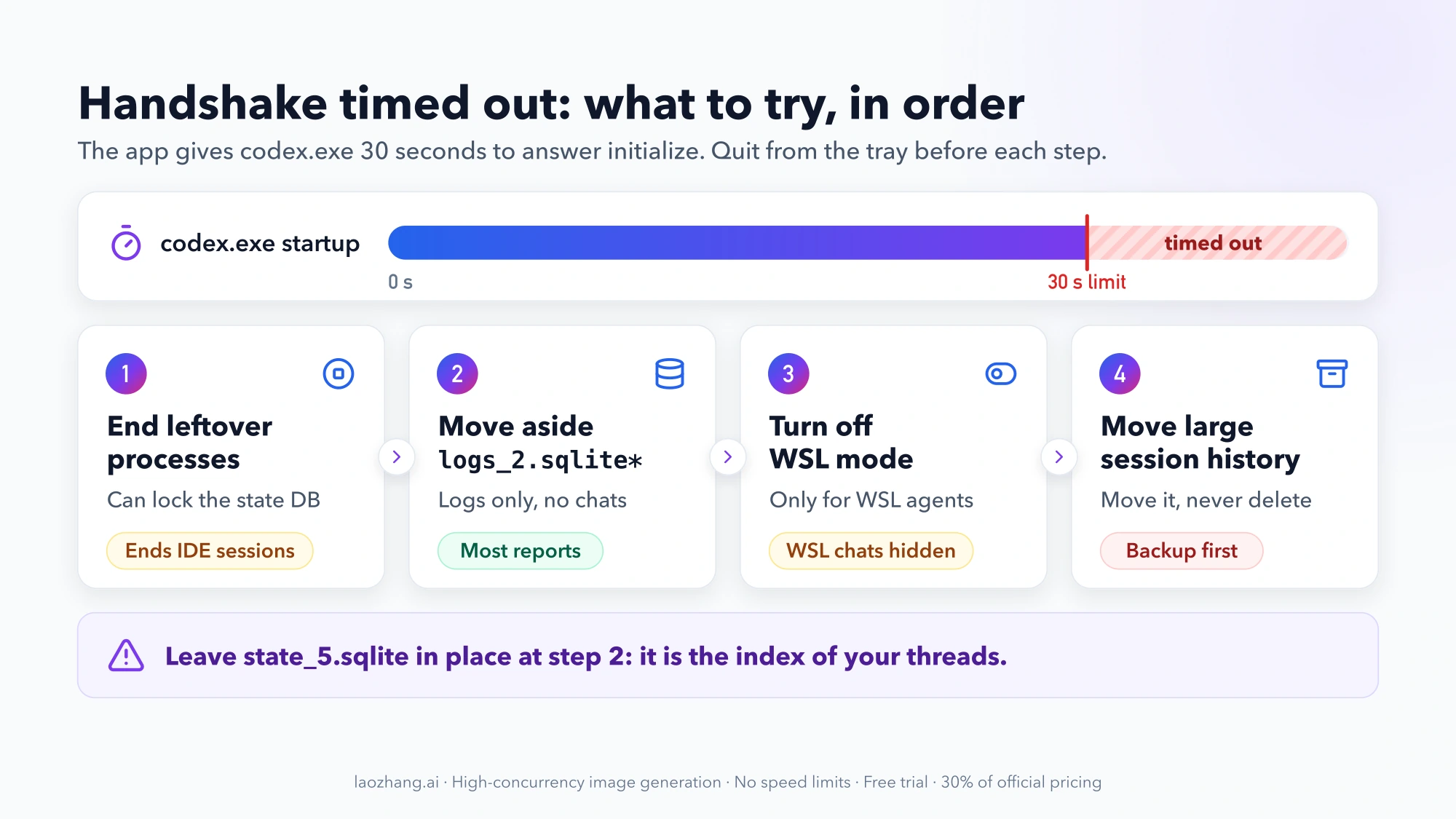
Codex app-server initialize handshake timed out: the 30-second limit
Every client has to send the app-server an initialize request before anything else (app-server docs). The desktop app waits 30 seconds for the reply. The documentation does not state that limit, but logs posted in #39015 show durationMs=30012 and cause=initialize_handshake_timeout. So this error means codex.exe did start, but it was still busy when time ran out.
This is a different error from the 15-second cloud config bundle timeout. If your message mentions the cloud config bundle, see Codex Timed Out Loading the Cloud Config Bundle.
Try these in order. All of them assume you quit from the tray first.
End leftover Codex processes
A previous codex.exe that never exited can hold the state database locked, so the new one waits and times out. One user hit this more than ten times and fixed it each time by stopping every Codex process and relaunching (#32160):
Get-Process *codex*, *chatgpt*, *node_repl* -ErrorAction SilentlyContinue | Stop-Process -ForceThis also ends any IDE sessions that use Codex.
Move logs_2.sqlite aside
The cause with the most reports is the diagnostic log database %USERPROFILE%\.codex\logs_2.sqlite growing very large or getting corrupted. Reported cases include a 6.7 GB file, and a 2.27 GB corrupt one; after moving the latter aside, the handshake took 1.7 seconds instead of timing out (#27741, #39015). Check the size, then move the three files together:
$codex = "$env:USERPROFILE\.codex"
Get-ChildItem "$codex\logs_2.sqlite*" | Select-Object Name, @{ n = 'MB'; e = { [math]::Round($_.Length / 1MB) } }

$hold = "$codex\logs-hold-$(Get-Date -Format yyyyMMdd-HHmmss)"
New-Item -ItemType Directory -Path $hold | Out-Null
Move-Item "$codex\logs_2.sqlite*" $hold
The app creates a fresh log database on the next start. Per #39015, this file holds logs only, not chats or settings. Do not move state_5.sqlite in this step; that file is the index of your threads. OpenAI staff said newer builds detect a corrupt database and that they are "working on db auto-healing", without a version number (#23917).
Turn off WSL mode if your agent runs in WSL
If you switched the agent to WSL, startup can copy state across /mnt/c, and that alone can exceed 30 seconds (#38345). The setting normally lives in the app's Settings, but you cannot reach Settings while the app fails to start, so edit %USERPROFILE%\.codex\config.toml. If the file already has a [desktop] section, add or change the line there instead of adding a second section:
[desktop]
runCodexInWindowsSubsystemForLinux = false
Two commenters on Reddit said WSL mode was their actual cause. Another user kept WSL, let the copy run for about 40 more seconds and relaunched. The tradeoff: chats that ran in WSL become unreachable while the setting is off (#39169). When you edit this file, write Windows paths with forward slashes or in single quotes. A path like "F:\work" in double quotes is an invalid escape that can hang startup on its own (#37616).
Move a very large session history, never delete it
If none of that helps, check how big your local history is:
Get-ChildItem "$env:USERPROFILE\.codex\sessions" -Recurse -File -ErrorAction SilentlyContinue |
  Measure-Object Length -Sum | Select-Object Count, @{ n = 'GB'; e = { [math]::Round($_.Sum / 1GB, 2) } }
One user with 64 session files totaling 22.24 GB got the app starting again only after moving sessions, archived_sessions and state_5.sqlite* to a holding folder on another drive. Moving the log database alone had not helped that user (Reddit, August 15, 2026). This is a single report, and it hides your thread list until you move the files back, so do it only with a full, verified backup.
0xC000001D (code 3221225501): find the faulting module first
0xC000001D is STATUS_ILLEGAL_INSTRUCTION; 3221225501 is the same code in decimal. You usually see it as ChatGPT failed to start. (code=3221225501, signal=null). Most recent error: Codex app-server websocket closed (code=3221225501), sometimes followed by Codex app-server process is not available (#30884, #42029).
Reinstalling, re-registering the package, installing Visual C++ redistributables, deleting the SQLite databases and starting with a clean .codex all failed for the people who tried them (#30339, #30884). The useful first step is to ask Windows which module crashed.
Open Event Viewer > Windows Logs > Application, find the Application Error entry for codex.exe at the time of the crash, and read Faulting module name. Or pull it from PowerShell:
Get-WinEvent -FilterHashtable @{ LogName = 'Application'; ProviderName = 'Application Error' } -MaxEvents 20 |
  Where-Object Message -match 'codex' | Format-List TimeCreated, Message
Faulting module ASProxy64.dll: remove Astrill's LSP
If the module is ASProxy64.dll, Astrill VPN has injected its Winsock layered service provider (LSP) into codex.exe. This is the best-documented cause, with many reporters on recent CPUs such as Ryzen AI, Core Ultra and the i7-14700KF, so CPU age does not explain these cases (#24408, #30884). Fixes that worked:
- In Astrill, hold Ctrl while opening its menu, choose Help > LSP Uninstall, and reboot. Then confirm that
tasklist /m ASProxy64.dllreports no running tasks. - Or check
netsh winsock show catalog | findstr ASProxy, runnetsh winsock resetfrom an administrator terminal, and reboot. This resets every LSP on the machine, not just Astrill's. - Or uninstall Astrill. Users who keep it report that its OpenWeb and WireGuard protocols do not install the LSP.
Astrill is the only injector confirmed in these reports. If Event Viewer names a different third-party DLL, the same reasoning may apply, but no one has documented it yet.
No third-party module: the build expects a CPU feature yours lacks
If the faulting module is codex.exe itself, the build is likely using an instruction your CPU does not have. OpenAI confirmed this for the npm CLI 0.135.0 on a Haswell Xeon ("This will be fixed in the next release", #25367). For the VS Code extension, reporters in #17410 say the Linux build under WSL2 still works. OpenAI has not answered any of the desktop 0xC000001D reports, and which CPU feature current desktop builds require is not documented.
There is nothing in .codex to repair in this case. Your options are a different way to run Codex (the CLI in WSL2, or an older CLI release as in #25367) and a report with your CPU model, as described in what to send OpenAI.
Exit codes that look similar
code=3221225506(0xC0000022, access denied): on builds 26.820.7780.0 through 26.825.6671.0, checkHKLM\SYSTEM\CurrentControlSet\Control\Session Manager\SafeDllSearchMode. If it is0, set it back to the Windows default1from an administrator prompt and restart the app. Several users confirmed that fix (#40913).3221225781(0xC0000135, DLL not found): one user was missingvcruntime140_1.dlland fixed it by installing the latest Microsoft Visual C++ Redistributable (forum).HW capability requested: 0x20000000: one user removed a stray globalOPENSSL_ia32capvariable; others set it to~0x20000000(#12962). That variable affects every OpenSSL program on the machine.
Nearby startup messages: program not found, hit a snag, endless logo
These are not the four errors above, but they come from the same background process and are easy to confuse with them.
| Message or symptom | What it points to | First step |
|---|---|---|
failed to launch codex app-server: program not found | Reported once, on 26.930.61225, in a Cloud chat using Windows Computer Use; the same test worked in an On my computer chat (#51867) | Run the task from an On my computer chat; the cause is unknown |
Codex app-server process is not available or "ChatGPT hit a snag" | The background codex.exe crashed and the window did not restart it. Reported triggers include memory exhaustion (0xc0000409), a user PATH over the 32 KB environment limit, and Astrill (#36619, #46374, #45597) | Find the exit code in the log or Event Viewer and follow that branch; back up HKCU\Environment before pruning PATH |
Unable to locate the Codex CLI binary. Set CODEX_CLI_PATH or ensure the Electron resources include bin/codex. | Copying codex.exe out of the package failed on some 26.820–26.915 builds (#40700) | Update the app; if it is installed on another drive, use Settings > Apps > Installed apps > ChatGPT > Move to move it to C: |
| Logo or spinner forever, no error (builds 26.924–26.928) | The app-server process stalls at startup. Several users report 26.930 builds fixed it (#48333) | Update; or end only the codex.exe whose command line contains app-server and let the app respawn it |
| Window closes 10–35 seconds after sign-in on 26.1002.7124.0 | A crash while installing the background runtime package OpenAI.CodexPrimaryRuntime (forum, October 8, 2026) | Update when a newer build arrives; the forum post's workaround installs the downloaded runtime .msix by hand after checking its OpenAI signature |
To end only the stalled app-server process from the endless-logo row, run this while the stuck window is open. Ending every codex.exe would also interrupt other sessions:
Get-CimInstance Win32_Process |
  Where-Object { $_.Name -eq 'codex.exe' -and $_.CommandLine -like '* app-server *' } |
  ForEach-Object { Stop-Process -Id $_.ProcessId -Force }
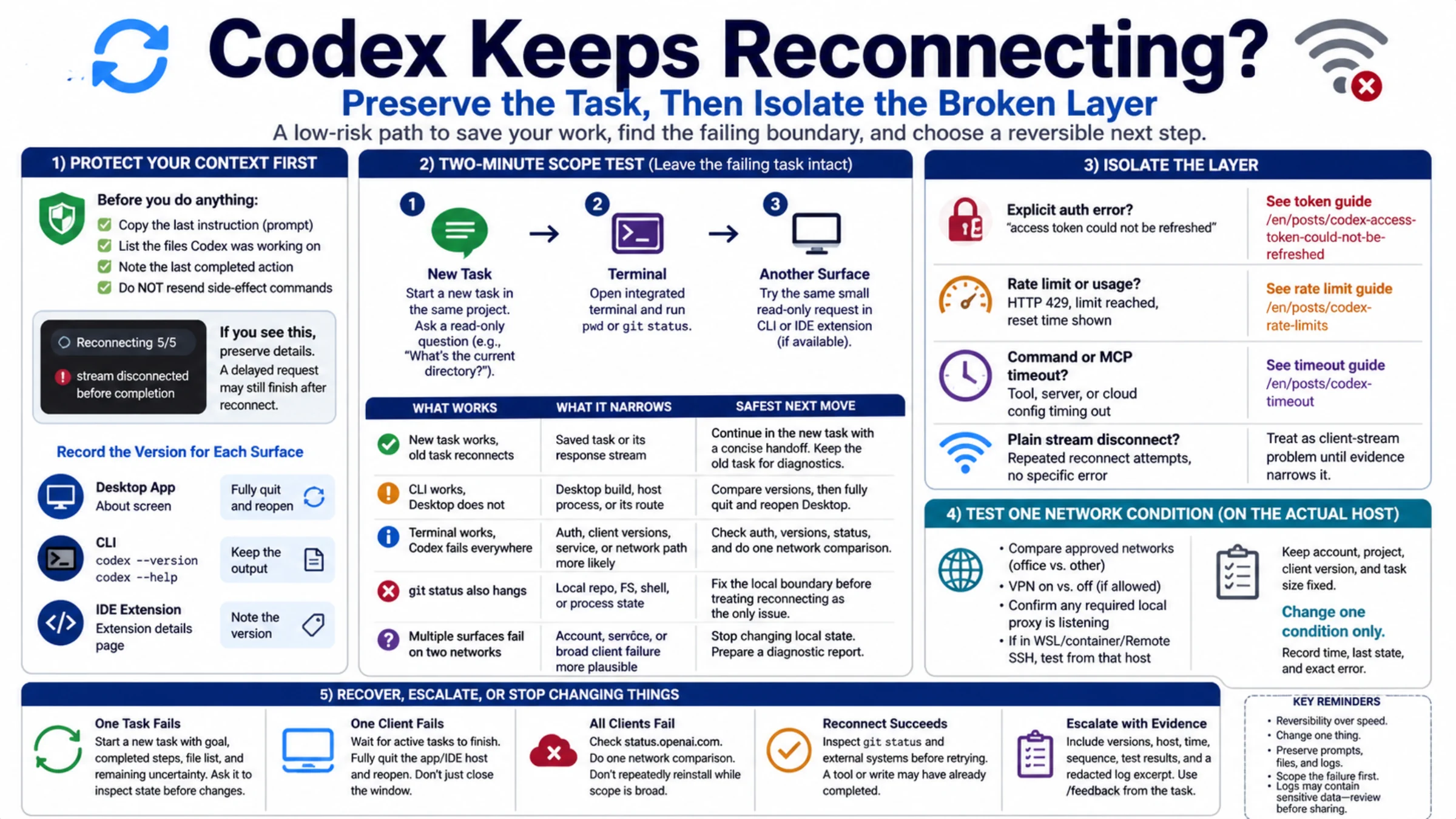
If the app starts but then keeps dropping its connection, that is a different problem: see Codex Keeps Reconnecting? Find the Cause Without Losing Your Task.
Fixes that make a Codex startup failure worse
- Deleting
%USERPROFILE%\.codex. It holds your thread index, local conversations,config.tomlandauth.json. One user lost history this way (#49265), and it did not fix 0xC000001D for those who tried. - Reset in Windows Settings. One user lost local Codex tasks and was signed out after a Reset (forum). Repair is the gentler option, though neither fixed os error 3.
- Running the app as administrator to get past the error. OpenAI's Windows app docs say the agent inherits that level, so every command it runs is then elevated. It also did not fix os error 3.
- Unofficial patches and repair tools. A zip of a "patched" build posted in one issue thread was identified by another user as ransomware. A script circulating in #19187 works by bypassing the browser's website policy check, and a third-party "recovery" tool is advertised across many threads. None of these come from OpenAI.
- Turning off Windows security features. OpenAI's support staff asked users not to disable Windows security protections as a workaround (forum).
- Retrying the plugin install over and over. OpenAI support advised against repeatedly retrying the plugin installation, uninstalling the plugin or clearing its cache (forum).
When no local fix exists: what to send OpenAI
Stop trying local fixes when the faulting module is codex.exe itself, when the error survives the steps for its branch, or when it returns after every update. At that point a good report helps more than another reinstall. Include:
- the app version (from the dialog or Settings) and your Windows build;
- the exact error text, copied rather than retyped;
- the desktop log from
%LOCALAPPDATA%\Packages\OpenAI.Codex_2p2nqsd0c76g0\LocalCache\Local\Codex\Logs\<yyyy>\<mm>\<dd>\(older builds wrote to%LOCALAPPDATA%\Codex\Logs); - the Event Viewer entry for
codex.exe, including the faulting module; - for 0xC000001D, your CPU model; for the extension errors, the browser and extension version.
If the app opens at all, run /feedback in a chat and include the chat ID when you contact support, as OpenAI's extension troubleshooting suggests. Otherwise, add your details to the open GitHub issue for your branch: #19187 for os error 3, #35705 for nodePath, #39015 for the handshake timeout, or #30884 for 0xC000001D. Before you post a log, remove tokens, file paths you consider private and anything from auth.json.
Codex app-server FAQ
What is the Codex app-server?
It is codex.exe running in app-server mode, the background program that runs Codex for richer clients. OpenAI describes it as "the interface Codex uses to power rich clients", such as the VS Code extension; it speaks JSON-RPC and by default talks over stdio (app-server docs). On Windows, the ChatGPT desktop app starts it for you, and Browser Use and the browser extension rely on it too. When it fails, the window has nothing to talk to.
Why does Codex say "codex app server is not available"?
Codex app-server process is not available usually means the background codex.exe already crashed and the app did not restart it. The useful information is the earlier exit code: 3221225501 points to the 0xC000001D section, 0xc0000409 has been linked to the machine running out of memory, and 0xC0000017 has been traced to an oversized user PATH.
Why is the Codex app not opening on Windows?
If you get a dialog, match its text to the table at the top. If you get no dialog, three patterns have been reported: an endless logo on 26.924–26.928 builds, a silent close on 26.1002.7124.0, and a startup hang caused by an invalid Windows path in config.toml. Each has its own entry above.
Will reinstalling Codex or the ChatGPT app fix it?
Usually not. Your configuration and history live in %USERPROFILE%\.codex, which uninstalling does not touch, and reinstalling did not fix os error 3 or 0xC000001D for the people who tried. If you do reinstall, install Store ID 9PLM9XGG6VKS, not ChatGPT Classic.
Is this a Codex outage?
Probably not. These four messages come from codex.exe on your own PC, and the reports trace them to local files, an injected DLL or the CPU; a service outage is not among the reported causes. If Codex works with the same account on another device, the problem is on this machine, and the sections above apply.