Token exchange failed and Your access token could not be refreshed both concern Codex authentication, but they describe different phases. An exchange error appears while Codex is trying to turn a browser authorization result into usable tokens. A refresh error appears after a session already existed and could not be renewed. OpenAI does not publish an exhaustive table that maps either line to one root cause.
A browser page saying sign-in completed is not the final proof. The process running Codex must receive the local loopback callback, reach the token endpoint, store the new credentials, and use them. Start by identifying that process and the last observable step; only then decide whether logout, device authentication, port forwarding, or network/TLS work is relevant.
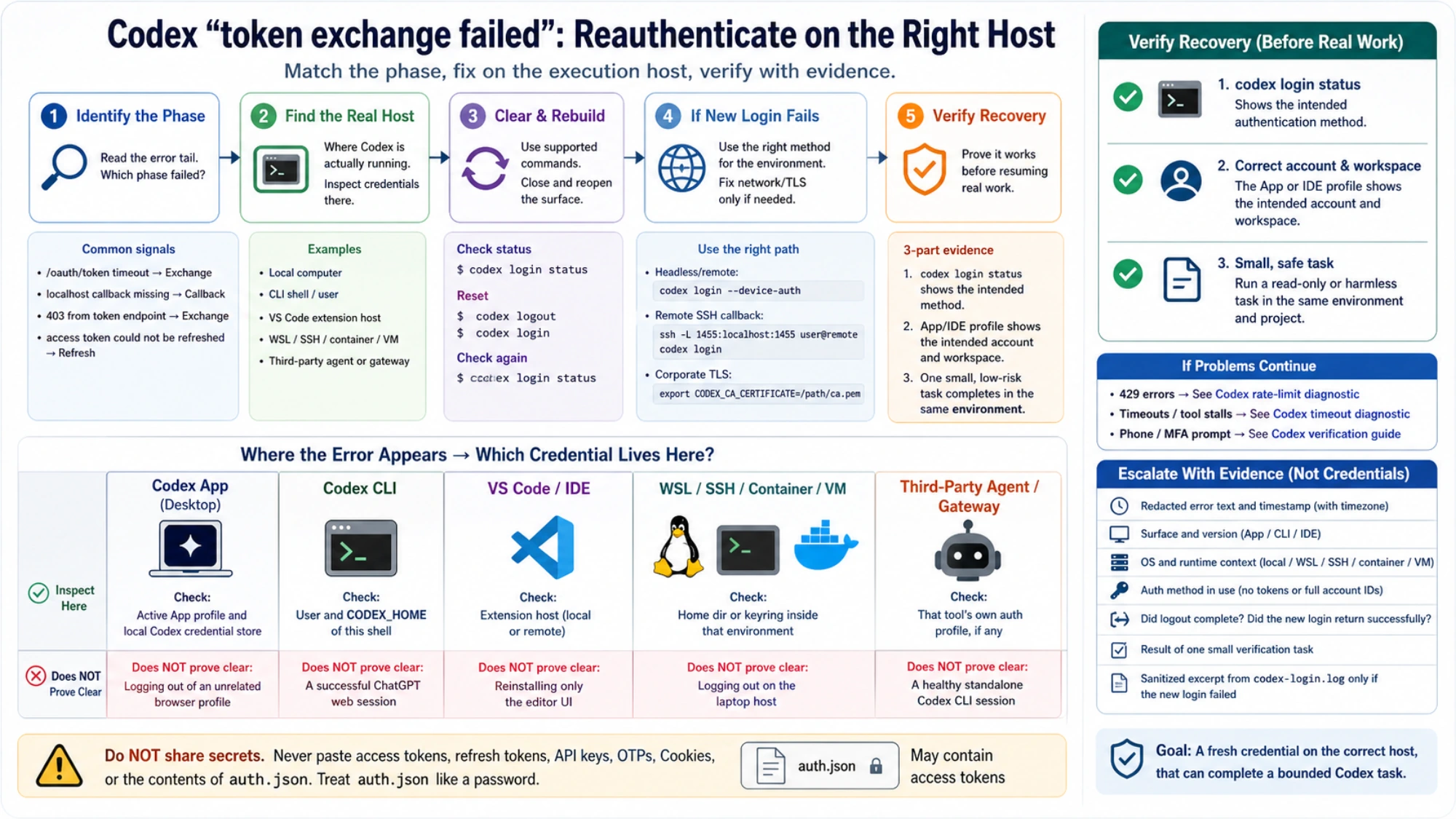
Read the tail of the error before changing anything
Keep the full message, but redact secrets. Its tail narrows the boundary:
| Observable signal | What it establishes | First useful check |
|---|---|---|
error sending request for url (.../oauth/token), timeout, or connection failure | The Codex process did not complete a request to the token endpoint | Test network, proxy, and TLS from that process host, not just from the browser |
token endpoint returned status 403 | The endpoint received the request and rejected it | Preserve the status and sanitized context; verify account, workspace, and managed policy without guessing a regional cause |
| Browser finishes while CLI keeps waiting | The local loopback callback may not have reached Codex | Check whether the CLI or IDE extension host is inside WSL, SSH, a container, or another remote runtime |
access token could not be refreshed | A previously stored session could not renew | Inspect auth status on the execution host, then rebuild stored credentials through supported commands |
CERTIFICATE_VERIFY_FAILED or an explicit CA error | The process does not trust the certificate chain it sees | Use a trusted corporate CA bundle only when that network condition is known |
These are routing signals, not automatic diagnoses. In particular, a 403 proves rejection—not whether the account, workspace, proxy, region, or subscription caused it.
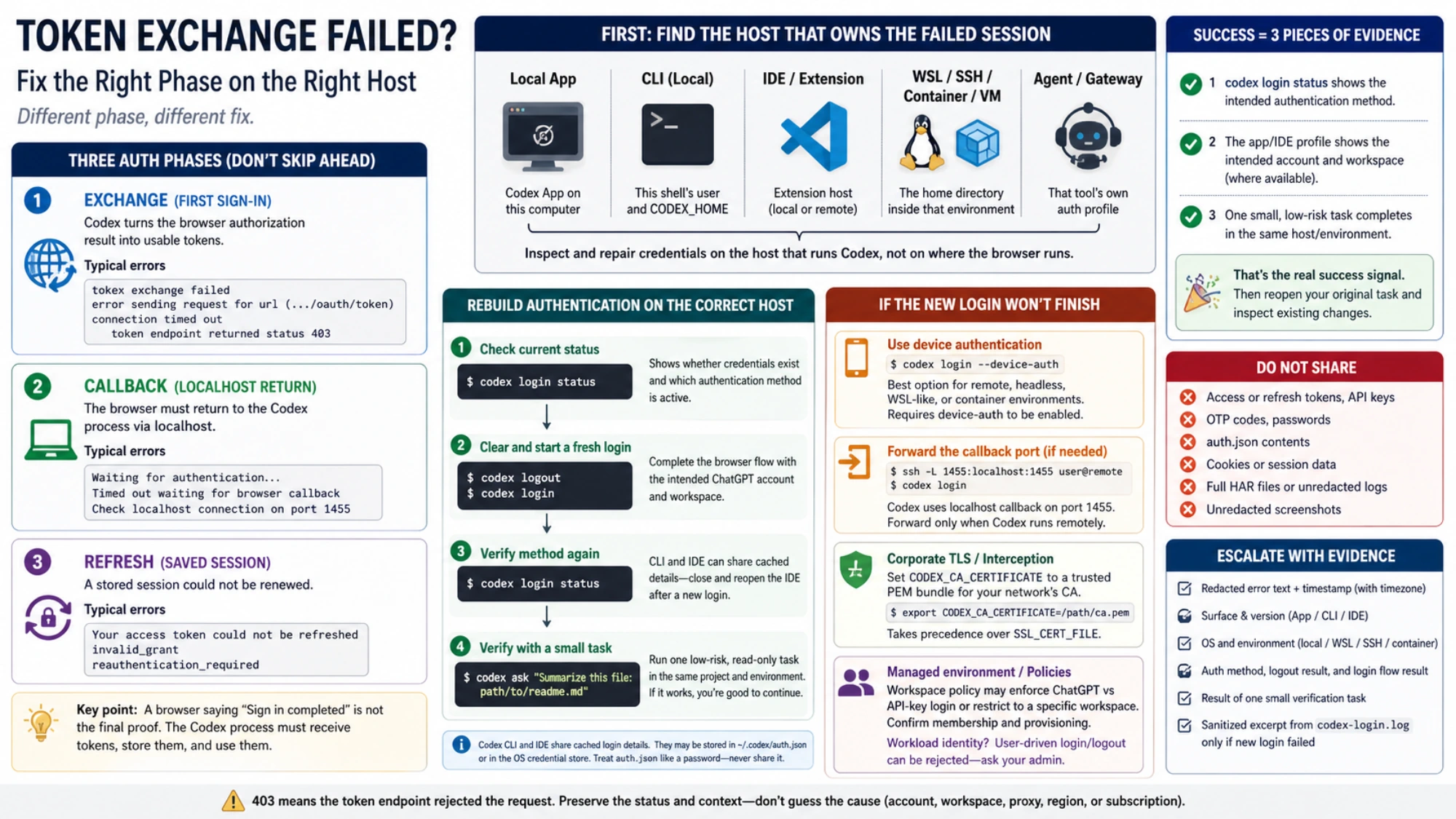
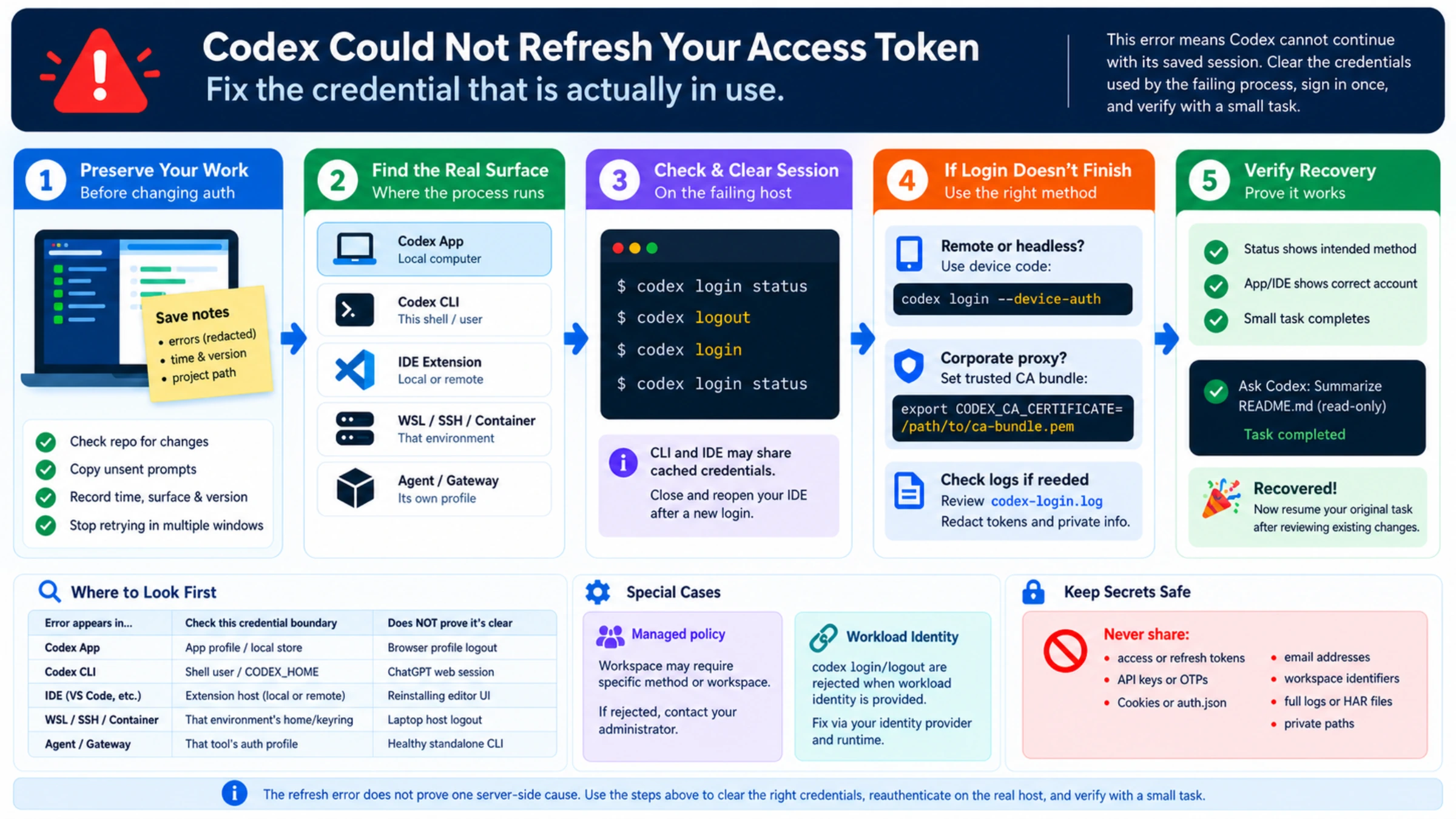
Preserve the work before changing authentication
An authentication error does not erase uncommitted files, but closing several clients and starting duplicate tasks can make the recovery confusing. Before signing out:
- inspect the repository for changes that already landed;
- copy any unsent prompt or useful error text to a safe note, with secrets removed;
- record the local time, Codex surface, client version, project path, and last successful action;
- stop retrying the same task in several windows.
Do not paste an access token, API key, OTP, Cookie, or the contents of auth.json into a ticket or chat. OpenAI's authentication documentation says file-based auth.json contains access tokens and should be treated like a password.
Find the surface that owns the failed session
The visible screen and the executing process are not always on the same machine. A VS Code window on your laptop may run its extension host over Remote SSH. A terminal may be inside WSL or a container. A third-party harness may hold its own Codex OAuth profile even though the standalone CLI is healthy.
| Where the error appears | Credential boundary to inspect first | What does not prove it is clear |
|---|---|---|
| Codex App on the local computer | The active App profile and local Codex credential store | Logging out of an unrelated browser profile |
| Codex CLI | The user and CODEX_HOME of that shell environment | A successful ChatGPT web session |
| VS Code or another IDE | The extension host; local or remote | Reinstalling only the editor UI |
| WSL, SSH, dev container, or VM | The home directory or keyring inside that environment | Logging out on the laptop host |
| A separate agent or gateway | That tool's own auth profile, if it has one | A healthy standalone Codex CLI session |
OpenAI documents that the Codex CLI and IDE extension can share cached login details. Those details may be stored in ~/.codex/auth.json or in an operating-system credential store. That is why deleting a guessed file is a poor first move: there may be no file, the file may belong to another user, or the failing process may use a keyring.
Clear and rebuild the CLI or IDE session
On the machine where the failing Codex process runs, first inspect the current method:
codex login statusThis reports whether credentials are present and which authentication mode is active. It does not prove that the next model request will work, but it catches a common mismatch: the user expects ChatGPT subscription access while the process is using an API key, or the shell belongs to a different OS user than the editor.
For stored CLI authentication, use the supported logout command:
codex logout
codex login
Complete the browser flow with the intended ChatGPT account and workspace. Then check the method again:
codex login statusOpenAI's current authentication guide documents codex login, codex login status, and codex logout. Because CLI and IDE can share the cache, close and reopen the IDE after the new login instead of letting an old extension process keep stale state.
For the desktop app, use its profile menu to confirm the active account or API-key status, log out there, fully quit the app, reopen it, and sign in through the intended method. Do not assume that logging out of chatgpt.com in one browser profile clears the app's local credential store.
If the new login itself does not finish
Once stored credentials are cleared, a failure before Codex receives new credentials is a different problem. Repeating logout will not repair a blocked callback.
For a remote or headless CLI, OpenAI recommends device-code authentication when the normal browser flow cannot return to the local callback endpoint:
codex login --device-authThe option may need to be enabled by the personal account or workspace administrator. Follow the link and enter the one-time code; never share that code.
If you keep the standard browser flow and the CLI runs on a host reachable by SSH, OpenAI documents a local loopback callback on port 1455. Forward it from your local machine, then run login inside that SSH session:
ssh -L 1455:[::1]:1455 user@remote
codex login
Do not expose port 1455 publicly, and do not add forwarding when Codex already runs locally. This tunnel only closes the browser-to-remote-CLI callback path; it cannot repair an endpoint 403 or a certificate failure.
For a corporate TLS proxy, the official auth guide documents CODEX_CA_CERTIFICATE for a trusted PEM bundle. A direct codex login also writes a dedicated codex-login.log under the configured log directory. Use that log to identify callback, certificate, or browser-login failures, but redact tokens, email addresses, workspace identifiers, and private paths before sharing it.
Managed environments can enforce ChatGPT versus API-key login and can restrict ChatGPT login to a specific workspace. If the freshly selected account is immediately rejected or logged out, stop rotating local credentials and ask the workspace administrator to confirm membership, provisioning, the required sign-in method, and the expected workspace.
Workload identity is another exception. OpenAI's auth documentation says user-driven codex login and codex logout are rejected when the process environment supplies workload identity. In that case, the identity provider, federation rule, and runtime environment own the repair.
Verify recovery instead of trusting the login screen
A clean result has three pieces of evidence:
codex login statusshows the intended authentication method.- The app or IDE profile shows the intended account and workspace where that surface exposes them.
- One small, low-risk task completes in the same project and execution environment that originally failed.
Use a read-only or harmless task, such as asking Codex to summarize one non-sensitive file. Do not resume a large write immediately. If the small task works, reopen the original task and inspect the existing repository changes before continuing.
If status is correct but the small task still fails, preserve the exact new message. HTTP 429 belongs in the separate Codex rate-limit diagnostic. A stalled connection or tool call belongs in the Codex timeout diagnostic. A first-login phone or MFA prompt belongs in the Codex verification guide. Those are different problems even when they appear immediately after reauthentication.
Escalate with evidence, not credentials
If a fresh supported login on the correct host still produces the same refresh error, prepare a small support packet:
- the redacted error text and timestamp with timezone;
- App, CLI, or IDE surface and its version;
- operating system plus local, WSL, SSH, container, or VM context;
- active authentication method, without the token or full account identifier;
- whether logout completed and whether the new browser or device flow returned successfully;
- the result of one small verification task;
- a sanitized excerpt from
codex-login.logonly if the new login failed.
Do not attach auth.json, access or refresh tokens, API keys, OTPs, Cookies, a full HAR file, or unredacted screenshots. The useful outcome is not merely a different login screen. It is a fresh credential on the correct execution host, tied to the intended account and method, that can complete a bounded Codex task.