Reconnecting tells you that Codex lost a connection it is trying to recover. It does not tell you whether the failing boundary is the current task, the client, authentication, the network path, or a temporary service interruption.
That distinction matters before you act. Deleting ~/.codex, clearing every session, signing out, changing models, and rewriting proxy settings at the same time can erase the evidence that would have separated those causes. Your repository changes usually remain on disk, but an unfinished task can still contain the prompt, approvals, tool output, and last confirmed step you need to resume safely.
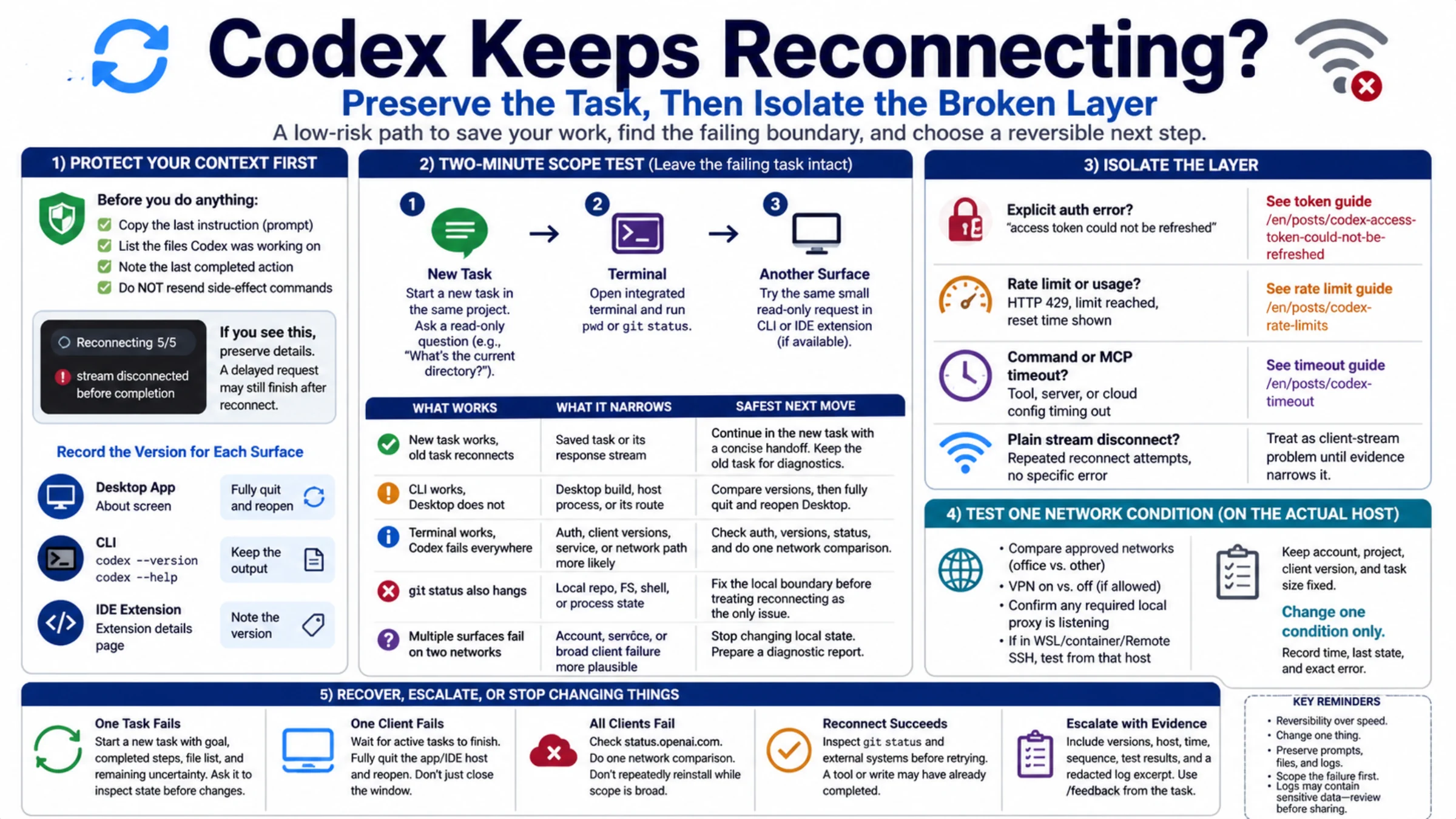
If the sequence reaches Reconnecting 5/5 and ends with:
textstream disconnected before completion
copy the last instruction, list the files Codex was working on, and note the last completed action. Do not immediately resend an instruction that creates an external side effect. A delayed request may still finish after the UI reconnects.
A two-minute scope test
Leave the affected task intact and run three small checks:
- Start a new task in the same project with a read-only request, such as asking Codex to identify the current directory.
- Open the integrated terminal and run
pwdorgit status. - If you have another Codex surface installed, send an equally small read-only request through the CLI or IDE extension.
These observations split the problem more reliably than a generic fix:
| What works | What the result narrows | Safest next move |
|---|---|---|
| A new task works, but the old one reconnects | The saved task or its response stream | Continue from a concise handoff in the new task; retain the old task for diagnostics |
| CLI works, but Desktop does not | Desktop build, host process, or its route | Compare versions, then fully quit and reopen Desktop |
| Terminal commands work, but every Codex surface fails | The project shell is not the primary blocker | Check authentication, client versions, service status, and one network comparison |
git status also hangs | Local repository, filesystem, shell, or process state | Fix the local command boundary before treating reconnecting as the sole issue |
| Multiple surfaces fail on two approved networks | Account, service, or broad client failure becomes more plausible | Stop changing local state and prepare a diagnostic report |
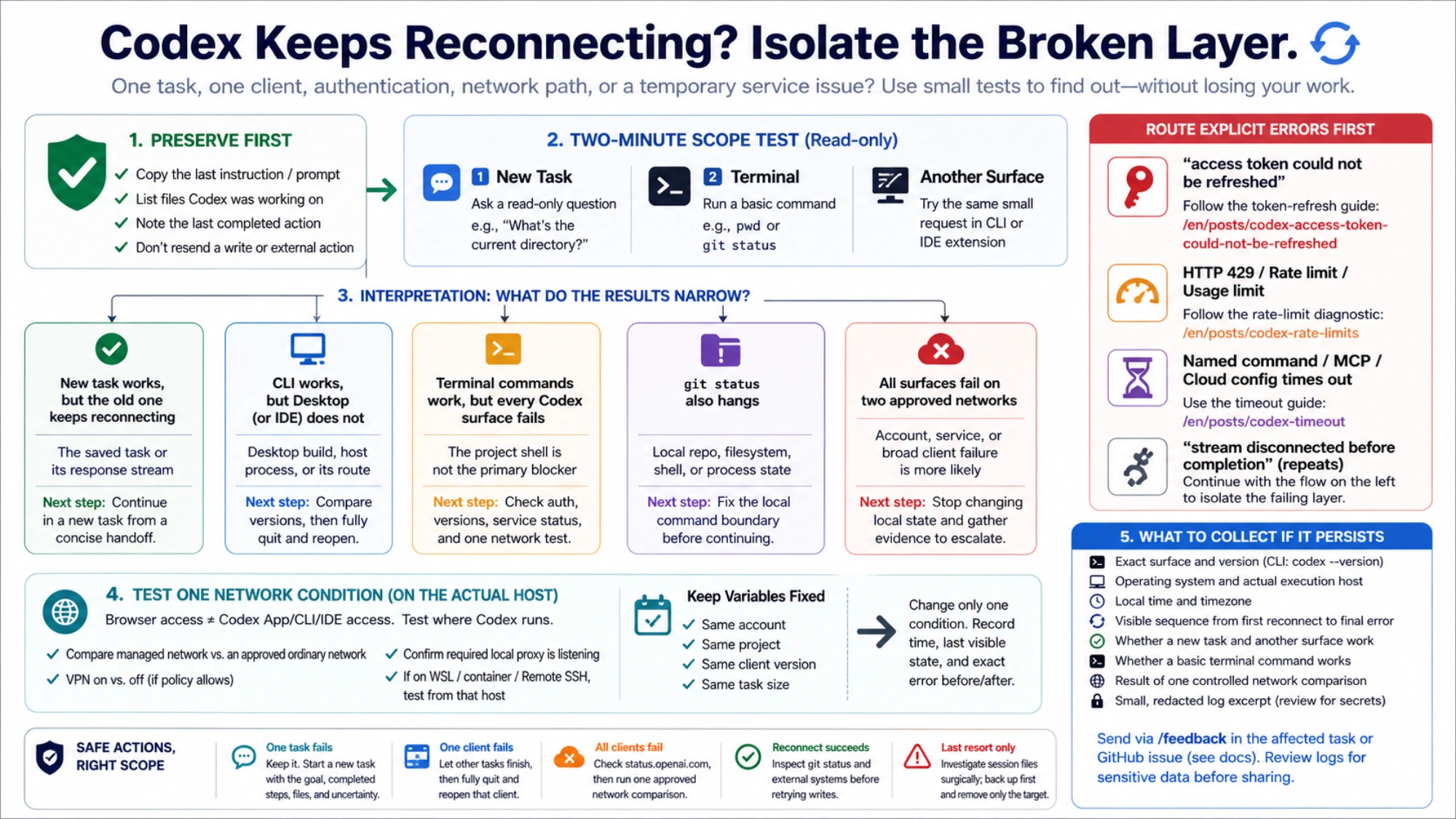
OpenAI's official troubleshooting guide uses the same low-risk signals for stuck states: check whether Codex is waiting for an approval, run a basic terminal command, and try a smaller focused chat. None requires deleting the original task.
Record the version for each surface
For the CLI, run:
bashcodex --version
codex --help
Use the About screen for Desktop and the extension details page for the IDE. “Latest Codex” is not a useful version record: OpenAI notes that the desktop app and CLI can carry different Codex versions, and IDE releases have their own cadence.
Updating is a rational early step because reconnect behavior has changed in releases. The official ChatGPT and Codex changelog says Codex CLI 0.148.0 added recovery through temporary provider outages. The same date's app notes describe fixes for tasks that remained unavailable after being idle or reconnecting. Later CLI releases were already available by the end of August 2026.
That history supports “compare and update.” It does not support “an old version is always the cause.” After an update, repeat the same small task before changing anything else so the outcome remains attributable.
Route explicit errors before testing the network
Read the entire error, not only the reconnect counter:
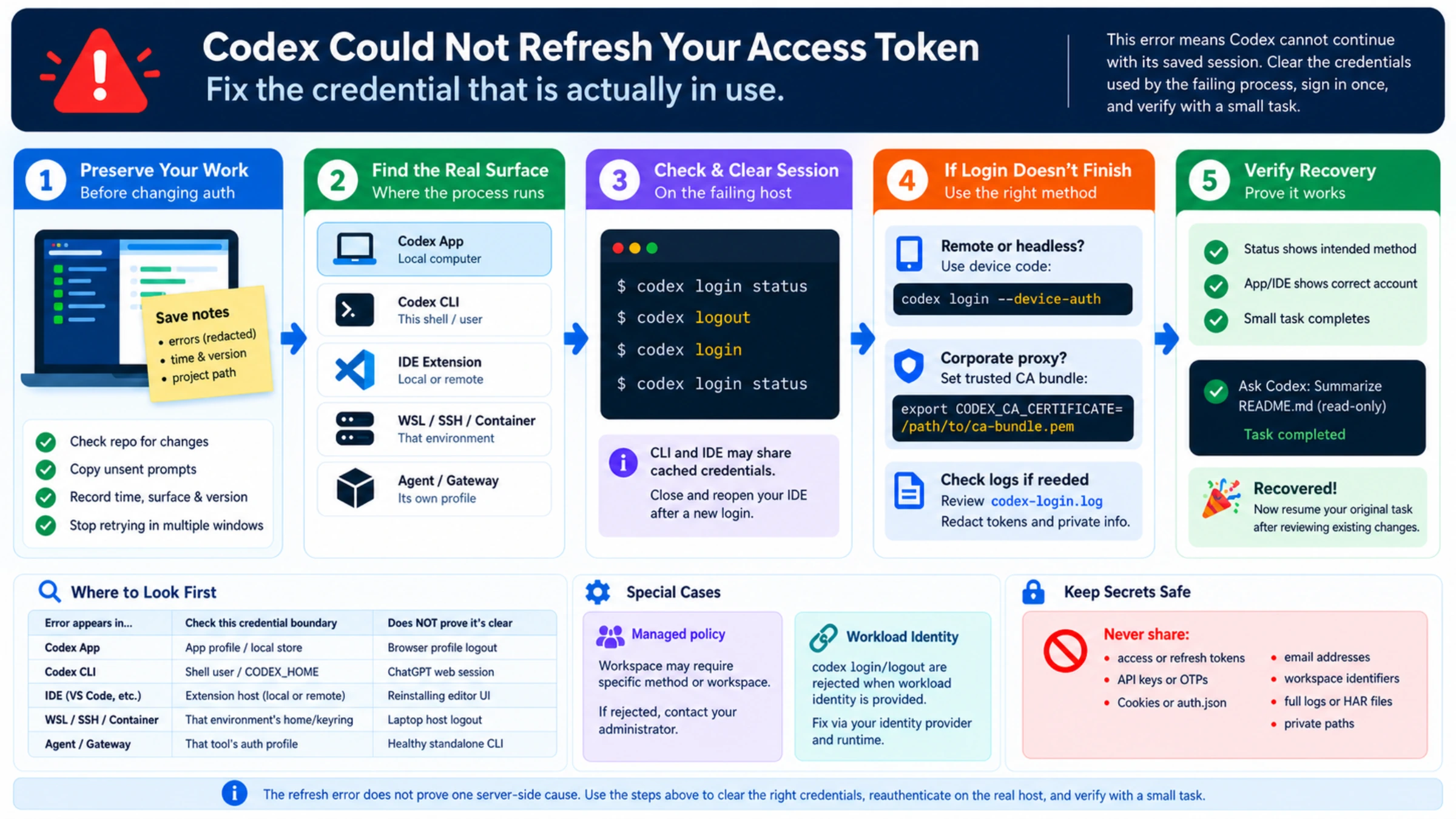
access token could not be refreshedbelongs to the Codex token-refresh guide.- HTTP 429, a usage limit, or a reset time belongs to the Codex rate-limit diagnostic.
- A named command, MCP server, or cloud config bundle timing out needs the waiting boundary in the Codex timeout guide.
- A plain response-stream disconnect with repeated reconnect attempts remains a client-stream problem until stronger evidence narrows it.
Do not sign out solely because of a generic stream interruption. Logout changes the authentication state and can turn one unknown into two. If the message explicitly identifies authentication, record the original text and then test the documented sign-in flow.
Test one network condition, on the actual host
A browser reaching ChatGPT proves only that the browser's route works. Codex Desktop, a terminal, a VS Code extension host, WSL, a container, Remote SSH, and a corporate VM can use different DNS, certificate stores, proxies, or firewall policy. Identify where the Codex process actually runs before testing connectivity.
Keep the account, project, client version, and task size fixed. Change one approved condition:
- compare the managed office path with an approved ordinary network;
- temporarily compare VPN on versus off, if policy permits it;
- confirm that a required local proxy process is listening on the port the Codex host receives;
- when the failure occurs in WSL, a container, or Remote SSH, test from that host rather than from the laptop browser.
Record the time, the last visible state, and the exact error before and after the comparison. Recovery on a second network implicates the original route, but one successful attempt still does not distinguish DNS, TLS inspection, WebSocket handling, proxy rules, or another intermediary.
Do not confuse two network planes
Advice online often combines an .env file, HTTP_PROXY, and a WebSocket toggle into one universal answer. Codex has at least two relevant network planes:
- the client connection carrying model responses;
- outbound network access for commands Codex runs inside a sandbox.
OpenAI's permissions configuration spec defines the permission-profile network proxy for sandboxed command traffic. It can supply HTTP(S) and WebSocket proxy variables to tools. Changing that configuration can affect curl, a package manager, or another subprocess without proving that the Desktop app's own model stream takes the same route.
Treat an undocumented config.toml key or copied environment block as an experiment, not a fix. Record the before-value, change one setting, and keep a rollback path. If you use a custom model provider, follow that provider's current transport documentation instead of applying a workaround written for ChatGPT sign-in.
Restart at the right scope
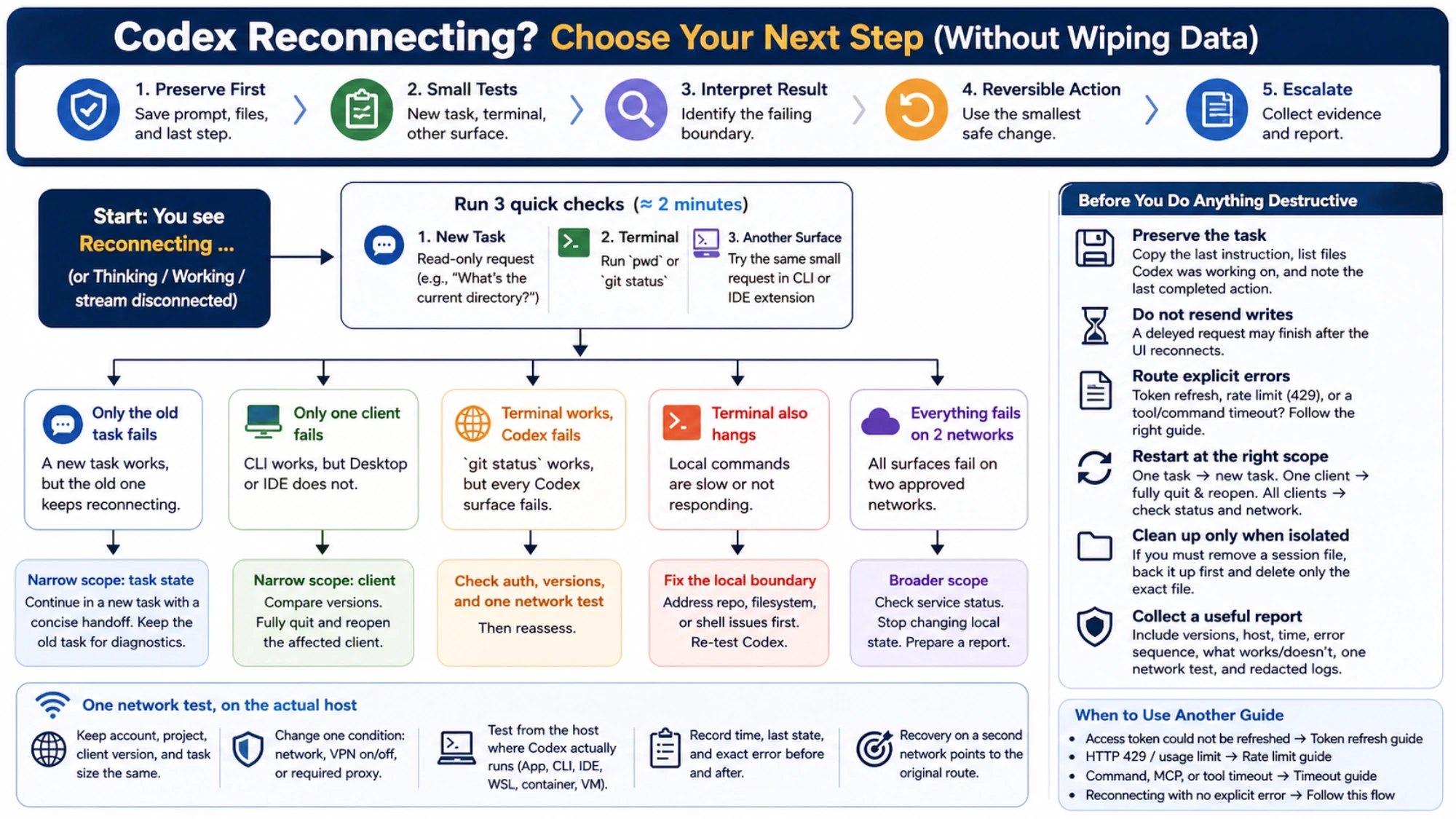
Choose the smallest restart that matches the evidence:
- One task fails: keep it. Start a new task with the goal, completed steps, file list, and remaining uncertainty. Ask the new task to inspect state before making changes.
- One client fails: wait for other active tasks to finish, then fully quit the app or IDE host and reopen it. Closing a window may leave its background process alive.
- All clients fail: check OpenAI Status, preserve the local timestamp, and make one approved network comparison. Do not repeatedly reinstall while the scope is still broad.
- The reconnect succeeds: inspect
git statusand external systems before retrying. A tool or write may have completed even if its final UI message did not arrive.
The official troubleshooting guide specifically recommends waiting for active chats to complete before restarting the app. That condition protects other tasks that may still be writing files or running commands.
Session cleanup is a last resort
A single old task failing while new tasks in the same project work can justify investigating stored task state. It does not justify deleting every session.
OpenAI documents these locations:
- macOS app logs:
~/Library/Logs/com.openai.codex/YYYY/MM/DD - active transcripts:
$CODEX_HOME/sessions(normally~/.codex/sessions) - archived transcripts:
$CODEX_HOME/archived_sessions
Those files may contain prompts, paths, repository names, tool output, or other sensitive material. Review and redact before sharing. If you cannot identify the task-specific file confidently, use the /feedback flow from the affected task instead of deleting by timestamp.
If you eventually isolate a corrupt transcript, make a recoverable copy first and move only the exact file out of the active directory. Reopen Codex and test the same minimal request. A successful test shows that the isolated state mattered; it still does not prove every reconnect loop has the same fix.
What to include in a useful report
After version comparison, one network test, and a full restart, persistent failures deserve a focused report:
- exact Codex surface and version;
- operating system and actual execution host;
- local time and timezone;
- the visible sequence from the first reconnect through the final error;
- whether a new task and another Codex surface work;
- whether a basic terminal command works;
- the result of one controlled network comparison;
- the smallest relevant, redacted log excerpt.
OpenAI's troubleshooting page explains how to send feedback with the current session and links to the public openai/codex issue tracker. Never include access tokens, cookies, email addresses, internal workspace names, private repository content, or an unreviewed data directory.
The practical definition of “fixed” is not that the reconnect badge disappeared once. It is that you can state the affected boundary: one saved task, one client, one network route, or every surface. Once that scope is known, the next action is testable—and you no longer need to gamble with all of your Codex state.