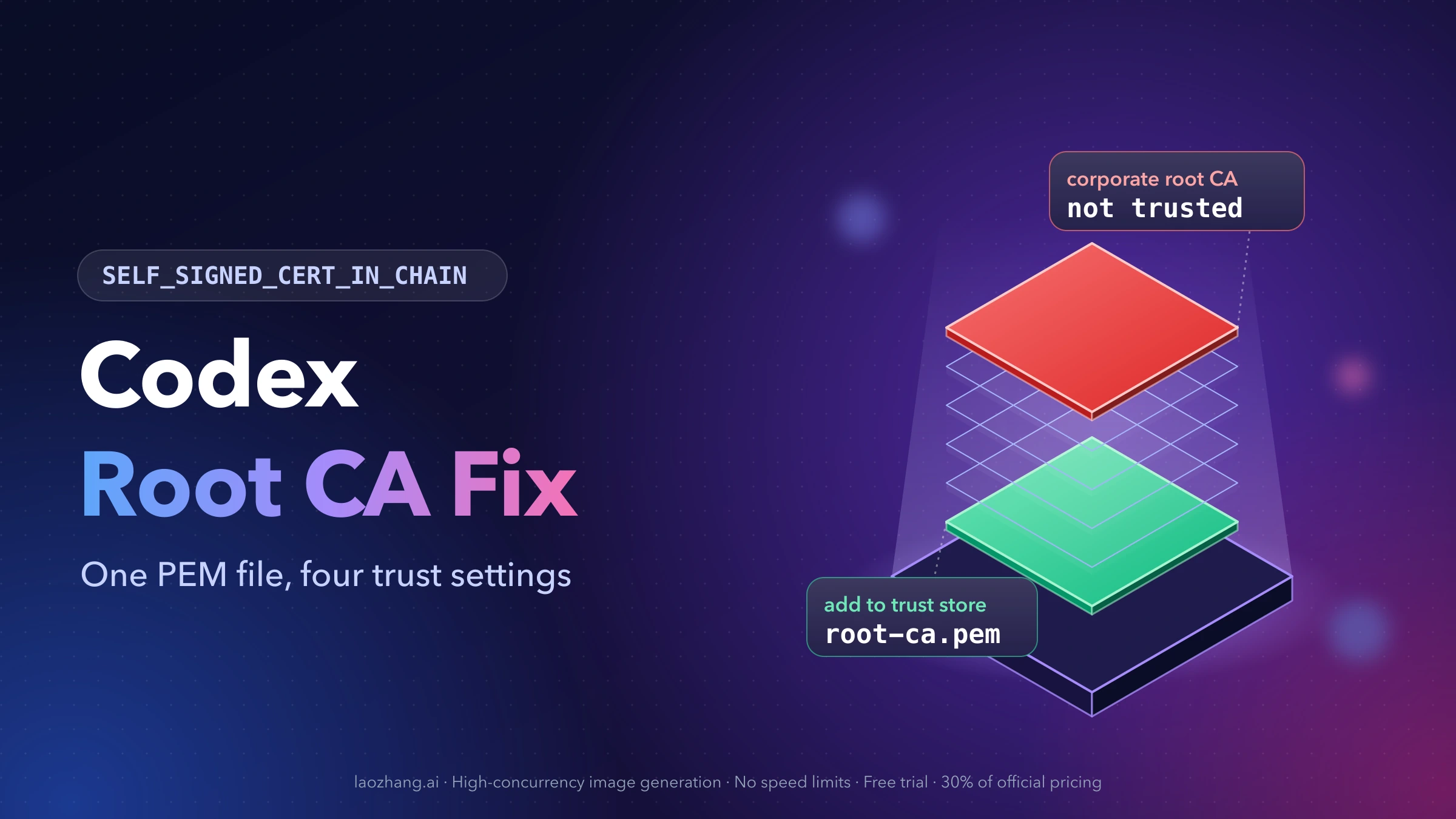
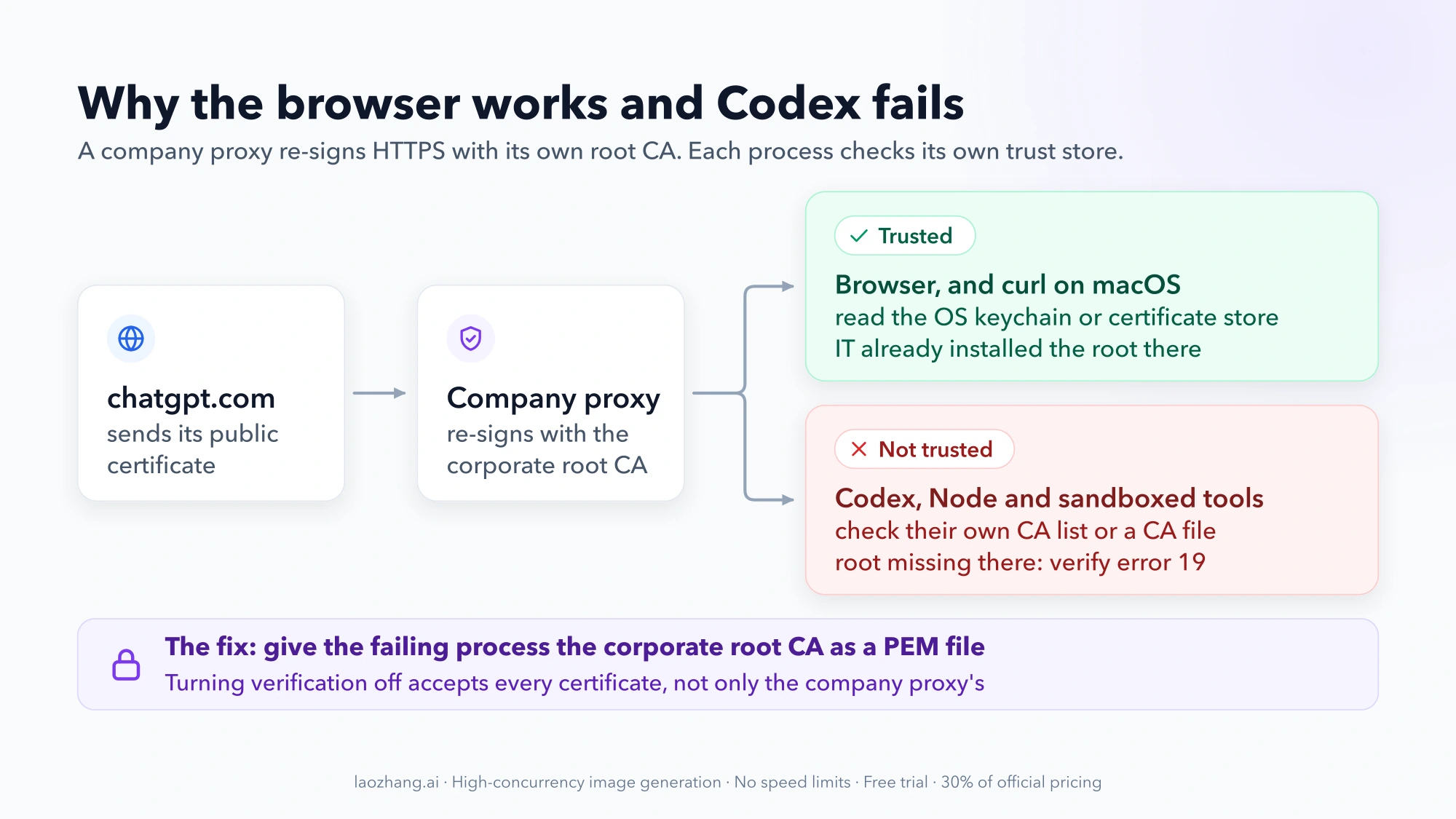
self signed certificate in certificate chain means the HTTPS connection was signed by a root certificate that the failing process does not trust. On a company laptop that root is almost always your organization's own CA: a proxy or security agent inspects HTTPS traffic and re-signs it, and your browser trusts the result because IT installed the root in the operating system. The process that printed the error did not look there.
So the fix is not to make a certificate or to turn checking off. It is to hand the corporate root CA, as a PEM file, to the specific process that failed. For the Codex CLI that is one line, taken from OpenAI's authentication docs:
export CODEX_CA_CERTIFICATE=/path/to/corporate-root-ca.pem
codex login
If the error did not come from the CLI itself, that variable may not be the one that matters. Four different processes can raise this message in a Codex session, and each reads its own trust setting.
Which process raised the error, and the setting it reads
Look at where the message appeared and what surrounds it. That tells you which row applies.
| Where you see it | Process that failed | Setting it reads | Status |
|---|---|---|---|
codex login, a model request, a cloud task or a remote (HTTP) MCP server fails in the CLI or IDE extension | Codex's own client | CODEX_CA_CERTIFICATE, then SSL_CERT_FILE | Documented by OpenAI |
Desktop app log shows SELF_SIGNED_CERT_IN_CHAIN, for example on Remote Control | The app's Node.js layer | NODE_USE_SYSTEM_CA=1 at launch | User report, not confirmed by maintainers |
A local MCP server written in Node fails its own outbound calls; npm or npx fails | That Node process | NODE_EXTRA_CA_CERTS or NODE_USE_SYSTEM_CA=1 | Documented by Node.js |
curl: (60) SSL certificate problem: self signed certificate in certificate chain in command output | A command Codex ran in its sandbox | The tool's own CA option, such as CURL_CA_BUNDLE | Standard curl behavior; the Codex issue is open |
Every row needs the same input: the root CA file. Get that first.
Confirm who re-signed the connection and get the root CA as PEM
Run this against the host named in the failing request. If the error names none, chatgpt.com is a reasonable first test:
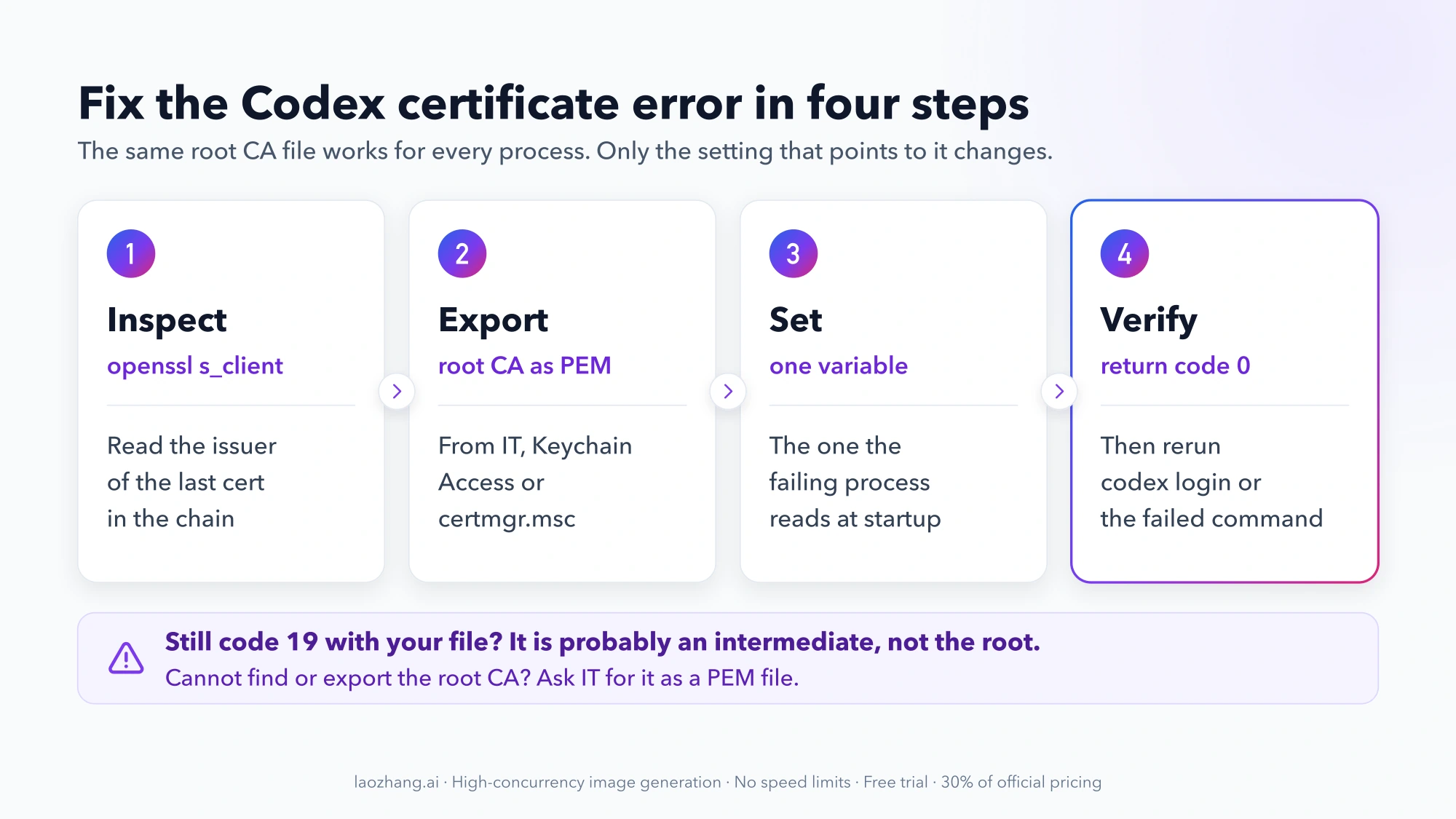
openssl s_client -connect chatgpt.com:443 -showcerts </dev/nullRead two things in the output, as described in the s_client manual. The issuer (i:) of the last certificate in the chain tells you who signed it. A company name or a security product name there confirms HTTPS inspection. Near the end, Verify return code: 19 (self-signed certificate in certificate chain) is the same error in OpenSSL's numbering: the chain ends in a root that is not in the trust store being used.
Code 18, self-signed certificate without "in certificate chain," is a different case. There the server's own certificate is self-signed, which points to a self-hosted gateway, a private MCP endpoint or a custom base URL rather than a company proxy.
Next, get the root certificate in PEM format, a text file that starts with -----BEGIN CERTIFICATE-----:
- Ask IT. Most teams that run HTTPS inspection publish the root CA for developer tools. This is the most reliable source, and it is the right one if the certificate is not already on your machine.
- macOS. Open Keychain Access, find the corporate root under System, and use File > Export Items with the
.pemformat. From a terminal,security find-certificate -a -c "Your Company Root CA" -p /Library/Keychains/System.keychain > ~/corp-root.pemdoes the same, with the name replaced by the issuer you saw above. - Windows. Run
certmgr.msc, open Trusted Root Certification Authorities, and export the certificate as "Base-64 encoded X.509." That encoding is PEM.
Check the file before using it anywhere:
openssl s_client -connect chatgpt.com:443 -CAfile ~/corp-root.pem </dev/nullVerify return code: 0 (ok) means this file is the missing root. If the result is still 19, you exported the wrong certificate, often an intermediate instead of the root.
Codex CLI and IDE extension: set CODEX_CA_CERTIFICATE
Codex's own client reads CODEX_CA_CERTIFICATE first and falls back to SSL_CERT_FILE when it is unset. OpenAI's docs state that "the same custom CA settings apply to login, normal HTTPS requests, and secure WebSocket connections." The pull request that extended this, merged on March 13, 2026, lists what is covered: the backend client, cloud tasks, the HTTP client for MCP servers, voice requests and the WebSocket connections used for responses. The bundle is loaded alongside the system roots, so the file only needs your corporate root.
Make it permanent in your shell profile, then restart the terminal:
echo 'export CODEX_CA_CERTIFICATE="$HOME/corp-root.pem"' >> ~/.zshrcThree conditions decide whether this works:
- The variable must exist in the process that starts Codex. An editor opened from the Dock or Start menu does not read your shell profile. Launch the editor from a terminal where the variable is set, or define it at the system level.
- The path must be valid PEM. When the file cannot be loaded, Codex reports an error naming the variable and the path, which is a different message from the certificate-chain error.
- The build must include that pull request. Older builds trusted only the system roots. Update Codex before concluding the variable has no effect.
To verify, run codex login or send one prompt. A login or request that completes without the certificate message is the success signal.
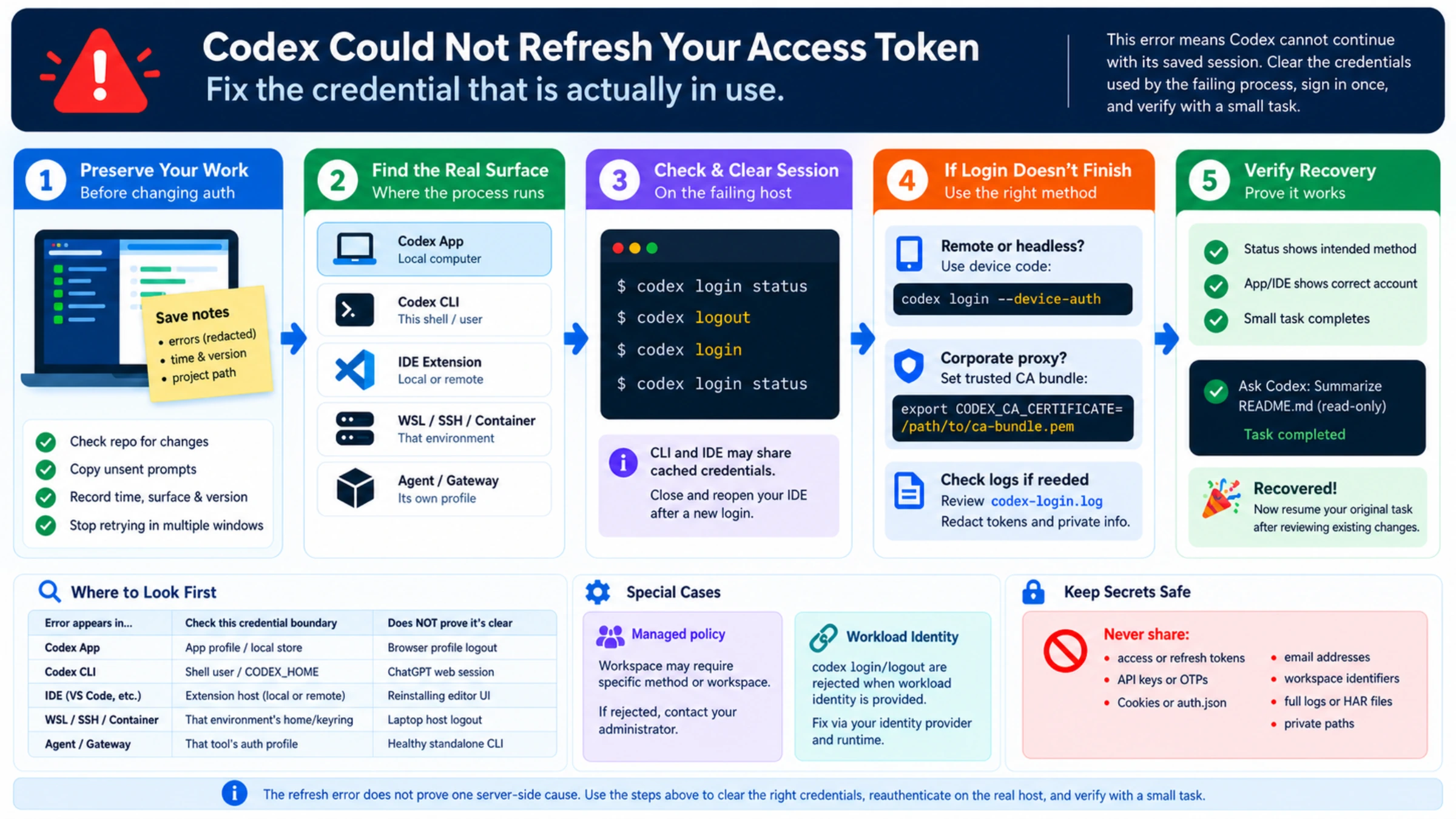
Old CLI builds reported the same cause differently: a November 2025 report shows login behind a corporate proxy failing with Token exchange failed: error sending request for url (https://auth.openai.com/oauth/token ). If that is the message in front of you, see Codex Token Exchange Failed: Diagnose the Login Phase Before You Reset It.
Switching to codex login --device-auth does not get around this. Device code login still makes HTTPS calls from the same client, so it needs the same root CA.
Desktop app: SELF_SIGNED_CERT_IN_CHAIN on Remote Control
The desktop app has a Node.js layer, and its public documentation does not say whether that layer reads CODEX_CA_CERTIFICATE. What exists is one user report, openai/codex issue #43489, filed on September 7, 2026 against app version 26.901.51231 on macOS. Remote Control failed with self signed certificate in certificate chain and the log line [remote-control-transport] remote_control_websocket.connect_failed_before_open. The corporate root was already trusted in the System keychain, and curl and OpenSSL verified the same host without errors.
The reporter got it working by starting the app with Node told to use the operating system's CA store:
NODE_USE_SYSTEM_CA=1 /Applications/ChatGPT.app/Contents/MacOS/ChatGPTNODE_USE_SYSTEM_CA=1 is a documented Node.js option that loads the macOS Keychain, the Windows Certificate Store or the OpenSSL default locations on Linux. Treat the result as a report, not a supported fix: the issue is still open with no maintainer reply as of October 2, 2026, it covers one macOS setup, and nothing is documented for the app on Windows or Linux. Quit the app fully before relaunching, because Node reads these variables only at startup. If the launch changes nothing, add your details to that issue instead of looking for a way to skip verification.
Node MCP servers and npm: NODE_EXTRA_CA_CERTS
A local MCP server that Codex starts as a child process is a separate program with its own TLS stack. If it is written in Node and calls an HTTPS API, it ignores CODEX_CA_CERTIFICATE and uses Node's rules. The same applies to npm and npx, which is why an npx-launched server can fail before it even starts.
export NODE_EXTRA_CA_CERTS="$HOME/corp-root.pem"Per the Node.js docs, this adds the certificates in the file to Node's built-in roots. It is read once when the process starts, and a malformed file produces only a warning, so a typo in the path fails quietly. Set the variable in the environment the server is launched with, then restart Codex so the server is spawned again. NODE_USE_SYSTEM_CA=1 is the alternative when the root is already in the OS store, although older Node versions may not support it.
Remote MCP servers reached over HTTP are different. Codex's own client makes that connection, so they fall under CODEX_CA_CERTIFICATE.
curl (60) inside the sandbox: give the tool a CA file
When the error shows up in the output of a command Codex ran, Codex's client is not involved at all. The tool failed. An open report, openai/codex issue #11182, describes the macOS case: curl works in your terminal because Apple's TLS stack falls back to the keychain, but inside the Codex sandbox that lookup to com.apple.TrustEvaluationAgent is denied. Any root that lives in the keychain and not in /etc/ssl/cert.pem then fails with curl: (60). The reporter confirmed the denial with the sandbox's --log-denials output. No maintainer workaround is posted.
What you can do without loosening the sandbox is give the tool a file, so it does not need the keychain. This is standard curl behavior, not something the issue confirms. CURL_CA_BUNDLE replaces curl's default bundle, so combine the public roots with yours:
cat /etc/ssl/cert.pem ~/corp-root.pem > ~/ca-bundle.pem
export CURL_CA_BUNDLE="$HOME/ca-bundle.pem"
One more thing can block this. Codex decides which environment variables reach the commands it spawns through shell_environment_policy in config.toml. If that policy is restricted, a variable exported in your shell may never arrive. The advanced configuration page documents a set table for passing explicit values:
[shell_environment_policy]
set = { CURL_CA_BUNDLE = "/Users/you/ca-bundle.pem", NODE_EXTRA_CA_CERTS = "/Users/you/corp-root.pem" }
Verify by asking Codex to run curl -sS -o /dev/null -w "%{http_code}\n" https://chatgpt.com. An HTTP status code instead of error 60 means the tool now trusts the chain. Other tools such as git, pip and language package managers each have their own CA option, so check the tool's documentation for the equivalent. For how the sandbox and its permissions fit together, see Codex Sandbox and config.toml: Permissions Without Full Access.
Why NODE_TLS_REJECT_UNAUTHORIZED=0 is not a fix
NODE_TLS_REJECT_UNAUTHORIZED=0, curl -k, --insecure and npm's strict-ssl false make the message disappear by turning certificate validation off. The Node.js docs say plainly that this leaves TLS connections open to man-in-the-middle attacks. In a Codex session those connections carry your access tokens and your source code, and the process would then accept any certificate from anyone on the path, not only your company's proxy.
It also fixes less than it appears to. Each of those switches affects one tool, so the next process in the session fails with the same error.
When to stop and ask IT
The whole path is four steps: inspect the chain, export the root CA as PEM, set the variable the failing process reads, and verify.
Stop working on your own machine and open a ticket when any of these is true:
- The issuer in the
openssloutput is not a name you recognize as your company or its security vendor. - You cannot find or export the root certificate, or the exported file still returns code 19.
- The failure appears only on one network, such as the VPN, and you do not control that network.
Ask for two things: the root CA of the HTTPS inspection service as a PEM file, and whether the hosts in your failing requests are inspected at all. That request takes a network team a few minutes. Routing around the proxy is their decision, not a client-side setting.
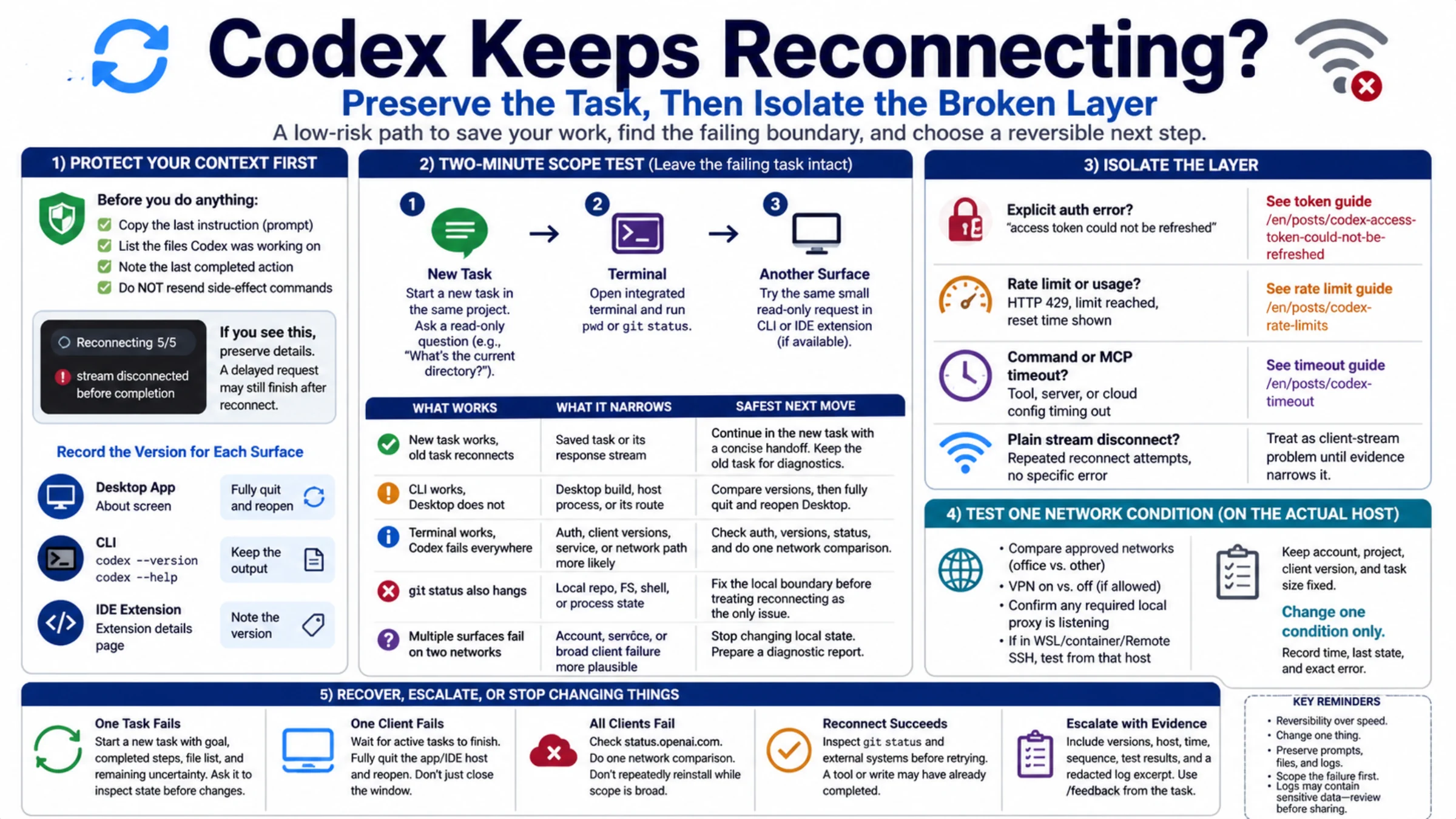
If the certificate error is gone and Codex still drops mid-task, the cause is elsewhere. Codex Keeps Reconnecting? Find the Cause Without Losing Your Task covers connection drops.
Does Codex self signed certificate in certificate chain differ on Ubuntu?
The meaning and the Codex setting are the same on Ubuntu: CODEX_CA_CERTIFICATE pointing at a PEM file, with SSL_CERT_FILE as the fallback. Nothing Ubuntu-specific is documented for Codex. The practical difference is where the root comes from. Linux has no keychain, so the corporate root is usually a file IT hands you or one already installed into the system CA store. NODE_USE_SYSTEM_CA=1 reads the OpenSSL default locations on Linux, which helps Node-based processes only when the root is installed there.