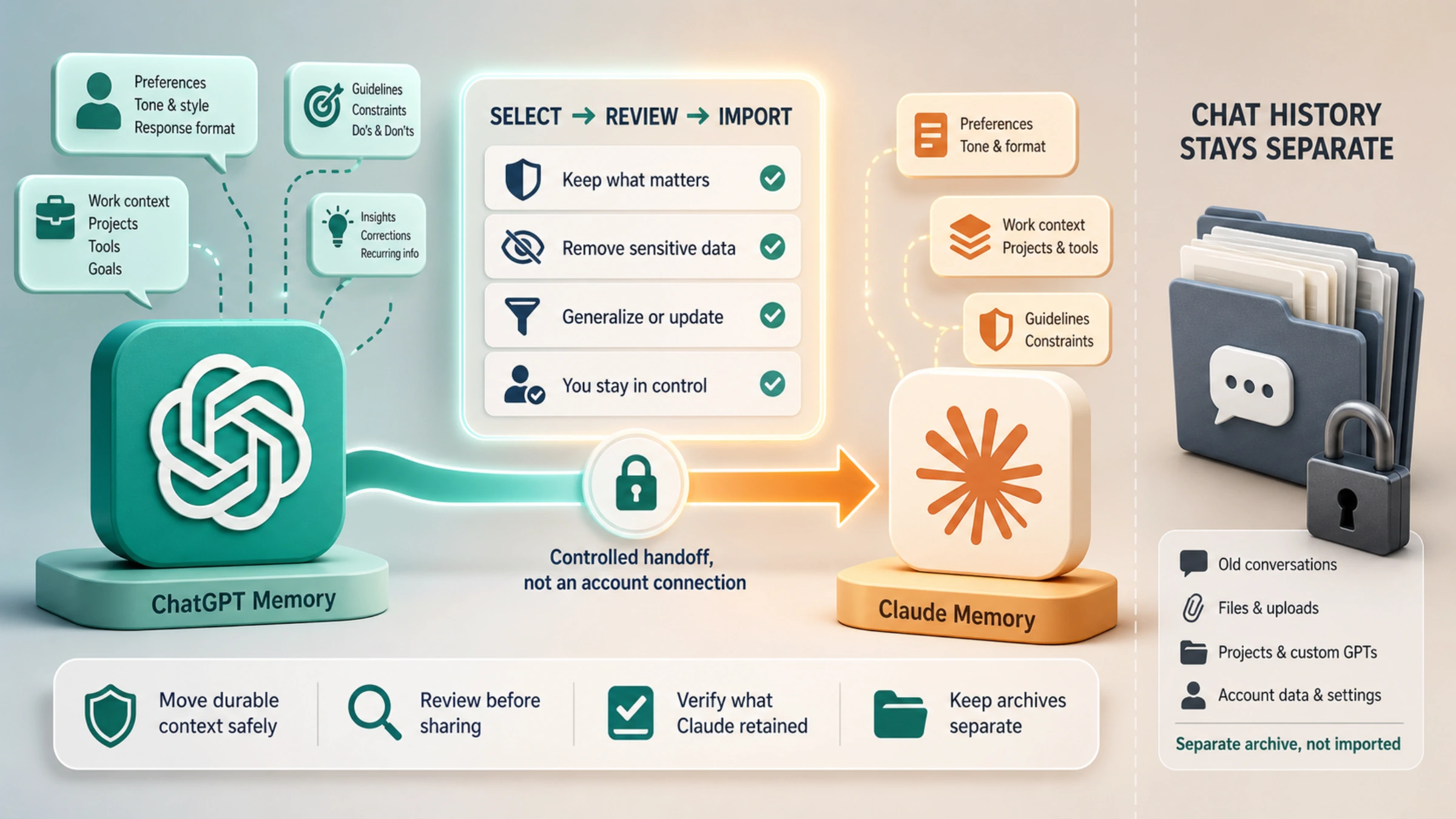
Moving from Gemini to Claude creates two different jobs. One is carrying forward the preferences and project context that should shape future answers. The other is preserving old activity in case you need to look something up later. Claude's memory importer is for the first job; Google Takeout is primarily for the second.
The documented Claude flow is text-based. Claude gives you an extraction prompt, Gemini or ChatGPT produces a memory handoff, and you review that text before submitting it. Takeout creates a data archive. Keeping both can be sensible, but a raw Takeout ZIP is not the input contract Anthropic documents for memory import.
Choose the Outcome Before the Tool
| What you need | Best starting point | What you should expect |
|---|---|---|
| Claude should know your response preferences, tools, current projects, and constraints | Claude's Start import flow | Reviewable Claude memory entries |
| You want an offline copy of Gemini chats, generated media, or uploads | Google Takeout, filtered to Gemini Apps Activity | A separate archive for retrieval and review |
| You need a copy of Gems and their associated data | The Gemini product in Takeout | Gems data, not a substitute for Gemini Apps Activity |
| You expect accounts, subscriptions, files, permissions, and every old chat to reappear in Claude | Neither path guarantees that | Separate setup and preservation work is required |
If the only goal is to help Claude understand how you work, start with the short memory handoff. Add Takeout when historical lookup, offline retention, or account closure is also part of the job.
Ask Gemini for the Handoff Claude Expects
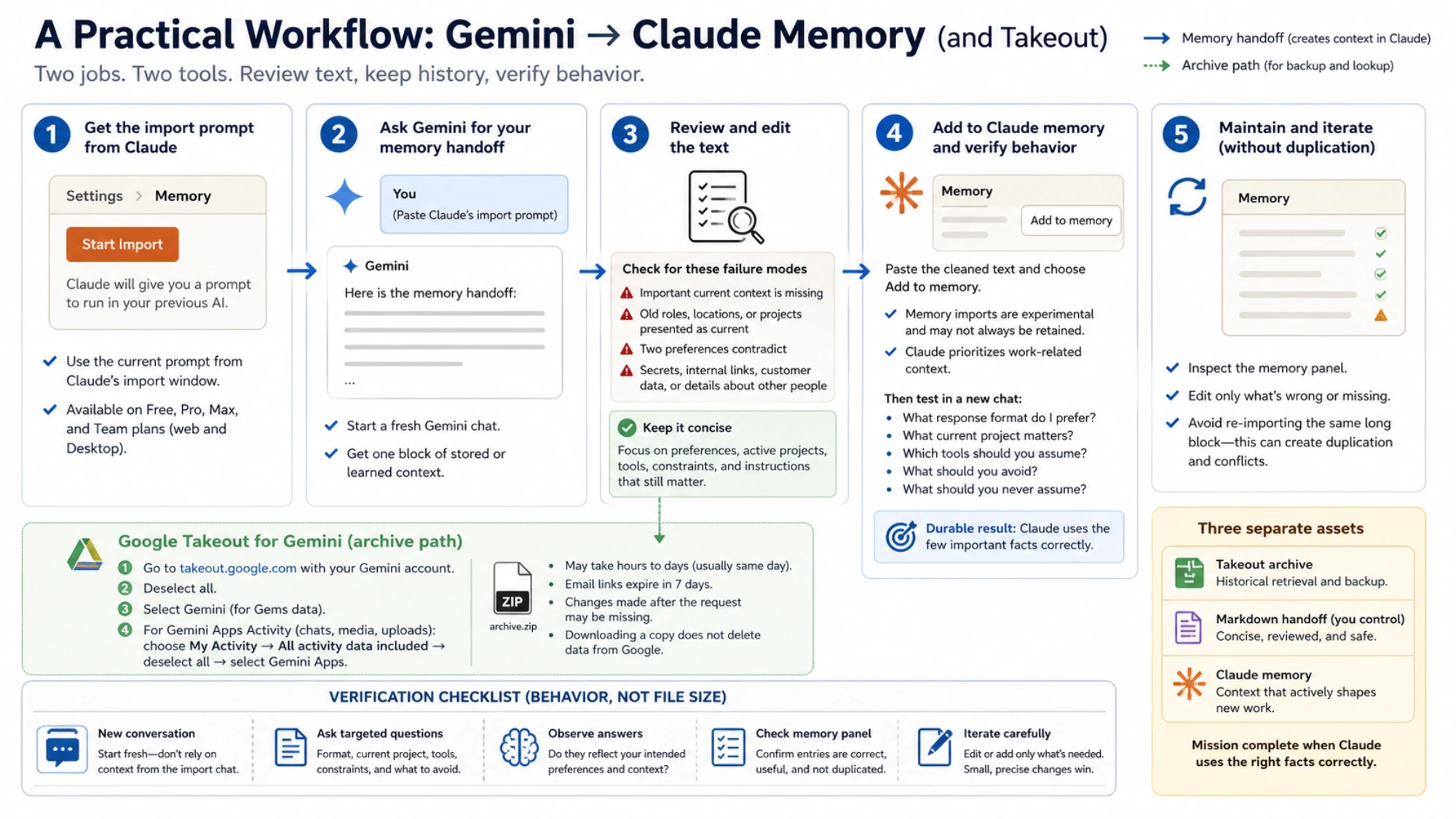
Anthropic's current memory import and export guide lists imports for Free, Pro, Max, and Team plans on the web and Claude Desktop. Accounts on the newer experience use Settings > Memory > Start import. Legacy accounts may still find Memory under Settings > Capabilities.
Copy the extraction prompt shown in Claude's import window. Open a fresh Gemini chat, paste the prompt, and let Gemini produce a single block of stored or learned context. Use the current prompt from Claude rather than a version copied from an old tutorial; the product and its import contract can change.
Before moving the response across providers, check it for four failure modes:
- important current context is missing;
- an old role, location, project, or tool is presented as current;
- two preferences contradict one another;
- secrets, internal links, customer data, or details about other people are included.
A good handoff is not an autobiography. It is a compact set of facts that will predictably change Claude's future work: preferred output format, active projects, routine tools, durable constraints, and instructions that still matter.
Export the Right Gemini Data with Takeout
Google's Gemini Apps data download guide separates two selections that are easy to confuse.
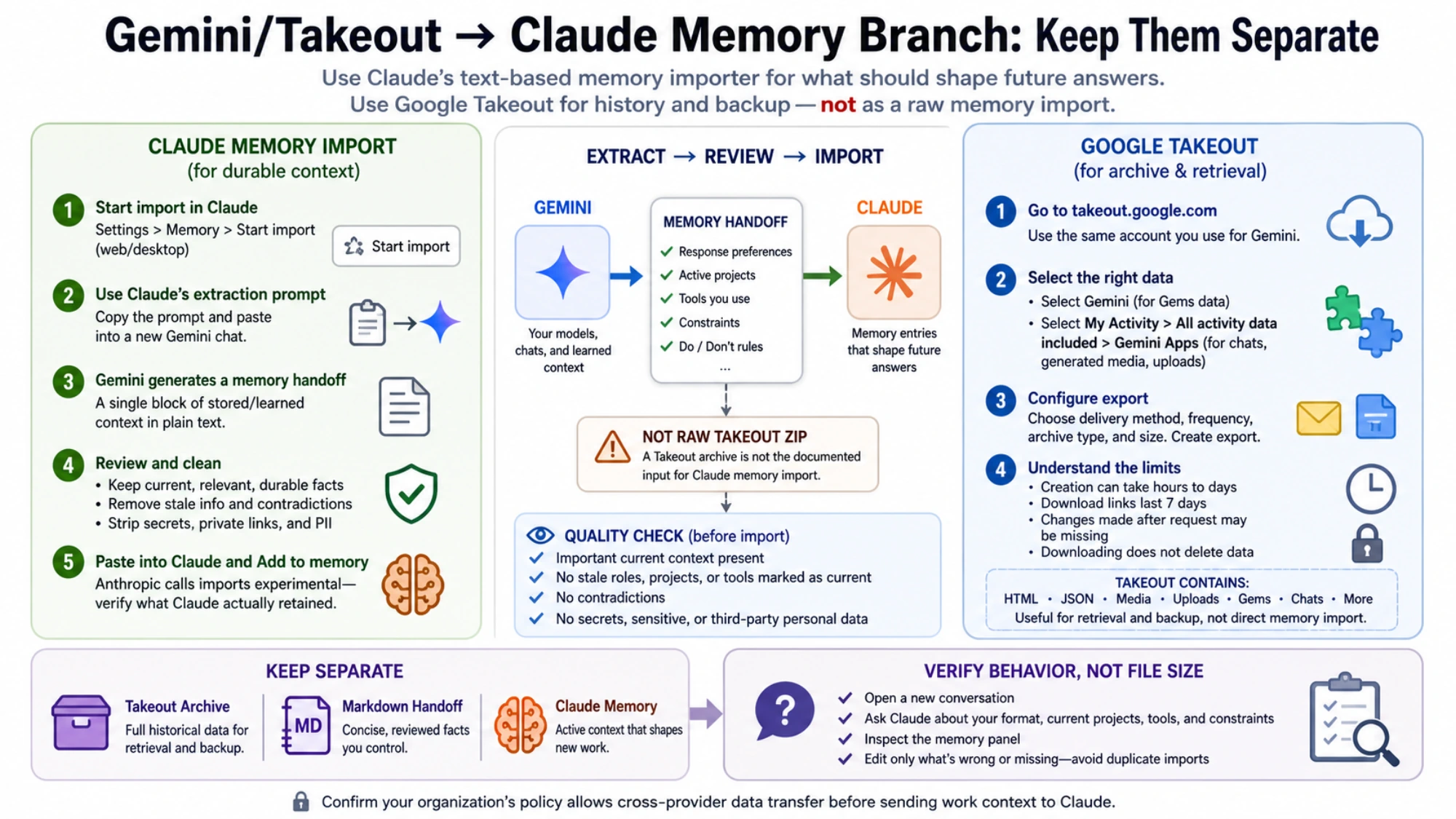
- Open Google Takeout using the same account you use for Gemini, then choose Deselect all.
- Select Gemini if you need your Gems data.
- For Gemini Apps Activity—including activity such as chats, generated media, and uploads—select My Activity, open All activity data included, deselect everything there, and choose Gemini Apps.
- Continue to delivery, frequency, archive type, and size, then create the export.
Selecting only the standalone Gemini product can leave you with Gems data when you expected chat activity. Selecting Gemini Apps Activity does not mean Claude will recreate the Gemini interface, attached permissions, or every account object.
Google says archive creation may take hours to days, although most people receive it the same day. Email download links remain active for seven days. Changes made between the export request and archive creation may be missing, and downloading a copy does not delete the original data from Google's servers.
Turn an Archive into a Small, Reviewed Handoff
A Takeout archive may include HTML, JSON, media, uploads, and large amounts of context that should never become permanent memory. Anthropic documents a text box for reviewed memory, not a raw Google ZIP upload.
If Gemini's prompt-generated handoff is incomplete, treat Takeout as evidence and backup. Unpack it locally, identify material related to your current work, and write a short Markdown handoff. Keep current role, active projects, tools, output preferences, standing constraints, and explicit “do not assume” items. Leave full conversation bodies in the archive.
Remove passwords, API keys, recovery codes, private URLs, customer records, unpublished financial or contract details, sensitive health or legal information, and stale instructions. For a managed account, confirm that organizational policy permits cross-provider transfer before sending work context to Anthropic.
Verify Behavior, Not File Size
Paste the cleaned text into Claude and choose Add to memory. Anthropic calls memory imports experimental and says they may not always be incorporated successfully. Claude also prioritizes work-related context, so unrelated personal details may not be retained.
Open a new conversation and test observable behavior. Ask Claude what response format you prefer, which current project matters, which tools it should assume, and what it should avoid. Then inspect the memory panel and correct only the entries that are wrong or missing. Re-importing the same long block to fix one item can create duplication and conflict.
The durable result is three separate assets: a Takeout archive for historical retrieval, a concise Markdown handoff you control, and Claude memory for context that should actively shape new work. The move is complete when Claude uses the few important facts correctly—not when the archive is large or the memory panel is full.