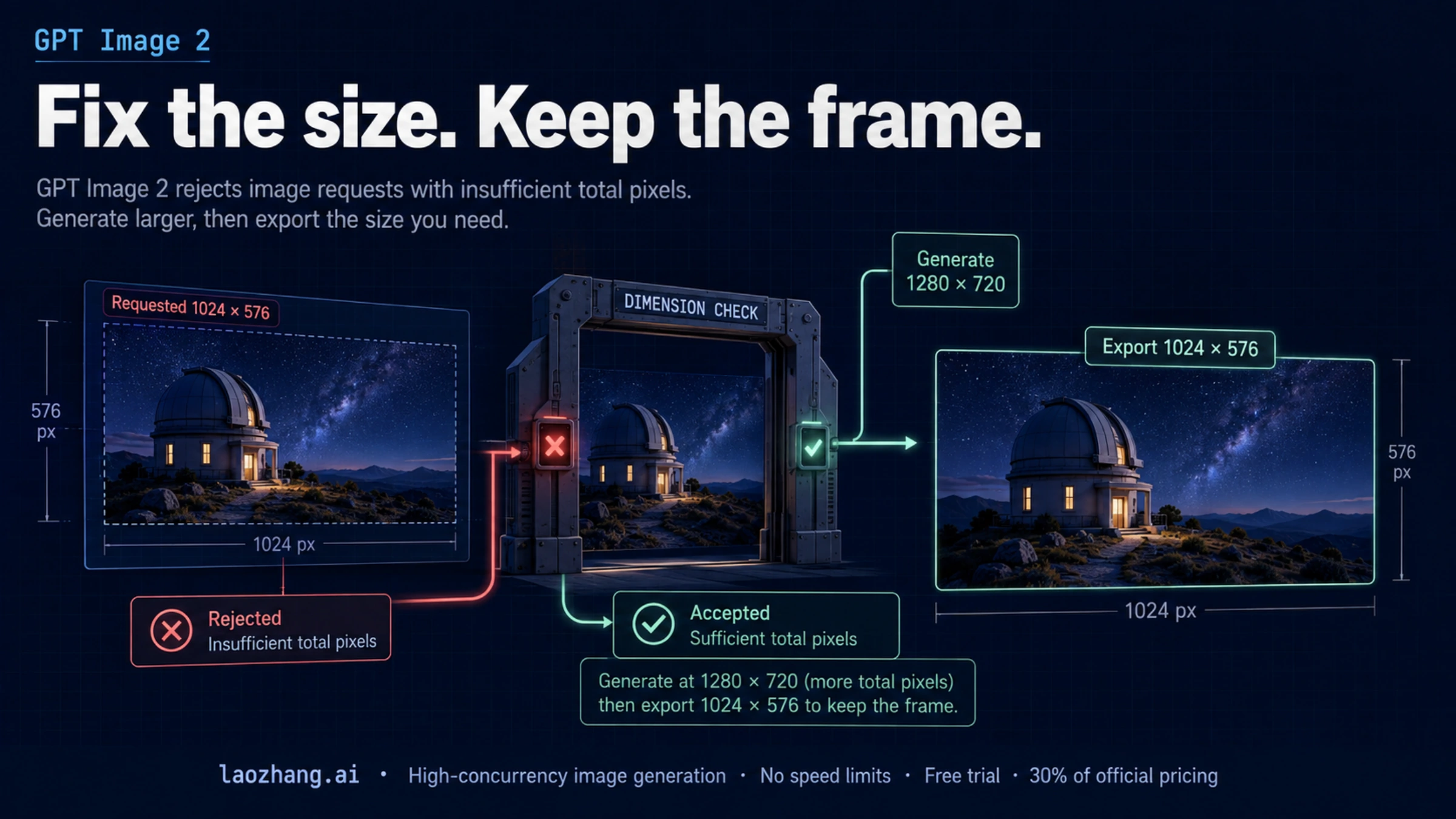
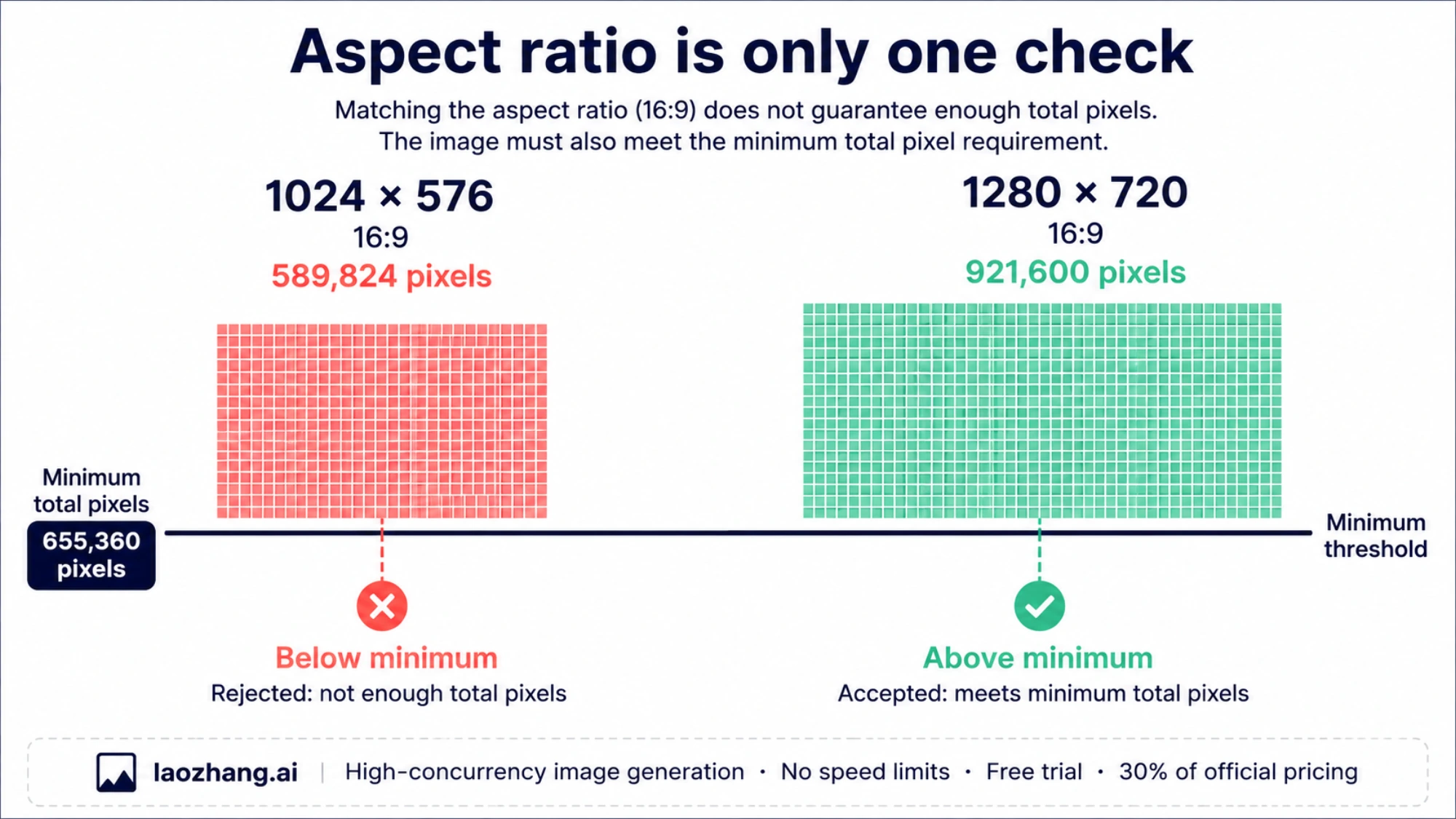
If GPT Image 2 rejects size: "1024x576", the problem is the minimum pixel count. That size is exactly 16:9, and both dimensions are divisible by 16, but its 589,824 pixels fall below the documented minimum of 655,360.
For the direct OpenAI API, change the generation size to 1280x720, then resize the returned image to 1024×576. Both are 16:9, so this workflow preserves the full composition without stretching or cropping. Under the current rules, 1280×720 is the smallest permitted exact 16:9 generation size. These conclusions follow from OpenAI's documented output constraints and arithmetic, rather than a live API test.
Why a familiar thumbnail size gets rejected
An API's generation limits and your website's thumbnail requirements are different constraints. A perfectly usable final image can still be too small for the model's generation endpoint.
As of September 8, 2026, the direct GPT Image 2 size rules require all of the following:
| Requirement | What happens at 1024×576 |
|---|---|
| Positive dimensions, each divisible by 16 | Pass: 1024 ÷ 16 = 64; 576 ÷ 16 = 36 |
| Longest edge no greater than 3840 | Pass |
| Long-to-short aspect ratio no greater than 3:1 | Pass: 16:9 is about 1.78:1 |
| Total pixels from 655,360 through 8,294,400 | Fail: 1024 × 576 = 589,824 |
The size misses the floor by 65,536 pixels. Adding “widescreen,” “16:9,” or “1024×576” to the prompt cannot correct the invalid numeric size field. The request must first satisfy the endpoint's size rules. See the official customization section for the current size rules.
This also explains why a list of familiar resolutions is an unreliable guide. Some common video dimensions fail the model's divisibility rule, while a less familiar resolution may satisfy every requirement.
Pick a size that preserves the intended shape
Use this table for a landscape thumbnail or video graphic. “Valid” means that the dimensions meet the documented direct OpenAI constraints; an intermediary can impose a different interface.
| Size string | Pixels | Ratio | Decision |
|---|---|---|---|
1024x576 | 589,824 | 16:9 | Too few pixels |
1024x640 | 655,360 | 8:5 | Valid, but changes the shape |
1280x720 | 921,600 | 16:9 | Smallest valid exact 16:9 size |
1536x864 | 1,327,104 | 16:9 | Valid larger source |
1920x1080 | 2,073,600 | 16:9 | Invalid: 1080 is not divisible by 16 |
2048x1152 | 2,359,296 | 16:9 | Valid larger source |
For the smallest exact 16:9 option, write the dimensions as width = 256k and height = 144k, where k is a positive integer. This keeps both edges divisible by 16. At k = 4, the result is the rejected 1024×576. At k = 5, it is 1280×720, which clears the pixel floor. The larger valid examples above follow the same pattern.
If your only requirement is an image that is 1024 pixels wide, 1024×640 may be suitable. If the slot must be 1024×576, however, generating at 1024×640 introduces a crop or padding decision. Starting at 1280×720 avoids that decision entirely.
A larger source can be useful when you also need larger exports. It does not remove the need to check the other constraints, and “smallest valid” does not establish which size is cheapest or fastest. OpenAI also describes output above 3,686,400 pixels as experimental in its image output guide.
Generate once, then save a real 1024×576 file
The following example uses the direct OpenAI Images API. It requests a 1280×720 PNG, decodes the image data, checks its actual aspect ratio, and saves a separate 1024×576 PNG.
Set OPENAI_API_KEY in your local environment first. Send the request from a terminal:
curl --fail-with-body https://api.openai.com/v1/images/generations \
  -H "Authorization: Bearer $OPENAI_API_KEY" \
  -H "Content-Type: application/json" \
  -d '{
    "model": "gpt-image-2",
    "prompt": "A wide editorial photograph of a small observatory under a clear night sky",
    "size": "1280x720",
    "output_format": "png"
  }' \
  -o gpt-image-response.json
Continue only after that command succeeds. If it returns an HTTP error, inspect the error in the response file before running the image decoder. The endpoint, model field, output format, and base64 response follow the official image generation guide.
Install Pillow in your Python environment, then save the script below as export_thumbnail.py:
python -m pip install Pillowimport base64
import io
import json
from pathlib import Path
from PIL import Image
response = json.loads(
Path("gpt-image-response.json").read_text(encoding="utf-8")
)
if "error" in response:
raise SystemExit(f"API error: {response['error']}")
image_bytes = base64.b64decode(
response["data"][0]["b64_json"], validate=True
)
Path("generated-source.png").write_bytes(image_bytes)
with Image.open(io.BytesIO(image_bytes)) as source:
source.load()
width, height = source.size
print(f"Received: {width}x{height}")
if width * 9 != height * 16:
raise SystemExit(
"The returned image is not 16:9. "
"Check the actual request and provider before resizing."
)
thumbnail = source.resize(
(1024, 576), resample=Image.Resampling.LANCZOS
)
thumbnail.save("thumbnail-1024x576.png", format="PNG")
with Image.open("thumbnail-1024x576.png") as exported:
assert exported.size == (1024, 576)
print(f"Saved: {exported.width}x{exported.height}")Run it:
python export_thumbnail.pyThe file to upload is thumbnail-1024x576.png. The original image bytes remain in generated-source.png, so additional exports do not require another generation request. The resize runs locally; OpenAI's generation pixel floor does not apply to the final file you produce.
Checking the decoded image matters. A filename, a selected UI option, or a successful HTTP response alone does not prove the actual image dimensions. If the returned image is square, the script stops instead of squeezing it into a widescreen frame. You can then correct the request, or deliberately choose a crop or padding workflow if retaining that source is more useful.
If 1280×720 still fails, inspect what was actually sent
Once the requested dimensions satisfy the rules, investigate the endpoint and client before trying arbitrary larger numbers.
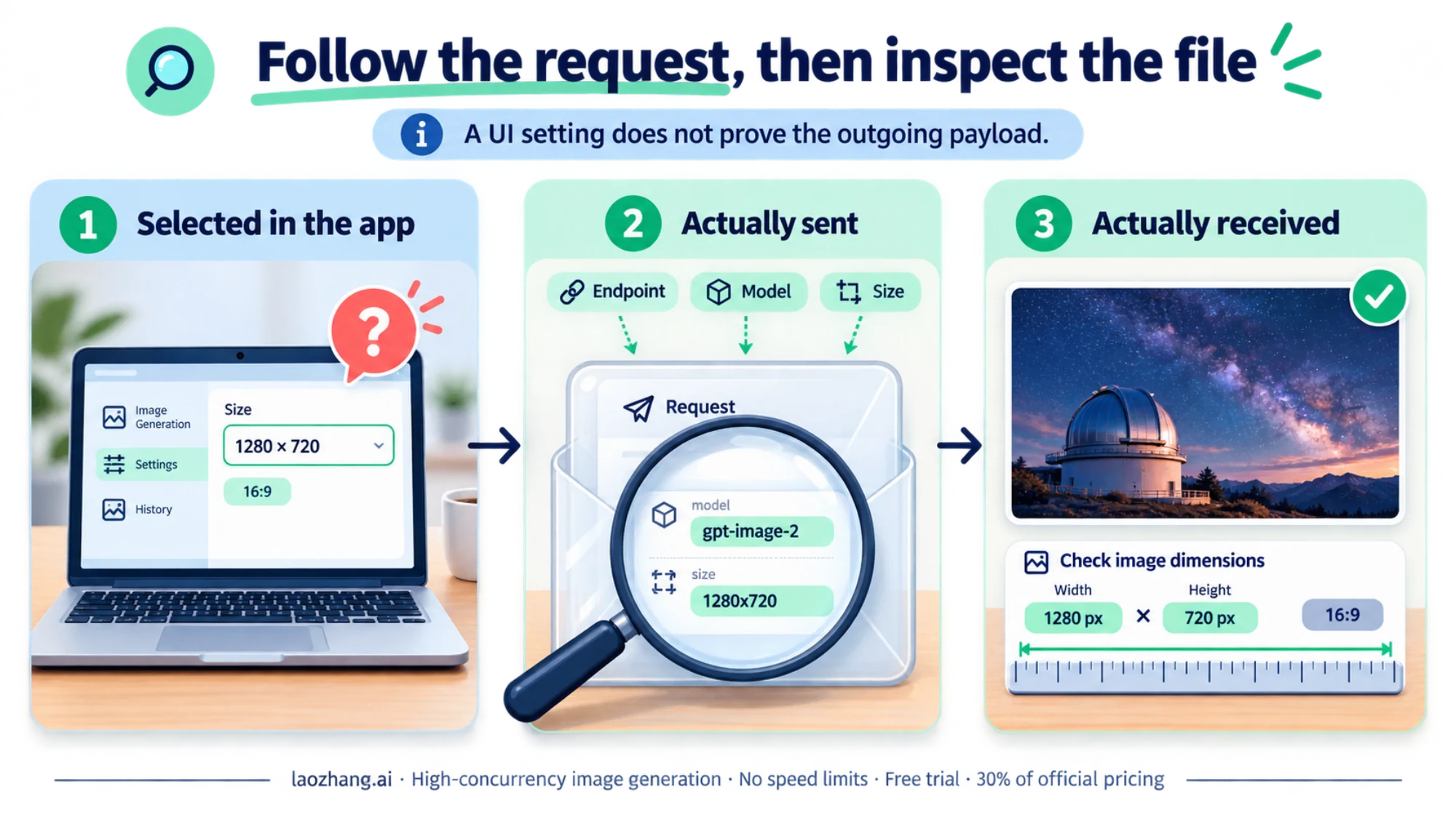
Check the destination and model. The example above targets https://api.openai.com/v1/images/generations with model: "gpt-image-2". A third-party URL, a different model, or a different image operation may have its own supported fields and restrictions. For the broader request setup, use our GPT Image 2 API guide.
Check the serialized request. Inspect your server's outbound request log or the client's network request, with credentials removed. Confirm the size value is actually "1280x720": a lowercase x, no spaces, and a JSON string. The prompt's wording and the UI's aspect-ratio selection are not substitutes for this check.
Client behavior can change a request. For example, Cherry Studio issue 14614 reports that a Windows v1.9.3 installation overwrote the selected size with 1024×1024. That historical report is a reason to inspect the payload; it does not establish that every current installation has the same problem.
Read the provider's own parameter definition. A field called size does not necessarily accept pixel dimensions. For example, APIMart's documented GPT Image 2 interface uses an aspect-ratio value such as 16:9 with a separate resolution setting. Copying a direct OpenAI size string into that interface is not the same request. Follow the provider's GPT Image 2 documentation when that is the service you are calling.
Keep the exact error. Record the HTTP status, error message, endpoint, model, size, client version, and request ID if supplied. Remove API keys before sharing diagnostics. A size-validation message is different from an authentication failure, unavailable model, or timeout; changing dimensions is unlikely to solve those other failures.
If an older SDK rejects the custom size before any HTTP request is sent, compare its installed version and validation behavior with current documentation. If the request reaches a provider and the provider rejects it, use that response and its documented format to determine the next change.
Can you request 1024×576 directly instead of resizing?
Under the documented direct GPT Image 2 rules, no: the total pixel count is below the minimum. You can still deliver that exact final resolution by generating at 1280×720 and downsampling locally.
Using auto leaves size selection to the service and does not specify an exact 1024×576 deliverable. Prompting for 16:9 expresses the desired composition, but it does not replace an explicit valid size where the endpoint supports one. For a fixed thumbnail slot, request a known valid 16:9 size and verify the exported file dimensions.