OpenAI's ChatGPT Plus subscription offers significantly more messages than the free tier, but one major frustration remains: there's no built-in way to see how many messages you have left. You only discover you've hit your limit when ChatGPT tells you to wait. This guide explains exactly how to check your reset time, understand the different reset mechanisms, and maximize your message quota with practical tracking strategies.
Understanding ChatGPT Plus Usage Limits
ChatGPT Plus costs $20 per month and provides access to premium models like GPT-4o, GPT-5, and the reasoning models o3 and o4-mini. However, unlike services that show you a usage dashboard, ChatGPT deliberately keeps your remaining message count hidden. According to OpenAI's official documentation, this design choice helps prevent gaming behaviors, but it creates genuine frustration for users trying to plan their work sessions.
The core challenge is straightforward: you're paying for a premium service but can't see what you've consumed or what remains. Many users report unexpected interruptions during important conversations, discovering they've exhausted their quota only when the "You've reached your limit" message appears. This problem becomes particularly acute for professionals who depend on ChatGPT for time-sensitive work.
Understanding how limits work is the first step toward managing them effectively. ChatGPT Plus doesn't use a single universal limit—different models operate under different quota systems. Some reset on rolling windows tied to your usage, others reset at fixed UTC times, and some reset weekly. Knowing which mechanism applies to your preferred model lets you plan accordingly.
The good news is that while OpenAI doesn't provide a usage counter, you can still determine when your quota will refresh. The model picker interface shows your next reset time when you interact with it correctly. Combined with third-party tracking tools and strategic timing, you can significantly reduce the frustration of unexpected limits.
Current Message Limits by Model (December 2025)
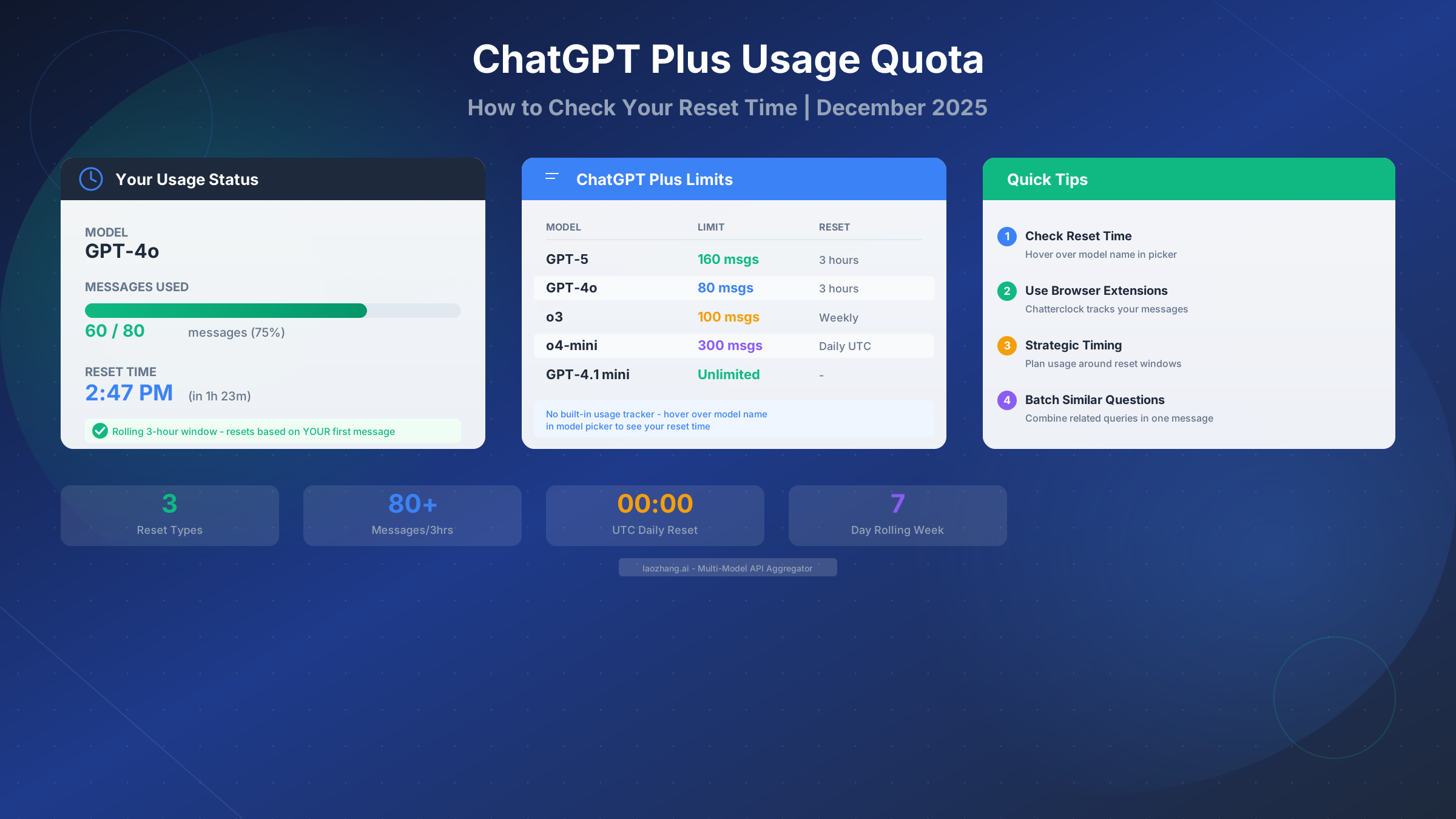
ChatGPT Plus subscribers have access to multiple models, each with its own message allocation and reset schedule. Here's the complete breakdown as of December 2025:
| Model | Message Limit | Reset Period | Notes |
|---|---|---|---|
| GPT-5 | 160 messages | Every 3 hours | Rolling window from first message |
| GPT-4o | 80 messages | Every 3 hours | Most commonly used model |
| GPT-4 | 40 messages | Every 3 hours | Legacy model, lower priority |
| o3 | 100 messages | Weekly | 7-day rolling from first use |
| o4-mini | 300 messages | Daily | Resets at 00:00 UTC |
| o4-mini-high | 100 messages | Daily | Higher quality, lower quota |
| GPT-4.1 mini | Unlimited | - | No restrictions |
These limits represent the December 2025 values, which OpenAI adjusts periodically based on server capacity and demand. The company doesn't announce limit changes in advance, which means the numbers above might shift. For the most current limits, you can check our detailed ChatGPT Plus usage limits guide which we update regularly.
Important consideration about Custom GPTs: If you use Custom GPTs (the specialized ChatGPT applications created by third parties or yourself), those messages count against your underlying model's quota. A Custom GPT built on GPT-4o consumes from your 80-message GPT-4o allocation, not from a separate pool. This catches many users off guard, especially those who use multiple Custom GPTs throughout the day.
The practical implication is clear: if you rely heavily on Custom GPTs, you're effectively sharing your quota across all of them plus the base ChatGPT interface. Strategic users either batch their Custom GPT usage or reserve a portion of their quota specifically for these applications.
Understanding Reset Times
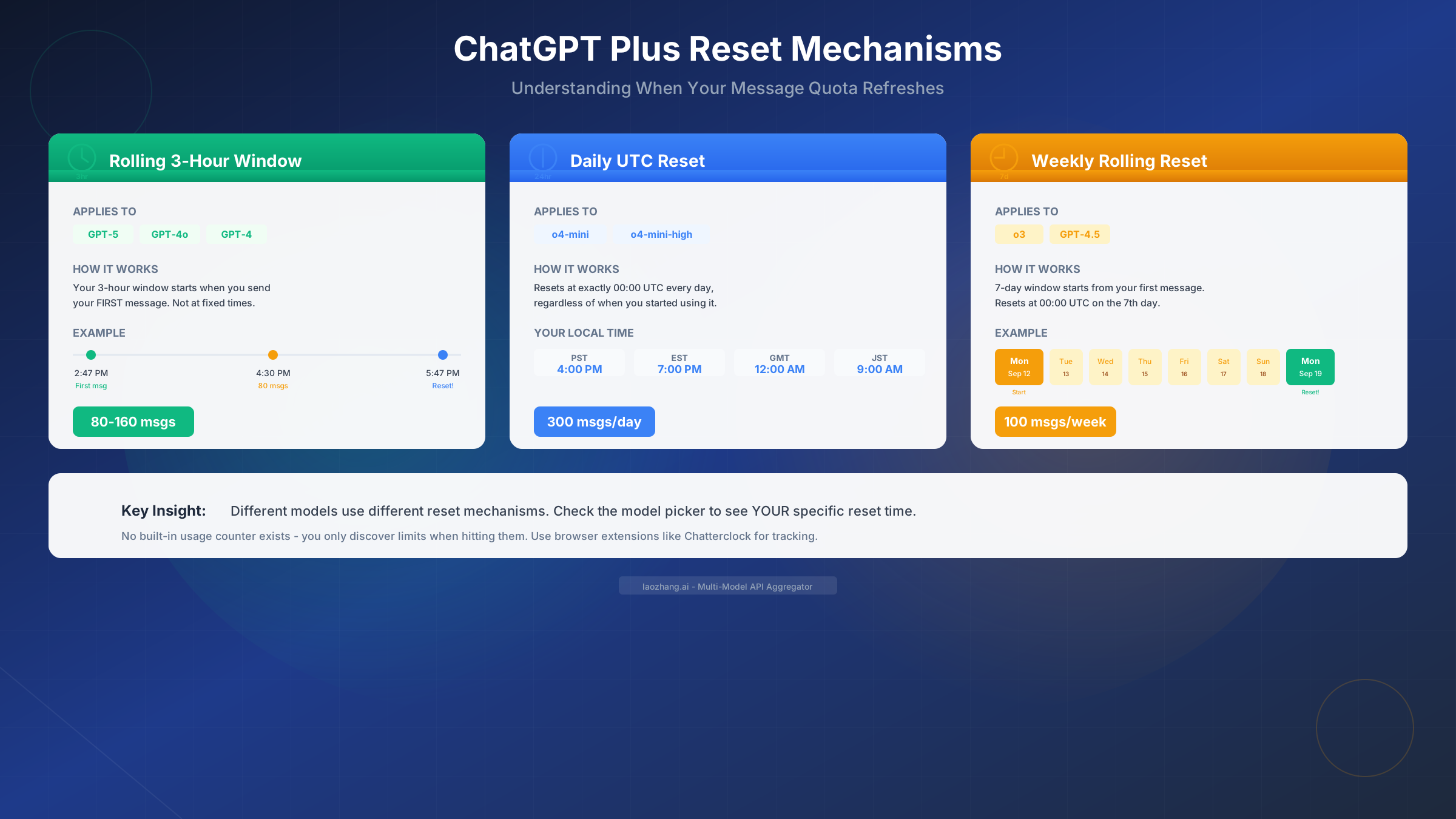
ChatGPT Plus uses three distinct reset mechanisms depending on which model you're using. Understanding these differences is essential for planning your usage effectively.
Rolling 3-Hour Windows apply to GPT-5, GPT-4o, and GPT-4. This is the most confusing mechanism because the window starts when YOU send your first message, not at fixed clock times. If you begin using GPT-4o at 2:47 PM, your 80-message allocation refreshes at 5:47 PM. The key insight is that this creates a personal reset schedule unique to your usage pattern.
This rolling mechanism means that strategic users can effectively maximize their access. If you exhaust your quota at 4:30 PM and wait until 5:47 PM (your personal reset time), you get a fresh 80 messages. Continue using those, and your next reset might be 8:47 PM. The window continuously rolls based on when you started your most recent 3-hour period.
Daily UTC Resets apply to o4-mini and o4-mini-high models. These reset at exactly 00:00 UTC regardless of when you used them. This fixed schedule makes planning easier in some ways but creates timezone complications for users outside GMT/UTC areas.
Weekly Rolling Resets apply to o3 and similar reasoning models. Your 100-message weekly quota starts counting from your first message and resets exactly 7 days later at 00:00 UTC. If you first use o3 on Monday September 12th, your limit resets on Monday September 19th at midnight UTC.
For users who need predictable access, the daily and weekly models provide more certainty. You know exactly when you'll get fresh quota. The rolling 3-hour windows require more attention to timing but offer more flexibility if you're willing to track your usage patterns.
UTC Midnight in Your Local Time
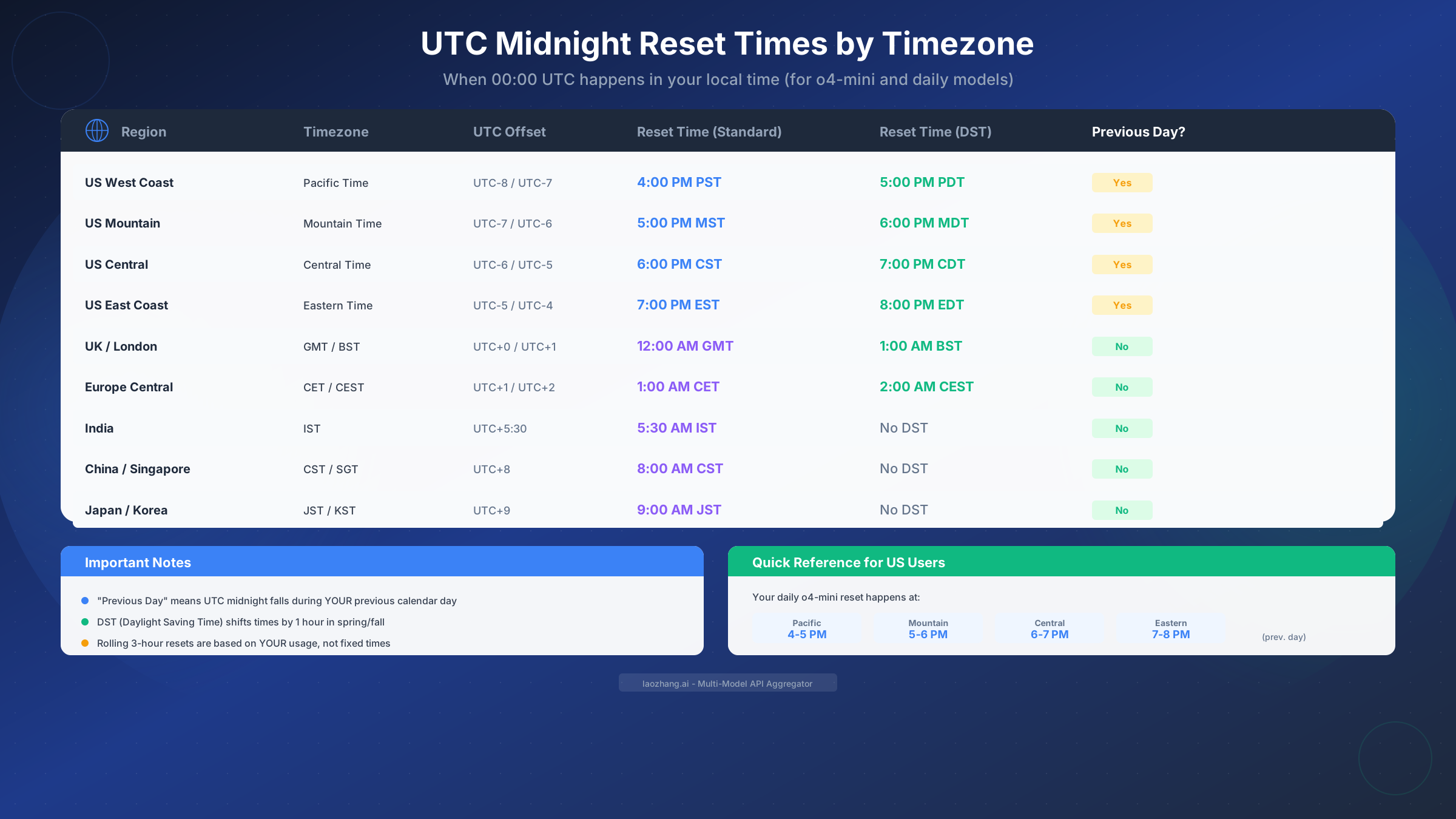
The daily reset at 00:00 UTC happens at different local times depending on where you live. This table shows when UTC midnight occurs across major timezones:
| Region | Timezone | Standard Time | Daylight Saving |
|---|---|---|---|
| US West Coast | Pacific | 4:00 PM PST | 5:00 PM PDT |
| US Mountain | Mountain | 5:00 PM MST | 6:00 PM MDT |
| US Central | Central | 6:00 PM CST | 7:00 PM CDT |
| US East Coast | Eastern | 7:00 PM EST | 8:00 PM EDT |
| UK / London | GMT/BST | 12:00 AM GMT | 1:00 AM BST |
| Central Europe | CET/CEST | 1:00 AM CET | 2:00 AM CEST |
| India | IST | 5:30 AM IST | (No DST) |
| China / Singapore | CST/SGT | 8:00 AM CST | (No DST) |
| Japan / Korea | JST/KST | 9:00 AM JST | (No DST) |
For Americans, the UTC midnight reset happens during the previous afternoon or evening. This means your daily o4-mini quota refreshes while you're likely still awake—convenient for evening work sessions. European users get their reset during sleeping hours, providing fresh quota for the morning workday.
How to Check Your Reset Time
Since ChatGPT doesn't show remaining messages, checking your reset time becomes the primary way to understand your quota status. Here's the step-by-step method using the model picker:
Step 1: Click on the model name in the ChatGPT interface. This opens the model picker dropdown that shows all available models for your subscription tier.
Step 2: Hover over (or click on) the specific model you want to check. For models with active limits, you'll see information about your reset time appear.
Step 3: Look for text like "Limit resets at 3:47 PM" for rolling windows, or "Limit resets on Sept 16" for weekly quotas. This tells you exactly when your personal quota refreshes.
The model picker method works reliably but has limitations. It only shows the reset time AFTER you've started using a model—you can't see the reset time for models you haven't touched yet. Additionally, it shows when the limit resets, not how many messages remain. You're essentially flying blind until you hit the wall, then you know when the wall comes down.
For users who haven't hit their limit yet, the model picker won't show reset information because there's no active limit to reset from. This creates a frustrating loop where you can't plan proactively—you only get timing information after you've already exhausted your quota at least once.
Alternative checking method: Some users report that attempting to send a message when near the limit sometimes triggers a warning before the message sends. However, this behavior is inconsistent and shouldn't be relied upon for quota planning.
Tracking Methods & Tools
Given ChatGPT's lack of built-in tracking, users have developed several workarounds to monitor their usage. These range from simple manual methods to browser extensions designed specifically for this purpose.
Browser Extensions offer the most automated approach to tracking. Chatterclock, available for Chrome, automatically counts messages you send and segments them by model. This gives you visibility into how close you are to limits without manual tracking. The extension isn't perfect—it only tracks messages from the browser where it's installed—but it provides significantly better visibility than ChatGPT's native interface.
Other extensions like "ChatGPT Message Counter" provide similar functionality. When evaluating these tools, consider that they require browser permissions and access to your ChatGPT conversations. Reputable extensions from known developers with good reviews present minimal risk, but always review permissions before installation.
Manual Tracking remains an option for users who prefer not to install extensions. The simplest approach is keeping a note (digital or physical) where you record when you start using a model. For rolling 3-hour windows, noting your start time tells you when your reset occurs. For daily limits, tracking your message count provides awareness of how much quota remains.
A basic spreadsheet works well for manual tracking. Create columns for date, model used, approximate message count, and start time. This historical data also helps you understand your usage patterns over time, enabling better planning for work sessions that require extended ChatGPT access.
API Monitoring offers precise tracking but requires technical setup. Some Plus subscribers maintain separate API access alongside their subscription specifically for usage visibility. The API shows exact token counts and remaining quota through its responses. While this approach requires developer knowledge and additional cost, it provides the most accurate usage data available.
For those considering the API route, you can learn more about costs and setup in our OpenAI API pricing guide. The API operates on a pay-per-use model rather than subscription limits, which some power users prefer for predictable access.
Maximizing Your Message Quota
Strategic usage can effectively multiply your practical message capacity. These techniques help you get more value from your ChatGPT Plus subscription:
Batch Related Questions into single messages rather than sending multiple short queries. A message asking "What are the benefits of TypeScript? What are the drawbacks? When should I use it over JavaScript?" consumes one message slot instead of three. ChatGPT handles multi-part questions effectively, and batching reduces your message count without sacrificing answer quality.
Time Your Sessions Strategically around reset windows. If you know your GPT-4o quota resets at 5:47 PM, starting an intensive work session at 5:30 PM wastes those remaining 17 minutes of the current window. Instead, start fresh at 5:47 PM to maximize your available messages in the upcoming 3-hour period.
Choose Models Strategically based on task requirements. GPT-4.1 mini offers unlimited messages and handles many tasks adequately. Reserve your limited GPT-4o and GPT-5 quota for tasks that genuinely require their enhanced capabilities—complex reasoning, nuanced writing, or situations where you've found mini models produce inferior results.
Leverage Conversation Context rather than starting new chats. ChatGPT maintains context within a conversation, so follow-up questions often require shorter prompts than starting fresh. Instead of re-explaining your situation each time, continue in the same thread with brief follow-ups like "Now explain the third point in more detail."
Avoid Regeneration When Possible since regenerating responses counts as additional messages. If the response is close to what you need, ask for specific modifications rather than regenerating entirely. "Make the tone more formal" or "Expand the second paragraph" typically produces better results than regeneration and uses your quota more efficiently.
Use System Prompts in Custom GPTs to front-load context. If you frequently ask similar types of questions, a Custom GPT with appropriate system prompts can reduce the per-message context you need to provide, effectively getting more utility from each message slot.
What Happens When You Hit the Limit
When you exhaust your message quota, ChatGPT displays a notification indicating you've reached your limit and shows when you can resume. The exact message varies slightly, but typically reads: "You've reached your GPT-4o limit. Try again after [time]" or similar.
During a limit, you have several options:
Wait for Reset: The simplest option is waiting until your indicated reset time. For rolling 3-hour windows, this means a maximum wait of 3 hours from when you started your session. For daily limits, you might wait until the evening (for US users) when UTC midnight occurs.
Switch Models: If you've exhausted GPT-4o but still have GPT-4.1 mini quota (which is unlimited), switching models lets you continue working. The response quality may differ, but for many tasks, mini models perform adequately. This fallback strategy ensures you're never completely blocked from using ChatGPT.
Use the Free Tier: ChatGPT Free still provides access to limited GPT-4o messages. While the free tier has its own (stricter) limits, it can serve as a bridge when your Plus quota is exhausted. This isn't ideal but provides an emergency option.
API Access: For users who can't afford downtime, the API offers pay-per-use access without subscription-style limits. You pay for what you use, but you're never blocked by quota exhaustion. API aggregators like laozhang.ai provide stable access at competitive rates, which can serve as a reliable fallback when ChatGPT Plus limits become problematic.
The limit notification usually includes your specific reset time, making it the moment when the model picker method (described earlier) becomes useful. Once you've hit a limit, you can see exactly when access resumes.
Understanding that limits are per-model rather than account-wide is crucial. Exhausting your GPT-4o quota doesn't affect your o4-mini availability. Strategic users maintain awareness of multiple model quotas and switch between them as needed to maintain productivity throughout the day.
FAQ and Quick Reference
How do I see how many messages I have left? You can't—ChatGPT doesn't provide this information. The only way to know your quota status is when you hit the limit (at which point you see the reset time) or by using third-party tracking extensions like Chatterclock.
Do Custom GPTs have separate limits? No. Custom GPTs consume from the underlying base model's quota. A GPT built on GPT-4o uses your GPT-4o allocation.
What if I'm in the middle of an important conversation when I hit the limit? Your conversation is saved. You can return after the reset and continue exactly where you left off. Consider switching to GPT-4.1 mini (unlimited) or the API to finish urgent work.
Does failed or error messages count against my limit? Generally yes. Messages that fail due to server errors or content policy violations still consume quota in most cases. This is one reason why reviewing prompts before sending helps preserve your allocation.
Why do limits change? OpenAI adjusts limits based on server capacity, demand, and business decisions. Changes happen without advance notice. The limits in this guide reflect December 2025 values.
Is there a way to get more messages without Pro? The Pro tier ($200/month) provides significantly higher limits but at substantial cost. For many users, the API offers a more cost-effective path to higher usage. Check our image generation limits guide for strategies that apply to both text and image quotas.
What's the best time to use ChatGPT for US users? Anecdotally, early morning and late evening show faster responses and potentially more lenient limit enforcement. UTC midnight (afternoon for US users) resets daily quotas, making post-reset times ideal for heavy usage.
Quick Reference Card
| Model | Limit | Reset | Best For |
|---|---|---|---|
| GPT-5 | 160/3hr | Rolling | Complex reasoning |
| GPT-4o | 80/3hr | Rolling | General premium use |
| o3 | 100/week | Weekly | Deep analysis |
| o4-mini | 300/day | 00:00 UTC | Faster tasks |
| GPT-4.1 mini | Unlimited | - | Basic tasks, fallback |
For comprehensive documentation on API alternatives and pricing, visit https://docs.laozhang.ai/ which provides detailed guides for developers seeking more predictable access patterns than subscription-based limits allow.