When ChatGPT says a Deep Research task is complete but the report area is blank, the most expensive first move is often running the whole job again. Keep the original conversation open. It may still hold the report association, it preserves the activity trail, and it gives support a specific case to inspect. A new run can consume another task without recovering the first one.
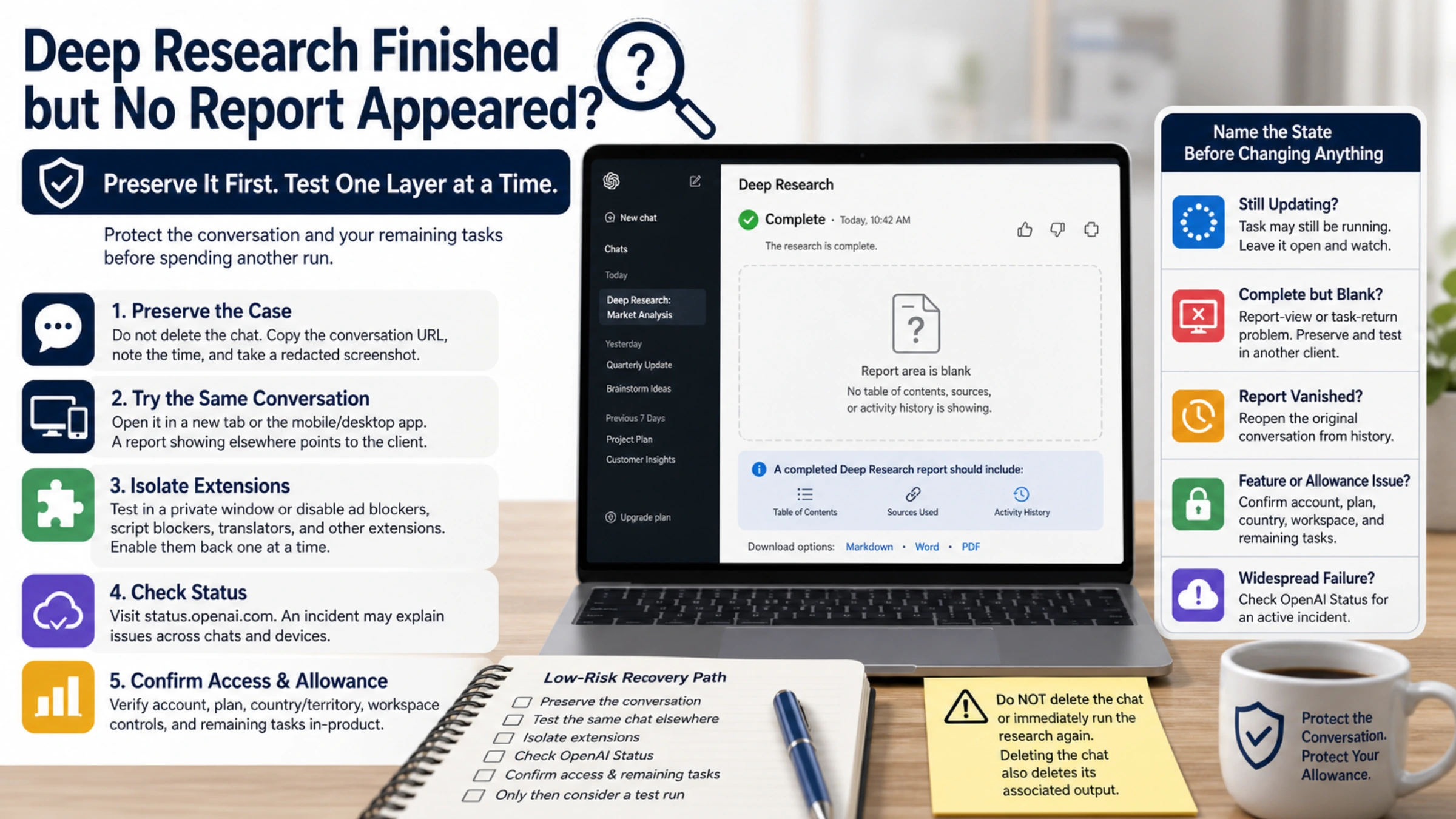
There is a useful definition of “missing” here. OpenAI says completed research opens in a fullscreen report view with a table of contents, a sources-used section, and an activity history. The output includes citations or source links and can be downloaded as Markdown, Word, or PDF. Official Deep Research output guide. If you see only a completion line, reaction buttons, or an empty panel—with none of those report elements—the result is not presenting as the documented completed state.
Name the state before changing anything
The same complaint can describe several different failures. The screen tells you which branch to investigate.
| What you can see | What it suggests | Least destructive next check |
|---|---|---|
| Research activity is still updating | The task may still be running | Leave the conversation intact and watch whether the activity changes |
| “Complete” appears, but there is no report body, contents, sources, or activity history | A report-view or task-return problem | Save the conversation URL and a redacted screenshot, then test the same chat in another client |
| The report appeared earlier and vanished after a refresh or follow-up | The conversation no longer exposes the report view correctly | Reopen the original conversation from history and look for the completed-report entry |
| Deep Research is absent or the usage counter blocks a task | Plan, country, workspace, or allowance may be involved | Confirm the signed-in account, product counter, and workspace controls |
| Several conversations and devices fail at the same time | A service-side issue becomes more plausible | Check OpenAI’s live status before changing local settings |
Do not treat “still researching” and “finished but blank” as interchangeable. A rendering test is appropriate for the second state; repeatedly refreshing an active job may only make its progress harder to follow.
Recover the view without creating a new task
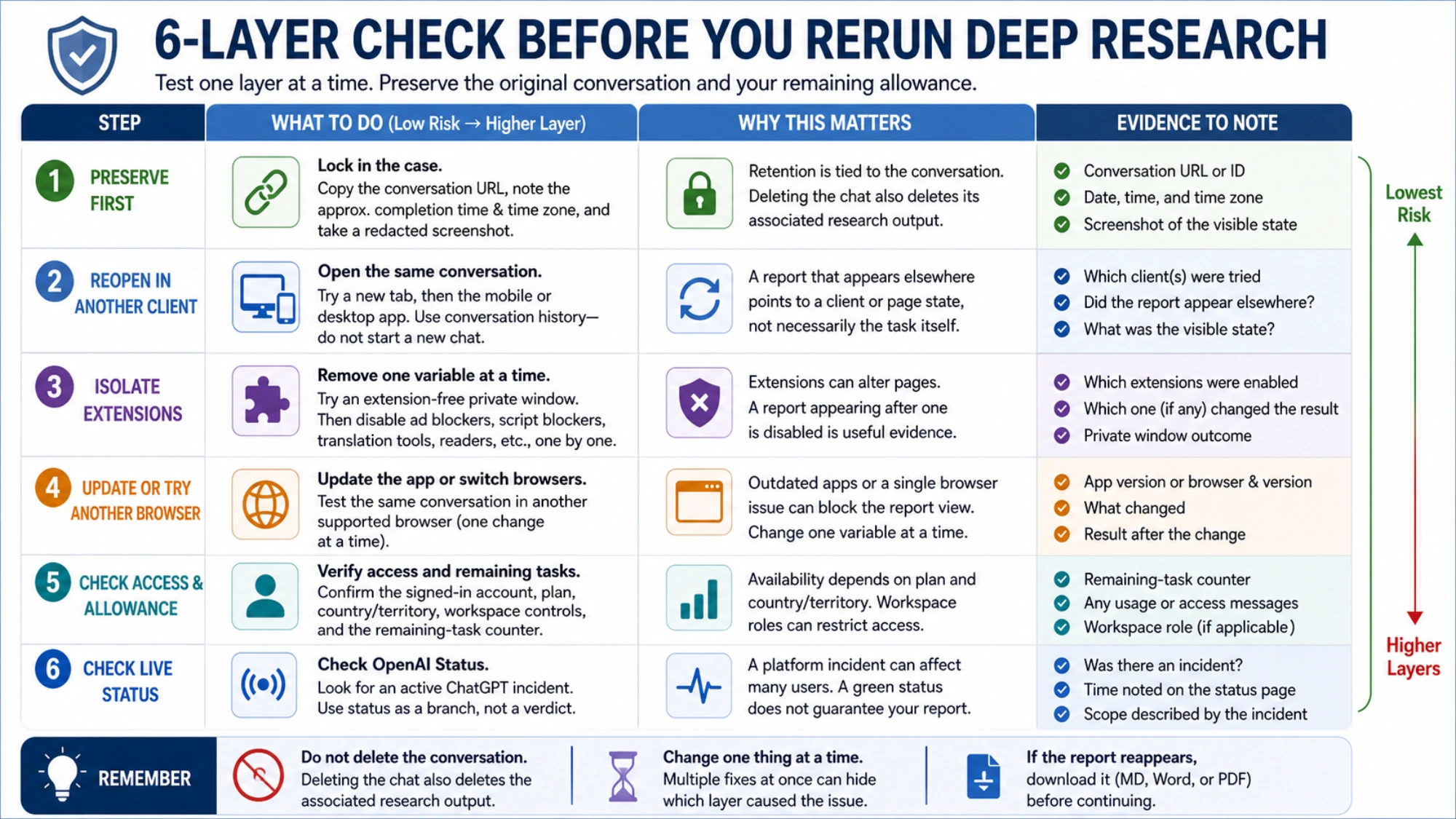
First, preserve the case. Copy the conversation URL, note the approximate completion time and time zone, and capture a screenshot that shows the task state without exposing confidential source material. Do not delete the chat. OpenAI’s Deep Research retention guidance says the output follows the conversation’s retention policy and deleting the chat also deletes its associated research output.
Next, open the same conversation in a fresh tab or another client. Start with a new ChatGPT tab and enter the original chat from conversation history. If you also use the mobile or desktop app, check the same conversation there. A report that appears in another client points toward the original client or page state; a report missing everywhere keeps the task itself in scope.
Then isolate page-modifying extensions. Try an extension-free private window, or temporarily pause ad blockers, script blockers, translation overlays, reader modes, and privacy extensions one at a time. A community reply reported that a report appeared after an ad-blocking extension was disabled. That is an anecdote, not an OpenAI-confirmed cause, so use it as a controlled test: if the same conversation loads when one extension is absent, you have evidence about that local setup. If nothing changes, do not conclude that all extensions are harmless or that the report is gone; move to the next layer.
Finally, update the app or try one other supported browser, again with the same conversation. Change one variable at a time. A dozen simultaneous fixes—clearing all data, reinstalling, signing out everywhere, and rerunning—may alter the symptom without revealing which layer failed.
Check allowance and access without guessing a quota
The official Deep Research help page says usage varies by plan and the in-product counter shows remaining tasks. For plans with a fixed monthly allowance, the counter resets every 30 days from the first use. The page does not establish one permanent numeric allowance for every plan, so an old quota table is not a reliable account diagnostic.
If the task accepted your research plan, showed source activity, and only failed when the report should have opened, lack of feature access is unlikely to be the whole story. Still record whether the remaining-task counter changed and whether ChatGPT displays a specific usage message. That distinguishes a report that used a task from a request that never started.
When the Deep Research entry itself is missing, take a different route. Confirm the intended account and plan, your country or territory, and any workspace policy. OpenAI says availability depends on both plan and country or territory. Enterprise and Edu workspaces can also control Deep Research through role-based access. Browser cleanup cannot grant a feature that the account or workspace does not expose.
Check whether a service incident matches the failure
Open OpenAI Status and look for an active ChatGPT incident. The page changes over time, and its availability figures are aggregated across tiers, models, and error types. A green status cannot prove that one report is healthy; a confirmed incident can still save you from destructive local troubleshooting.
A practical distinction is scope. If multiple unrelated chats fail on more than one device at roughly the same time and the status page reports a ChatGPT event, wait and preserve your current task. If normal chats and other Deep Research conversations work but one report remains blank across clients, the evidence is stronger for a conversation- or task-specific problem.
Decide whether a test run is worth another task
Only consider a new run after you have preserved the original chat, tested the same conversation in a clean client, checked the live service status, and confirmed that the account still has an available task. A rerun creates new research; it does not restore the previous report or explain why it failed.
If you need to test the feature, use a short, non-sensitive control question whose result is easy to recognize. Keep that diagnostic separate from the original research. If the control report opens, you have evidence that Deep Research can currently return output for the account, but you still have not proved what happened to the original task. If the control also fails, stop spending tasks and escalate.
Skip the control run when allowance is scarce, the research used confidential uploads, the original task still shows activity, or an active service incident exists. In those cases, waiting or contacting support has a better risk profile than generating more ambiguous failures.
Send support a reproducible case, not private research
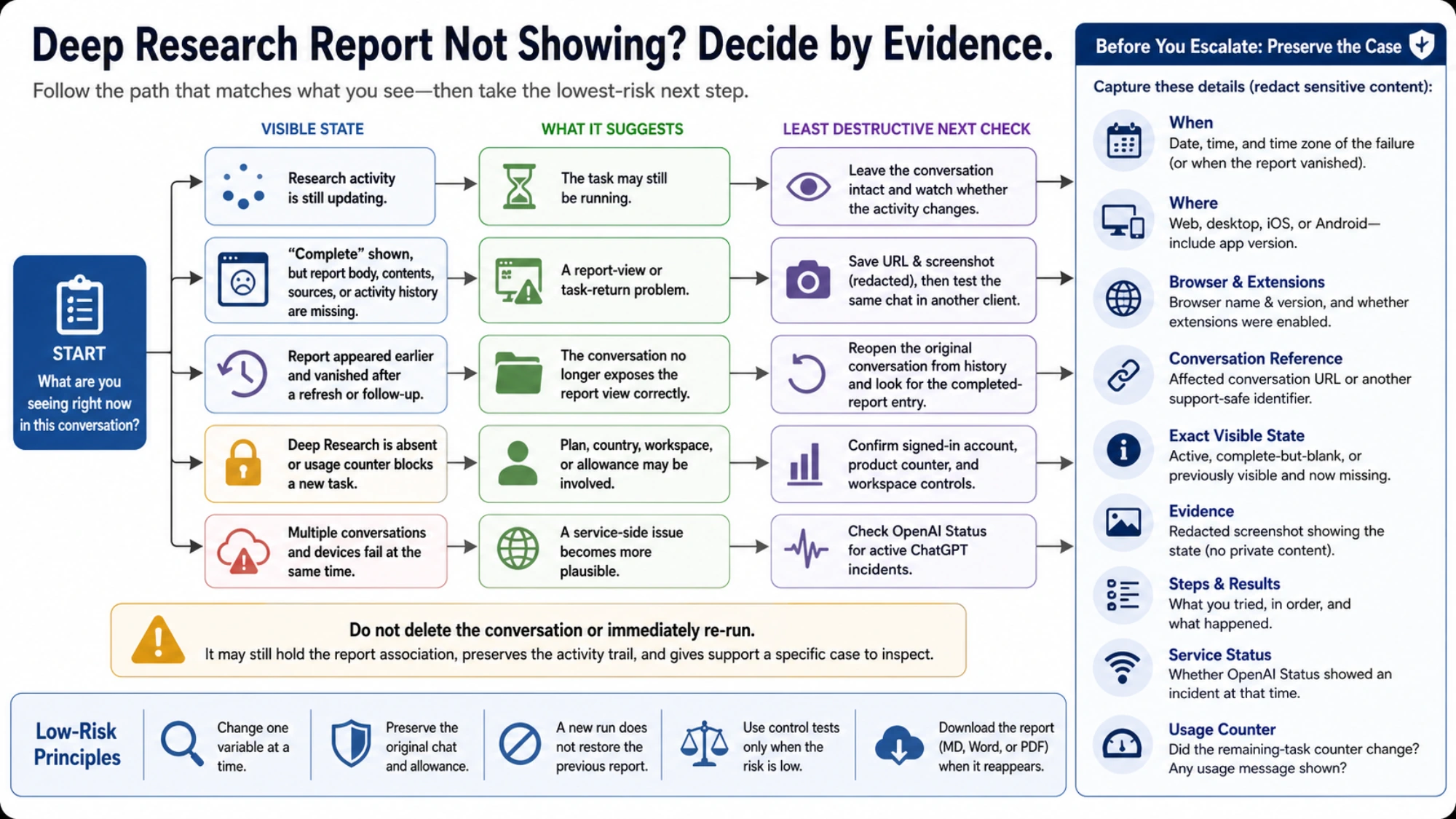
You do not need to post the report prompt, source files, or credentials in a public forum. Prepare a compact case with:
- the date, time, and time zone of the failure;
- web, desktop, iOS, or Android, including the app version;
- browser name and version, plus whether extensions were enabled;
- the affected conversation URL or another support-safe identifier;
- the exact visible state: active, complete, blank, or previously visible and now missing;
- a redacted screenshot;
- whether the same chat opens correctly in another client;
- each troubleshooting step and its observed result;
- whether the live status page showed an incident at that time;
- whether the remaining-task counter changed.
If the report reappears, use the documented download options to save a Markdown, Word, or PDF copy before continuing the conversation. That does not fix the underlying view, but it gives you a durable working copy while the original task is still accessible.
The safe rule is simple: protect the conversation and the remaining allowance, then test one layer at a time. A missing report is not automatic proof of lost research, a browser bug, an exhausted plan, or a platform outage. The visible state and the result of each controlled check are what turn a vague failure into an actionable case.