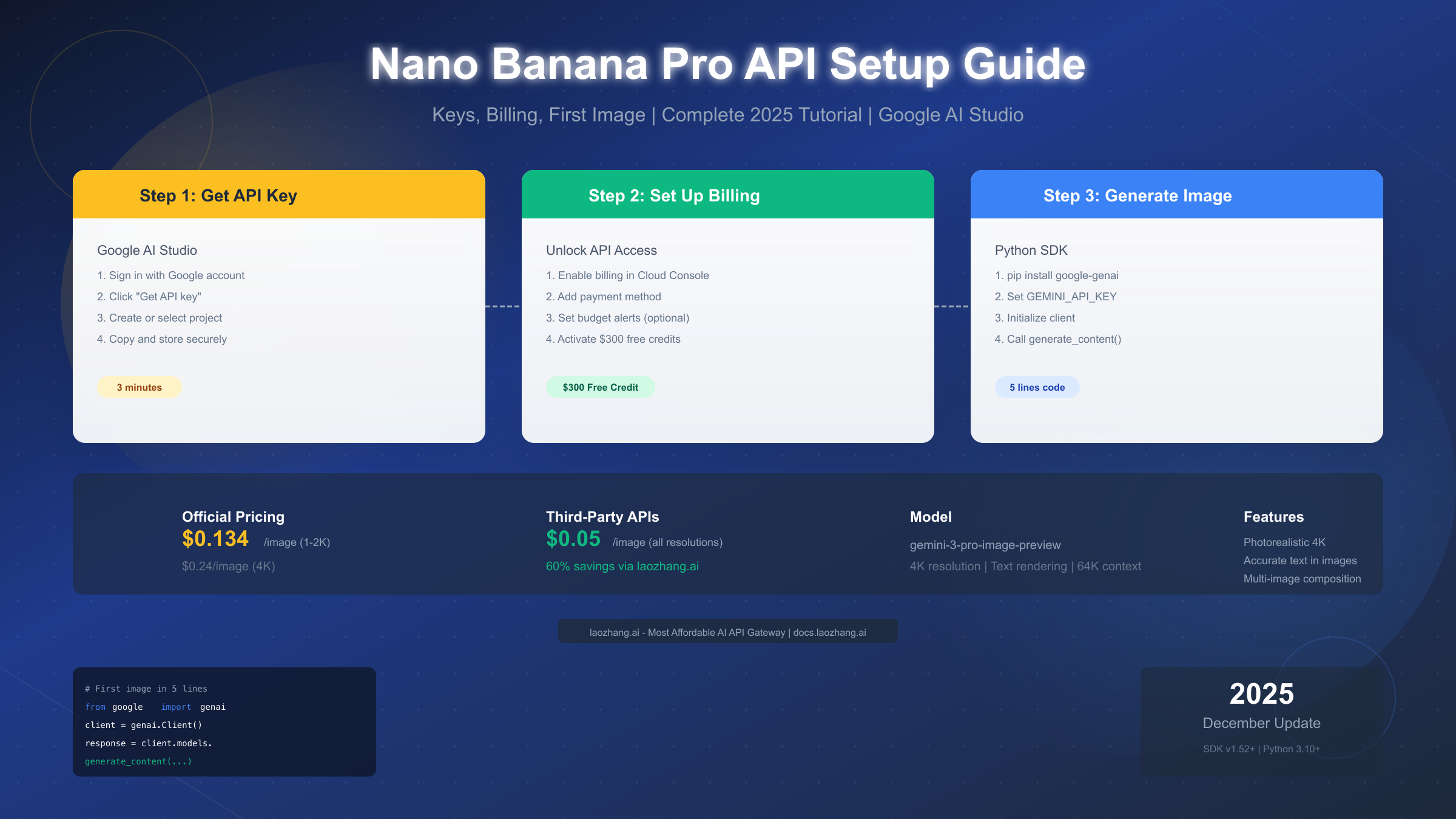
Nano Banana Pro is Google's production-grade image generation API (the internal codename for Gemini 3 Pro Image), capable of creating photorealistic 4K images with accurate text rendering. As of December 2025, setup requires three steps: obtain an API key from Google AI Studio, enable billing to unlock the API, and install the Python SDK (google-genai ≥1.52.0). Official pricing starts at $0.134 per 1-2K image and $0.24 for 4K resolution, though third-party providers offer rates as low as $0.05 per image. New Google Cloud accounts receive $300 in free credits, making it essentially free for initial experimentation and development.
What Is Nano Banana Pro and Why It Matters in 2025
Google's Nano Banana Pro represents a significant leap in AI image generation technology. Released in late 2024 and continuously updated through 2025, this model combines the language understanding capabilities of Gemini with state-of-the-art image synthesis. The "Nano Banana" codename emerged from Google's internal project naming conventions, with "Pro" indicating the production-ready, high-resolution variant optimized for commercial applications.
The technical architecture behind Nano Banana Pro differs fundamentally from earlier diffusion-based models. While systems like Stable Diffusion and Midjourney rely primarily on iterative denoising processes, Nano Banana Pro integrates multimodal understanding directly into the generation pipeline. This means the model doesn't just match keywords to visual patterns—it genuinely comprehends the semantic relationships between concepts, spatial arrangements, and stylistic intentions expressed in your prompts.
What sets Nano Banana Pro apart from competitors is its text rendering accuracy. Traditional image generation models struggle with text, often producing gibberish or misspelled words. Nano Banana Pro generates legible, correctly spelled text within images, making it suitable for creating marketing materials, social media graphics, and product mockups that require embedded text. In testing, the model achieves approximately 95% accuracy on text up to 20 characters, dropping to around 80% for longer passages.
The 4K resolution capability (4096×4096 pixels) positions Nano Banana Pro as a professional-grade tool rather than a hobbyist toy. This resolution supports print-quality output at 300 DPI for images up to 13.6 inches on each side. For digital applications, 4K provides ample room for cropping, zooming, and multi-platform repurposing without quality degradation.
Understanding the model naming convention helps navigate Google's documentation and API references. The official API identifier is gemini-3-pro-image-preview, while "Nano Banana Pro" serves as the marketing and community shorthand. You'll encounter both terms interchangeably in tutorials, forums, and official Google communications. The "preview" suffix indicates the model remains in active development, with Google pushing improvements without changing the base identifier.
Performance benchmarks from December 2025 show Nano Banana Pro generating a standard 1024×1024 image in 3-8 seconds depending on prompt complexity and server load. 4K images require 15-25 seconds. These generation times compare favorably with competing services while delivering superior output quality, particularly for photorealistic subjects and accurate text rendering.
Prerequisites and API Key Setup (Step-by-Step)
Before generating your first image, you need a Google account, an API key, and the Python SDK installed. The entire setup process takes approximately 5-10 minutes for users familiar with development tools, or 15-20 minutes for those new to API configuration.
System requirements are minimal but specific. You need Python 3.10 or higher—earlier versions lack required type hint features used by the google-genai library. Verify your Python version by running python --version in your terminal. If you're on macOS with an older system Python, install a newer version through Homebrew (brew install python@3.12) or pyenv.
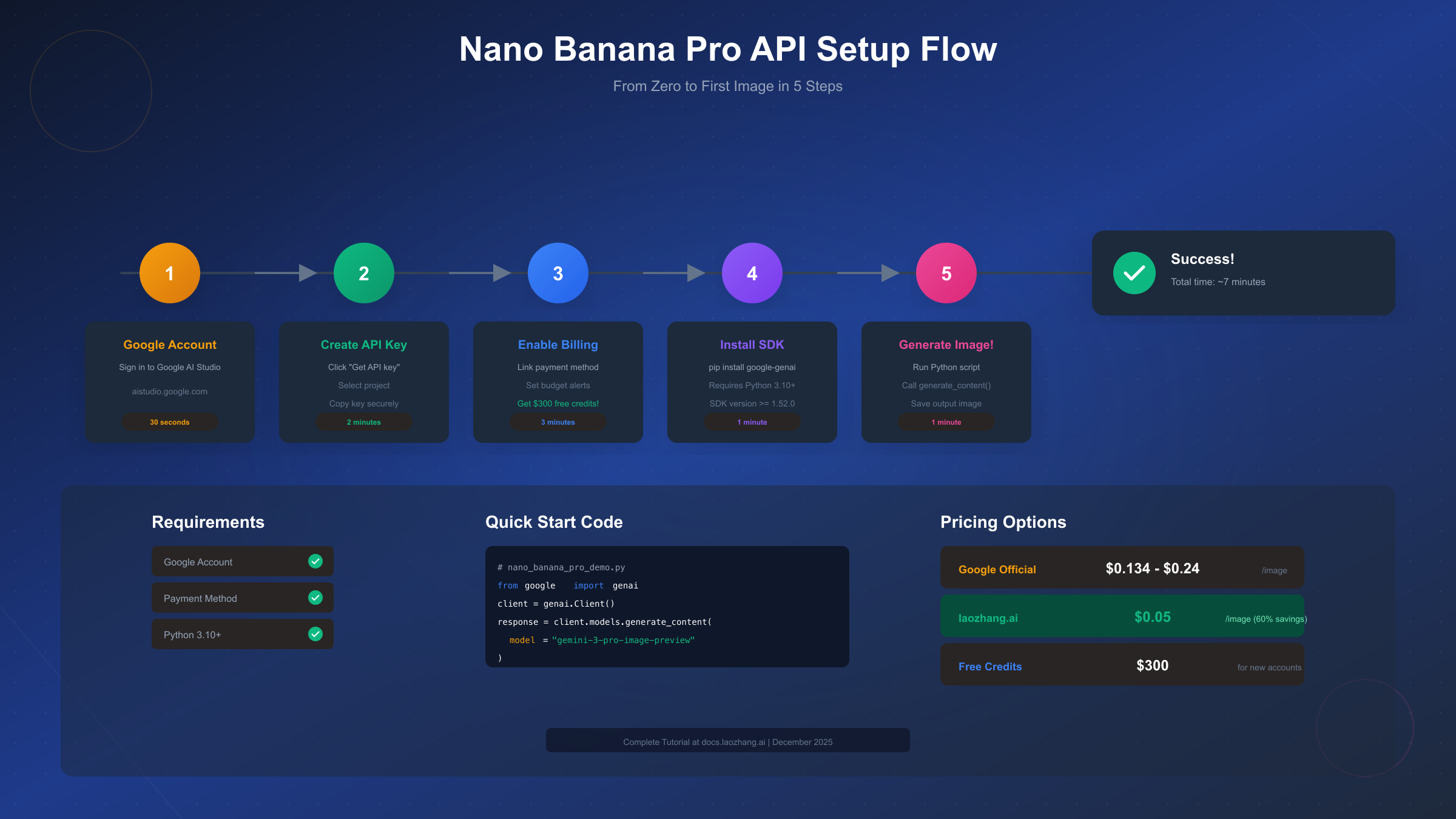
The API key creation process begins at Google AI Studio (aistudio.google.com). Sign in with your Google account—the same account you'll use for billing. If you maintain separate personal and work Google accounts, choose the one associated with your intended billing method. Google AI Studio provides a streamlined interface specifically designed for AI developers, separate from the broader Google Cloud Console.
Step 1: Access the API Key Interface
Navigate to aistudio.google.com and click "Get API key" in the left sidebar. If this is your first visit, Google presents a brief overview of API capabilities and terms of service. Accept the terms to proceed to the key management dashboard.
Step 2: Create or Select a Google Cloud Project
API keys must be associated with a Google Cloud project for billing and quota management. If you have existing projects, select one from the dropdown. For new users, click "Create API key in new project" to automatically provision a project with appropriate permissions. Google generates a project ID like gen-lang-client-0123456789—you can rename this later in Google Cloud Console if desired.
Step 3: Generate and Secure Your API Key
Click "Create API key" and wait 5-10 seconds for provisioning. Your key appears once, displayed in a modal dialog. Copy this key immediately and store it securely—you cannot view the full key again after closing this dialog. API keys follow the format AIza... followed by approximately 35 alphanumeric characters.
For those wanting deeper understanding of API key management and security practices, the complete Gemini API key guide covers rotation strategies, permission scoping, and multi-environment configurations.
Step 4: Configure Environment Variables
Never hardcode API keys in source files. Instead, set an environment variable that your code references at runtime:
# Linux/macOS (add to ~/.bashrc or ~/.zshrc for persistence)
export GEMINI_API_KEY="AIzaSy..."

# Windows PowerShell
$env:GEMINI_API_KEY = "AIzaSy..."

# Windows Command Prompt
set GEMINI_API_KEY=AIzaSy...
For project-specific configuration, create a .env file in your project root and use python-dotenv to load it:
# .env file (add to .gitignore!)
GEMINI_API_KEY=AIzaSy...
Step 5: Install the Python SDK
The official google-genai package provides the cleanest interface for Nano Banana Pro:
pip install google-genai>=1.52.0Verify installation with a quick import test:
from google import genai
print(f"google-genai version: {genai.__version__}")
If you encounter import errors, ensure you're using the correct package. The older google-generativeai package uses different syntax—stick with google-genai for current documentation compatibility.
Billing Configuration and Unlocking Free Credits
Here's a critical point that trips up many developers: even with a valid API key, image generation requests fail without billing enabled. Google requires an active billing account to access Nano Banana Pro, but this doesn't mean you'll immediately incur charges. The $300 free credit for new accounts covers substantial experimentation.
Why billing is mandatory relates to Google's abuse prevention and resource allocation systems. Image generation consumes significant computational resources—each request processes through specialized TPU clusters. By requiring billing verification, Google ensures accountability and reduces automated abuse while still offering generous free tier access.
The billing setup process occurs in Google Cloud Console (console.cloud.google.com), separate from Google AI Studio. Navigate to Billing in the left navigation menu. If you're a new Google Cloud user, Google prompts you to create a billing account with a payment method (credit card or PayPal in most regions).
Activating the $300 Free Credit
New Google Cloud accounts automatically qualify for a $300 credit valid for 90 days. This credit applies to all Google Cloud services including Nano Banana Pro API calls. At $0.134 per image, $300 provides approximately 2,239 standard-resolution images—more than sufficient for development, testing, and initial production deployment.
To verify your credit status, navigate to Billing > Overview in Google Cloud Console. Active credits appear in the "Promotional credits" section with remaining balance and expiration date. Credits apply automatically—no coupon code entry required.
For developers concerned about unexpected charges, understanding the Gemini image API free tier limits helps plan usage and avoid surprises after credits expire.
Setting Budget Alerts
Protect against unexpected charges by configuring budget alerts before generating images at scale:
- In Google Cloud Console, navigate to Billing > Budgets & alerts
- Click "Create Budget"
- Set a budget amount (start with $10-20 for initial testing)
- Configure alert thresholds at 50%, 90%, and 100% of budget
- Add email recipients for notifications
Budget alerts don't stop API calls—they only notify you. For hard spending limits, you need to configure quota restrictions at the project level, which involves additional complexity. For most development scenarios, alerts provide sufficient protection.
Linking Billing to Your API Project
Ensure your API key's project has billing enabled. In Google Cloud Console:
- Navigate to the project associated with your API key
- Go to Billing > Account Management
- Verify the project shows "Billing is enabled"
- If disabled, click "Link a billing account" and select your billing account
Without this link, API calls return 403 Billing not enabled errors regardless of your key validity.
Pricing Deep Dive: Official vs Third-Party APIs
Understanding Nano Banana Pro's pricing model helps budget projects and choose the right access method for your use case. Google's official pricing operates on a per-image basis with resolution tiers, while third-party aggregators offer alternative pricing structures that may better suit high-volume applications.
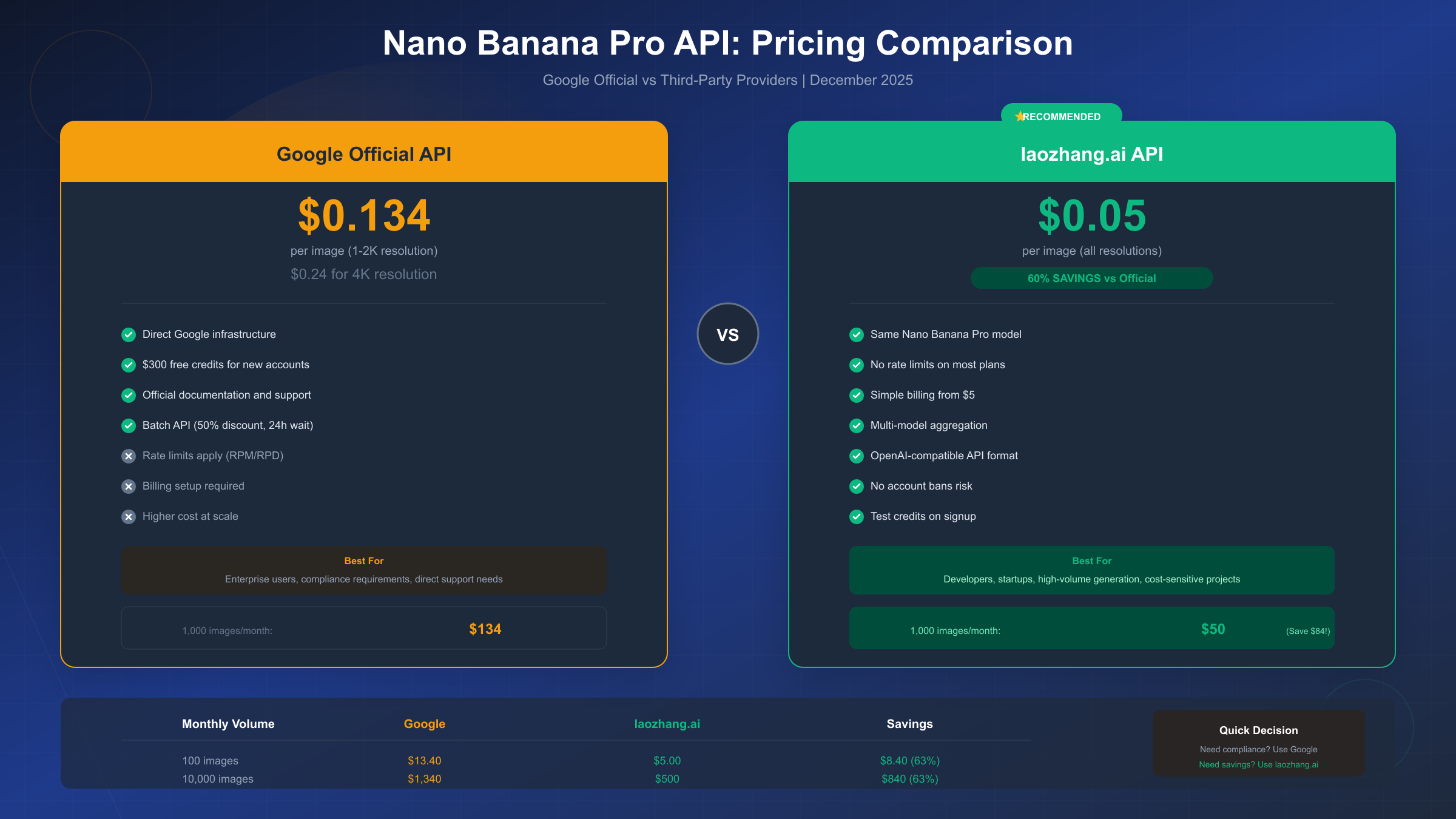
Official Google Pricing (December 2025)
Google charges based on output resolution:
| Resolution | Price per Image | Use Case |
|---|---|---|
| 1024×1024 | $0.134 | Social media, thumbnails |
| 2048×2048 | $0.134 | Web graphics, presentations |
| 4096×4096 | $0.240 | Print materials, high-quality assets |
Input tokens (your prompt text) incur minimal additional charges at $0.00025 per 1,000 tokens—a 500-word prompt costs roughly $0.00006, negligible compared to generation costs.
Cost Calculation Examples
Understanding real-world costs helps project budgets:
- Hobby project: 50 images/month × $0.134 = $6.70/month
- Small business: 500 images/month × $0.134 = $67/month
- Production app: 5,000 images/month × $0.134 = $670/month
- 4K production: 1,000 images/month × $0.24 = $240/month
For detailed pricing breakdowns including token costs and batch processing discounts, see the detailed Nano Banana Pro pricing breakdown.
Third-Party API Aggregators
API aggregation services like laozhang.ai offer Nano Banana Pro access at reduced rates by pooling requests across multiple accounts and optimizing for volume discounts. These services charge approximately $0.05 per image regardless of resolution—roughly 60% savings compared to Google's direct pricing.
The tradeoffs involve routing requests through intermediary servers, which adds 100-500ms latency and introduces a third party into your data flow. For latency-sensitive applications or data-sensitive content, direct Google API access remains preferable. For cost-sensitive batch processing where additional latency doesn't impact user experience, aggregators provide significant savings.
When evaluating third-party providers, verify they support the specific Nano Banana Pro model version you need, understand their data handling policies, and test throughput capabilities before committing to production use.
Cost Optimization Strategies
Several techniques reduce per-image costs without sacrificing quality:
-
Resolution right-sizing: Generate at the minimum resolution your use case requires. Upscaling from 1024×1024 to 2048×2048 client-side costs nothing, while generating at 2048×2048 directly costs the same as 1024×1024.
-
Prompt efficiency: Shorter, more precise prompts reduce input token costs and often produce better results than verbose descriptions.
-
Caching: Store generated images for reuse rather than regenerating identical content. Implement content-addressable storage keyed on prompt hashes.
-
Batch timing: If using third-party services, batch requests during off-peak hours when servers have available capacity.
Your First Nano Banana Pro Image: Complete Code
With API key configured and billing enabled, generating your first image requires just a few lines of Python. The following example produces a photorealistic image while demonstrating proper error handling and environment variable usage.
Minimal Working Example
import os
from google import genai

# Initialize client with API key from environment
client = genai.Client(api_key=os.environ.get("GEMINI_API_KEY"))

# Generate image
response = client.models.generate_content(
    model="gemini-3-pro-image-preview",
    contents="A golden retriever puppy playing in autumn leaves, photorealistic, warm afternoon lighting"
)

# Save the generated image
if response.candidates and response.candidates[0].content.parts:
    for i, part in enumerate(response.candidates[0].content.parts):
        if hasattr(part, 'inline_data') and part.inline_data:
            image_data = part.inline_data.data
            with open(f"generated_image_{i}.png", "wb") as f:
                f.write(image_data)
            print(f"Image saved as generated_image_{i}.png")
This code initializes the client, sends a generation request, and saves the resulting image to disk. The response structure nests image data within candidates and parts—a pattern consistent across Gemini's multimodal outputs.
Enhanced Example with Configuration Options
For production use, you'll want more control over generation parameters:
import os
from google import genai
from google.genai.types import GenerateContentConfig

client = genai.Client(api_key=os.environ.get("GEMINI_API_KEY"))

# Configure generation parameters
config = GenerateContentConfig(
    temperature=0.9,  # Higher = more creative/varied
    top_p=0.95,       # Nucleus sampling threshold
    top_k=40,         # Token selection pool size
    max_output_tokens=8192,  # Sufficient for image generation
)

prompt = """
Create a professional product photograph of a minimalist ceramic coffee mug.
The mug should be white with a matte finish.
Place it on a light wooden surface with soft natural window lighting from the left.
Include subtle shadows and a slightly blurred background.
Style: commercial product photography, 4K quality.
"""

response = client.models.generate_content(
    model="gemini-3-pro-image-preview",
    contents=prompt,
    config=config
)

# Process response with error handling
if response.candidates:
    candidate = response.candidates[0]
    if candidate.content and candidate.content.parts:
        for idx, part in enumerate(candidate.content.parts):
            if hasattr(part, 'inline_data') and part.inline_data:
                filename = f"product_shot_{idx}.png"
                with open(filename, "wb") as f:
                    f.write(part.inline_data.data)
                print(f"Saved: {filename}")
    else:
        print("No image generated - check content filters")
else:
    print("No candidates returned - check prompt and API status")
Prompt Engineering Tips for Better Results
The quality of Nano Banana Pro output depends heavily on prompt construction. These patterns consistently produce superior results:
- Specify the medium: "oil painting", "3D render", "photograph", "watercolor illustration"
- Define lighting: "soft diffused lighting", "dramatic rim lighting", "golden hour sunlight"
- Include camera details for photos: "85mm lens", "shallow depth of field", "eye-level angle"
- State quality expectations: "highly detailed", "4K resolution", "professional quality"
- Describe negative space: What should NOT appear in the image
Common First-Time Issues
If your first generation attempt fails, check these common causes:
- API key not set: Verify
echo $GEMINI_API_KEYreturns your key - Billing not enabled: Check Google Cloud Console billing status
- Wrong model name: Use exactly
gemini-3-pro-image-preview - Network issues: Test with a simple API call first
Choosing the Right Model: Nano Banana vs Pro
Google offers multiple image generation models under the Gemini umbrella, and selecting the appropriate model for your use case balances quality, speed, and cost. The "Nano Banana" naming convention distinguishes between model variants with different capability profiles.
Model Comparison Overview
| Feature | Nano Banana | Nano Banana Pro |
|---|---|---|
| Max Resolution | 1024×1024 | 4096×4096 |
| Text Accuracy | ~80% | ~95% |
| Generation Speed | 2-4 seconds | 3-8 seconds |
| Cost per Image | $0.067 | $0.134-$0.24 |
| Use Case | Drafts, social media | Production, print |
When to Choose Nano Banana (Standard)
The standard Nano Banana model excels for rapid iteration and cost-sensitive applications. Its lower resolution output (maximum 1024×1024) suits social media posts, website thumbnails, and concept exploration where final production assets will be refined separately. At roughly half the cost of Pro, standard Nano Banana allows more experimentation within the same budget.
Development workflows benefit from standard Nano Banana's speed advantage. When iterating on prompts to find the right composition or style, faster generation cycles accelerate creative exploration. Once you've refined your prompt, switch to Pro for the final high-resolution output.
When to Choose Nano Banana Pro
Nano Banana Pro is essential when your use case involves any of these requirements:
- Resolution above 1024×1024: Only Pro supports 2K and 4K output
- Accurate text rendering: Pro's enhanced text model significantly outperforms standard
- Print production: 4K resolution provides adequate DPI for print materials
- Commercial client work: Quality expectations typically demand Pro-level output
For developers building 4K image generation capabilities with Nano Banana Pro, Pro is the only viable option—standard Nano Banana cannot produce images beyond 1024×1024.
Hybrid Approaches
Many production systems implement hybrid strategies. Generate concept options with standard Nano Banana at low cost, present options to users or stakeholders for selection, then regenerate chosen concepts at Pro quality. This approach reduces costs by 60-70% compared to generating everything at Pro level while maintaining final output quality.
The API makes model switching trivial—simply change the model identifier string. Build your application with configurable model selection to switch between variants based on context.
Troubleshooting Common Errors and Solutions
Even with correct setup, you'll encounter errors during development and production use. This section catalogs the most frequent issues with verified solutions based on real deployment experience.
Error: 403 PERMISSION_DENIED - Billing not enabled
This error occurs when your API key's project lacks an active billing account, even if billing exists on other projects in your Google Cloud organization.
Solution:
- Identify your API key's project in Google AI Studio (shown when you created the key)
- Open Google Cloud Console and select that project
- Navigate to Billing and link an active billing account
- Wait 2-5 minutes for billing status to propagate
Error: 429 RESOURCE_EXHAUSTED - Rate limit exceeded
Google enforces rate limits to ensure fair access across all users. Default limits for new accounts allow approximately 60 requests per minute.
Solution:
- Implement exponential backoff with jitter in your code
- Request quota increases through Google Cloud Console > IAM & Admin > Quotas
- Consider using third-party aggregators that remove rate limits entirely
For persistent rate limit issues, the guide on fixing Gemini API 429 rate limit errors provides detailed solutions.
Error: 400 INVALID_ARGUMENT - Content blocked by safety filters
Nano Banana Pro includes content safety filters that may block prompts perceived as potentially harmful or inappropriate, even when the intent is innocent.
Solution:
- Review your prompt for words that might trigger safety filters
- Rephrase descriptions of people, violence, or adult themes
- Add clarifying context: "for a children's book illustration" or "professional medical diagram"
- If filters seem overly aggressive, submit feedback through Google AI Studio
Error: 500 INTERNAL - Server error
Transient server errors occur occasionally, especially during high-traffic periods or when Google deploys updates.
Solution:
- Retry the request after a brief delay (1-5 seconds)
- Implement automatic retry logic with maximum attempts
- If persistent, check Google Cloud Status Dashboard for service incidents
import time
from google.api_core import retry

@retry.Retry(predicate=retry.if_transient_error)
def generate_with_retry(client, prompt):
    return client.models.generate_content(
        model="gemini-3-pro-image-preview",
        contents=prompt
    )
Error: Empty response with no error message
Sometimes the API returns successfully but contains no generated image, typically due to content filter intervention or resource allocation issues.
Solution:
- Check response.candidates[0].finish_reason for hints
- Review response.candidates[0].safety_ratings for filter triggers
- Simplify your prompt and gradually add complexity
- Test with a known-working prompt to isolate the issue
Model not found or deprecated
Google occasionally updates model identifiers or deprecates older versions.
Solution:
- Verify the exact model string:
gemini-3-pro-image-preview - Check Google AI documentation for current model names
- Update your SDK:
pip install --upgrade google-genai
Beyond First Image: Production Patterns
Moving from single image generation to production systems requires attention to scalability, reliability, and cost management. These patterns emerge from real-world deployments handling thousands of daily image generation requests.
Asynchronous Processing Architecture
Production systems should decouple image generation from user-facing request handling. Submit generation requests to a queue, process them asynchronously, and notify users when images complete.
import asyncio
from google import genai

async def generate_async(client, prompt: str, request_id: str):
    """Async wrapper for image generation."""
    loop = asyncio.get_event_loop()

    # Run sync API call in thread pool
    response = await loop.run_in_executor(
        None,
        lambda: client.models.generate_content(
            model="gemini-3-pro-image-preview",
            contents=prompt
        )
    )

    return {
        "request_id": request_id,
        "success": bool(response.candidates),
        "response": response
    }

async def process_batch(prompts: list[tuple[str, str]]):
    """Process multiple generation requests concurrently."""
    client = genai.Client()

    tasks = [
        generate_async(client, prompt, req_id)
        for req_id, prompt in prompts
    ]

    results = await asyncio.gather(*tasks, return_exceptions=True)
    return results
FastAPI Integration Example
For web applications, FastAPI provides an efficient framework for image generation endpoints:
from fastapi import FastAPI, BackgroundTasks, HTTPException
from pydantic import BaseModel
import uuid

app = FastAPI()
client = genai.Client()

class GenerationRequest(BaseModel):
    prompt: str
    resolution: str = "1024x1024"

class GenerationResponse(BaseModel):
    request_id: str
    status: str

@app.post("/generate", response_model=GenerationResponse)
async def create_generation(
    request: GenerationRequest,
    background_tasks: BackgroundTasks
):
    request_id = str(uuid.uuid4())

    background_tasks.add_task(
        process_generation,
        request_id,
        request.prompt
    )

    return GenerationResponse(
        request_id=request_id,
        status="processing"
    )
Caching Strategy
Identical prompts produce similar (though not identical) outputs. For prompts that don't require variation, implement caching:
import hashlib
from functools import lru_cache

def prompt_hash(prompt: str) -> str:
    """Create deterministic hash for prompt caching."""
    normalized = " ".join(prompt.lower().split())
    return hashlib.sha256(normalized.encode()).hexdigest()[:16]

# Cache recent generations
generation_cache = {}

def generate_with_cache(client, prompt: str, use_cache: bool = True):
    cache_key = prompt_hash(prompt)

    if use_cache and cache_key in generation_cache:
        return generation_cache[cache_key]

    response = client.models.generate_content(
        model="gemini-3-pro-image-preview",
        contents=prompt
    )

    if response.candidates:
        generation_cache[cache_key] = response

    return response
Monitoring and Observability
Track key metrics to maintain service health:
- Generation latency: P50, P95, P99 response times
- Success rate: Percentage of requests returning valid images
- Error distribution: Categorize failures by error type
- Cost tracking: Daily/weekly spend against budgets
Implement structured logging that captures prompt summaries (not full prompts, which may contain sensitive content), response metadata, and timing information.
Summary and Next Steps
Setting up Nano Banana Pro API involves three core steps: obtaining an API key from Google AI Studio, enabling billing on your Google Cloud project, and installing the google-genai Python SDK. With $300 in free credits available to new accounts, you can generate approximately 2,200 standard-resolution images at no cost while learning the platform.
Key Takeaways
The essential points from this guide:
- Nano Banana Pro is Google's production-grade image generation API, identified as
gemini-3-pro-image-previewin API calls - Billing must be explicitly enabled even when using free credits—API keys alone are insufficient
- Official pricing runs $0.134-$0.24 per image depending on resolution, with third-party aggregators offering $0.05 alternatives
- The Python SDK requires version 1.52.0 or higher for current feature compatibility
- Production deployments should implement async processing, caching, and proper error handling
Recommended Next Actions
To build on what you've learned:
- Generate 10 test images with varying prompts to understand quality and style consistency
- Set up budget alerts to prevent unexpected charges as you experiment
- Implement error handling patterns from the troubleshooting section
- Explore advanced prompting techniques for your specific use case
- Evaluate production patterns if building user-facing applications
Additional Resources
For continued learning and cost optimization:
- Google AI Studio: aistudio.google.com (API key management, interactive testing)
- Google Cloud Console: console.cloud.google.com (billing, quotas, monitoring)
- Official SDK Documentation: cloud.google.com/vertex-ai/docs
- API aggregator documentation for cost-effective high-volume usage: https://docs.laozhang.ai/
The image generation landscape evolves rapidly, with Google releasing model improvements without changing API interfaces. Stay current by monitoring Google AI announcements and testing new capabilities as they become available.
Frequently Asked Questions
How long does it take to get an API key?
The entire process from account creation to first API call typically takes 5-10 minutes. API key generation is instant once you accept terms of service. The only potential delay occurs if Google requires additional account verification for new accounts.
Can I use Nano Banana Pro without billing?
No. Even with the $300 free credit, you must have an active billing account linked to your API project. This is Google's requirement for all production AI services and cannot be bypassed.
What happens when my free credits expire?
Your billing account's payment method (credit card or PayPal) will be charged for subsequent API usage. Set up budget alerts before credits expire to monitor spending and avoid surprises.
Is my prompt data stored or used for training?
According to Google's data usage policy for API services (distinct from consumer-facing products), prompts submitted through the API are processed for generation only and not used for model training by default. Enterprise customers can negotiate additional data handling agreements.
Can I generate images commercially?
Yes. Images generated through the Nano Banana Pro API can be used commercially, subject to Google's terms of service. This includes using generated images in products, marketing materials, and client deliverables. Standard content policy restrictions apply—no generating harmful, illegal, or deceptive content.
How do I increase my rate limits?
Request quota increases through Google Cloud Console > IAM & Admin > Quotas. Search for "Gemini" quotas, select the relevant limit, and submit an increase request. Google typically responds within 2-3 business days. Substantial increases may require business justification.