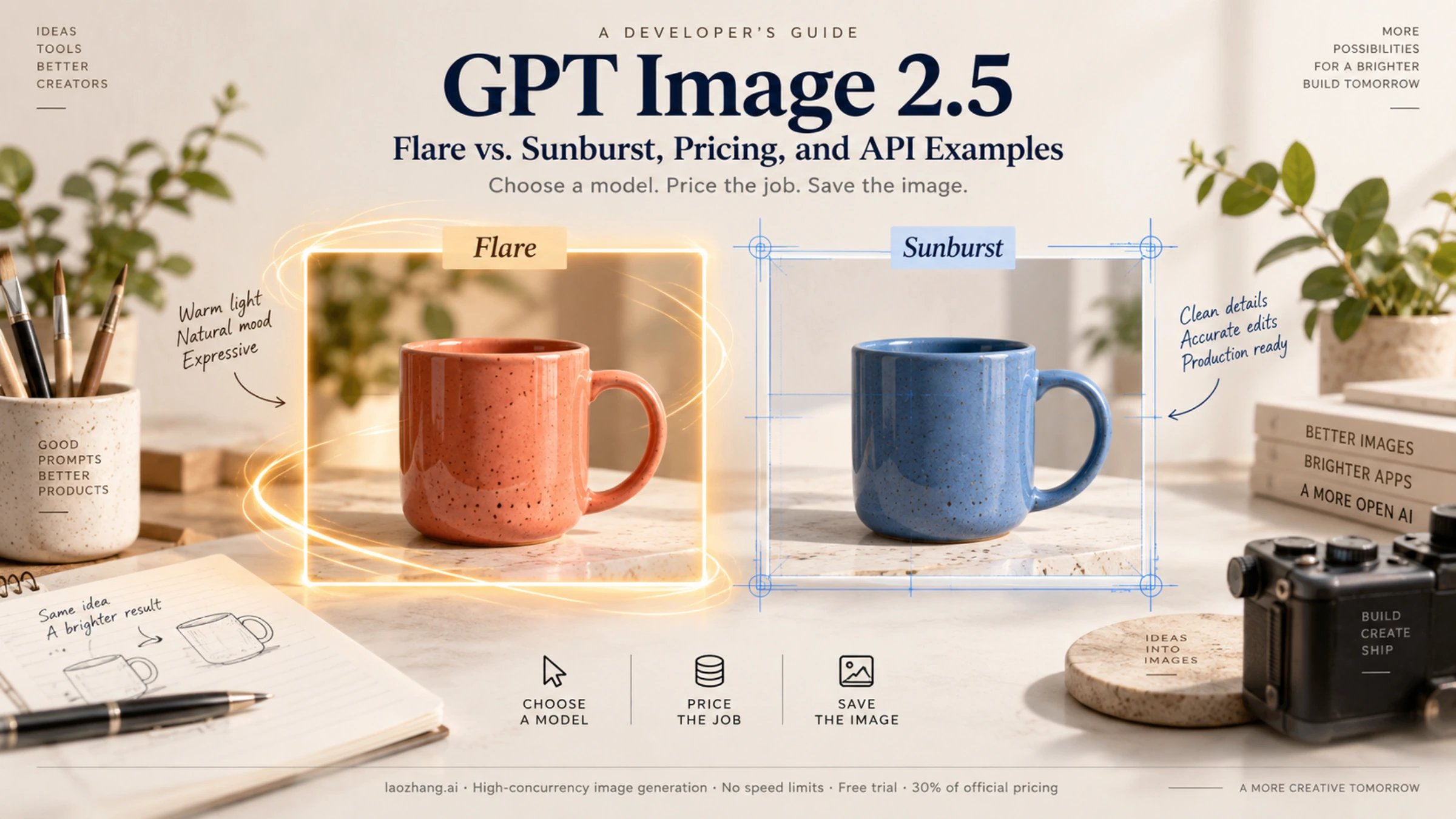
GPT Image 2.5 is OpenAI's image generation and editing family released on September 8, 2026. It has two API models: Flare, the starting point for fast everyday image work, and Sunburst, aimed at work that demands more precise edits. Both can create images from text and modify existing images. The API identifiers are gpt-image-2.5-flare and gpt-image-2.5-sunburst; choose one explicitly when you integrate it. OpenAI's release notes and the Flare and Sunburst model pages establish the release and supported tasks.
For a new application, start by testing Flare on representative requests. Include Sunburst when preserving a product, person, or carefully specified composition through edits matters to the result. Their standard token prices are identical, but that does not establish an identical cost per image. The amount of image processing, output tokens, and revision work still matters.
What changed from GPT Image 2?
OpenAI describes GPT Image 2.5 as improving reference fidelity, targeted changes, and editing across multiple turns. Its launch announcement reports 50% lower latency for Flare than GPT Image 2, while positioning Sunburst as the more precise option with longer generation times. Those are OpenAI's claims, not independent speed or quality benchmarks. OpenAI's launch announcement.
| Decision | GPT Image 2 | GPT Image 2.5 Flare | GPT Image 2.5 Sunburst |
|---|---|---|---|
| API model | gpt-image-2 | gpt-image-2.5-flare | gpt-image-2.5-sunburst |
| Main role in a comparison | Existing integration and evaluation baseline | First candidate for everyday generation | Candidate for demanding edit precision |
| Generate and edit images | Yes | Yes | Yes |
| Quality settings | low, medium, high, auto | Also adds xhigh and max | Also adds xhigh and max |
| Standard token rates | Same listed rates as 2.5 | Same listed rates as Sunburst | Same listed rates as Flare |
The quality options are documented in the image generation guide; the baseline model is described on the GPT Image 2 page.
A useful trial is a small product catalog workflow: create a studio image of a ceramic mug, then change its glaze while preserving its handle, camera angle, and shadows. Score the first image for usefulness and the edit for unwanted changes. Compare elapsed time and the total charge needed to reach an acceptable final asset. This separates a faster first response from a workflow that saves money by needing fewer corrections.
Keep your existing GPT Image 2 outputs as a baseline during that trial. For repeatable evaluation, the 2.5 models also have dated snapshots: gpt-image-2.5-flare-2026-09-08 and gpt-image-2.5-sunburst-2026-09-08. These identifiers are listed on their model pages.
ChatGPT's release also includes interface features such as sketching, templates, comments, and prompt sharing. Those are features of the ChatGPT experience; they are not parameters you obtain merely by switching your API model. Likewise, ChatGPT subscription access should not be treated as API credit.
GPT Image 2.5 pricing: calculate the request, then the usable result
As of September 9, 2026, OpenAI lists the following standard direct API rates in USD per million tokens for both 2.5 variants. GPT Image 2 has the same token rates. OpenAI API pricing.
| Token category | Flare | Sunburst |
|---|---|---|
| Text input, uncached | $5.00 | $5.00 |
| Text input, cached | $1.25 | $1.25 |
| Image input, uncached | $8.00 | $8.00 |
| Image input, cached | $2.00 | $2.00 |
| Image output | $30.00 | $30.00 |
Neither 2.5 image model bills text output because its output is images. If you call it through Responses, the main model's token charges are additional.
To calculate the image model portion, divide the following sum by 1,000,000:
uncached text input tokens × 5.00
+ cached text input tokens × 1.25
+ uncached image input tokens × 8.00
+ cached image input tokens × 2.00
+ image output tokens × 30.00
Cached input is a subset of input, not an extra input charge. If a usage report gives total text tokens and cached text tokens, subtract the cached amount before applying the $5 rate. Do the same for image input. Never charge the entire total at the ordinary rate and then add a second charge for its cached subset.
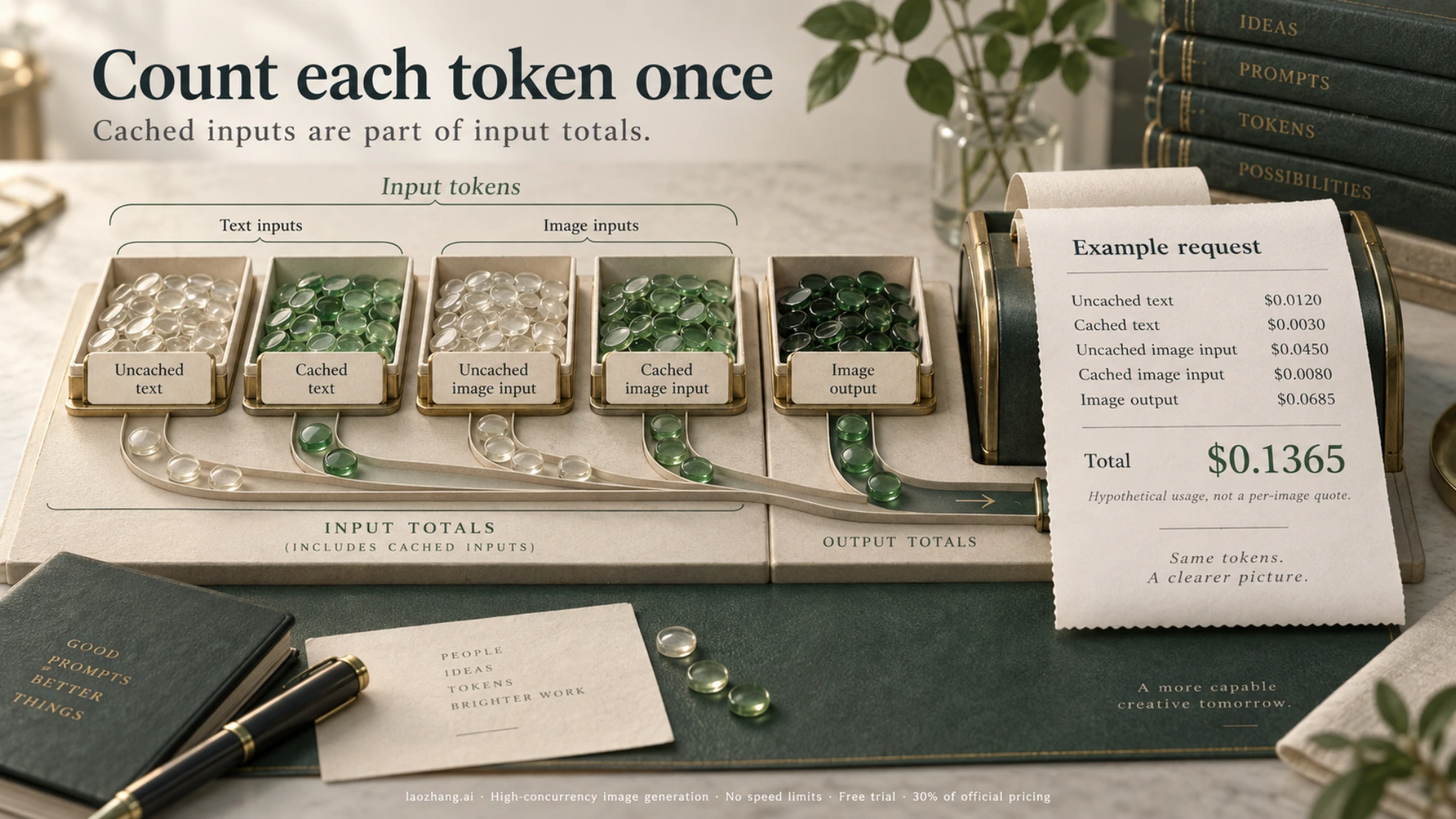
For example, suppose a request reports 1,000 total text input tokens, of which 400 are cached; 2,000 total image input tokens, of which 500 are cached; and 4,000 image output tokens. This is a hypothetical accounting example, not measured consumption for a particular image size or quality.
| Exclusive billing bucket | Calculation | Cost |
|---|---|---|
| Uncached text | 600 × $5 / 1,000,000 | $0.0030 |
| Cached text | 400 × $1.25 / 1,000,000 | $0.0005 |
| Uncached image input | 1,500 × $8 / 1,000,000 | $0.0120 |
| Cached image input | 500 × $2 / 1,000,000 | $0.0010 |
| Image output | 4,000 × $30 / 1,000,000 | $0.1200 |
| Total | $0.1365 |
Under those exact assumptions, 100 requests would cost $13.65 for the image model. This is a multiplication of the example, not a quoted price for 100 GPT Image 2.5 images. Different usage changes the result.
For an estimate before running a request, select the exact 2.5 variant in the official calculator when it is offered. OpenAI explicitly says that the GPT Image 2 calculator does not estimate 2.5 token consumption. Do not copy a GPT Image 2 per-image table into your budget just because the rates match. The model pricing notes make that distinction.
For a production budget, track total spend divided by accepted final images alongside the charge per request. A rejected draft and two follow-up edits can all contribute to one final deliverable. Keep those costs together when deciding whether Flare or Sunburst is the better fit.
Generate and save an image with the Images API
Use the Images API for a direct image job. You will need API access, available billing, and an API key set in the OPENAI_API_KEY environment variable. Your organization may need verification; access and limits depend on the account. The examples below follow the official image generation guide. They have not been tested with a paid API call.
Install or update the Python SDK in your environment:
python -m pip install --upgrade openaiSave this as generate.py and run it with python generate.py. It requests one PNG and saves the decoded image bytes to mug.png.
import base64
from pathlib import Path

from openai import OpenAI

client = OpenAI()
result = client.images.generate(
    model="gpt-image-2.5-flare",
    prompt=(
        "Studio product photograph of a simple coral ceramic mug, "
        "three-quarter view on a pale gray surface. Soft light from "
        "the left, a clearly visible rounded handle, no text or logos."
    ),
    size="1536x1024",
    quality="medium",
    output_format="png",
    n=1,
)

if not result.data or not result.data[0].b64_json:
    raise RuntimeError("The response did not contain an image payload.")

image_bytes = base64.b64decode(result.data[0].b64_json, validate=True)
if not image_bytes:
    raise RuntimeError("The decoded image was empty.")

destination = Path("mug.png")
destination.write_bytes(image_bytes)
print(f"Saved {destination.resolve()} ({len(image_bytes)} bytes)")
if result.usage is not None:
    print(result.usage.model_dump_json(indent=2))
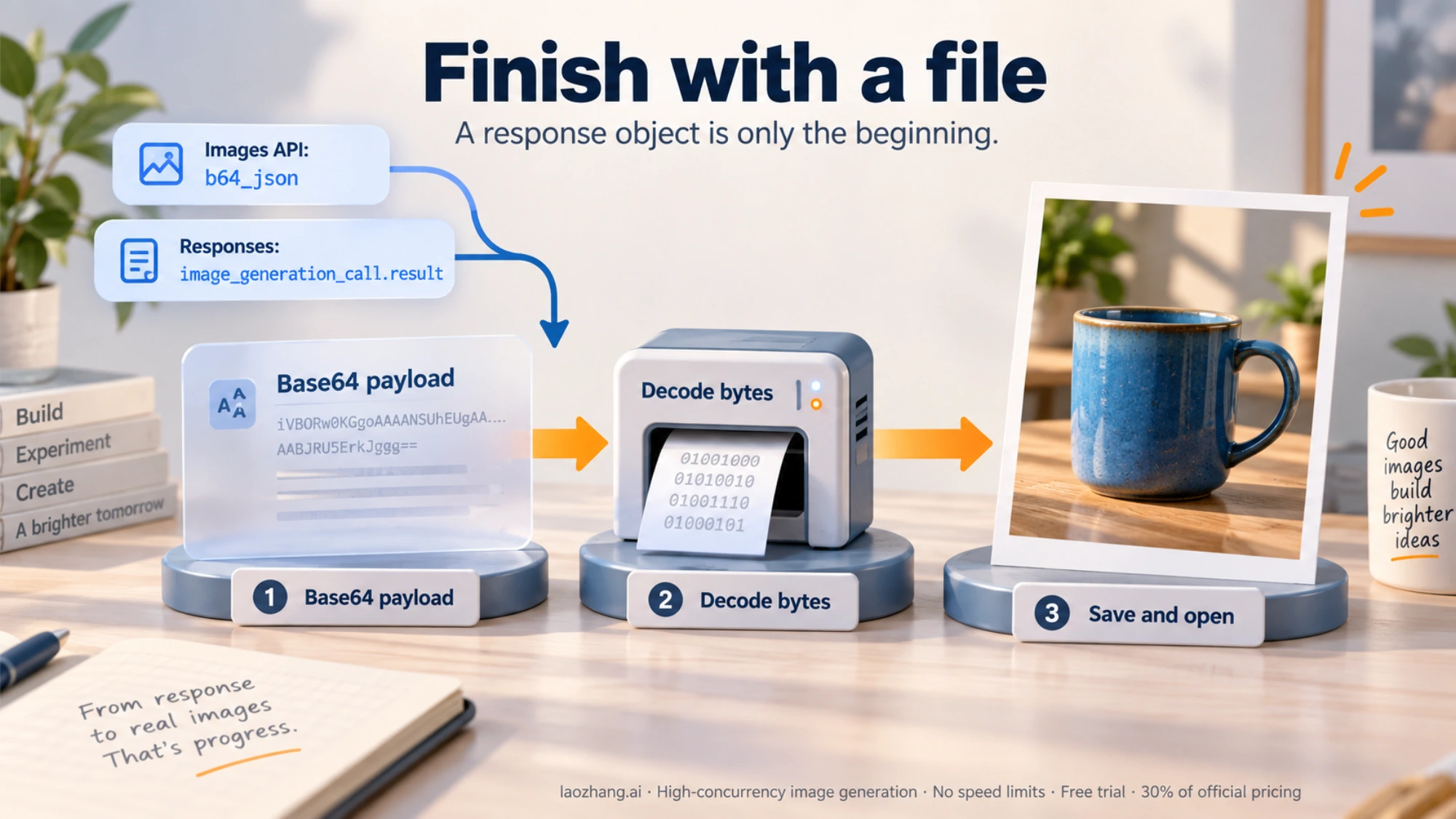
The important output is data[0].b64_json, a Base64 payload that you decode into a file. Printing the response object alone does not create an image file. Open the saved PNG to confirm that your application can actually use the result.
Edit that image with Sunburst
After the first script creates mug.png, save and run this separate script from the same directory. It makes another billable request and writes mug-blue.png, leaving the original available for comparison.
import base64
from pathlib import Path

from openai import OpenAI

client = OpenAI()
with Path("mug.png").open("rb") as source:
    result = client.images.edit(
        model="gpt-image-2.5-sunburst",
        image=source,
        prompt=(
            "Change only the mug's coral glaze to a deep blue glaze. "
            "Preserve the mug shape, handle, camera angle, background, "
            "lighting, and shadow."
        ),
        size="1536x1024",
        quality="high",
        output_format="png",
    )

if not result.data or not result.data[0].b64_json:
    raise RuntimeError("The edit response did not contain an image payload.")

image_bytes = base64.b64decode(result.data[0].b64_json, validate=True)
if not image_bytes:
    raise RuntimeError("The decoded edit was empty.")

destination = Path("mug-blue.png")
destination.write_bytes(image_bytes)
print(f"Saved {destination.resolve()} ({len(image_bytes)} bytes)")
if result.usage is not None:
    print(result.usage.model_dump_json(indent=2))
Sunburst's precision positioning does not promise that every unchanged region will remain pixel-identical. Compare the saved edit with the source against the actual requirement. You can also run this edit with Flare when evaluating which model handles your task adequately.
When to use Responses instead
Responses fits an assistant that discusses a brief and then generates an image within that conversation. The top-level model is a supported main model, such as gpt-6-astra; select the image model inside the image generation tool. Read image bytes from output items of type image_generation_call, rather than from the Images API's data array. This follows OpenAI's Responses image tool examples.
import base64
from pathlib import Path

from openai import OpenAI

client = OpenAI()
response = client.responses.create(
    model="gpt-6-astra",
    input=(
        "Generate a landscape editorial illustration of a small pottery "
        "studio at sunrise, with a blue mug on the workbench."
    ),
    tools=[{
        "type": "image_generation",
        "model": "gpt-image-2.5-flare",
    }],
)

saved = []
for item in response.output:
    if item.type != "image_generation_call" or not item.result:
        continue
    image_bytes = base64.b64decode(item.result, validate=True)
    if not image_bytes:
        continue
    destination = Path(f"studio-{len(saved) + 1}.png")
    destination.write_bytes(image_bytes)
    saved.append(str(destination.resolve()))

if not saved:
    raise RuntimeError(f"No image returned; inspect response {response.id}.")

print("Saved:", *saved, sep="\n")
print("Response ID:", response.id)
A completed response can contain no image, so handle that branch explicitly. For conversational follow-up edits, the documented pattern uses previous_response_id to continue from an earlier response. Budget for the main model as well as the image tool when comparing this approach with a direct Images request.
Pick output settings around the asset you need
Start with 1024x1024, 1536x1024, or 1024x1536 for a straightforward first integration. quality controls the quality setting; size controls image dimensions. In particular, quality="max" does not mean maximum resolution. GPT Image 2.5 also supports xhigh, while auto is the default quality option. Output customization.
Custom dimensions must satisfy several conditions together: both edges are multiples of 16, neither exceeds 3,840 pixels, the aspect ratio stays between 1:3 and 3:1, and the total pixel count is between 655,360 and 8,294,400. A familiar video size may fail: 1024 × 576 has only 589,824 pixels. OpenAI describes resolutions above 2560 × 1440 as experimental.
For transparent assets, request background="transparent" and use PNG or WebP. PNG is the default output format; JPEG is another choice when transparency is unnecessary. Match your saved file extension to the requested format.
Before serving customer traffic, make one real request with your own account, open the resulting file, and record its usage and elapsed time. Keep the HTTP status and request ID when diagnosing failures. Correct access, quota, and invalid-parameter problems before retrying; a blind retry loop does not resolve them. Complex prompts can take up to two minutes according to OpenAI's limitations guidance, so design the waiting experience around an image job that may take time.
If you already use GPT Image 2, the next useful step is a controlled comparison using the same inputs and acceptance criteria. If your decision also includes Google's image models, the separate Nano Banana Pro vs. GPT Image 2 comparison covers that broader choice; its older-model results should not be read as a GPT Image 2.5 benchmark.