Google DeepMind has revolutionized AI video generation with Veo 3.1, their most advanced text-to-video model released in October 2025. Unlike previous generations, Veo 3.1 generates native audio alongside video, creating complete multimedia clips from simple text descriptions. Whether you want cinematic product shots, explainer videos, or social media content, this model delivers production-ready results in seconds. This comprehensive guide covers everything you need to start generating stunning videos today, from initial API setup to advanced prompt optimization techniques.
What is Veo 3.1?
Veo 3.1 represents a significant leap forward in AI video generation technology. Developed by Google DeepMind and released on October 16, 2025, this model combines state-of-the-art video synthesis with native audio generation capabilities that set it apart from competitors like OpenAI's Sora and Runway's Gen-3.
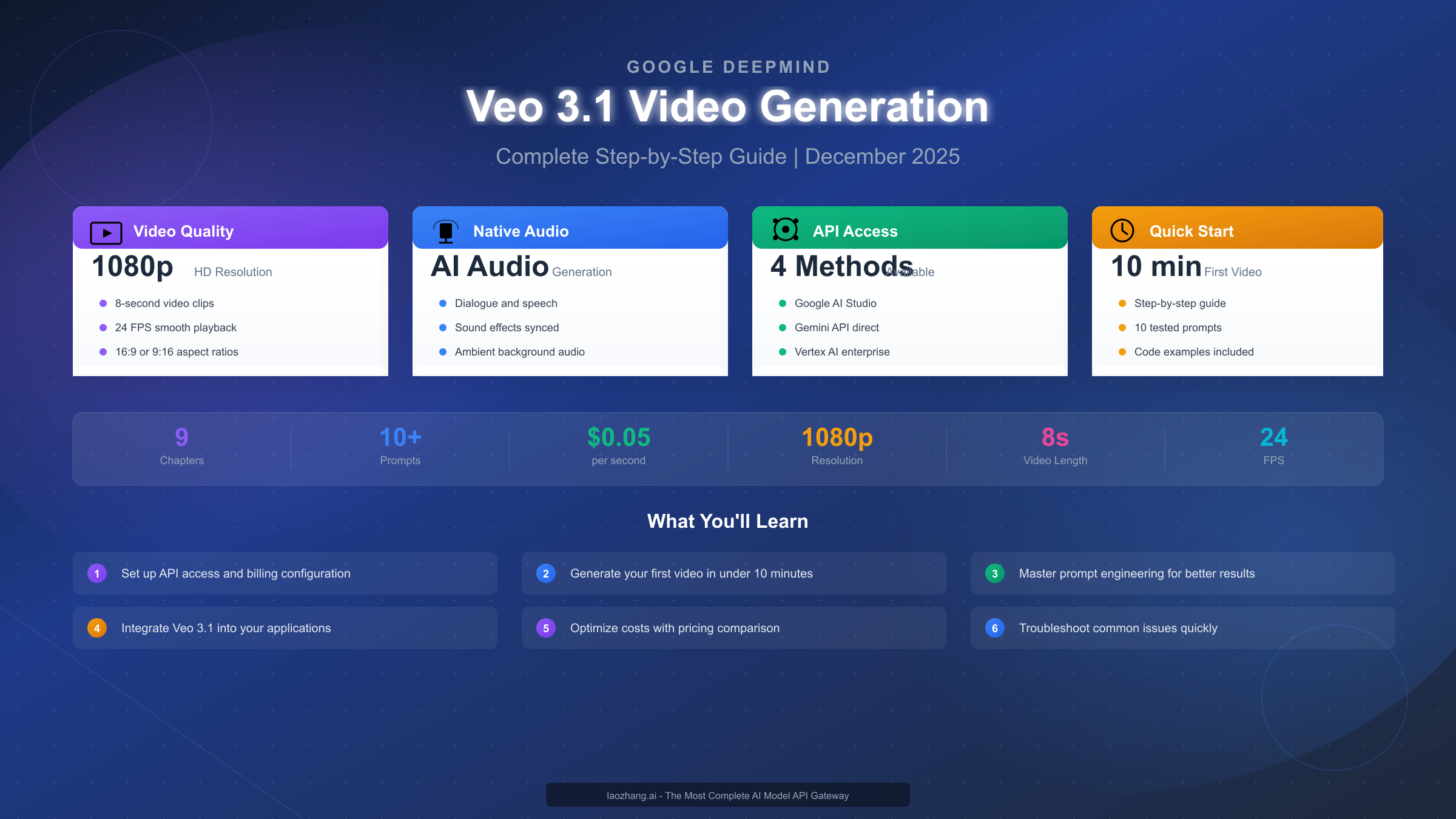
The core technology behind Veo 3.1 builds on Google's expertise in multimodal AI, leveraging transformer architectures trained on vast video datasets. Unlike earlier models that generated silent clips requiring separate audio overlays, Veo 3.1 produces synchronized audio as an integral part of the generation process. This means dialogue, sound effects, and ambient audio are generated automatically based on your prompt descriptions.
Key specifications define what Veo 3.1 can produce. The model generates videos up to 8 seconds in length at either 720p or 1080p resolution, running at a smooth 24 frames per second. You can choose between landscape (16:9) and portrait (9:16) aspect ratios, making it suitable for both traditional video platforms and mobile-first social media. The native audio generation includes three distinct categories: dialogue and speech, environmental sound effects, and ambient background audio.
What truly differentiates Veo 3.1 from competitors is its combination of visual quality and audio coherence. According to Google's benchmarks presented at the model's launch, Veo 3.1 outperforms previous versions on the MovieGenBench and VBench evaluation frameworks. Human evaluators consistently rated its output higher for realism, motion consistency, and prompt adherence. For a broader perspective on how Veo 3.1 compares to other options in the market, you might want to explore our AI video model comparison guide which covers the full landscape of available tools.
The practical applications span numerous industries. Marketing teams use Veo 3.1 for rapid prototype creation and A/B testing of video concepts. E-learning developers generate instructional content at scale. Social media managers produce platform-specific videos without extensive editing. Independent filmmakers explore creative concepts before committing to full production. The 8-second clip limitation actually encourages focused, impactful content that performs well on modern platforms.
Access Methods: Choose Your Path
Understanding the different access methods for Veo 3.1 is crucial before you begin. Each option offers distinct advantages depending on your technical expertise, volume requirements, and budget considerations. Google provides four primary ways to use Veo 3.1, each suited to different use cases.
Google AI Studio offers the simplest starting point for developers. This web-based interface provides direct access to Veo 3.1 through the Gemini API ecosystem. You can create an API key in minutes, experiment with prompts in the playground, and integrate the model into your applications using straightforward REST calls or official SDKs. The setup requires minimal technical knowledge—if you've ever used an API, you'll find this familiar. Google AI Studio is ideal for individual developers, small teams, and anyone wanting to prototype quickly before committing to larger implementations.
Vertex AI serves enterprise needs with additional security and compliance features. This Google Cloud Platform service wraps Veo 3.1 in enterprise-grade infrastructure, offering service level agreements (SLAs), virtual private cloud (VPC) integration, and comprehensive audit logging. Organizations already invested in Google Cloud will find seamless integration with existing workflows. However, Vertex AI requires more complex setup—you'll need a GCP project, billing account, and familiarity with Google Cloud concepts. The tradeoff is lower per-second pricing ($0.10 vs $0.15 for Gemini API) and enterprise support.
Google Flow targets creators who prefer visual interfaces over code. This subscription-based platform provides a no-code experience for video generation, complete with built-in editing tools and project management features. Flow users receive 1,000 monthly credits, which translate to approximately 50 videos using the Fast model (20 credits each) or 10 videos using the Standard model (100 credits each). The subscription model suits content creators producing regular video content who want predictable monthly costs rather than usage-based billing.
The fourth option worth considering is API aggregator services. Platforms like laozhang.ai provide access to Veo 3.1 at reduced rates—typically 50% or more off official pricing—while maintaining the same output quality. These services aggregate multiple AI model providers, offering unified APIs that let you switch between models easily. For developers building production applications with significant video generation volume, this approach often delivers the best cost-to-performance ratio.
Choosing between these options depends on your specific situation. Developers wanting official documentation and support should start with Gemini API through Google AI Studio. Enterprises requiring compliance certifications should evaluate Vertex AI. Creators who prefer visual workflows should try Flow. Teams optimizing for cost at scale should explore aggregator options. Many users actually combine approaches—prototyping on AI Studio, then moving to cost-optimized solutions for production.
Generate Your First Video (Quick Start)
Getting your first Veo 3.1 video generated takes approximately 10 minutes if you follow these steps carefully. This section provides a streamlined path to success, focusing on the Gemini API approach since it offers the best balance of simplicity and flexibility.
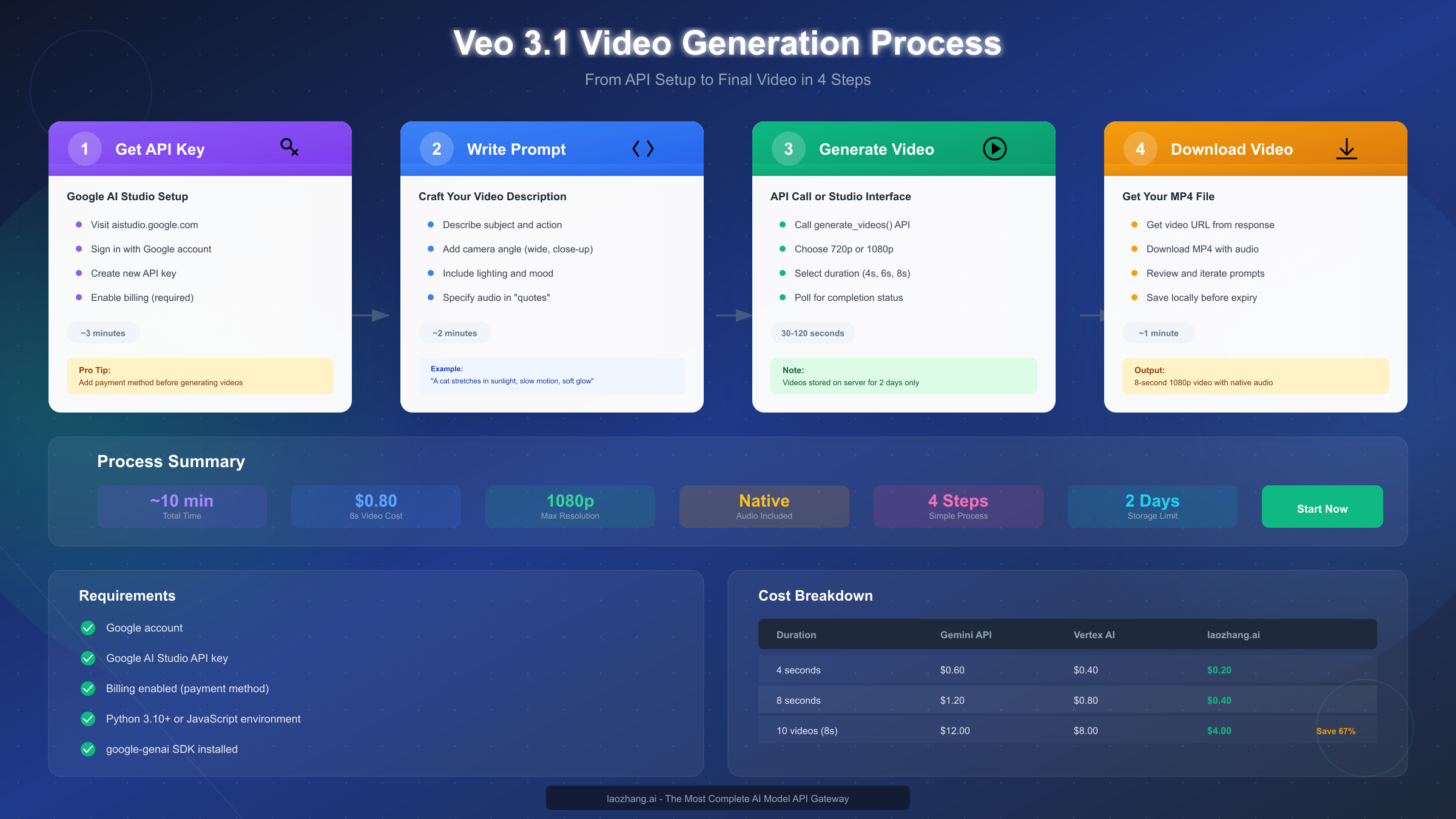
Step one requires obtaining your API key from Google AI Studio. Navigate to aistudio.google.com and sign in with your Google account. Click "Create API Key" in the left sidebar, select or create a Google Cloud project, and your key will be generated immediately. Copy this key and store it securely—you'll need it for all API calls. Important: before you can generate videos (which incur costs), you must add a payment method to your Google Cloud billing account associated with this project.
Step two involves setting up your development environment. For Python developers, install the official SDK with pip install google-genai. For JavaScript/Node.js users, run npm install @google/genai. Set your API key as an environment variable for security: export GOOGLE_API_KEY='your-key-here' on Linux/Mac or set GOOGLE_API_KEY=your-key-here on Windows. This prevents accidentally exposing your key in code commits.
Step three is writing your first generation request. Here's a minimal Python example that generates an 8-second video:
import time
from google import genai

client = genai.Client()

prompt = "A golden retriever puppy runs through autumn leaves in a park, warm afternoon sunlight filtering through trees, slow motion, cinematic"

operation = client.models.generate_videos(
    model="veo-3.1-generate-preview",
    prompt=prompt,
)

# Poll for completion
while not operation.done:
    print("Generating video...")
    time.sleep(10)
    operation = client.operations.get(operation)

# Download the result
video = operation.result.generated_videos[0]
print(f"Video available at: {video.video_uri}")
Understanding the response is crucial for building robust applications. Video generation is asynchronous—the API returns immediately with an operation ID, and you must poll until completion. Generation typically takes 30-120 seconds depending on complexity and server load. The response includes a temporary URL where your video is stored; this URL expires after 48 hours, so download videos promptly if you need to keep them.
Common first-time issues and their solutions include billing-related errors (ensure payment method is added), quota exceeded errors (new accounts start with limited quotas), and safety filter blocks (adjust prompt content). If your video is blocked by safety filters, you won't be charged, but you'll need to modify your prompt. For deeper guidance on setting up Gemini API access, our Gemini API key guide walks through the complete process including billing configuration.
API Setup: Keys, Billing & Configuration
Proper API configuration prevents the frustrating errors that derail many first-time users. This section covers the complete setup process, including billing activation, quota management, and environment configuration that ensure smooth operation.
Billing configuration is where most users encounter their first obstacle. Video generation costs money, and Google requires an active billing account before processing requests. Navigate to console.cloud.google.com, click the navigation menu, and select "Billing." Create a new billing account or link an existing one to your project. Add a credit card or other payment method. This step is non-negotiable—without it, video generation requests will fail with authentication errors that don't clearly indicate billing is the issue.
Quota management becomes important as you scale. New accounts receive limited video generation quotas that may restrict your initial experimentation. Check your current quotas at console.cloud.google.com under "APIs & Services" → "Quotas." For Veo 3.1, look for "Video Generation requests per minute" and "Video Generation requests per day." If you need higher limits, submit a quota increase request through the same interface—Google typically responds within 24-48 hours for reasonable increases.
Environment configuration best practices protect your API key and streamline development. Never hardcode API keys in source files; use environment variables or secure secrets management. For production deployments, consider using Google Cloud Secret Manager or your platform's equivalent. Set up separate API keys for development and production environments to avoid accidental quota exhaustion during testing.
Advanced configuration options include setting default parameters for your generation requests. You can specify preferred resolution (720p or 1080p), aspect ratio (16:9 or 9:16), and duration (4, 6, or 8 seconds) as defaults in your client configuration. This reduces code repetition and ensures consistency across your application.
Error handling patterns you should implement from the start include retry logic with exponential backoff for transient failures, proper handling of safety filter blocks, and graceful degradation when quotas are exceeded. The API returns specific error codes that help you respond appropriately—for example, distinguishing between "try again later" errors and "this content is not allowed" errors.
10 Best Prompts for Stunning Videos
Prompt engineering dramatically impacts the quality of your Veo 3.1 outputs. After extensive testing, these ten prompts consistently produce impressive results across different use cases. Each prompt demonstrates specific techniques you can adapt for your own content.
Prompt 1: Cinematic Product Shot "A premium watch rotates slowly on a marble surface, dramatic side lighting creating reflections on the metal case, shallow depth of field, luxury advertisement style, 8 seconds"
This prompt works because it specifies the subject, movement, lighting, and style explicitly. The "luxury advertisement style" phrase helps Veo 3.1 understand the aesthetic you're targeting.
Prompt 2: Nature Documentary "A hummingbird hovers near a bright red flower, its wings beating rapidly, morning dew glistening, macro lens perspective, David Attenborough documentary style, ambient forest sounds"
Note the audio cue at the end—mentioning "ambient forest sounds" activates Veo 3.1's native audio generation to create appropriate background audio.
Prompt 3: Urban Time-lapse "City intersection at twilight, cars and pedestrians moving in accelerated motion, neon signs flickering, reflections on wet pavement, cyberpunk atmosphere, electronic ambient soundtrack"
The time-lapse effect is achieved through the "accelerated motion" phrase combined with a bustling urban scene.
Prompt 4: Emotional Portrait "Close-up of a young artist painting, expressions shifting from concentration to satisfaction, natural window light, warm tones, indie film aesthetic, soft piano in background"
For human subjects, emotional descriptors and lighting specifications significantly improve natural-looking results.
Prompt 5: Food Photography "Fresh pasta being lifted with a fork, steam rising, parmesan falling in slow motion, rustic wooden table, warm kitchen lighting, satisfying ASMR sounds"
The ASMR mention guides audio generation toward the satisfying sounds food content creators seek.
Prompt 6: Abstract Motion Graphics "Geometric shapes morphing and flowing, gradient colors shifting from blue to purple to pink, smooth organic movements, modern tech company intro style, electronic ambient music"
Abstract content benefits from specific color palette instructions and movement descriptions.
Prompt 7: Travel Content "Drone shot ascending over tropical beach at sunset, palm trees swaying, crystal clear water, golden hour lighting, travel vlog style, calm ocean sounds fading in"
Drone perspective specifications help achieve the sweeping travel content aesthetic popular on social platforms.
Prompt 8: Educational Explainer "Animated diagram showing blood flowing through the heart, cross-section view, soft blue and red highlighting arteries and veins, medical illustration style, calm narrator voice explaining the process"
For educational content, clarity and professional styling cues produce better results than complex scenes.
Prompt 9: Social Media Hook "Sudden reveal of a colorful sneaker collection on shelves, energetic camera movement, studio lighting, hype beast aesthetic, upbeat hip-hop instrumental"
Fast-paced social content benefits from energy descriptors and cultural style references.
Prompt 10: Atmospheric Scene "Lonely lighthouse on a cliff during a storm, waves crashing, lightning illuminating clouds, moody cinematic grade, thunder and wind sounds"
Dramatic scenes work well when you specify both visual atmosphere and corresponding audio elements.
Key techniques these prompts demonstrate include: specifying camera movement and perspective, describing lighting conditions explicitly, referencing known aesthetic styles, including audio cues for native sound generation, mentioning temporal aspects (slow motion, time-lapse), and keeping descriptions focused on 2-3 seconds of action that can loop naturally in an 8-second clip.
Developer API Integration
Integrating Veo 3.1 into production applications requires understanding asynchronous operations, proper error handling, and optimization strategies. This section provides production-ready code patterns beyond the basic examples.
Python integration with proper error handling demonstrates the patterns you should use in real applications:
import time
import requests
from google import genai
from google.api_core import exceptions

client = genai.Client()

def generate_video(prompt: str, resolution: str = "1080p", duration: int = 8) -> str:
    """Generate a video and return the download URL."""
    try:
        operation = client.models.generate_videos(
            model="veo-3.1-generate-preview",
            prompt=prompt,
            config={
                "resolution": resolution,
                "duration_seconds": duration,
                "aspect_ratio": "16:9"
            }
        )

        # Poll with exponential backoff
        wait_time = 10
        max_wait = 300  # 5 minute timeout
        total_waited = 0

        while not operation.done:
            if total_waited >= max_wait:
                raise TimeoutError("Video generation timed out")
            time.sleep(wait_time)
            total_waited += wait_time
            operation = client.operations.get(operation)

        if operation.result.generated_videos:
            video_url = operation.result.generated_videos[0].video_uri
            return video_url
        else:
            raise ValueError("No video generated")

    except exceptions.ResourceExhausted:
        raise Exception("Quota exceeded - try again later")
    except exceptions.InvalidArgument as e:
        raise Exception(f"Invalid request: {e}")
    except exceptions.PermissionDenied:
        raise Exception("API key invalid or billing not configured")

def download_video(video_url: str, output_path: str) -> None:
    """Download video from temporary URL to local file."""
    response = requests.get(video_url)
    response.raise_for_status()
    with open(output_path, 'wb') as f:
        f.write(response.content)
JavaScript/Node.js developers can use similar patterns with the official SDK:
import { GoogleGenerativeAI } from '@google/generative-ai';

const genAI = new GoogleGenerativeAI(process.env.GOOGLE_API_KEY);

async function generateVideo(prompt, options = {}) {
  const model = genAI.getGenerativeModel({ model: 'veo-3.1-generate-preview' });

  const config = {
    resolution: options.resolution || '1080p',
    durationSeconds: options.duration || 8,
    aspectRatio: options.aspectRatio || '16:9'
  };

  try {
    const operation = await model.generateVideo(prompt, config);

    // Poll for completion
    let result = operation;
    while (!result.done) {
      await new Promise(resolve => setTimeout(resolve, 10000));
      result = await genAI.operations.get(operation.name);
    }

    return result.videos[0].uri;
  } catch (error) {
    if (error.code === 429) {
      throw new Error('Rate limit exceeded');
    }
    throw error;
  }
}
Batch processing strategies become important when generating multiple videos. Rather than sequential generation, use concurrent requests up to your quota limits. Implement a queue system for larger batches that respects rate limits while maximizing throughput. Consider using background job processors like Celery (Python) or Bull (Node.js) for production workloads.
Cost optimization at the API level involves choosing appropriate resolution and duration for each use case. A social media preview might only need 720p and 4 seconds, while hero content warrants 1080p and 8 seconds. For high-volume production use cases, services like laozhang.ai offer the same Veo 3.1 model at approximately $0.05/second—roughly one-third the official Gemini API rate—while maintaining output quality. This can translate to significant savings at scale without sacrificing capability.
Pricing and Cost Optimization
Understanding Veo 3.1 pricing helps you budget accurately and optimize costs for your specific use case. The pricing landscape includes several options with meaningful differences.
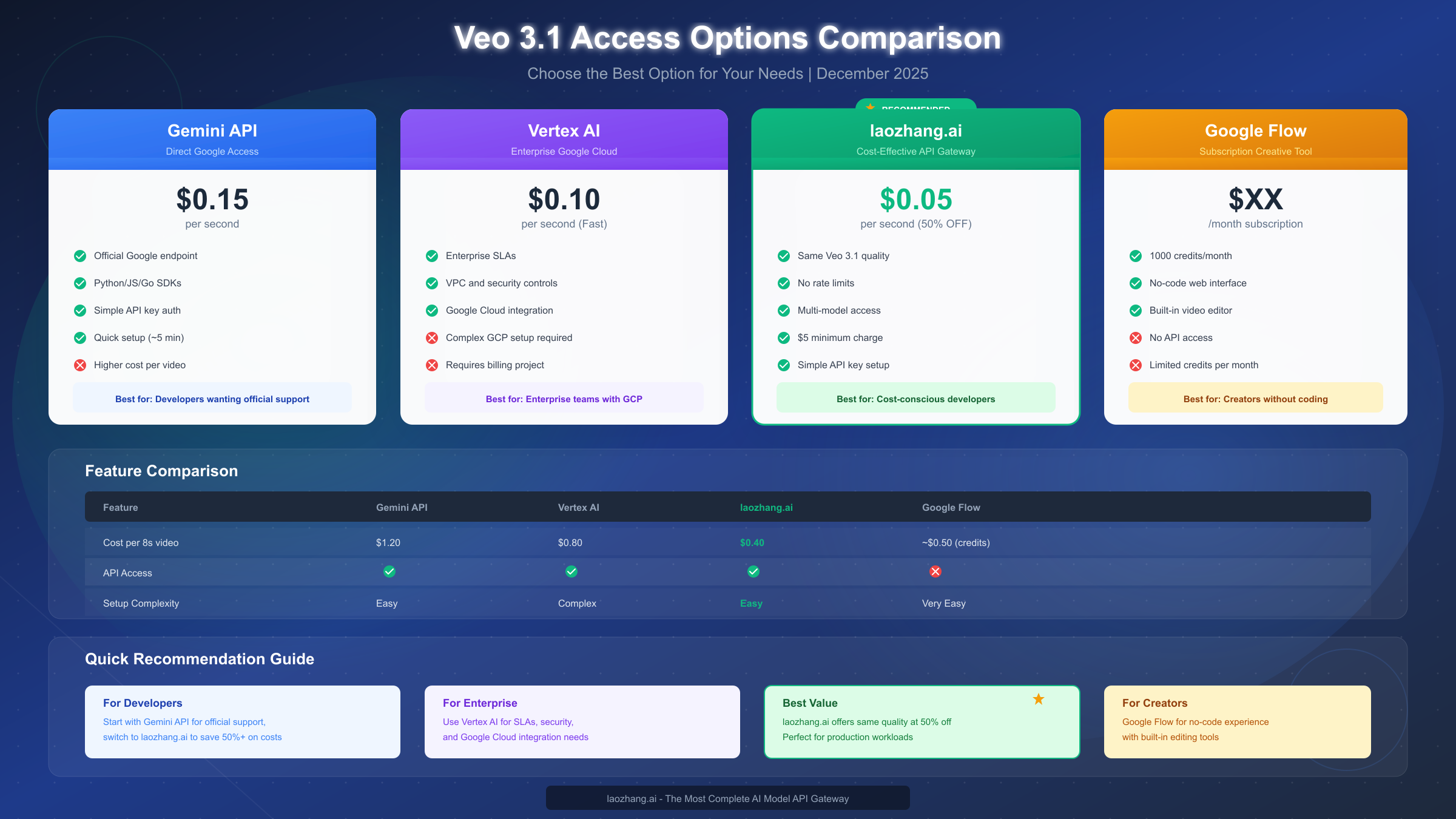
Gemini API pricing through Google AI Studio charges $0.15 per second of generated video. An 8-second video costs $1.20, a 4-second video costs $0.60. This straightforward per-second model makes cost calculation easy. For detailed information about Gemini API pricing structures, our Gemini API pricing guide covers the complete rate structure including free tier allowances.
Vertex AI offers lower per-second rates at approximately $0.10 per second for the Fast model. The same 8-second video costs $0.80 through Vertex AI. However, you'll also pay for Google Cloud Platform infrastructure and may face minimum monthly commitments depending on your agreement. Vertex AI makes sense for enterprise deployments already invested in GCP.
Google Flow subscription pricing follows a credit-based model. Monthly subscriptions include 1,000 credits, with Fast model videos consuming 20 credits each (50 videos/month) and Standard model videos consuming 100 credits each (10 videos/month). This translates to roughly $0.40-0.50 per video depending on your subscription tier and usage patterns.
API aggregator services like laozhang.ai offer the most aggressive pricing at $0.05 per second—roughly 50-67% less than official channels. An 8-second video costs $0.40, making high-volume production significantly more affordable. These services provide the same Veo 3.1 model output while aggregating multiple API providers to offer better rates. For teams producing dozens or hundreds of videos monthly, this pricing difference becomes substantial.
Cost comparison for typical usage scenarios illustrates the practical differences:
| Use Case | Videos/Month | Gemini API | Vertex AI | laozhang.ai |
|---|---|---|---|---|
| Startup experimenting | 10 | $12 | $8 | $4 |
| Content creator | 50 | $60 | $40 | $20 |
| Production team | 200 | $240 | $160 | $80 |
| Enterprise scale | 1000 | $1,200 | $800 | $400 |
Cost optimization strategies beyond choosing the right provider include: generating at 720p when 1080p isn't needed (saves processing cost, often visually sufficient for social media), using 4-second durations for quick social content, batching similar requests to optimize quota usage, and caching generated videos rather than regenerating. For API access and complete documentation on cost-effective video generation at scale, visit https://docs.laozhang.ai/.
Advanced Features
Veo 3.1 includes several advanced capabilities beyond basic text-to-video generation. Understanding these features unlocks more sophisticated use cases and creative possibilities.
Reference image guidance allows you to provide up to three images that influence the generated video's visual style, color palette, and subject matter. This is particularly valuable for brand consistency—upload your brand's visual assets, and generated videos will incorporate similar aesthetics. The API accepts image URLs or base64-encoded images alongside your text prompt.
First and last frame specification gives you precise control over video transitions. By providing specific frames for the start and end of your video, Veo 3.1 generates smooth motion between them. This feature is invaluable for creating seamless loops, matched cuts between scenes, or videos that transition between specific states. Combined with image-to-video capabilities, you can create professional transition effects programmatically.
Scene extension addresses one of AI video's common limitations—duration. While single generations cap at 8 seconds, scene extension lets you continue from the last frame of a previous video, maintaining visual consistency across longer sequences. This enables creating 30-second or longer videos through iterative extension, though each segment still incurs per-second costs.
Negative prompts help exclude unwanted elements from your generations. If Veo 3.1 consistently adds elements you don't want—perhaps text overlays or certain visual styles—negative prompts let you explicitly exclude them. The syntax mirrors positive prompts but describes what should not appear.
Audio control refinement goes beyond simple ambient sound descriptions. You can specify dialogue content using quotation marks in your prompt (the character says "Hello"), request specific music genres as background, or emphasize particular sound categories while minimizing others. This level of audio control distinguishes Veo 3.1 from competitors that treat audio as an afterthought. For more creative possibilities combining images and video, explore our guide on image-to-video AI tools which covers various approaches to visual content transformation.
Model variant selection lets you choose between Standard and Fast models. The Standard model produces higher quality output with better temporal consistency but takes longer and costs more. The Fast model generates quicker, cheaper results suitable for prototyping or applications where speed matters more than maximum quality.
Troubleshooting & FAQ
Even well-configured implementations encounter issues. This section addresses the most common problems and questions based on real user experiences.
"Video blocked by safety filter" errors occur when your prompt triggers content moderation. Veo 3.1's safety filters are conservative, sometimes blocking legitimate creative content. Solutions include: rephrasing prompts to be more explicit about non-harmful intent, avoiding terms that could have dual meanings, and testing similar prompts with slight variations. You won't be charged for blocked generations.
"Billing not enabled" errors persist even after adding payment methods when the billing account isn't linked to your specific project. Navigate to console.cloud.google.com, select your project, go to Billing, and explicitly link your billing account to that project. This is separate from having a billing account with a payment method.
Generation taking extremely long (over 3 minutes) usually indicates server congestion rather than a problem with your request. Implement timeout handling in your code and retry after delays. If consistent slow performance occurs, try reducing resolution or duration to test whether complexity is the factor.
Poor video quality or prompt mismatch typically results from vague prompts. Be specific about lighting, camera angle, movement, and style. Use reference images when consistency matters. Compare your prompts to the working examples in this guide and ensure you're providing similar levels of detail.
Rate limit errors indicate you've exceeded your quota. Check current quotas at console.cloud.google.com under APIs & Services. For production applications needing higher limits, submit quota increase requests or consider aggregator services that provide higher baseline limits.
Regional access restrictions affect some users depending on their location. If you experience persistent access issues, our guide on Gemini regional restrictions explains the geographic limitations and potential workarounds.
Frequently asked questions from developers include:
Q: How long are generated videos stored? Generated videos remain accessible at their temporary URLs for 48 hours, after which they're deleted. Download videos promptly if you need to keep them.
Q: Can I use generated videos commercially? Yes, videos generated through Veo 3.1 can be used commercially, subject to Google's terms of service. Review the current terms for specific limitations.
Q: What's the maximum resolution available? 1080p (1920x1080) is the current maximum resolution for Veo 3.1.
Q: Can I generate videos without audio? Currently, Veo 3.1 generates audio as an integral part of video output. You can mute or replace audio in post-processing if needed.
Q: Is there a free tier? Video generation incurs costs from the first request. There's no free tier for Veo 3.1, though new Google Cloud accounts sometimes receive credits applicable to various services.
Q: How do I reduce costs for testing? Use shorter durations (4 seconds instead of 8) and lower resolution (720p) during development. Switch to full quality only for final outputs. Consider API aggregators like laozhang.ai for significant cost reductions without quality compromise.
Veo 3.1 represents a genuine advancement in AI video generation, combining visual quality with native audio in ways that enable new creative and commercial possibilities. Whether you're building video features into applications, creating content at scale, or exploring AI-driven filmmaking, the combination of accessible APIs, reasonable pricing options, and sophisticated output quality makes this an compelling technology to master now.
Start with the quick start tutorial to generate your first video, experiment with the prompt templates to understand what's possible, and scale your implementation using the production patterns provided. The resources and internal links throughout this guide connect you to deeper explorations of related topics as your needs evolve.