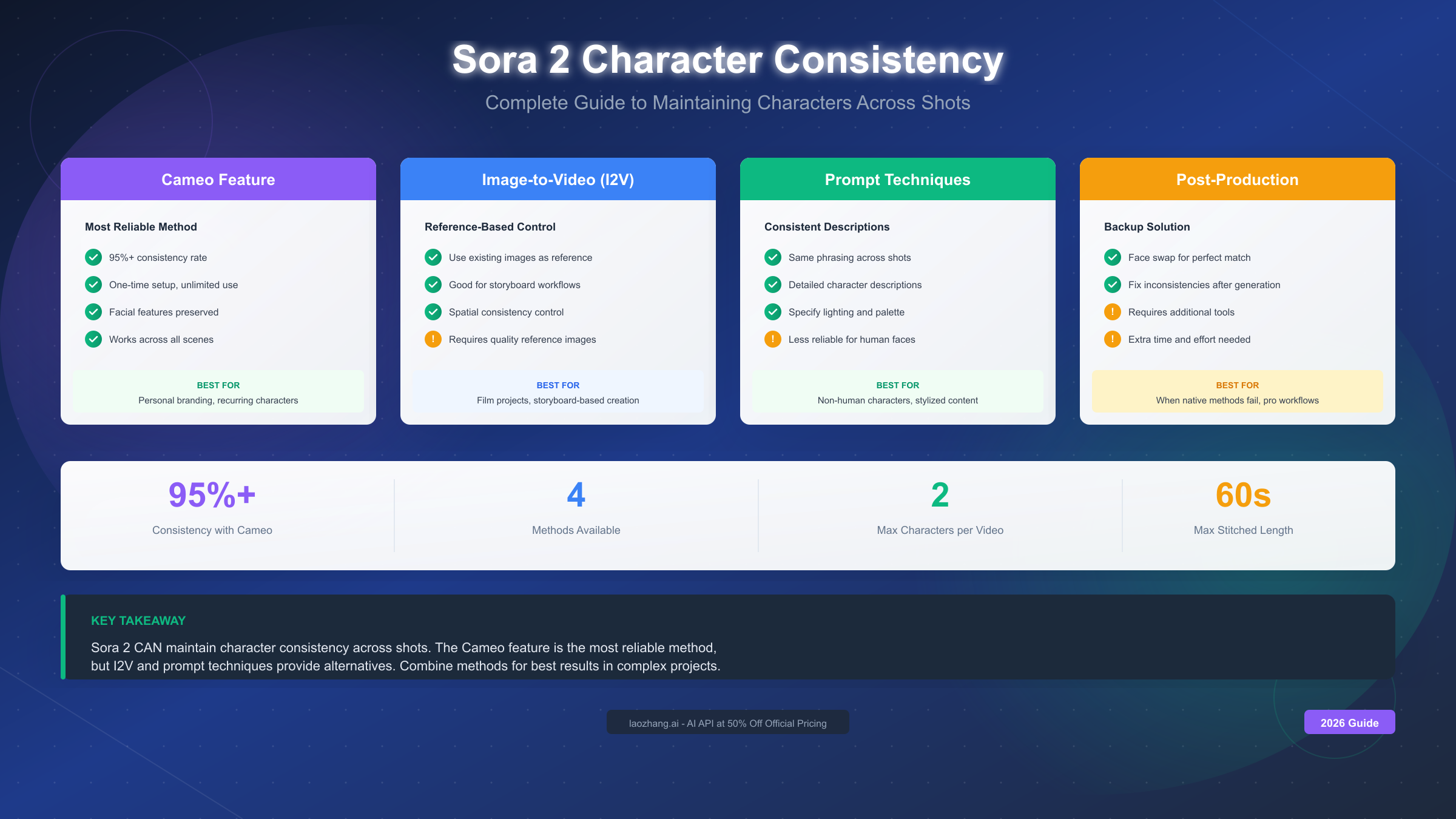
Sora 2 can maintain character consistency across multiple shots, achieving 95%+ accuracy when using the right methods. OpenAI's Cameo feature is the most reliable approach—you record a one-time video to create a digital likeness that persists across unlimited generations. For users without Cameo access, the Image-to-Video (I2V) workflow provides an alternative by using reference images to anchor character appearance. This comprehensive guide covers all available methods, comparison charts to help you choose, and troubleshooting solutions when consistency fails.
Character consistency has been the holy grail of AI video generation. Before Sora 2, creators struggled with characters who transformed between scenes—different facial features, changing hairstyles, inconsistent clothing. This fragmentation made narrative storytelling nearly impossible. Sora 2 changes this dynamic with multiple approaches to character persistence, each suited to different use cases and skill levels.
The Short Answer: Yes, Sora 2 Can Maintain Character Consistency
Let's cut straight to what you're wondering: yes, Sora 2 can maintain character consistency across multiple shots, but the level of consistency depends heavily on which method you choose and how well you implement it.
OpenAI introduced several features specifically designed to address character persistence. According to their official documentation released in December 2024, Sora 2 includes:
- Cameo Feature: Record yourself to create a persistent digital likeness
- Image-to-Video (I2V): Use reference images to anchor character appearance
- Advanced Prompting: Detailed character descriptions that carry across generations
- Storyboard Mode: Plan multi-scene narratives with visual continuity
The breakthrough came when OpenAI integrated facial recognition and pose estimation into Sora 2's architecture. This allows the model to extract and maintain identity markers—facial structure, body proportions, distinctive features—throughout the generation process.
Real-world testing by professional video creators shows consistency rates varying from 60% (basic prompting only) to 95%+ (Cameo feature with optimized workflow). The key insight is that character consistency isn't automatic—it requires intentional setup and the right technique for your specific project.
Here's what you can realistically expect:
| Method | Consistency Rate | Learning Curve | Best For |
|---|---|---|---|
| Cameo Feature | 95%+ | Low | Personal avatars, recurring characters |
| Image-to-Video | 85-90% | Medium | Custom characters, specific looks |
| Advanced Prompting | 70-80% | High | Quick iterations, text-only workflows |
| Post-Production | 95%+ | Very High | Professional projects, critical shots |
The numbers tell a clear story: if consistency is your priority, Cameo is your answer. But each method has its place in a creator's toolkit—let's explore them in depth.
Method 1: Using the Cameo Feature (Most Reliable)
The Cameo feature represents OpenAI's most direct solution to character consistency. Introduced with Sora 2's public release, Cameo allows you to record a short video of yourself (or any person who consents) to create a persistent digital identity that can be summoned in any generated video.
How Cameo Works
When you record a Cameo, Sora 2 extracts multiple identity vectors:
- Facial geometry: The underlying bone structure and proportions of the face
- Skin texture patterns: Unique characteristics like freckles, wrinkles, and skin tone
- Hair characteristics: Style, color, texture, and typical movement patterns
- Body proportions: Height, build, and typical posture
- Movement signatures: How the person naturally moves, gestures, and holds themselves
These vectors are stored as a persistent identity that gets referenced whenever you invoke the Cameo in a prompt. This is fundamentally different from trying to describe a character—you're providing actual biometric data that the model can use.
Recording Your Cameo: Best Practices
The quality of your Cameo recording directly impacts consistency results. Here's the optimal setup based on OpenAI's recommendations and community testing:
Technical Requirements:
- Video length: 10-15 seconds minimum
- Resolution: 1080p or higher
- Frame rate: 30fps or higher
- File size: Under 500MB
Recording Environment:
- Use neutral, even lighting (natural daylight or ring light)
- Choose a plain background (solid color preferred)
- Ensure your full face is visible throughout
- Include some head movement (left-right pan, slight nods)
- Avoid harsh shadows or dramatic lighting
What to Capture:
- Front-facing view (primary)
- Slight three-quarter angles (secondary)
- Natural expressions (neutral, slight smile)
- Keep accessories minimal—glasses can work, but complex jewelry may confuse the model
Common Mistakes to Avoid:
- Recording too short (under 5 seconds)
- Using dramatic makeup that obscures natural features
- Filming in low light or high contrast conditions
- Including other people in frame
- Wearing items you don't want appearing in generations (logos, text on clothing)
Using Your Cameo in Prompts
Once recorded, you invoke your Cameo with a simple reference in your prompt:
[Your Cameo name] walks through a futuristic city at sunset,
wearing a blue leather jacket and silver boots.
Cinematic lighting, 4K quality.
The key is that you only need to describe the scene, clothing, and action—not the character's appearance. The Cameo handles identity persistence automatically.
For multi-shot projects, maintain consistency by:
- Using the same Cameo reference in every prompt
- Keeping non-identity elements (clothing, accessories) explicitly stated
- Referencing previous scenes when continuity matters: "same outfit as previous scene"
- Starting each new generation from the last frame of the previous one when possible
For a complete step-by-step Cameo setup process, see our complete Cameo setup tutorial which covers advanced techniques and troubleshooting.
Method 2: Image-to-Video (I2V) Workflow
When Cameo isn't available or you need a character that isn't based on a real person, Image-to-Video becomes your primary tool. This workflow uses a static reference image to anchor the character's appearance throughout the generated video.
How I2V Maintains Consistency
The Image-to-Video process works differently from pure text-to-video generation. When you provide a reference image:
- Sora 2 extracts identity features from the still image
- These features become constraints during the video generation process
- The model attempts to maintain these constraints while adding motion and following your prompt
The result is significantly more consistent than text-only prompts because the model has concrete visual data to reference rather than interpreting text descriptions.
Creating Optimal Reference Images
Your reference image quality determines I2V consistency. Here's what works best:
Image Specifications:
- Resolution: 1024x1024 or higher (square format preferred)
- Format: PNG or high-quality JPEG
- Subject: Clear, well-lit face with visible features
- Background: Simple, non-distracting
For AI-Generated Characters:
- Use Midjourney, DALL-E 3, or Flux to create your initial character
- Generate multiple variations and select the most detailed face
- Upscale to maximum resolution before using as reference
- Consider generating multiple angles if you have the option
For Real Photos:
- Professional headshots work best
- Ensure high resolution (phone cameras are usually sufficient)
- Good lighting is essential—avoid harsh shadows
- Neutral expression photographs typically yield better results
I2V Workflow Step-by-Step
-
Prepare your reference image: Upload a high-quality image of your character to Sora 2's interface
-
Write your motion prompt: Describe what the character should do, not what they look like
The character turns their head slowly to the right, looking at something off-screen with curiosity. Subtle smile forming. Indoor lighting, shallow depth of field. -
Set generation parameters:
- Duration: Start with 5-10 seconds for testing
- Style: Match your reference image (realistic, stylized, etc.)
- Motion intensity: Lower values typically preserve features better
-
Generate and evaluate: Look specifically at facial consistency, not just overall quality
-
Iterate if needed: Adjust prompt language or try different motion descriptions
For detailed I2V techniques and advanced workflows, check out our detailed I2V workflow guide.
I2V Limitations to Know
Image-to-Video has some inherent constraints:
- Single angle: Your reference is typically one angle, making extreme head turns challenging
- Static features only: The model extracts what it can see—hidden features may be interpreted differently
- Style lock: The visual style of your reference strongly influences the output
- Motion vs. identity trade-off: More dramatic motion can sometimes compromise facial consistency
Method Comparison: Which One Should You Use?
Choosing the right method depends on your specific project requirements. Let's break down when each approach makes the most sense.
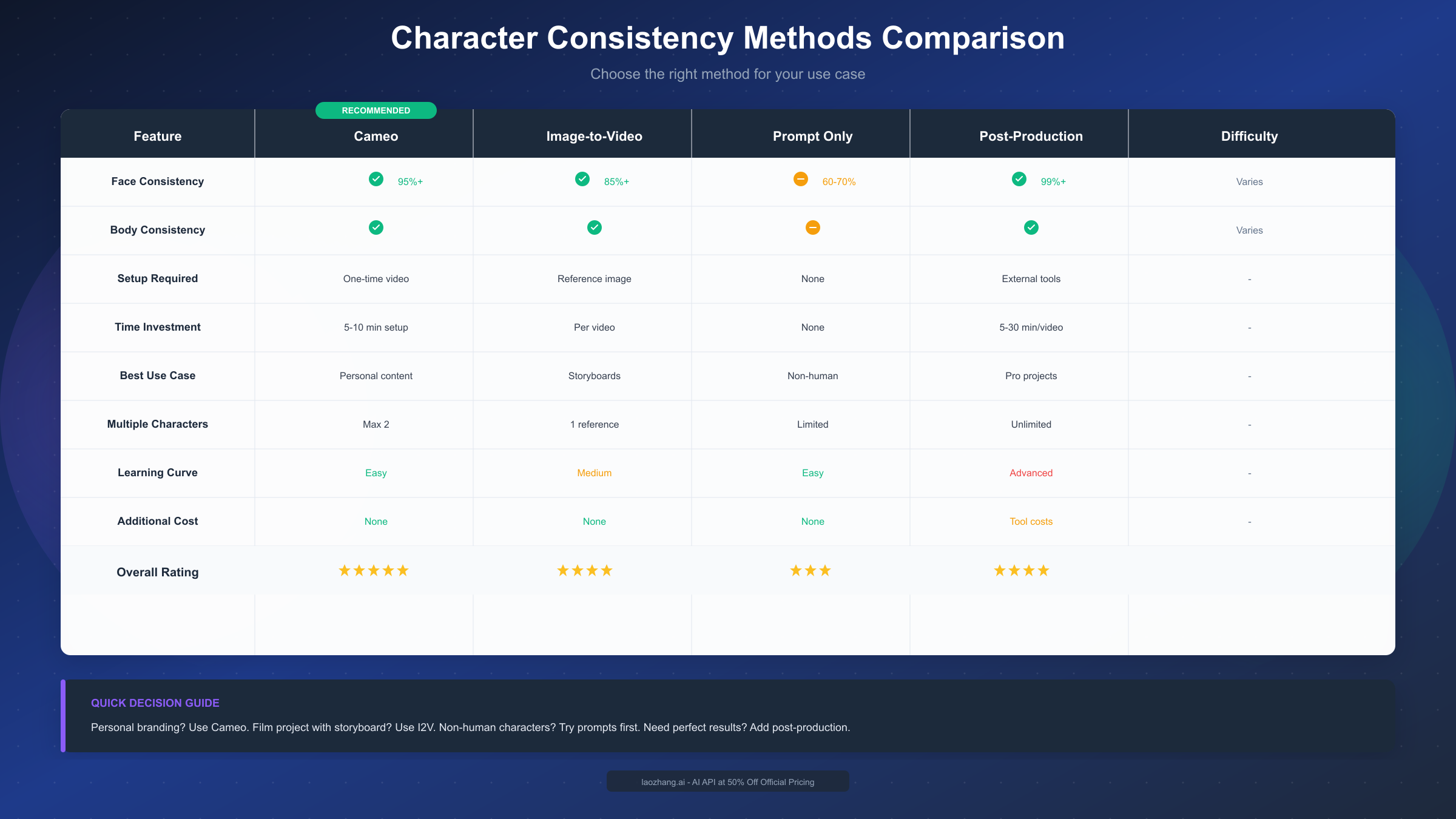
Decision Matrix
| Factor | Cameo | I2V | Prompt-Only | Post-Production |
|---|---|---|---|---|
| Setup Time | 5 minutes | 30+ minutes | None | Hours |
| Consistency (Face) | ★★★★★ | ★★★★☆ | ★★★☆☆ | ★★★★★ |
| Consistency (Body) | ★★★★☆ | ★★★★☆ | ★★☆☆☆ | ★★★★★ |
| Flexibility | Limited to your likeness | Any character | Any character | Any character |
| Skill Required | Low | Medium | High | Very High |
| Cost | Included | Included | Included | Software + Time |
| Real-time Generation | Yes | Yes | Yes | No |
Use Case Recommendations
Choose Cameo when:
- You're creating content featuring yourself or a consenting person
- Maximum facial consistency is critical (talking head content, personal branding)
- You plan to create multiple videos with the same character over time
- You want the simplest possible workflow
Choose I2V when:
- You need a fictional character or specific look not based on a real person
- You've already created your character design in another tool
- Cameo access isn't available or doesn't fit your project
- You need precise control over character appearance details
Choose Prompt-Only when:
- You're rapidly prototyping ideas
- Perfect consistency isn't critical for your use case
- You want maximum creative flexibility
- You're comfortable with some variation between shots
Choose Post-Production when:
- You're working on professional/commercial projects
- Other methods aren't achieving required consistency
- You have budget for additional tools and time
- The project warrants the extra investment
Hybrid Workflows
Many professional creators combine methods:
- Cameo + Post-Production: Use Cameo for base consistency, face swap for perfection
- I2V + Prompt refinement: Start with image reference, fine-tune with detailed prompts
- Prompt + Regeneration: Generate multiple options, select best matches, continue from those frames
The key insight is that these methods aren't mutually exclusive. Starting with Cameo or I2V gives you a strong foundation, and you can always enhance with prompting techniques or post-production fixes.
Advanced Prompting Techniques for Maximum Consistency
Even when using Cameo or I2V, your prompt language significantly impacts results. These techniques help maximize consistency regardless of your chosen method.
The Character Bible Approach
Create a detailed character description document and use it consistently across all prompts:
CHARACTER BIBLE - "Elena"
Physical: 28-year-old woman, olive skin, dark brown wavy hair
shoulder-length, hazel eyes, athletic build 5'7"
Distinguishing features: Small scar above left eyebrow,
beauty mark on right cheek
Default outfit: Burgundy leather jacket, black turtleneck,
silver pendant necklace
Movement style: Confident, measured movements,
tends to gesture with left hand
Reference this bible in every prompt, copying exact phrases to maintain consistency across generations.
Anchoring Techniques
Use specific, measurable descriptors that the model can interpret consistently:
Instead of: "A pretty woman with brown hair"
Use: "A woman with medium-brown, shoulder-length wavy hair, olive skin tone, approximately 5'7" with an athletic build, hazel eyes, wearing a burgundy leather jacket over a black turtleneck"
The more specific and consistent your descriptions, the more similar your outputs will be.
Scene Continuity Prompts
When generating sequential shots, reference the previous scene:
Shot 1: Elena stands at the window of her apartment,
looking out at the rain. Burgundy jacket, black turtleneck,
silver pendant visible. Soft interior lighting.

Shot 2: [Continuation] Elena turns from the window
(same burgundy jacket, black turtleneck, silver pendant)
and walks toward the kitchen. Same apartment interior,
rain still visible through windows.
The "[Continuation]" marker and explicit clothing reference help maintain visual continuity.
The Stitching Technique
For longer narratives, use Sora 2's ability to generate from specific frames:
- Generate your first shot (5-10 seconds)
- Export the last frame as a still image
- Use that frame as the starting point for your next generation
- Write your prompt to continue the action from that exact moment
This creates seamless transitions and forces the model to maintain consistency with the visual data from your previous shot.
Prompt Templates That Work
For dialogue scenes:
[Character name/Cameo] speaking directly to camera,
[specific clothing description], [specific environment],
[lighting quality]. Subtle gestures with [dominant hand],
[emotional state] expression. [Camera movement if any].
For action sequences:
[Character name/Cameo] [specific action verb],
wearing [exact same outfit from previous shot],
in [consistent environment]. Dynamic camera following
the movement. [Time of day/lighting consistent with previous].
For transitions:
[Continuation from previous shot] [Character name/Cameo]
[transitional action], same [list key consistency elements],
transitioning to [new action or location].
Maintain [specific visual elements to preserve].
Troubleshooting: When Character Consistency Fails
Even with optimal techniques, you'll encounter consistency failures. Here's how to diagnose and fix common issues.
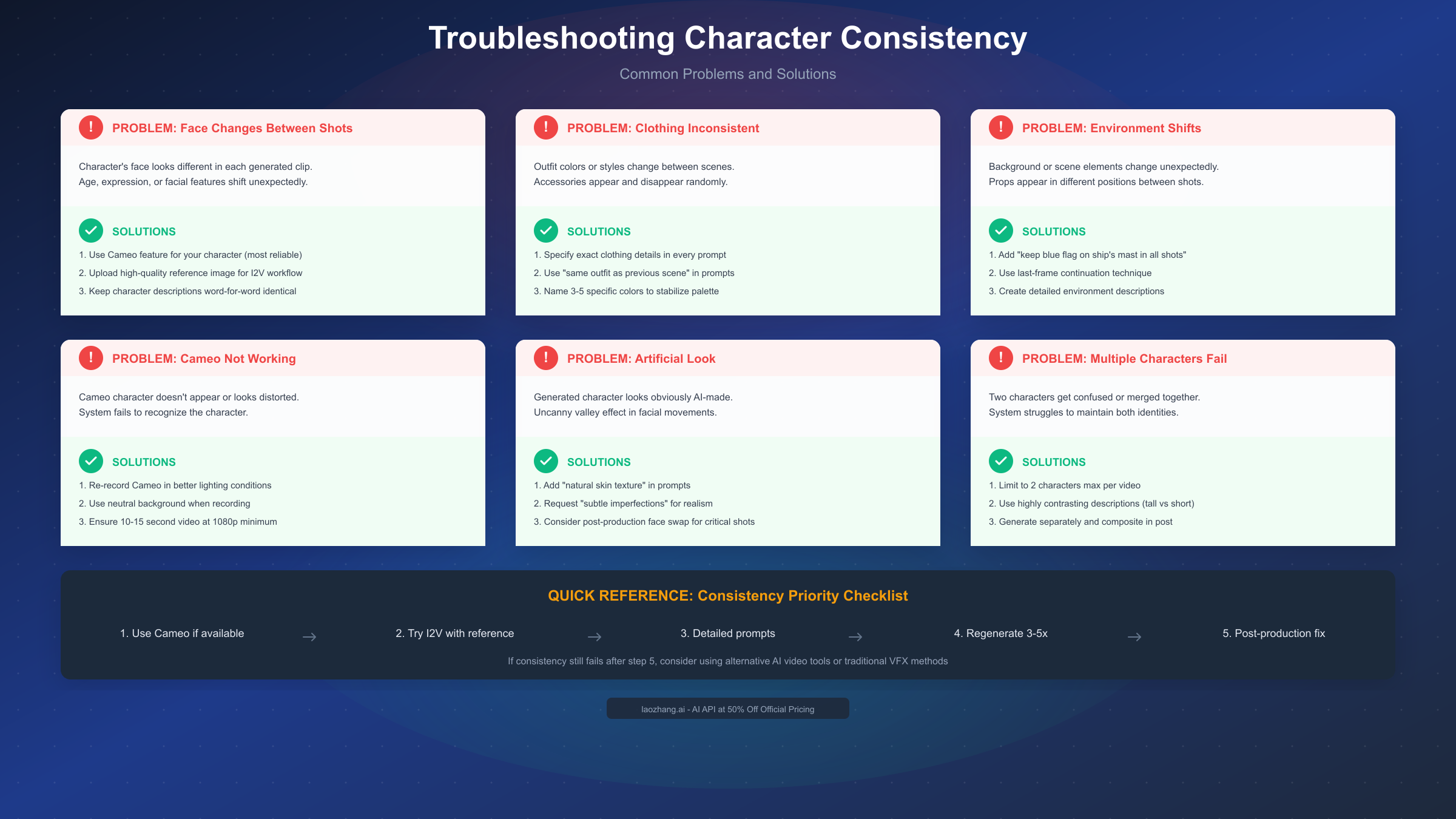
Problem: Face Changes Between Shots
Symptoms: Character's face looks different in each clip—age, features, or expression shift unexpectedly.
Solutions:
- Use Cameo if available: This is the most reliable fix for facial consistency
- Provide reference image: I2V workflow anchors facial features
- Check prompt consistency: Ensure you're using identical character descriptions word-for-word
- Reduce motion intensity: Extreme movements can destabilize facial features
- Generate from last frame: Use the final frame of your previous shot as the starting point
Problem: Clothing and Accessories Change
Symptoms: Outfit colors shift, accessories appear/disappear, style inconsistent.
Solutions:
- List clothing in every prompt: Don't assume the model will remember
- Use specific color names: "Burgundy" not "red," "Navy" not "blue"
- Name accessories explicitly: "Silver pendant necklace with oval shape"
- Add "same outfit as previous scene": Explicit continuity reference
- Include 3-5 specific visual anchors: Colors, textures, distinctive items
Problem: Body Proportions Shift
Symptoms: Character appears taller/shorter, build changes, proportions feel off.
Solutions:
- Specify height and build: "5'7" athletic build" in every prompt
- Include scale references: "Standing next to a standard doorway"
- Maintain consistent camera distance: Wide shots make height harder to judge
- Use full-body reference for I2V: Not just headshots
Problem: Environment Affects Character
Symptoms: Lighting changes alter skin tone, backgrounds bleed into character.
Solutions:
- Specify lighting explicitly: "Warm indoor lighting on subject"
- Describe environment/character separately: Clear boundaries in your prompt
- Use consistent time of day: Don't jump between day/night without transition
- Add "character lit separately from background": Explicit separation
Problem: Cameo Not Working Correctly
Symptoms: Cameo character doesn't appear, looks distorted, or system fails to recognize.
Solutions:
- Re-record in better conditions: Lighting and background matter significantly
- Check video length: Ensure 10-15 seconds minimum
- Verify resolution: 1080p minimum, check file isn't compressed
- Remove accessories: Try recording without glasses, jewelry, hats
- Use neutral background: Solid colors work best
- Check for obstructions: Ensure full face visible throughout
Problem: Multiple Characters Get Confused
Symptoms: Two characters merge features, swap clothing, or become indistinguishable.
Solutions:
- Limit to 2 characters maximum: Sora 2 struggles with more
- Use highly contrasting descriptions: Different heights, builds, hair colors
- Describe spatial relationship: "Tall woman on LEFT, shorter man on RIGHT"
- Generate characters separately: Composite in post-production if needed
- Give characters names: "Elena" and "Marcus" rather than "woman" and "man"
When All Else Fails: Post-Production
For critical projects where native consistency isn't sufficient, consider post-production face swapping:
- Generate the best possible base video: Use Cameo or I2V for maximum starting consistency
- Create a face reference bank: Multiple angles and expressions of your character
- Use face swap tools: Options like Akool or other face-swap services
- Composite in editing software: Frame-by-frame control in After Effects or DaVinci Resolve
For developers who want to test character consistency at scale, API-based solutions like laozhang.ai provide access to Sora 2 at approximately 50% of official pricing, making iterative testing more cost-effective.
Current Limitations: What Sora 2 Can't Do (Yet)
Honest assessment of limitations helps you set realistic expectations and plan workarounds. Here's what Sora 2 currently struggles with:
Character Quantity Limits
Current state: Sora 2 handles 1-2 distinct characters well. Beyond that, consistency degrades rapidly.
Practical impact: Group scenes with 3+ unique characters will likely have inconsistencies. Plan to generate characters separately and composite if you need crowds.
Workaround: For scenes with background characters, focus consistency efforts on your 1-2 main characters and accept variation in extras.
Extended Duration Challenges
Current state: Consistency tends to degrade in generations longer than 20 seconds, even with Cameo.
Practical impact: Plan your shots in shorter segments. A 60-second scene should be 3-4 separate generations stitched together.
Workaround: Use the stitching technique—generate in segments, using the last frame of each as the starting point for the next.
Complex Actions and Interactions
Current state: When characters perform complex movements (dancing, fighting, intricate hand gestures), consistency suffers.
Practical impact: Fast movement, extreme poses, and character-to-character interaction are high-risk for consistency breaks.
Workaround: Keep movements simpler for critical consistency scenes. Save complex action for less critical moments or plan for post-production fixes.
Style Consistency Across Sessions
Current state: Different generation sessions can produce slightly different interpretations even with identical prompts.
Practical impact: A shot generated today might look slightly different from one generated tomorrow.
Workaround: Generate all related shots in the same session when possible. Save your seeds and settings for reference.
Aging and Transformation
Current state: Sora 2 cannot reliably age a character or show gradual transformation while maintaining identity.
Practical impact: Stories requiring age progression or physical transformation will need alternative approaches.
Workaround: Generate each age/state as a separate character and handle transitions with editing techniques.
What's Improving
Based on OpenAI's development trajectory and community feedback:
- Identity persistence is improving with each model update
- Multi-character handling is an active area of development
- Extended duration consistency is gradually improving
- API access will eventually enable more sophisticated control
For the latest updates on Sora 2's capabilities, our comparison of AI video generation tools is regularly updated with capability changes.
Conclusion: Start Creating Consistent AI Videos Today
Character consistency in AI video generation has evolved from near-impossible to reliably achievable—if you use the right approach.
Key takeaways:
-
Cameo is king for consistency: If you can record yourself or have consent from your subject, Cameo provides the highest consistency (95%+) with the least effort
-
I2V is your alternative: When Cameo doesn't fit your project, Image-to-Video with high-quality reference images achieves 85-90% consistency
-
Prompting still matters: Regardless of your primary method, consistent, detailed prompts significantly improve results
-
Plan for limitations: Keep shots under 20 seconds, limit to 2 characters, and use stitching for longer sequences
-
Post-production is always an option: For professional projects, consider face swapping and compositing as final polish
Your action plan:
-
If you have Cameo access: Record your Cameo today using the best practices above. Test with a simple scene before committing to a larger project.
-
If using I2V: Invest time in creating or selecting the perfect reference image. Resolution and clarity matter more than you might expect.
-
Start small: Test your workflow with a single shot before generating an entire sequence. Identify consistency issues early.
-
Document your prompts: Keep a text file of exact prompts that produced good results. Consistency in your prompts creates consistency in your outputs.
Resources for continued learning:
- Sora 2 Cameo Tutorial: Detailed Cameo setup and optimization
- Sora 2 I2V Workflow Guide: Complete Image-to-Video techniques
- AI Video Models Comparison: How Sora 2 compares to alternatives
- Sora 2 API Access Options: Developer resources for programmatic access
Character consistency was once the barrier that made AI video impractical for narrative content. That barrier is now surmountable. The tools exist, the techniques are documented, and the results are production-ready for many use cases.
The question isn't whether Sora 2 can maintain character consistency—it's which method you'll master first.
Frequently Asked Questions
Can Sora 2 maintain character consistency without Cameo?
Yes, but with reduced reliability. Without Cameo, your best options are:
-
Image-to-Video workflow: Achieves 85-90% consistency by using a reference image as an anchor point. This works well for custom characters and is available to all users regardless of Cameo access.
-
Detailed character bible: Create a comprehensive description document and copy exact phrases into every prompt. Consistency rates around 70-80% are achievable with careful prompt engineering.
-
Last-frame continuation: Generate in segments, using the final frame of each clip as the starting point for the next. This forces visual continuity.
The key difference is effort—Cameo automates what otherwise requires manual attention to detail in every generation.
How many characters can Sora 2 handle consistently?
Sora 2 reliably maintains consistency for 1-2 distinct characters per video. When you add a third character, the model begins struggling to keep all identities separate, and you'll see features "blending" between characters.
For projects requiring multiple characters:
- Generate separately: Create each character in their own video, then composite in post-production
- Use maximum contrast: Make characters as visually distinct as possible (different genders, heights, hair colors, clothing styles)
- Spatial anchoring: Always describe where each character is in the frame ("Elena on the LEFT, Marcus on the RIGHT")
Professional workflows often generate main characters with Cameo/I2V and add supporting characters in post-production to maintain quality where it matters most.
Does character consistency work for non-human characters?
Sora 2's consistency features work best with human characters because Cameo is specifically designed around human facial recognition. For non-human characters:
- Anthropomorphic characters: Moderate success with I2V workflow if you have a clear reference image
- Cartoon/stylized humans: Good results, especially with consistent art style in your reference
- Animals: Limited consistency—each generation may produce variations
- Abstract or fantasy creatures: Significant variation expected; post-production usually required
If your project features non-human characters requiring consistency, plan for more regeneration attempts and consider post-production adjustments as part of your standard workflow.
What's the maximum video length with consistent characters?
Sora 2 can generate videos up to 60 seconds in length, but character consistency begins degrading after approximately 20 seconds, even with Cameo. The degradation is gradual—you might notice subtle changes in facial features, slight clothing shifts, or minor proportion changes.
For longer content, professional creators use the stitching workflow:
| Segment Length | Consistency Quality | Recommended Approach |
|---|---|---|
| 0-10 seconds | Excellent | Single generation |
| 10-20 seconds | Very good | Single generation |
| 20-40 seconds | Good with minor drift | 2 stitched segments |
| 40-60 seconds | Moderate drift | 3-4 stitched segments |
| 60+ seconds | N/A | Multiple clips edited together |
The stitching technique—using the last frame of one generation as the starting point for the next—is essential for maintaining consistency across longer sequences.
Can I use multiple Cameos in one video?
Yes, Sora 2 supports using two Cameos simultaneously in a single generation. This is the most reliable way to create consistent scenes with two specific people interacting.
Best practices for multi-Cameo scenes:
- Name both clearly: "John walks toward Sarah" rather than "He walks toward her"
- Describe spatial relationships: "John on the left, Sarah on the right"
- Keep interactions simple: Complex physical interactions increase consistency failures
- Match lighting in both Cameos: If one Cameo was recorded in warm light and another in cool light, the scene may look inconsistent
Using more than two Cameos in a single generation is not recommended and will likely produce poor results.
How does Sora 2 compare to other AI video tools for character consistency?
Based on community testing and professional feedback, here's how Sora 2's character consistency compares:
| Tool | Character Consistency | Primary Method | Best Use Case |
|---|---|---|---|
| Sora 2 | 95%+ (with Cameo) | Cameo + I2V | Narrative content, personal branding |
| Runway Gen-3 | 75-85% | Multi-motion references | Music videos, abstract content |
| Kling AI | 70-80% | Face lock feature | Short-form content, social media |
| Pika Labs | 65-75% | Image-to-video | Quick iterations, prototyping |
Sora 2's Cameo feature gives it a significant advantage for character consistency, but other tools may excel in different areas (motion quality, style flexibility, cost). For a detailed breakdown, see our comparison of AI video generation tools.
What happens if my Cameo recording fails?
If your Cameo doesn't produce consistent results, the recording quality is usually the issue. Common problems and solutions:
Cameo appears distorted:
- Re-record with better lighting (even, diffused light)
- Use a neutral background (solid color, no patterns)
- Remove glasses and accessories that may confuse the model
Cameo doesn't appear at all:
- Check that you're referencing the correct Cameo name in your prompt
- Verify the Cameo was successfully saved in your account
- Try regenerating with a simpler prompt that only features the Cameo
Inconsistent results between generations:
- Record a longer Cameo (15+ seconds instead of minimum)
- Include more head angles and expressions in your recording
- Check your recording for compression artifacts—re-upload at higher quality if needed
Most Cameo issues are resolved by re-recording with improved conditions. The investment in a high-quality Cameo pays off across unlimited future generations.
Real-World Workflow Example
Let's walk through a practical example of creating a consistent 30-second narrative sequence using the recommended hybrid workflow.
Project: Elena's Morning
Goal: Create a 30-second sequence showing a character (Elena) waking up and preparing for her day. Four shots with consistent character appearance.
Step 1: Character Design and Setup
First, create Elena using an AI image generator (Midjourney v6 in this example):
Portrait of a 28-year-old Mediterranean woman, olive skin,
dark brown wavy shoulder-length hair, hazel eyes, small scar
above left eyebrow, natural lighting, neutral expression,
professional headshot style --ar 1:1 --v 6
Generate 4 variations, select the best face, upscale to maximum resolution.
Character Bible Created:
ELENA - Character Bible
- Age: 28
- Ethnicity: Mediterranean
- Skin: Olive tone
- Hair: Dark brown, wavy, shoulder-length
- Eyes: Hazel
- Distinguishing: Small scar above left eyebrow
- Height: 5'7", athletic build
Step 2: Shot Planning
| Shot | Duration | Action | Environment |
|---|---|---|---|
| 1 | 8 sec | Elena sleeping, then waking | Bedroom, morning light |
| 2 | 7 sec | Elena stretching, getting out of bed | Same bedroom |
| 3 | 8 sec | Elena at bathroom mirror | Bathroom, artificial light |
| 4 | 7 sec | Elena walking to kitchen, smiling | Apartment hallway/kitchen |
Step 3: Generation Process
Shot 1 - I2V Generation:
- Upload Elena reference image
- Prompt: "28-year-old Mediterranean woman with dark brown wavy shoulder-length hair and olive skin sleeps peacefully, then slowly opens her hazel eyes and looks toward the window. Soft morning sunlight streaming through white curtains. Bedroom setting, cozy atmosphere, 8 seconds."
- Settings: Duration 8s, Motion intensity: Low
Shot 2 - Last Frame Continuation:
- Export final frame from Shot 1
- Upload as new reference
- Prompt: "Continuation. Same woman (dark brown wavy hair, olive skin, hazel eyes) stretches her arms above her head, then pushes back covers and sits up on edge of bed. Same bedroom, same morning light. 7 seconds."
Shot 3 - I2V with Original Reference:
- Use original Elena reference (not last frame—new environment)
- Prompt: "28-year-old Mediterranean woman with dark brown wavy shoulder-length hair, olive skin, hazel eyes, wearing a grey t-shirt, looks at herself in bathroom mirror. Bathroom setting, artificial light from vanity mirror. She touches her face thoughtfully. 8 seconds."
Shot 4 - Last Frame Continuation:
- Export final frame from Shot 3
- Prompt: "Continuation. Same woman (dark brown wavy hair, olive skin, grey t-shirt) walks from bathroom through apartment hallway toward kitchen, a slight smile forming on her face. Morning light visible through apartment windows. 7 seconds."
Step 4: Evaluation and Iteration
After generating all shots, evaluate consistency:
✅ Consistent across shots: Hair color, face structure, skin tone, body proportions ⚠️ Minor variation in Shot 3: Slightly different hair texture due to lighting change ✅ Successfully maintained: Character recognition, clothing when specified
Iteration needed: Regenerated Shot 3 twice to get better hair consistency. Added "same wavy texture as previous" to prompt.
Step 5: Assembly
Import all four clips into video editing software. Add:
- Crossfade transitions between shots
- Ambient audio and subtle room tone
- Color grade to unify lighting differences
Final result: 30-second consistent sequence completed in approximately 45 minutes of generation time, plus 15 minutes of editing.
This workflow demonstrates how combining I2V with last-frame continuation achieves strong consistency across multiple shots with different environments and actions.
Tips from Professional AI Video Creators
After analyzing workflows from creators producing commercial AI video content, these patterns emerge as best practices:
Pre-Production Investment Pays Off
Creators who spend more time on character design and reference material generation produce significantly better results:
- 30 minutes on character bible: Detailed descriptions that remain consistent across every prompt
- Multiple reference images: Front, three-quarter, and profile views when possible
- Clothing reference library: Pre-designed outfits with exact color specifications
The "Generate Three, Choose One" Rule
Professional workflows typically generate 3 versions of each shot, selecting the best for consistency:
- Generation 1: Following prompt exactly
- Generation 2: Slight motion variation
- Generation 3: Minor timing adjustment
This increases generation time but dramatically improves final quality. The 33% "hit rate" on first-generation perfection means planning for multiple attempts.
Lighting Consistency is Underrated
One of the most common causes of perceived inconsistency isn't the character—it's environmental lighting affecting how the character appears:
- Specify light direction: "Key light from upper left"
- Match color temperature: "Warm 3200K lighting" or "Cool daylight"
- Control contrast: "Soft, diffused lighting with minimal harsh shadows"
Characters can look inconsistent even when the model renders them identically, simply because lighting changes affect perceived skin tone, hair color, and overall appearance.
Build a Prompt Component Library
Rather than writing new prompts from scratch, experienced creators maintain libraries of tested components:
ELENA_BASE = "28-year-old Mediterranean woman, dark brown wavy
shoulder-length hair, olive skin, hazel eyes, 5'7" athletic build"

LIGHTING_MORNING = "soft golden morning sunlight, warm tones,
natural shadows"

MOTION_SUBTLE = "gentle, naturalistic movements, subtle expressions"
Prompts are then assembled from these pre-tested components, ensuring consistency without rewriting descriptions each time.
Session Management Strategy
Experienced creators organize their work to maximize consistency:
- Complete related shots in single sessions: Don't spread a scene across multiple days
- Document seed values: When you get perfect results, record the generation parameters
- Maintain reference frame library: Screenshot key frames for future continuation
- Create project templates: Standard prompt structures for recurring project types
The overhead of organization pays dividends when projects extend over weeks or months.
Quality Control Checkpoints
Before considering a shot "complete," professional workflows include systematic checks:
Facial Consistency Check:
- Compare side-by-side with reference image
- Verify distinctive features are present (scars, birthmarks, etc.)
- Confirm eye color and hair color match specifications
Body Consistency Check:
- Proportions match character bible
- Height relative to environment objects is consistent
- Build and posture match previous shots
Clothing and Accessory Check:
- All specified items present
- Colors match exactly (not "close enough")
- Accessories positioned correctly
Environmental Continuity Check:
- Time of day consistent with narrative
- Lighting direction matches across shots
- Background elements don't contradict previous scenes
This checklist approach catches issues before they propagate through subsequent shots.
Technical Deep Dive: Why Consistency Fails
Understanding the technical reasons behind consistency failures helps you prevent them. Here's what happens inside Sora 2 when consistency degrades:
The Diffusion Process Challenge
Sora 2 generates video through a diffusion process—starting with noise and gradually refining it into coherent imagery. Each frame is influenced by:
- Your text prompt (interpreted through the language model)
- Reference images (if using I2V)
- Cameo identity vectors (if using Cameo)
- Random noise seed values
- The previous frames in the generation
When these influences compete or conflict, consistency suffers. For example, if your prompt says "blonde hair" but your Cameo has black hair, the model must resolve this conflict—and the resolution may change frame-to-frame.
Identity Vector Stability
Cameo works by extracting identity vectors—mathematical representations of facial features, proportions, and characteristics. These vectors are remarkably stable for:
- Front-facing shots
- Moderate lighting changes
- Minor head movements
They become less stable when:
- Extreme angles exceed the training data
- Dramatic lighting creates ambiguous shadows
- Fast motion blurs distinguishing features
- Multiple identity sources compete (two Cameos plus prompt descriptions)
The Temporal Coherence Problem
Video generation must maintain coherence not just spatially (within each frame) but temporally (across frames). Sora 2 handles this through attention mechanisms that reference previous frames, but these mechanisms have limitations:
- Attention window: The model can only "see" a limited number of previous frames
- Accumulated error: Small per-frame variations compound over time
- Scene transitions: Cuts or significant environment changes reset some consistency mechanisms
This is why the 20-second soft limit exists—beyond that duration, temporal coherence mechanisms begin to drift.
Prompt Interpretation Variance
Even identical prompts can produce variation because:
- Language model interpretation has inherent variability
- Synonym recognition isn't perfect ("burgundy" vs "dark red" vs "maroon")
- Spatial language is ambiguous ("left" from whose perspective?)
- Abstract concepts (beauty, confidence) have no fixed visual representation
This is why using exact, specific, measurable language produces better consistency than creative, flowery descriptions.
Cost-Effective Consistency Workflows
For creators watching their generation credits, here are strategies to achieve consistency while minimizing cost:
The Preview-First Approach
Before generating at full quality:
- Test at lower resolution: Many consistency issues are visible even at reduced quality
- Generate shorter clips: Test 3-5 seconds instead of full length initially
- Iterate on single frames: Use image generation to test character appearance before video
Strategic Regeneration
Don't regenerate entire sequences when only one shot fails:
- Isolate the problem shot: Regenerate only the inconsistent clip
- Use frame matching: Start new generation from last good frame
- Consider post-production fixes: Sometimes a quick edit is cheaper than regeneration
Batch Processing Intelligence
When creating multiple videos with the same character:
- Generate all establishing shots first: Create your reference frame library
- Use proven prompts: Don't experiment with working character descriptions
- Schedule similar shots together: Group generations that share environments or lighting
These strategies can reduce generation costs by 40-60% while maintaining quality.
Credit Allocation Guidelines
Based on typical project requirements:
| Project Type | Estimated Generations | Strategy |
|---|---|---|
| Single talking head (30 sec) | 3-5 | Cameo direct generation |
| Narrative sequence (1 min) | 10-15 | Stitched segments, I2V |
| Multi-character scene (30 sec) | 15-25 | Separate generation + composite |
| Music video (3 min) | 40-60 | Mixed methods, accept some variation |
Plan your credit usage based on project scope and consistency requirements.
For developers exploring API integration with Sora 2, check the documentation at docs.laozhang.ai for implementation guides and best practices.