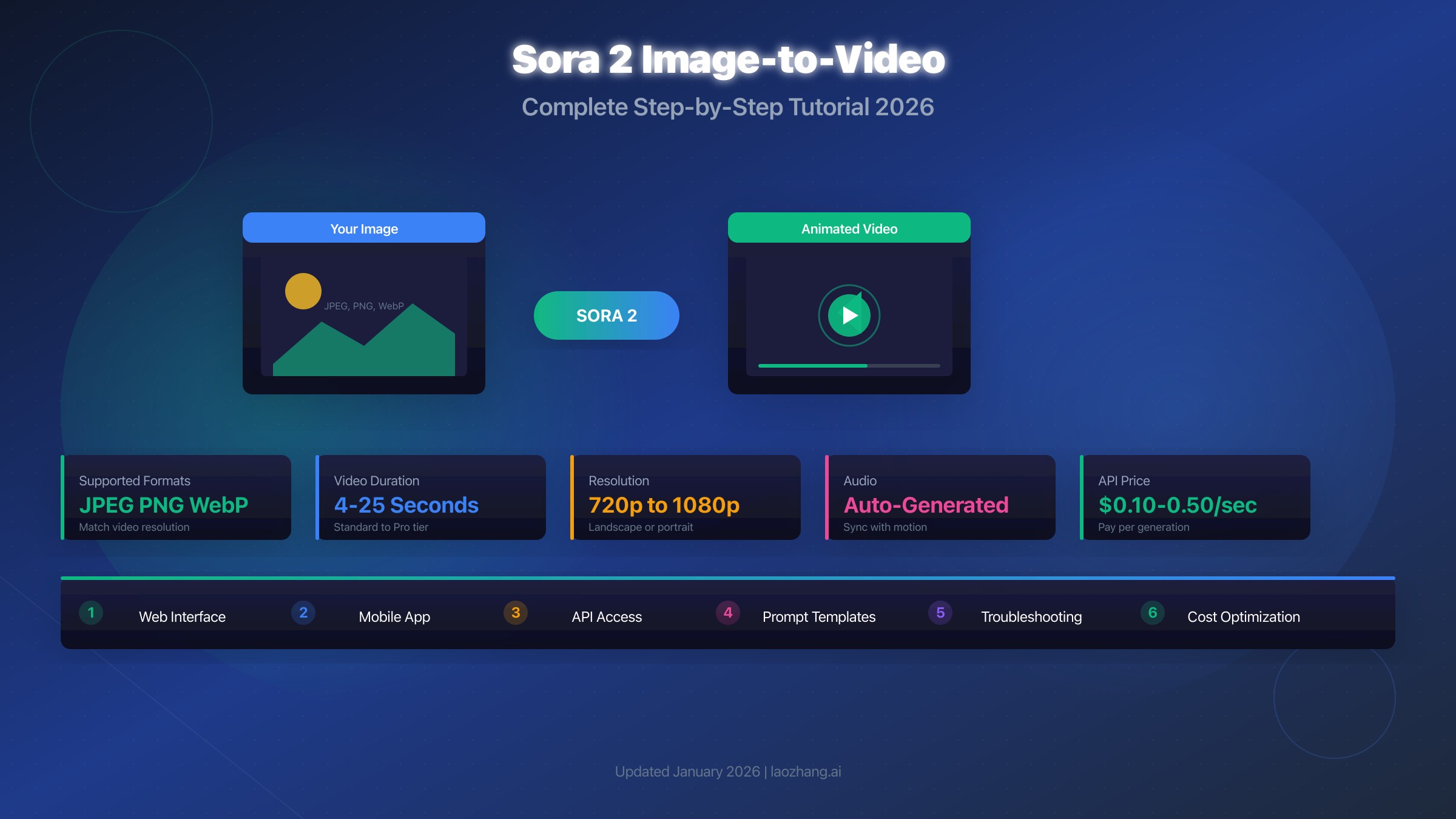
Transforming static images into dynamic videos has become one of the most powerful features of Sora 2 since its public launch in December 2024. Whether you want to animate a product photo, bring a portrait to life, or create cinematic footage from a landscape shot, Sora 2's image-to-video capability delivers results that were unimaginable just a year ago. This comprehensive guide walks you through every step of the process—from preparing your image correctly to writing prompts that produce exactly the motion you envision.
What You Need Before Starting
Before uploading your first image to Sora 2, ensure you have the right access and understand the platform requirements. Missing any of these prerequisites will block your workflow or produce suboptimal results.
Account Requirements
Sora 2 image-to-video functionality requires an active OpenAI subscription. As of January 10, 2026, free tier users can no longer access Sora's generation features. You need either ChatGPT Plus ($20/month) or ChatGPT Pro ($200/month) to use the image upload feature.
| Subscription | Monthly Cost | Credits | Image-to-Video | Max Duration |
|---|---|---|---|---|
| Free | $0 | 0 | No Access | N/A |
| ChatGPT Plus | $20 | 1,000 | Full Access | 20 seconds |
| ChatGPT Pro | $200 | 10,000 | Full Access + Priority | 25 seconds |
| API Tier 2+ | Pay-per-use | Unlimited | Full Access | 20 seconds |
For API access, you must reach at least Tier 2 (requires $10 minimum top-up and 14-day account age). The API unlocks programmatic image-to-video generation at $0.10-$0.50 per second depending on quality settings.
Supported Image Formats
Sora 2 accepts three image formats: JPEG, PNG, and WebP. Each format serves different purposes in the generation pipeline.
JPEG works best for photographs and real-world imagery. The lossy compression doesn't noticeably impact generation quality, and smaller file sizes upload faster. Use JPEG for portraits, landscapes, product photos, and any image where slight compression artifacts are acceptable.
PNG excels for images requiring transparency or pixel-perfect quality. Graphics, logos, illustrations, and images with sharp text benefit from PNG's lossless compression. However, larger file sizes may slow upload times.
WebP offers the best balance between quality and file size. Sora 2 handles WebP efficiently, and modern browsers support it natively. Consider WebP for web-first workflows where bandwidth matters.
Resolution Requirements
Your uploaded image should match the target video resolution for optimal results. Sora 2 supports multiple aspect ratios and resolutions.
| Target Video | Image Resolution | Aspect Ratio |
|---|---|---|
| Landscape 720p | 1280 × 720 | 16:9 |
| Landscape 1080p | 1920 × 1080 | 16:9 |
| Portrait 720p | 720 × 1280 | 9:16 |
| Portrait 1080p | 1080 × 1920 | 9:16 |
| Square 720p | 720 × 720 | 1:1 |
Uploading mismatched resolutions triggers automatic cropping or scaling, which may remove important image elements or introduce artifacts. Always resize your image before upload to maintain full creative control.
Geographic Availability
Sora 2 is available in most regions but remains blocked in the European Union, United Kingdom, and Switzerland due to regulatory restrictions as of January 2026. Users in these regions need VPN access or API alternatives.
Hardware and Browser Requirements
The web interface performs best on modern browsers with WebGL 2.0 support. Chrome 90+, Firefox 88+, and Safari 15+ deliver optimal video preview and download performance. Edge Chromium also works well.
Minimum hardware requirements include 8GB RAM for smooth browser operation during generation and preview. For heavy users running multiple tabs or long generation sessions, 16GB RAM prevents slowdowns. Mobile devices require iOS 16.0+ for the app; Android support remains limited.
Internet connectivity matters significantly for uploads and downloads. Stable connections with at least 10 Mbps upload speed ensure smooth image transfer. Slower connections may cause timeout errors during upload or fail to complete large file transfers.
| Browser | Minimum Version | Notes |
|---|---|---|
| Chrome | 90+ | Best performance |
| Firefox | 88+ | Full support |
| Safari | 15+ | Good compatibility |
| Edge | 90+ | Chromium-based works |
Credit Check Before Generation
Always verify your credit balance before starting a project. The web interface displays remaining credits in the top navigation bar. For Plus subscribers, the 1,000 monthly credits reset on your billing date—not the first of the month. Pro subscribers see both instant credits and relaxed mode availability.
If your credits are running low, consider whether to upgrade, wait for reset, or use third-party alternatives. Running out of credits mid-project forces you to either wait or pay for additional access.
Image Preparation: The Key to Great Results
The quality of your input image directly determines output quality. Investing time in proper image preparation yields dramatically better video results than relying on Sora's processing to compensate for poor source material.
Resolution and Sharpness
Start with the highest resolution source available, then resize to match your target video dimensions. Sora 2 performs best with images at exactly 1280×720 (landscape 720p) or 1920×1080 (landscape 1080p). Upscaling blurry or low-resolution images before upload does not improve results—the AI recognizes artificial upscaling and often produces blurry videos.
For optimal sharpness, ensure your source image has clean edges and minimal noise. Apply subtle sharpening (0.3-0.5 radius in Photoshop) to slightly soft images, but avoid over-sharpening which creates visible halos around edges.
Composition Guidelines
Sora 2's motion generation works best when your image follows cinematographic composition principles. Center your main subject with adequate negative space around them—this gives Sora room to add motion without immediately hitting frame boundaries.
| Composition Element | Recommended | Avoid |
|---|---|---|
| Subject Position | Rule of thirds | Dead center |
| Headroom | 15-20% top margin | Subject touching edge |
| Leading Space | Space in direction of motion | Subject at frame edge |
| Background | Clean, uncluttered | Busy patterns |
| Depth | Clear foreground/background | Flat compositions |
Images with the subject pressed against frame edges produce awkward videos where motion immediately causes clipping. Leave at least 10-15% margin on all sides for natural movement.
Color and Exposure
Properly exposed images with balanced colors generate superior videos. Sora 2 can handle moderate exposure issues, but extreme shadows or blown highlights limit the AI's ability to create realistic motion.
Check your histogram before upload—the ideal image shows a bell curve distribution without spikes at pure black (0) or pure white (255). Apply basic corrections for any images with more than 5% clipped shadows or highlights.
Color temperature affects the mood of generated video. Warm-toned images (yellow/orange casts) tend to produce golden-hour style footage. Cool-toned images create more dramatic, cinematic results. Choose your color grading intentionally rather than leaving it to chance.
File Size Optimization
While Sora 2 accepts images up to 20MB, optimal upload performance occurs between 500KB and 2MB. Larger files take longer to upload and process without quality improvements. Smaller files may lack sufficient detail for high-quality video generation.
For JPEG exports, quality setting 85-90% balances file size with image fidelity. Higher settings offer diminishing returns for video generation while increasing upload time.
Image Type-Specific Preparation
Different image types require different preparation strategies to achieve optimal video results.
Portrait Photos: Ensure face is clearly visible without heavy shadows obscuring features. Remove blemishes that might animate unnaturally. Avoid extreme close-ups where eyes or mouth fill the frame—medium shots with neck and shoulders visible animate more naturally.
Product Shots: Clean backgrounds work best. Remove reflections and shadows that conflict with the product shape. Ensure the product is centered with adequate space around all edges for rotation animation without cropping.
Landscape Images: Include clear horizon lines when possible. Images with strong foreground, midground, and background separation animate with better depth. Avoid flat compositions where everything sits at the same focal distance.
Architecture and Interiors: Vertical lines should be corrected for perspective distortion. Architectural images with dramatic perspective shifts may produce unnatural camera movements when animated.
| Image Type | Key Preparation Steps | Animation Consideration |
|---|---|---|
| Portrait | Face visibility, remove blemishes | Natural expression range |
| Product | Clean background, centered | 360° rotation space |
| Landscape | Horizon line, depth layers | Parallax motion |
| Architecture | Perspective correction | Camera movement paths |
Pre-Upload Checklist
Before uploading any image, verify these elements:
- Resolution matches target video dimensions
- File format is JPEG, PNG, or WebP
- File size between 500KB and 10MB
- Main subject has adequate margin space
- Exposure is balanced without clipping
- No watermarks or logos in animation areas
- Color temperature matches intended mood
This preparation workflow adds 5-10 minutes per image but dramatically improves generation success rate and reduces wasted credits on failed attempts.
Step-by-Step: Using the Sora 2 Web Interface
The web interface at sora.com provides the most intuitive way to convert images to video. This section walks through every step with detailed settings recommendations.
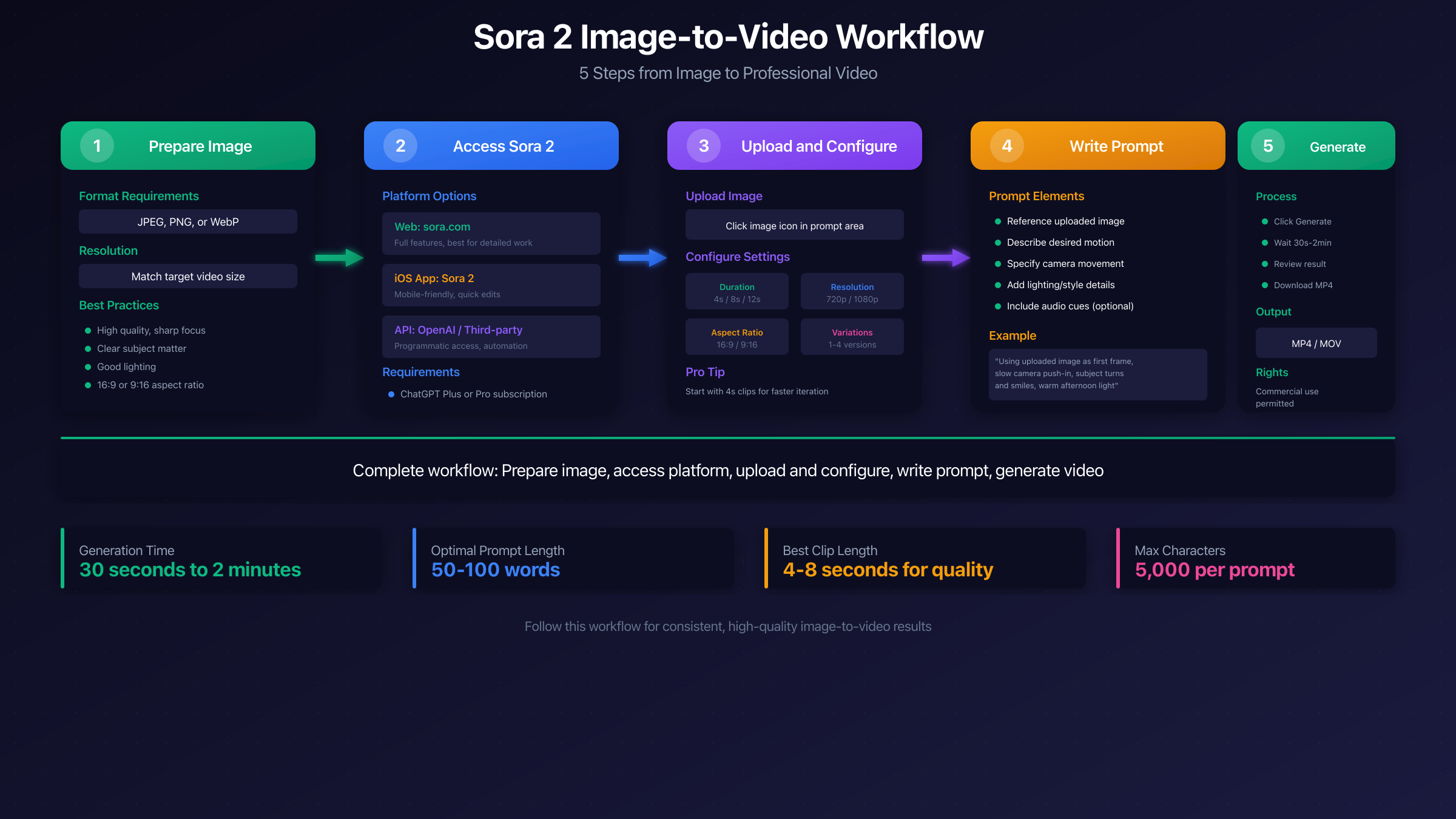
Step 1: Accessing Sora
Navigate to sora.com and sign in with your OpenAI account. If you're a ChatGPT Plus or Pro subscriber, your credits automatically sync. API users need to ensure their account has sufficient balance.
Click the "Create" button in the top navigation to open the generation interface. You'll see options for text-to-video, image-to-video, and video-to-video (extend/remix). Select the image-to-video mode.
Step 2: Uploading Your Image
Click the upload zone or drag your prepared image into the interface. Supported formats display immediately; unsupported formats show an error message. Wait for the upload progress bar to complete before proceeding.
After upload, Sora displays your image with detected dimensions and aspect ratio. Verify these match your intended output. If the system suggests cropping, consider whether the automatic crop removes important content.
Step 3: Configuring Video Settings
Before writing your prompt, configure these critical settings.
Duration determines how long your video will be. Options typically include 4, 8, 12, 16, and 20 seconds for Plus subscribers, with Pro users accessing up to 25 seconds. Shorter durations (4-8 seconds) produce more coherent results with less drift from your source image. Longer durations allow more dramatic transformations but may introduce inconsistencies.
Resolution impacts both quality and credit consumption. The 720p option (1280×720 or 720×1280) consumes 16 credits per second. The 1080p option (1920×1080 for Pro users) consumes 40 credits per second—2.5 times more expensive but essential for professional output.
| Duration | 720p Credits | 1080p Credits |
|---|---|---|
| 4 seconds | 64 | 160 |
| 8 seconds | 128 | 320 |
| 12 seconds | 192 | 480 |
| 16 seconds | 256 | 640 |
| 20 seconds | 320 | 800 |
Step 4: Writing Your Prompt
The prompt describes what motion and changes you want Sora to apply to your image. This is where image-to-video differs significantly from text-to-video—you're not describing the scene, you're describing the animation.
Effective image-to-video prompts follow this structure: [Reference to image] + [Motion description] + [Camera movement] + [Style tags]
Example for a portrait photo: "The woman in the image slowly turns her head to the right, a gentle smile forming on her lips. Soft sunlight creates subtle shifting shadows. Cinematic, 24fps, shallow depth of field."
Example for a landscape: "The mountain lake scene comes alive with gentle ripples spreading across the water surface. Clouds drift slowly overhead while birds fly across the distant peaks. Nature documentary, smooth motion, 4K quality."
Keep prompts between 50-100 words. Shorter prompts give Sora more creative freedom, which can produce unexpected results. Longer prompts provide more control but may conflict if over-specified.
Step 5: Generating and Reviewing
Click "Generate" to start the creation process. Generation time varies from 30 seconds to 3 minutes depending on duration, resolution, and server load. Progress updates display in real-time.
Once complete, preview your video directly in the browser. Play it multiple times, watching for:
- Consistency with your source image
- Smoothness of motion
- Any visual artifacts or distortions
- Audio sync (if auto-generated audio enabled)
If unsatisfied, click "Regenerate" to create a new version with the same settings. Each regeneration consumes credits, so ensure your settings and prompt are finalized before generating multiple variations.
Step 6: Downloading Your Video
Click the download button to save your video. The web interface exports MP4 format with H.264 encoding at the resolution you selected. Pro users can access additional export options including higher bitrates and ProRes format for professional editing workflows.
Downloaded files follow the naming pattern: sora_[timestamp]_[duration]s.mp4. Rename files immediately to maintain organized project folders.
Advanced Web Features
Beyond basic generation, the web interface offers several advanced features for power users.
Storyboard Mode: Chain multiple image-to-video clips together into a single project. Upload a sequence of images, assign prompts to each, and generate a cohesive multi-scene video. Storyboard mode maintains visual consistency across scenes better than generating clips individually.
Audio Mixing: Enable "Sound Effects" to auto-generate ambient audio that matches visual motion. Alternatively, upload custom audio tracks to sync with your video. The system analyzes your audio waveform and attempts to match visual motion to beat patterns.
Variation Generation: After your first generation, click "Create Variation" to generate alternative versions with the same settings. Variations use the same prompt and image but different random seeds, producing noticeably different motion patterns. This helps when the first attempt captures wrong aspects of your prompt.
Video Extension: For Plus subscribers, videos up to 20 seconds can be extended using the "Extend" feature. Upload your generated video (or any video) as input, and Sora creates seamless additional seconds. Pro subscribers access up to 25-second extensions with this feature.
| Feature | Plus Access | Pro Access |
|---|---|---|
| Storyboard Mode | Up to 5 scenes | Up to 15 scenes |
| Audio Mixing | Sound effects only | Custom audio upload |
| Variations | 2 per generation | 5 per generation |
| Video Extension | Up to 20s total | Up to 25s total |
Keyboard Shortcuts
Speed up your workflow with these keyboard shortcuts in the web interface.
| Shortcut | Action |
|---|---|
| G | Start generation |
| Space | Play/pause preview |
| D | Download current video |
| R | Regenerate with same settings |
| Esc | Cancel generation |
| Tab | Cycle through preview tabs |
Step-by-Step: Using the Sora 2 Mobile App
The Sora iOS app (released October 2025) brings image-to-video creation to mobile devices. While slightly limited compared to the web interface, the app excels for quick creations using phone photos.
App Installation and Setup
Download "Sora by OpenAI" from the App Store (iOS 16.0 or later required). Android availability remains in beta as of January 2026. Sign in with your OpenAI credentials to sync your subscription and credits.
Grant camera and photo library permissions when prompted. The app can capture photos directly for conversion or access existing images from your library.
Creating Image-to-Video on Mobile
Tap the "+" button and select "Image to Video" from the creation menu. Choose your source image from the photo library or capture new using the in-app camera.
The mobile interface simplifies settings compared to web. You'll select duration (4s, 8s, 12s default options) and quality (Standard or HD). HD consumes approximately double the credits of Standard.
Write your prompt using the on-screen keyboard. Voice input works for prompt entry—tap the microphone icon to dictate. The app supports English prompts only; other languages may produce unpredictable results.
Mobile-Specific Tips
Photos captured directly with your iPhone often work exceptionally well because they're already optimized for Apple's display pipeline. The camera app's computational photography produces clean, well-exposed images that Sora handles effectively.
Avoid photos with heavy Portrait Mode blur—the artificial bokeh sometimes creates artifacts during video generation. Standard photo mode with natural depth produces more consistent results.
Battery consumption during generation is significant. Keep your phone plugged in for sessions with multiple generations, especially when creating longer videos.
Limitations vs Web Interface
The mobile app currently lacks several web features including custom resolution settings beyond Standard/HD presets, batch generation of multiple videos simultaneously, advanced audio mixing options, and direct export to video editing apps. For professional workflows, use web for creation and mobile for quick previews and sharing.
Mobile Sharing and Export Options
The app integrates directly with iOS share sheets. After generation, tap the share icon to send videos to Messages, AirDrop, social media apps, or cloud storage. Popular destinations include:
Social Media Direct: Share directly to Instagram Reels, TikTok, YouTube Shorts, or Facebook Stories. The app formats videos appropriately for each platform's aspect ratio requirements when possible.
Cloud Backup: Automatic iCloud backup preserves your generated videos across devices. Enable this in Settings > iCloud > Sora to ensure no creations are lost if your device fails.
Files App Export: Save to your iPhone's Files app for access in other applications. This pathway works for video editing apps like LumaFusion, CapCut, and iMovie that don't support direct Sora integration.
Mobile Usage Best Practices
For optimal mobile creation experience, follow these guidelines.
Shoot photos in good lighting conditions. The iPhone's computational photography excels in bright environments but may introduce noise in low light that affects video generation quality.
Use the standard photo mode rather than ProRAW or HEIF for maximum compatibility. While Sora converts formats automatically, the extra processing can sometimes introduce artifacts.
Clear your photo library of duplicates before browsing for source images. The app's image picker can be slow with very large libraries (10,000+ photos).
Keep at least 2GB free storage for generation and export. Videos are cached locally before upload and download, requiring temporary storage space.
| Mobile Best Practice | Reason |
|---|---|
| Shoot in good light | Reduces noise artifacts |
| Use standard photo mode | Maximum compatibility |
| Keep 2GB+ free storage | Cache and export space |
| Enable iCloud backup | Preserve generations |
Using the API for Image-to-Video
For developers and automated workflows, the Sora 2 API provides programmatic image-to-video generation. This section covers implementation details for the official OpenAI API and cost-effective alternatives.
Official API Implementation
The Sora API uses a similar pattern to DALL-E, accepting base64-encoded images or URLs alongside prompt text. For complete pricing details, see our Sora 2 API Pricing & Quotas Guide.
pythonimport openai
import base64

client = openai.OpenAI(api_key="your-api-key")

# Load and encode your image
with open("source_image.jpg", "rb") as image_file:
    image_data = base64.b64encode(image_file.read()).decode("utf-8")

# Generate video from image
response = client.videos.generate(
    model="sora-2",
    input_image=f"data:image/jpeg;base64,{image_data}",
    prompt="The landscape slowly comes alive with gentle wind...",
    duration=8,
    resolution="720p",
    audio=True
)

# Get the video URL
video_url = response.video_url
print(f"Video generated: {video_url}")
API Parameters Reference
| Parameter | Type | Required | Description |
|---|---|---|---|
| model | string | Yes | "sora-2" or "sora-2-pro" |
| input_image | string | Yes | Base64 data URI or public URL |
| prompt | string | Yes | Motion description (50-500 chars) |
| duration | integer | No | 4, 8, 12, 16, or 20 seconds (default: 8) |
| resolution | string | No | "480p", "720p", "1080p" (default: "720p") |
| audio | boolean | No | Generate synchronized audio (default: false) |
| seed | integer | No | For reproducible generation |
Cost-Effective API Alternatives
For budget-conscious developers, third-party API providers offer Sora 2 access at significant discounts. Platforms like laozhang.ai provide Sora 2 image-to-video capabilities at $0.015-$0.10 per second—a 50-85% reduction compared to official pricing. These services work through credit systems with unified API endpoints.
The laozhang.ai API maintains compatibility with OpenAI's SDK structure, requiring only an endpoint URL change and alternative API key. For documentation on setup and available models, visit docs.laozhang.ai.
Error Handling Best Practices
API calls may fail due to rate limits, content policy violations, or server capacity. Implement exponential backoff for retries.
pythonimport time

def generate_with_retry(client, params, max_retries=3):
    for attempt in range(max_retries):
        try:
            return client.videos.generate(**params)
        except openai.RateLimitError:
            wait_time = 2 ** attempt
            time.sleep(wait_time)
        except openai.APIError as e:
            if attempt == max_retries - 1:
                raise
            time.sleep(1)
    raise Exception("Max retries exceeded")
For detailed API troubleshooting, refer to our Sora 2 Video API Integration Guide.
Batch Processing Implementation
For production workloads requiring multiple video generations, implement batch processing with proper queue management.
pythonimport asyncio
from typing import List, Dict

async def batch_generate(client, jobs: List[Dict], concurrency: int = 3):
    """Process multiple image-to-video jobs with controlled concurrency."""
    semaphore = asyncio.Semaphore(concurrency)

    async def process_job(job: Dict):
        async with semaphore:
            try:
                response = await client.videos.generate(
                    model=job.get("model", "sora-2"),
                    input_image=job["image"],
                    prompt=job["prompt"],
                    duration=job.get("duration", 8),
                    resolution=job.get("resolution", "720p")
                )
                return {"success": True, "url": response.video_url, "job": job}
            except Exception as e:
                return {"success": False, "error": str(e), "job": job}

    tasks = [process_job(job) for job in jobs]
    return await asyncio.gather(*tasks)

# Usage example
jobs = [
    {"image": "base64_image_1", "prompt": "Product rotates smoothly..."},
    {"image": "base64_image_2", "prompt": "Portrait smiles gently..."},
    {"image": "base64_image_3", "prompt": "Landscape comes alive..."}
]

results = asyncio.run(batch_generate(client, jobs))
Set concurrency limits to avoid rate limiting. OpenAI's Tier 2 accounts support 5 concurrent requests; higher tiers allow more parallel processing.
Webhook Integration
For long-running generations, implement webhook callbacks rather than polling. The API supports webhook notifications when video generation completes.
pythonresponse = client.videos.generate(
    model="sora-2",
    input_image=image_data,
    prompt="Animation prompt here...",
    duration=12,
    webhook_url="https://your-server.com/sora-webhook",
    webhook_secret="your-hmac-secret"
)

# Your webhook endpoint receives POST with:
# {
#   "event": "video.complete",
#   "video_url": "https://...",
#   "generation_id": "gen_xxx",
#   "duration_seconds": 12
# }
Webhooks reduce API polling overhead and enable serverless architectures where you don't maintain persistent connections.
Prompt Writing Mastery: Templates That Work
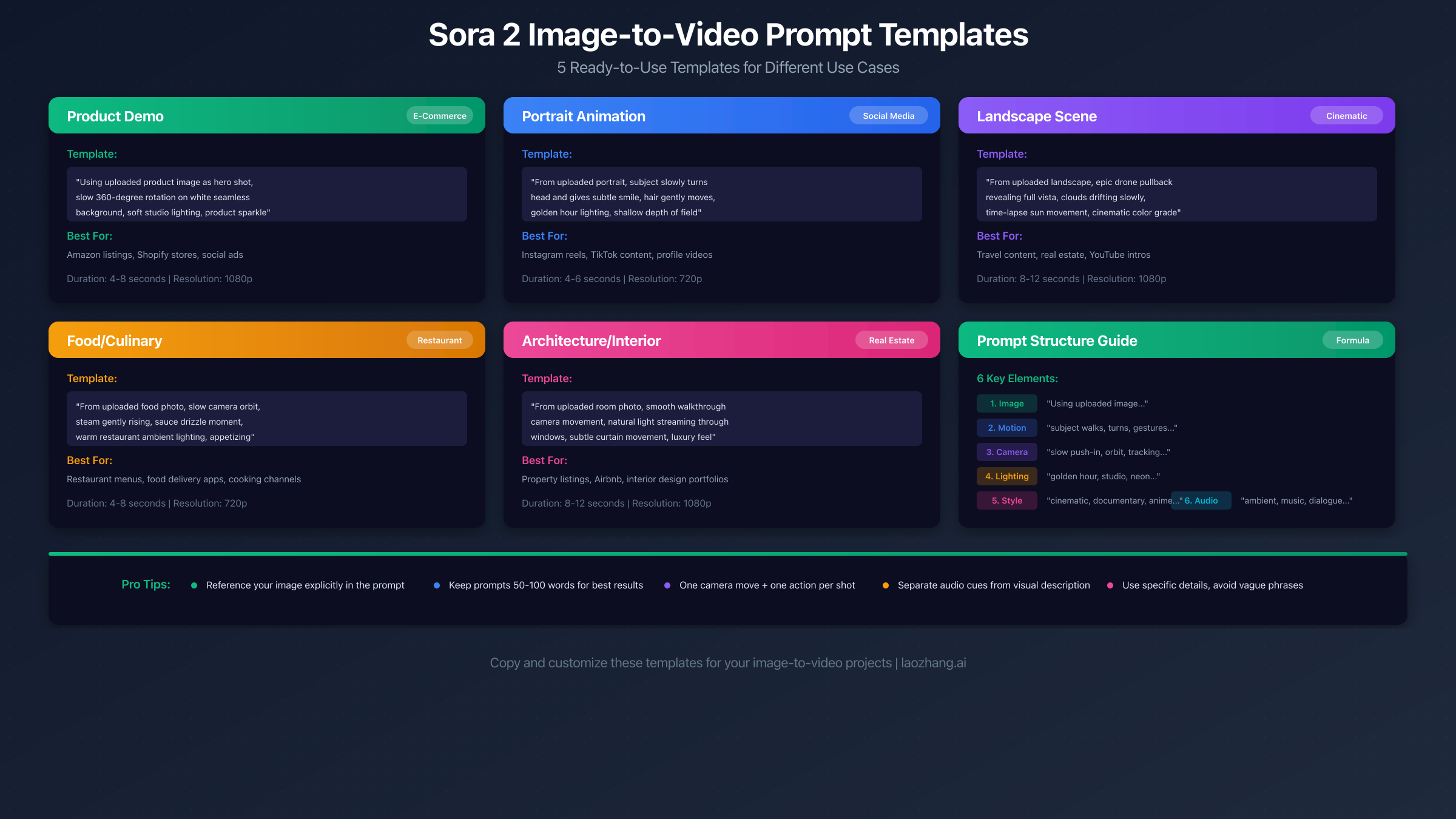
The prompt is where your creative vision meets Sora's generation capability. Well-crafted prompts consistently produce better results than generic descriptions. This section provides tested templates for common use cases.
Prompt Structure Framework
Every effective image-to-video prompt includes six elements, though not all need explicit mention.
- Image Reference: Acknowledge the uploaded image as the starting point
- Subject Motion: What moves and how
- Camera Movement: Pan, zoom, dolly, static
- Lighting Changes: Time of day shifts, shadow movement
- Style Tags: Cinematic, documentary, dreamy, etc.
- Technical Tags: Frame rate, depth of field, quality markers
Template 1: Product Animation
For e-commerce and marketing, animate static product photos into engaging video content.
Template: "[Product] rotates slowly on [surface], revealing details from multiple angles. Soft studio lighting creates moving highlights. Clean product photography, 4K quality, smooth 360-degree rotation."
Example: "The sneaker rotates slowly on a white pedestal, revealing stitching details and sole patterns from multiple angles. Soft studio lighting creates moving highlights across the mesh material. Clean product photography, 4K quality, smooth 360-degree rotation."
Template 2: Portrait Animation
Bring portrait photos to life with natural human motion.
Template: "[Person description] [subtle action], [facial expression change]. [Lighting description]. Cinematic portrait, shallow depth of field, 24fps film look."
Example: "The young woman with curly hair slowly turns toward the camera, a thoughtful expression softening into a gentle smile. Golden hour sunlight creates warm highlights in her hair. Cinematic portrait, shallow depth of field, 24fps film look."
Template 3: Landscape Animation
Transform static landscapes into immersive nature footage.
Template: "[Landscape element] [motion type] while [secondary element] [secondary motion]. [Weather/lighting]. Nature documentary style, smooth motion, ambient atmosphere."
Example: "The ocean waves roll gently toward the beach while seagulls glide across the cloudy sky. Late afternoon light creates silver reflections on the water surface. Nature documentary style, smooth motion, ambient atmosphere."
Template 4: Food and Culinary
Create appetite-inducing video from food photography.
Template: "[Food item] [action] with [detail element]. Steam rises gently, [sauce/garnish] [motion]. Food commercial style, macro detail, warm lighting."
Example: "Honey drizzles slowly over the stack of golden pancakes with fresh berries. Steam rises gently, maple syrup pooling at the base. Food commercial style, macro detail, warm lighting."
Template 5: Architecture and Interior
Animate real estate and interior design photos.
Template: "Gentle camera [movement] through [space], revealing [architectural features]. [Natural light description]. Real estate showcase, smooth dolly, professional quality."
Example: "Gentle camera push through the modern living room, revealing floor-to-ceiling windows and minimalist furniture. Morning sunlight streams through sheer curtains, casting soft shadows. Real estate showcase, smooth dolly, professional quality."
Common Prompt Mistakes to Avoid
Over-specification conflicts with the source image. If your image shows a person facing left, don't prompt them to face right—Sora may create awkward transitions or ignore the instruction entirely.
Vague motion descriptions produce unpredictable results. "Make it look alive" gives Sora too much freedom. Specify the exact motion: "leaves rustle in gentle wind" is clearer than "nature comes alive."
Impossible physics creates artifacts. Prompting solid objects to flow like liquid or gravity-defying motion often produces glitchy results unless explicitly styled as surreal.
Advanced Prompting Techniques
Beyond templates, these advanced techniques refine your results further.
Negative Prompting: While Sora doesn't support explicit negative prompts, you can discourage unwanted elements by emphasizing alternatives. Instead of mentally wanting "no fast movement," prompt "slow, gentle, deliberate motion" which guides the model toward your preferred pacing.
Motion Intensity Scaling: Control animation intensity through word choice. "Subtle shift" produces minimal motion. "Gentle movement" creates moderate animation. "Dynamic action" triggers more dramatic changes. "Explosive motion" maximizes visual change but risks artifacts.
Temporal Anchoring: Reference specific moments in your prompt to guide pacing. "The scene remains still for two seconds, then gradually..." tells Sora to build progression into the timeline rather than constant motion.
Style Stacking: Combine multiple style tags for unique aesthetics. "Cinematic, 24fps, anamorphic lens flare, film grain" creates different output than simply "professional quality." Experiment with combinations.
| Intensity Word | Expected Motion Level |
|---|---|
| Subtle, slight | 10-20% change |
| Gentle, soft | 30-40% change |
| Moderate, natural | 50-60% change |
| Dynamic, active | 70-80% change |
| Dramatic, explosive | 90-100% change |
Prompt Iteration Strategy
Rarely does the first prompt produce perfect results. Use this iteration approach.
Start broad, then refine. Your first attempt should capture the general motion concept. If it works directionally but misses details, add specificity in subsequent attempts.
Keep a prompt log. Document which phrases produced good results with specific image types. Build a personal library of effective terminology for your common use cases.
Test expensive changes cheaply. When experimenting with new prompt ideas, generate at 480p/4 seconds (16 credits) before committing to full quality (320+ credits).
For advanced prompt techniques and more templates, see our comprehensive Sora 2 Text-to-Video Tutorial.
Troubleshooting Common Issues
Even with proper preparation, image-to-video generation occasionally fails or produces unexpected results. This section covers the most common issues and their solutions.
Upload Failures
Symptom: Image upload hangs or displays error message.
Causes and Solutions:
- File too large: Compress to under 10MB. Use JPEG quality 85% for photos.
- Unsupported format: Convert to JPEG, PNG, or WebP. Formats like HEIC, TIFF, and RAW are not supported.
- Network issues: Check connection stability. Try a different browser or disable VPN.
- Browser cache: Clear cache and cookies, then retry upload.
Generation Stuck or Failed
Symptom: Progress bar stops or generation fails after starting.
| Error Type | Likely Cause | Solution |
|---|---|---|
| Timeout | Server overload | Retry during off-peak hours |
| Content Policy | Image flagged | Review image for policy violations |
| Credit Insufficient | Balance depleted | Add credits or upgrade subscription |
| Rate Limited | Too many requests | Wait 1-5 minutes before retry |
Poor Video Quality
Symptom: Generated video appears blurry, has artifacts, or shows inconsistent motion.
Image Quality Issues: If your source image is low resolution or heavily compressed, the video will inherit these problems. Re-source a higher quality original.
Prompt Conflicts: Instructions that contradict the source image cause generation confusion. Ensure your prompt aligns with what's actually visible in the image.
Duration Too Long: Longer videos (16-20 seconds) are more prone to drift and inconsistency. Try 4-8 second generations for best coherence.
Subject Distortion
Symptom: Faces become distorted, hands appear with wrong finger count, or objects morph unexpectedly.
Sora 2 significantly improved face consistency compared to earlier models, but edge cases remain. Close-up faces with extreme expressions or unusual angles may still distort. Medium shots with clear, front-facing subjects produce the most reliable results.
For hands and detailed anatomy, keep them partially obscured or in motion. Static, clearly visible hands tend to receive extra "attention" from the AI, sometimes resulting in mutations.
Audio Sync Problems
Symptom: Auto-generated audio doesn't match video motion.
The audio generation feature analyzes visual motion to create synchronized sound effects and ambient audio. Sync issues usually stem from:
- Very slow or subtle motion that audio can't interpret
- Multiple conflicting sound sources in scene
- Abstract or surreal content where "correct" audio is undefined
Disable auto-audio and add your own soundtrack in post-production for precise control.
Generation Takes Too Long
Symptom: Generation exceeds 5 minutes without completing.
Standard generation time ranges from 30 seconds to 3 minutes. Extended wait times typically indicate server congestion or processing issues.
| Wait Time | Likely Status | Recommended Action |
|---|---|---|
| 0-3 min | Normal processing | Wait patiently |
| 3-5 min | Heavy load | Continue waiting |
| 5-10 min | Possible queue | Consider regenerating |
| 10+ min | Likely stuck | Cancel and retry |
Peak usage hours (9 AM - 5 PM Pacific) often see longer generation times. Off-peak hours (late night, early morning) typically process faster.
Pro subscribers can use "Relaxed" mode for non-urgent generations. This mode processes overnight when server load is minimal, delivering results by morning.
Unexpected Motion Direction
Symptom: Video motion goes opposite or perpendicular to intended direction.
Sora interprets directional prompts relative to camera view, not absolute orientation. "Move left" means screen-left in the video frame, not the subject's left. Rephrase prompts using clear camera-relative terms: "move toward viewer" or "retreat into background."
Color Shift During Animation
Symptom: Video colors noticeably different from source image.
Some color shift is expected as Sora processes temporal consistency. Dramatic shifts usually indicate:
- HDR source images being tone-mapped incorrectly
- Very saturated colors approaching gamut limits
- Mixed lighting temperatures in source image
Pre-correct source images to sRGB color space before upload. Avoid extremely saturated colors (RGB values above 245 or below 10) which may clip during processing.
Regional Access Issues
Symptom: "Sora is not available in your region" error.
As of January 2026, Sora remains unavailable in the EU, UK, and Switzerland. VPN solutions sometimes work but may violate OpenAI's Terms of Service. Third-party API providers offer alternative access—for cost-effective options with broader availability, explore our Free Sora 2 Video API Alternatives Guide.
Cost Optimization and Best Practices
Sora 2 credits deplete quickly, especially for 1080p and longer duration videos. These strategies help maximize value from your subscription or API balance.
Credit Consumption Optimization
Start with test generations at 480p/4 seconds before committing to high-quality output. A test generation costs 16 credits compared to 320 credits for a full 720p/20-second video. Once you're satisfied with motion and composition, regenerate at final quality settings.
| Strategy | Savings | Trade-off |
|---|---|---|
| Test at 480p first | 75% on iterations | Extra steps |
| Use 720p vs 1080p | 60% | Slight quality reduction |
| 8s vs 20s videos | 60% | Shorter content |
| Relaxed mode (Pro) | 100% after quota | Overnight processing |
Batch Workflow Efficiency
Plan your generation sessions rather than creating one-off videos. Prepare all images and write all prompts before starting generation. This allows you to identify which test renders need adjustment before burning credits on final quality.
Group similar content together. Creating five product videos in one session with consistent settings is more efficient than spreading them across multiple days, as you refine your prompt template progressively.
Third-Party Cost Savings
For high-volume production, third-party providers like laozhang.ai offer substantial savings. At $0.015-$0.10 per second compared to OpenAI's $0.10-$0.50, a 100-second monthly production drops from $10-$50 to $1.50-$10—savings of 80-85%.
These providers maintain API compatibility, requiring minimal code changes. The trade-off involves potentially slower generation times during peak periods and limited support compared to OpenAI's enterprise offerings.
Quality vs Cost Decision Matrix
| Use Case | Recommended Settings | Est. Cost |
|---|---|---|
| Social media clips | 720p, 4-8s, Standard | 64-128 credits |
| YouTube content | 1080p, 8-12s, Pro | 320-480 credits |
| Commercial ads | 1080p, 12-20s, Pro | 480-800 credits |
| Client previews | 480p, 4s, Standard | 16 credits |
| Final delivery | Highest available | Full price |
Maximizing Pro Subscription Value
ChatGPT Pro's 10,000 credits seem abundant until you run multiple 1080p/20-second generations. The real value lies in the unlimited "Relaxed" mode—overnight generation at zero credit cost.
Schedule non-urgent generations for relaxed mode by starting them after 10 PM local time. Review results the next morning. This effectively provides unlimited generation for patient workflows while reserving instant credits for client-facing or urgent needs.
Archive and Reuse Strategy
Download and organize all generated videos, even imperfect ones. B-roll clips, transition moments, and partial successes often find use in future projects. Building a library of generated content prevents redundant spending on similar shots later.
Name files descriptively: [subject]_[motion]_[duration]s_[date].mp4 enables quick searching. Example: coffee_pour_steam_8s_20260111.mp4
Monthly Budget Planning
For consistent content creation, plan your credit usage monthly to avoid unexpected costs.
| Creator Type | Monthly Videos | Recommended Plan | Est. Monthly Cost |
|---|---|---|---|
| Hobbyist | 5-10 | Plus | $20 |
| Content Creator | 25-50 | Plus + careful usage | $20 |
| Professional | 100-200 | Pro | $200 |
| Agency | 500+ | API + third-party | $100-500 |
Track your usage patterns for the first month before committing to annual subscriptions. Usage varies significantly between project types—promotional campaigns may spike temporarily while educational content remains steady.
When to Choose API vs Subscription
The break-even point between subscription and API depends on your generation patterns.
For Plus subscribers ($20/month = 1,000 credits), the effective cost per 5-second 720p video is $0.80 (80 credits). If generating more than 62 videos monthly at this specification, Plus provides better value than API pay-per-use at $1.00 per video.
For Pro subscribers ($200/month = 10,000 credits + unlimited relaxed), the math favors high-volume users. If you can defer non-urgent work to relaxed mode, the effective cost approaches $0 per video for patient workflows.
API makes sense for unpredictable usage patterns. Paying only when you generate avoids monthly fees during slow periods. It also enables higher quality (1080p+) generation that subscriptions cap at lower resolutions.
Credit Recovery Strategies
If you've burned credits on failed generations, consider these recovery approaches.
Contact OpenAI support for generations that failed due to system errors (not content policy). They occasionally credit back failed generations, especially for Pro subscribers.
Use test generations strategically. Run 480p/4-second tests first, spending 16 credits to validate prompts before committing 320+ credits to final quality.
Leverage variations wisely. If your first full-quality generation is close but not perfect, try variations (which share some computational work) rather than complete regenerations.
Sora 2's image-to-video feature transforms static photography into dynamic content with unprecedented ease. By following this guide—preparing images correctly, using the right platform for your needs, crafting effective prompts, and optimizing for cost—you'll consistently produce professional-quality results.
Start with simple animations using the templates provided, then experiment with more complex prompts as you develop intuition for what Sora handles well. The technology continues improving with each update, and techniques that work today will only get better as the model evolves.
For continued learning, explore our related guides on Sora 2 API pricing, text-to-video techniques, and API integration. For cost-effective API access and comprehensive documentation, visit docs.laozhang.ai.