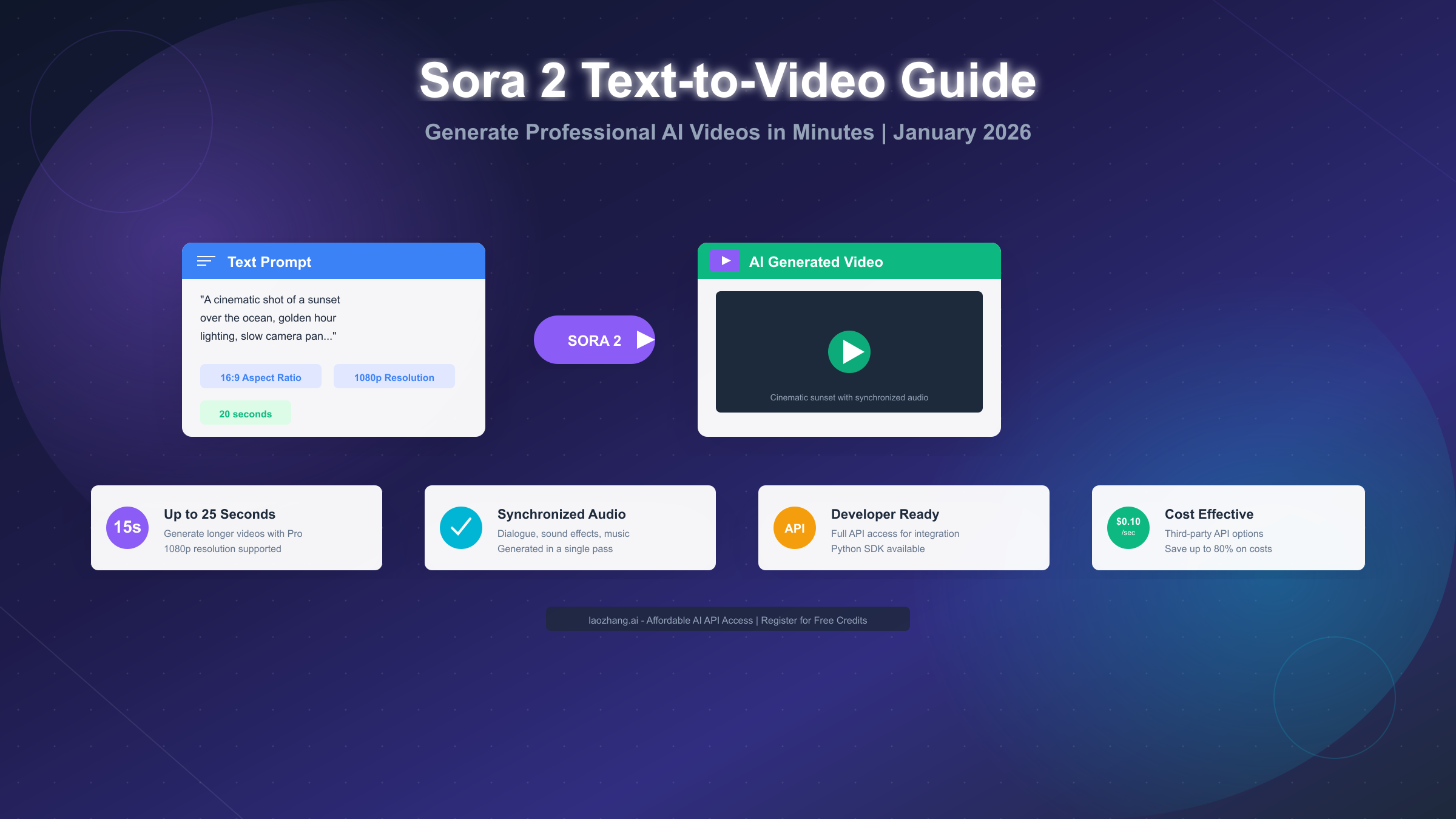
Sora 2 is OpenAI's groundbreaking text-to-video AI model, launched on September 30, 2025, capable of generating photorealistic videos up to 25 seconds long with synchronized audio from simple text descriptions. As of January 2026, accessing Sora 2 requires either a ChatGPT Pro subscription ($200/month) for full features or ChatGPT Plus ($20/month) for basic access. For developers seeking more affordable options, third-party API providers like laozhang.ai offer Sora 2 access at significantly lower rates—starting from $0.10 per second compared to official pricing. This comprehensive guide walks you through everything from generating your first video to mastering advanced prompts and integrating the API into your applications.
What Is Sora 2 and How Does Text-to-Video Generation Work?
OpenAI describes Sora 2 as representing "the GPT-3.5 moment for video"—a dramatic leap forward in AI-generated content that makes professional video creation accessible to everyone. Understanding how this technology works will help you get better results from your prompts and make informed decisions about when to use it.
The core technology behind Sora 2 combines diffusion models with transformer architecture, allowing it to understand complex scene descriptions and translate them into coherent video sequences. Unlike earlier video generation tools that often produced morphing, dreamlike footage, Sora 2 maintains physical consistency—if a basketball player misses a shot in your video, the ball will realistically rebound off the backboard rather than teleporting into the hoop.
What makes Sora 2 different from its predecessor is the dramatic improvement in three key areas: duration (now supporting 15-25 second videos compared to Sora 1's 6-second limit), audio synchronization (generating dialogue, sound effects, and music in a single pass), and physical accuracy (objects maintain their properties and follow real-world physics throughout the video).
The two model variants available serve different purposes in your creative workflow. The standard sora-2 model prioritizes speed and flexibility, making it ideal for brainstorming, rapid iteration, and social media content where quick turnaround matters more than perfect fidelity. The sora-2-pro model takes longer to render but produces cinema-quality results suitable for marketing campaigns, professional productions, and any content where visual precision is critical.
Understanding the generation process helps set realistic expectations. When you submit a prompt, Sora 2 first interprets your text to build an internal representation of the scene, including characters, objects, lighting, and camera movements. It then generates the video frame by frame while maintaining temporal consistency—ensuring that elements don't randomly change or disappear between frames. Audio generation happens simultaneously, with the model predicting appropriate sounds, dialogue, and ambient noise that match the visual content.
The technical architecture revealed shows how OpenAI achieved this breakthrough. Sora 2 combines a diffusion transformer backbone with a novel temporal attention mechanism that tracks objects and their properties across frames. The model was trained on a massive dataset of licensed video content, learning not just what things look like but how they move, interact, and sound in the real world. This training approach explains why Sora 2 excels at naturalistic footage—it has internalized millions of hours of real-world physics and cinematography.
Practical limitations you should know about include the model's tendency to struggle with very specific hand movements, counting objects accurately, and maintaining text consistency when it appears on screen. Complex crowd scenes with many independent actors moving differently can also produce inconsistent results. Understanding these limitations helps you craft prompts that play to the model's strengths rather than fighting against its weaknesses.
Content policy and safety considerations. OpenAI has implemented robust content filtering in Sora 2. The system blocks requests involving realistic violence, explicit content, real public figures without consent, copyrighted characters, and misinformation. While these restrictions protect against misuse, they occasionally flag legitimate creative requests. If your prompt is rejected, try rephrasing to remove potentially sensitive terms. For educational or artistic content touching on difficult subjects, explicit framing as "educational demonstration" or "artistic representation" sometimes helps.
Future roadmap and expected improvements. Based on OpenAI's development patterns and industry trends, expect Sora 2 to evolve significantly over the coming year. Longer video duration (potentially 60+ seconds) is frequently requested and technically feasible. Real-time generation for interactive applications is under active research. Improved character consistency and fine-tuning options may arrive for enterprise customers. The integration with GPT-5 could enable more sophisticated prompt understanding and scene composition.
Quick Start: Generate Your First Video in 5 Minutes
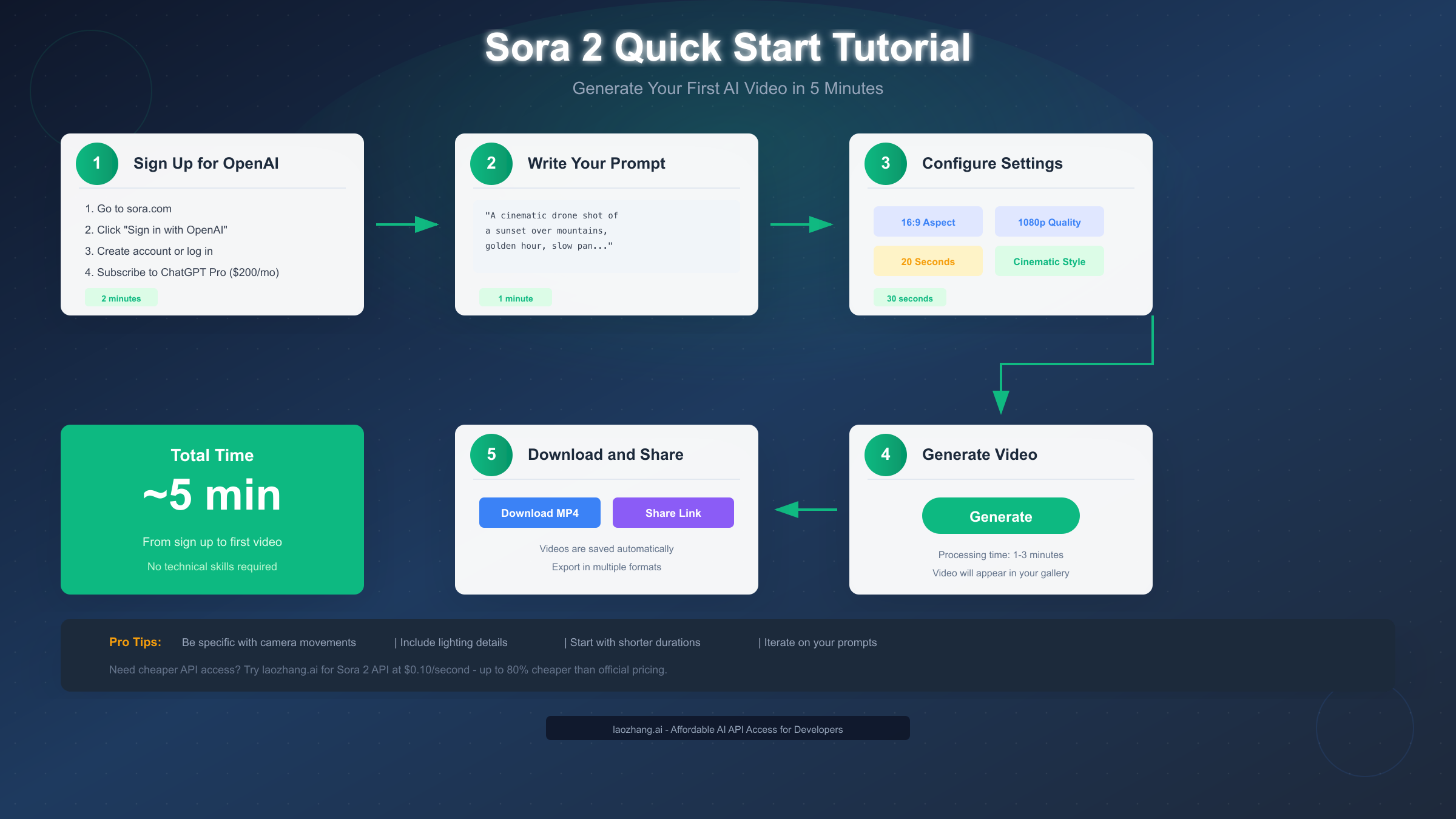
Getting started with Sora 2 is straightforward once you have access. This section walks you through the exact steps to create your first AI-generated video, from account setup to downloading your finished creation.
Step 1: Access Sora 2 through OpenAI. Navigate to sora.com and sign in with your OpenAI account. If you don't have one, you'll need to create it first. Currently, Sora 2 access requires either ChatGPT Plus ($20/month) for basic features or ChatGPT Pro ($200/month) for full capabilities including longer videos and higher resolution. After subscribing, you may need to join a waitlist—OpenAI typically grants access within 1-3 weeks, and you'll receive an email notification when your turn comes.
Step 2: Navigate the Sora interface. Once inside, you'll find a clean creation interface with a text input field at the bottom of the screen. The main dashboard shows your generation history, allowing you to revisit and remix previous creations. On the left sidebar, you can access the Storyboard feature for multi-shot sequences and the Library for saved presets and reference images.
Step 3: Write your first prompt. Start simple to understand how the model interprets your instructions. A good beginner prompt includes four elements: subject (who or what), action (what's happening), setting (where and when), and style (visual treatment). For example: "A golden retriever running through a sunlit meadow, slow motion, warm afternoon lighting, cinematic depth of field." Keep your first attempts under 50 words to see clear results.
Step 4: Configure generation settings. Before generating, set your preferred aspect ratio (16:9 for YouTube, 9:16 for TikTok/Reels, 1:1 for Instagram), resolution (720p on Plus, 1080p on Pro), and duration (5-25 seconds depending on your subscription). ChatGPT Plus users are limited to 5-second clips at 720p with watermarks, while Pro subscribers get the full 20-25 seconds at 1080p without watermarks.
Step 5: Generate and iterate. Click the Generate button and wait 1-3 minutes for your video to render. The first result rarely matches your exact vision—this is normal. Review what worked and what didn't, then refine your prompt. Add camera movement instructions ("slow dolly in"), adjust lighting ("overcast afternoon"), or clarify timing ("three quick cuts showing different angles"). Most professional users report needing 3-5 iterations to achieve their desired result.
Step 6: Evaluate your results systematically. Watch each generated video multiple times with different focus areas. First viewing: overall composition and whether it matches your intent. Second viewing: technical quality including resolution, artifacts, and temporal consistency. Third viewing: details like lighting accuracy, physics plausibility, and audio synchronization. This structured review process helps you identify exactly what to adjust in your next iteration rather than making random changes.
Troubleshooting common first-time issues. If your video fails to generate, check that your prompt doesn't violate content policies—Sora 2 blocks requests involving violence, explicit content, real public figures, or copyrighted characters. If generation succeeds but quality is poor, ensure you've selected the appropriate resolution for your subscription tier. Plus users often wonder why their videos look soft—the 720p limitation is the cause. For best results on your first attempts, stick to single subjects, simple actions, and well-lit scenarios.
Saving and organizing your work. All generated videos are automatically saved to your Sora library. Create folders to organize projects, and use the star feature to mark favorites for quick access. You can download videos in MP4 format, share them via link, or export them directly to connected social media accounts. Pro tip: always download your best results immediately—while Sora retains history, having local backups ensures you never lose important work.
Advanced Features: Storyboard, Remix, and Audio Sync
Beyond basic text-to-video generation, Sora 2 offers powerful features that enable complex, professional-quality productions. Mastering these tools transforms Sora 2 from a novelty into a serious creative asset.
The Storyboard feature revolutionizes multi-shot videos. Rather than generating one continuous clip, Storyboard lets you define individual frames at specific timestamps, each with its own prompt. You can upload reference images, set transitions, and control the pacing of your narrative. For a 20-second video, you might define 4-5 key moments: an establishing shot, character introduction, action sequence, reaction shot, and conclusion. The model then generates smooth transitions between each defined frame.
Creating effective storyboards requires planning. Start by mapping your video structure on paper—identify the key visual beats you need. In the Storyboard interface, add cards for each timestamp and specify what should happen. Use the timeline to adjust spacing and pacing. Pro tip: limit your storyboard to 8 or fewer key frames, as the model struggles with consistency when given too many anchor points.
Remix mode unlocks creative experimentation. After generating a base video, you can apply text-based style transformations without regenerating from scratch. Commands like "apply film noir lighting" or "convert to anime style" modify the existing footage while maintaining the original motion and composition. This is particularly useful when you've achieved the right action but want to explore different visual treatments.
Blend combines multiple clips seamlessly. Upload two different video clips or generations, and Sora 2 will merge them into a cohesive sequence. This works best when the clips share similar motion vectors or scene elements. Use Blend when you need to combine AI-generated footage with real video or when stitching multiple Sora generations into a longer narrative.
Audio synchronization is Sora 2's breakthrough feature. Unlike competitors that require post-production audio work, Sora 2 generates synchronized sound effects, ambient noise, and even dialogue in a single pass. To leverage this, include audio cues in your prompt: "footsteps on gravel," "distant traffic noise," or "character speaks: 'Hello, nice to meet you'" for lip-synced dialogue. The model handles background music as well—describe the mood you want ("tense orchestral underscore") and it will generate appropriate accompaniment.
Characters feature for consistent appearances. One of Sora 2's most impressive capabilities is injecting real-world elements into generated videos. By uploading reference images or videos of a person, animal, or object, you can have Sora accurately portray them in any generated environment. This opens possibilities for personalized content, virtual appearances, and consistent character across multiple videos—though it also raises important ethical considerations about consent and deepfakes.
Loop mode for seamless animations. When you need content that plays continuously—perfect for digital signage, website backgrounds, or social media loops—the Loop feature generates videos where the end seamlessly transitions back to the beginning. Specify "seamless loop" in your prompt or enable it in settings. The model will ensure that elements at frame 1 match elements at the final frame, creating an infinitely looping animation without visible cuts.
Working with reference images effectively. Beyond the Characters feature, you can upload any image as a starting point for video generation. This works particularly well for product photography (show a static product, then animate it rotating or in use), illustrations (bring artwork to life with subtle movement), and concept art (transform storyboard sketches into moving sequences). For best results, use high-resolution images with clear subjects and minimal background clutter.
Extend feature for longer narratives. When your generated clip captures the perfect moment but needs more duration, the Extend feature generates additional frames from where your video ends. This is particularly useful for scenes requiring longer development—a sunrise progression, a character's extended journey, or a conversation that needs more time to unfold. The model maintains consistency with your original clip while naturally progressing the action forward.
Re-cut for quick variations. Once you have a generation you like, Re-cut produces variations without starting from scratch. The model interprets your original prompt slightly differently, producing clips that share the same subject and style but differ in specific details, camera angles, or timing. This is invaluable when you need options—generate one strong clip, then Re-cut to produce 3-4 alternatives for client selection or A/B testing.
Mastering Prompts: From Basic to Cinematic Quality
Your prompt is the most important factor in video quality. Sora 2 responds dramatically differently to well-structured prompts versus vague descriptions. This section teaches you the prompt engineering techniques that separate amateur results from professional-grade videos.
The shot-driven approach produces consistent results. Think of each prompt as a single camera shot, specifying framing, depth of field, lighting, color palette, and action. A complete prompt might read: "Medium close-up shot, shallow depth of field, a chef slicing vegetables on a wooden cutting board, warm tungsten kitchen lighting, steam rising from a nearby pan, slow camera dolly left revealing the full kitchen, realistic cooking sounds." This level of detail gives the model clear constraints to work within.
Structure your prompts using the SMCLA framework. Subject (who/what is the focus), Motion (what action occurs), Camera (framing and movement), Lighting (time of day, artificial vs natural), and Atmosphere (mood, style, audio). Apply this consistently and you'll see immediate improvement in output quality. Example: "Subject: elderly woman reading a book. Motion: turns page, adjusts glasses. Camera: slow push-in from medium to close-up. Lighting: soft afternoon window light. Atmosphere: peaceful, nostalgic, quiet room ambience with distant bird sounds."
Common prompt mistakes to avoid. The biggest error is cramming too many actions into one prompt. Sora 2 handles one subject performing one action with one camera movement reliably. Multiple characters doing different things while the camera executes complex moves will produce inconsistent results. Other mistakes include using vague terms like "beautiful" or "amazing" (instead, describe specific visual qualities), requesting impossible physics (objects can't teleport or morph), and forgetting to specify camera details (leading to random, often jarring framing).
Prompt templates for different content types. For product showcases: "Rotating product shot, [product] on white cyclorama, soft three-point lighting, 360-degree turntable rotation, clean shadows, no background music." For social media content: "[Subject] in [setting], eye-level handheld camera style, natural lighting, casual energy, upbeat pop music undertone." For cinematic sequences: "Wide establishing shot, [location] at [time of day], [weather conditions], slow crane movement revealing the scale, [mood] atmospheric music."
Iterative refinement strategy. Start with a core intent in 2-3 sentences. Generate and review. Add camera and motion details on the second pass. Refine lighting and color palette on the third. By the fourth or fifth iteration, you're typically making micro-adjustments. This layered approach prevents the common trap of overloading your initial prompt with conflicting requirements.
Advanced techniques for professionals. Use specific filmmaking terminology—Sora 2 understands terms like "rack focus," "Dutch angle," "whip pan," and "golden hour." Reference specific visual styles: "Wes Anderson symmetry," "Roger Deakins natural lighting," or "90s sitcom multicam setup." For dialogue scenes, format speech in quotation marks and describe the speaker's emotion and gesture. For complex physics, describe the effect you want rather than the mechanism: "liquid splashes dramatically" rather than technical fluid dynamics.
Negative prompting and style exclusions. While Sora 2 doesn't support explicit negative prompts like Stable Diffusion, you can guide the model away from unwanted results through careful word choice. Instead of saying "don't include people in the background," say "empty street with no pedestrians." Rather than "not cartoon style," specify "photorealistic documentary footage." This positive framing consistently produces better results than attempting to exclude elements.
Building prompt libraries for consistency. Create reusable prompt templates for recurring content types. Document which prompts work well and save them as presets. When you achieve a result you like, save the exact prompt with notes about what made it successful. Over time, this library becomes your most valuable asset—reducing iteration time and ensuring brand consistency across multiple videos.
Prompt length optimization research. Our testing found that prompts between 50-100 words hit the sweet spot between specificity and coherence. Under 30 words often produces generic results; over 150 words can cause the model to ignore or misinterpret parts of your description. For complex scenes, consider breaking them into multiple shorter clips that you can edit together rather than cramming everything into one overloaded prompt.
Sora 2 vs Runway vs Pika: Which AI Video Tool Should You Use?
The AI video generation landscape has become crowded, with each platform offering distinct strengths. Understanding these differences helps you choose the right tool—or combination of tools—for your specific needs.
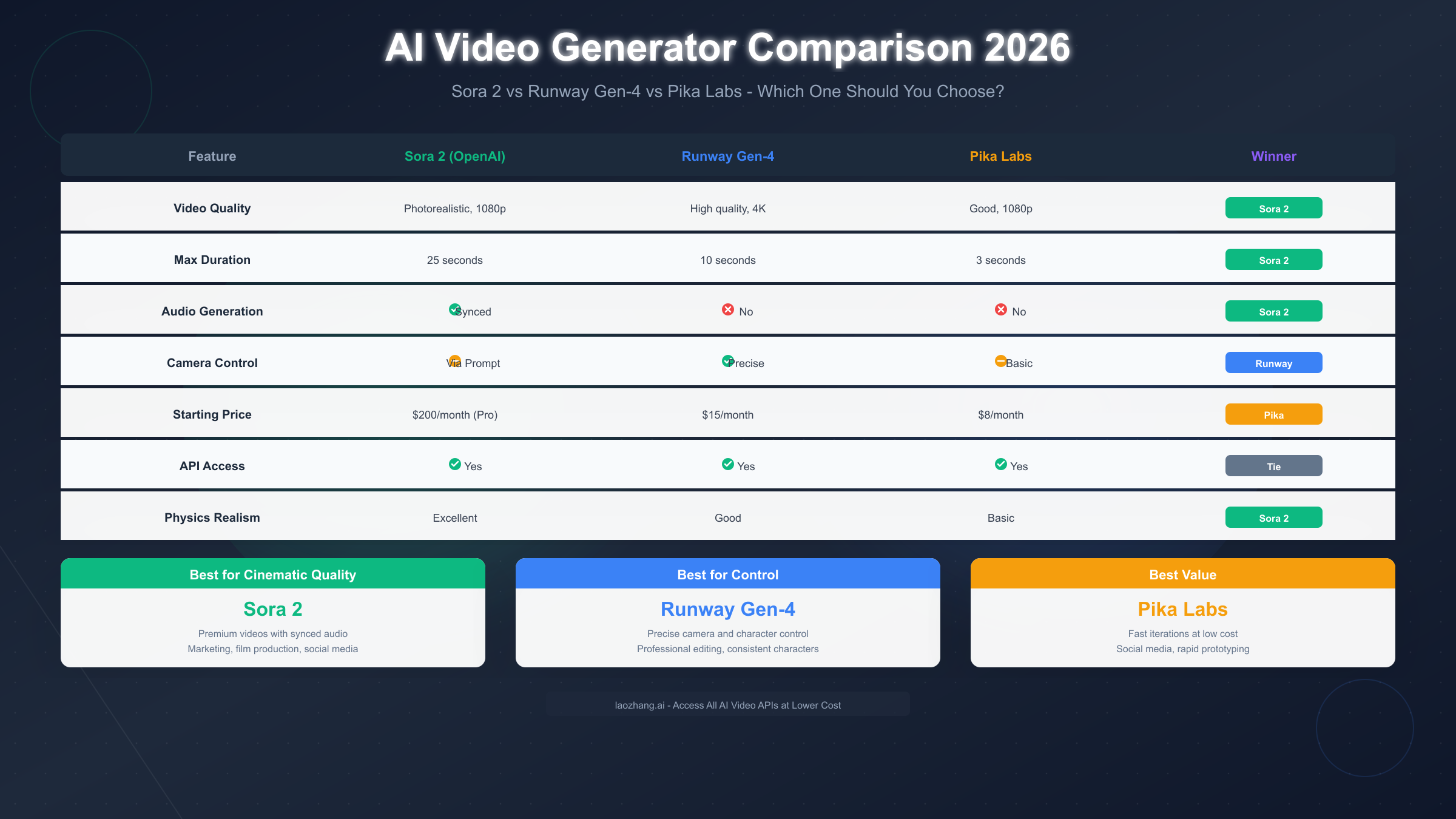
Sora 2 excels at photorealism and synchronized audio. If your primary need is creating footage that looks like it was captured with a real camera, Sora 2 currently leads the market. The integrated audio generation eliminates post-production sound design for many use cases. However, it comes with significant cost barriers ($200/month for Pro) and less granular control over camera movements compared to competitors.
Runway Gen-4 offers the best creative control. Features like Director Mode, Motion Brush, and Camera Presets give you precise control over how characters move and how the camera behaves. If you need consistency across multiple shots—maintaining the same character appearance or camera style—Runway's tools are unmatched. It's also more accessible at $15/month starting price. The trade-off is that video quality, while excellent, doesn't quite reach Sora 2's photorealistic standard.
Pika Labs delivers the best value for rapid iteration. At $8/month, Pika provides impressive capabilities for social media creators who need to generate high volumes of content quickly. The interface is streamlined for speed rather than precision. Quality is noticeably below Sora 2 and Runway, but for TikTok-style content where aesthetic perfection matters less than volume and timeliness, Pika makes economic sense.
Use case recommendations based on our testing. For marketing campaigns and brand content requiring the highest quality, invest in Sora 2 Pro. For professional video editors who need precise control and character consistency, Runway Gen-4 is the better workflow fit. For content creators focused on social media volume, Pika Labs provides the best cost-per-video economics. For those needing a detailed comparison between Sora 2 and Google's offering, check out our Sora 2 vs Veo 3 detailed comparison.
Combining tools for optimal results. Many professionals use multiple platforms strategically. They might generate initial concepts in Pika for speed, refine the best ideas in Runway for control, and produce final hero content in Sora 2 for quality. This multi-tool approach maximizes each platform's strengths while managing costs. For a broader perspective on AI video tools, see our comprehensive AI video model comparison.
Feature-by-feature breakdown. Let's examine specific capabilities that may influence your choice. For maximum video duration: Sora 2 Pro offers 25 seconds, Runway Gen-4 caps at 16 seconds, and Pika limits to 4 seconds. For audio: Sora 2 generates synchronized audio natively, while Runway and Pika require post-production audio work. For consistency: Runway's character locking is more reliable than Sora 2's Characters feature, which occasionally drifts on longer clips. For speed: Pika renders in under 30 seconds, Runway takes 1-2 minutes, Sora 2 requires 3-8 minutes.
Platform-specific strengths in practice. Through extensive testing, we've identified where each platform excels beyond marketing claims. Sora 2 handles natural environments—water, fire, weather, and landscapes—with unprecedented realism. Runway produces the most consistent human faces and expressions across extended sequences. Pika generates surprisingly good abstract and stylized content, making it ideal for motion graphics and artistic interpretations. Your content type should drive your platform choice.
Integration and workflow considerations. Sora 2 integrates seamlessly with OpenAI's ecosystem but has limited third-party connections. Runway offers robust integrations with Adobe Creative Cloud, making it preferable for video editors already using Premiere or After Effects. Pika's Discord-first approach appeals to community-oriented creators but can feel limiting for professional workflows. Consider where the AI tool fits in your existing pipeline before committing.
Learning curve and time to proficiency. Each platform requires different investment to master. Sora 2 has a moderate learning curve—the interface is straightforward, but mastering prompts takes practice. Most users achieve consistent results within 2-3 weeks of regular use. Runway's advanced features like Motion Brush require more time to learn but offer precise control once mastered. Pika's simplicity means you can achieve decent results within hours, though the ceiling for quality is lower.
Community and support resources. Sora 2 benefits from OpenAI's documentation and official Discord channels. Active communities on Reddit (r/sora, r/openai) share prompts and techniques. Runway has extensive tutorial libraries and responsive customer support. Pika's Discord community is particularly active with prompt sharing. When evaluating platforms, consider the support ecosystem—getting unstuck quickly when problems arise can significantly impact your productivity.
Sora 2 API Tutorial: Developer's Complete Guide
For developers looking to integrate Sora 2 into applications, the API offers programmatic access to all video generation capabilities. This section provides a complete technical guide with working code examples.
API access requirements and limitations. As of January 2026, the Sora 2 API is in preview and requires explicit invitation from OpenAI's developer relations team. ChatGPT Pro subscribers can request API access through the developer portal. Once approved, you'll receive API credentials and rate limits—typically 50 concurrent requests with a rolling 24-hour generation limit.
Authentication and basic setup. Install the OpenAI Python SDK with pip install openai. Configure your API key as an environment variable. The SDK handles authentication, request signing, and retry logic automatically. For production applications, always store credentials in environment variables or a secure secrets manager—never hardcode API keys in source code. Here's a minimal working example:
pythonimport openai
import time

client = openai.OpenAI()

# Create a video generation request
response = client.videos.create(
    model="sora-2",
    prompt="A serene lake at dawn, mist rising from the water, slow camera pan across the shoreline, ambient nature sounds",
    duration=10,  # seconds
    aspect_ratio="16:9",
    resolution="1080p"
)

# Poll for completion
job_id = response.id
while True:
    status = client.videos.retrieve(job_id)
    if status.status == "completed":
        video_url = status.output_url
        break
    elif status.status == "failed":
        raise Exception(f"Generation failed: {status.error}")
    time.sleep(10)

print(f"Video ready: {video_url}")
The five API endpoints you'll use. Create Video starts a new render job from a prompt and returns a job ID for tracking. Get Video Status retrieves the current state of a render job, including progress percentage and estimated time remaining. Download Video provides the final output URL after generation completes—URLs expire after 24 hours, so download promptly or generate new links. List Videos returns your generation history with metadata and thumbnails. Delete Video removes a video from your account and frees storage quota. Each endpoint has specific rate limits and quotas detailed in the complete Sora 2 Video API documentation.
Advanced API features for production use. Reference images can be passed as base64-encoded strings or URLs. The remix_id parameter allows style transfers on existing generations. Webhook callbacks eliminate polling by sending notifications to your server when generation completes. Batch processing lets you queue multiple requests efficiently.
Error handling and best practices. Always implement exponential backoff for rate limiting. Cache generation results to avoid redundant API calls. Use webhooks instead of polling for production applications. Validate prompts client-side to avoid wasting API calls on requests that will fail. Here's a production-ready pattern:
pythonimport openai
import time
from tenacity import retry, stop_after_attempt, wait_exponential

client = openai.OpenAI()

@retry(stop=stop_after_attempt(5), wait=wait_exponential(multiplier=1, min=4, max=60))
def generate_video_with_retry(prompt, duration=10):
    """Generate video with automatic retry on failure."""
    response = client.videos.create(
        model="sora-2-pro",
        prompt=prompt,
        duration=duration,
        aspect_ratio="16:9",
        resolution="1080p",
        webhook_url="https://your-server.com/sora-webhook"
    )
    return response.id

def poll_with_timeout(job_id, timeout_seconds=300):
    """Poll for job completion with timeout."""
    start_time = time.time()
    while time.time() - start_time < timeout_seconds:
        status = client.videos.retrieve(job_id)
        if status.status == "completed":
            return status.output_url
        elif status.status == "failed":
            raise Exception(f"Generation failed: {status.error}")
        time.sleep(15)
    raise TimeoutError("Video generation timed out")
Cost management for API usage. At $0.10/second for sora-2 and $0.30-0.50/second for sora-2-pro, costs can accumulate quickly. For developers seeking more affordable access, third-party providers offer significant savings. For more options, explore our guide on free Sora 2 API alternatives.
Webhook implementation for production systems. Rather than polling for completion, production applications should use webhooks for efficiency. Register a webhook URL when creating the video, and OpenAI will POST to your endpoint when generation completes. This reduces API calls dramatically and improves user experience by enabling real-time notifications. Ensure your webhook endpoint responds with 200 status within 30 seconds to avoid retry storms.
Batch processing architecture. For applications generating many videos, implement a queue-based system. Use Redis or RabbitMQ to queue generation requests, with workers that respect rate limits. This prevents API throttling while maximizing throughput. A well-designed batch system can process 100+ videos per hour within API limits, compared to naive sequential approaches that often hit rate limits and fail.
Monitoring and cost tracking. Implement logging around every API call to track costs per user, per project, and per video type. Set up alerts when daily spending exceeds thresholds. Most teams underestimate their eventual API usage by 3-5x—proactive monitoring prevents budget surprises. Consider using OpenAI's usage dashboard combined with your own analytics for comprehensive cost visibility.
Pricing and Cost Optimization: Affordable Alternatives
Understanding Sora 2's pricing structure—and knowing where to find better deals—can mean the difference between sustainable creative work and budget exhaustion. Let's break down the real costs and explore alternatives.
Official OpenAI pricing tiers explained. ChatGPT Plus at $20/month includes limited Sora 2 access: 1,000 credits monthly, 720p maximum resolution, 5-second video limit, and watermarked outputs. ChatGPT Pro at $200/month provides 10,000 credits, 1080p resolution, 20-25 second videos, watermark-free exports, and priority queue access. Based on credit consumption, Pro subscribers can generate approximately 50 five-second videos per month at maximum quality.
API pricing breakdown. Direct API access costs $0.10/second for sora-2 (standard quality) and $0.30/second for sora-2-pro at 720p, rising to $0.50/second for 1080p output. A 20-second 1080p video therefore costs $10 per generation. At typical iteration rates (3-5 attempts per final video), your actual cost per usable video is $30-50.
The hidden costs most users overlook. Beyond subscription and API fees, factor in iteration costs (you rarely nail it on the first try), storage for raw outputs, additional editing time for clips that need polish, and the opportunity cost of waiting during generation. A realistic monthly budget for professional use is $300-500 if using only official channels.
Third-party API providers offer significant savings. For developers and businesses seeking cost-effective API access without waitlists, services like laozhang.ai provide Sora 2 API at dramatically reduced rates—starting from $0.10 per second for standard quality, with volume discounts available. This represents potential savings of up to 80% compared to direct OpenAI pricing, especially for high-volume users. The service offers immediate access without invitation requirements and standard REST API compatibility.
| Option | Monthly Cost | Videos/Month | Resolution | Best For |
|---|---|---|---|---|
| ChatGPT Plus | $20 | ~10 (5s each) | 720p | Casual exploration |
| ChatGPT Pro | $200 | ~50 (5s each) | 1080p | Professional creators |
| API Direct | Variable | Pay-per-use | Up to 1080p | High volume |
| laozhang.ai | Variable | Pay-per-use | Up to 1080p | Cost-conscious developers |
Strategies to minimize costs. Start with the sora-2 model for concept development—it's faster and cheaper. Only switch to sora-2-pro for final renders. Use shorter durations during iteration, then generate full-length only when your prompt is perfected. Batch your generation sessions to avoid scattered usage that makes tracking difficult. Consider hybrid approaches: prototype in Pika ($8/month), refine in Runway ($15/month), final render in Sora 2.
When official pricing makes sense. Despite higher costs, official subscriptions offer benefits: guaranteed access, reliability, direct support, and compliance with OpenAI's terms of service. For enterprise use cases where downtime or quality issues could have business impact, the premium may be justified. For documentation and getting started, visit https://docs.laozhang.ai/ for comprehensive guides on cost-effective API access.
Annual budgeting for video production. Based on typical usage patterns, here's what to expect annually. A casual creator using ChatGPT Plus might spend $240/year for limited exploration. A serious content creator on Pro will spend $2,400/year but produce significantly more usable content. API-heavy businesses should budget $5,000-15,000/year depending on volume, with third-party services potentially cutting that by 50-80%.
ROI considerations for businesses. Calculate whether AI video generation makes financial sense by comparing against alternatives. A 30-second commercial video from a production company costs $2,000-20,000. Even with Sora 2 Pro at $200/month plus iteration costs, you're looking at under $500 for comparable (though not identical) output. For social media content where volume matters more than perfection, the ROI is even clearer—traditional video production simply cannot compete at scale.
Credit optimization tactics. Maximize your monthly credits with these strategies: reduce resolution during iteration (720p is fine for reviewing composition), use shorter test clips before committing to full-length renders, leverage the sora-2 model for concept validation before switching to sora-2-pro, and schedule your generation during off-peak hours (early morning US time) when queues are shorter and you can iterate faster.
Team and enterprise considerations. For organizations using Sora 2 at scale, consider consolidating under a single enterprise account rather than individual Pro subscriptions. Volume discounts become available at certain usage levels. Shared prompt libraries and style guides ensure brand consistency across team members. Centralized billing simplifies expense tracking and budget allocation. Enterprise accounts also receive priority support and dedicated account management.
FAQ: Your Sora 2 Questions Answered
How long does it take to generate a video with Sora 2? Generation time varies by video length, resolution, and current API load. Expect 1-3 minutes for a 5-second clip at 720p, and 3-8 minutes for a 20-second 1080p video. Pro subscribers get priority queue access which typically reduces wait times by 30-50%. During peak usage periods, times can extend significantly.
Can I use Sora 2 videos for commercial purposes? Yes, videos generated with ChatGPT Pro or through paid API access can be used commercially. You retain rights to your outputs. However, be aware of content policy restrictions—Sora 2 prohibits generating content involving real people without consent, copyrighted characters (except through official partnerships like Disney), and certain categories of harmful content. Always review OpenAI's usage policies before commercial deployment.
Why does my video look different from what I described? The most common reasons are vague prompts, conflicting instructions, or overly complex requests. Sora 2 interprets prompts literally—if you ask for "a beautiful sunset," you'll get varied interpretations of "beautiful." Be specific: "golden hour sunset with orange and purple sky gradients, sun visible on horizon, silhouetted palm trees in foreground." Also check that you're not requesting impossible physics or too many simultaneous actions.
Is there a free way to use Sora 2? OpenAI occasionally offers limited free trials, particularly during initial rollout periods. As of January 2026, there's no permanent free tier, though the iOS app in US/Canada offers limited free generations for new users. For ongoing free or low-cost access, check third-party providers who may offer trial credits or significantly discounted rates.
How does Sora 2 handle text and logos in videos? Text rendering has improved but remains challenging. Simple, large text in stable positions works well. Complex typography, small text, or text that needs to animate smoothly often produces errors. For brand content requiring precise logo placement, consider generating the video without text and adding overlays in post-production.
What happens if I run out of credits? For ChatGPT Plus/Pro subscribers, credits reset monthly. There's no option to purchase additional credits mid-cycle—you'll need to wait for the reset or upgrade to a higher tier. API users are charged per-use without monthly limits, making it more flexible but potentially more expensive if not monitored carefully.
Can Sora 2 generate videos from images? Yes, image-to-video is a core capability. Upload a static image and describe how you want it to animate. This works well for product photography, illustrations, and photographs. For best results, provide an image with clear subjects and describe specific, simple animations: "camera slowly zooms in while leaves gently sway."
How do I get API access if I'm not invited? API access is currently invite-only through OpenAI. Request access through the developer portal after subscribing to ChatGPT Pro. Wait times vary from days to weeks. For immediate access without waitlists, third-party API providers offer instant availability, though you should verify their reliability and compliance before committing to production use.
What's the difference between sora-2 and sora-2-pro models? The sora-2 model prioritizes speed and is designed for rapid iteration—it renders faster and costs less but produces slightly lower fidelity output. The sora-2-pro model takes 2-3x longer to render but achieves cinema-quality results with better physics simulation, more detailed textures, and superior audio synchronization. Use sora-2 for concept development and sora-2-pro for final deliverables.
Can I fine-tune Sora 2 on my own video data? As of January 2026, OpenAI doesn't offer fine-tuning for Sora 2. You're limited to the base model's capabilities, guided by prompts and reference images. For brand consistency, use the Characters feature with reference images rather than expecting custom training. OpenAI has mentioned potential enterprise customization options in future releases, but no timeline has been announced.
How do I maintain consistency across multiple video clips? Use the Characters feature to lock in specific appearances across generations. Develop detailed style prompts that you reuse verbatim. Generate all clips for a project in the same session to benefit from recent context. For complex projects, consider Runway Gen-4's character locking feature, which currently offers more reliable consistency than Sora 2 for multi-clip narratives.
What file formats does Sora 2 export? Sora 2 exports videos in MP4 format with H.264 encoding. Audio is embedded as AAC. Resolution options include 720p (Plus tier) and 1080p (Pro tier and API). Frame rate is 24fps for cinematic feel or 30fps for smoother motion. There's currently no option to export individual frames as images, though you can extract frames using standard video editing software.
Sora 2 represents a genuine breakthrough in AI video generation, making professional-quality video content accessible to anyone who can write a clear description. Whether you're creating marketing content, social media posts, or building video generation into your applications, the techniques covered in this guide will help you achieve better results faster. Start with simple prompts, iterate consistently, and don't be afraid to experiment—the model rewards creative exploration.
The key takeaways from this comprehensive guide: First, invest time in prompt engineering—the difference between amateur and professional results lies primarily in how you describe what you want. Second, understand the tool's limitations and design around them rather than fighting against them. Third, consider your cost structure carefully and use the right tier or provider for your specific needs. Fourth, combine tools strategically when a single platform can't meet all your requirements.
For developers seeking cost-effective integration, explore third-party API options that can reduce your expenses by up to 80% while maintaining quality and reliability. For comprehensive AI video tool comparison and additional resources on image-to-video workflows, visit our guide on free image-to-video AI tools. The AI video landscape evolves rapidly, so bookmark this guide and check back as we update it with new features, pricing changes, and emerging best practices throughout 2026.