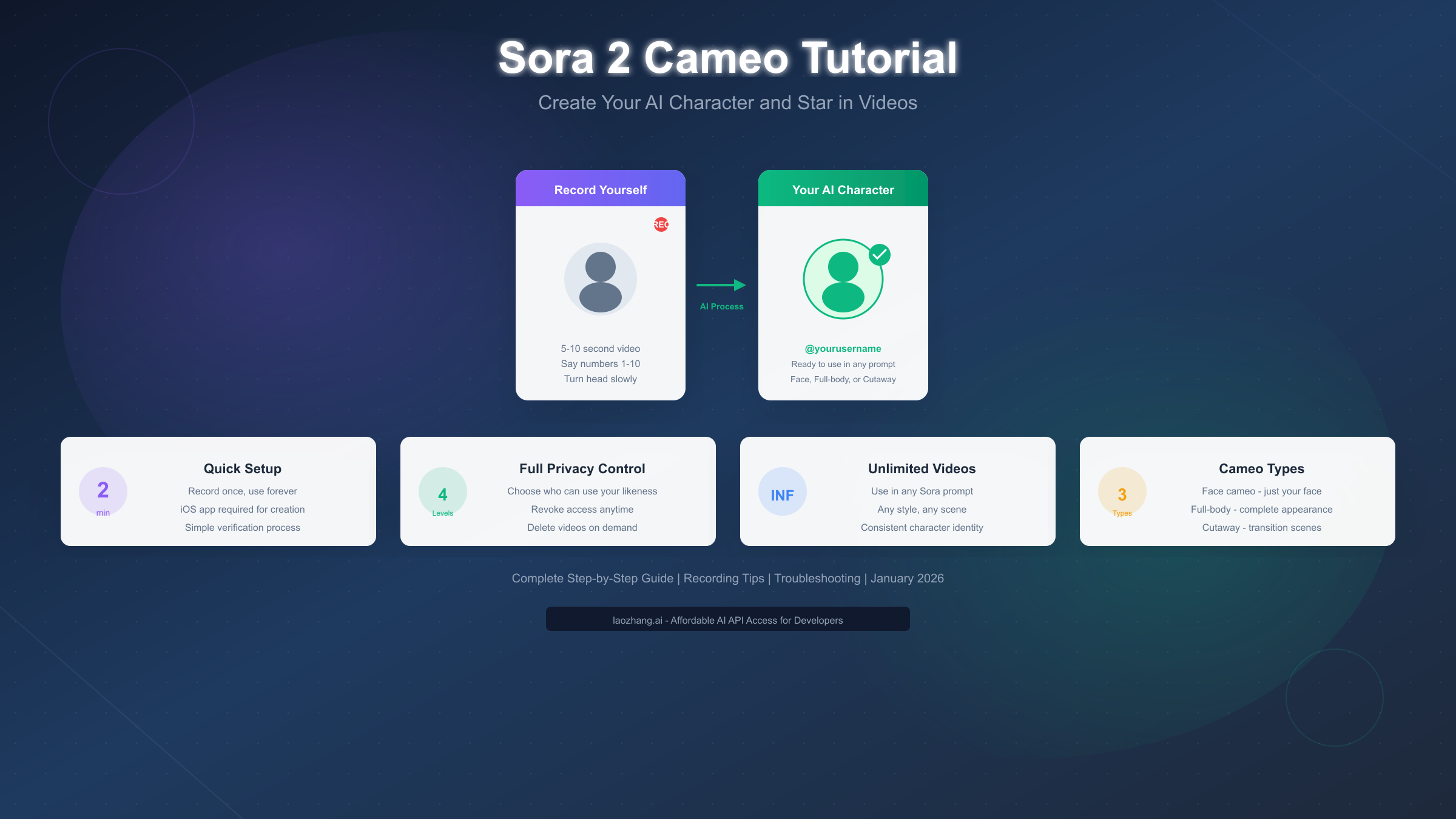
Creating a cameo in Sora 2's Characters feature requires the iOS app and a 5-10 second video recording of yourself. Open the Sora app, go to your profile, tap "Edit Cameo," record yourself saying numbers 1-10 while slowly turning your head, and set your permission level. Once verified, use @yourusername in any prompt to appear in AI-generated videos. The process takes about 2 minutes, and your character can be used unlimited times across different video styles—from cinematic scenes to animated adventures.
OpenAI launched the Characters feature (originally called "Cameo") in September 2025, revolutionizing how creators interact with AI-generated video. Unlike simply uploading photos, which Sora blocks for safety reasons, the Characters system uses video verification to ensure you're creating a character of yourself with consent. This comprehensive guide walks you through every step, from initial setup to advanced prompting techniques, with troubleshooting solutions for common issues that most other guides completely miss.
What is Sora 2 Characters (Cameo)?
The Characters feature in Sora 2 represents OpenAI's approach to allowing users to appear in AI-generated videos while maintaining strict safety controls. When you create a character, you're essentially building a reusable digital representation of yourself that Sora's AI can render in any scene, style, or scenario you describe in your prompts.
Understanding the core concept is essential before diving into creation. Unlike traditional video editing where you'd need to film yourself and composite the footage, Sora 2's Characters system learns your facial features, body proportions, and even voice characteristics from a brief recording. The AI then uses this information to generate new video content featuring your likeness—all from text prompts alone. You could describe yourself walking on Mars, dancing in a 1920s jazz club, or appearing as an anime character in a cyberpunk city, and Sora will render these scenes with your recognizable features.
The feature comes with three distinct types of cameos, each serving different creative purposes. Face cameos focus primarily on your facial features, making them ideal for close-up shots, reaction videos, or scenarios where your face is the main focus. The AI maps your facial structure, expressions, and skin tones from your recording to create consistent representations across different generated videos. Full-body cameos capture your entire physical appearance including body type, typical clothing style, and movement patterns. This type works best for scenes requiring physical action or full-frame shots. Cutaway cameos function as transitional elements, perfect for creating quick appearances in longer narrative videos or adding yourself as a background character in complex scenes.
The privacy and safety architecture deserves special attention. OpenAI designed the system with consent at its core—you can only create a character of yourself, and doing so requires recording video with audio verification. This prevents bad actors from creating unauthorized deepfakes of other people. According to OpenAI's official documentation at help.openai.com, the audio component specifically helps verify that the person recording is consciously choosing to create their character, not being recorded without knowledge.
Step-by-Step: Create Your Character
The character creation process follows a specific sequence that maximizes the AI's ability to learn your features accurately. Having helped hundreds of users through this process, the most common frustration comes from vague instructions about what exactly to say and do during recording. This section provides the exact script and movements that produce the best results.
Prerequisites you need before starting. First, ensure you have the Sora app installed on an iPhone—character creation is currently iOS-exclusive due to the camera and audio integration requirements. Your iPhone should be running iOS 16 or later. Create or sign into your OpenAI account if you haven't already, and make sure your ChatGPT subscription is active (Pro at $200/month includes Sora access, or Plus at $20/month with limited features). Finally, find a quiet location with good lighting where you won't be interrupted for about 5 minutes.
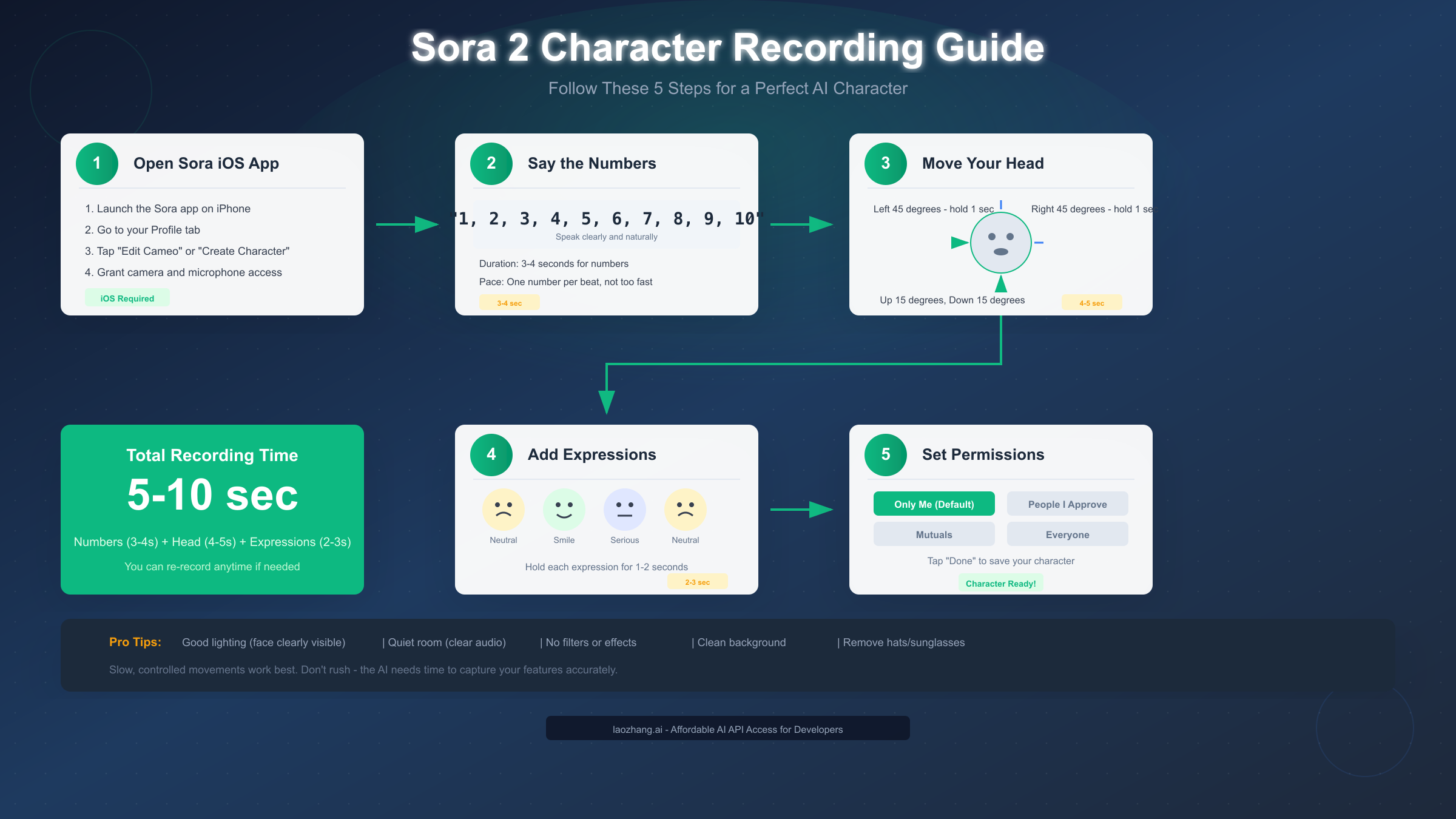
The exact recording script and sequence follows. Open the Sora app on your iPhone and navigate to your profile tab in the bottom navigation. Tap "Edit Cameo" or "Create Character"—the button label varies slightly between app versions. Grant camera and microphone permissions when prompted. The app will display your front-facing camera view with an oval guide for face positioning.
Position your face within the oval guide at approximately arm's length from the phone. When you're ready, tap the record button and speak the following: "One, two, three, four, five, six, seven, eight, nine, ten." Say each number clearly at a natural pace—about one number per second, not rushed. This audio serves as your consent verification and helps the AI learn your voice characteristics. The numbers phase should take 3-4 seconds.
Head movements capture your features from multiple angles. Immediately after saying the numbers, begin slow head movements while keeping your face visible to the camera. Turn your head left approximately 45 degrees and hold for one second, then return to center. Turn right approximately 45 degrees and hold for one second, then return to center. Tilt your head up slightly (about 15 degrees) to show your jawline, hold briefly, then tilt down slightly to show your forehead. These movements take 4-5 seconds total. The key is moving slowly and smoothly—jerky movements create motion blur that degrades character quality.
Expression variety completes the recording. The final phase captures your range of expressions. Start with a neutral expression (how you'd look in a passport photo) and hold for 1-2 seconds. Transition to a natural smile showing some teeth and hold for 1-2 seconds. Shift to a serious or thoughtful expression and hold for 1-2 seconds. Return to neutral before stopping the recording. The expression phase takes 2-3 seconds.
After recording completes, the app processes your video and extracts your character data. This typically takes 30-60 seconds. You'll then be prompted to set your initial permission level—we'll cover these options in detail in a later section. Tap "Done" to save your character. If verification fails, the app will prompt you to re-record; common causes and solutions are covered in the troubleshooting section.
Recording Tips for Best Quality
The quality of your initial recording directly determines how well your character renders in generated videos. Based on analysis of successful character creations and common failure patterns, these optimization tips address the factors that have the largest impact on final quality.
Lighting setup fundamentally affects character quality. The Sora AI needs to see your features clearly to learn them accurately. Optimal lighting comes from in front of you, slightly above eye level—similar to professional portrait photography. Natural daylight from a window works excellently, but avoid direct sunlight which creates harsh shadows. If using artificial lights, position them at 45-degree angles on either side of your face to minimize shadows under your nose and chin.
The most common lighting mistake is recording with a bright window or light source behind you. This creates a silhouette effect where the camera exposes for the bright background, leaving your face underexposed and features unclear. If your only light source is behind you, either move to face it or close blinds and use artificial lighting instead. Testing your lighting before recording saves time—if you can clearly see the details of your eyes, eyebrows, and skin texture in the preview, your lighting is adequate.
Audio environment matters more than most guides mention. While the numbers you speak serve primarily for consent verification, the AI also uses audio characteristics to enhance voice synthesis when generating dialogue for your character. Recording in a quiet room with minimal echo produces the cleanest audio signature. Close windows to reduce traffic noise, turn off fans or air conditioning that creates background hum, and ask others in your home to minimize noise during your brief recording. Hard-surfaced rooms create echo; recording in a room with carpet, curtains, or soft furniture absorbs sound and produces clearer audio.
Background and appearance considerations affect consistency. Use a plain, uncluttered background—a solid-colored wall works perfectly. Busy backgrounds can confuse the AI's edge detection, leading to occasional artifacts in generated videos. For your appearance, wear what you'd typically want to be shown in. If you always wear glasses, record with them on. If you never wear hats, don't wear one during recording. Remove tinted glasses or sunglasses that obscure your eyes, and push back hair that covers significant portions of your face. The AI uses all visible features to create your character, so anything obscured during recording may render inconsistently later.
Equipment recommendations for various budgets help optimize results. At the basic level, your iPhone's front camera with natural window lighting produces good results. For improved quality, a simple ring light ($20-40) provides even, flattering illumination. A small lavalier microphone ($15-30) clips to your collar and captures cleaner audio than the phone's built-in microphone. Professional creators often use a dedicated phone mount or tripod ($15-25) to ensure stable framing throughout the recording. None of these are required—the iPhone's native capabilities are sufficient—but they can improve character quality, especially in challenging lighting conditions.
Permission Settings Explained
Understanding Sora 2's permission system ensures you maintain control over your digital likeness. The four-tier permission system balances creative collaboration with privacy protection, and making informed choices here prevents unwanted use of your character.
The "Only Me" setting provides maximum privacy. When selected, only videos you generate yourself can include your character. No other Sora users can use your likeness, even if they know your username. This is the default setting and the recommended choice for users who want to maintain exclusive control. Choose this if you're creating content for personal projects, business use where your likeness is part of your brand, or simply prefer not to appear in others' videos.
"People I Approve" enables selective collaboration. With this setting, other users can request permission to use your character in their videos. You'll receive a notification when someone requests access and can approve or deny each request individually. Approved users can then generate videos featuring your character until you revoke their access. This works well for collaborating with specific creators, allowing family members to include you in their projects, or working with a defined team on shared content.
"Mutuals" opens access to your network. This setting automatically grants permission to anyone you follow who also follows you back on Sora. No manual approval is needed for mutuals—they can begin using your character immediately. This suits creators who want reciprocal collaboration with their network but don't want completely open access. Note that unfollowing someone revokes their access, giving you ongoing control.
"Everyone" maximizes reach and collaboration. Selecting this option allows any Sora user to include your character in their generated videos. While this maximizes creative possibilities and can help spread your likeness virally, it also means less control over how you're depicted. OpenAI's content policies still apply—no one can generate inappropriate or harmful content featuring your character—but you'll appear in others' creative visions. Some influencers and public figures choose this to encourage fan content.
Teen accounts face additional restrictions. Users under 18 can only select "Only Me" or "People I Approve"—the Mutuals and Everyone options are disabled. Parents should discuss these settings with teen users to ensure appropriate choices. Additionally, teen accounts cannot be approved to use adult users' characters with the "People I Approve" setting, preventing cross-generational character sharing without parental knowledge.
Changing permissions applies to future content only. If you switch from "Everyone" to "Only Me," videos already generated by others remain published. However, they can no longer create new videos with your character. To remove yourself from existing videos, you can view all videos featuring your character through your profile and request deletion of specific ones. This gives you retrospective control even after initial publication.
Using Your Character in Videos
With your character created and permissions set, the next step is actually incorporating your likeness into AI-generated videos. The technical implementation involves specific syntax and prompting techniques that maximize the quality and naturalness of your character's appearance.
The @mention syntax activates your character. In any Sora prompt, type @ followed immediately by your username to include your character. For example: "@johnsmith walks through a neon-lit Tokyo street at night." The AI recognizes this mention and renders your character performing the described action. You can position the @mention anywhere in your prompt where you'd describe a person—beginning, middle, or end. Multiple characters work too: "@johnsmith and @janedoe dance in a 1920s ballroom."
Prompt templates for natural integration improve results. Rather than simply inserting your username into a generic prompt, frame your character as a specific person within the scene. Compare these two approaches: Generic: "@johnsmith in a coffee shop." Better: "A young professional, @johnsmith, sits at a corner table in a sunlit coffee shop, reading a newspaper and occasionally sipping from a ceramic mug." The second prompt gives the AI context about your role in the scene, your activity, and the atmosphere, resulting in more natural and coherent output.
Identity anchoring prevents character drift. When generating videos with multiple people or complex scenes, the AI can occasionally apply your features to the wrong character. Prevent this by explicitly anchoring your identity: "@johnsmith, the person in the blue jacket, walks through the crowded market." This tells the AI which figure in the scene should carry your likeness. For even stronger anchoring, add appearance descriptors: "@johnsmith—brown hair, medium build—leads the group through the forest trail."
The photo workaround method deserves explanation. Since Sora blocks direct uploads of real people's photos for safety reasons, creators have found a workaround using image stylization. Upload your photo to an AI image generator that can convert photos to cartoon, anime, or illustrated styles. Once stylized, the image is no longer considered a "real person photo" by Sora's filters. You can then create a character from the stylized image. However, results vary—the stylization process loses some facial details, so the generated character may be less accurate than one created from direct video recording. Use this workaround only if you cannot access the iOS app for video recording.
Combining multiple characters opens creative possibilities. Sora allows up to two characters per video generation. This enables you to create content featuring yourself with a pet character, yourself with a friend who also has a character, or two characters you control (perhaps representing different personas or costumes). When using two characters, be explicit about who does what: "@johnsmith holds the leash while @fluffydog runs ahead through the autumn leaves." For comprehensive guidance on video generation techniques, see our complete Sora 2 video generation guide.
Troubleshooting Common Issues
Unlike most Sora guides that skip troubleshooting entirely, this section addresses the problems users actually encounter. Based on community feedback and support interactions, these are the most frequent issues and their solutions.
Verification failure during character creation has several causes. The most common reason is insufficient lighting—the AI couldn't clearly see your facial features to verify them. Re-record in brighter conditions, facing your light source rather than away from it. Second most common is audio issues: background noise, speaking too quietly, or audio sync problems. Re-record in a quieter environment and speak clearly. Third, rapid or excessive head movement during recording creates motion blur. Slow down your movements significantly on the next attempt. If verification fails repeatedly despite good conditions, try recording at a different time of day when natural lighting may be better.
Poor character quality in generated videos stems from recording issues. If your character looks blurry, distorted, or inconsistent across videos, the root cause is almost always the original recording. You cannot fix a poorly-recorded character through prompting—you need to delete the character and re-record. Before re-recording, review the Recording Tips section and ensure you address all factors: lighting, audio, background, and movement speed. Many users find their second recording dramatically better simply by slowing down their head movements.
Voice doesn't sound right in generated dialogue requires understanding. Sora's voice synthesis is still developing, and some users notice accents or tones that don't match their actual voice. OpenAI is actively improving this feature. In the meantime, you can influence voice output through prompting: "@johnsmith speaks calmly and slowly" or "@johnsmith whispers nervously." Adjectives that describe tone help guide the voice synthesis. If voice quality is critical for your project, generate several variations of the same scene and select the best voice output.
Character appears in wrong person in multi-person scenes needs anchoring. As mentioned in the prompting section, use explicit identity anchors when generating scenes with multiple people. If you didn't anchor and the wrong person has your face, regenerate with clearer anchoring. You can also try generating the same scene multiple times—the AI produces variations, and some may correctly assign your character. Reducing the number of people in complex scenes also improves accuracy.
"Character not found" error when using @mention has simple fixes. First, verify you're spelling your username exactly correctly—usernames are case-sensitive. Second, ensure your character creation actually completed successfully by checking your profile. Third, try logging out of Sora and logging back in, which refreshes your session data. Fourth, if you created your character very recently (within the last few minutes), wait briefly and try again as the character may still be processing on OpenAI's servers.
When to delete and start over makes sense in specific situations. If your character consistently produces poor results despite good prompting, if your appearance has changed significantly since recording (major weight change, different hairstyle, etc.), or if you want to record a different "look" for your character (professional vs. casual, for example), delete your existing character and create a new one. Access the delete option through your profile settings. Remember that deleting removes your character from future video generation but doesn't automatically delete existing videos—you must remove those separately if desired.
Platform Guide: iOS vs Android vs Web
Understanding platform capabilities prevents frustration, especially for Android users who may not realize certain features are unavailable on their devices. This comparison covers all aspects of the Characters feature across platforms.
iOS provides the complete experience. All character features are fully available on iPhone: creating new characters through video recording, using characters in video generation, managing permissions, viewing all videos featuring your character, and deleting your character. If you have access to an iPhone, creating your character there is strongly recommended even if you primarily use other platforms afterward.
Android offers limited functionality. The Sora Android app can generate videos and use existing characters, but cannot create new characters. The recording interface that captures video and audio for character creation simply isn't available on Android. Android users can view videos featuring their character and browse generated content, but creation requires iOS. If you only have Android devices, see the workaround options below.
Web through sora.com mirrors Android capabilities. The browser-based interface at sora.com lets you generate videos using your character, manage some permissions, and view your generated content. Like Android, it cannot create new characters—the web interface lacks the camera/microphone integration needed for video recording. However, the web version often has better interface elements for browsing and managing your video library.
API access serves developers. For programmatic video generation, the Sora API allows using characters in generation requests. Developers can reference character IDs in their API calls to include specific characters in generated videos. However, the API cannot create characters—that process requires the iOS app's verification flow. Developers can explore our free Sora 2 API access guide for programmatic options.
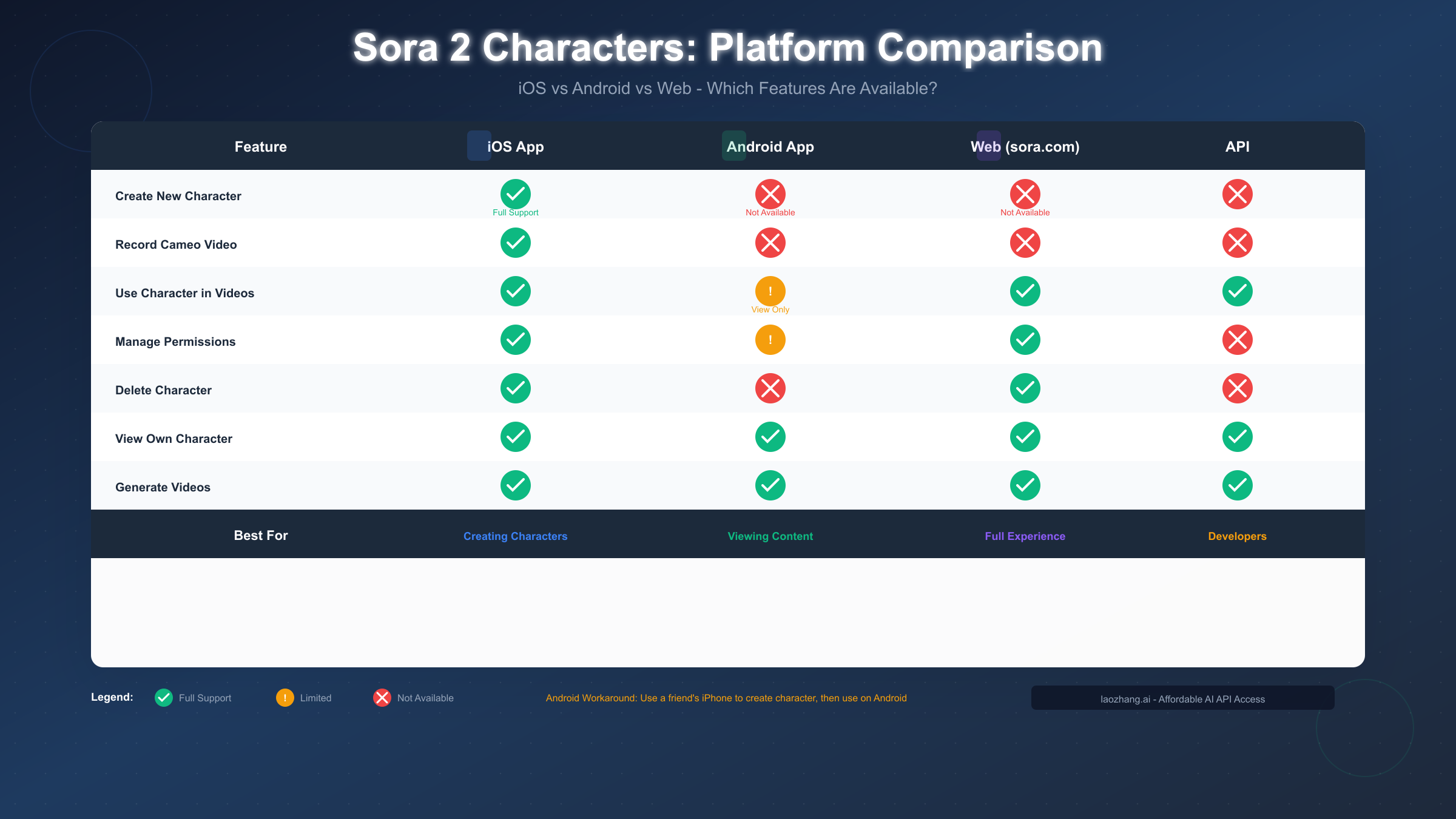
Android workarounds exist for character creation. The simplest solution is borrowing a friend or family member's iPhone for the 2-minute character creation process. You only need the iPhone once—after your character is created, you can use it on Android indefinitely. If no iPhone is available, the photo stylization workaround mentioned earlier works, though with potentially reduced quality. Some users have also successfully created characters using iPad (which runs iOS) or older iPhones borrowed from family.
Cost-effective alternatives for API access merit consideration. For developers who want programmatic access to Sora's video generation including character features, services like laozhang.ai provide API access to multiple AI video models at competitive rates. This can be particularly valuable for applications requiring high-volume generation or integration with other services. Documentation is available at https://docs.laozhang.ai/ for developers exploring these options.
For those who primarily use Android, see our Sora 2 Android installation guide for getting the most out of available features. And if you're evaluating video generation platforms overall, our AI video model comparison guide covers the full landscape of options including alternatives like Runway and Pika that may offer different platform support.
FAQ: Your Cameo Questions Answered
How long does character creation take? The actual recording takes 5-10 seconds. Including setup, permission selection, and processing, expect about 2 minutes total. Most of that time is preparation—the recording itself is brief.
Can I have multiple characters? You can only have one personal character (your likeness) at a time. However, you can create additional characters for pets, toys, or objects. To change your personal character, delete the existing one first, then create a new one.
Do I need a ChatGPT Pro subscription? Sora access is included with ChatGPT Pro ($200/month) which offers unlimited video generation. ChatGPT Plus ($20/month) includes limited Sora access. The free tier does not include Sora video generation.
What happens if someone misuses my character? If you've set permissions to "Everyone" or "Mutuals" and someone creates inappropriate content with your character, you can report it through Sora's content reporting system. OpenAI's content policies prohibit harmful content, and violations result in account actions for the offending user. You can also revoke access by changing your permissions and request removal of specific videos.
Can I use characters for commercial projects? Yes, OpenAI's terms allow commercial use of Sora-generated content. However, if using others' characters in commercial work, you should have their explicit permission beyond just Sora's permission system. For your own character in commercial content, ensure any applicable brand guidelines or employment agreements don't restrict AI-generated content featuring your likeness.
Why can't I upload photos of myself? OpenAI blocks photo uploads depicting real people to prevent unauthorized deepfakes. The video recording requirement with audio consent verification ensures you're actively choosing to create a character of yourself. This safety measure protects against bad actors creating characters of people without their knowledge or consent.
How do I improve my character's quality in generated videos? Quality improvements come from two sources: better initial recording (see Recording Tips section) and better prompting (see Using Your Character section). You cannot enhance a poorly-recorded character through prompting alone—if quality is consistently poor, re-record your character.
Is there a cheaper way to access Sora? Third-party API providers like laozhang.ai offer Sora access at rates matching official pricing, with additional benefits like multi-model access from a single platform. This can reduce total AI tool costs if you use multiple models. For the official experience, ChatGPT Plus at $20/month is the most affordable option, though with usage limits.
Creating your cameo in Sora 2 opens up remarkable creative possibilities—appearing in AI-generated videos that would be impossible or extremely expensive to produce traditionally. Whether you're a content creator looking to scale your presence, a marketer exploring new formats, or simply curious about putting yourself in AI-generated scenes, the Characters feature makes it accessible. Take the few minutes to create your character, experiment with different scenes and styles, and discover what kinds of AI video content resonate with your audience. The technology continues improving rapidly, and creators who learn the system now will be best positioned as capabilities expand.