AIFreeAPI Logo

Nano Banana2 API Error Codes: Complete Troubleshooting Guide 2025

A
25 min read

Complete guide to all Nano Banana2 (Gemini 3 Pro Image) API error codes with fixes. Covers 400, 403, 404, 429, 500, 503 errors with Python code examples and debugging flowcharts.

Nano Banana2 API Error Codes: Complete Troubleshooting Guide 2025

Working with the Nano Banana2 API and suddenly hit a wall of cryptic error messages? You're not alone. Whether you're seeing a 429 rate limit error that's blocking your image generation requests, a 403 permission denied that appeared out of nowhere, or a mysterious 500 internal server error, this guide will walk you through every error code, explain exactly what's happening, and provide copy-paste solutions to get you back on track. The Nano Banana2 API (also known as Gemini 3 Pro Image Preview) has become one of the most powerful image generation APIs available, but its error handling can be confusing without proper documentation. By the end of this guide, you'll have a complete reference for debugging any API issue you encounter.

Quick Reference: All Nano Banana2 Error Codes

Before diving into detailed explanations, here's a quick reference table of all error codes you might encounter with the Nano Banana2 API. Use this table to quickly identify your error and jump to the relevant solution section.

Client-Side Errors (4xx) indicate problems with your request that you can fix by modifying your code or configuration. These errors mean the server understood your request but couldn't process it due to an issue on your end.

CodeNameCommon CauseQuick Fix
400INVALID_ARGUMENTMalformed JSON, missing fieldsCheck request format
400FAILED_PRECONDITIONRegion blocked, billing not enabledEnable billing in GCP
403PERMISSION_DENIEDInvalid API key, leaked keyGenerate new API key
404NOT_FOUNDWrong model nameUse official model name
429RESOURCE_EXHAUSTEDRate limit exceededImplement exponential backoff

Server-Side Errors (5xx) indicate problems on Google's end. While you can't directly fix these, you can implement retry logic to handle them gracefully. These are typically temporary issues that resolve themselves.

CodeNameCommon CauseQuick Fix
500INTERNALServer-side failureRetry with backoff
503UNAVAILABLEService overloadedWait and retry
504DEADLINE_EXCEEDEDRequest timeoutIncrease timeout, shorten prompt

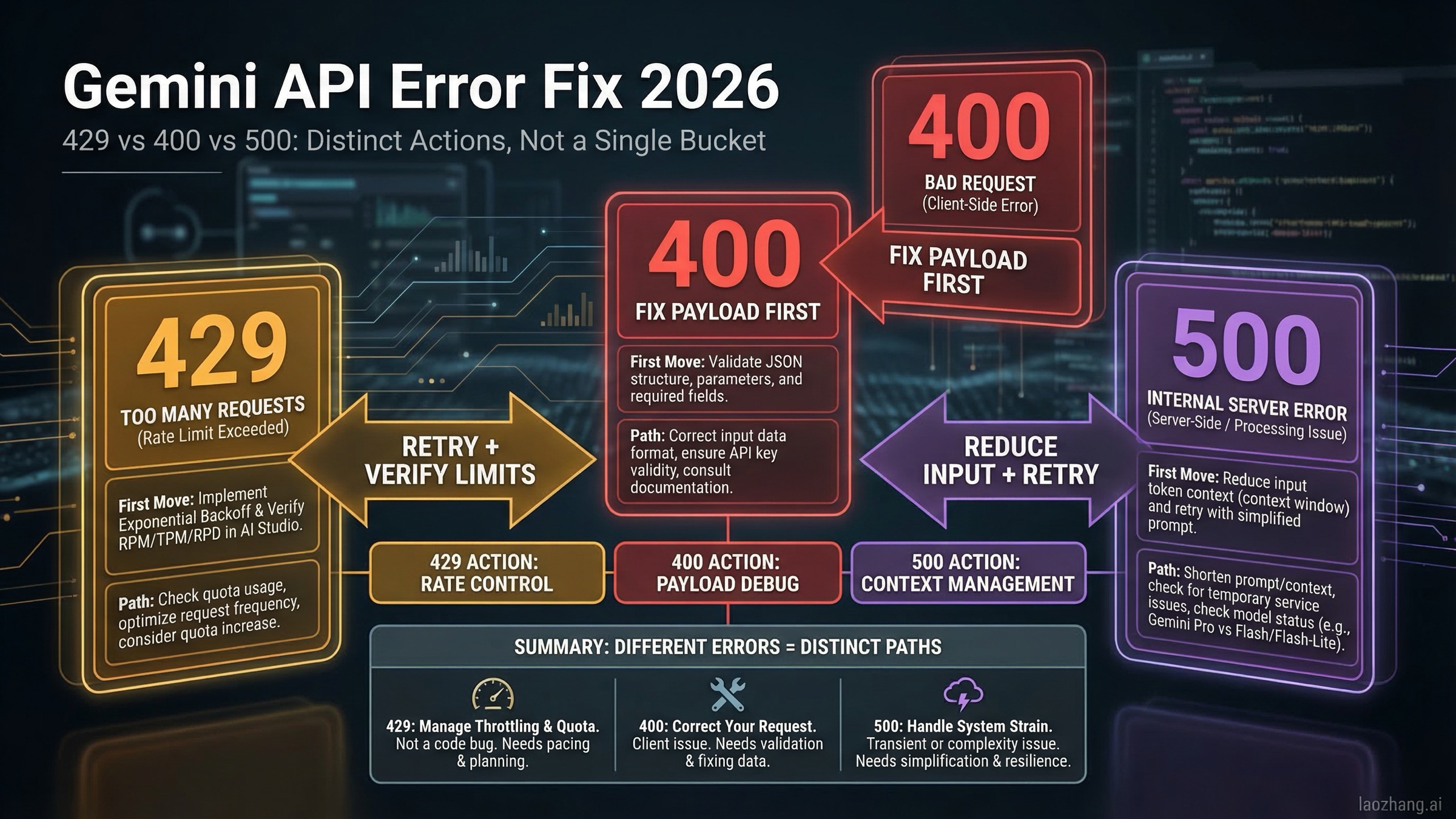
The most common error developers face is the 429 RESOURCE_EXHAUSTED error, accounting for approximately 70% of all API errors. This happens when you exceed your rate limits, which vary based on your tier (free tier gets 15 RPM while paid tier gets up to 1000 RPM). If you're hitting this error frequently, consider implementing proper rate limit handling strategies or using proxy platforms with higher limits.

Understanding Error Categories

When working with the Nano Banana2 API, understanding the fundamental difference between client-side and server-side errors will help you debug issues much faster. This knowledge also helps you build more resilient applications that handle failures gracefully.

Client-side errors (4xx codes) are your responsibility to fix. These errors indicate that something in your request is incorrect, whether it's the API key, the request format, the model name, or you've simply exceeded your allowed quota. The good news is that once you identify the issue, the fix is usually straightforward. Common causes include typos in model names, malformed JSON in your request body, or trying to access features your API key doesn't have permission for.

Server-side errors (5xx codes) originate from Google's infrastructure. You can't directly fix these because they represent issues like server overload, maintenance, or internal bugs. However, you can build your application to handle them gracefully by implementing retry logic with exponential backoff. The key insight here is that most 5xx errors are temporary and will resolve themselves if you wait and retry.

Error Response Structure

Every error response from the Nano Banana2 API follows a consistent structure that includes the HTTP status code and a detailed error message. Understanding this structure helps you write better error handling code. A typical error response looks like this in JSON format:

json
{ "error": { "code": 429, "message": "Resource has been exhausted (e.g. check quota).", "status": "RESOURCE_EXHAUSTED", "details": [ { "@type": "type.googleapis.com/google.rpc.ErrorInfo", "reason": "RATE_LIMIT_EXCEEDED", "domain": "generativelanguage.googleapis.com" } ] } }

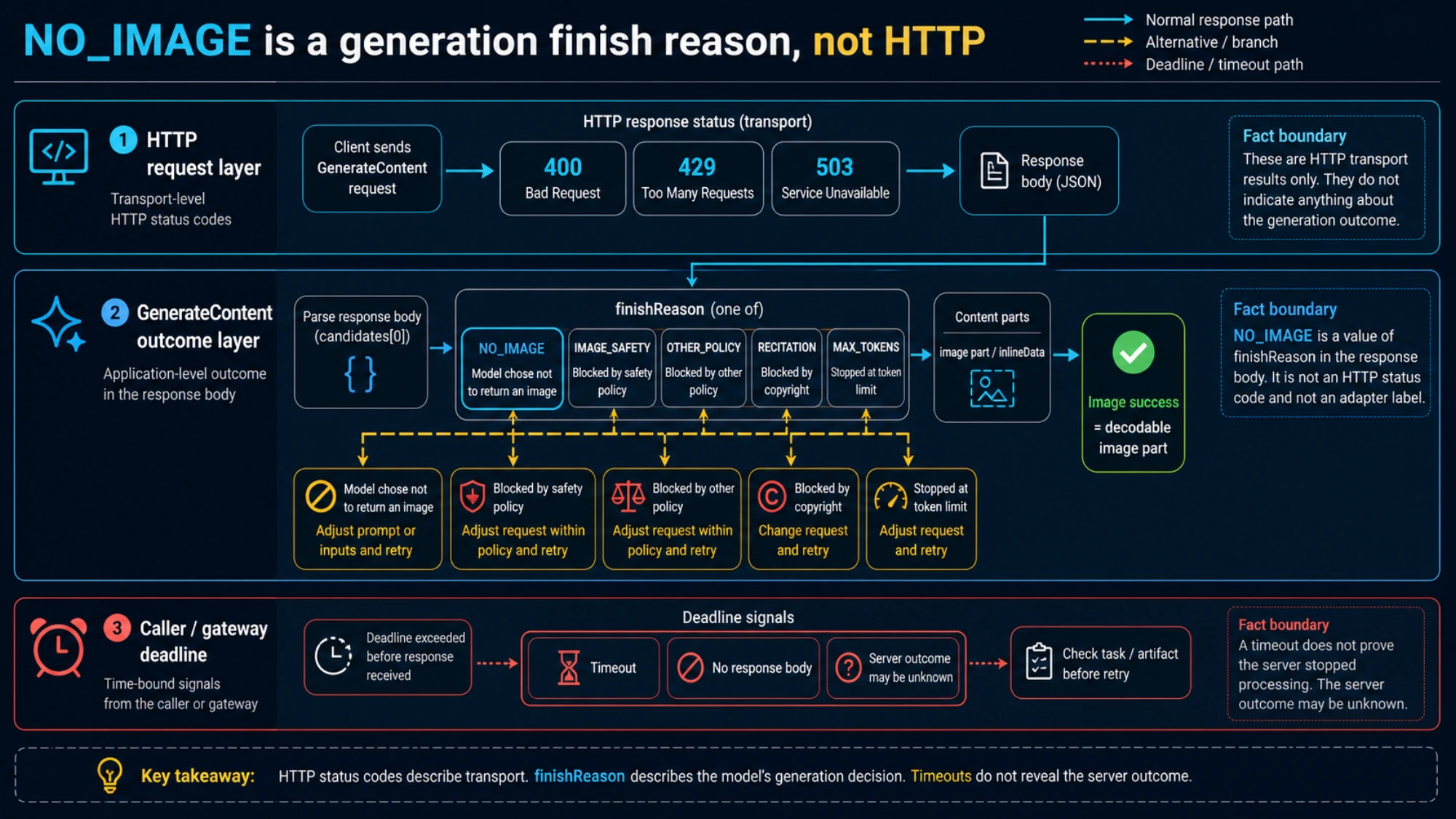
The status field is particularly useful because it provides a human-readable description of what went wrong. Different SDKs expose this information in different ways, but the underlying error structure remains consistent. When debugging, always log the full error response rather than just the HTTP code, as the details array often contains crucial information about why your request failed.

Image Generation Context

The Nano Banana2 models (gemini-2.5-flash-image and gemini-3-pro-image-preview) have some error conditions specific to image generation that you won't see with text-only models. These include content policy violations when your prompt requests inappropriate content, thought signature errors during multi-turn conversations, and generation failures when the model can't produce an image matching your description.

Image generation requests are also more likely to hit timeout errors (504) because they require more processing time than text generation. A typical text request might complete in under a second, but image generation can take 5-15 seconds depending on complexity. This means you need to configure your HTTP client with appropriate timeout values—at least 30 seconds is recommended for image generation, and 60 seconds for complex multi-image requests.

Error 400: Invalid Request Issues

The 400 error family indicates that your request was malformed or contained invalid parameters. This is one of the most common errors for developers new to the API, but fortunately, it's also one of the easiest to fix once you understand what's wrong.

INVALID_ARGUMENT is the most frequent 400 error you'll encounter. It means your request body contains incorrect data, missing required fields, or uses an incorrect format. Common causes include sending a prompt that's empty or null, using an invalid temperature value (must be between 0 and 2), specifying an unsupported output format, or making typos in parameter names.

Here's an example of a request that would trigger INVALID_ARGUMENT:

python
response = model.generate_content( "Generate an image of a sunset", generation_config={ "resposeModalities": ["IMAGE", "TEXT"] # Typo: missing 'n' } )

The correct version specifies responseModalities properly:

python
# Correct version response = model.generate_content( "Generate an image of a sunset", generation_config={ "responseModalities": ["IMAGE", "TEXT"] } )

FAILED_PRECONDITION Errors

The FAILED_PRECONDITION status indicates that while your request format is correct, your account or project isn't properly configured to use the API. This most commonly occurs when you're trying to use the free tier from a region where it's not available, or when you haven't enabled billing on your Google Cloud project.

If you see "Gemini API free tier is not available in your country," you have two options: either set up a paid plan through Google AI Studio, or use a proxy platform like laozhang.ai that provides access regardless of your geographic location. The proxy option is particularly useful for developers who want to test the API before committing to a paid Google account.

To check if billing is enabled, navigate to the Google Cloud Console, select your project, and look for the Billing section. If you see "No billing account linked," you'll need to add a payment method before you can make API calls beyond the free tier limits.

API Version Mismatches

Another source of 400 errors is using the wrong API version. The Nano Banana2 image generation features are only available in the v1beta API version. If you're making requests to the v1 endpoint and trying to use image generation, you'll receive an INVALID_ARGUMENT error because v1 doesn't support these features yet.

python
# Wrong endpoint - v1 doesn't support image generation import google.generativeai as genai genai.configure(api_key="YOUR_API_KEY", api_version="v1") # Correct endpoint - use v1beta for image generation genai.configure(api_key="YOUR_API_KEY", api_version="v1beta")

Always verify you're using the correct API version for the features you need. The official documentation lists which features are available in each version, and when in doubt, v1beta is the safer choice for accessing the latest capabilities.

Error 403: Permission and Access Denied

The 403 PERMISSION_DENIED error indicates that your request was authenticated but you don't have permission to perform the requested action. This is different from authentication failures—your API key was recognized, but something about your key's permissions or your account status prevents the request from completing.

Invalid API key is the most obvious cause, but it's not always the reason. Your key might be valid but lack the necessary permissions for the specific model or feature you're trying to access. For example, fine-tuned models require OAuth2 authentication rather than API keys, so if you're trying to use a tuned model with just an API key, you'll get a 403 error.

Leaked or blocked keys represent a more serious issue. Google actively monitors for API keys that have been accidentally exposed in public repositories, forum posts, or other public locations. If your key is detected in a public place, Google will proactively block it to prevent abuse. You can check if your key is blocked by visiting Google AI Studio and looking at your API keys list—blocked keys will be marked as such.

Regenerating API Keys

If you suspect your API key has been compromised or blocked, the solution is to generate a new one. Here's the process:

First, visit Google AI Studio at https://aistudio.google.com and sign in with your Google account. Navigate to the API Keys section, which you can find in the left sidebar. Look at your existing keys—if any show as "blocked" or "revoked," you'll need to create a new one.

Click "Create API Key" and select the appropriate Google Cloud project. If you don't have a project yet, AI Studio will create one for you. Copy your new key immediately and store it securely—you won't be able to see the full key again after this screen.

Update your application code with the new key, and importantly, revoke the old key if it hasn't been automatically blocked. This prevents anyone who may have obtained your old key from using it.

Permission Configuration

Some 403 errors stem from missing API enablement. Even if you have a valid API key, you need to ensure the Generative Language API is enabled in your Google Cloud project. Navigate to the Google Cloud Console, go to APIs & Services > Library, search for "Generative Language API," and click Enable if it's not already enabled.

For organizations using Google Cloud with complex IAM configurations, ensure your service account or user account has the appropriate roles assigned. The minimum required role is "AI Platform User" or a custom role with equivalent permissions.

Error 429: Rate Limit Exhausted

The 429 RESOURCE_EXHAUSTED error is by far the most common issue developers face when working with the Nano Banana2 API. This error tells you that you've exceeded one of your rate limits—either requests per minute (RPM), tokens per minute (TPM), or requests per day (RPD).

Understanding the three types of rate limits is crucial. RPM (Requests Per Minute) limits how many separate API calls you can make, regardless of how much content each request contains. TPM (Tokens Per Minute) limits the total amount of content you can process, including both your input prompts and the model's output. RPD (Requests Per Day) is a daily cap that resets at midnight Pacific Time.

The limits vary significantly by tier. Free tier users get approximately 15 RPM and 1 million TPM, which sounds generous until you realize that a single image generation request can use a substantial portion of that allocation. Paid tier users enjoy much higher limits—up to 1000 RPM—but can still hit them during burst usage patterns.

Implementing Exponential Backoff

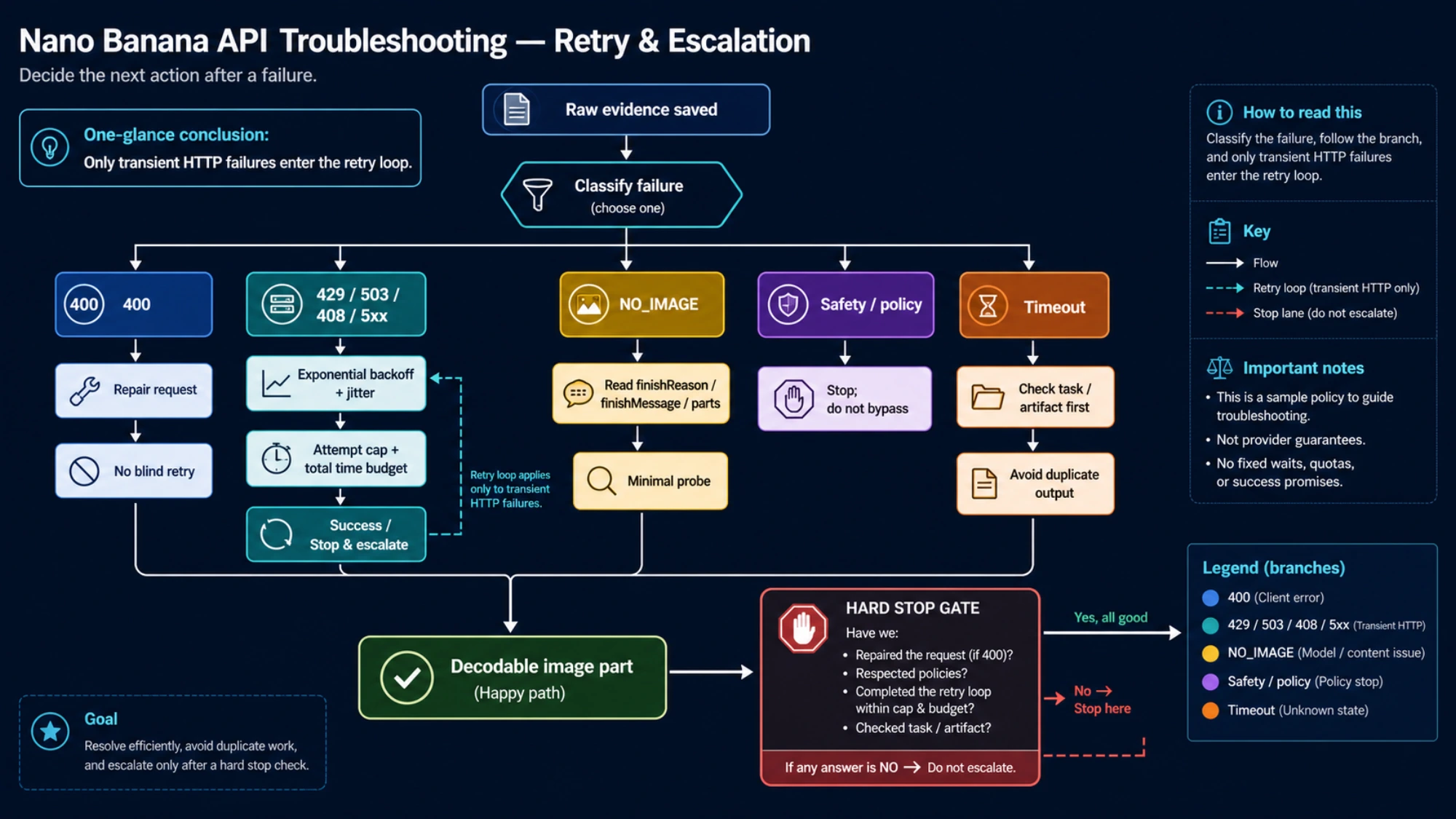
The recommended solution for 429 errors is implementing exponential backoff, a retry strategy where you wait increasingly longer between each retry attempt. This gives the rate limiter time to reset while preventing your application from hammering the API with failed requests.

The Python Tenacity library provides an elegant way to implement this:

python
from tenacity import retry, wait_random_exponential, stop_after_attempt import google.generativeai as genai genai.configure(api_key="YOUR_API_KEY") @retry( wait=wait_random_exponential(multiplier=1, max=60), stop=stop_after_attempt(5) ) def generate_image_with_retry(prompt): """ Generates an image with automatic retry on rate limit errors. The wait_random_exponential strategy works like this: - First retry: wait 0-2 seconds (random) - Second retry: wait 0-4 seconds (random) - Third retry: wait 0-8 seconds (random) - And so on, up to a maximum of 60 seconds The randomization prevents multiple clients from retrying simultaneously, which could cause another rate limit spike. """ model = genai.GenerativeModel("gemini-3-pro-image-preview") response = model.generate_content( prompt, generation_config={"responseModalities": ["IMAGE", "TEXT"]} ) return response # Usage try: result = generate_image_with_retry("A serene mountain landscape at sunset") print("Image generated successfully!") except Exception as e: print(f"Failed after all retries: {e}")

Alternative Approaches

Sometimes exponential backoff isn't enough, especially if you have sustained high-volume needs that exceed your tier's limits. In these cases, consider these alternative strategies:

Upgrade your tier by enabling billing and requesting a quota increase through Google Cloud Console. This is the most straightforward solution if your budget allows. Navigate to Quotas in the Cloud Console, find the Generative Language API quotas, and click "Edit Quotas" to request an increase.

Use a proxy platform like laozhang.ai that maintains pooled API quotas. Because proxy platforms aggregate requests across many users, they can offer higher effective rate limits than individual accounts. This is particularly useful during development and testing phases when you need flexibility without committing to a paid tier. You'll get a free $1 credit to test the service, which is usually enough for several hundred API calls.

Implement request queuing in your application to spread requests evenly over time rather than making burst requests. If you know you need to process 100 images, queue them and process one every 4 seconds rather than trying to process them all at once.

For developers who need enterprise-scale access without rate limit concerns, the unlimited concurrency guide provides advanced strategies for high-volume usage.

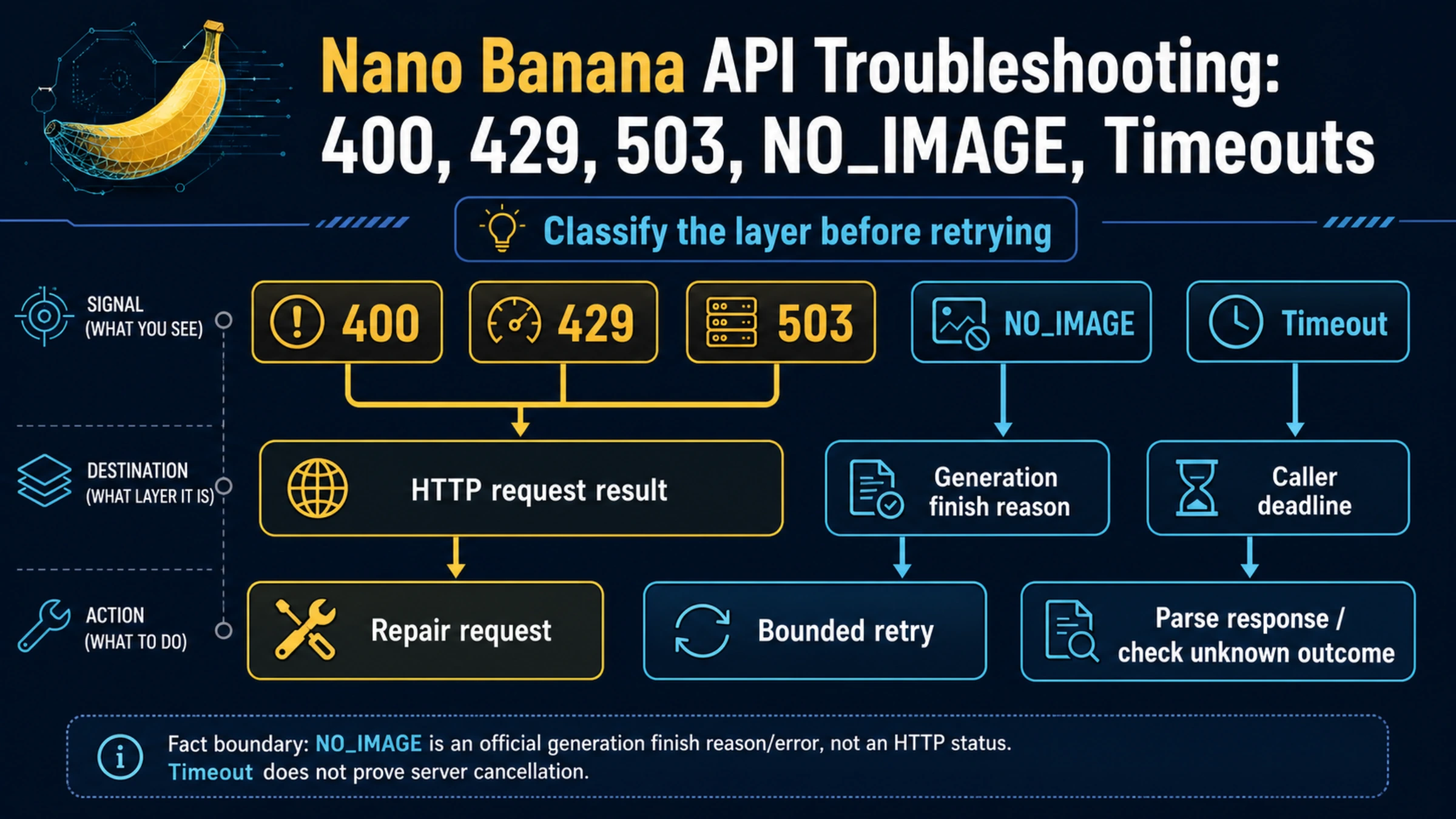
Debugging Flowchart

Server-Side Errors: 500, 503, 504

Server-side errors are frustrating because they're not caused by anything you did wrong, yet you still need to handle them gracefully in your application. Let's examine each type and the best strategies for dealing with them.

500 INTERNAL errors indicate that something went wrong on Google's servers while processing your request. These can be caused by various backend issues, from temporary database hiccups to bugs in Google's code. The error message is intentionally vague because Google doesn't want to expose internal system details. Your best response is to retry the request, usually with exponential backoff. If 500 errors persist for more than a few minutes, check the Google Cloud Status Dashboard for any ongoing incidents.

503 UNAVAILABLE errors specifically indicate that the service is temporarily overloaded or undergoing maintenance. These are more common during peak usage periods or when new features are being rolled out. The model you're requesting might be experiencing unusually high demand, causing the service to reject requests temporarily. Like 500 errors, the solution is to wait and retry. Google recommends waiting at least 30-60 seconds before your first retry.

Handling 504 Timeout Errors

The 504 DEADLINE_EXCEEDED error deserves special attention because it often catches developers off guard. This error means your request took too long to complete, exceeding either your client's timeout or Google's maximum processing time.

Image generation is particularly susceptible to timeouts because generating high-quality images is computationally intensive. A complex prompt with multiple elements might take 15-20 seconds to process, which exceeds many HTTP clients' default timeout settings.

To fix timeout errors, first increase your client-side timeout. Most HTTP libraries default to 10-30 seconds, but for image generation you should set at least 60 seconds:

python
import httpx # Using httpx with extended timeout client = httpx.Client(timeout=httpx.Timeout(60.0, connect=10.0)) # Using requests library import requests response = requests.post(url, json=data, timeout=60)

If you're still hitting timeouts, try shortening your prompt or reducing the complexity of your request. Multi-image generation requests or prompts requesting very specific, detailed images take longer to process. Sometimes splitting a complex request into multiple simpler requests produces better results and avoids timeouts.

Server Error Recovery Pattern

Here's a comprehensive error handling pattern that addresses all server-side errors appropriately:

python
from tenacity import ( retry, stop_after_attempt, wait_random_exponential, retry_if_exception_type ) import google.api_core.exceptions as google_exceptions @retry( stop=stop_after_attempt(5), wait=wait_random_exponential(multiplier=1, max=60), retry=retry_if_exception_type(( google_exceptions.InternalServerError, google_exceptions.ServiceUnavailable, google_exceptions.DeadlineExceeded, google_exceptions.ResourceExhausted )) ) def resilient_api_call(model, prompt): """ Makes an API call with automatic retry for recoverable errors. Retries on: - 500 Internal Server Error - 503 Service Unavailable - 504 Deadline Exceeded - 429 Resource Exhausted (rate limits) Does NOT retry on: - 400 Invalid Argument (your fault, fix the request) - 403 Permission Denied (your fault, fix permissions) - 404 Not Found (your fault, fix the model name) """ return model.generate_content( prompt, generation_config={"responseModalities": ["IMAGE", "TEXT"]} )

Image Generation Specific Errors

Beyond the standard HTTP errors, Nano Banana2 has several error conditions specific to image generation that require special handling. These often appear as part of a 400 error but with specific messages indicating the image-related issue.

Content policy violations occur when your prompt requests content that violates Google's usage policies. This includes requests for violent, sexually explicit, or otherwise harmful imagery. The API will return a blocked response with a safety rating indicating which policy was violated. If you believe your prompt was blocked incorrectly, try rephrasing it to be more specific about the artistic or educational context.

Thought signature errors are unique to the Gemini 3 Pro Image Preview model when using multi-turn conversations. The model uses "thought signatures" to maintain context about previously generated images during editing sessions. If you're asking the model to modify a previously generated image but don't pass back the thought signatures from the previous turn, the model won't understand what you're referring to.

Handling Thought Signatures

When building conversational image editing applications, you must preserve and return thought signatures. The official SDKs handle this automatically, but if you're making direct API calls, you need to extract and include them manually:

python
# First turn - generate initial image response1 = model.generate_content("Generate a red sports car") # Extract thought signature from response thought_sig = extract_thought_signature(response1) # Second turn - edit the image (must include signature) response2 = model.generate_content( "Change the car color to blue", thought_signature=thought_sig # Critical! )

Without the thought signature, the model will treat your edit request as a new generation request, producing a completely new image rather than modifying the existing one. The error message for this is often vague, simply indicating the model couldn't understand your request.

Generation Failure Recovery

Sometimes the model simply fails to generate an image that matches your prompt. This might manifest as an empty response, a text-only response, or an explicit "generation failed" error. Common causes include overly complex or contradictory prompts, prompts that inadvertently trigger safety filters, or requests for content that's difficult for the model to visualize.

When generation fails, try these strategies in order: First, simplify your prompt to its core elements. Instead of "a photorealistic high-resolution image of a vintage 1960s Italian sports car racing through the Monaco Grand Prix with spectators cheering," try "a red vintage sports car on a race track." Second, check if your prompt might be triggering safety filters unintentionally—terms with dual meanings can sometimes cause issues. Third, try a different model if available; sometimes gemini-2.5-flash-image handles certain prompts better than gemini-3-pro-image-preview.

Platform Comparison: Official vs Proxy

Understanding the differences between using the official Google API directly versus using a proxy platform can help you choose the right approach for your use case and understand why you might be seeing different error behaviors in different environments.

Official API vs Proxy Platform Comparison

The official Google API provides direct access to the Nano Banana2 models with the full backing of Google's infrastructure and support. You get detailed error messages, access to the Google AI Studio dashboard for monitoring, and official SLAs if you're on a paid plan. However, you're also subject to Google's geographic restrictions (some regions can't access the free tier), strict rate limits based on your tier, and potential API key blocking if your key is detected in public.

Proxy Platform Advantages

Proxy platforms like laozhang.ai operate differently by aggregating quota from multiple sources and distributing it across users. This provides several practical benefits for developers:

Higher effective rate limits because the platform manages a pool of API quota rather than relying on a single account's allocation. When one account approaches its limits, the platform seamlessly routes requests to other accounts. This means you're much less likely to hit 429 errors during normal development.

No geographic restrictions since the proxy servers are located in regions with full API access. Even if you're in a country where Google's free tier isn't available, you can still use the API through the proxy.

Automatic key rotation handles the situation where an API key gets blocked or rate limited. The platform maintains multiple keys and switches between them as needed, providing continuous service even when individual keys have issues.

Simplified billing with pay-as-you-go pricing rather than complex tier systems. New users receive a free $1 credit, which typically covers several hundred API calls—enough to thoroughly test your integration before committing any money.

Error Handling Differences

When using a proxy platform, the error handling experience differs slightly. Most errors are passed through from the upstream Google API unchanged, so you'll see the same error codes and messages. However, some platform-specific errors might appear:

Rate limit errors might show custom messages indicating you've exceeded the platform's fair-use limits rather than Google's per-account limits. These are typically much higher than direct API limits but still exist to prevent abuse.

Connection errors might occasionally appear if there's an issue between your code and the proxy server, or between the proxy and Google. These typically resolve quickly with a simple retry.

The trade-off is that you're adding an intermediary between your code and Google, which introduces a small latency overhead (typically 50-100ms per request) and means you're trusting a third party with your requests. For development, testing, and moderate-volume production use, this trade-off is often worthwhile. For enterprise applications requiring official SLAs and direct support from Google, the direct API might be more appropriate.

Prevention Checklist and Best Practices

The best way to handle errors is to prevent them from occurring in the first place. This section provides a comprehensive checklist for setting up your Nano Banana2 integration correctly from the start.

Before your first API call, verify these items to avoid common setup errors. First, confirm your API key is valid by making a simple test call. Second, check that the Generative Language API is enabled in your Google Cloud project. Third, verify you're using the v1beta API endpoint for image generation features. Fourth, ensure your HTTP client is configured with appropriate timeouts (minimum 30 seconds for image generation).

During development, implement these patterns to catch errors early. Always log the complete error response, not just the HTTP status code—the error details contain crucial debugging information. Set up alerts for error rate spikes so you're notified before users are impacted. Use environment variables for API keys rather than hardcoding them, which prevents accidental exposure in version control.

Production Monitoring Setup

For production applications, implement comprehensive monitoring to catch and respond to errors quickly. Track these key metrics:

Error rate by type helps you identify whether you're hitting rate limits (429), having authentication issues (403), or experiencing service degradation (5xx). A sudden spike in 403 errors might indicate your API key was blocked and needs regeneration.

Latency percentiles (p50, p95, p99) help you identify when the service is experiencing slowdowns before it leads to timeout errors. If p99 latency crosses 10 seconds, you might want to increase your timeout settings preemptively.

Quota consumption rate indicates how quickly you're approaching your limits. If you're using 80% of your RPM quota consistently, it's time to upgrade your tier or implement more aggressive request batching.

Most cloud providers offer built-in tools for this monitoring. Google Cloud Monitoring can track API metrics directly, AWS CloudWatch can monitor from your application side, and third-party services like Datadog or New Relic provide comprehensive API monitoring capabilities.

Cost Optimization Tips

Error handling isn't just about reliability—it's also about cost. Every failed request that you retry is a request you're potentially paying for twice. Here are strategies to minimize wasted spending:

Cache responses when possible. If your application generates the same or similar images repeatedly, cache the results rather than regenerating each time. This dramatically reduces both costs and error potential.

Validate inputs before making API calls. A few lines of code checking for empty prompts, invalid parameters, or obviously problematic requests can prevent 400 errors that waste time and money.

Use appropriate models for each task. The gemini-2.5-flash-image model is faster and cheaper than gemini-3-pro-image-preview for simpler tasks. Reserve the Pro model for complex generation tasks that require its advanced capabilities.

For more detailed pricing guidance, including how to estimate costs for your specific use case, check our comprehensive Gemini API pricing guide.

Frequently Asked Questions

Why am I getting 429 errors even though I have a paid account? Paid accounts have higher limits, but they're not unlimited. Check your actual quota in the Google Cloud Console under Quotas. You might be hitting TPM (token) limits even if RPM (request) limits seem fine—large prompts or image outputs consume substantial tokens. If you consistently need more quota, you can request an increase through the Cloud Console.

My API key worked yesterday but now shows 403. What happened? Your key may have been detected in a public repository or website. Google proactively blocks exposed keys to prevent abuse. Check if your key appears in any public code, StackOverflow posts, or GitHub repositories. The solution is to generate a new key in Google AI Studio and revoke the compromised one.

How long should I wait before retrying after a 429 error? Start with exponential backoff: 1 second, then 2, then 4, up to a maximum of 60 seconds. The wait_random_exponential strategy adds randomization to prevent multiple clients from retrying simultaneously. For most applications, waiting 60 seconds maximum before giving up strikes a good balance between persistence and user experience.

Can I use the Nano Banana2 API from any country? The free tier has geographic restrictions and isn't available in all regions. If you see "Gemini API free tier is not available in your country," you can either enable a paid billing account or use a proxy platform that routes requests through supported regions. Proxy platforms like laozhang.ai provide global access regardless of your location.

Why does image generation fail without any error message? This usually indicates a content policy issue where the model determined it couldn't safely generate the requested image. Try simplifying your prompt and removing any terms that might be ambiguous or potentially triggering safety filters. Also ensure you're correctly extracting the image from the response—sometimes the generation succeeds but developers miss the image data in the response structure.

Summary and Next Steps

Managing Nano Banana2 API errors effectively requires understanding the error types, implementing proper handling strategies, and setting up systems to prevent errors before they occur. The key takeaways from this guide are:

Always implement exponential backoff for all API calls. This single practice will resolve the majority of errors you encounter by automatically handling temporary failures and rate limits. Use the Tenacity library for Python or equivalent solutions in other languages.

Monitor your quota usage proactively rather than waiting for 429 errors. Set up alerts at 70% utilization to give yourself time to upgrade or optimize before hitting hard limits.

Keep your API keys secure and rotate them if there's any chance of exposure. Blocked keys are a common and easily preventable cause of 403 errors.

Consider proxy platforms for development and testing where you need flexibility without the constraints of tier-based limits. The free credits offered by platforms like laozhang.ai let you test thoroughly before committing to any paid plan.

For your next steps, we recommend implementing the retry patterns from this guide in your codebase, even if you haven't experienced errors yet—they're much easier to add during initial development than to retrofit after an outage. Then set up basic monitoring for your API usage so you have visibility into error rates and quota consumption.

If you're dealing with rate limits specifically, our 429 error solutions guide provides additional strategies that apply across different AI APIs. And for a deeper understanding of the cost implications of errors and retries, the pricing guide linked above provides detailed calculations for different usage patterns.

With proper error handling in place, you can build reliable applications on the Nano Banana2 API that delight users with powerful image generation capabilities while gracefully handling the inevitable hiccups that occur with any cloud service.

Experience 200+ Latest AI Models

One API for 200+ Models, No VPN, 16% Cheaper, $0.1 Free

Limited 16% OFF - Best Price
99.9% Uptime
5-Min Setup
Unified API
Tech Support
Chat:GPT-5, Claude 4.1, Gemini 2.5, Grok 4+195
Images:GPT-Image-1, Flux, Gemini 2.5 Flash Image
Video:Veo3, Sora(Coming Soon)

"One API for all AI models"

Get 3M free tokens on signup

Alipay/WeChat Pay · 5-Min Integration