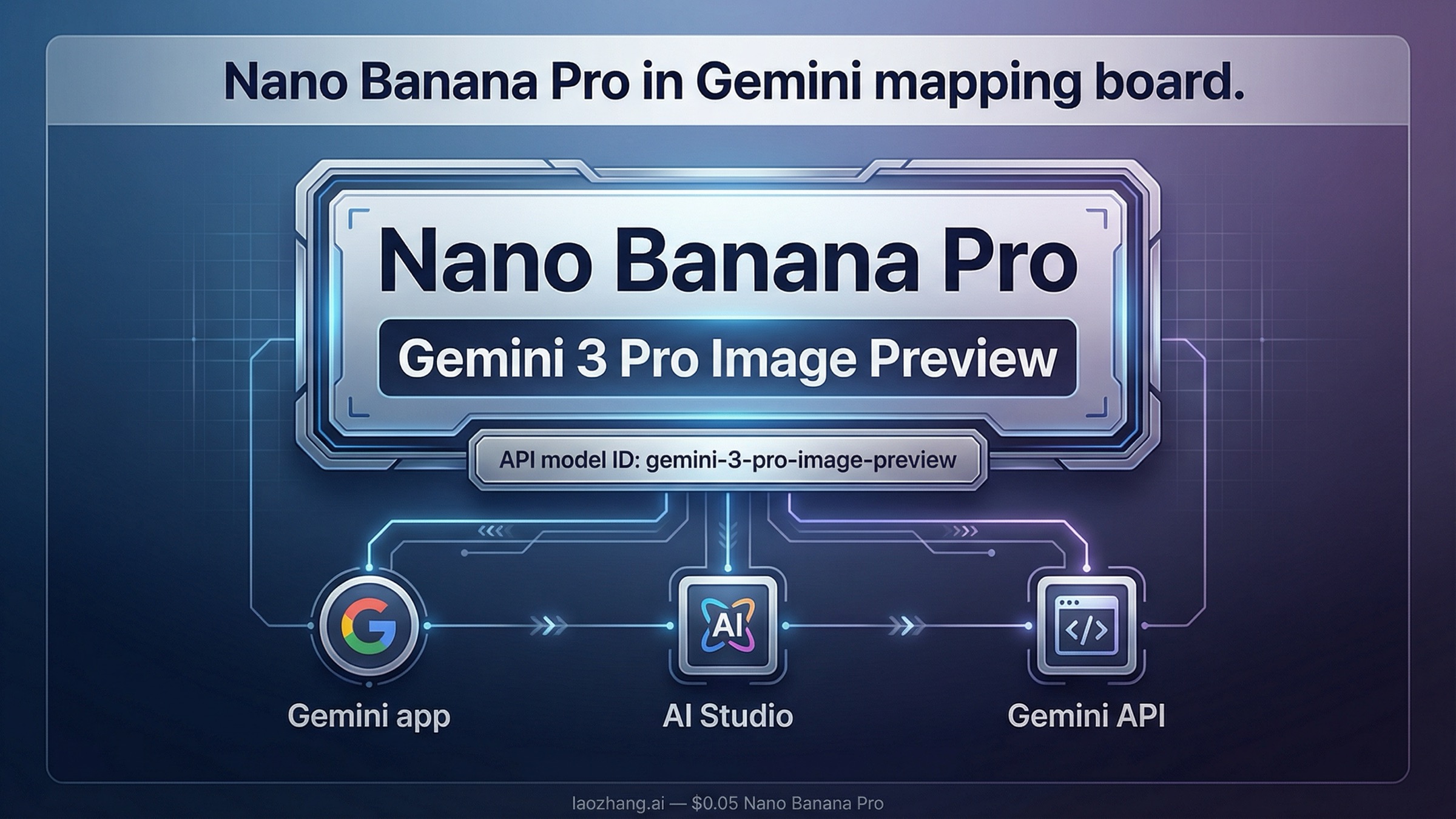
Nano Banana Pro is Google’s Gemini 3 Pro Image Preview model. If you’re in the Gemini API, the model string you want is gemini-3-pro-image-preview. If you’re in the Gemini app, pick Create images and select the Thinking model to make sure you’re on the Pro image lane.
That answer matters because the nickname (“Nano Banana Pro”) is what you see in consumer UI and news coverage, while the official model ID is what developers must call in the API. Google’s own image-generation documentation maps the Nano Banana family to specific Gemini image models, but that mapping is not the headline of most page-one results.
As of March 28, 2026, the official mapping is:
| Nano Banana nickname | Official Gemini model | API model ID | Where you’ll see it |
|---|---|---|---|
| Nano Banana Pro | Gemini 3 Pro Image Preview | gemini-3-pro-image-preview | Gemini app (Thinking), AI Studio, Gemini API, Vertex AI |
| Nano Banana 2 | Gemini 3.1 Flash Image Preview | gemini-3.1-flash-image-preview | Gemini app default image lane, AI Studio, Gemini API |
| Nano Banana | Gemini 2.5 Flash Image | gemini-2.5-flash-image | Legacy/default fast image lane, API fallback |
If your goal is premium quality, text rendering, and complex composition, Nano Banana Pro is the right lane. If your goal is speed or high volume, Nano Banana 2 is usually the better fit. For a deeper comparison between the two, use Gemini 3.1 Flash Image Preview vs Gemini 3 Pro Image Preview.
TL;DR
- Nano Banana Pro = Gemini 3 Pro Image Preview. Use
gemini-3-pro-image-previewin the Gemini API. - Gemini app path: Create images → Thinking.
- AI Studio path: Choose the Gemini 3 Pro Image Preview model by name.
- If you just need speed: pick Nano Banana 2 (Gemini 3.1 Flash Image Preview) instead.
| If you’re here for | Do this first | Why it works |
|---|---|---|
| “What is Nano Banana Pro in Gemini?” | Treat it as Gemini 3 Pro Image Preview | That is the official model name in Google’s docs |
| “Which model ID should I call?” | Use gemini-3-pro-image-preview | That is the canonical API string |
| “Where do I find it in the app?” | Create images → Thinking | The app uses the nickname, not the API ID |
If you only remember one thing, remember this: the nickname lives in UI, the model ID lives in code. When in doubt, translate “Nano Banana Pro” to gemini-3-pro-image-preview and you will be on the right model.
Why the nickname exists (and why the model ID matters)
Google uses friendly nicknames in consumer-facing surfaces, but the official developer docs speak in model IDs. The Gemini API documentation calls Nano Banana the name for Gemini’s native image generation capabilities, then maps each nickname to a specific model. That’s why you might see “Nano Banana Pro” in a news article or the Gemini app, but you must use gemini-3-pro-image-preview in code.
If you are sharing this model across a team, always align on the model ID. That prevents subtle misconfigurations where one person uses a nickname in the UI while another expects a different model in the API.
If you write internal docs, use both forms together: “Nano Banana Pro (Gemini 3 Pro Image Preview / gemini-3-pro-image-preview).” That single parenthetical saves hours of back-and-forth when teammates move between app UI and API code.
Common naming pitfalls (and how to avoid them)
One common pitfall is treating “Gemini 3 Pro” and “Gemini 3 Pro Image Preview” as the same thing. The former refers to a text model line, while Nano Banana Pro is the image model. If you are looking at a page that says “Gemini 3 Pro” without “Image” or “Image Preview,” double-check that it actually refers to image generation before you copy any guidance.
Another pitfall is copying provider aliases instead of the official model ID. Some gateways or SDKs accept a short alias like “nano-banana-pro,” but Google’s native API expects gemini-3-pro-image-preview. If you use the alias in the wrong place, your request fails or silently routes to a different model.
Finally, watch for articles that drop the word “Preview.” Google’s official docs still label the model as a preview, and that is a hint that naming and availability can change. If you are writing internal integration docs, keep “Preview” in the model name so your team remembers to re-check the official sources periodically.
One more nuance: Pro is not the fastest lane. If your workflow is real-time or high-volume, you may still want Nano Banana 2 as the default and reserve Pro for the assets that truly need the extra fidelity.
Where you’ll see Nano Banana Pro (app vs AI Studio vs API)
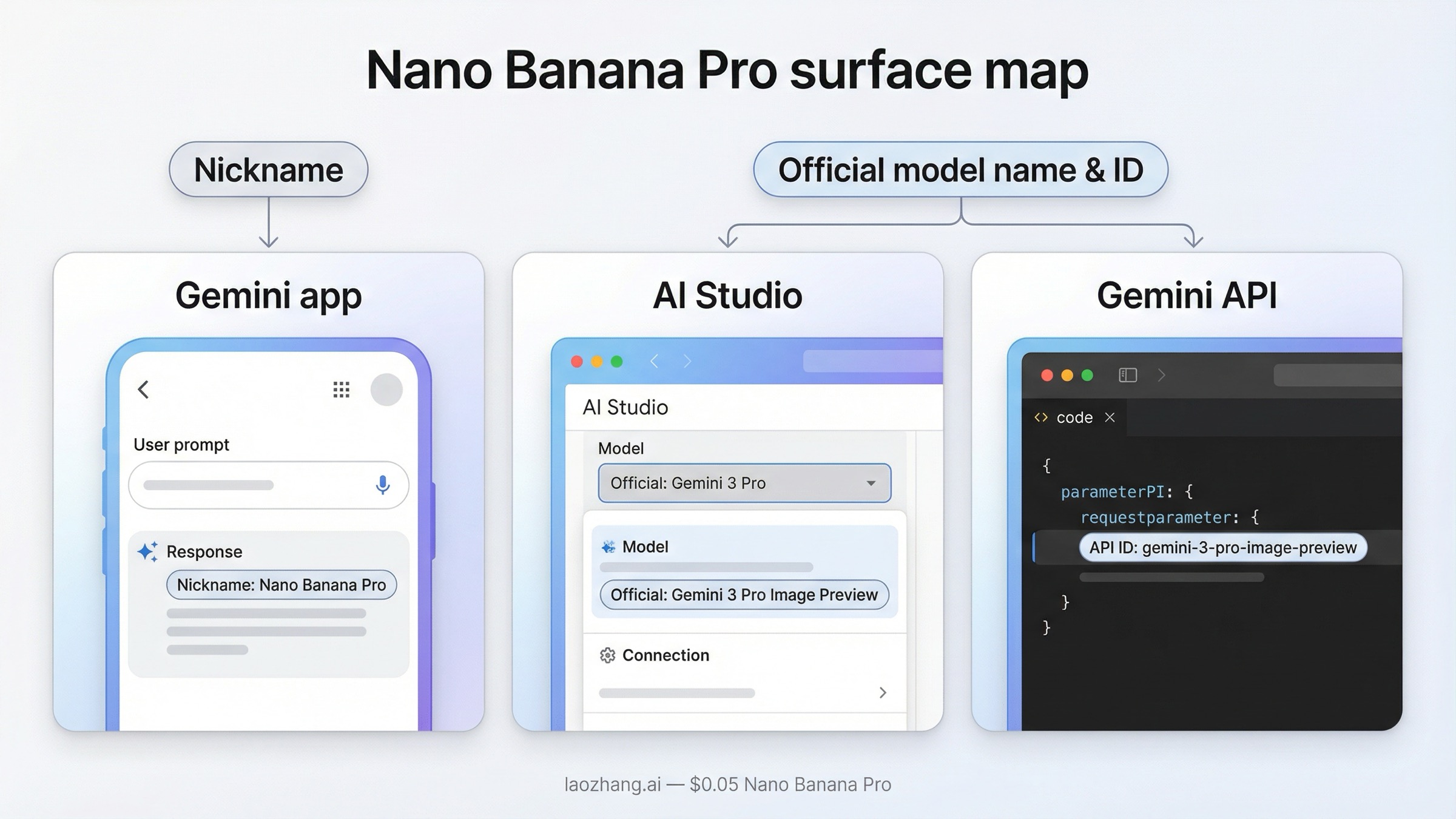
Nano Banana Pro shows up across consumer, developer, and enterprise surfaces, and each surface exposes a slightly different label. The job here is to match the label to the correct action, not to memorize every product interface.
Google rolls Nano Banana Pro out across multiple surfaces, but they label it differently depending on where you are:
- Gemini app: You see the nickname (“Nano Banana Pro”) when you choose Create images, then switch to the Thinking model. The UI can revert to faster defaults on free tiers, so always confirm the model label before you generate.
- Google AI Studio: The model list uses the official Gemini model name (Gemini 3 Pro Image Preview) rather than the nickname. This is the cleanest place to confirm the official name.
- Gemini API / Vertex AI: You must use the API model ID
gemini-3-pro-image-preview. If you call anything else, you are not on Nano Banana Pro, regardless of the nickname you saw elsewhere.
Google’s launch post also makes it clear that availability varies by plan, region, and product surface, so treat the UI name you see as a hint, not a guarantee. When the model isn’t visible, it’s usually a plan/rollout issue, not a missing feature.
For enterprise workflows, the same model ID applies whether you are calling the Gemini API directly or routing through Vertex AI. That consistency is useful: once your team agrees on the ID, you can reuse it across environments without changing the naming layer.
| Surface | Label you’ll see | What to select |
|---|---|---|
| Gemini app | Nano Banana Pro (nickname) | Create images → Thinking |
| Google AI Studio | Gemini 3 Pro Image Preview | Select the model by name |
| Gemini API / Vertex AI | gemini-3-pro-image-preview | Set the model ID in your request |
Once you internalize that table, most of the confusion disappears. You can read any blog post or app UI label and immediately translate it into the correct model ID for implementation.
If you are evaluating outputs, AI Studio is usually the fastest way to sanity-check the model name because it exposes the official label directly. If you are shipping a product feature, the Gemini API is the real source of truth because it’s the contract your code runs against.
If your next question is pricing rather than naming, use Gemini 3 Pro Image Preview Pricing. If your next question is limits, use Gemini 3 Pro Image Preview Rate Limit.
How to verify the official name yourself
If you ever doubt the mapping, go straight to the primary sources:
- The Gemini image-generation docs list the Nano Banana family and the exact model IDs.
- The Google DeepMind model cards index shows the official “Gemini 3 Pro Image” model card and its update date.
- The official launch post explains where the model is rolling out across consumer and developer surfaces.
If any of those sources change, update your internal docs immediately — that is the earliest signal that model naming or availability has shifted.
The model cards list is especially useful as a date anchor. If you see the Gemini 3 Pro Image card updated recently, that is a hint to re-check your internal naming and rollout assumptions.
If you track preview-to-stable changes, the Gemini API changelog is the fastest way to confirm whether a model name or release status has shifted.
Checking the changelog is also useful when rate limits or model availability change. Treat any change there as a prompt to re-run your internal QA and update any onboarding notes.
Nano Banana Pro vs Nano Banana 2 vs Nano Banana
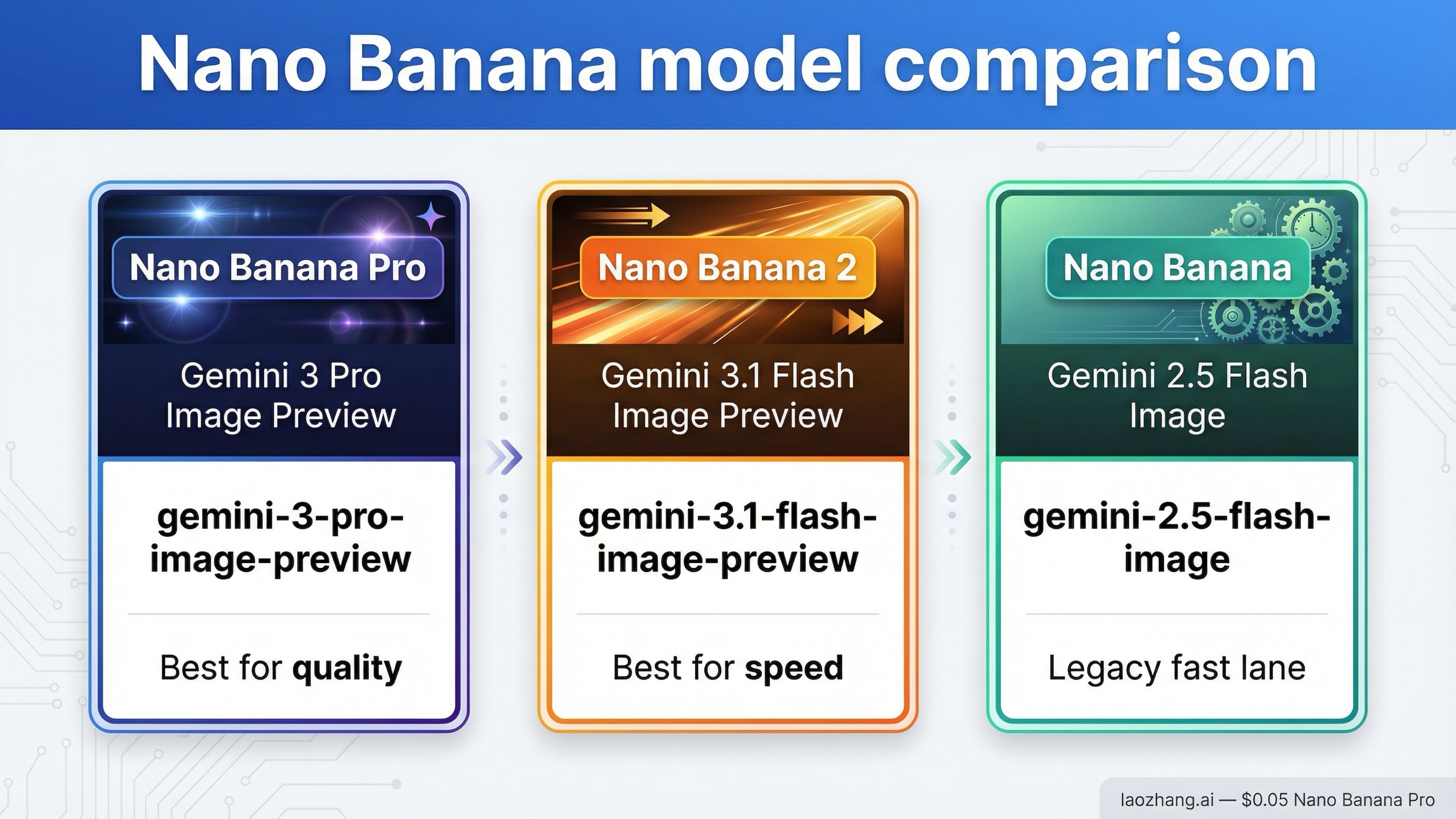
The easiest way to make the right choice is to think in quality vs speed:
- Nano Banana Pro (Gemini 3 Pro Image Preview): best for high-fidelity assets, complex prompts, and reliable text rendering. It is the premium lane.
- Nano Banana 2 (Gemini 3.1 Flash Image Preview): best for fast iterations, high-volume use, or cases where speed beats pixel perfection.
- Nano Banana (Gemini 2.5 Flash Image): older fast lane; still useful for lightweight jobs or fallback behavior.
Google positions Pro as the studio-quality lane for precision and control, while the Flash lanes trade some fidelity for speed. If you are building a workflow that needs consistent typography, complex layouts, or multi-image composition, start with Pro. If you are generating lots of quick variations or thumbnails, Nano Banana 2 is usually the better default.
Practical rule of thumb:
- Choose Pro when your images must carry text, product UI, or brand consistency.
- Choose Nano Banana 2 when you need many iterations or batch throughput.
- Choose Nano Banana only when the legacy fast lane is the only thing available.
Many teams start with Pro to lock in quality, then evaluate whether Nano Banana 2 can meet speed and volume needs without losing critical text fidelity. That two-step approach keeps quality control while still giving you a fast lane once the output is proven.
If you are migrating from an older Gemini image model or a different provider, begin with Pro for the first round of comparisons. It gives you a clean quality baseline before you decide whether a faster lane is acceptable for production workloads.
How to confirm you’re actually using the Pro model
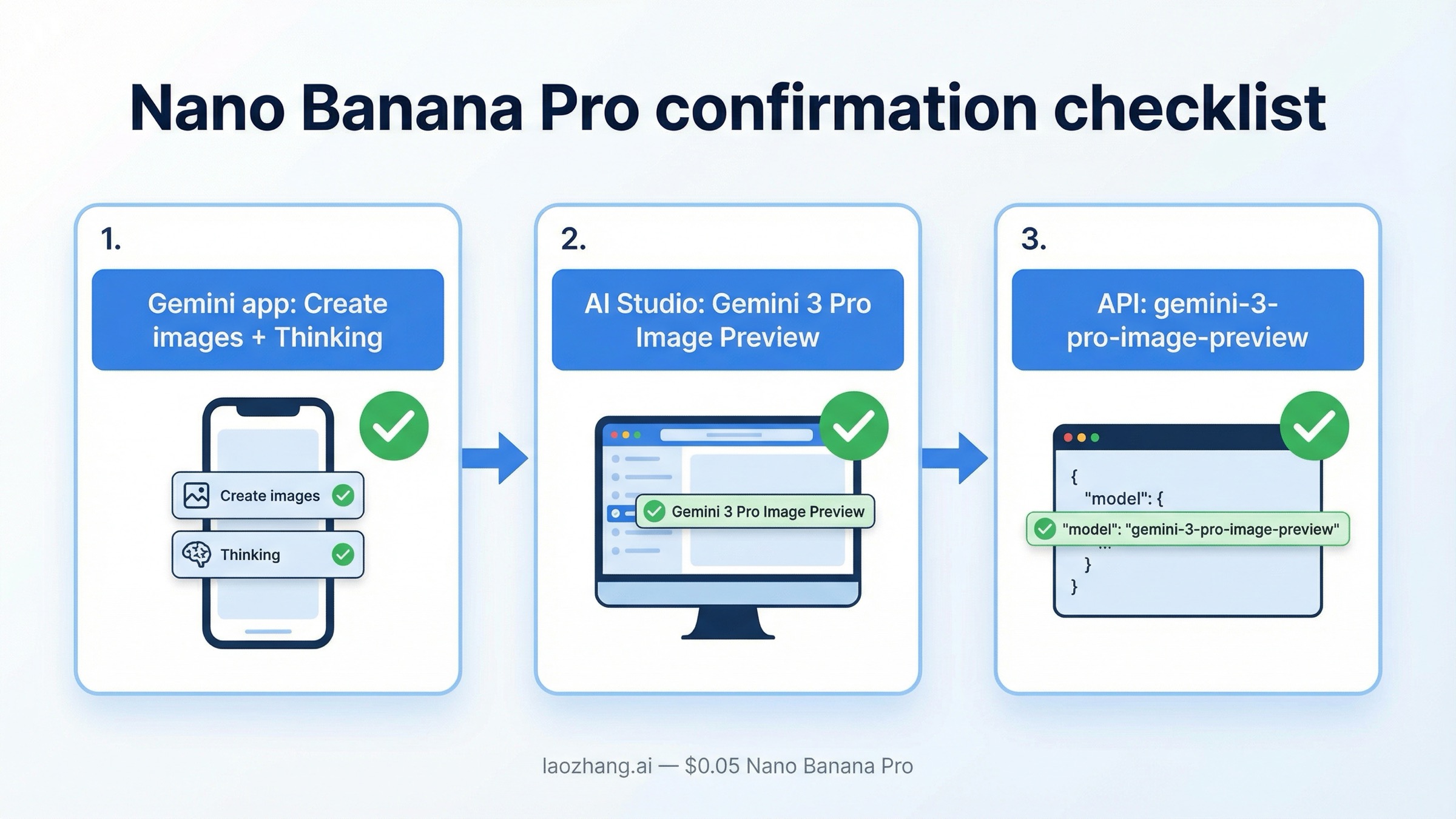
If you want to be 100% sure, use this quick checklist:
In the Gemini app
- Tap Create images and open the model selector.
- Confirm the Thinking model is selected.
- If the UI flips you back to a faster lane after a few generations, you likely hit a plan or quota limit.
In Google AI Studio
- Choose Gemini 3 Pro Image Preview explicitly from the model list.
- If you only see Flash Image models, your account or region may not have Pro access yet.
In the Gemini API
- Make sure your request uses
gemini-3-pro-image-preview. - Log the model name in your request payload so you can confirm it in debugging and monitoring.
If you consistently see the wrong model, it is almost always one of three issues: default model reset, plan/region rollout, or the wrong API model ID.
If you are integrating through a wrapper SDK, add a quick sanity check that logs the resolved model ID at runtime. That single line of telemetry prevents a lot of “Pro vs Flash” confusion when defaults change behind the scenes.
Watermarks and verification
Google’s official docs state that all generated images include a SynthID watermark. The consumer-facing products may also include a visible watermark depending on plan and surface. In the Gemini app, Google says free and Pro tiers can show a visible watermark, while Ultra and AI Studio output may remove it.
This matters when you are producing client-facing assets or sharing images publicly. A visible watermark is a UX decision, while SynthID is a provenance decision. Both can change by policy, so always re-check before you set expectations.
For users, that means:
- Assume your images are always traceable via SynthID.
- Expect visible watermark behavior to vary by plan or rollout phase.
- If you need non-watermarked output, confirm the exact plan and surface in Google’s current policy before promising anything to customers.
Quick fixes for common confusion
If you are stuck, run through these in order before you assume the model is gone:
- “I can’t see Nano Banana Pro in the app.” Make sure you’re on the latest Gemini app build and check the model selector. Pro availability depends on plan and region.
- “The app keeps reverting to Nano Banana.” That usually means you hit a free-tier limit or the app fell back to the default lane.
- “My API call doesn’t work with Nano Banana Pro.” Confirm you are using
gemini-3-pro-image-preview. Anything else is the wrong model. - “I need a fast lane.” Use Nano Banana 2 (Gemini 3.1 Flash Image Preview) when speed matters more than text fidelity.
When you share this mapping internally, include the official model ID and the date you last verified it. That makes future updates faster when Google shifts naming or rollout details.
If you support both app users and API developers, consider adding a short onboarding note that lists the nickname, the official model name, and the API model ID in one place. Most confusion comes from people moving between surfaces and assuming the label they saw in the app is the same label they need in code.
Treat the Gemini app and the Gemini API as two interfaces to the same underlying model, not as interchangeable labels. The UI name may change with rollouts, but the model ID is what your integration ultimately depends on.
If you still feel stuck after this, the best next step is to look at the official image-generation docs and the current Gemini 3 Pro Image launch notes to confirm that the model name and rollout status have not changed.