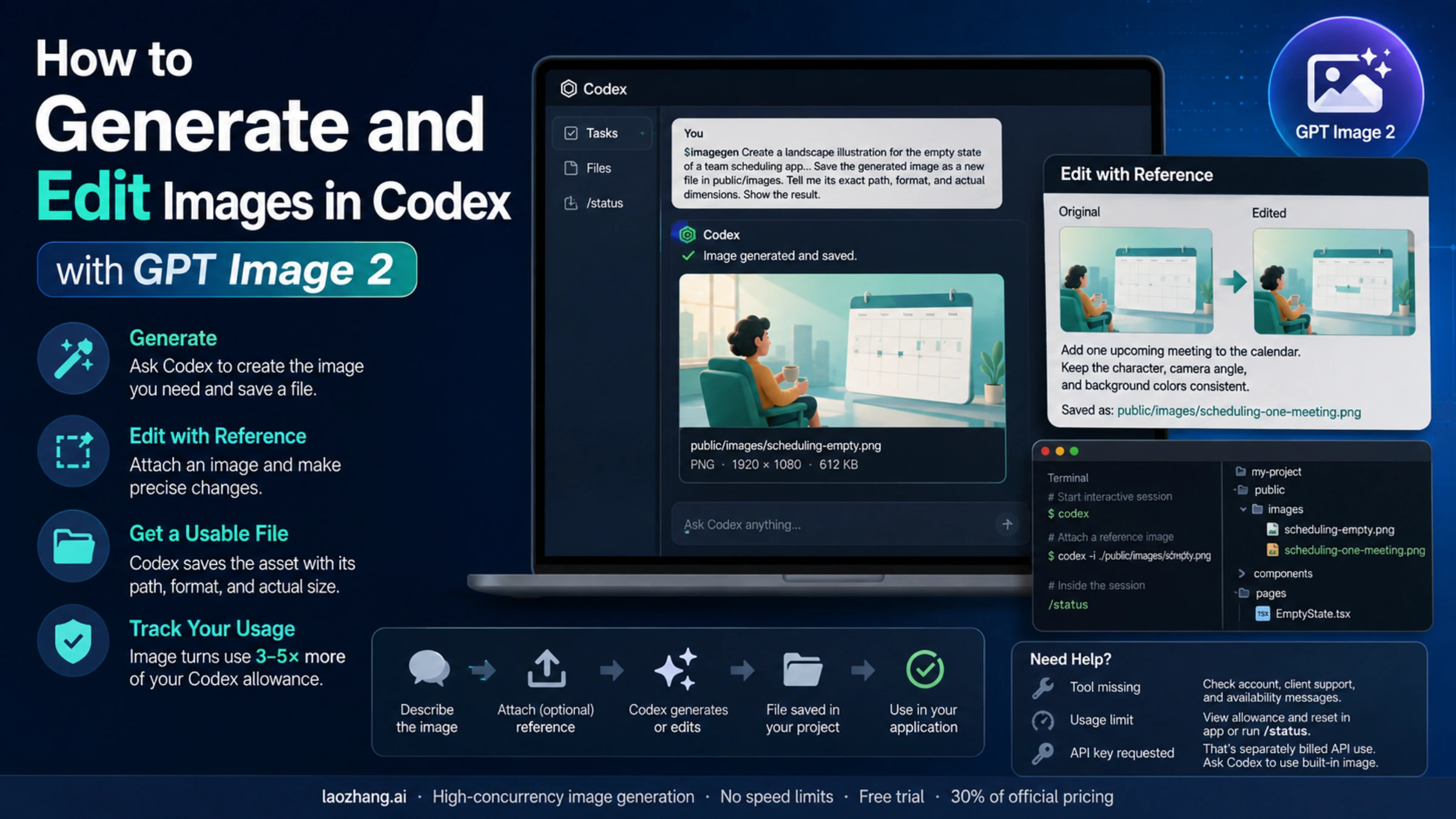
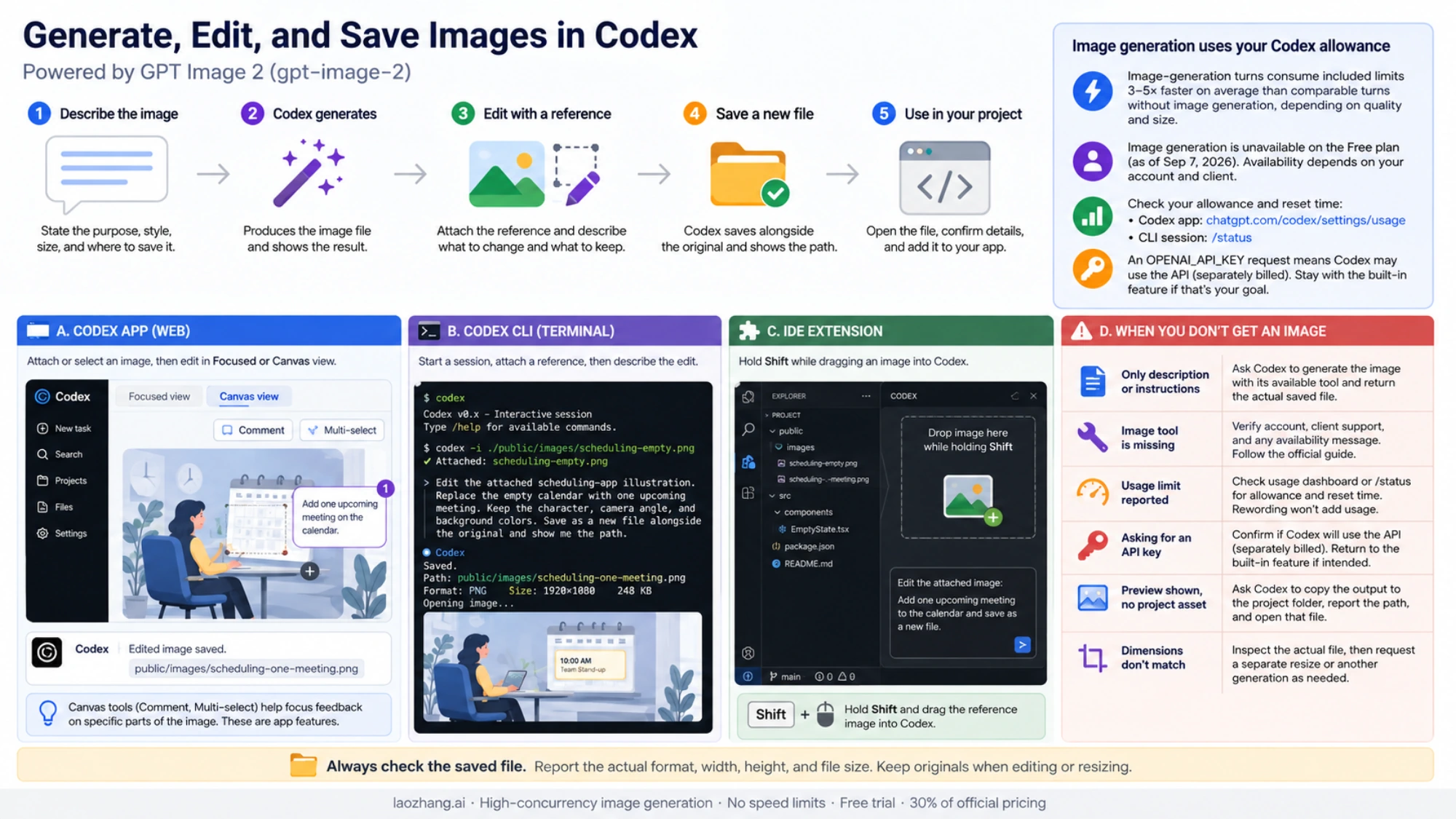
OpenAI’s current image-generation guide identifies GPT Image 2 as the model used by Codex’s built-in image tool. In a supported account and client, describe the image you want in your task, or include $imagegen explicitly. You do not need to switch the coding agent's model to gpt-image-2 to follow this workflow. OpenAI documents both generation and reference-image editing in its image generation guide.
For a useful first attempt, give Codex the image's purpose, the content it should contain, and where you want the result saved. Once it produces an image, finish by opening the actual file and checking how it fits your project. A suggested image description alone does not complete that job.
Start with one image and a clear destination
Open the relevant project in Codex, then make a request like this:
$imagegen Create a landscape illustration for the empty state of a
team scheduling app. It should communicate that the team has no
meetings scheduled yet. Use the app's existing colors and leave room
for the heading, which the application will render separately.

Save the generated image as a new file in public/images. Tell me its
exact path, file format, and actual pixel dimensions. Show the result.
This is an example request, not a required wording pattern. Replace the purpose and destination with your own. If the project has no established visual design, describe what you want instead of referring to “existing colors.” For standalone work, choose a folder where you can retrieve the file later.
Separating the picture from application text is useful when the same image will appear at different screen sizes or in multiple languages. If text belongs inside the image, provide the exact wording. Codex can also help place an asset in a page, but a generated bitmap by itself does not create working buttons or other interactive controls.
You can specify a target size in pixels. Treat it as a requested deliverable and compare it with the saved file: a dimension mentioned in your request does not establish the output's actual dimensions or its native generation resolution. If a subsequent resize is needed, keep the original and save the resized version separately.
Using the terminal
Start an interactive Codex session from the directory you want it to work in:
codexThen enter the image request in that session. The documented way to ask for an image is through the interactive task; do not assume an online example using a separate codex image subcommand applies to your installation. Use codex --help to check your installed commands and flags. The official CLI reference describes the interactive prompt and attachment options.
The agent model and image generator have different jobs. The agent interprets your request and works with your project; the image tool creates the bitmap. Changing the CLI's --model value is not the setup step for the built-in image feature.
Edit a reference without losing the original
Attach the reference image, then describe both the change you want and what must remain. A precise edit request helps Codex distinguish revising an existing asset from inventing a replacement:
Edit the attached scheduling-app illustration. Replace the empty
calendar with a calendar showing one upcoming meeting. Keep the
character, camera angle, and background colors consistent with the
reference. Save the result as a new file alongside the original,
and show me the edited image and its path.
In the Codex app, attach or select the image you want to edit. For an image already generated in the app, OpenAI documents Focused view and Canvas view. Where available, Canvas offers Comment and Multi-select to direct feedback at parts of the image. Those viewer controls are app features; a terminal session will not have the same canvas. See the official editing instructions.
For the CLI, attach an existing file when you launch the session:
codex -i ./public/images/scheduling-empty.pngReplace the sample path with a real file. The long form is --image. Once the session opens, enter the edit request. In the IDE extension, the documented attachment gesture is to hold Shift while dragging a reference image into Codex. Use the instructions for the client you are actually using.
When more than one image is present, identify the edit target explicitly. For example, say that the first image is the asset to change and the second is a color reference. After the edit, compare the result with the original before replacing a file used by your application.
Add the saved image to your project
The result is ready to use when you can locate it, open it, and reference it from the intended page. Ask Codex to complete that handoff:
Open the generated file and report its actual format, width, height,
and file size. Confirm the file exists at the path you gave me. If it
needs conversion for this project, keep the original and create a
separate copy. Then add the chosen image to the empty-state component
and verify that the page loads it.
The last sentence is appropriate when you want Codex to modify your application. Omit it when you only want an image file. Likewise, a path such as public/images is a project convention, not a universal Codex output directory: name the destination your project actually uses.
Check the result at its intended display size. A file that opens successfully can still need different cropping, transparency, or spacing for a particular layout. Tell Codex what needs to change in that context, and point to the saved image you are revising. Keeping a stable original makes it easier to compare edits and recover a version you preferred.
What image generation uses from your account
Built-in image generation draws from your Codex usage allowance. OpenAI says image-generation turns consume included limits 3–5 times faster on average than comparable turns without image generation, depending on image quality and size. This is a comparison between turns, not a fixed number of credits or dollars per image. It cannot be converted into a reliable daily image count. See OpenAI's image usage explanation.
As of September 7, 2026, the Codex pricing documentation says image generation is unavailable on the Free plan. This statement concerns Codex; it does not describe every image feature in the ChatGPT website. Availability also needs to match the account and client you are using.
View your current allowance and reset information in the Codex usage dashboard. In an active CLI session, use /status. Read the account's actual figures rather than planning around an image quota quoted for someone else's subscription. If included usage is exhausted, the applicable options may involve waiting for a reset or using credits, as described in the current pricing documentation.
An OPENAI_API_KEY request is a reason to check which method Codex is about to use. API image generation is separately billed under API pricing; it is not a way to reuse included Codex usage. If your goal is the built-in feature, ask Codex to use that feature and explain any availability error before proceeding with an API script. For a programmatic integration, continue with the GPT Image 2 API guide.
When you do not get an image
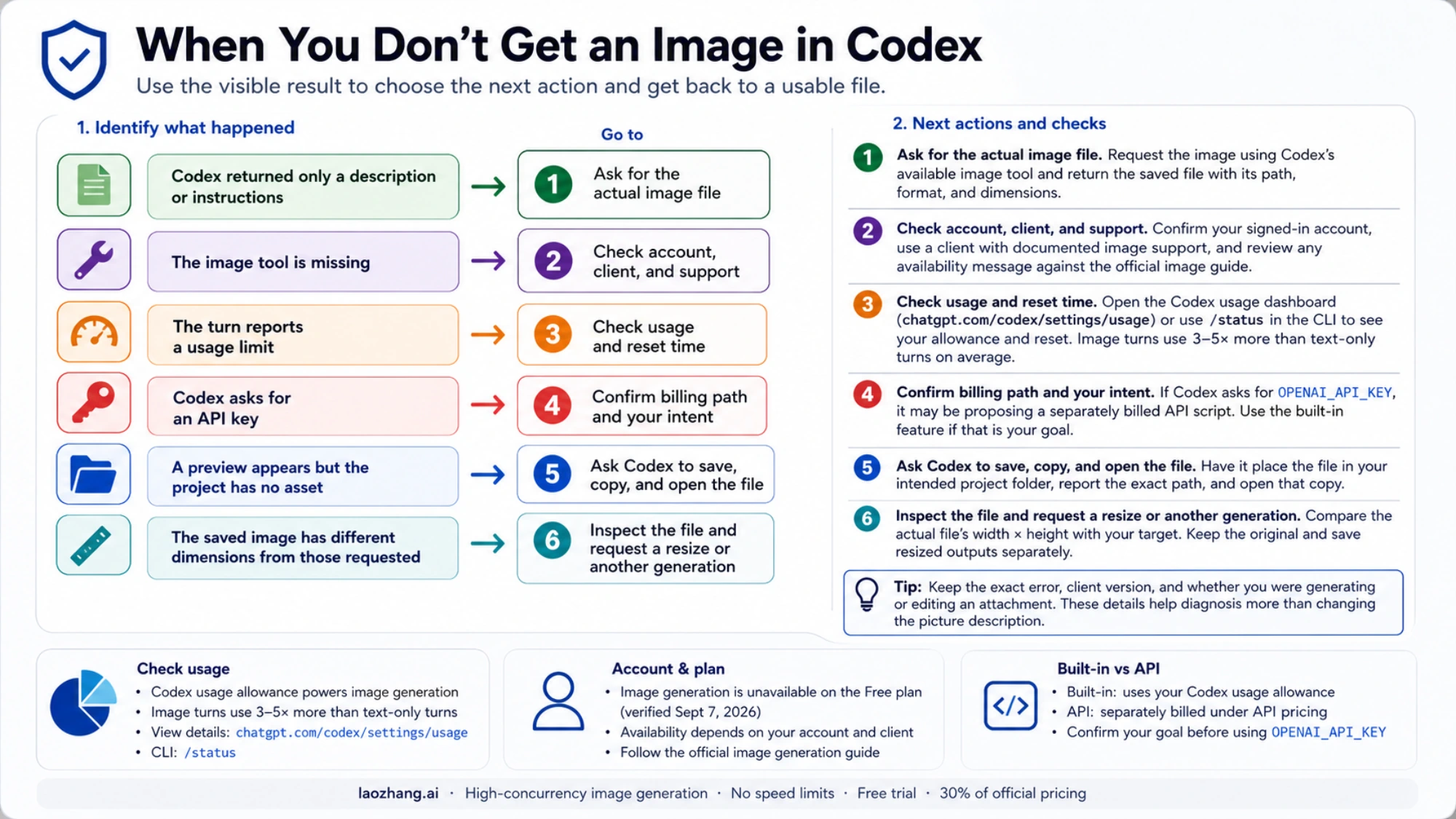
Use the visible result to choose the next action:
| What happened | What to check or ask next |
|---|---|
| Codex returned only a description or instructions | Ask it to generate the image using its available image tool and return the actual saved file. If no tool is available, ask it to state that explicitly. |
| The image tool is missing | Confirm the signed-in account, the current client's documented image support, and any displayed availability message. Compare these with the official image guide before trying installation commands from another tutorial. |
| The turn reports a usage limit | Check the usage dashboard or /status for the relevant allowance and reset time. Rewording the image request does not replenish usage. |
| Codex asks for an API key | Determine whether it is proposing a separately billed API script. Return to the built-in feature if that is what you intended. |
| A preview appears but the project has no asset | Ask Codex to copy the generated output into the intended project folder, report its path, and open that copy. |
| The saved image has different dimensions from those requested | Inspect the actual file, then request a separate resize or another generation as appropriate. A resized output should not be described as proof of native generation at that size. |
If a failure persists, keep the exact error, client version, and whether you were generating a new image or editing an attachment. Those details are more useful for diagnosis than repeatedly changing the picture description. For the separate question of how image allowances differ across products, see the GPT Image 2 usage limits guide.