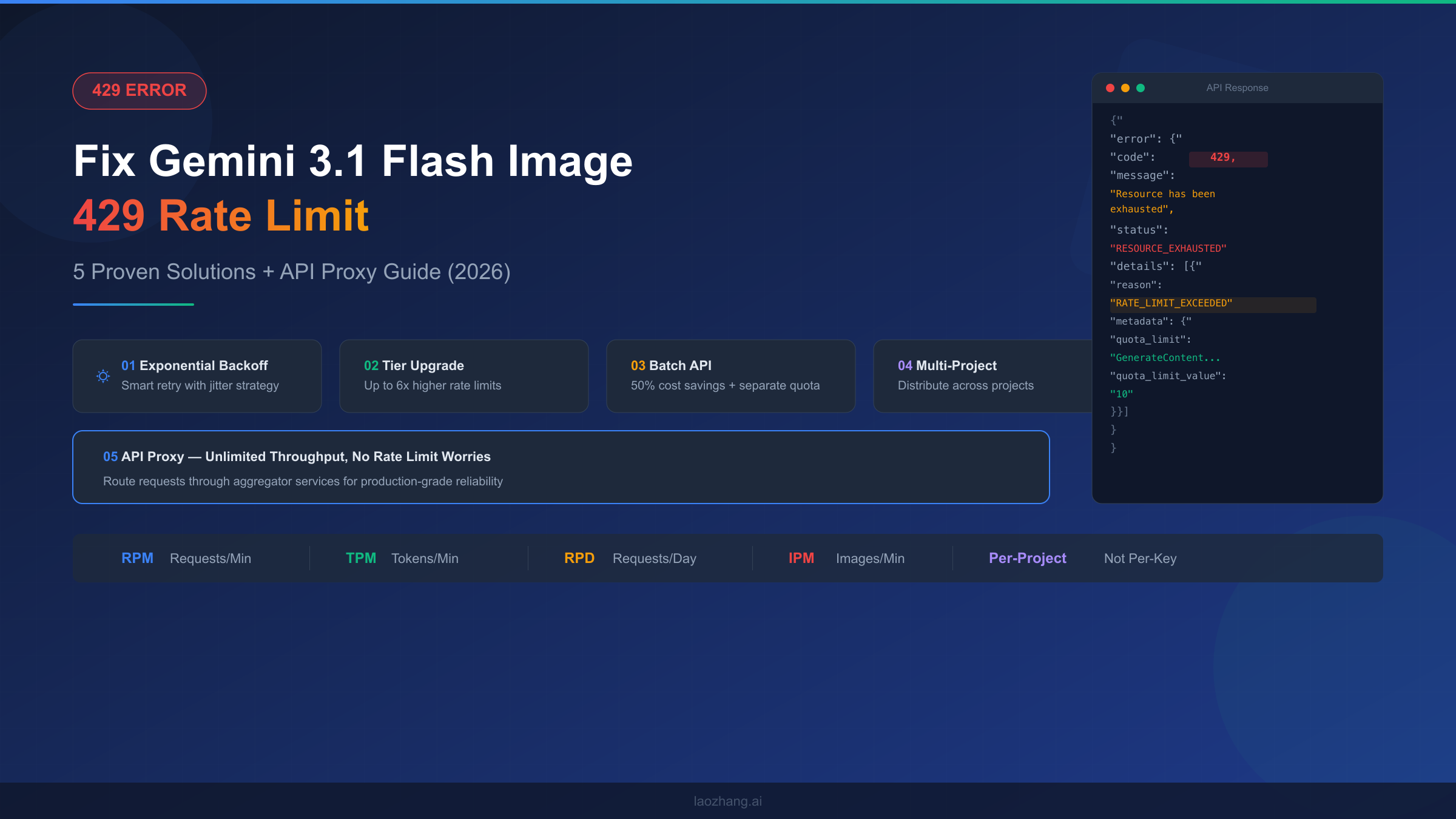
Running into the dreaded 429 RESOURCE_EXHAUSTED error while generating images with Gemini 3.1 Flash? The Gemini 3.1 Flash Image 429 rate limit error means you've exceeded one of four rate limit dimensions: RPM (requests per minute), RPD (requests per day), TPM (tokens per minute), or IPM (images per minute). You can fix it immediately by implementing exponential backoff with jitter, upgrading your billing tier for up to 6x higher limits, using the Batch API for 50% cost savings with separate quotas, distributing requests across multiple projects, or routing through an API proxy for unlimited throughput. This guide walks you through diagnosing exactly which limit you hit and choosing the right solution for your use case.
Understanding the Gemini 3.1 Flash Image 429 Error
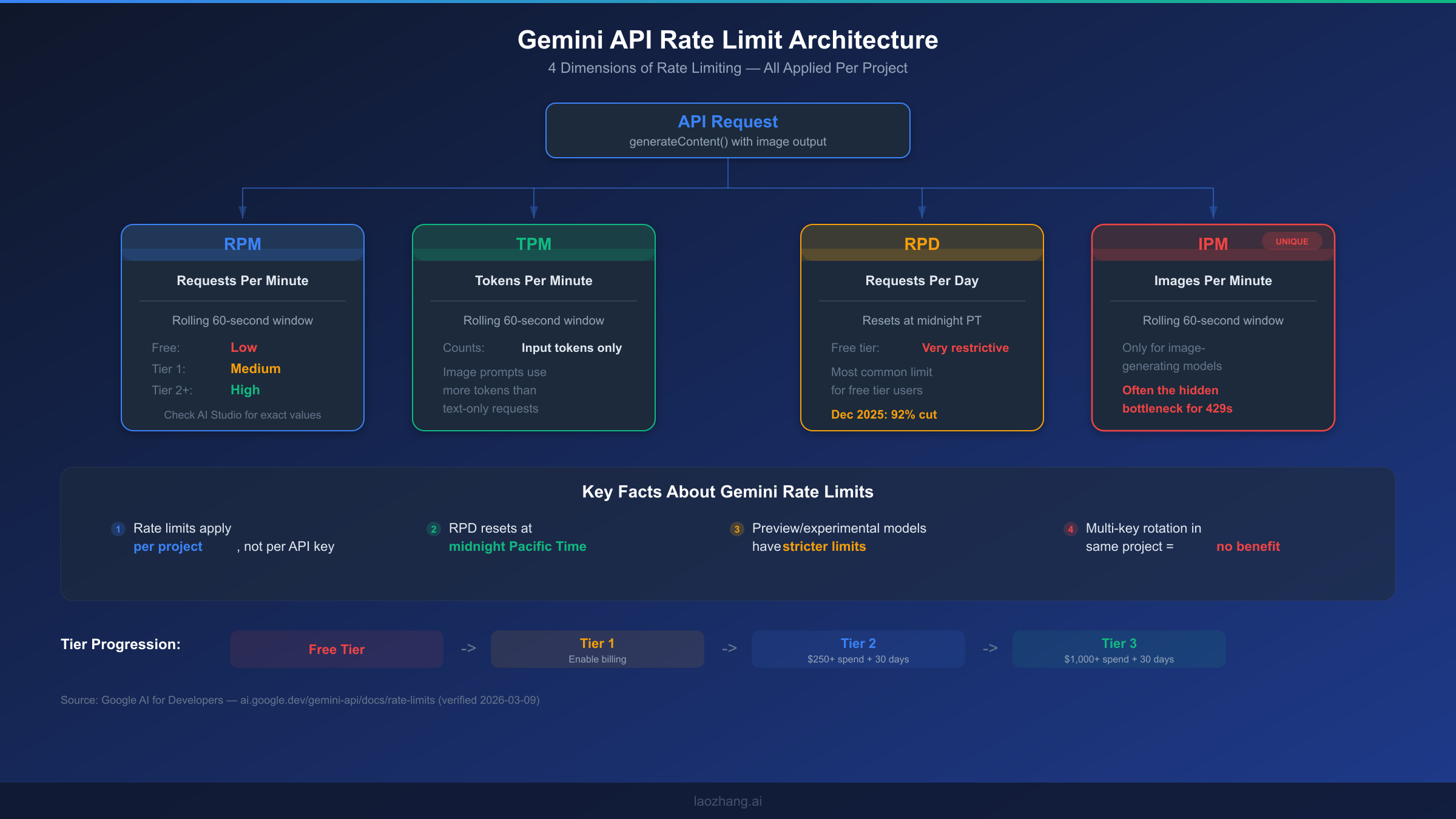
When your Gemini 3.1 Flash Image API call returns a 429 status code, the response body contains critical diagnostic information that most developers overlook. Before jumping to solutions, understanding the error structure helps you target the exact bottleneck rather than applying generic fixes that may not address your specific situation. The 429 error is Google's way of telling you that your project has consumed its allocated quota for a specific dimension, and the response actually tells you which one if you know where to look.
Here's what the actual error response looks like when you hit a rate limit with the Gemini 3.1 Flash Image Preview model:
{
  "error": {
    "code": 429,
    "message": "Resource has been exhausted (e.g. check quota).",
    "status": "RESOURCE_EXHAUSTED",
    "details": [
      {
        "@type": "type.googleapis.com/google.rpc.ErrorInfo",
        "reason": "RATE_LIMIT_EXCEEDED",
        "metadata": {
          "quota_limit": "GenerateContentRequestsPerMinutePerProjectPerRegion",
          "quota_limit_value": "10",
          "consumer": "projects/your-project-id",
          "quota_metric": "generativelanguage.googleapis.com/generate_content_requests"
        }
      }
    ]
  }
}
The metadata.quota_limit field is the key to diagnosing your issue. It tells you exactly which of the four rate limit dimensions you've exhausted. Google's Gemini API enforces rate limits across four distinct dimensions, and each one operates independently — meaning you could be well within your RPM quota but exceeding your daily RPD allocation. Understanding these four dimensions is essential because the fix for an RPM violation is fundamentally different from an RPD violation.
The four rate limit dimensions for Gemini 3.1 Flash Image Preview work as follows. RPM (Requests Per Minute) counts how many API calls you make within a rolling 60-second window, and this is the most common limit developers hit during burst operations. TPM (Tokens Per Minute) tracks the total input tokens consumed within the same rolling window, which matters for image generation because image prompts with detailed descriptions consume significantly more tokens than simple text queries. RPD (Requests Per Day) imposes a hard daily cap that resets at midnight Pacific Time — this is particularly restrictive on the free tier, where Google cut quotas by 92% in December 2025. Finally, IPM (Images Per Minute) is a dimension unique to image-generating models like Gemini 3.1 Flash Image Preview, and it's often the hidden bottleneck that developers miss because they're accustomed to only thinking about RPM and TPM from their experience with text-only models.
One critical fact that many developers don't realize: rate limits in the Gemini API are applied per project, not per API key. This means that creating multiple API keys within the same Google Cloud project provides absolutely zero benefit for rate limit purposes. If you have three keys in one project, all three share the same quota pool. This distinction becomes important when we discuss the multi-project distribution strategy in Solution 4.
It's also worth noting the difference between a 429 error and a 503 error, since both can interrupt your image generation pipeline. A 429 means you've consumed your allocated quota and need to either wait or increase your limits. A 503 (Service Unavailable) indicates a temporary server-side issue on Google's end — in that case, a simple retry after a short delay is usually sufficient. The fix strategies differ significantly, so checking the status code before applying a solution matters.
Quick Diagnosis — Which Rate Limit Did You Hit?
Before applying any fix, you need to determine exactly which rate limit dimension you've exhausted. Blindly implementing exponential backoff when you've actually hit your daily RPD cap means your retries will keep failing for hours until midnight Pacific Time. This diagnostic approach saves you from wasting time on the wrong solution, and it takes less than a minute to identify the root cause.
Start by examining the quota_limit field in your error response. The value maps directly to one of the four dimensions, and each one has a distinct string identifier that Google uses internally. When you see GenerateContentRequestsPerMinutePerProjectPerRegion, you've hit your RPM limit — this typically resolves within 60 seconds if you simply pause. If the field shows GenerateContentTokensPerMinutePerProjectPerRegion, your TPM is exhausted, meaning your prompts are consuming too many tokens too quickly. The GenerateContentRequestsPerDayPerProjectPerRegion value indicates an RPD violation, which is the most frustrating because it won't reset until midnight Pacific Time. And if you encounter GenerateContentImagesPerMinutePerProjectPerRegion, you've hit the IPM cap specifically for image output — a limit that only applies to image-generating model variants.
If your error response doesn't include the detailed metadata object (which happens with some older SDK versions), you can use a process-of-elimination approach. Check your request frequency over the last 60 seconds — if you've been making rapid-fire calls, RPM or IPM is likely the culprit. If you've been running a batch job throughout the day, check your total daily request count against your tier's RPD allocation. You can verify your current tier and its associated limits by visiting the Google AI Studio quotas page, which displays your real-time usage and remaining capacity for each dimension.
The following decision process helps you quickly narrow down the issue and jump directly to the most relevant solution:
- Error appeared during rapid-fire API calls (within seconds)? → Likely RPM or IPM. Apply Solution 1 (exponential backoff) for immediate relief, then consider Solution 2 (tier upgrade) for permanent fix.
- Error appeared after sustained usage throughout the day? → Likely RPD. Wait until midnight PT, or apply Solution 2 (tier upgrade) to increase your daily allocation.
- Error appeared with very long or detailed prompts? → Likely TPM. Simplify your prompts or apply Solution 1 to spread requests over time.
- You're on the free tier and hit limits quickly? → Most likely RPD (free tier RPD was cut 92% in December 2025). Solution 2 (enable billing for Tier 1) is the fastest permanent fix.
You can also check your current tier programmatically by reviewing your Google Cloud billing status. Free tier users have the most restrictive limits across all four dimensions. Upgrading to Tier 1 simply requires enabling a billing account on your project — the rate limit increase typically takes effect within minutes. For a detailed per-tier rate limit breakdown, check our dedicated guide that maps exact quotas for each model variant.
There's another diagnostic technique worth mentioning for developers who want to monitor their quota consumption proactively rather than reactively. The Google Cloud Console provides a Quotas & System Limits page where you can view real-time usage graphs for each rate limit dimension. Navigate to your project's IAM & Admin section, then select Quotas. Filter by "generativelanguage.googleapis.com" to see all Gemini API quotas. These graphs show your usage patterns over time, making it easy to spot whether you're consistently bumping against a particular limit or just experiencing occasional spikes. Setting up quota alerts is also possible — you can configure notifications at 50%, 80%, and 90% usage thresholds, giving you early warning before your application starts receiving 429 errors. This proactive monitoring is especially valuable for production systems where rate limit errors directly impact user experience.
Solution 1 — Exponential Backoff with Smart Retry Logic
Exponential backoff is the first line of defense against 429 errors and should be implemented in every production application that calls the Gemini API, regardless of what other solutions you apply. The concept is straightforward: when you receive a 429 response, wait for an increasing amount of time before retrying. But a naive implementation that simply doubles the wait time can create thundering herd problems when multiple instances retry simultaneously. Adding randomized jitter to your backoff intervals distributes retry attempts more evenly and significantly reduces the chance of repeated collisions at the rate limit boundary.
Python Implementation
The Python implementation below uses the google-generativeai SDK with a custom retry wrapper that handles different rate limit types intelligently. For RPM-based limits, it uses shorter initial delays since the window resets every 60 seconds. For RPD limits, the strategy switches to much longer delays or raises an exception to signal that retrying is futile until the daily reset.
import time
import random
import google.generativeai as genai

genai.configure(api_key="YOUR_API_KEY")

def generate_image_with_retry(prompt, max_retries=5, base_delay=1.0):
    """Generate image with exponential backoff and jitter."""
    model = genai.GenerativeModel("gemini-3.1-flash-image")

    for attempt in range(max_retries):
        try:
            response = model.generate_content(
                prompt,
                generation_config={"response_mime_type": "image/png"}
            )
            return response
        except Exception as e:
            error_str = str(e)
            if "429" not in error_str and "RESOURCE_EXHAUSTED" not in error_str:
                raise  # Non-rate-limit error, don't retry

            if "PerDay" in error_str:
                print("Daily limit reached. Retrying won't help until midnight PT.")
                raise

            # Exponential backoff with full jitter
            delay = base_delay * (2 ** attempt) + random.uniform(0, 1)
            delay = min(delay, 60)  # Cap at 60 seconds
            print(f"Rate limited. Retry {attempt + 1}/{max_retries} in {delay:.1f}s")
            time.sleep(delay)

    raise Exception("Max retries exceeded")
Node.js Implementation
For Node.js applications, the implementation follows the same pattern but uses async/await syntax and the @google/generative-ai package. The jitter calculation uses Math.random() to add randomness to the delay interval, preventing synchronized retries across multiple server instances.
const { GoogleGenerativeAI } = require("@google/generative-ai");

const genAI = new GoogleGenerativeAI("YOUR_API_KEY");

async function generateImageWithRetry(prompt, maxRetries = 5, baseDelay = 1000) {
  const model = genAI.getGenerativeModel({ model: "gemini-3.1-flash-image" });

  for (let attempt = 0; attempt < maxRetries; attempt++) {
    try {
      const result = await model.generateContent({
        contents: [{ parts: [{ text: prompt }] }],
        generationConfig: { responseMimeType: "image/png" }
      });
      return result;
    } catch (error) {
      const msg = error.message || "";
      if (!msg.includes("429") && !msg.includes("RESOURCE_EXHAUSTED")) throw error;
      if (msg.includes("PerDay")) {
        throw new Error("Daily limit reached. Wait until midnight PT.");
      }

      const delay = Math.min(baseDelay * Math.pow(2, attempt) + Math.random() * 1000, 60000);
      console.log(`Rate limited. Retry ${attempt + 1}/${maxRetries} in ${(delay/1000).toFixed(1)}s`);
      await new Promise(resolve => setTimeout(resolve, delay));
    }
  }
  throw new Error("Max retries exceeded");
}
There are a few nuances to making exponential backoff work well in production. First, always set a maximum delay cap (60 seconds is reasonable for RPM limits) to prevent excessively long waits during sustained rate limiting. Second, consider implementing a circuit breaker pattern on top of the retry logic: if you receive five consecutive 429 errors, temporarily stop all requests for a cooldown period rather than continuing to hammer the API. This is not only more respectful of Google's infrastructure but also allows your quota to recover faster. Third, log every 429 encounter with the full error details including the quota_limit field — this data is invaluable for understanding your usage patterns and deciding when to upgrade your tier or switch to a more scalable solution.
While exponential backoff is essential, it's important to understand its limitations. It handles temporary RPM spikes well, but it cannot solve structural problems like consistently exceeding your tier's daily limit or needing sustained throughput above your allocated rate. Think of it as a safety net, not a scaling strategy. If you find yourself relying on retries for more than 10-15% of your requests, it's time to look at the more fundamental solutions that follow.
Solution 2 — Upgrade Your API Tier for Higher Limits
Upgrading your Google Cloud billing tier is the most straightforward way to permanently increase your rate limits across all four dimensions. Google's tier system is designed to progressively unlock higher quotas as you demonstrate legitimate usage through spending thresholds and account age. For many developers, simply enabling billing (moving from Free to Tier 1) provides an immediate and dramatic increase in available capacity, often resolving 429 errors without any code changes.
The tier system works as follows (verified from Google AI for Developers documentation, 2026-03-09): the Free tier is available to users in eligible countries and regions, with the most restrictive limits that were further reduced in December 2025. Tier 1 requires linking a paid billing account to your Google Cloud project, and the upgrade typically takes effect within minutes. Tier 2 requires a total spend exceeding $250 and at least 30 days since your first payment. Tier 3 requires exceeding $1,000 in total spend with the same 30-day minimum. Each tier brings substantially higher limits across RPM, TPM, RPD, and IPM — with Tier 1 alone often providing a 3-6x increase over the free tier.
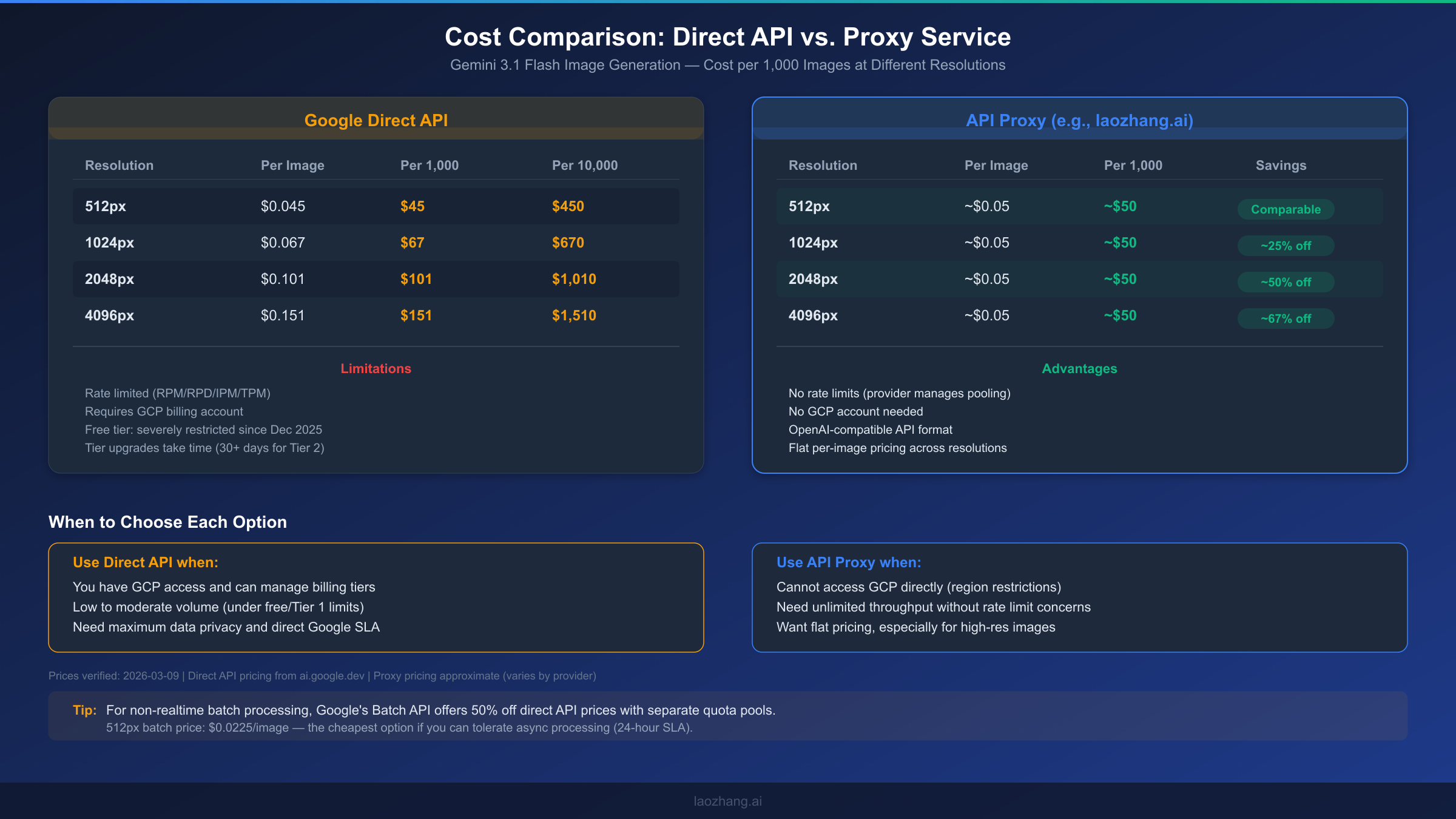
The cost consideration for upgrading tiers depends heavily on your usage pattern. If you're generating fewer than a hundred images per day, the free tier may technically suffice outside of burst periods, but you'll constantly fight RPD limits. Enabling billing doesn't mean you'll spend money immediately — you only pay for what you use above free quota. The Gemini image generation pricing is resolution-dependent: $0.045 per image at 512px, $0.067 at 1024px, $0.101 at 2048px, and $0.151 at 4096px (Google AI for Developers, 2026-03-09 verified). For a production application generating 500 images per day at 1024px resolution, the daily cost would be approximately $33.50 — a reasonable investment considering the reliability gains.
To upgrade your tier, navigate to the Google AI Studio or Google Cloud Console and enable billing on your project. The process is straightforward: create a billing account if you don't have one, link it to your API project, and the tier upgrade propagates within about 10 minutes. For reaching Tier 2 and beyond, the primary requirement is cumulative spending, which happens naturally as you use the API. There's no separate application or approval process — just consistent usage that crosses the spending thresholds.
One important planning note: the 30-day waiting period for Tier 2 and Tier 3 means you can't rush the upgrade path. If you anticipate needing higher limits in the near future, the best strategy is to enable billing early (even if your current usage is minimal) to start the clock ticking. This way, when your application scales and you need Tier 2 limits, you've already satisfied the time requirement.
Here's a practical cost-benefit analysis for different usage scenarios to help you decide which tier makes sense. If you're generating around 100 images per day at 1024px resolution, the daily cost on Tier 1 would be approximately $6.70, or about $200 per month. At 1,000 images per day — a common threshold for production SaaS applications — you're looking at roughly $67 per day or $2,000 per month, which places you well on the path to Tier 2 eligibility within the first month. For high-volume operations generating 10,000+ images daily, costs reach $670 per day at 1024px resolution, but at this scale you should strongly consider the Batch API (Solution 3) or an API proxy (Solution 5) for meaningful cost reductions. The key insight is that the per-image cost stays constant across tiers — what changes is only the throughput ceiling, not the price per generation.
Solution 3 — Batch API for High-Volume Image Generation
The Batch API is Google's officially recommended approach for high-volume image generation, yet it remains surprisingly underutilized because most competitor guides either skip it entirely or mention it only in passing. The Batch API provides two critical advantages: it operates on a completely separate quota system from the real-time API (meaning batch requests don't count against your RPM/RPD/IPM limits), and it offers a 50% discount on all generation costs. The trade-off is that batch requests are processed asynchronously with a 24-hour SLA, so this solution is ideal for workflows where you don't need images returned instantly.
The Batch API quota is measured in queued tokens rather than requests per minute, and the limits are generous even at lower tiers. Tier 1 projects can queue up to 1,000,000 tokens worth of batch requests, Tier 2 unlocks 250,000,000 queued tokens, and Tier 3 provides 750,000,000 (Google AI for Developers rate limits page, 2026-03-09 verified). For context, a typical image generation prompt of 50-100 words uses roughly 70-130 tokens, meaning a Tier 1 batch queue can hold approximately 7,700-14,300 image generation requests simultaneously.
Python Batch Implementation
Here's a complete working example that creates a batch job, polls for completion, and retrieves the generated images:
import google.generativeai as genai
import time

genai.configure(api_key="YOUR_API_KEY")

# Step 1: Create batch request file (JSONL format)
batch_requests = []
prompts = [
    "A serene mountain landscape at sunset, photorealistic",
    "A futuristic city skyline with flying vehicles",
    "An underwater coral reef teeming with colorful fish"
]

for i, prompt in enumerate(prompts):
    batch_requests.append({
        "custom_id": f"img-{i}",
        "method": "POST",
        "url": "/v1beta/models/gemini-3.1-flash-image-preview:generateContent",
        "body": {
            "contents": [{"parts": [{"text": prompt}]}],
            "generationConfig": {"responseMimeType": "image/png"}
        }
    })

# Step 2: Submit batch job
# Note: Use the REST API or batch-specific SDK methods
# The exact SDK interface may vary — check current documentation
import requests, json

headers = {"Content-Type": "application/json"}
api_url = "https://generativelanguage.googleapis.com/v1beta/batchJobs"

response = requests.post(
    f"{api_url}?key=YOUR_API_KEY",
    headers=headers,
    json={"requests": batch_requests}
)
job = response.json()
job_name = job.get("name")
print(f"Batch job created: {job_name}")

# Step 3: Poll for completion
while True:
    status_resp = requests.get(f"{api_url}/{job_name}?key=YOUR_API_KEY")
    status = status_resp.json()
    state = status.get("state", "UNKNOWN")
    print(f"Job state: {state}")

    if state in ("SUCCEEDED", "FAILED", "CANCELLED"):
        break
    time.sleep(30)  # Check every 30 seconds

# Step 4: Retrieve results
if state == "SUCCEEDED":
    results = requests.get(f"{api_url}/{job_name}/results?key=YOUR_API_KEY")
    for result in results.json().get("responses", []):
        custom_id = result["custom_id"]
        # Process each generated image
        print(f"Image {custom_id} generated successfully")
There are several practical considerations when working with the Batch API. The 24-hour SLA is a maximum — in practice, most batch jobs complete significantly faster, often within 1-4 hours depending on queue depth and job size. You should design your application to poll for job status at reasonable intervals (every 30-60 seconds) rather than implementing a blocking wait. Error handling in batch mode differs from real-time calls: individual requests within a batch can fail independently, so your result processing code needs to check each response's status and implement retry logic for failed items. Also note that the batch queue token limit counts all queued (not yet completed) jobs, so you should avoid submitting more work than you can process in a reasonable timeframe.
The Batch API shines in scenarios like e-commerce product image generation (processing hundreds of product descriptions overnight), content marketing pipelines (generating social media visuals in bulk), and dataset creation for machine learning training. Any workflow where you can tolerate a delay of minutes to hours — rather than requiring sub-second responses — should strongly consider the Batch API both for its cost savings and its immunity to the real-time rate limits that cause 429 errors. For a broader look at optimizing costs, see our Gemini image rate limit solution guide.
Solution 4 — Multi-Project Request Distribution
Since Gemini API rate limits are enforced per project rather than per API key, you can effectively multiply your total available quota by distributing requests across multiple Google Cloud projects. This approach is technically straightforward: create N projects, generate an API key for each, and implement a round-robin or load-balanced distribution strategy in your application code. With three projects, you effectively triple your RPM, RPD, IPM, and TPM limits without any tier upgrades or additional spending per project.
The implementation requires maintaining a pool of API keys (one per project) and cycling through them for each request. Here's a production-ready implementation that handles both distribution and fallback when individual projects hit their limits:
import itertools
import random

class MultiProjectClient:
    def __init__(self, api_keys: list[str]):
        self.api_keys = api_keys
        self.key_cycle = itertools.cycle(api_keys)
        self.failed_keys = set()

    def generate_image(self, prompt, max_attempts=None):
        max_attempts = max_attempts or len(self.api_keys) * 2

        for attempt in range(max_attempts):
            key = next(self.key_cycle)
            if key in self.failed_keys:
                continue

            try:
                genai.configure(api_key=key)
                model = genai.GenerativeModel("gemini-3.1-flash-image")
                response = model.generate_content(
                    prompt,
                    generation_config={"response_mime_type": "image/png"}
                )
                return response
            except Exception as e:
                if "429" in str(e):
                    self.failed_keys.add(key)
                    if len(self.failed_keys) >= len(self.api_keys):
                        self.failed_keys.clear()  # Reset and retry
                        raise Exception("All projects rate limited")
                else:
                    raise

        raise Exception("Max distribution attempts exceeded")

# Usage
client = MultiProjectClient([
    "API_KEY_PROJECT_1",
    "API_KEY_PROJECT_2",
    "API_KEY_PROJECT_3"
])
result = client.generate_image("A beautiful sunset over the ocean")
One important architectural consideration: make sure each Google Cloud project has its own billing account enabled (or at least shares billing from a single billing account linked to multiple projects). This ensures each project independently qualifies for its tier's rate limits. You can manage multiple projects through the Google Cloud Console's project selector, and there's no practical limit on how many projects a single Google account can own.
Regarding Terms of Service compliance: Google's documentation explicitly states that "rate limits are applied per project" and provides per-project quota management tools, which implicitly acknowledges that users may operate multiple projects. The approach does not violate any stated terms as long as each project is a legitimate Google Cloud project with proper billing configured. However, there are practical considerations to keep in mind — you need to manage billing across multiple projects, monitor quotas separately, and handle the added complexity in your deployment pipeline. This solution works best for teams that already operate in a multi-project Google Cloud environment.
Solution 5 — API Proxy for Unlimited Throughput
When your application requires sustained high throughput that exceeds even Tier 3 limits, or when you can't access Google Cloud Platform directly (common for developers in certain regions), an API proxy service provides the most comprehensive solution to 429 errors. API proxies work by maintaining large pools of API credentials across many projects and tiers, transparently distributing your requests to avoid hitting any single project's rate limits. From your application's perspective, you make API calls to a single endpoint and never see 429 errors because the proxy handles all the rate limit management behind the scenes.
When evaluating API proxy services for Gemini image generation, several criteria matter. First, check whether the proxy supports the specific model you need — not all services support gemini-3.1-flash-image-preview or its image output capabilities. Second, verify the pricing structure: some proxies charge per request, others per token, and some use a flat per-image fee. Third, assess the API compatibility — the best proxies offer an OpenAI-compatible API format, meaning you can switch by changing just the base URL and API key in your existing code without rewriting any logic. Finally, consider reliability guarantees like uptime SLAs, geographic latency, and support responsiveness.
For developers looking for a proxy option, services like laozhang.ai offer Gemini image generation at approximately $0.09 per call with a flat rate regardless of resolution — which represents significant savings at higher resolutions where Google's direct pricing ranges from $0.101 to $0.151. The platform aggregates multiple models and providers, handles rate limiting internally, and doesn't require a GCP account. You can test it directly at the image generation playground before committing.
The integration process with most API proxies is remarkably simple because they expose OpenAI-compatible endpoints. In many cases, switching from direct Google API access to a proxy requires changing only two configuration values in your code — the base URL and the API key. Your existing prompt formatting, error handling, and response parsing logic typically works without modification. Here's a minimal example showing how a proxy integration differs from the direct API:
# Direct Google API
import google.generativeai as genai
genai.configure(api_key="GOOGLE_API_KEY")
model = genai.GenerativeModel("gemini-3.1-flash-image-preview")

# Via API Proxy (OpenAI-compatible format)
from openai import OpenAI
client = OpenAI(
    api_key="PROXY_API_KEY",
    base_url="https://api.laozhang.ai/v1"
)
response = client.chat.completions.create(
    model="gemini-3.1-flash-image-preview",
    messages=[{"role": "user", "content": "A sunset over mountains"}]
)
To determine whether an API proxy is right for your use case, consider this decision framework. Use direct Google API when you have reliable GCP access, your volume stays within your tier's limits, and you need maximum data privacy with a direct Google SLA. Use an API proxy when you're in a region with restricted GCP access, your throughput needs exceed what tier upgrades can provide, you want simplified billing without managing GCP projects, or you're building a prototype and want to avoid GCP setup overhead entirely. For the cheapest Gemini Flash Image API options across different providers, our comparison guide covers the current landscape.
Choose Your Fix — Solution Comparison + FAQ
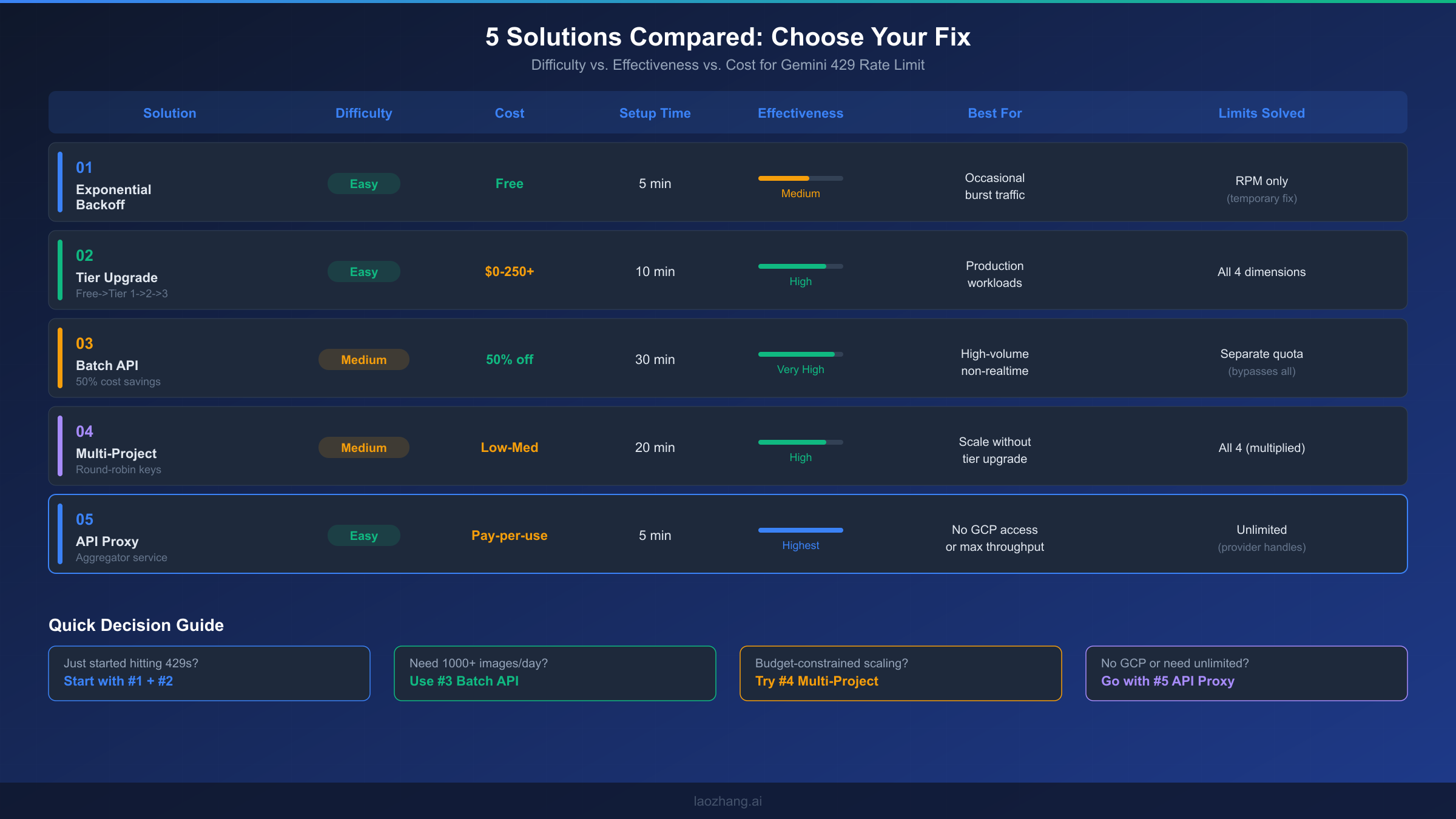
The right solution depends on your specific situation: how urgently you need to fix the error, your budget constraints, your technical infrastructure, and your long-term throughput requirements. Most production deployments benefit from combining multiple solutions — for instance, implementing exponential backoff (Solution 1) as a baseline safety net while upgrading to Tier 1 or Tier 2 (Solution 2) for sustained capacity.
Here's a summary of how the five solutions compare across the most important decision factors. Solutions 1 and 2 are the foundation that every project should implement — backoff for resilience and tier upgrades for capacity. Solutions 3, 4, and 5 are scaling strategies that address different constraints: Batch API for cost optimization when latency isn't critical, multi-project for free scaling within Google's ecosystem, and API proxy for maximum simplicity and unlimited throughput.
For developers just getting started with Gemini image generation who are hitting 429 errors on the free tier, the fastest path to resolution is: first, implement exponential backoff to handle immediate errors gracefully. Second, enable billing on your project to reach Tier 1 — this is often the single most impactful change, as it dramatically increases your quotas across all four dimensions. These two steps resolve 429 errors for the vast majority of development and low-to-moderate production workloads.
For high-volume production workloads generating thousands of images daily, the optimal strategy depends on your latency requirements. If images can be generated asynchronously (e-commerce catalogs, marketing content pipelines, ML training data), the Batch API (Solution 3) provides the best cost efficiency at 50% off with its own separate quota pool. If you need real-time image generation at scale, combine a tier upgrade (Solution 2) with multi-project distribution (Solution 4) to multiply your effective limits. And if you want to eliminate rate limiting as a concern entirely, an API proxy (Solution 5) offloads all quota management to the provider.
Frequently Asked Questions
How long does the Gemini API 429 rate limit last?
For RPM, TPM, and IPM limits, the window is a rolling 60 seconds — meaning if you stop sending requests, your quota refreshes within one minute. For RPD limits, you must wait until midnight Pacific Time for the daily counter to reset. There is no way to manually reset any rate limit counter; the only options are waiting for the natural reset or increasing your limits through tier upgrades.
Can I get a rate limit exemption from Google?
Google does not offer individual rate limit exemptions for the Gemini API. The tier system is the designated path for increasing limits. If you need limits beyond Tier 3, the recommended approach is to contact Google Cloud sales for an enterprise agreement, which may include custom quota allocations.
Does using multiple API keys in the same project help?
No. Rate limits are applied per project, not per API key. Creating additional keys within a single project does not increase your quota in any dimension. To benefit from multiple keys, each key must belong to a different Google Cloud project (see Solution 4).
What's the difference between 429 and 503 errors?
A 429 error means you've exceeded your allocated quota — you need to either wait for the quota to refresh or increase your limits. A 503 error means the Google service itself is temporarily unavailable, which is unrelated to your usage. For 503 errors, a simple retry after 1-5 seconds usually works. For 429 errors, you need the targeted solutions described in this guide.
Will the Batch API always be 50% cheaper?
Google's Batch API pricing has been consistently set at 50% of the real-time API price since its introduction. While pricing can change, the discount incentivizes developers to use batch processing, which is more efficient for Google's infrastructure. Check the current pricing on the official Gemini pricing page before making cost projections.
How do I monitor my rate limit usage in real time?
The Google Cloud Console provides real-time quota monitoring under IAM & Admin > Quotas. Filter for the "generativelanguage.googleapis.com" service to see all Gemini API quotas with usage graphs. You can also set up quota alerts to notify you at configurable thresholds (e.g., 80% usage), giving you early warning before 429 errors start appearing in production. For programmatic monitoring, the Cloud Monitoring API lets you query quota usage metrics and integrate them into your existing dashboards or alerting systems.
Is there a way to increase free tier limits without paying?
No. The free tier limits are fixed and were significantly reduced in December 2025. The only way to increase your rate limits is to enable billing on your project (which upgrades you to Tier 1) or to use the multi-project distribution approach described in Solution 4. Google occasionally adjusts free tier quotas, but the trend has been toward tighter restrictions as the service scales up, making the free tier suitable primarily for development and experimentation rather than production workloads.