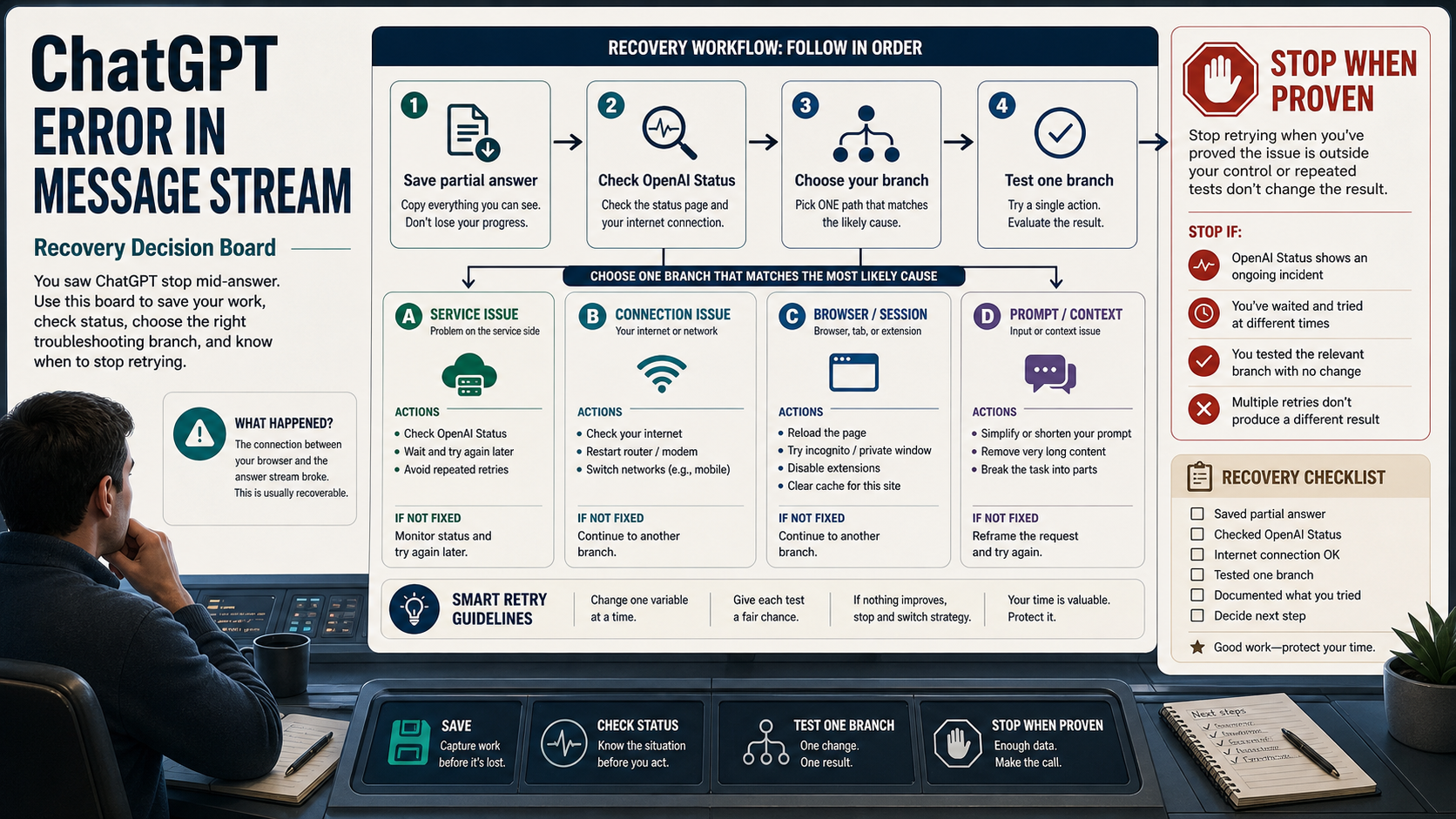
When ChatGPT shows "Error in message stream," the reply stopped before the stream finished. Save the partial answer and your prompt first; then check OpenAI Status and test one branch at a time so you know whether to wait, reset the chat, fix local browser or network state, shorten the request, remove an upload, or inspect developer logs.
At the May 16, 2026 live check, OpenAI Status returned All Systems Operational; that still did not prove every reader's conversation, account, model, upload path, or app integration was healthy. Treat status as the first branch test: an active incident means wait and retest, while a clear status page means isolate the current chat, browser or app, network path, request complexity, upload, or developer integration.
Use this recovery matrix before you change more settings.
| What you see | First action | Verify | Stop rule |
|---|---|---|---|
| Status shows an active ChatGPT incident | Save the partial answer, wait, and retry after the incident moves toward recovery | A clean retry works after status improves | Do not burn retries or clear local settings during an active incident |
| The same conversation fails again | Copy the prompt and partial answer, then start a new chat and ask it to continue from the saved text | The new chat finishes the response or fails with a clearer symptom | Do not keep pressing regenerate in the same broken thread |
| It works in a private window, another browser, or the mobile app | Disable extensions, sign out and in, reload, or clear only the affected browser state | The same short prompt works in the clean session | Do not reset every browser setting before proving profile state is the cause |
| It fails across browsers but changes on another network | Test a second network or device and review VPN, proxy, firewall, security filter, or WebSocket handling | The alternate route completes the stream | Escalate to network or IT support when corporate filters block streaming |
| Long prompts, large context, uploads, or image tasks fail first | Retry a short no-upload prompt, then split the request or remove the file | The short prompt works while the large or attached request fails | Treat it as a request or upload branch, not a general outage |
| Your own app or API stream fails | Inspect the API error class, timeout, retry policy, logs, and request ID | The ChatGPT web UI is no longer the main evidence | Do not apply UI fixes to a developer integration problem |
Stop once one branch gives evidence. If every branch still fails, collect the timestamp, browser or app, model or surface, conversation URL when available, screenshots, console or HAR evidence for persistent web failures, and request IDs for API failures before contacting Support.
Start With Status Because It Changes Whether Retrying Helps
OpenAI Status is not a decoration at the top of the fix list. It decides whether retrying is a useful test or just noise. If a relevant ChatGPT incident is active, the safest action is to preserve your prompt and partial output, wait for recovery, then retry in a fresh chat. Repeatedly pressing regenerate in the same broken thread during an incident does not prove anything about your browser, account, or prompt.
OpenAI's own ChatGPT troubleshooting help points readers toward status checks, new chats, reloads, sign-out and sign-in, private windows, extension checks, VPN or proxy checks, alternate browsers or devices, alternate networks, and support evidence when the issue persists. That order matters because the first few steps are reversible and high-signal. The deeper steps should wait until you know the service is not already degraded.
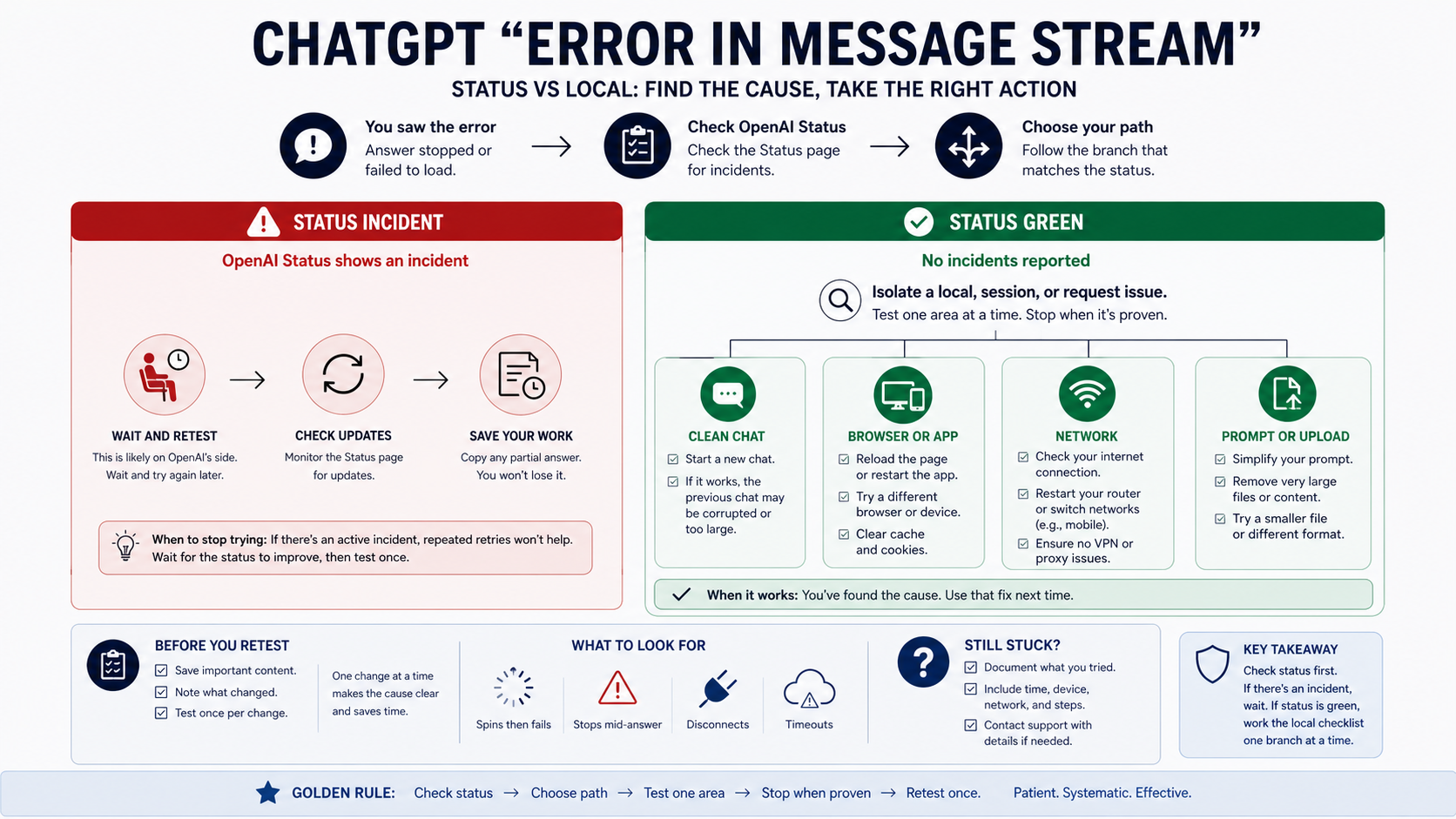
When status is clear, avoid the opposite mistake: do not assume the public status page proves your exact conversation is healthy. Status is aggregate, and availability can vary by model, feature, subscription tier, or product surface. A green page simply moves you to branch isolation. It says: test a clean chat, a clean browser or app state, a second network, a shorter request, and a no-upload prompt before collecting support evidence. The narrow conclusion is "keep testing branches," not "your local setup is definitely broken."
Use A Clean Chat To Prove Whether The Thread Is Broken
A clean chat is the fastest way to separate a broken conversation from a broader ChatGPT failure. Copy the prompt, copy the partial answer if it is useful, open a new chat, and ask ChatGPT to continue from the saved text. Keep the request shorter than the original for the first test. The goal is not to recreate the whole task immediately; the goal is to learn whether streaming works outside the original thread.
If the new chat completes, the old conversation is the problem branch. That can happen after long context, tool state, upload state, expired session state, or a response that failed mid-generation. Continue in the new chat and paste only the context needed to recover the work. If the new chat fails with the same phrase, keep the new chat as evidence and move to browser, app, network, and request-shape tests.
Do not refresh the original page before saving the partial answer. Browser reloads and app restarts are useful, but they can remove the only copy of a half-completed answer. A support-minded recovery sequence protects the work first, then tests the system.
Reset Browser Or App State Only After A Control Test
Browser fixes are easy to overuse because they are familiar. Clearing all cookies, wiping cache, disabling every extension, changing networks, and logging out everywhere may eventually change the symptom, but it destroys the diagnostic trail. A better local test changes one variable and asks what the result proves.
Start with a small control prompt in a new chat, with no upload and no special formatting:
Explain in three sentences why a streaming reply can stop before it finishes.If that works in the same browser, the basic session can still stream and the original request needs attention. If it fails, try a private or incognito window. If private mode works, the likely branch is browser profile state: extensions, blocked scripts, cached site data, privacy settings, VPN/proxy tools, or corporate security filters. Then fix the browser branch directly instead of changing your prompt again.
If the browser fails but the mobile app works, keep using the app to recover the answer and return to desktop debugging later. If the desktop app fails but a browser works, the app branch is likely. If every local surface fails while status is clear, the next useful test is the network path.
Test The Network And WebSocket Path
ChatGPT streaming depends on more than normal page loading. A page can load while the long-running reply stream still fails. OpenAI's network recommendations for ChatGPT errors call out secure WebSocket traffic, proxies, firewalls, TLS inspection, and idle timeout behavior as real parts of the web and app path. That makes the network branch different from "try another browser."
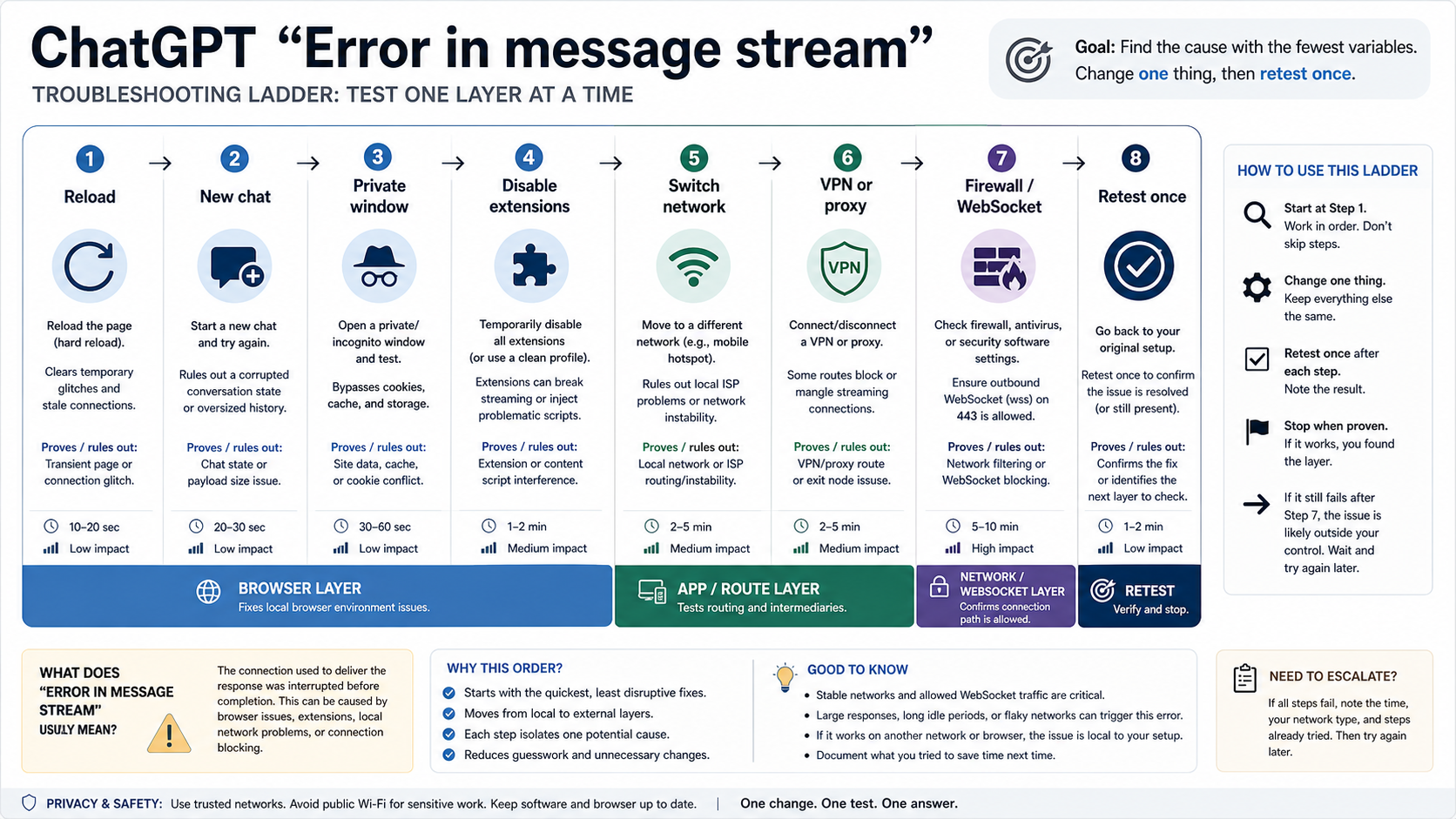
Use a second network as evidence. If the same short prompt fails on office Wi-Fi but works on a phone hotspot, the likely branch is the network route, proxy, firewall, content filter, or WebSocket handling. If it works at home but not on a corporate network, ask IT whether the required OpenAI domains, secure WebSocket traffic over TCP 443, proxy behavior, and idle timeout settings are compatible with ChatGPT.
VPNs can sit on either side of the diagnosis. A VPN may fix a route problem on one network, or it may create the problem by changing proxy, DNS, TLS, or region behavior. Test with the VPN off, then on, and record which route streams normally. If a security product or corporate proxy interrupts long responses after a predictable time, the evidence is stronger than a generic "network issue" label.
Shorten Long Prompts And Recover Partial Output
Long prompts, large context, many pasted files, and multi-step instructions make a message-stream failure harder to interpret. They can increase generation time, expand the amount of state ChatGPT must keep, or combine several failure branches into one request. A short prompt test tells you whether basic streaming still works before you rebuild the original task.
If the short prompt works, split the original request into smaller steps. Ask for an outline, then one section. Ask for a continuation from the saved partial answer instead of forcing ChatGPT to regenerate the entire output. If the answer stopped during a long coding or document task, paste the last complete paragraph or function and ask: "Continue from here. Do not rewrite the earlier part."
The stop rule is important: once a short prompt works and the full prompt fails, stop treating the symptom as a global outage. The branch is now request complexity, conversation state, or an attachment. Your fix is to reduce variables, not to keep refreshing.
Treat Uploads, Images, And Files As A Separate Branch
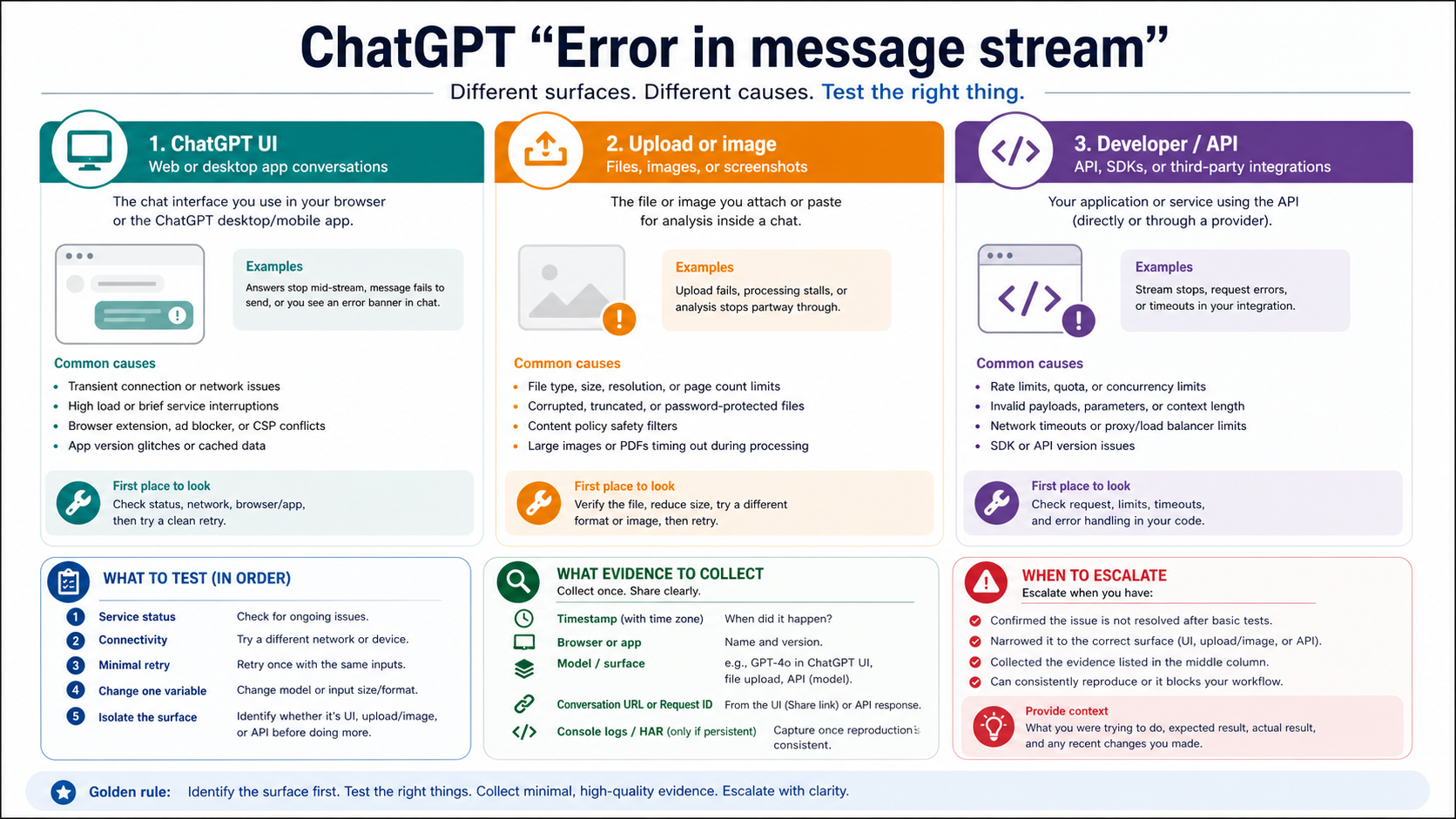
Uploads and image tasks can produce the same visible message while failing for a different reason. A file may be too large, temporarily unavailable to the conversation, blocked by upload quotas, hard for the model to process, or tied to an image-generation/editing workflow rather than ordinary text chat. OpenAI's File Uploads FAQ is the right evidence base for that branch, not a generic cache-clearing list.
Run one no-upload control prompt. If it streams normally, remove the file and test the request without it. Then test a known-good small file or a simple static image in a fresh chat. If only the file branch fails, follow the upload route: check file type, size, account limits, workspace policy, storage or upload cap messages, and whether failed upload attempts may count against upload-rate caps.
If the failure is actually image generation, use the dedicated image branch instead of letting it absorb the general message-stream diagnosis. The adjacent ChatGPT image generation recovery guide covers image tool access, prompt policy, upload/editing, quota, and API route boundaries. If the problem is specifically that ChatGPT will not accept an image at all, use the ChatGPT image upload troubleshooting guide after this branch test confirms upload ownership.
Separate Developer And API Streaming Errors From ChatGPT UI
An app or API stream failing with a related symptom is not the same incident as a normal ChatGPT web conversation stopping mid-answer. The recovery surface changes. For developers, the useful evidence is the API error class, transport behavior, timeout, retry policy, request ID, logs, model, endpoint, and whether the failure is reproducible with a minimal request.
OpenAI's developer error guidance separates connection errors, timeout errors, internal server errors, rate limit errors, and bad request errors. Those categories call for different handling. A timeout may need request splitting or client timeout changes. A connection error may need network or proxy work. A rate limit error needs backoff and usage-tier awareness. A bad request needs payload correction. An internal server error may require retry and status checks.
For a developer route, compare these two tests:
1. Does the same account complete a short answer in ChatGPT web?
2. Does the same model or endpoint fail through your app with a logged error class and request ID?
If the web UI works and the app fails, debug the integration. If both fail during a relevant status incident, preserve logs and wait before rewriting code. If the app fails only on long streaming responses, inspect client timeout, proxy buffering, server-sent events handling, WebSocket handling, and retry behavior before blaming ChatGPT itself.
Collect Support Evidence Instead Of Guessing
Support evidence is not busywork. It prevents you from sending a vague "it does not work" report after changing five variables. OpenAI Help asks for stronger evidence when persistent ChatGPT issues survive basic recovery steps, including browser console details or HAR evidence for web failures. For ordinary users, the useful packet is smaller: time and timezone, ChatGPT surface, browser or app, whether status showed an incident, the conversation URL if available, screenshot, what branch tests passed or failed, and whether uploads were involved.
For developers, include request IDs, timestamps, endpoint, model, error class, client library, timeout settings, retry behavior, and a minimal reproducible request. Do not send private prompts, sensitive files, or customer data unless the support channel specifically requires and protects that evidence.
The best prevention habit is to keep expensive work recoverable. For long answers, ask ChatGPT to work in sections. For important writing, code, or analysis, save checkpoints outside the chat. For file-heavy tasks, test the file path with a harmless small file before sending the full payload. For corporate networks, document the working network route before the next incident.
FAQ
What does "Error in message stream" mean in ChatGPT?
It means the answer did not finish streaming to your chat. The phrase is a visible symptom, not a stable official error code. The cause can be service load, a broken conversation, browser or app state, network/WebSocket interruption, long request complexity, upload handling, or a developer integration problem.
Should I refresh ChatGPT when I see it?
Save the partial answer and prompt before refreshing. Then check OpenAI Status. Refreshing or reloading can be useful after the work is preserved, but it is a bad first move if it deletes the only copy of the unfinished answer.
How do I know if ChatGPT is down?
Check OpenAI Status first and look for incidents affecting ChatGPT, the model, uploads, or the API surface you are using. A relevant active incident means waiting may be the correct fix. A clear status page means you should isolate local, network, request, upload, or API branches.
Why does private or incognito mode fix the error?
Private mode removes much of the normal browser profile state from the test. If ChatGPT streams correctly there, the likely cause is an extension, cached site data, blocked scripts, a privacy tool, a VPN/proxy setting, or another browser-profile layer. That result tells you where to fix next.
Can a long prompt cause this message?
Yes, a long prompt can turn a simple response into a complex request branch. If a short no-upload prompt works but the full request fails, split the task, continue from the saved partial answer, remove attachments, and test one variable at a time.
Does this fix image uploads or image generation too?
Only after the branch test says the error belongs to uploads or images. If text-only prompts stream normally and the failure appears only after an attachment or image task, use the upload or image-generation branch. The image-specific recovery paths are better once that ownership is proven.
What should API developers do differently?
Developers should inspect error classes, request IDs, logs, timeouts, retries, and transport behavior. ChatGPT web recovery steps do not fix APIConnectionError, APITimeoutError, InternalServerError, RateLimitError, or BadRequestError by themselves.
When should I contact Support?
Contact Support after status, clean chat, browser/app, network, short prompt, upload, and developer-route checks still do not isolate the problem. Send evidence: timestamp, surface, browser or app, conversation URL when available, screenshots, branch-test results, console or HAR evidence for persistent web failures, and request IDs for API failures.