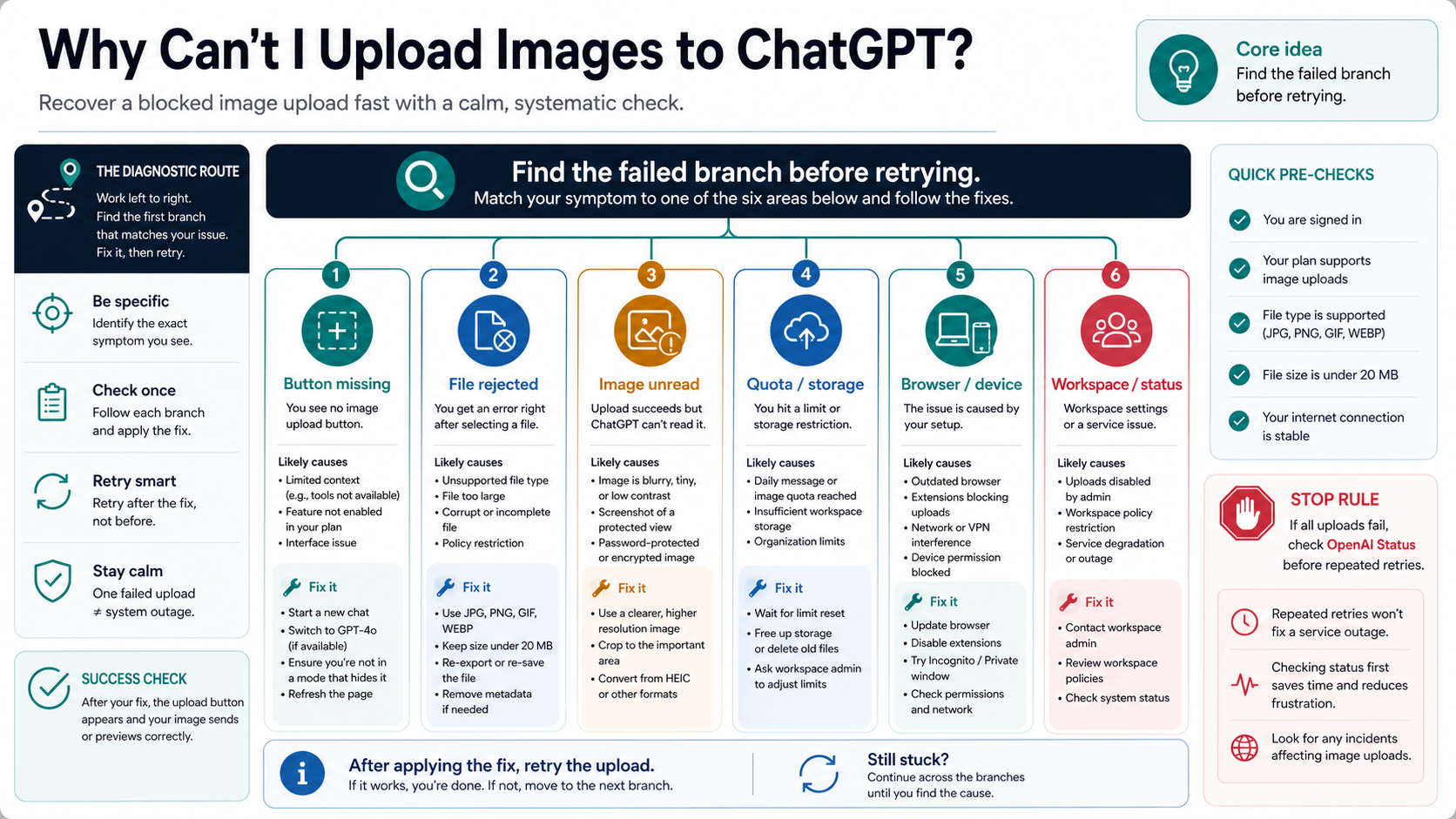
If ChatGPT will not take an image, the fastest fix is to identify which part of the upload path failed before you keep retrying. The failure is usually one of six branches: the upload button is missing, the file is rejected, the uploaded image is not read, a quota or storage message appears, the browser session is broken, or the account/workspace/status layer is blocking uploads.
Use the matrix first, then read only the branch that matches what you see.
| What you see | Likely branch | First action | How to confirm recovery |
|---|---|---|---|
| The upload or image button is missing or greyed out | image-capable mode, workspace rule, or app state | Start a fresh chat, switch to an image-capable mode if available, and test outside a restricted workspace | The button appears and accepts one small test image |
| ChatGPT rejects the image file | file validation | Re-export a simple static JPG or PNG, keep it under 20 MB, and remove unusual metadata | The same prompt accepts the simplified file |
| The file uploads but ChatGPT does not read it | processing or conversation state | Try one known-good small image in a fresh chat | ChatGPT can describe or use the test image |
| You see a max uploads, quota, or storage message | account-side upload cap or storage limit | Stop repeated retries and wait for the cap to reset or clear unnecessary stored files | A later upload succeeds without changing the file |
| Every image upload fails across files | browser/device or OpenAI service status | Test a second browser or device, then check OpenAI Status | The issue either disappears locally or matches a live incident |
| Upload works in one account but not another | workspace or admin control | Test a personal or allowed workspace and ask the admin to confirm file/image settings | The allowed account accepts the same test image |
OpenAI Help pages checked on May 15, 2026 list a 20 MB image limit for ChatGPT image uploads and describe upload caps that can count failed attempts. OpenAI Status showed all systems operational when checked on May 15, 2026, but if every upload fails after a fresh chat, a known-good small image, and a second browser or device, check the live status page before clearing more settings.
Start with the branch, not with a random fix list
Most image upload failures look similar from the user's side: you click, drag, paste, or select a file, and ChatGPT does not use it. The right fix depends on where the failure happens. A missing button is not the same problem as a rejected file. A quota message is not the same problem as a browser extension blocking an upload request. A workspace policy can make one account fail while another account works on the same device.
That is why the first test should be small and controlled. Open a fresh chat, use one simple static JPG or PNG that is clearly under 20 MB, and try it in the account where the problem appears. If the upload works there, the earlier thread, file, or mode was the issue. If it fails there too, try the same image in a second browser or device before you start clearing files, changing plans, or blaming a single model name.
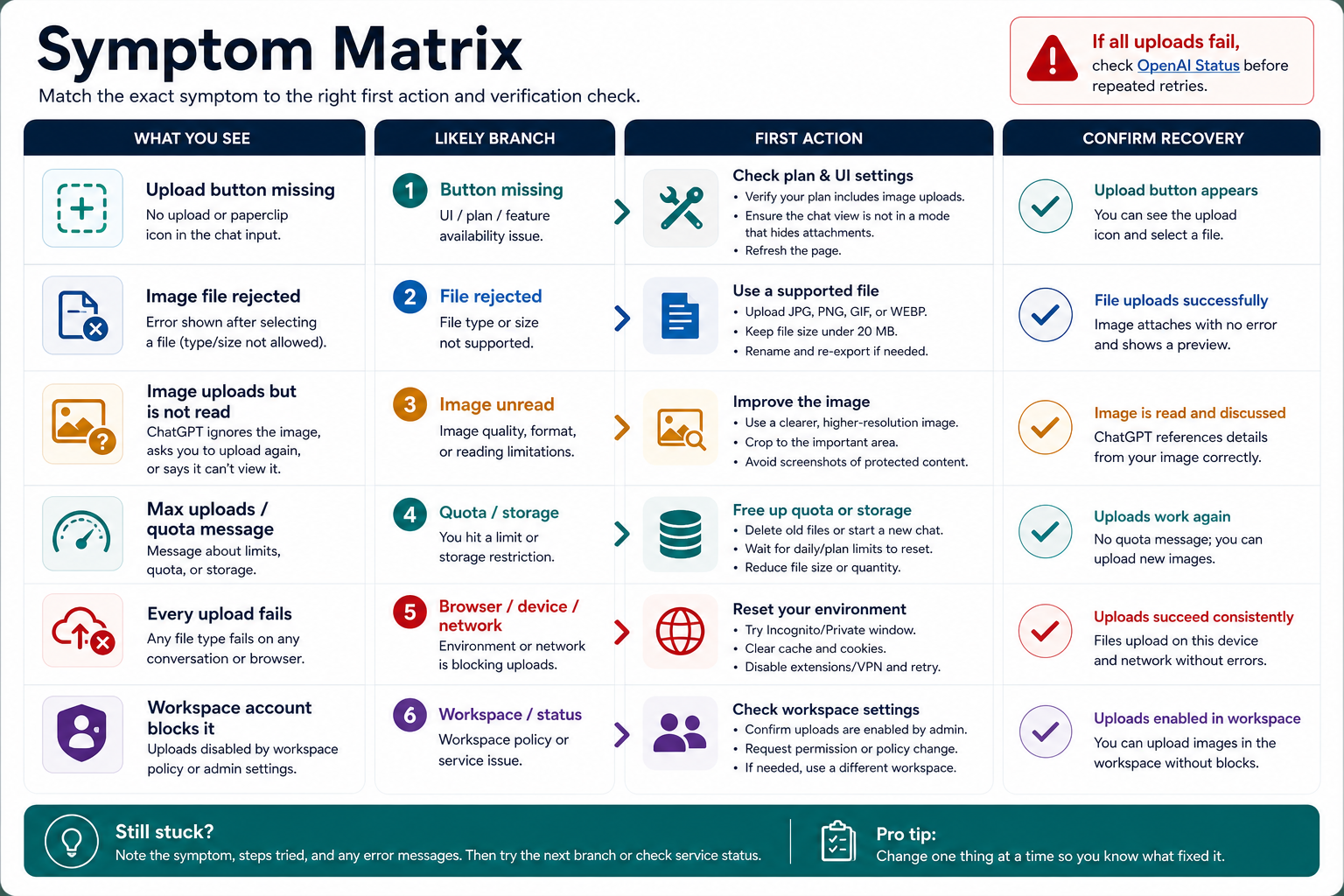
The main rule is simple: every branch needs a recovery check. Do not stop at "try another browser" unless the second browser actually accepts and reads the image. Do not assume "quota" unless the message or timing points there. Do not keep retrying during a service incident, because OpenAI's File Uploads FAQ says failed upload attempts can count toward upload-rate caps.
If the upload button is missing or greyed out
When the button is missing, disabled, or does not offer image selection, start with the product surface. ChatGPT image input, file upload, ChatGPT Images editing, and OpenAI API image input are related but not identical routes. A button disappearing in the ChatGPT app usually means the current chat, model/mode, workspace policy, browser state, or account entitlement is not exposing the image-capable path.
First, start a new chat. Long conversations and temporary UI state can hide or confuse attachment behavior, and a fresh chat is the fastest reversible test. Then check whether the current mode is image-capable. Avoid hardcoding one model name as the permanent answer, because OpenAI changes product labels; the durable test is whether the current ChatGPT surface lets you attach an image and asks about it.
If you use a team, enterprise, school, or managed workspace, test outside that workspace if policy allows. Admin controls can block file or image features even when the same person can upload from a personal account. When the same browser and same image work in one account but not another, treat the issue as account or workspace-side until the admin confirms settings.
If the button appears after a fresh chat or account switch, do not keep troubleshooting the file. Use the working route and document what changed: account, workspace, chat, app version, browser, and model/mode label. That evidence matters if the button later disappears again.
If ChatGPT rejects the image file
File rejection is the cleanest branch to isolate. Use the least surprising image you can create: a static JPG or PNG, normal color profile, no unusual metadata, no animation, and no oversized dimensions or file size. OpenAI's ChatGPT image-input documentation checked on May 15, 2026 lists supported static image formats and a 20 MB per-image limit; the developer API has its own image-input requirements, including different total payload rules, so do not mix the two contracts.
If a screenshot, HEIC export, edited image, or downloaded file fails, re-export it instead of repeatedly uploading the same file. Open it in a trusted local editor, save a new copy as JPG or PNG, give it a simple ASCII file name, and keep it well under 20 MB. If the image contains sensitive information, do not upload it to a random online converter just to change format. Re-export locally or remove private parts first.
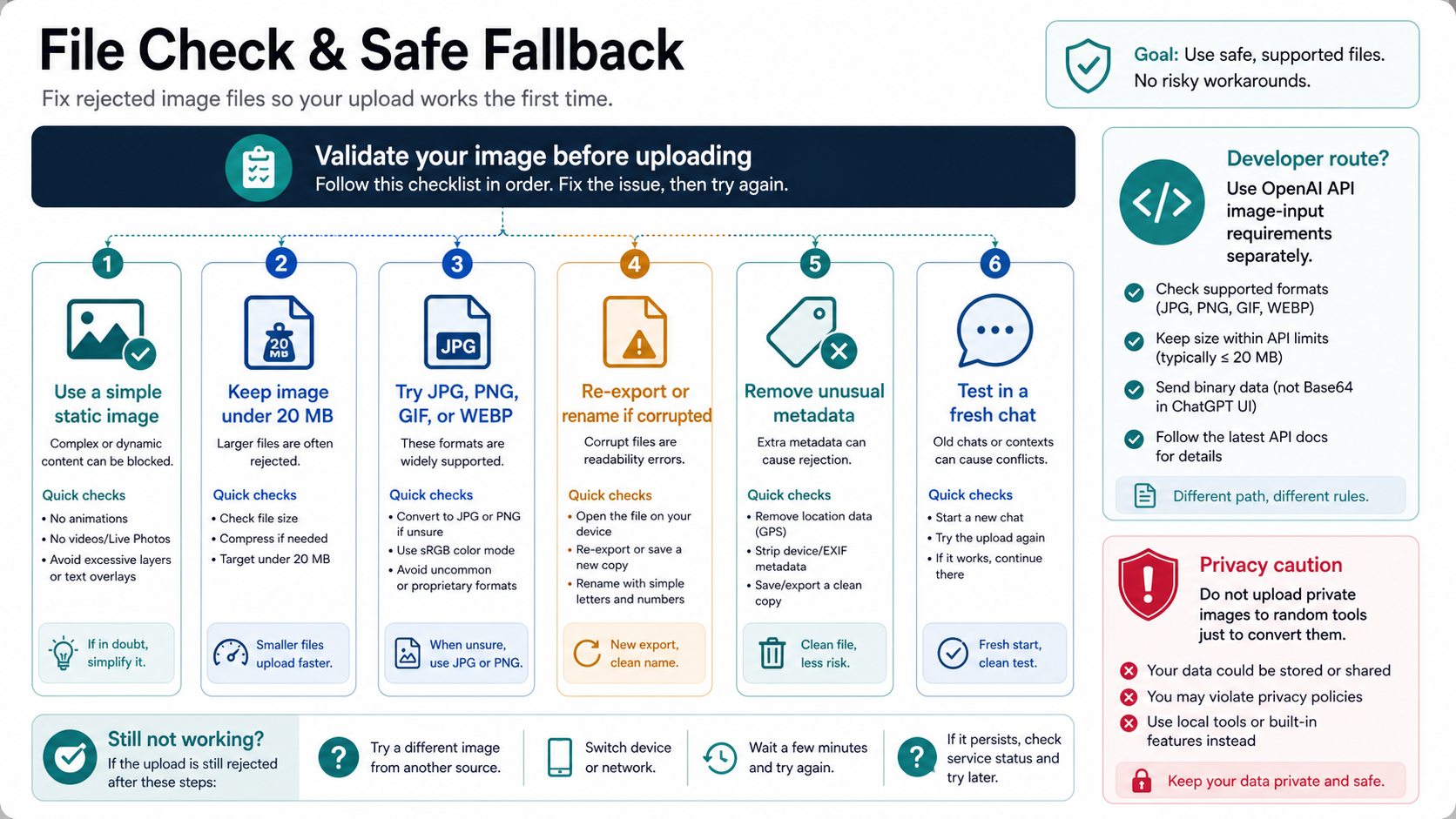
A good file test has only one variable. If the original image fails and a known-good small image succeeds, the service is working and the file needs simplification. If both fail in the same fresh chat, move to the browser/device or status branch. If the simplified image uploads but ChatGPT cannot understand it, the issue may be image quality rather than upload transport: the picture may be too blurry, too cropped, too small, too cluttered, or too dependent on text that is hard to read.
For developer workflows, check the OpenAI image and vision API requirements separately. API image input supports a broader programmatic contract than the ChatGPT app, including request payload limits and multi-image behavior. That can be useful for an application, but it is not a fix for a broken ChatGPT attachment button.
If the image uploads but ChatGPT does not use it
Sometimes the file appears in the composer or conversation, but the answer behaves as if no image was attached. This is different from a rejected upload. The transport may have succeeded while the model did not receive, process, or use the image in the way the prompt expected.
Run a simple confirmation prompt with a known-good image: "Describe the main visible object in this image in one sentence." If ChatGPT can answer that prompt in a fresh chat, the image-input path is working. The original issue may be that the image was too complex, the prompt asked for unsupported certainty, or the image content did not contain enough visible information.
If the known-good image is also ignored, avoid long multi-step prompts until the base input works. Remove other attachments, shorten the message, and send one image with one direct question. If that still fails in a fresh chat and another browser, collect evidence for support: screenshot, exact prompt, file type, file size, account email, time and timezone, browser/app version, and any request ID or error text shown in the interface.
This branch is also where ChatGPT Images can confuse the diagnosis. Uploading an existing image for editing or generation is not the same reader job as asking ChatGPT to analyze an image in a conversation. If the failure happens inside an edit or generation flow, use OpenAI's Images in ChatGPT guidance for that surface. If the failure happens in a normal chat attachment, stay with the image-input and file-upload branches.
If you see a quota, max uploads, or storage message
Quota messages are real, but they should not be used as the explanation for every failure. OpenAI's File Uploads FAQ checked on May 15, 2026 says users can upload up to 80 files every 3 hours, Free users are limited to 3 file uploads per day, and OpenAI may lower limits during peak hours. It also says ChatGPT does not provide an exact remaining-quota dashboard for users.
The practical response is to stop burning attempts. If the message says you reached an upload cap, do not keep testing the same image across the same account and browser. Wait for the cap to reset, reduce unnecessary uploads, and use one known-good test image when you return. If you are also near a storage cap, delete files you no longer need before testing again.
This is where the older upload-limit question becomes useful but secondary. If you need a deeper quota explainer, use the broader ChatGPT image upload limits guide after you have confirmed that your current symptom is actually quota-related. The article here is narrower: it helps you decide whether quota is the branch at all.
Failed attempts can matter. If a large or corrupted image keeps producing upload errors, repeated retries may count against the cap without giving you a usable conversation. Simplify the file first, then test once. If that single controlled upload fails with the same quota message, wait instead of changing everything else.
If it looks like a browser, app, or device problem
Browser and device issues are common because the upload path depends on local state: session cookies, extensions, network stability, cached app code, file picker permissions, and corporate network rules. This branch is likely when the same account and file fail in one browser but work in another, or when the upload area reacts inconsistently before the file reaches ChatGPT.
Use a short isolation sequence:
- refresh the page and sign out/in once
- start a fresh chat
- try a private/incognito window with extensions disabled
- try another browser
- try another device or the mobile/desktop app
- test a smaller known-good JPG or PNG
The point is not to perform every cleanup ritual. The point is to find the first boundary where the same account and same image work. If the second browser succeeds, the original browser is the branch. If every browser on the same network fails but mobile data works, the network may be filtering uploads. If the same device works for one account but not another, move back to account/workspace or quota.
Avoid destructive cleanup unless the test points there. Clearing all browser data, deleting app storage, or changing security settings can create new variables. A private window or second browser gives you cleaner evidence without breaking the working environment.
If every upload fails, check status before deeper local repair
When every file fails across a fresh chat, a known-good image, and a second browser or device, stop local retry loops and check OpenAI Status. OpenAI's status history checked on May 15, 2026 included a resolved May 11, 2026 incident for elevated ChatGPT file-upload errors and a resolved May 1, 2026 incident for elevated image-generation errors affecting APIs and ChatGPT. Those past incidents do not prove a current outage, but they show why the status branch belongs in the diagnosis.
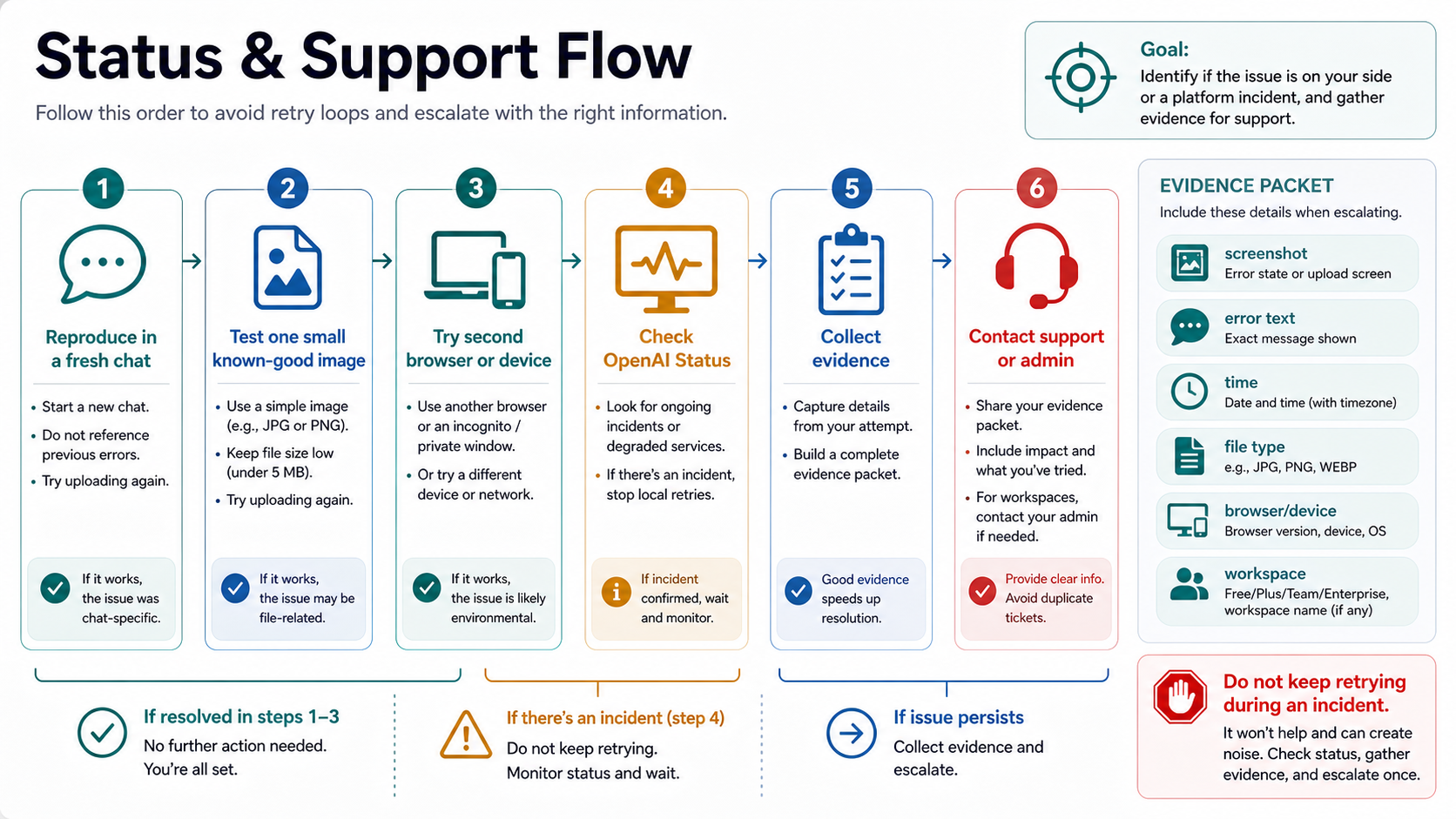
If the status page shows an active incident affecting ChatGPT uploads, file uploads, image generation, or related services, the best next step is usually to wait and retry later with one simple test image. Reinstalling apps, deleting browser profiles, or changing account settings during an incident rarely helps.
If status is clear and the failure still reproduces, prepare a support packet instead of sending a vague "image upload is broken" report. Include:
- account email and workspace name if relevant
- timestamp and timezone
- browser, app, device, and OS
- file type and approximate file size
- screenshot of the error or greyed-out button
- exact error text
- whether the same image works in a second browser/device
- whether a personal account and workspace account behave differently
- request ID if the interface exposes one
Keep the evidence small enough that support can reproduce the path quickly: one failing file, one known-good file, the exact branch you already tested, and the last time you checked status.
This packet also helps your own admin. A workspace administrator can only diagnose policy if they know which account, workspace, device, and file path failed.
If a workspace or account setting is the cause
Workspace issues are easy to misread because the interface may look almost identical across accounts. A managed account can block file or image behavior that a personal account allows. The reverse can also happen if the personal account has hit a cap while the workspace account has different limits.
The clean test is same image, same device, different account context. If a personal account can upload the known-good image and the workspace account cannot, ask the admin to check file upload, data control, connector, and model access settings. If the workspace account works and the personal account does not, check personal quota, plan state, and storage.
Do not use this branch to bypass company policy. If the image contains work data, customer data, financial records, medical information, credentials, or private screenshots, the safer route is to ask the admin for the allowed process rather than moving the file into a personal account or third-party converter.
When an API route is the right fallback
An API route is useful when the job is programmatic, repeatable, logged, or part of a product workflow. It is not a universal fix for a broken ChatGPT UI upload. The ChatGPT app is a consumer/product surface; the OpenAI API is a developer contract with different request fields, limits, authentication, billing, and privacy responsibilities.
Use the API path if you need to send image inputs from your own application, control retries, store outputs, or build a consistent workflow around user files. Use ChatGPT if you need quick conversation-based analysis, a one-off explanation, or manual troubleshooting. If you are moving from ChatGPT to production image handling, the GPT Image 2 API guide is the better next read than another browser workaround.
Before sending images through any API or provider gateway, answer four questions:
- who owns the billing and quota
- where the image is stored and for how long
- what happens when upload or processing fails
- whether the image contains private or regulated information
Those questions matter more than the fastest workaround. A random converter or wrapper may appear to solve "unable to upload image" for a non-sensitive screenshot, but it is not appropriate for private documents, customer data, unreleased product screens, or identity information.
The fastest recovery path
Use this sequence when you do not know where to start:
- Open a fresh chat.
- Try one small static JPG or PNG under 20 MB.
- Ask ChatGPT to describe the image in one sentence.
- If the button is missing, check image-capable mode and workspace/account context.
- If the file is rejected, re-export the image locally and remove unusual metadata.
- If a quota message appears, stop retrying and wait for reset or clear storage.
- If every image fails, test another browser/device and check OpenAI Status.
- If status is clear and failure persists, collect a support packet.
That path keeps the problem narrow. It prevents the two expensive mistakes: treating every upload failure as quota, and treating every quota-looking failure as something that browser cleanup can fix.
FAQ
Why is the ChatGPT image upload button greyed out?
The most likely causes are an image-incompatible chat mode, a temporary app state, a workspace restriction, or an account-side entitlement/limit issue. Start a new chat, test an image-capable mode if available, and compare a personal account with a workspace account when policy allows.
What does "unable to upload image.png" mean?
It usually points to the file-validation or browser/device branch. Re-export the file as a simple JPG or PNG, keep it under 20 MB, simplify the file name, and test it in a fresh chat. If a known-good small image also fails, move to browser/device or status checks.
Can failed ChatGPT image uploads count against my limit?
OpenAI's File Uploads FAQ checked on May 15, 2026 says failed uploads can count toward upload-rate caps. That is why repeated retries with the same large or corrupted file are risky. Simplify the file first, then test once.
Is ChatGPT image upload down right now?
Check OpenAI Status live. It showed all systems operational when checked on May 15, 2026, but upload and image-generation incidents did occur earlier in May 2026. If every upload fails across a fresh chat, a small known-good image, and a second browser/device, status is the next branch.
How do I enable image upload in ChatGPT?
Use a ChatGPT surface and mode that supports image input, then upload through the attachment button, drag-and-drop, or paste if the interface exposes those options. If the option is missing in a workspace account, ask the workspace admin to confirm policy and model access.
Should I use a third-party tool when ChatGPT will not upload my image?
Only for non-sensitive images and only after you understand who owns storage, billing, output rights, support, and failure handling. Do not upload private images, customer data, IDs, invoices, medical material, or unreleased screenshots to random converters just to bypass a ChatGPT file issue.