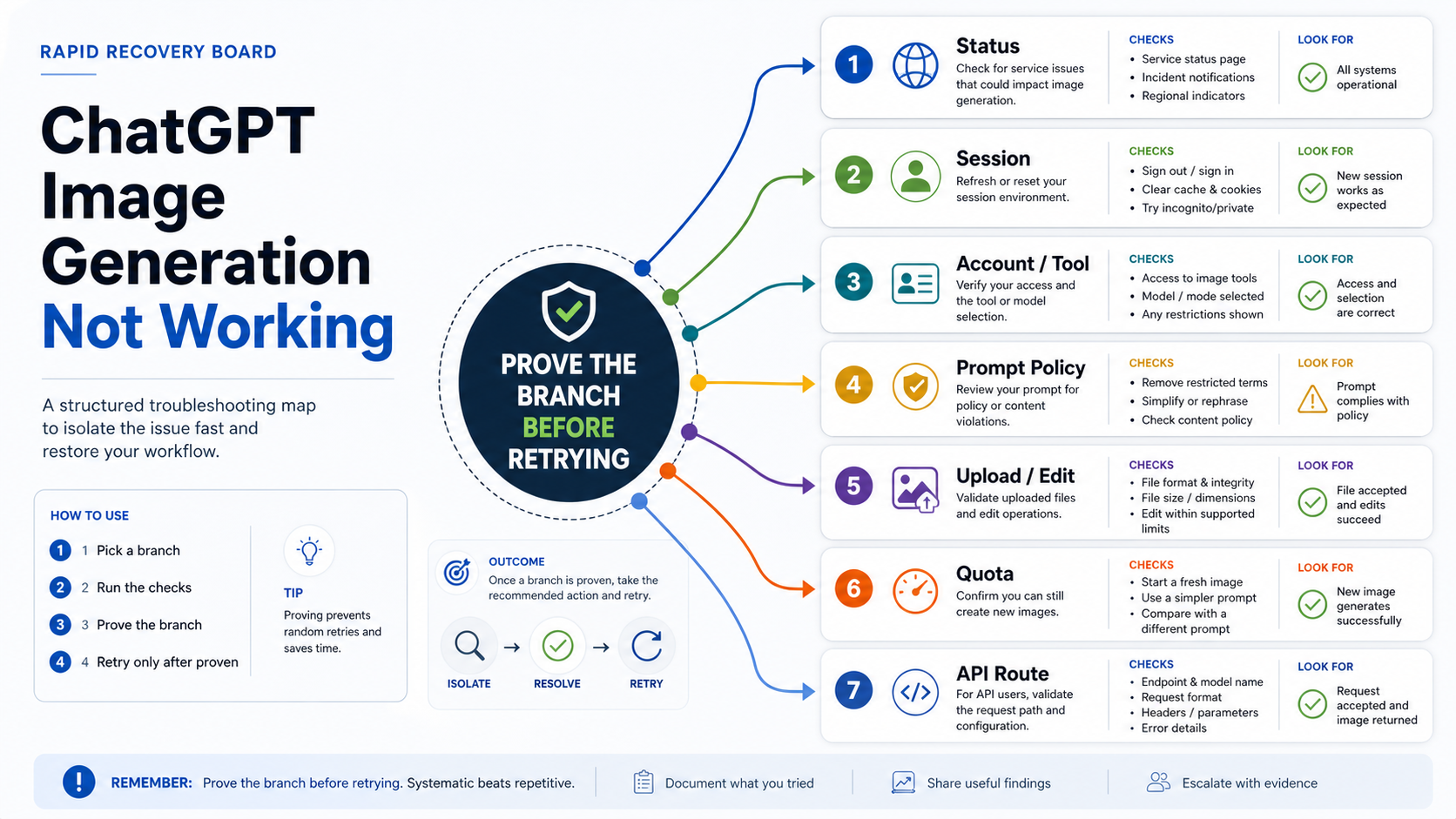
When ChatGPT image generation is not working, the fastest fix is to prove the failure branch before you retry. Start with OpenAI Status, then test one clean variable at a time: a new chat, a fresh browser or app session, the image-capable tool or custom GPT setting, a harmless prompt, the upload file, quota or plan state, and only then the API route if you are actually using one.
Checked on May 15, 2026, OpenAI Status showed all systems operational, while a May 1, 2026 image-generation incident had already been resolved. That does not prove your account is healthy, but it does change the first move: if status is clear, stop burning retries in the same broken chat and isolate the local, account, prompt, upload, or route branch.
Use the recovery board below as the order of operations. If a branch fails verification, move to the next branch with the evidence you just collected. If status shows an active incident, wait instead of repeatedly sending the same prompt. If the prompt contains sensitive people, copyrighted characters, private uploads, or complex edit instructions, test with a harmless prompt before assuming the image generator itself is down.
| Symptom | Likely branch | First action | Verify | Stop rule |
|---|---|---|---|---|
| Image tool or button is missing | account or tool access | Switch to an image-capable ChatGPT surface and check custom GPT or workspace settings | The same prompt shows an image option in a clean chat | Do not debug browser cache before access is confirmed |
| Generation fails or says something went wrong | status, session, or browser | Check OpenAI Status, start a new chat, refresh, sign out and in, or try a private window | A simple public prompt generates in the clean session | Do not keep retrying in the same failing chat |
| It spins for a long time | incident, load, or session state | Check status, wait if there is an incident, then test a new chat | The spinner clears or fails consistently across sessions | Do not burn limits during a known incident |
| Harmless prompts work but your real prompt fails | prompt or policy branch | Remove risky wording, simplify the edit, and test a neutral version | The neutral prompt works while the original fails | Do not treat a policy-sensitive prompt as an outage |
| Upload or editing fails | source image branch | Check file format, size, privacy, and re-upload in a clean session | The source file uploads or fails with a clearer error | Do not upload private images to unknown fallback tools |
| API calls fail | developer route branch | Inspect Images API or Responses image_generation separately | ChatGPT web/app behavior is no longer the evidence | Do not apply API fixes to a ChatGPT UI problem |
Check status before local fixes
OpenAI Status should be the first stop because a real service incident changes the correct behavior. During an active incident, repeated retries can waste time and quota while adding no useful diagnostic signal. Save the prompt, record the timestamp, wait for the incident to clear, and test again in a fresh chat after recovery.
When status is clear, the next question is not "which magic fix should I try?" It is "which branch can I prove or eliminate?" OpenAI's own troubleshooting guidance for stuck or unresponsive ChatGPT sessions points toward a practical order: wait briefly, stop or regenerate, start a new chat, reload the page or app, sign out and back in, try a private window, disable extensions or VPN/proxy/security filters, switch browser, switch device, switch network, and only then collect deeper browser evidence if the failure persists.
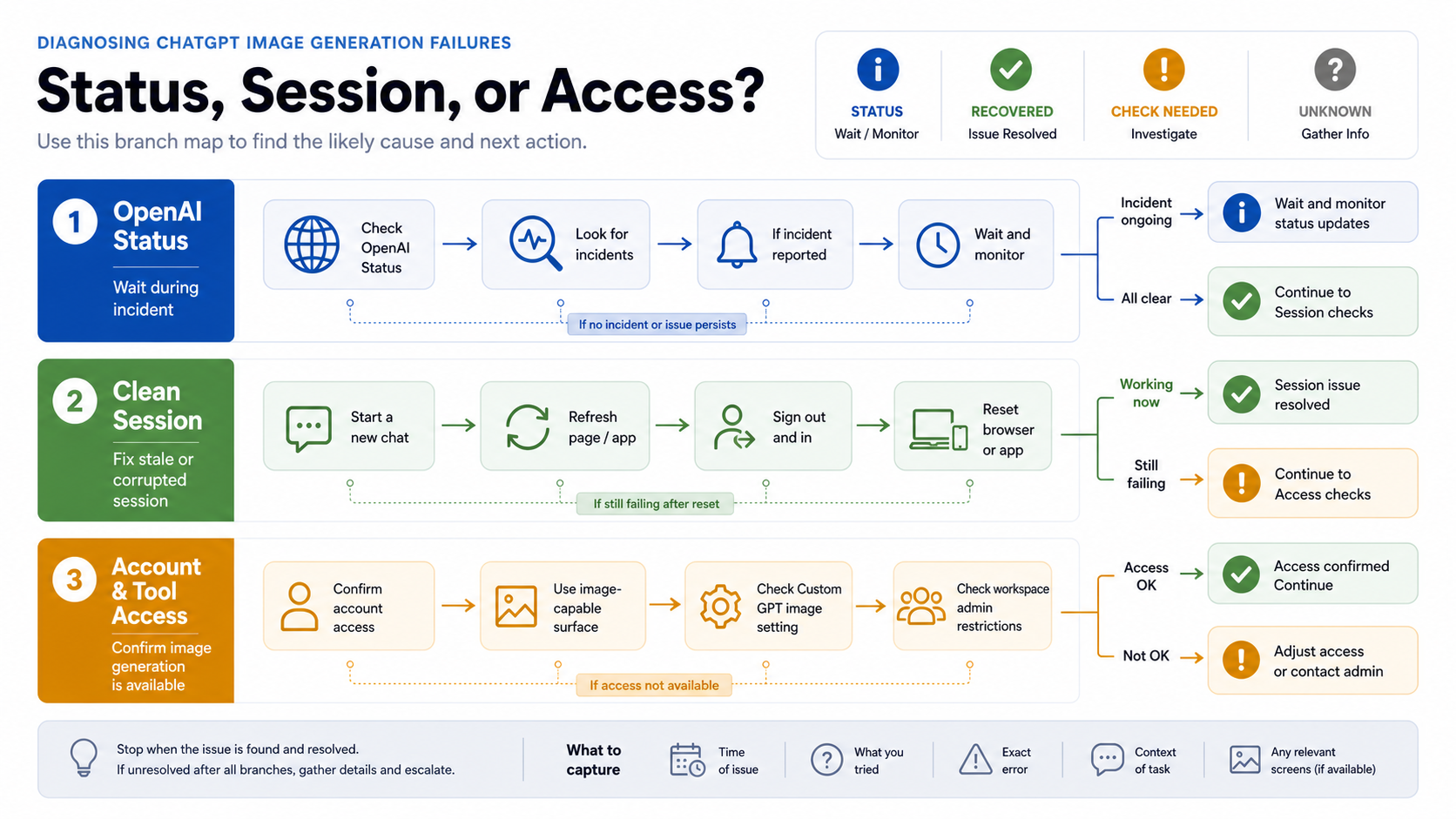
The May 1, 2026 resolved image-generation incident matters because it proves image generation can fail as a platform condition across APIs and ChatGPT. It should not be used as proof that every later failure is an outage. If status is green and text chat works normally, a local session, tool access, prompt, upload, or account branch is more likely than a global failure.
Use one boring control prompt before changing anything else:
Create a simple square image of a blue coffee mug on a white desk.If that prompt works in a new chat, the image system is probably available to your account and the original prompt or source file needs attention. If it fails across browser, app, device, and network while status is green, collect evidence instead of guessing.
Reset the session, browser, or app without changing every variable
A broken chat session can make image generation look worse than it is. Long conversations, tool state, expired sessions, blocked scripts, extensions, VPNs, proxy filters, corporate security software, or stale app state can all produce the same user-facing result: the image never appears, the button stops responding, or the request fails with a generic message.
Work through the local branch in a controlled order:
- Start a new chat and run the simple public control prompt.
- Hard refresh the browser tab or fully quit and reopen the mobile or desktop app.
- Sign out and sign back in.
- Try a private or incognito window with extensions disabled.
- Disable VPNs, proxies, ad blockers, privacy extensions, and security filters for the test.
- Switch browser, device, or network.
- Re-test the same simple prompt before returning to the original prompt.
Do not change prompt, browser, account, network, and image file at the same time. That may make the request succeed, but it will not tell you which branch was broken. For a recurring production or client workflow, the diagnostic value is in changing one variable and recording the result.
If image generation works in a private window but not your normal browser, inspect extensions, cached site data, blocked scripts, and enterprise filters. If it works on mobile but not desktop, the desktop browser or network is the likely branch. If it fails everywhere for the same account while another account works, shift to access, workspace, or quota checks.
Check account, workspace, and image-capable tool access
The image button can disappear even when ChatGPT itself is reachable. OpenAI Help describes image creation as a ChatGPT product feature: users can ask ChatGPT to create an image or use the Create image tool where that surface is available. Custom GPTs need Image Generation enabled in their capabilities. DALL-E also remains available through the DALL-E GPT for Free, Plus, Team, and Pro users, with DALL-E-generated images labeled accordingly.
The practical rule is to check access before deep local debugging:
| Access question | What to test | What it proves |
|---|---|---|
| Are you in a chat surface that supports images? | Start a new chat and look for an image-capable tool or create-image affordance | Whether the issue is tool availability rather than the prompt |
| Is a custom GPT involved? | Check whether Image Generation is enabled for that GPT | Whether the GPT config is blocking the feature |
| Is a workspace involved? | Try the same task in a personal space or ask an admin about image tools | Whether admin or enterprise settings are involved |
| Does another account work? | Test only with a public prompt and no private assets | Whether the issue is account-specific |
| Does DALL-E GPT work? | Use it as an official fallback check, not as proof of the main surface | Whether an official alternate ChatGPT image route is still available |
Avoid the stale advice that says the fix is always "switch to GPT-4o" or "use DALL-E 3." Product labels change. The safer wording is to choose a ChatGPT surface that explicitly supports image generation, and to treat DALL-E GPT as an official fallback branch when the main image surface is not working for your account.
Plan or account limits are also volatile. Some pages publish fixed free or paid image counts, but those claims can drift and can vary by account, workspace, plan, region, or product changes. If you suspect quota, look for the in-product message, test after waiting, and avoid publishing or relying on exact limits unless OpenAI's current first-party docs or UI state clearly say so.
Separate prompt policy from a technical failure
If a harmless prompt works but the real prompt fails, the issue may not be the image generator. ChatGPT Images 2.0 uses image-specific safety layers around prompts, image inputs, and outputs. That means a request can be blocked, transformed, or refused because of the content, rights risk, source image, or requested edit, even when image generation is operational.
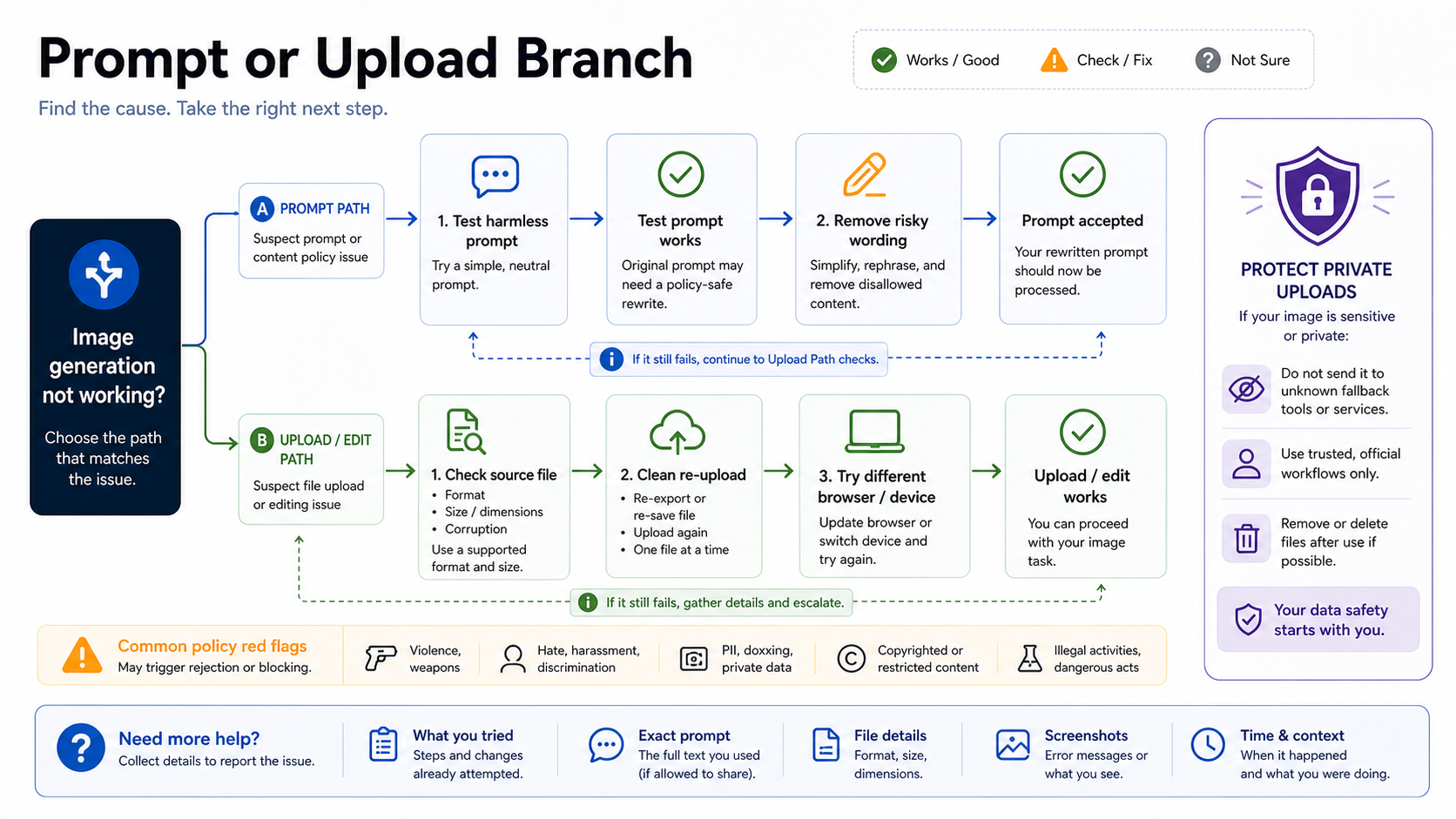
Use a controlled prompt test:
- Run the simple coffee-mug prompt in a new chat.
- If it works, remove sensitive people, public figures, copyrighted characters, private documents, logos, medical or legal content, and rights-sensitive instructions from the original prompt.
- Simplify the request into one image goal, one subject, one style, and one composition.
- Add complexity back one piece at a time.
Policy-sensitive prompts often fail in ways that feel technical: no useful image, a refusal, a safer alternate output, or a generic failure message. The evidence is the contrast. If neutral prompts generate and the original prompt fails repeatedly, stop treating the issue as an outage.
This branch also matters for privacy. Do not upload private customer images, unreleased product shots, IDs, contracts, medical files, or client assets into random fallback tools just to see whether another generator works. For low-risk testing, use public prompts or synthetic sample images. Private source images need a route with visible data handling, deletion, rights, and support terms.
Fix upload and editing failures as their own branch
Image upload and image editing are not the same as text-to-image generation. A failed upload can make the whole feature look broken, but the actual cause may be file format, file size, corrupted metadata, browser permission, network filtering, or a source image that triggers safety review.
Start with a clean upload test:
- Use a small public PNG or JPEG sample.
- Rename the file with plain characters.
- Re-export the source image if it came from a messaging app, screenshot tool, or design program.
- Try a new chat and a private browser window.
- Switch browser or device if the upload control itself is failing.
- Keep sensitive source images out of unknown fallback routes.
If text-to-image works but editing an uploaded image fails, keep the failure in the upload/edit branch. If uploads work but the edit prompt fails, move to the prompt/policy branch. If the upload succeeds but the generated edit never appears, return to status and session checks.
Editing requests also fail when they try to do too much at once. Instead of asking for a full redesign, face change, text rewrite, background replacement, and style shift in one prompt, isolate the edit:
Use this uploaded image as the reference. Change only the background to a clean studio wall. Keep the subject, crop, and lighting close to the original.If that works, the original prompt was too broad or too risky. If it fails across files, browsers, and devices, collect upload evidence: file type, file size, source, browser/app, network, exact error, and status state.
Do not mix ChatGPT UI recovery with API debugging
A ChatGPT web or app failure is not automatically an OpenAI API failure. The reverse is also true. Developers should split the routes before changing code.
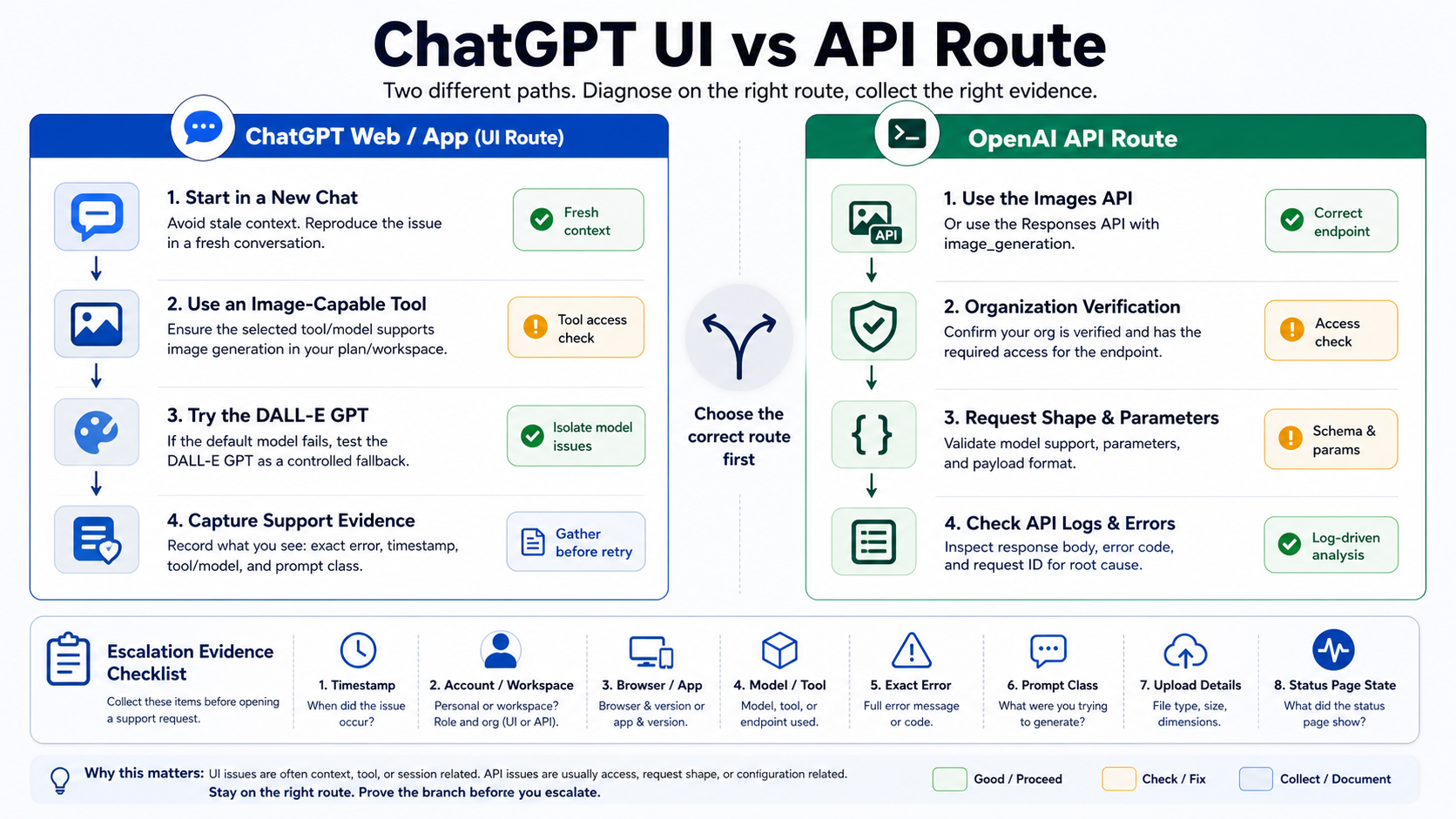
Use ChatGPT recovery steps when the failure happens inside chat.openai.com or the ChatGPT app: status, clean session, account/tool access, prompt safety, upload/editing, and workspace settings. Use API debugging only when your backend is calling OpenAI endpoints or SDK methods.
For API work, the official route split is different:
- Use the Images API for direct single-image generation or editing.
- Use Responses with the hosted
image_generationtool when image generation belongs inside a conversational or multi-step flow. - Keep
gpt-image-2API access separate from ChatGPT UI access; GPT Image models may require organization verification. - Do not assume a ChatGPT prompt that works interactively proves API access, pricing, size support, output storage, retry behavior, or logs.
If your production problem is API-specific, move to a developer route map such as the GPT Image 2 API guide or the OpenAI image generation API endpoint guide. If your problem is safe browser testing or route ownership before API work, the GPT Image 2 free online route guide is the better next stop. Keep those as deeper branches, not the first fix for a blocked ChatGPT user.
Escalate with evidence instead of more guesses
Escalation is useful only when it contains the facts support can act on. Before contacting support or handing the issue to an admin, collect a compact evidence pack:
| Evidence | Why it matters |
|---|---|
| Timestamp and timezone | Aligns the failure with status or incident windows |
| Account and workspace type | Separates personal, team, enterprise, and admin-controlled branches |
| Browser, app version, device, and OS | Identifies local compatibility issues |
| Network, VPN, proxy, extension, or security filter state | Explains failures that disappear in a clean session |
| ChatGPT surface or custom GPT name | Shows whether the tool was image-capable |
| Exact visible error or behavior | Distinguishes refusal, spinner, missing button, upload failure, and API error |
| Safe version of the prompt class | Helps separate policy from technical failure without exposing private data |
| Upload format and approximate file size | Helps diagnose edit/upload issues |
| OpenAI Status state when tested | Shows whether waiting was the correct action |
OpenAI's troubleshooting guidance can also lead to HAR or browser console collection for persistent browser problems. Do that only when needed and be careful with sensitive data in logs. Do not send private prompts, source images, access tokens, customer identifiers, or unrelated session data unless the support flow explicitly requires it and you understand what is included.
The escalation threshold is simple: if status is clear, a new chat fails, a clean browser/app session fails, another device or network fails, harmless prompts fail, upload controls fail with public files, and account/tool access looks correct, stop random retries. The issue is now evidence collection, not more prompt tweaking.
Safe fallback rules
A fallback image tool can be reasonable when the task is public, low-risk, and disposable. It is not a safe default for private uploads or client material. Before using any third-party route, check who runs it, what model or provider route it claims, what happens to uploads, what rights apply to outputs, whether there is a deletion path, and what limits or billing rules apply.
For a quick public prompt, a fallback can answer whether your prompt concept is clear. For anything repeated, private, commercial, automated, or client-facing, use a route with explicit ownership, logs, billing, retry behavior, and support. That may mean official ChatGPT, the official API, or a provider contract with terms you can actually inspect.
Do not treat fallback success as proof that ChatGPT is broken. It may simply prove that a different product, model, safety policy, upload path, or account state handled the request differently.
FAQ
Is ChatGPT image generation down today?
Check OpenAI Status first. At the May 15, 2026 check for this run, OpenAI Status showed all systems operational, while a May 1, 2026 image-generation incident had already been resolved. Recheck status before troubleshooting because outage state changes quickly.
Why is the image button missing in ChatGPT?
Treat a missing button as an access or surface problem first. Start a new chat, make sure the active surface supports image generation, check custom GPT Image Generation capability, and consider workspace or admin restrictions. Browser cache is not the first branch until access is confirmed.
Why does ChatGPT take so long to generate an image?
OpenAI Help says complex image prompts can take up to two minutes. If the spinner goes beyond a reasonable wait, check status, test a simple prompt in a new chat, and avoid repeated retries during an active incident.
Why does one prompt fail while simple prompts work?
That points toward prompt or policy sensitivity. Test a harmless prompt, remove rights-sensitive or private material, simplify the edit, and add complexity back one piece at a time.
Why can I upload an image but not edit it?
Keep upload and editing separate. If a public source image uploads but the edit fails, inspect the edit prompt and policy branch. If uploads fail across clean sessions, inspect file format, file size, browser/app state, network, and source image sensitivity.
Can a free account use ChatGPT image generation?
OpenAI Help describes image creation in ChatGPT and identifies DALL-E GPT availability for Free, Plus, Team, and Pro users, but exact limits and availability can change by plan, workspace, account state, and product rollout. Do not rely on fixed quota numbers unless the current OpenAI UI or docs state them for your account.
Should I fix ChatGPT image failures by changing API endpoints?
Only if your application is actually calling the API. ChatGPT web/app failures should be diagnosed through status, session, account/tool access, prompt policy, and upload branches. API failures belong to Images API, Responses image_generation, request shape, organization verification, logs, and billing route checks.
What should I send to support?
Send a concise evidence pack: timestamp, timezone, account/workspace type, browser/app/device, network or VPN/proxy state, ChatGPT surface or custom GPT, exact error, safe prompt class, upload format and size if relevant, and the OpenAI Status state at the time of testing.