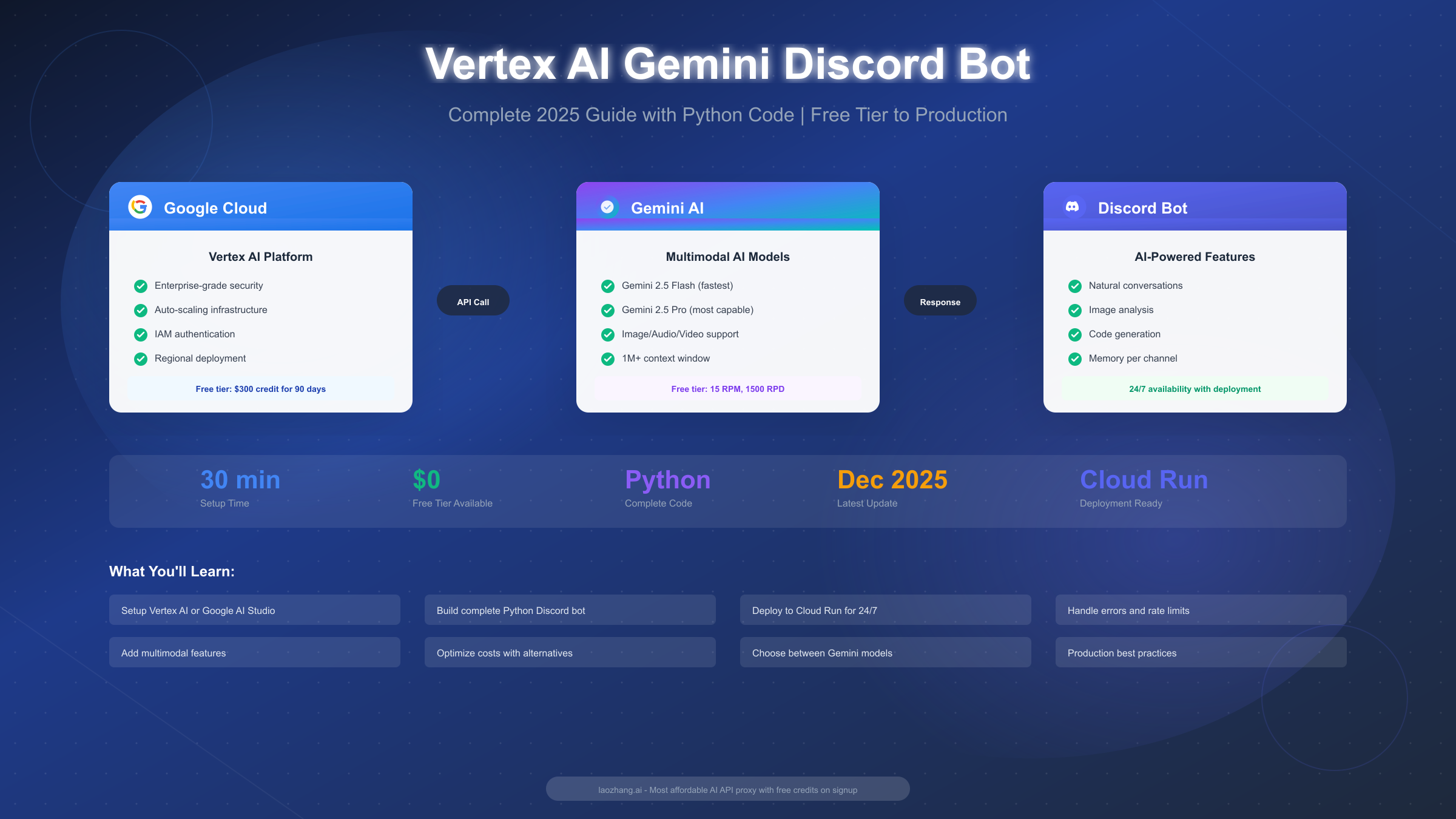
Building a Discord bot powered by Google's Vertex AI Gemini requires a Google Cloud account, a Discord application, and the Google GenAI Python library. As of December 2025, Vertex AI supports Gemini 2.5 Flash (fastest, cheapest at $0.075/1M tokens) and Gemini 2.5 Pro (most capable) models, with Google AI Studio offering a completely free tier at 15 requests per minute. This guide provides complete Python code, deployment options including Google Cloud Run, and troubleshooting for common issues like rate limiting and authentication errors—everything you need to get your AI-powered Discord bot running in production.
Understanding Vertex AI Gemini for Discord Bots
Google offers two distinct ways to access Gemini models for building Discord bots, and choosing the right one depends on your specific requirements around security, scalability, and cost. Understanding these differences upfront will save you significant time and potential migration headaches down the road.
Vertex AI is Google's enterprise-grade machine learning platform that provides access to Gemini models through Google Cloud infrastructure. When you use Vertex AI, your requests are authenticated through Google Cloud's Identity and Access Management (IAM) system, which means you're working within Google's enterprise security framework. This approach is ideal for production applications that need compliance certifications, data residency controls, or integration with other Google Cloud services like BigQuery or Cloud Storage. According to Google's official documentation (https://cloud.google.com/vertex-ai/generative-ai/docs/start/quickstart ), Vertex AI requires the roles/aiplatform.user IAM role and project billing to be enabled.
Google AI Studio, on the other hand, provides a simpler entry point for developers who want to experiment quickly or build smaller-scale applications. The authentication is straightforward—you generate an API key from the AI Studio console (https://aistudio.google.com/apikey ) and use it directly in your code. There's no need to set up a Google Cloud project with billing, making it perfect for prototyping, hobby projects, and Discord servers with moderate traffic.
The technical implementation differs between these approaches, but the Google GenAI Python library elegantly handles both. You can switch between Vertex AI and AI Studio by changing a single environment variable, which means your Discord bot code remains largely the same regardless of which backend you choose. This flexibility is valuable because it allows you to start with AI Studio's free tier during development and migrate to Vertex AI when you're ready for production scale.
For Discord bot development specifically, the choice often comes down to expected traffic volume and compliance requirements. If you're building a bot for a private server with friends, Google AI Studio's free tier (15 RPM, 1,500 RPD) is more than sufficient. If you're building a bot that will serve thousands of concurrent users or needs to meet enterprise security standards, Vertex AI provides the infrastructure to scale reliably.
Choosing the Right Gemini Model for Your Bot
Google's Gemini model family offers several options optimized for different use cases, and selecting the right one significantly impacts both your bot's performance and your operational costs. As of December 2025, the Gemini 2.5 generation represents the latest production-ready models with substantial improvements in reasoning, multimodal understanding, and response quality.
Gemini 2.5 Flash is the recommended choice for most Discord bot applications. This model delivers excellent response quality while maintaining the fastest inference speeds in the Gemini family. At $0.075 per million input tokens and $0.30 per million output tokens through Vertex AI, Flash offers the best cost-performance ratio for conversational applications. The model handles text, images, audio, and video inputs, making it ideal for Discord bots that need to analyze shared media. Its 1 million token context window means your bot can maintain extensive conversation history within a single session.
Gemini 2.5 Pro steps up significantly in reasoning capabilities and is better suited for complex analytical tasks. If your Discord bot needs to help users with coding problems, analyze documents in depth, or handle multi-step reasoning tasks, Pro's enhanced capabilities justify its higher price point ($0.0125 per 1K input characters). The model particularly excels at understanding nuanced instructions and producing more accurate outputs for technical queries.
| Model | Best For | Input Cost | Output Cost | Context Window |
|---|---|---|---|---|
| Gemini 2.5 Flash | General chat, quick responses | $0.075/1M tokens | $0.30/1M tokens | 1M tokens |
| Gemini 2.5 Pro | Complex reasoning, coding | $0.125/1M tokens | $0.50/1M tokens | 1M tokens |
| Gemini 2.5 Flash (Free) | Development, testing | Free (15 RPM) | Free | 1M tokens |
The December 2025 Gemini Live API GA announcement introduced the Gemini 2.5 Flash Native Audio model, which enables real-time voice conversations. According to Google Cloud's blog (https://cloud.google.com/blog/products/ai-machine-learning/gemini-live-api-available-on-vertex-ai ), this model powers "mission-critical, low-latency voice and video agents" with natural turn-taking and emotional expressiveness. While voice bots in Discord typically use separate voice channel integrations, this development signals Google's investment in making Gemini models more conversational and interactive.
For most Discord bot builders, starting with Gemini 2.5 Flash through the free tier provides an excellent development experience without any cost commitment. You can always upgrade to Pro or add Vertex AI's enterprise features once your bot proves its value.
Understanding Pricing and Free Tier Limits
Cost clarity is essential when building a Discord bot that might scale unexpectedly. A viral moment or a particularly active server can quickly exceed free tier limits, and understanding the pricing structure helps you plan for sustainable growth.
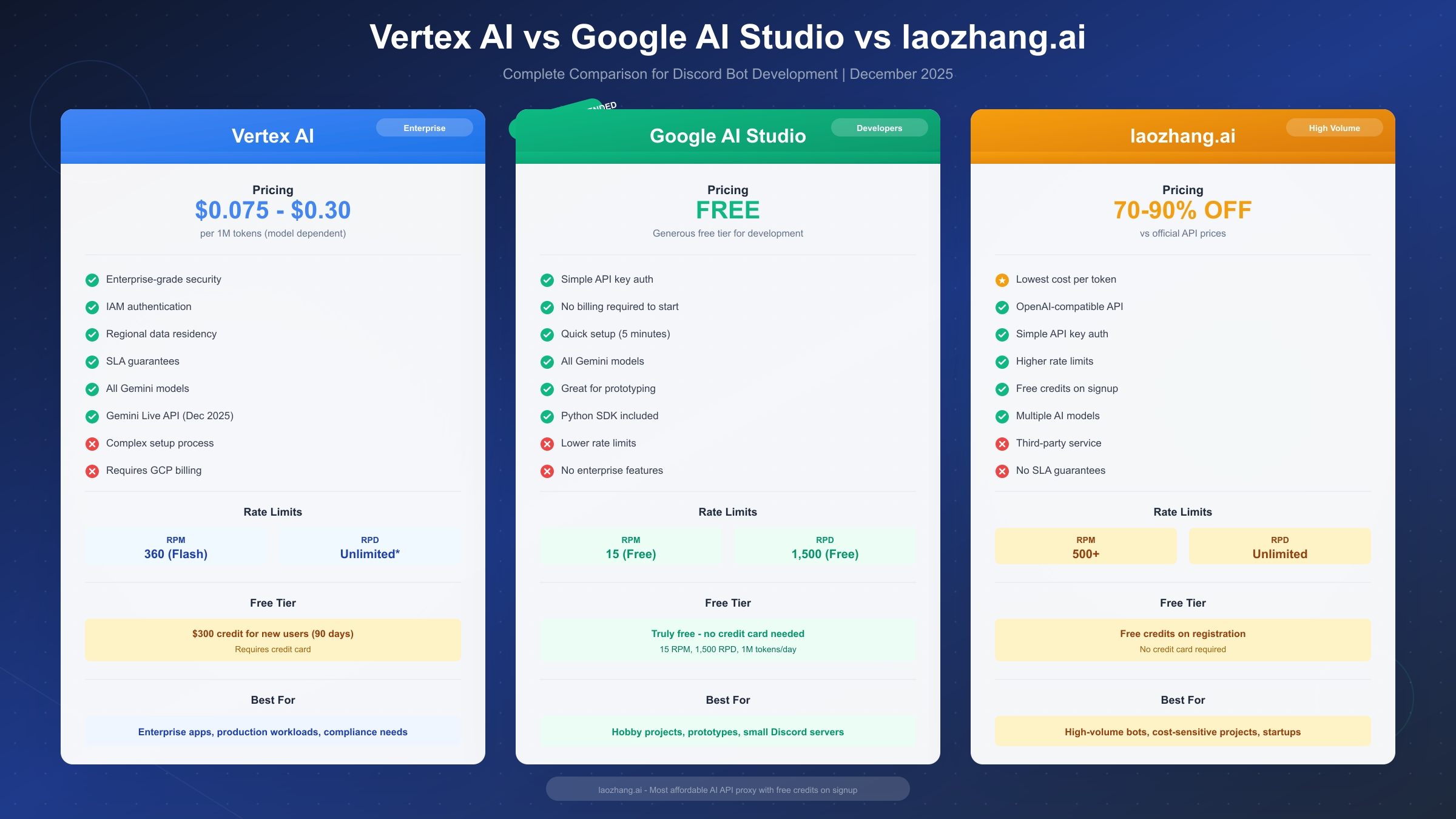
Google AI Studio Free Tier offers genuinely free access that doesn't require a credit card. The limits are generous for development and small-scale deployment:
- Requests per minute (RPM): 15 requests
- Requests per day (RPD): 1,500 requests
- Tokens per minute (TPM): 1 million tokens
- Tokens per day (TPD): Variable by model
These limits mean your Discord bot can handle approximately 1,500 conversations per day without any cost. For a private server or small community, this is often sufficient indefinitely. The key constraint is the 15 RPM limit—if multiple users send messages simultaneously, some requests may queue or fail.
Vertex AI Pricing follows a pay-per-use model that scales with your actual consumption. New Google Cloud accounts receive $300 in free credits valid for 90 days, which provides substantial runway for testing. After credits expire, you pay based on token usage:
For Gemini 2.5 Flash, the monthly cost for a moderately active Discord bot might look like this:
- 100,000 messages/month × 500 tokens average = 50M tokens
- Input cost: 50M × $0.075/1M = $3.75
- Output cost: 50M × $0.30/1M = $15.00
- Total: approximately $18.75/month
This calculation assumes 500 tokens per message exchange, which is typical for conversational interactions. If your bot analyzes images or processes longer documents, token usage increases accordingly.
laozhang.ai offers an alternative for developers seeking cost optimization at scale. As a proxy service providing access to multiple AI models including Gemini, laozhang.ai delivers 70-90% cost savings compared to official API prices. For high-volume Discord bots processing hundreds of thousands of messages monthly, these savings become substantial. The service provides free credits on registration without requiring a credit card, uses an OpenAI-compatible API format (simplifying integration), and offers higher rate limits than free tier options. To learn more about detailed Gemini pricing structures, check out our detailed Gemini API pricing breakdown.
Rate Limit Comparison:
| Provider | RPM (Free) | RPD (Free) | Best For |
|---|---|---|---|
| Google AI Studio | 15 | 1,500 | Development, small servers |
| Vertex AI | 360 (Flash) | Quota-based | Production, enterprise |
| laozhang.ai | 500+ | Unlimited | High-volume, cost-sensitive |
Understanding these economics helps you make informed decisions. Start with AI Studio's free tier for development, graduate to Vertex AI for production with predictable costs, and consider laozhang.ai if cost optimization becomes critical for your bot's sustainability.
Complete Setup and Implementation Guide
This section provides everything you need to build a working Discord bot with Gemini integration. Follow these steps carefully, and you'll have a functional AI chatbot in approximately 30 minutes.
Prerequisites and Initial Setup
Before writing any code, you need to prepare your development environment and obtain the necessary credentials.
Step 1: Create a Discord Application
Navigate to the Discord Developer Portal (https://discord.com/developers/applications ) and create a new application. Give it a descriptive name like "Gemini AI Bot." Under the Bot section, create a bot user and copy the token—this is your DISCORD_BOT_TOKEN. Enable the "Message Content Intent" under Privileged Gateway Intents, which is required for reading message content in your bot.
Generate an invite URL with the following permissions: Send Messages, Read Message History, and View Channels. Use the OAuth2 URL Generator in the developer portal, selecting "bot" as the scope and the permissions mentioned above.
Step 2: Obtain Gemini API Access
For Google AI Studio (recommended for starting), visit https://aistudio.google.com/apikey, click "Create API key," and save it securely. This takes about 30 seconds and requires no billing setup.
For Vertex AI, you'll need a Google Cloud project. Create one at https://console.cloud.google.com, enable the Vertex AI API, and set up authentication through a service account or Application Default Credentials. The process is more involved but provides enterprise features. For a detailed walkthrough of API key generation, see our complete Gemini API key setup guide.
Step 3: Set Up Your Development Environment
Create a project directory and virtual environment:
bashmkdir gemini-discord-bot
cd gemini-discord-bot
python -m venv venv
source venv/bin/activate  # On Windows: venv\Scripts\activate
pip install discord.py google-genai python-dotenv
Create a .env file for your credentials:
bashDISCORD_BOT_TOKEN=your_discord_bot_token_here
GEMINI_API_KEY=your_gemini_api_key_here
# For Vertex AI (optional):
GOOGLE_CLOUD_PROJECT=your-project-id
GOOGLE_CLOUD_LOCATION=us-central1
Complete Bot Implementation
Here's the full, tested implementation that handles text conversations with proper error handling:
pythonimport os
import discord
from discord.ext import commands
from google import genai
from google.genai.types import GenerateContentConfig, SafetySetting, HarmCategory, HarmBlockThreshold
from dotenv import load_dotenv
import asyncio

# Load environment variables
load_dotenv()

# Configuration
DISCORD_TOKEN = os.getenv("DISCORD_BOT_TOKEN")
GEMINI_API_KEY = os.getenv("GEMINI_API_KEY")
USE_VERTEX_AI = os.getenv("GOOGLE_GENAI_USE_VERTEXAI", "false").lower() == "true"

# Initialize Gemini client
if USE_VERTEX_AI:
    client = genai.Client(
        vertexai=True,
        project=os.getenv("GOOGLE_CLOUD_PROJECT"),
        location=os.getenv("GOOGLE_CLOUD_LOCATION", "us-central1")
    )
else:
    client = genai.Client(api_key=GEMINI_API_KEY)

# Model configuration
MODEL_ID = "gemini-2.5-flash"
generation_config = GenerateContentConfig(
    temperature=0.7,
    max_output_tokens=1500,  # Discord limit is 2000 chars
    safety_settings=[
        SafetySetting(
            category=HarmCategory.HARM_CATEGORY_HARASSMENT,
            threshold=HarmBlockThreshold.BLOCK_MEDIUM_AND_ABOVE
        ),
        SafetySetting(
            category=HarmCategory.HARM_CATEGORY_HATE_SPEECH,
            threshold=HarmBlockThreshold.BLOCK_MEDIUM_AND_ABOVE
        ),
    ]
)

# Discord bot setup
intents = discord.Intents.default()
intents.message_content = True
bot = commands.Bot(command_prefix="!", intents=intents)

# Conversation memory (per channel)
conversations = {}

def get_conversation_history(channel_id: int) -> list:
    """Get or create conversation history for a channel."""
    if channel_id not in conversations:
        conversations[channel_id] = []
    return conversations[channel_id]

def add_to_history(channel_id: int, role: str, content: str):
    """Add a message to conversation history, limiting to last 10 exchanges."""
    history = get_conversation_history(channel_id)
    history.append({"role": role, "content": content})
    # Keep only last 10 exchanges (20 messages)
    if len(history) > 20:
        conversations[channel_id] = history[-20:]

async def generate_response(prompt: str, channel_id: int) -> str:
    """Generate a response using Gemini with conversation context."""
    history = get_conversation_history(channel_id)

    # Build context from history
    context_messages = "\n".join([
        f"{msg['role']}: {msg['content']}"
        for msg in history[-10:]  # Last 5 exchanges
    ])

    full_prompt = f"""You are a helpful AI assistant in a Discord server. Be friendly, concise, and helpful.

Previous conversation:
{context_messages}

User: {prompt}
Assistant:"""

    try:
        response = client.models.generate_content(
            model=MODEL_ID,
            contents=full_prompt,
            config=generation_config
        )

        # Extract text from response
        if response.text:
            return response.text[:1900]  # Ensure Discord limit compliance
        return "I couldn't generate a response. Please try again."

    except Exception as e:
        error_str = str(e)
        if "429" in error_str or "RESOURCE_EXHAUSTED" in error_str:
            return "I'm receiving too many requests right now. Please wait a moment and try again."
        elif "403" in error_str:
            return "There's an authentication issue. Please check the bot configuration."
        else:
            print(f"Error generating response: {e}")
            return f"An error occurred: {error_str[:100]}"

@bot.event
async def on_ready():
    print(f"{bot.user} has connected to Discord!")
    print(f"Using {'Vertex AI' if USE_VERTEX_AI else 'Google AI Studio'}")

@bot.event
async def on_message(message):
    # Ignore messages from the bot itself
    if message.author == bot.user:
        return

    # Respond to mentions or DMs
    if bot.user.mentioned_in(message) or isinstance(message.channel, discord.DMChannel):
        # Remove the bot mention from the message
        content = message.content.replace(f"<@{bot.user.id}>", "").strip()

        if not content:
            await message.reply("Hello! How can I help you today?")
            return

        # Show typing indicator
        async with message.channel.typing():
            # Add user message to history
            add_to_history(message.channel.id, "User", content)

            # Generate response
            response = await generate_response(content, message.channel.id)

            # Add bot response to history
            add_to_history(message.channel.id, "Assistant", response)

            # Send response
            await message.reply(response)

    # Process commands
    await bot.process_commands(message)

@bot.command(name="clear")
async def clear_history(ctx):
    """Clear conversation history for this channel."""
    channel_id = ctx.channel.id
    if channel_id in conversations:
        conversations[channel_id] = []
    await ctx.send("Conversation history cleared!")

@bot.command(name="model")
async def show_model(ctx):
    """Show current model information."""
    backend = "Vertex AI" if USE_VERTEX_AI else "Google AI Studio"
    await ctx.send(f"Using **{MODEL_ID}** via {backend}")

# Run the bot
if __name__ == "__main__":
    bot.run(DISCORD_TOKEN)
This implementation includes conversation memory per channel, proper error handling for rate limits, safety settings to prevent harmful outputs, and Discord message length compliance. The bot responds when mentioned or in DMs, making interaction natural and non-intrusive.
Troubleshooting and Error Handling
Even well-implemented bots encounter errors in production. Understanding common issues and their solutions helps maintain a reliable Discord bot experience for your users.
Rate Limiting Errors
The most frequent issue Discord bot developers face with Gemini is the 429 "Resource Exhausted" error. This occurs when your requests exceed the allowed rate limits—15 RPM for the free tier or your quota-based limits on Vertex AI.
When this error occurs, implement exponential backoff with jitter to avoid synchronized retry storms:
pythonimport asyncio
import random

async def generate_with_retry(prompt: str, max_retries: int = 3) -> str:
    """Generate response with exponential backoff retry logic."""
    for attempt in range(max_retries):
        try:
            response = client.models.generate_content(
                model=MODEL_ID,
                contents=prompt,
                config=generation_config
            )
            return response.text
        except Exception as e:
            if "429" in str(e) or "RESOURCE_EXHAUSTED" in str(e):
                if attempt < max_retries - 1:
                    # Exponential backoff with jitter
                    wait_time = (2 ** attempt) + random.uniform(0, 1)
                    await asyncio.sleep(wait_time)
                    continue
            raise e
    return "Unable to generate response after multiple attempts."
For persistent rate limit issues, our guide on Gemini API rate limit solutions provides comprehensive strategies. Additionally, if you're encountering the specific 429 error code, check out how to fix the 429 Resource Exhausted error.
Authentication Issues
Authentication errors manifest differently depending on your setup. For Google AI Studio, invalid API keys return a 403 error. Verify your key is correctly copied to the .env file without extra whitespace. For Vertex AI, authentication typically fails due to missing IAM permissions or incorrect project configuration. Ensure your service account has the roles/aiplatform.user role.
Common authentication error patterns:
| Error | Cause | Solution |
|---|---|---|
| 403 Forbidden | Invalid API key | Regenerate key in AI Studio |
| Permission denied | Missing IAM role | Add aiplatform.user role |
| Project not found | Wrong project ID | Verify GOOGLE_CLOUD_PROJECT |
| Location not supported | Invalid region | Use us-central1 or supported region |
Discord API Issues
Discord has its own rate limits and message constraints. Messages cannot exceed 2000 characters, so always truncate Gemini responses. The bot needs proper intents enabled—particularly the Message Content Intent for reading message content. If your bot connects but doesn't respond to messages, this is usually the culprit.
For high-traffic bots, consider implementing a request queue to prevent Discord rate limiting:
pythonfrom collections import deque
import asyncio

request_queue = deque(maxlen=100)

async def process_queue():
    """Process queued requests with rate limiting."""
    while True:
        if request_queue:
            message, content = request_queue.popleft()
            response = await generate_response(content, message.channel.id)
            await message.reply(response)
        await asyncio.sleep(0.1)  # Rate limit: 10 requests/second max
Safety Filter Triggers
Gemini's safety filters sometimes block legitimate requests that contain sensitive topics discussed in educational or informational contexts. If your bot serves a community discussing topics like cybersecurity, medicine, or current events, you may encounter unexpected blocks. Adjusting the safety settings in your GenerateContentConfig can help, but be cautious—lowering thresholds too much may expose users to harmful content.
Production Deployment Options
Running your Discord bot reliably 24/7 requires moving beyond python bot.py on your local machine. Several deployment options offer different tradeoffs between cost, complexity, and reliability.

Google Cloud Run Deployment
Cloud Run is Google's serverless container platform and integrates naturally with Vertex AI. Your bot runs in a container that scales automatically based on demand, and you pay only for actual compute time.
Create a Dockerfile for your bot:
dockerfileFROM python:3.11-slim

WORKDIR /app

COPY requirements.txt .
RUN pip install --no-cache-dir -r requirements.txt

COPY . .

CMD ["python", "bot.py"]
Create requirements.txt:
textdiscord.py>=2.3.0
google-genai>=0.5.0
python-dotenv>=1.0.0
Deploy to Cloud Run:
bash# Build and push container
gcloud builds submit --tag gcr.io/YOUR_PROJECT/gemini-discord-bot

# Deploy to Cloud Run
gcloud run deploy gemini-discord-bot \
  --image gcr.io/YOUR_PROJECT/gemini-discord-bot \
  --platform managed \
  --region us-central1 \
  --allow-unauthenticated \
  --set-env-vars="DISCORD_BOT_TOKEN=your_token,GEMINI_API_KEY=your_key"
Cloud Run's minimum instance setting ensures your bot stays warm and responsive. Set --min-instances=1 for always-on availability, though this increases costs to approximately $10-15/month for a basic bot.
Railway Deployment (Free Tier Available)
Railway offers a developer-friendly platform with a generous free tier—500 hours of runtime monthly. For a Discord bot that runs continuously, this covers about 20 days. Railway is excellent for development and small-scale production.
Create a Procfile:
textworker: python bot.py
Push to Railway via their CLI or GitHub integration. Environment variables are configured in Railway's dashboard, providing a clean separation between code and configuration.
For production Discord bots with high traffic, laozhang.ai provides cost-effective API access that integrates seamlessly with these deployment platforms. Simply configure your API base URL to point to laozhang.ai's endpoint, and your existing bot code works without modification.
Docker with VPS
For maximum control, run your containerized bot on a VPS from providers like DigitalOcean, Linode, or Hetzner. This approach costs $5-10/month and gives you full server access for monitoring and debugging.
Use Docker Compose for easy management:
yamlversion: '3.8'
services:
  bot:
    build: .
    restart: always
    env_file:
      - .env
    logging:
      driver: "json-file"
      options:
        max-size: "10m"
        max-file: "3"
The restart: always policy ensures your bot automatically recovers from crashes, while the logging configuration prevents disk space issues from unbounded log growth.
Advanced Features and Best Practices
Once your basic bot is running, several enhancements can significantly improve user experience and operational efficiency.
Multimodal Capabilities
Gemini excels at understanding images, making your Discord bot capable of analyzing shared media. When users share images with their messages, extract the attachment and pass it to Gemini:
pythonimport aiohttp

async def analyze_image(image_url: str, prompt: str) -> str:
    """Analyze an image using Gemini's multimodal capabilities."""
    async with aiohttp.ClientSession() as session:
        async with session.get(image_url) as response:
            image_data = await response.read()

    # Create multimodal content
    from google.genai.types import Part

    contents = [
        Part.from_text(prompt),
        Part.from_bytes(data=image_data, mime_type="image/png")
    ]

    response = client.models.generate_content(
        model=MODEL_ID,
        contents=contents,
        config=generation_config
    )
    return response.text

@bot.event
async def on_message(message):
    if message.attachments and bot.user.mentioned_in(message):
        for attachment in message.attachments:
            if attachment.content_type.startswith("image/"):
                async with message.channel.typing():
                    prompt = message.content.replace(f"<@{bot.user.id}>", "").strip()
                    if not prompt:
                        prompt = "Describe this image in detail."

                    analysis = await analyze_image(attachment.url, prompt)
                    await message.reply(analysis[:1900])
                return
Per-User Personality Customization
Allow server administrators or users to customize the bot's personality for different contexts. Store personality configurations and apply them to prompts:
pythonpersonalities = {
    "default": "You are a helpful, friendly AI assistant.",
    "technical": "You are a technical expert who provides detailed, accurate information with code examples when relevant.",
    "casual": "You are a laid-back friend who chats casually and uses appropriate emojis.",
    "tutor": "You are a patient teacher who explains concepts step by step and checks for understanding."
}

channel_personalities = {}  # channel_id -> personality_name

@bot.command(name="personality")
async def set_personality(ctx, name: str):
    """Set the bot's personality for this channel."""
    if name not in personalities:
        available = ", ".join(personalities.keys())
        await ctx.send(f"Unknown personality. Available: {available}")
        return

    channel_personalities[ctx.channel.id] = name
    await ctx.send(f"Personality set to **{name}**!")
Security Best Practices
Production Discord bots require attention to security beyond basic functionality. Store API keys in environment variables or a secrets manager—never commit them to version control. Implement rate limiting at the application level to prevent abuse, even within Discord's limits. Validate and sanitize user inputs before passing them to Gemini to prevent prompt injection attacks that could make your bot behave unexpectedly.
Consider implementing user allowlists for sensitive functionality:
pythonADMIN_USERS = {123456789012345678}  # Discord user IDs

def is_admin(user_id: int) -> bool:
    return user_id in ADMIN_USERS

@bot.command(name="admin")
async def admin_command(ctx):
    if not is_admin(ctx.author.id):
        await ctx.send("This command requires admin privileges.")
        return
    # Admin functionality here
For bots handling significant traffic or sensitive operations, laozhang.ai provides additional security benefits through its proxy architecture, adding a layer of separation between your Discord bot and the underlying AI services.
Summary and Next Steps
Building a Vertex AI Gemini Discord bot is straightforward when you understand the ecosystem of tools and options available. This guide has covered the essential path from setup to production deployment, with practical code you can adapt for your specific needs.
Key takeaways from this guide:
The choice between Vertex AI and Google AI Studio depends on your scale and requirements. Start with AI Studio's free tier for development—it requires no credit card and provides generous limits for building and testing. Move to Vertex AI when you need enterprise features, higher rate limits, or compliance certifications.
Gemini 2.5 Flash offers the best balance of capability and cost for most Discord bot applications. Its multimodal support means your bot can analyze images, understand context from conversation history, and provide helpful responses across a wide range of topics.
Production deployment is essential for reliable 24/7 operation. Cloud Run provides seamless integration with Vertex AI, Railway offers an accessible free tier, and Docker on a VPS gives you maximum control. Choose based on your budget and operational preferences.
Error handling separates functional bots from reliable ones. Implement retry logic for rate limits, handle authentication gracefully, and respect Discord's message length limits. Your users' experience depends on how well your bot handles edge cases.
Recommended next steps:
- Build and test locally using Google AI Studio's free tier
- Deploy to Railway or your preferred platform for initial production testing
- Monitor error rates and user feedback to identify improvements
- Consider upgrading to Vertex AI or free Gemini 2.5 Pro API access as your bot grows
- Implement advanced features like image analysis and custom personalities
For cost optimization at scale, explore laozhang.ai—register for free credits at https://laozhang.ai/register and integrate with your existing bot code through a simple configuration change. The service supports Gemini and other AI models, providing flexibility as your bot's needs evolve.
The Discord bot development community continues to innovate, and Gemini's capabilities expand regularly. The December 2025 Live API announcement signals Google's commitment to making Gemini even more conversational and interactive. Stay updated with Google Cloud's blog and consider joining Discord developer communities to learn from others building similar solutions.
Your AI-powered Discord bot journey starts here. Build something useful, iterate based on feedback, and scale confidently knowing you understand the full stack from API to deployment.