Note (October 5, 2026): Google's deprecations page schedules
veo-3.1-generate-preview,veo-3.1-fast-generate-previewandveo-3.1-lite-generate-previewto shut down on October 22, 2026, withgemini-omni-1.1-flashas the recommended replacement. Current Veo 3.1 API prices are $0.40/second (Standard, 720p/1080p), $0.10-$0.12/second (Fast) and $0.05-$0.08/second (Lite), with 4K at $0.60 (Standard) or $0.30 (Fast).
Google Veo 3.1 represents a significant advancement in AI video generation, offering creators three distinct approaches to producing high-quality video content. Text-to-Video mode allows you to describe your vision and let the AI generate stunning 1080p video with native audio. First and Last Frame mode, also known as keyframe control, gives you precise control over your video's starting and ending points while the AI fills in the motion between them. Reference Images mode, marketed as "Ingredients to Video," enables you to maintain consistent character or product appearances across multiple video generations using up to three reference photographs. Each mode serves different creative needs, and understanding when to use each one can dramatically improve your results while optimizing your credit usage. This guide provides complete step-by-step tutorials for all three modes, including working Python code examples that you can adapt for your own projects.
Quick Answer: Veo 3.1 Generation Modes
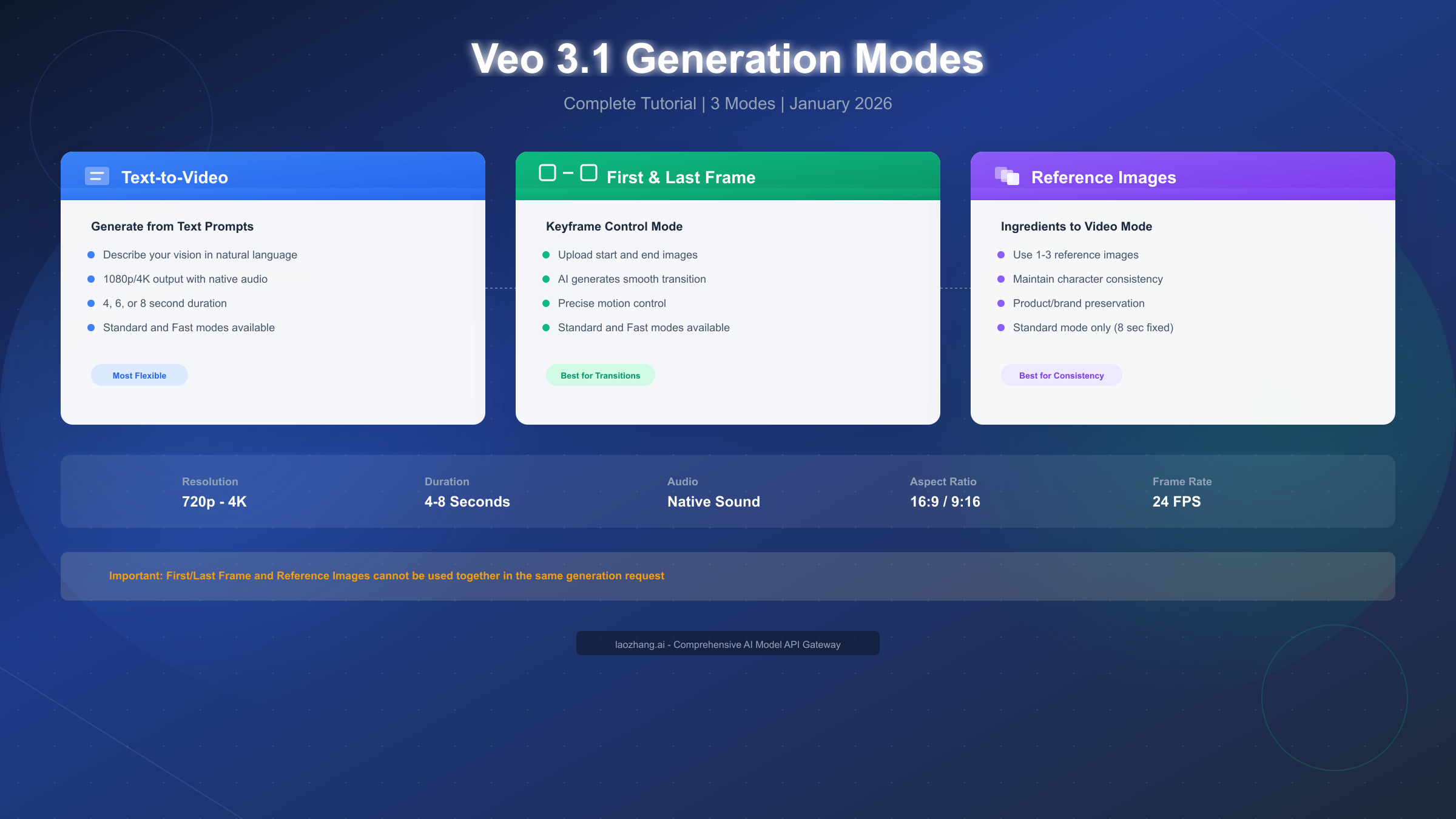
Veo 3.1 provides three primary generation modes, each designed for specific creative workflows. Text-to-Video is the most flexible option, accepting only a text prompt and generating video with complete creative freedom. First and Last Frame mode accepts one or two images that define where your video begins and ends, with the AI generating smooth motion between these keyframes. Reference Images mode uses one to three asset images to guide the generation while maintaining visual consistency of characters, products, or styles throughout the output video.
The fundamental difference between these modes lies in how much visual guidance you provide to the model. Text-to-Video offers maximum creative freedom but minimum visual control. First and Last Frame provides precise control over the journey from point A to point B. Reference Images ensures that specific visual elements remain consistent throughout your video, which proves essential for brand content or character-driven narratives.
All three modes support native audio generation, producing realistic dialogue, sound effects, and ambient soundscapes directly from your prompts. Resolution options include 720p, 1080p, and 4K output at 24 frames per second. Video duration can be set to 4, 6, or 8 seconds, with 8 seconds being the most common choice for maximizing content within a single generation. Aspect ratio support includes both 16:9 landscape and 9:16 portrait formats, enabling direct creation for platforms like YouTube Shorts or TikTok without post-processing.
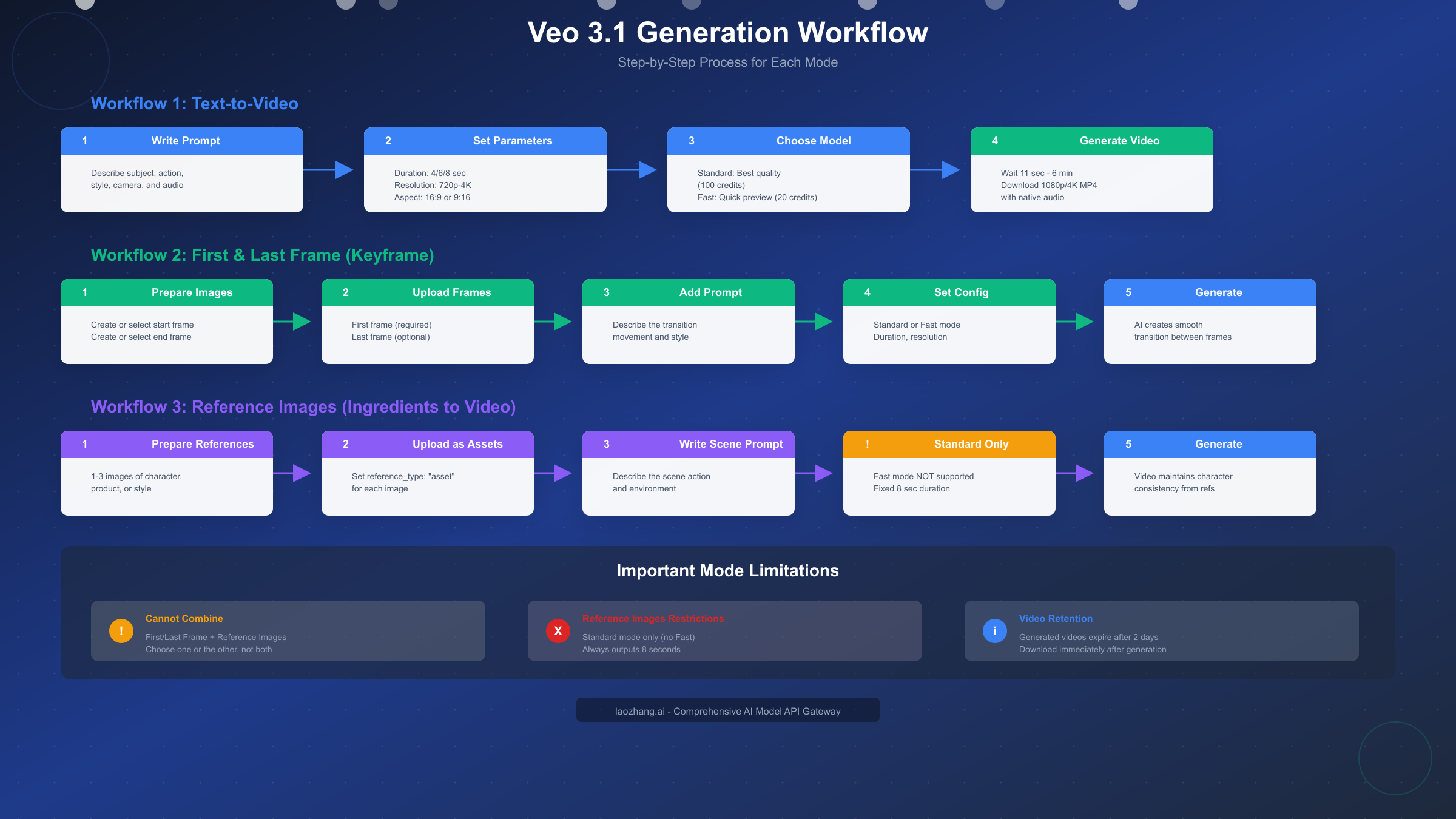
One critical limitation to understand immediately: First and Last Frame mode and Reference Images mode cannot be combined in a single generation request. You must choose one approach or the other based on whether you need transition control or character consistency. This mutual exclusivity affects your workflow planning significantly, particularly when creating series content that requires both features.
Which Mode Should You Choose?
Selecting the right generation mode depends on your creative goals, available assets, and technical requirements. The decision becomes straightforward once you understand what each mode excels at and where it falls short compared to alternatives.
Text-to-Video works best when you need maximum creative flexibility and don't have specific visual references to match. Content creators exploring new concepts, generating quick social media content, or testing prompt ideas before committing to more structured approaches will find this mode most valuable. Both Veo 3.1 Standard and Fast models support this mode, making it suitable for both quality-focused production and rapid iteration workflows.
First and Last Frame excels when you need precise control over motion and transformation. Product reveals that start with packaging and end with the product in use, before-and-after demonstrations, character transformations, and scene transitions between two specific moments all benefit from this keyframe approach. The mode supports both Standard and Fast models, allowing you to preview with Fast mode before generating final versions with Standard quality.
Reference Images becomes essential when character or brand consistency matters more than transition control. Multi-scene narratives featuring the same protagonist, product demonstration videos where the item must look identical across shots, and brand campaigns requiring consistent visual identity all require this mode. Note that Reference Images only works with the Standard model and always outputs 8-second videos, so Fast mode previewing isn't available.
For developers building applications that need programmatic video generation, the choice often depends on user input types. If users provide only text descriptions, Text-to-Video integration makes sense. If users upload images expecting them to become videos, First and Last Frame provides intuitive start-to-finish control. If users need consistent characters across multiple generations, Reference Images enables that capability through the Gemini API. For high-volume API access without rate limits, services like laozhang.ai provide unified access to multiple AI video models including Veo 3.1 with simplified billing and integration.
Understanding credit consumption helps with budget planning. Standard mode costs approximately 100 credits per video generation, while Fast mode consumes only 20 credits. Since Reference Images mode only supports Standard, every video costs 100 credits. For projects requiring multiple iterations, using Text-to-Video or First and Last Frame in Fast mode for previews can reduce costs by 80% during the creative development phase.
Mode 1: Text-to-Video Generation
Text-to-Video represents the most accessible entry point to Veo 3.1, requiring only a well-crafted prompt to generate complete video output. This mode interprets your natural language description and produces video with synchronized audio, camera movements, and visual effects that match your specifications.
Crafting Effective Prompts
The quality of your Text-to-Video output depends heavily on prompt construction. Veo 3.1 responds best to structured prompts that include cinematography direction, subject description, action specification, environmental context, and stylistic guidance. Rather than writing "a woman walking in a city," provide specific details like "Medium tracking shot of a young professional woman in a navy blazer walking purposefully through a rain-slicked Tokyo street at night, neon signs reflecting off wet pavement, ambient city sounds with distant traffic, cinematic film grain aesthetic."
Camera terminology significantly impacts results. Use terms like "crane shot," "dolly in," "tracking shot," "close-up," "wide establishing shot," or "over-the-shoulder" to guide framing. Lighting descriptions such as "golden hour backlight," "harsh fluorescent lighting," or "candlelit atmosphere" help establish mood. Audio guidance works through explicit description: include phrases like "ambient forest sounds with birdsong" or dialogue using quotation marks such as "She says, 'We need to leave now.'"
Step-by-Step Generation Process
Access Veo 3.1 through Google's Flow platform, the Gemini API, or Vertex AI. In Flow, navigate to the Video tab and select "Veo 3.1" as your generation model. Enter your prompt in the text field, then configure your parameters. Set duration to 4, 6, or 8 seconds based on your content needs. Select resolution from 720p, 1080p, or 4K depending on your quality requirements. Choose 16:9 for landscape content or 9:16 for vertical social media formats.
Select either Standard or Fast model based on your priority. Standard provides maximum quality with better prompt adherence and richer audio generation, consuming 100 credits per video. Fast generates results in as little as 11 seconds with acceptable quality for previewing and iteration, consuming only 20 credits. For initial concept development, generate in Fast mode to validate your prompt direction before committing Standard credits to final versions.
Python API Implementation
For programmatic generation, the Gemini API provides straightforward integration. Here's a complete working example:
from google import genai
from google.genai import types
import time

# Initialize the client
client = genai.Client()

# Define your generation prompt
prompt = """
Crane shot starting low on a solo hiker standing at the edge of a
misty canyon at sunrise. The camera slowly rises, revealing the
vast landscape stretching to the horizon. Warm golden light catches
the fog rolling through the valley below. Epic orchestral ambiance
with distant wind sounds. Cinematic film quality with slight grain.
"""

# Configure generation parameters
config = types.GenerateVideosConfig(
    aspect_ratio="16:9",
    duration_seconds=8,
    resolution="1080p",
    model="veo-3.1-generate-preview"
)

# Start generation (async operation)
operation = client.models.generate_videos(
    model="veo-3.1-generate-preview",
    prompt=prompt,
    config=config
)

# Poll for completion
while not operation.done:
    time.sleep(10)
    operation = client.operations.get(operation.name)

# Retrieve the generated video
result = operation.result()
video_url = result.generated_videos[0].uri
print(f"Video generated: {video_url}")
Generation time varies from 11 seconds during low-traffic periods to up to 6 minutes during peak usage. The API returns an operation object that requires polling until completion. Generated videos remain available for download for 48 hours before automatic deletion, so implement immediate download in production workflows.
Mode 2: First and Last Frame (Keyframe Control)
First and Last Frame mode provides precise control over your video's visual journey by letting you define the starting point, ending point, or both. The AI generates smooth, natural motion that transitions between your specified keyframes, enabling effects that would be extremely difficult to achieve with text prompts alone.
Understanding Keyframe Control
This mode accepts one or two images as visual anchors. When you provide only a first frame, Veo 3.1 interprets your text prompt to determine how the scene should evolve from that starting point. When you provide both first and last frames, the model creates coherent motion that believably connects the two images. This bidirectional anchoring proves particularly powerful for transformation sequences, product reveals, and scene transitions.
The keyframe approach excels at creating content where specific visual states matter. Consider a product unboxing sequence: you provide an image of the sealed package as the first frame and an image of the product in use as the last frame. The AI generates the entire unboxing motion, hand movements, and reveal moment without requiring you to describe every intermediate step in text.
Preparing Your Keyframe Images
Image quality directly impacts output quality. Use high-resolution images (1080p or higher) with clear subjects and good lighting. Ensure both frames maintain consistent aspect ratios matching your desired output format. For portrait videos, prepare 9:16 images; for landscape, use 16:9.
The visual relationship between first and last frames influences how naturally the AI interpolates motion. Frames that share some visual continuity—same environment, similar lighting, related subjects—produce more coherent transitions. Dramatically different frames can work but may result in more abstract or surreal transformations depending on how the model interprets the connection.
Consider generating your keyframes using AI image generation tools. Google's Gemini 2.5 Flash Image works particularly well since it maintains stylistic consistency with Veo's training. Generate your first frame, adjust the prompt slightly to describe the desired end state, generate the last frame, then combine both with Veo 3.1 for seamless video creation. For teams exploring multiple free image-to-video AI tools, keyframe control offers the most precise results among current options.
Python Implementation for Keyframe Videos
Here's complete code for generating videos with first and last frame control:
from google import genai
from google.genai import types
import time

client = genai.Client()

# Load your keyframe images
with open("first_frame.png", "rb") as f:
    first_frame_data = f.read()
with open("last_frame.png", "rb") as f:
    last_frame_data = f.read()

# Create image objects
first_frame = types.Image(data=first_frame_data, mime_type="image/png")
last_frame = types.Image(data=last_frame_data, mime_type="image/png")

# Prompt describes the transition
prompt = """
Smooth transition showing a butterfly emerging from its chrysalis.
The transformation happens gradually with delicate wing movements.
Soft morning light illuminates the scene. Gentle nature sounds
with subtle musical undertones.
"""

# Configure with last frame
config = types.GenerateVideosConfig(
    aspect_ratio="16:9",
    duration_seconds=8,
    resolution="1080p",
    last_frame=last_frame  # Optional: omit for first-frame-only mode
)

# Generate video with first frame as image parameter
operation = client.models.generate_videos(
    model="veo-3.1-generate-preview",
    prompt=prompt,
    image=first_frame,  # First frame
    config=config
)

# Wait for completion
while not operation.done:
    time.sleep(10)
    operation = client.operations.get(operation.name)

result = operation.result()
print(f"Keyframe video generated: {result.generated_videos[0].uri}")
Both Standard and Fast modes support keyframe control. Use Fast mode (20 credits) for iterating on your transition concept, then generate final versions in Standard mode (100 credits) once you've refined your approach.
Mode 3: Reference Images (Ingredients to Video)
Reference Images mode, which Google markets as "Ingredients to Video," represents Veo 3.1's most powerful feature for maintaining visual consistency across video generations. By providing up to three reference photographs of a person, character, product, or style, you guide the AI to preserve these visual elements throughout the generated video.
Character and Product Consistency
Previous AI video models struggled with maintaining consistent appearances across frames. Characters would subtly morph, products would shift in appearance, and stylistic elements would drift throughout the video. Veo 3.1's reference image capability directly addresses this limitation by using your provided images as visual anchors that constrain the generation.
This consistency proves essential for several use cases. Brand campaigns require products to look identical across multiple videos. Character-driven narratives need protagonists to remain recognizable from scene to scene. Style references ensure visual coherence when generating content that should match existing brand aesthetics.
Preparing Reference Images
Select reference images that clearly show the subject you want to preserve. For characters, choose well-lit photographs that show the face from multiple angles if possible. For products, use images with clear details and minimal background distraction. For style references, select images that strongly exemplify the visual aesthetic you want to maintain.
You can provide between one and three reference images. More references generally improve consistency but require careful selection to avoid conflicting visual information. Three images of the same character from different angles work better than three images with inconsistent lighting or styling.
Important Limitations
Reference Images mode carries significant restrictions compared to other modes. First, it only works with Veo 3.1 Standard—Fast mode is not available for reference-guided generation. This means every video costs 100 credits with no option for cheaper previews. Second, output duration is fixed at 8 seconds regardless of configuration. Third, and most critically, you cannot combine reference images with first/last frame control in the same request. Choose one approach based on whether consistency or transition control matters more for your specific project.
Python Implementation for Reference Images
Here's complete code demonstrating reference image generation:
from google import genai
from google.genai import types
import time

client = genai.Client()

# Load reference images (1-3 images)
def load_image(path):
    with open(path, "rb") as f:
        return types.Image(data=f.read(), mime_type="image/png")

character_front = load_image("character_front.png")
character_side = load_image("character_side.png")
outfit_detail = load_image("outfit_detail.png")

# Create reference image objects with asset type
references = [
    types.VideoGenerationReferenceImage(
        image=character_front,
        reference_type="asset"
    ),
    types.VideoGenerationReferenceImage(
        image=character_side,
        reference_type="asset"
    ),
    types.VideoGenerationReferenceImage(
        image=outfit_detail,
        reference_type="asset"
    )
]

# Prompt describes the scene action
prompt = """
Medium shot of the character walking confidently through a modern
office lobby. They pause to check their phone, then continue toward
glass doors leading outside. Contemporary corporate ambiance with
subtle background conversation. Professional cinematography.
"""

# Configure with reference images
config = types.GenerateVideosConfig(
    aspect_ratio="16:9",
    resolution="1080p",
    reference_images=references
    # Note: duration is fixed at 8 seconds for reference mode
)

# Generate video (Standard mode only)
operation = client.models.generate_videos(
    model="veo-3.1-generate-preview",
    prompt=prompt,
    config=config
)

while not operation.done:
    time.sleep(15)  # Reference mode may take longer
    operation = client.operations.get(operation.name)

result = operation.result()
print(f"Reference video generated: {result.generated_videos[0].uri}")
For production workflows requiring many reference-guided generations, consider API gateway services that offer competitive pricing for high-volume usage. The 100-credit-per-video cost can accumulate quickly when iterating on character-driven content.
Complete Mode Comparison Table
Understanding the precise differences between modes helps you select the optimal approach for each project. The following comparison covers all major features, limitations, and use cases.
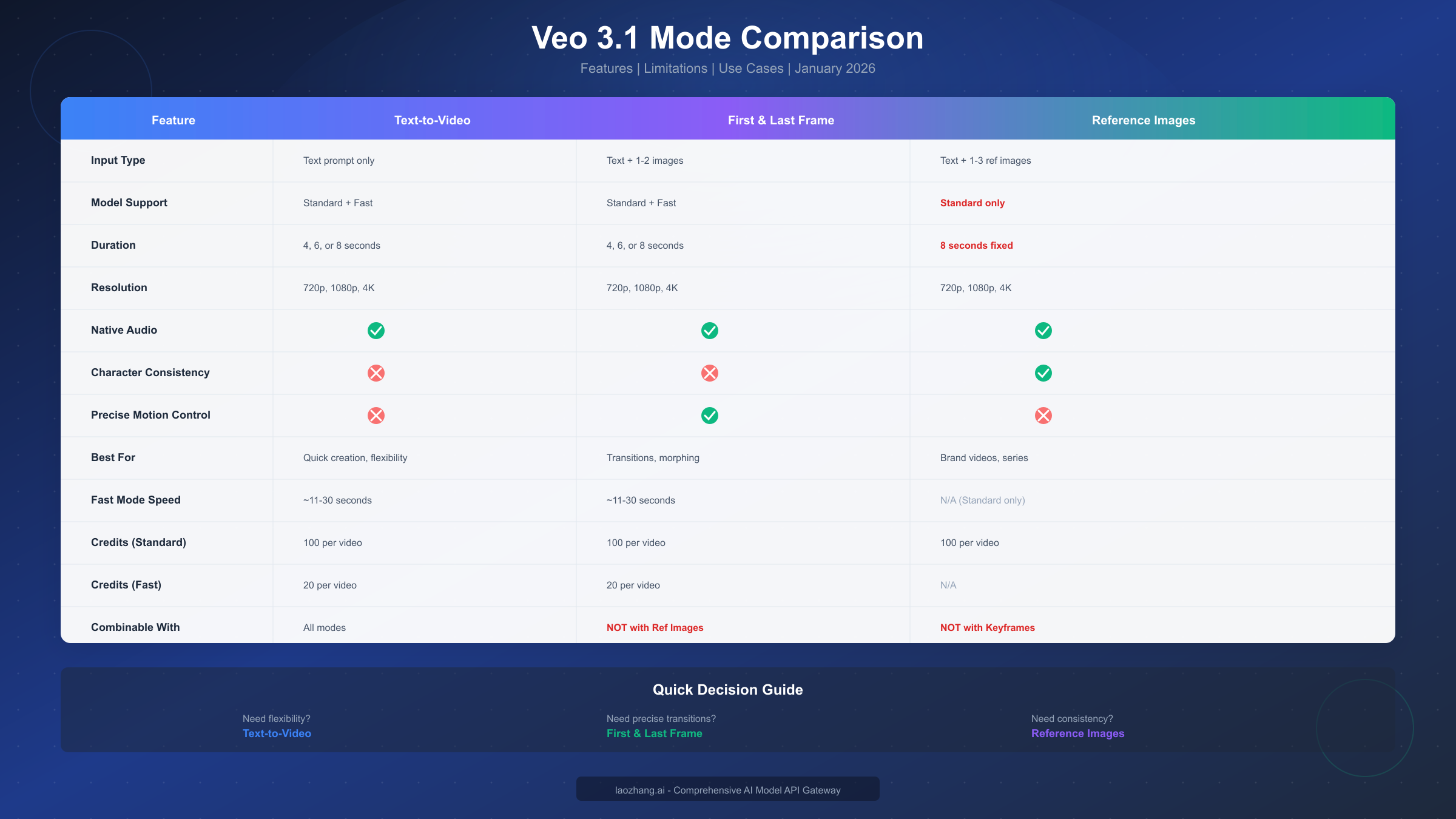
| Feature | Text-to-Video | First & Last Frame | Reference Images |
|---|---|---|---|
| Input Required | Text prompt only | Text + 1-2 images | Text + 1-3 reference images |
| Model Support | Standard + Fast | Standard + Fast | Standard only |
| Duration Options | 4, 6, or 8 seconds | 4, 6, or 8 seconds | 8 seconds (fixed) |
| Resolution | 720p, 1080p, 4K | 720p, 1080p, 4K | 720p, 1080p, 4K |
| Native Audio | Yes | Yes | Yes |
| Character Consistency | Limited | Limited | Excellent |
| Motion Control | Prompt-based | Precise (keyframe) | Prompt-based |
| Fast Mode Credits | 20 per video | 20 per video | N/A |
| Standard Credits | 100 per video | 100 per video | 100 per video |
| Can Combine With | All modes | NOT Reference Images | NOT Keyframes |
| Best For | Flexibility, exploration | Transitions, morphing | Brand content, series |
The mutual exclusivity between First & Last Frame and Reference Images represents the most significant constraint. Projects requiring both transition control AND character consistency must generate separate videos for each requirement, then combine them in post-production editing.
Cost optimization strategies differ by mode. Text-to-Video and First & Last Frame workflows benefit from Fast mode previewing at 80% cost reduction. Reference Images projects cannot use this strategy, making careful prompt development even more important before committing credits to generation.
Prompting Best Practices for Each Mode
Effective prompting varies between modes based on what additional visual guidance you're providing. These mode-specific techniques help maximize output quality while minimizing wasted generations.
Text-to-Video Prompting
Structure your prompts using the cinematographer's formula: Shot Type + Subject + Action + Setting + Style + Audio. Begin with camera direction since this establishes the visual foundation. "Dolly in on" or "Tracking shot following" immediately tells the model how to frame the content. Follow with specific subject description, then detailed action, environmental context, and stylistic guidance.
Audio deserves explicit attention in Text-to-Video prompts. Veo 3.1 generates rich soundscapes when guided properly. Specify dialogue using quotation marks: "He says, 'The time has come.'" Describe sound effects with the SFX prefix: "SFX: glass shattering in slow motion." Set ambient tone: "Quiet forest atmosphere with distant birdsong and rustling leaves."
First & Last Frame Prompting
When using keyframes, your prompt should describe the motion and transformation rather than the visual states (which your images already define). Focus on movement verbs, transition dynamics, and temporal progression. "Slowly transforms," "gradually reveals," or "smoothly transitions" guide the interpolation quality.
Consider the physics of your desired transformation. The AI will attempt to create believable motion between your frames. If your first frame shows a closed door and your last frame shows it open, describe whether it swings slowly, bursts open dramatically, or creaks open mysteriously. This guidance shapes the motion characteristics.
Reference Images Prompting
Reference Images mode benefits from scene-focused prompts since your images handle character appearance. Describe what the character does, where the scene takes place, camera movement, and surrounding environment. The model already knows what your character looks like—tell it what story to capture.
Avoid describing character appearance in your prompt when using reference images. Conflicting information between your text description and visual references can cause inconsistent results. If your reference shows a person in a blue jacket, don't prompt for a red jacket. Let the references guide appearance while your prompt guides action and environment.
Troubleshooting Common Issues
Even with proper preparation, certain issues arise regularly. Understanding these problems and their solutions helps maintain productive workflows.
"Cannot use first frame and reference images together"
This error occurs when attempting to combine keyframe control with reference image guidance. Veo 3.1 enforces mutual exclusivity between these modes at the API level. The solution requires choosing which feature matters more for your specific generation. For character consistency across a transition, generate reference-guided content and accept less control over start/end states. For precise transitions with a generic character, use keyframes without references.
Generation taking extremely long
Normal generation time ranges from 11 seconds to 6 minutes depending on server load. If generations consistently exceed 10 minutes, check your network connection and API status. Reference Images mode typically takes longer than other modes due to additional processing required for consistency enforcement. During peak hours (typically 9 AM - 5 PM PST), expect longer wait times.
Output doesn't match prompt
Prompt adherence issues usually stem from overly complex prompts or conflicting instructions. Simplify by focusing on one camera movement, one lighting setup, and one primary action per generation. If a complex prompt fails, break it into multiple simpler generations. Review successful prompts from your history to identify patterns that work well.
Reference images not being respected
Ensure your reference images clearly show the subject you want to preserve. Low-resolution, poorly lit, or cluttered reference images provide weak guidance signals. Upload multiple angles of the same subject rather than single images. Check that your prompt doesn't describe appearance characteristics that conflict with your visual references.
Videos expiring before download
Generated videos persist for only 48 hours on Google's servers. Implement automatic download in your generation workflows rather than storing URLs for later retrieval. For batch generation, process downloads as generations complete rather than waiting until all generations finish.
FAQ and Summary
Can I use all three modes in one video project?
Yes, but not in a single generation request. Complex projects often combine multiple generations: Text-to-Video for establishing shots, First & Last Frame for specific transitions, and Reference Images for character-focused scenes. These get combined in video editing software for the final product.
Which mode offers the best quality?
All modes use the same underlying model quality when set to Standard. The difference lies in control type, not output quality. Reference Images provides the best consistency, First & Last Frame provides the best motion control, and Text-to-Video provides the best creative flexibility.
How do I get started with Veo 3.1?
Access options include Google Flow (consumer-friendly), Gemini API (developer-focused), and Vertex AI (enterprise). Flow requires a subscription starting with 1,000 monthly credits. API access requires a Gemini API key with billing enabled. For high-volume needs, API gateway services offer simplified access with competitive pricing.
What happens to unused credits?
Monthly credit allocations typically refresh on billing cycles and don't roll over. Plan your generation schedule to utilize available credits before renewal. Track credit consumption through the Flow dashboard or API quota monitoring.
Are there regional restrictions?
Veo 3.1 availability varies by region. EU, UK, Switzerland, and MENA regions face certain restrictions particularly regarding person generation in videos. Check current availability documentation for your specific location.
Key Takeaways
Veo 3.1's three modes serve distinct creative needs. Text-to-Video maximizes flexibility when you want the AI to interpret your vision freely. First & Last Frame provides precise transition control when you know exactly where you want to start and end. Reference Images ensures consistency when character or brand identity must persist across multiple videos. Understanding the mutual exclusivity between keyframe and reference modes proves essential for workflow planning. For API integration, complete code examples demonstrate each mode's implementation requirements. Check laozhang.ai documentation for additional resources on high-volume video generation workflows and multi-model API access.