OpenClaw connects AI agents to browsers through a carefully orchestrated system of ports, each serving a specific purpose in the automation pipeline. When one of these ports stops listening, the entire chain breaks—and your AI assistant suddenly cannot interact with web pages. The frustrating "connection refused" or "address already in use" errors leave many developers scrambling for solutions.
This guide provides a systematic approach to diagnosing and fixing OpenClaw port issues. Whether you're dealing with the gateway port 18789 refusing connections, the CDP relay on 18792 failing to bridge to browsers, or managed browser ports not initializing, you'll find targeted solutions here. We'll cover the underlying architecture, walk through diagnostic flowcharts, address platform-specific scenarios, and establish prevention practices that keep your automation reliable.
TL;DR
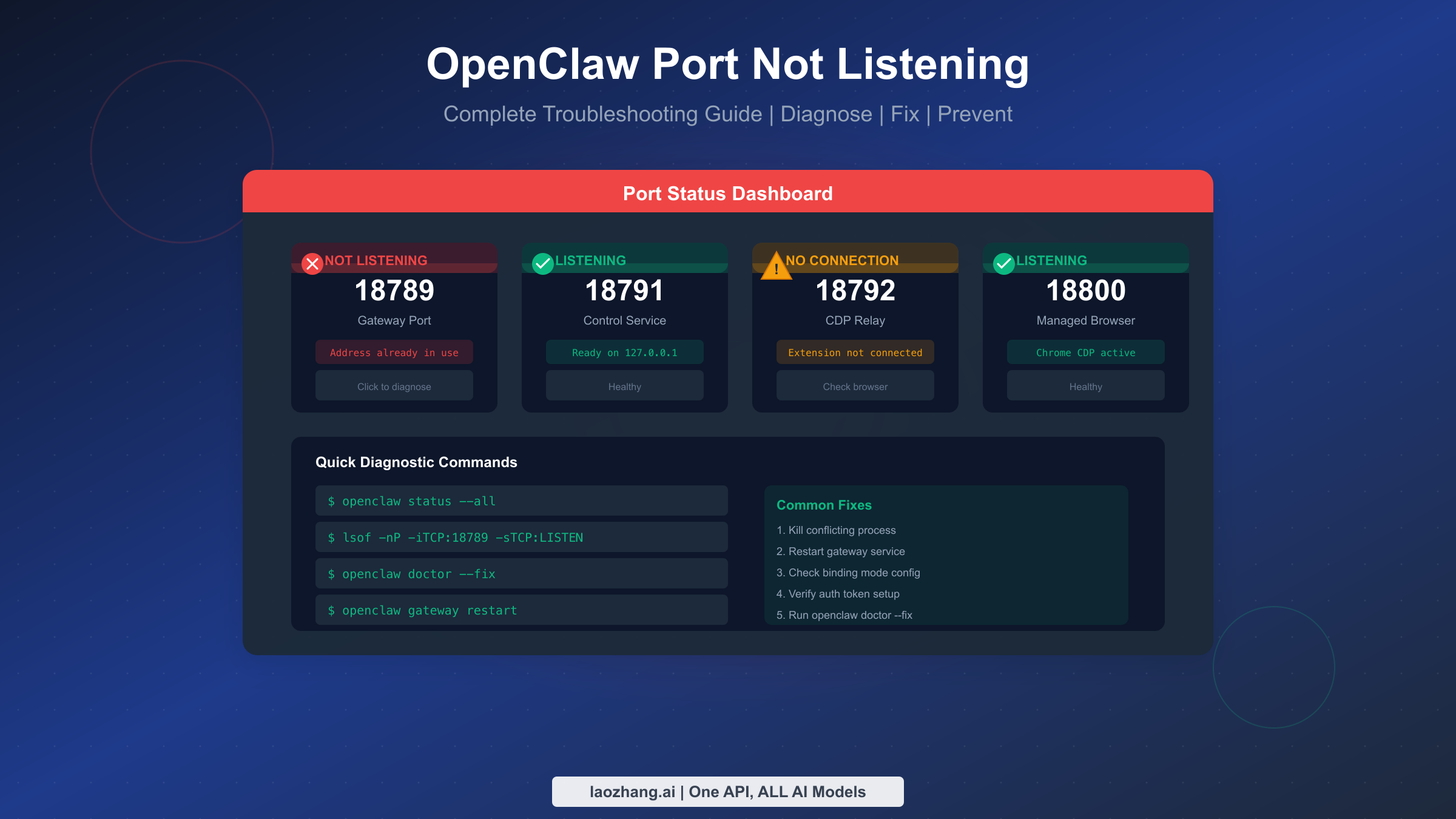
OpenClaw uses four port ranges: Gateway (18789), Control Service (18791), CDP Relay (18792), and Managed Browsers (18800+). When ports aren't listening, start with openclaw status --all to identify which component has failed. The most common causes are port conflicts (45%), service not running (30%), and configuration errors (15%). Run openclaw doctor --fix to automatically resolve most issues. For port conflicts, use lsof -i :18789 to identify the blocking process.
Understanding OpenClaw Port Architecture
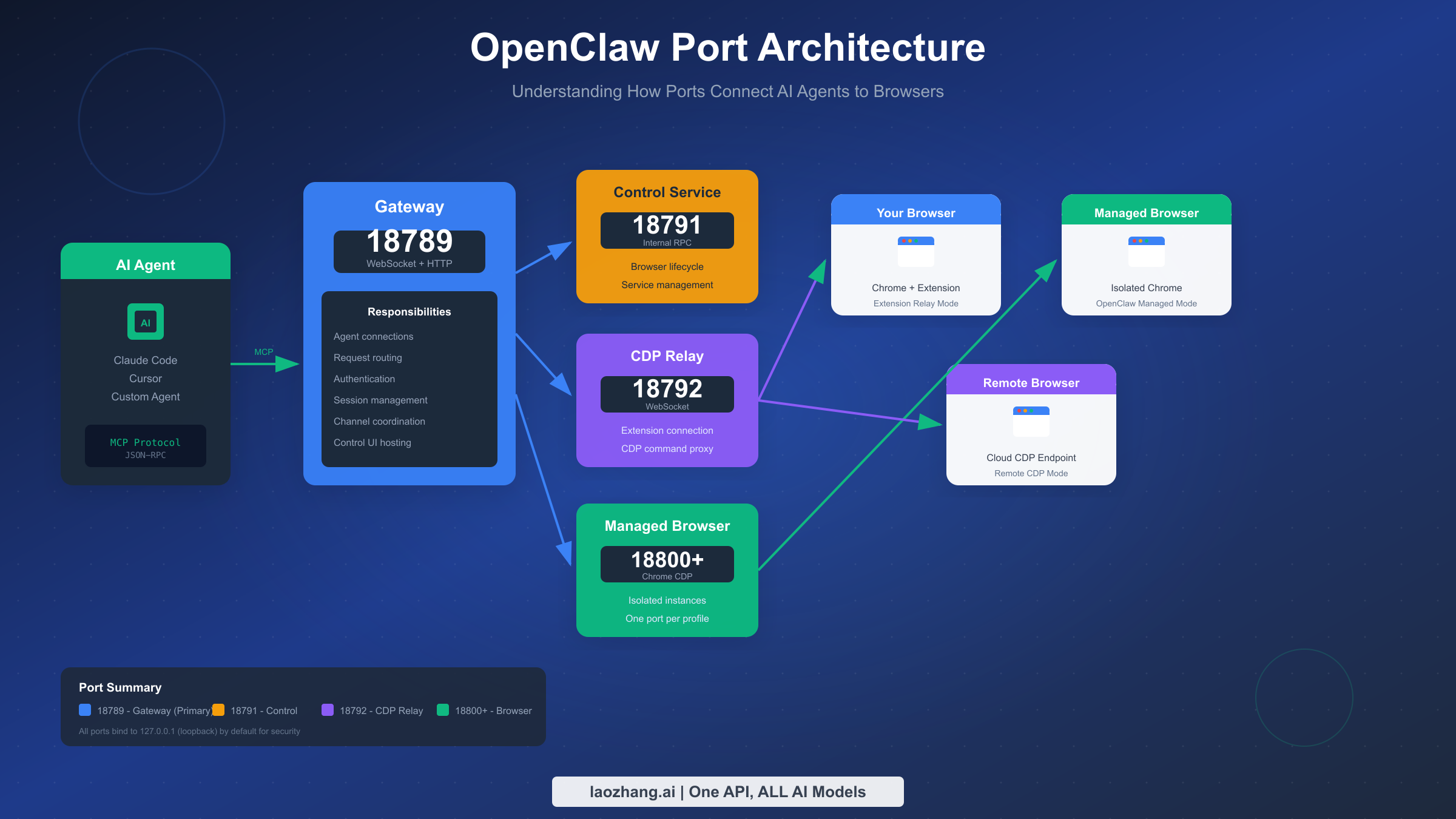
Before diving into troubleshooting, understanding how OpenClaw's ports work together helps you pinpoint where failures occur. The system operates as a multi-layered communication pipeline, with each port handling specific responsibilities in the flow from AI agent to browser.
The Gateway port 18789 serves as the primary entry point for all OpenClaw operations. When you run commands through Claude Code, Cursor, or any MCP-compatible agent, those requests first arrive at this WebSocket and HTTP endpoint. The Gateway manages authentication, routes requests to appropriate services, maintains session state, and hosts the Control UI when enabled. If this port fails, nothing else in the system can function—agents cannot connect, and you'll see immediate "connection refused" errors.
Port 18791 handles the Control Service, an internal RPC endpoint that manages browser lifecycle operations. This service coordinates starting, stopping, and monitoring browser instances. When you request a new managed browser session, the Gateway communicates with this service to spawn the appropriate Chrome process. Control Service failures typically manifest as browsers not starting rather than direct connection errors.
The CDP Relay on port 18792 bridges the gap between OpenClaw and actual browser instances. In Extension Relay mode, the Chrome extension connects to this port to establish a WebSocket tunnel for CDP commands. The relay authenticates connections, proxies Chrome DevTools Protocol messages, and maintains the real-time communication needed for browser automation. CDP Relay issues often appear when browser automation commands fail despite the gateway being healthy.
Managed browser instances occupy ports starting from 18800, with each profile receiving its own port assignment. When you configure multiple browser profiles for different automation tasks, OpenClaw assigns sequential ports—18800 for the default profile, 18801 for a "work" profile, and so on. These ports carry native CDP traffic directly between OpenClaw and isolated Chrome instances. Problems here usually indicate browser startup failures or Chrome executable issues.
Understanding this Browser Relay architecture helps you interpret diagnostic output correctly. When openclaw status --all reports that the gateway is running but the CDP relay shows no connections, you know to focus troubleshooting on the browser side rather than the core service. Similarly, if port 18800 isn't listening but 18789 works fine, the issue lies specifically with managed browser initialization.
All ports bind to 127.0.0.1 (loopback) by default, which provides security by preventing remote access. This default configuration means OpenClaw only accepts connections from the local machine. When you need remote access through Tailscale or LAN configurations, additional authentication requirements come into play—a common source of configuration errors we'll address in the special scenarios section.
Quick Diagnostic Guide
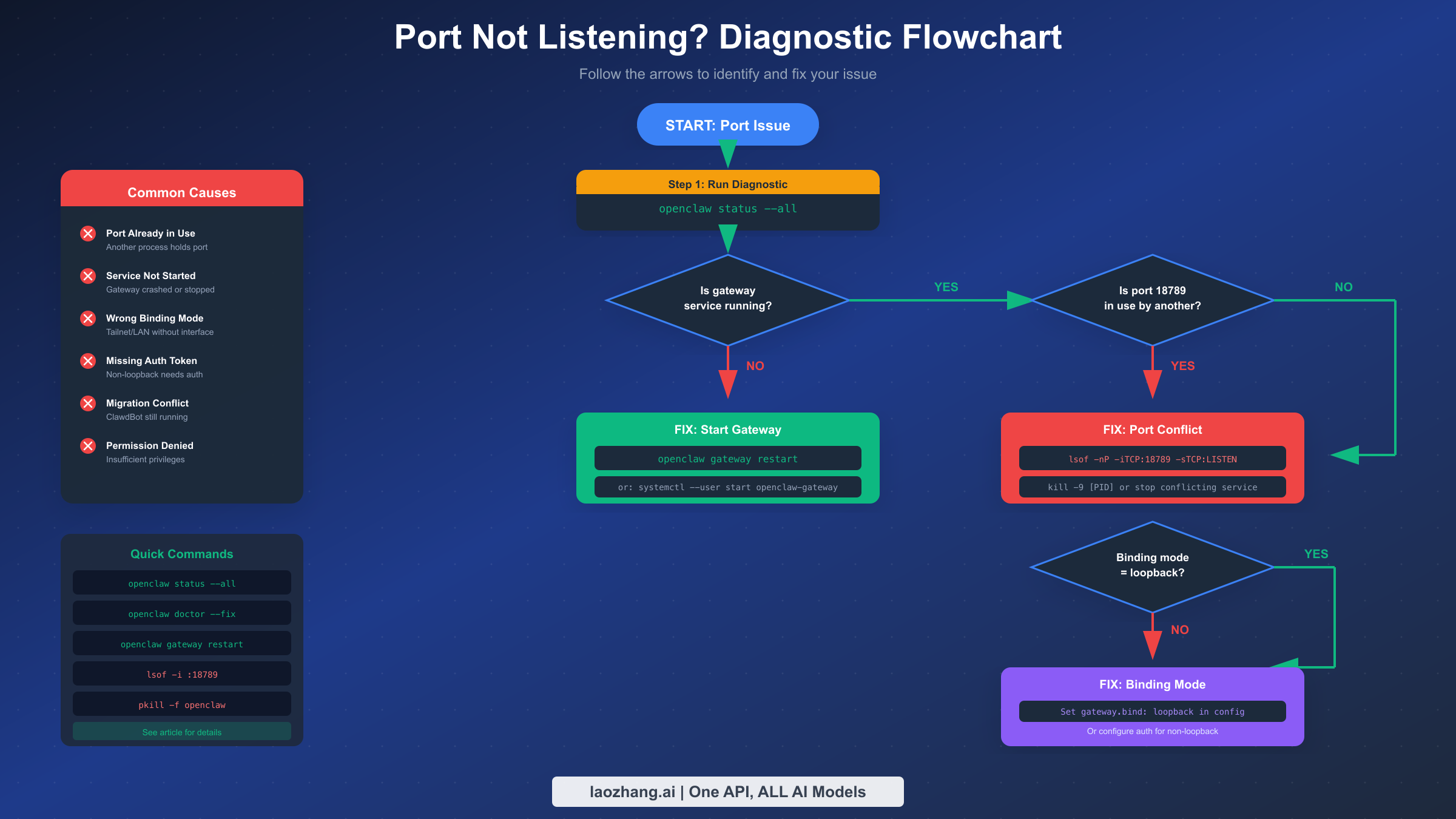
When facing port issues, a systematic diagnostic approach saves time compared to random troubleshooting attempts. This section provides a decision-tree workflow that identifies the root cause within minutes, regardless of which port has failed.
Start every troubleshooting session with the comprehensive status command. Running openclaw status --all generates a complete diagnostic report covering the gateway process, all configured services, port bindings, and recent activity. This single command often reveals the exact problem without further investigation. The output clearly indicates whether services are running, which ports are listening, and any configuration warnings that might explain the failure.
If the status command shows the gateway as "not running" or reports no process listening on port 18789, you've identified a service startup failure. The most common causes include configuration errors, permission problems, or residual processes from a previous installation. Before attempting to start the service, check for existing listeners with lsof -nP -iTCP:18789 -sTCP:LISTEN on macOS and Linux. This command reveals whether another process has claimed the port.
When something else occupies the gateway port, you'll see output showing the process name and ID. Common culprits include old ClawdBot installations that weren't properly removed during migration, SSH tunnels that forward to the same port, or duplicate OpenClaw instances from crashed sessions. Identifying the blocking process determines your next step—either killing an unwanted process or reconfiguring port assignments to avoid conflicts.
For situations where the service reports running but connections still fail, the issue often lies in binding mode configuration. The openclaw gateway status command provides detailed information about how the gateway has bound to network interfaces. If you see "bind=tailnet but no tailnet interface found," OpenClaw tried to use a Tailscale IP address that doesn't exist on the machine. Similarly, "bind=lan" requires the specified network interface to be available and properly configured.
The openclaw doctor command serves as an automated repair tool for common issues. Running openclaw doctor --fix attempts to correct configuration problems, repair permissions, create missing directories, and migrate outdated settings. This command resolves roughly 60% of port issues without manual intervention. Always run it before diving into manual troubleshooting.
Checking logs provides crucial context when automated tools don't resolve the problem. Gateway logs live at different locations depending on your platform: /tmp/openclaw/openclaw-YYYY-MM-DD.log for temporary logs, ~/.openclaw/logs/gateway.log on macOS, and journalctl --user -u openclaw-gateway.service -n 200 --no-pager on Linux systems using systemd. These logs contain startup errors, authentication failures, and detailed error messages that pinpoint configuration problems.
For persistent issues that survive the above diagnostics, the nuclear option involves stopping all OpenClaw processes, clearing state, and reinitializing. Run openclaw gateway stop to halt the service, remove the contents of $OPENCLAW_STATE_DIR (typically ~/.openclaw), then restart with openclaw channels login followed by openclaw gateway restart. This clean-slate approach resolves state corruption issues that can occur after crashes or failed upgrades.
Fixing Gateway Port (18789) Issues
The gateway port encounters problems more frequently than other ports because it handles the primary connection point and has the most complex configuration options. Understanding the specific failure modes helps you apply targeted fixes rather than generic troubleshooting.
Port conflicts represent the most common gateway issue, accounting for nearly half of all port-related support requests. When another process occupies port 18789, OpenClaw cannot start its gateway service. The diagnostic command lsof -nP -iTCP:18789 -sTCP:LISTEN on macOS and Linux reveals the blocking process. On Windows, use netstat -ano | findstr :18789 to identify the process ID, then tasklist /FI "PID eq [PID]" to determine the process name.
Once you've identified the conflicting process, decide whether to terminate it or reconfigure OpenClaw to use a different port. For unwanted processes like leftover ClawdBot instances, terminating makes sense. Use kill -9 [PID] on Unix systems or taskkill /F /PID [PID] on Windows. However, if the process serves a legitimate purpose—like an SSH tunnel you've configured—consider changing OpenClaw's gateway port in the configuration instead.
Service startup failures occur when the gateway process crashes during initialization. Common causes include invalid configuration files, missing API keys, and permission problems. The gateway requires a valid Anthropic API key configured either through environment variables or the configuration file. Running openclaw doctor checks for these prerequisites and reports any missing requirements.
Configuration file corruption can prevent startup without obvious error messages. The main configuration file lives at ~/.openclaw/config.json on most systems. If you suspect corruption, rename the existing file and let OpenClaw create a fresh default configuration. You can then migrate specific settings back manually, testing startup after each change to identify problematic options.
Binding mode mismatches cause subtle failures where the service starts but refuses connections from expected sources. The gateway supports several binding modes: loopback (127.0.0.1 only), lan (local network interface), tailnet (Tailscale interface), and custom (specified address). Each non-loopback mode requires additional configuration. For tailnet mode, Tailscale must be running and connected before the gateway starts. For lan mode, specify the correct interface name in your configuration.
Authentication requirements kick in for non-loopback bindings. When the gateway binds to addresses other than 127.0.0.1, it mandates token-based authentication to prevent unauthorized access. Set gateway.auth.mode to either token or password and configure the corresponding credential. Without proper authentication setup, clients connecting to non-loopback addresses receive 401 Unauthorized errors despite the port being available.
Firewall and security software occasionally block the gateway port even for loopback connections. macOS users might encounter Gatekeeper prompts the first time OpenClaw starts. Linux firewall rules (iptables, ufw, firewalld) could block connections. On Windows, Windows Defender Firewall might need an explicit exception. If connections fail despite the port showing as listening, temporarily disable security software to test whether it's blocking access.
Platform-specific service management adds another layer of complexity. On macOS, OpenClaw registers a launchd job that manages the gateway lifecycle. The job lives at ~/Library/LaunchAgents/com.openclaw.gateway.plist. If this plist becomes corrupted or contains outdated paths, the service fails to start correctly. Running launchctl unload ~/Library/LaunchAgents/com.openclaw.gateway.plist followed by openclaw gateway install recreates the launch agent with correct settings.
Linux systems using systemd manage the gateway through a user service. Check status with systemctl --user status openclaw-gateway.service. If the service shows as failed, examine the journal with journalctl --user -u openclaw-gateway.service -n 50 for specific error messages. Common issues include missing Node.js in the PATH for the systemd environment or incorrect working directory specifications in the service file.
Windows users face unique challenges because OpenClaw runs as a scheduled task rather than a traditional service. Check task status in Task Scheduler under the "OpenClaw" folder, or use schtasks /Query /TN "OpenClaw Gateway" /V from the command prompt. Failed tasks often result from user permission changes or updates that moved executable locations. Re-registering the task with openclaw gateway install after running as administrator typically resolves Windows-specific startup failures.
Environment variable conflicts can sabotage gateway startup across all platforms. If you have OPENCLAW_GATEWAY_PORT or similar environment variables set from previous configurations, they override the config file settings. Check your shell profile files (.bashrc, .zshrc, PowerShell profile) for conflicting exports. The openclaw status --all output includes environment variable information that helps identify such conflicts.
Memory and resource constraints cause startup failures in resource-limited environments. The gateway and its managed browsers require available memory to function. On systems with limited RAM—particularly development containers or small VMs—the gateway might fail to start or crash shortly after starting. Monitor system memory during startup with htop or Activity Monitor. Consider increasing available resources or reducing the number of concurrent managed browser profiles.
Resolving Control Service (18791) Problems
The Control Service on port 18791 handles internal communication for browser lifecycle management. Unlike the gateway, users don't directly connect to this port—it serves as an internal RPC endpoint between OpenClaw components. Issues here typically manifest as browsers failing to start or stop rather than direct connection errors.
Control Service failures most often stem from the same root causes as gateway issues since both services are managed by the same supervisor process. When the gateway shows healthy but browser commands fail, check whether the Control Service is actually running by examining the openclaw status --all output for its specific status line.
The supervisor process manages both the gateway and Control Service. If you see the gateway running but the Control Service offline, the supervisor might have encountered an error starting the secondary service. Check supervisor logs in ~/.openclaw/logs/supervisor.log for specific error messages related to the Control Service.
In rare cases, the Control Service port can experience conflicts independently of the gateway. This happens when other software coincidentally uses port 18791. The diagnostic approach mirrors gateway troubleshooting: use lsof -i :18791 to check for competing processes and either terminate them or reconfigure the conflicting software.
Control Service communication failures between it and the gateway indicate internal state problems. Running openclaw gateway stop followed by openclaw gateway restart clears internal state and reinitializes the communication channels between services. This resolves most inter-service communication issues without requiring configuration changes.
Resource exhaustion can impact the Control Service independently when many browser instances are being managed. Each managed browser consumes system resources, and the Control Service tracks all of them. If you're running many parallel browser automation tasks, the Control Service might struggle to keep up. Reduce concurrency or implement request queuing in your automation code to prevent overwhelming the service.
The Control Service also handles browser profile management, including creating new profiles and cleaning up old ones. If profile directories become corrupted or overly large, the service might slow down or fail when attempting to work with them. Periodically cleaning the browser profile directory (~/.openclaw/browsers/) removes accumulated data that could impact performance. Keep profiles you actively use but remove experimental or test profiles that have accumulated.
Troubleshooting CDP Relay (18792)
The CDP Relay port bridges OpenClaw to browser instances, making it critical for the Extension Relay mode that allows controlling your existing Chrome sessions. When this port fails, browser automation commands time out or return connection errors even though the gateway appears healthy.
Extension connection issues represent the primary CDP Relay failure mode. In Extension Relay mode, the OpenClaw Chrome extension maintains a WebSocket connection to port 18792. If the extension isn't installed, is disabled, or can't reach the relay, browser commands fail. Verify the extension status by checking Chrome's extension management page (chrome://extensions) and confirming OpenClaw is enabled.
The extension needs explicit pairing with the gateway before it can connect to the CDP Relay. If you recently reinstalled OpenClaw or cleared your configuration, the pairing might be lost. Open the extension popup and check the connection status. If it shows "Disconnected" or "Pairing required," click through the pairing flow to re-establish the connection.
WebSocket connectivity between the extension and relay can fail due to browser security policies. Chrome enforces Content Security Policy restrictions that might block WebSocket connections in certain contexts. Try connecting from a simple webpage rather than extension pages or chrome:// URLs to eliminate CSP as a cause.
Multiple browser profiles or Chrome installations can cause confusion about which browser should connect to the relay. The extension only functions in the Chrome profile where it was installed. If you're working across multiple profiles, ensure the extension is installed and configured in each profile you need to automate.
CDP Relay authentication failures occur when the relay and gateway have mismatched authentication state. After configuration changes affecting authentication, both components need to reinitialize with matching credentials. The openclaw gateway restart command ensures both services start with consistent authentication configuration.
For debugging CDP Relay specifically, enable verbose logging with openclaw gateway --verbose before attempting browser connections. The verbose output shows WebSocket connection attempts, authentication handshakes, and CDP message routing—information invaluable for identifying exactly where communication breaks down.
Managed Browser Port (18800+) Fixes
Managed browser ports carry native Chrome DevTools Protocol traffic between OpenClaw and isolated Chrome instances it controls. Each configured browser profile receives a dedicated port starting from 18800. When these ports fail to listen, the underlying Chrome instances haven't started correctly.
Browser executable path problems cause the most managed browser failures. OpenClaw needs to know where Chrome is installed to launch managed instances. The configuration option browser.executablePath specifies this location. Common paths include /usr/bin/google-chrome-stable on Linux, /Applications/Google Chrome.app/Contents/MacOS/Google Chrome on macOS, and C:\Program Files\Google\Chrome\Application\chrome.exe on Windows. If Chrome moved or was installed non-standardly, update this path.
Snap and Flatpak Chrome installations on Linux cause CDP initialization failures because these sandboxed package formats restrict Chrome's ability to open debugging ports. The solution involves installing Chrome through the traditional package manager (apt, yum) rather than as a snap. Remove the snap version with snap remove chromium and install Google Chrome directly from the official repository.
Chrome profile corruption can prevent managed instances from starting. OpenClaw maintains separate profile directories for managed browsers, typically under ~/.openclaw/browsers/. If a profile becomes corrupted—perhaps from a previous crash—Chrome fails to initialize. Renaming or deleting the problematic profile directory allows OpenClaw to create a fresh profile on the next startup.
CDP port availability affects managed browser startup. Each profile needs its assigned port free when Chrome launches. If something else occupies port 18800, the default managed browser cannot start. Check for conflicts using lsof -i :18800 and resolve them as you would gateway port conflicts.
Multiple managed browser profiles require careful port management. The configuration specifies which port each profile uses:
json{
  "browserProfiles": {
    "openclaw": { "cdpPort": 18800 },
    "work": { "cdpPort": 18801 },
    "test": { "cdpPort": 18802 }
  }
}
Ensure no conflicts exist between these assigned ports and other services on your system. Also verify that your firewall allows connections to the entire port range you've configured.
Chrome startup flags affect CDP accessibility. Managed browsers launch with specific flags enabling remote debugging. Conflicting flags from browser policies (common in enterprise environments) can override these settings. Check whether your organization applies Chrome policies that might interfere with debugging capabilities.
GPU acceleration problems can prevent managed browsers from starting correctly on headless servers or in virtual machines without GPU support. Chrome attempts to use hardware acceleration by default, which fails in these environments. Configure managed browsers to use software rendering by adding --disable-gpu to the browser launch arguments in your configuration. This trades some rendering performance for reliability in GPU-less environments.
Temporary directory issues affect managed browser startup because Chrome writes data to temp locations during initialization. If /tmp is full, mounted read-only, or has restrictive permissions, Chrome cannot start. Verify temp directory availability with df -h /tmp and permissions with ls -la /tmp. On systems with small or restricted temp directories, configure an alternative temp location through the TMPDIR environment variable before starting OpenClaw.
Profile locking conflicts occur when attempting to use the same managed browser profile from multiple OpenClaw instances. Chrome creates lock files in profile directories to prevent concurrent access. If a previous instance crashed without releasing locks, new instances cannot use that profile. Manually removing SingletonLock and SingletonCookie files from the profile directory allows access, but ensure no other process is actually using the profile to avoid data corruption.
Special Scenarios and Edge Cases
Beyond the port-specific issues covered above, several scenarios create unique troubleshooting challenges that deserve dedicated attention.
ClawdBot to OpenClaw migration leaves many users with lingering conflicts. The upgrade process doesn't always cleanly remove the previous installation, resulting in both old and new services competing for port 18789. Complete migration requires stopping ClawdBot services, uninstalling the old package, and removing legacy configuration files. On systems with systemd, also remove the old service file at ~/.config/systemd/user/clawdbot-gateway.service and reload the daemon with systemctl --user daemon-reload.
The cleanup procedure involves several steps: first systemctl --user stop clawdbot-gateway.service (if it exists), then pkill -f clawdbot to terminate any remaining processes, followed by npm uninstall -g clawdbot to remove the package. Finally, verify no clawdbot processes remain with ps aux | grep clawdbot before attempting to start OpenClaw.
Docker deployments require explicit port mapping in the container configuration. The docker-compose.yml must expose all necessary ports:
yamlports:
  - "18789:18789"  # Gateway
  - "18791:18791"  # Control Service
  - "18792:18792"  # CDP Relay
  - "18800-18810:18800-18810"  # Managed browsers
Docker's networking model means the gateway must bind to 0.0.0.0 rather than 127.0.0.1 to accept connections from outside the container. This requires configuring gateway.bind: lan along with appropriate authentication since non-loopback bindings mandate auth.
Platform-as-a-Service deployments (Zeabur, Railway, etc.) introduce additional constraints. These platforms often require services to bind to specific addresses and perform health checks on designated ports. The health probe expecting a response from the gateway port will fail if OpenClaw binds to loopback. Configure according to your platform's requirements, typically involving gateway.bind: lan or custom with the platform-specified address.
Tailscale integration failures occur when the gateway is configured for tailnet binding but the Tailscale daemon isn't running or hasn't assigned an IP address. Tailscale must be authenticated and connected before the gateway starts. Verify Tailscale status with tailscale status and ensure it shows a 100.x.x.x IP address. If Tailscale runs on a separate machine, configure OpenClaw to bind to loopback and use Tailscale Serve or Funnel to expose the gateway externally.
Mode switching conflicts happen when toggling between Local and Remote connection modes. The macOS app particularly suffers from a race condition where the local gateway launchd job doesn't properly unload when switching to remote mode. The SSH tunnel then binds to port 18789, but the local gateway keeps attempting restarts and failing. Manual intervention requires unloading the launch agent before the mode switch: launchctl unload ~/Library/LaunchAgents/com.openclaw.gateway.plist.
The installation guide covers initial setup thoroughly, but post-installation changes can create inconsistent state. If you've modified your installation path, Node.js version, or system user, the service definitions might reference outdated locations. Reinstalling the service component with openclaw gateway install updates all system integration points to match current settings.
Error Message Reference
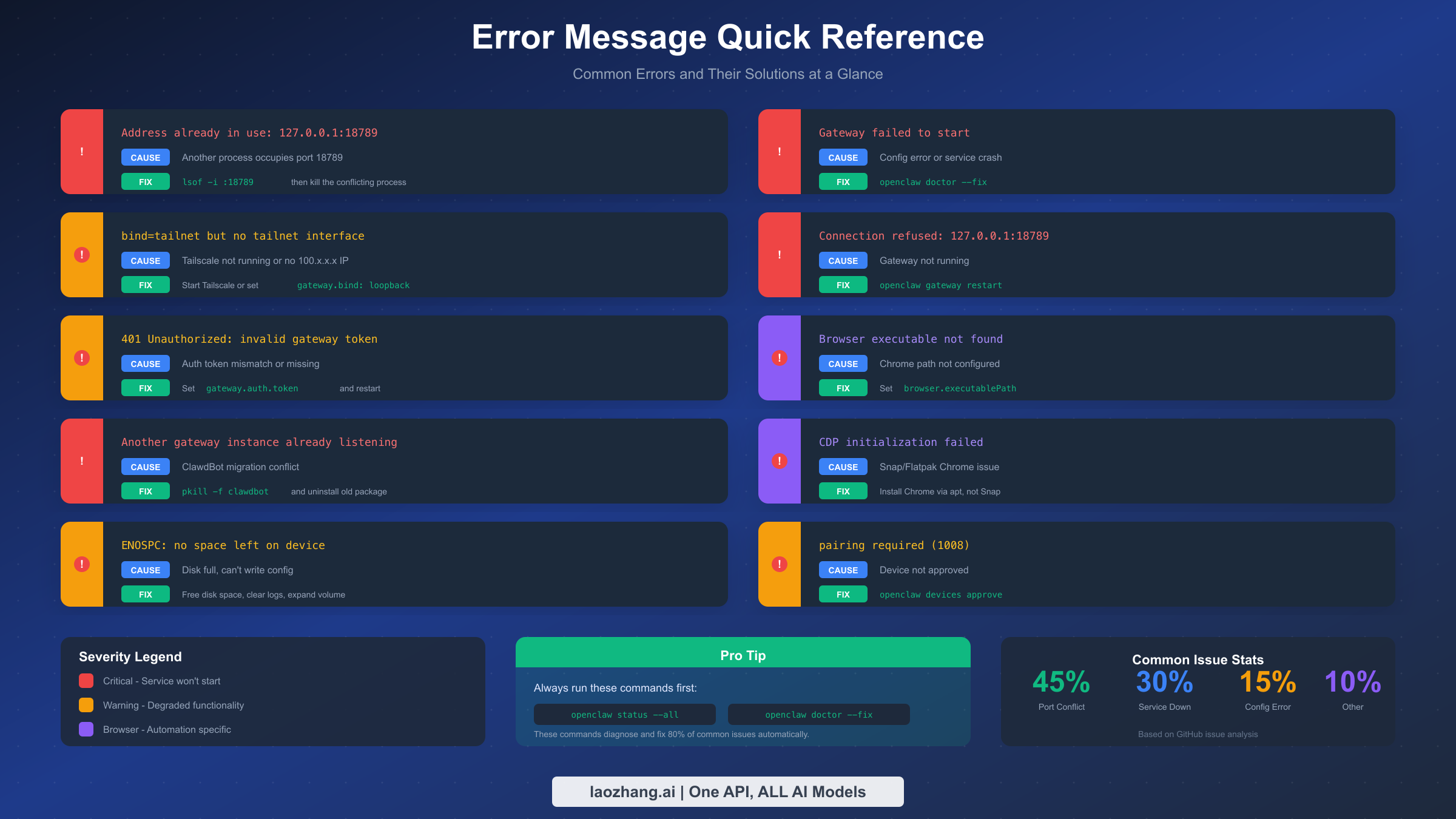
When troubleshooting, knowing exactly what each error message means accelerates diagnosis. This reference table maps common errors to their causes and solutions.
The error "Address already in use: 127.0.0.1:18789" indicates a port conflict where another process has claimed the gateway port. Run lsof -i :18789 to identify the process, then either terminate it or configure OpenClaw to use a different port.
"Gateway failed to start" appears when the gateway process crashes during initialization. Run openclaw doctor --fix first to resolve common configuration problems. If that doesn't help, check ~/.openclaw/logs/gateway.log for specific startup errors.
"bind=tailnet but no tailnet interface found" means OpenClaw tried to use Tailscale networking, but no Tailscale IP is available. Either start Tailscale with tailscale up or change the binding mode to loopback in your configuration.
"Connection refused: 127.0.0.1:18789" indicates the gateway isn't running at all. Start it with openclaw gateway restart or check system service status for why it might have stopped.
"401 Unauthorized: invalid gateway token" appears when authentication credentials don't match. For non-loopback bindings, verify that gateway.auth.token in your configuration matches what clients are providing.
"Browser executable not found" means Chrome isn't at the expected path. Update browser.executablePath in your configuration to point to the actual Chrome installation.
"Another gateway instance is already listening" typically indicates a ClawdBot migration conflict. Clean up the old installation with pkill -f clawdbot and npm uninstall -g clawdbot.
"CDP initialization failed" often stems from Snap-packaged Chrome on Linux. Install Chrome via apt instead of snap to resolve compatibility issues.
"ENOSPC: no space left on device" indicates disk space problems preventing OpenClaw from writing configuration or logs. Free up disk space and restart the gateway.
"pairing required (1008)" means the connecting device hasn't been approved. Run openclaw devices list to see pending requests and openclaw devices approve [ID] to authorize.
Prevention and Maintenance
Preventing port issues proves far more efficient than repeatedly troubleshooting them. Establishing regular maintenance practices and understanding configuration best practices keeps your OpenClaw installation running reliably.
Regular health checks catch problems before they cause failures. Run openclaw health --verbose daily in automated scripts to verify all components are functioning. This command checks gateway reachability, service status, and configuration validity. Pipe the output to a log file for historical tracking or integrate it with monitoring systems that can alert on failures.
Before system reboots, ensure OpenClaw shuts down cleanly. Running openclaw gateway stop before restarting your machine prevents corrupted state from incomplete writes. Configure this as a shutdown script on systems where OpenClaw runs as a service. Clean shutdowns dramatically reduce the frequency of post-reboot configuration issues.
Keep your OpenClaw installation updated to benefit from bug fixes and compatibility improvements. The development team regularly addresses port-related issues reported by users. Check for updates with npm outdated -g @anthropics/openclaw and upgrade with npm update -g @anthropics/openclaw. After updates, run openclaw doctor to ensure configuration compatibility with the new version.
Monitor log file sizes to prevent disk space issues. Gateway logs can grow large under heavy use. Configure log rotation either through your operating system's logrotate facility or by periodically archiving and clearing old log files. A cron job running find ~/.openclaw/logs -name "*.log" -mtime +7 -delete removes logs older than a week.
Backup your configuration before making changes. The ~/.openclaw/config.json file contains all your customizations. Copy it to a backup location before experimenting with settings. This allows quick recovery if changes introduce problems rather than solving them.
Document your working configuration, especially in team environments. When multiple developers use OpenClaw, having documented standard configurations prevents each person from troubleshooting the same issues. Share working browser profile configurations, authentication settings, and any platform-specific adjustments your environment requires.
When deploying OpenClaw in production environments, implement proper service monitoring. Use process supervisors like systemd (Linux) or launchd (macOS) configured to restart the gateway on failure. Set reasonable restart limits to prevent infinite restart loops on persistent errors—three attempts with increasing delays works well for transient failures while stopping quickly for fundamental configuration problems.
Test port availability before startup in containerized deployments. Adding a pre-start check that verifies ports 18789-18810 are available prevents silent failures where containers start but OpenClaw cannot bind to required ports. This is especially important in orchestration systems like Kubernetes where port conflicts might indicate scheduling problems.
For MCP protocol integration, ensure your AI agent configurations point to the correct gateway address. Mismatched addresses in agent configurations cause connection failures that look like port problems but actually stem from incorrect client settings. Verify both the address and any authentication tokens match what the gateway expects.
Frequently Asked Questions
Understanding common questions about OpenClaw port issues helps address concerns that might not fit neatly into the troubleshooting categories above. These questions come from community forums, GitHub issues, and support channels.
What port does OpenClaw use by default?
OpenClaw uses port 18789 as the primary gateway port for agent connections. This single port handles WebSocket connections from AI agents like Claude Code and Cursor, HTTP requests for the Control UI, and API calls for programmatic interaction. Additional ports include 18791 for the internal Control Service, 18792 for the CDP Relay that bridges to browser extensions, and 18800 onwards for managed browser instances. All ports bind to localhost (127.0.0.1) by default, meaning they only accept local connections unless explicitly configured otherwise.
How do I check if OpenClaw ports are listening?
The quickest method uses the openclaw status --all command, which reports the status of all OpenClaw services and their port bindings. For lower-level verification, use lsof -nP -iTCP:18789 -sTCP:LISTEN on macOS or Linux to check a specific port. This command shows whether anything is listening and which process owns the port. On Windows, use netstat -ano | findstr :18789 to achieve the same result. The output helps distinguish between "port not listening" (service not running) and "port occupied" (different process owns it) scenarios.
Can I change the default OpenClaw port?
Yes, you can configure OpenClaw to use different ports through the configuration file at ~/.openclaw/config.json. Set gateway.port to your desired port number for the main gateway, and adjust browserProfiles.[name].cdpPort for managed browser ports. After changing ports, restart the gateway with openclaw gateway restart. Remember to update any agent configurations that connect to OpenClaw to use the new port numbers. Port changes are useful when the default ports conflict with other services on your system.
Why does OpenClaw show "address already in use" after a crash?
When OpenClaw crashes without cleanly shutting down, the operating system may not immediately release the port binding. This TIME_WAIT state typically lasts 30-60 seconds. If you try to restart immediately, you'll see the "address already in use" error. Wait a minute and try again, or use lsof -i :18789 to verify the old process has fully terminated. On Linux, you can also check with ss -tlnp | grep 18789. If the old process persists, use kill -9 [PID] to force termination before restarting.
How do I run OpenClaw on a different machine and connect to it?
Running OpenClaw on a remote machine requires configuring non-loopback binding and authentication. Set gateway.bind: lan or gateway.bind: custom with your server's IP address. Non-loopback bindings require authentication, so configure gateway.auth.mode: token and set a strong token in gateway.auth.token. Connect from client machines by specifying the remote address and token in your agent configuration. For secure remote access, consider using Tailscale, which provides encrypted point-to-point connections. With Tailscale, set gateway.bind: tailnet and OpenClaw automatically binds to your Tailscale IP.
What causes "connection refused" vs "connection timed out" errors?
These errors indicate different failure modes. "Connection refused" means the operating system actively rejected the connection because nothing is listening on that port. This happens when the OpenClaw service isn't running or crashed. "Connection timed out" means the connection attempt received no response within the timeout period. This typically indicates firewall blocking, incorrect IP address, or network connectivity issues. For refused connections, focus on starting the service. For timeouts, investigate network path and firewall configuration between the client and server.
How do I troubleshoot OpenClaw in Docker containers?
Docker networking adds complexity because containers have isolated network namespaces. First, ensure port mappings are correct in your docker-compose.yml—you need explicit mappings for ports 18789-18810 (or your configured range). The gateway must bind to 0.0.0.0 inside the container to accept connections from outside, requiring gateway.bind: lan and proper authentication. Use docker compose logs openclaw-gateway to view service logs. If the gateway starts but agents can't connect, verify you're connecting to the host's exposed port, not the container's internal address.
Does OpenClaw work with Brave, Edge, or other Chromium browsers?
Yes, OpenClaw works with any Chromium-based browser for the Extension Relay mode, as the Chrome extension is compatible with Brave, Edge, Vivaldi, and similar browsers. For managed browser instances, configure browser.executablePath to point to your preferred browser's executable. Note that managed browser mode creates isolated profiles within the specified browser, so you'll have a separate browser instance specifically for automation rather than using your regular browsing profile.
Conclusion
OpenClaw port issues, while frustrating, follow predictable patterns that systematic troubleshooting resolves efficiently. Understanding the four-port architecture—Gateway (18789), Control Service (18791), CDP Relay (18792), and Managed Browsers (18800+)—provides the foundation for targeted diagnostics. Starting every troubleshooting session with openclaw status --all and openclaw doctor --fix resolves the majority of issues without deep investigation.
For persistent problems, the diagnostic flowchart guides you through identifying root causes: port conflicts, service failures, binding misconfigurations, and authentication issues each have specific solutions. Platform-specific considerations for macOS launchd, Linux systemd, Docker networking, and Windows services require awareness but follow consistent principles.
Prevention through regular health checks, clean shutdowns, and configuration backups provides the most efficient approach to port reliability. When issues do occur, the error message reference table accelerates diagnosis by mapping specific messages to their causes and solutions.
With this guide's systematic approach, you can maintain reliable OpenClaw operation and quickly recover when problems arise. The investment in understanding the port architecture pays dividends every time you need to troubleshoot—transforming frustrating debugging sessions into quick, targeted fixes.