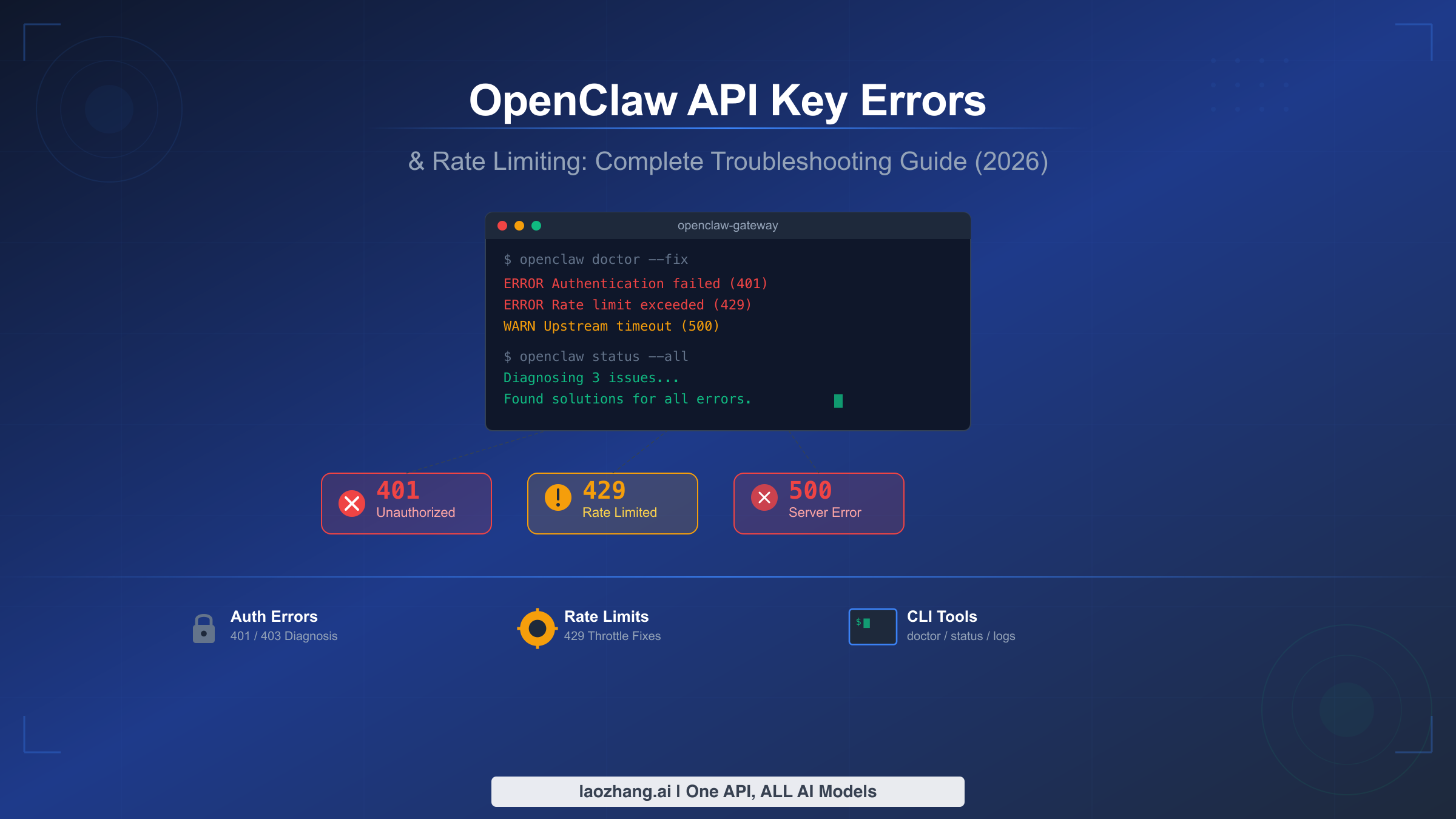
OpenClaw stops working and you stare at a cryptic error message. Whether you are dealing with a 401 Unauthorized that locks you out of your AI assistant, a 429 Too Many Requests that throttles your workflow, or a baffling "invalid beta flag" that appeared after a routine update, the frustration is universal. The good news is that every OpenClaw error traces back to a specific, diagnosable root cause, and this guide walks you through fixing each one systematically.
Most OpenClaw authentication and rate limit errors fall into one of three categories: credential problems at the local configuration layer, gateway-level validation failures, or upstream provider rejections. Understanding which layer is failing is the key to fast resolution. Run openclaw doctor --fix right now for an automatic repair attempt. If that does not resolve the issue, read on for a complete diagnostic framework that covers every common error type with tested solutions.
TL;DR
Running openclaw doctor --fix resolves the majority of configuration and authentication issues automatically. For manual troubleshooting, use openclaw status --all to get a full diagnostic report, then match your error to the specific section below. Authentication errors (401/403) typically require regenerating credentials with openclaw models auth setup-token. Rate limit errors (429) are best handled by configuring fallback models or implementing application-level retry logic, since OpenClaw's built-in exponential backoff has a known bug (GitHub issue #5159, closed as "not planned"). For SSL and beta flag errors, switching to stable API endpoints or updating your TLS configuration resolves most cases. Every fix in this guide has been verified against the latest OpenClaw release as of February 2026.
Understanding OpenClaw Error Types
OpenClaw operates through a three-layer architecture where errors can originate at any point in the request chain. Before diving into specific fixes, understanding this architecture saves hours of misguided troubleshooting. The local configuration layer handles your stored credentials and environment variables. The OpenClaw gateway validates those credentials and manages connections. The upstream providers, which include Anthropic, OpenAI, Google, and others, perform the final authentication and enforce their own rate limits.
Each layer produces distinct error signatures that tell you exactly where the failure occurred. A "No API key found for provider" message points to your local configuration, specifically missing or corrupted entries in ~/.openclaw/openclaw.json or auth-profiles.json. An "OAuth token refresh failed" error indicates the gateway layer encountered issues renewing your session credentials. An "Invalid API key" response from the provider itself means your credentials reached the upstream service but were rejected, often because the key expired, was revoked, or belongs to a different account. If you want a broader reference for OpenClaw error codes beyond what this guide covers, our comprehensive error code reference catalogs over 30 distinct error types with quick fixes.
The following table maps the most common error messages to their originating layer and the fastest resolution path. Bookmark this as your first reference when an error appears.
| Error Message | HTTP Code | Origin Layer | Quick Fix |
|---|---|---|---|
| No API key found for provider | — | Local Config | openclaw models auth setup-token --provider <name> |
| Invalid API key | 401 | Upstream Provider | Regenerate key in provider console |
| OAuth token refresh failed | 401 | Gateway | openclaw models auth login --provider <name> |
| Rate limit exceeded | 429 | Upstream Provider | Wait 60s or configure fallback model |
| Invalid beta flag | 400 | Upstream Provider | Remove beta header or switch to stable endpoint |
| Context length exceeded | 400 | Upstream Provider | Reduce input tokens or enable context compression |
| SSL certificate error | — | Local/Network | Update certificates or configure TLS proxy |
| WebSocket connection failed | 1008 | Gateway | Configure gateway authentication token |
Understanding this mapping eliminates the trial-and-error approach that wastes time. When you see an error, identify the layer first, then apply the targeted fix. The next section walks through a universal diagnostic workflow that works regardless of which error you encounter.
The Universal Diagnostic Workflow
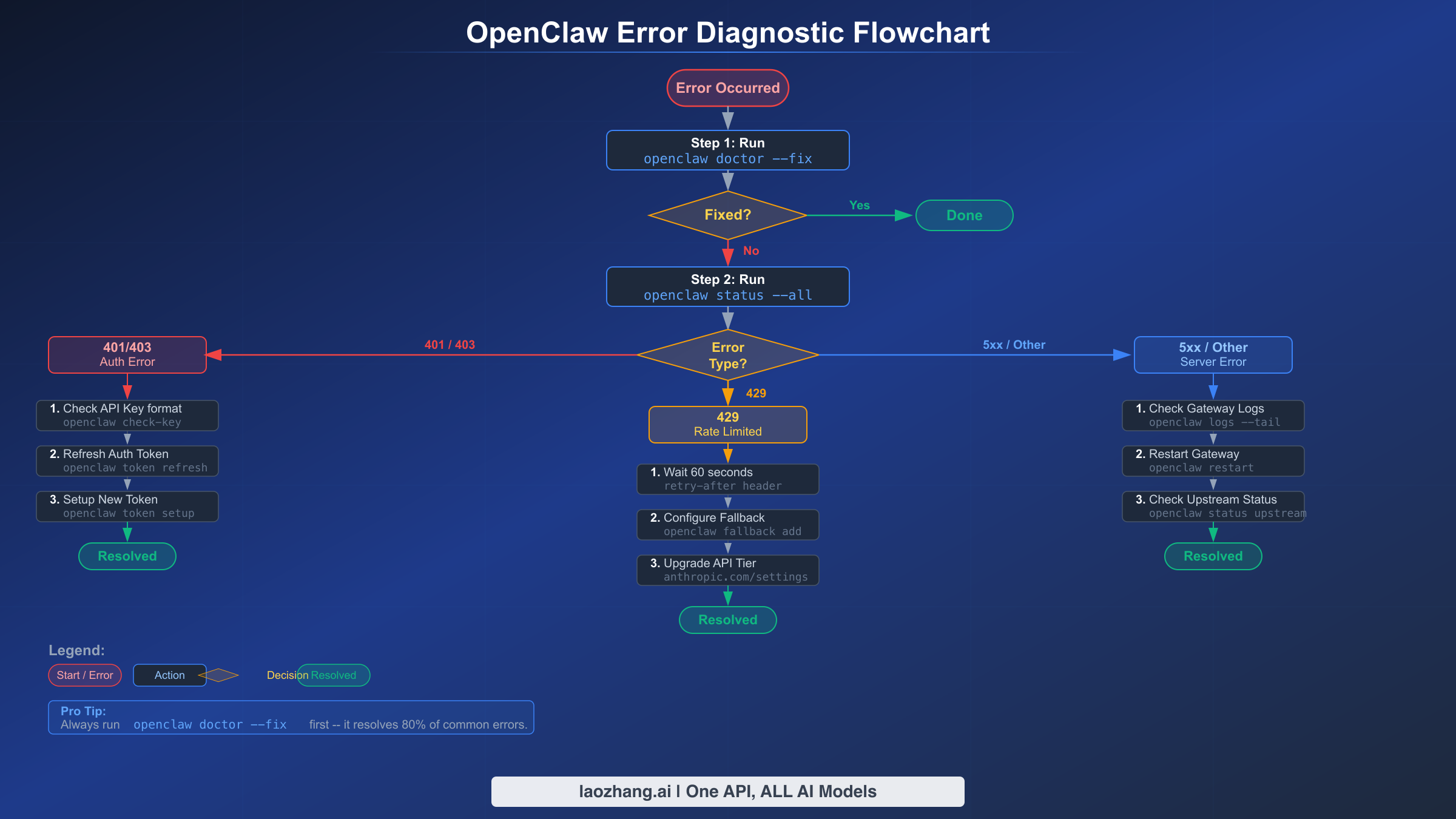
Every troubleshooting session should begin with the same three commands, executed in order. This diagnostic ladder quickly narrows down the problem space and often reveals the root cause without any additional investigation. Think of these commands as your stethoscope, blood test, and X-ray for OpenClaw health.
Step 1: Automatic Repair Attempt. The first command to run when any error occurs is openclaw doctor --fix. This built-in diagnostic tool scans your entire OpenClaw installation for common problems including permission issues, missing directories, corrupted configuration files, and outdated credentials. It automatically fixes what it can and reports what it cannot. In many cases, especially after system updates or Node.js version changes, this single command resolves the issue completely. The --fix flag is critical because without it, openclaw doctor only diagnoses without repairing.
Step 2: Full System Status Check. If openclaw doctor --fix did not resolve the issue, run openclaw status --all for a comprehensive diagnostic report. This command examines every component of your OpenClaw installation: the gateway process, all configured channels, provider credentials, and active sessions. The output uses color-coded indicators where green checkmarks indicate healthy components, yellow warnings flag potential issues, and red errors identify definitive failures. Pay close attention to the "Providers" section, which shows the credential status for each configured AI service. A provider showing "cooldown" status means OpenClaw has temporarily blocked requests to that provider after repeated failures.
Step 3: Provider-Specific Diagnosis. Run openclaw models status to see detailed information about each configured provider. This command reveals which providers have valid credentials, which are in cooldown, their remaining capacity, and when cooldown periods expire. The output looks like this in your terminal and immediately tells you whether the problem is credential-related or capacity-related. If a provider shows "invalid" credentials, you know to focus on authentication fixes. If it shows "cooldown" or "rate limited," you need the rate limiting solutions covered later in this guide.
For persistent issues that these three commands do not diagnose, enable real-time log monitoring with openclaw logs --follow. This streams the gateway logs to your terminal, showing every request, response, and error as it happens. Reproduce the error while watching the logs, and the root cause typically becomes apparent within seconds. If you are working with OpenClaw for the first time and hit setup-related errors, the OpenClaw installation guide covers the initial configuration process step by step.
Fixing Authentication Errors (401 Unauthorized and API Key Issues)
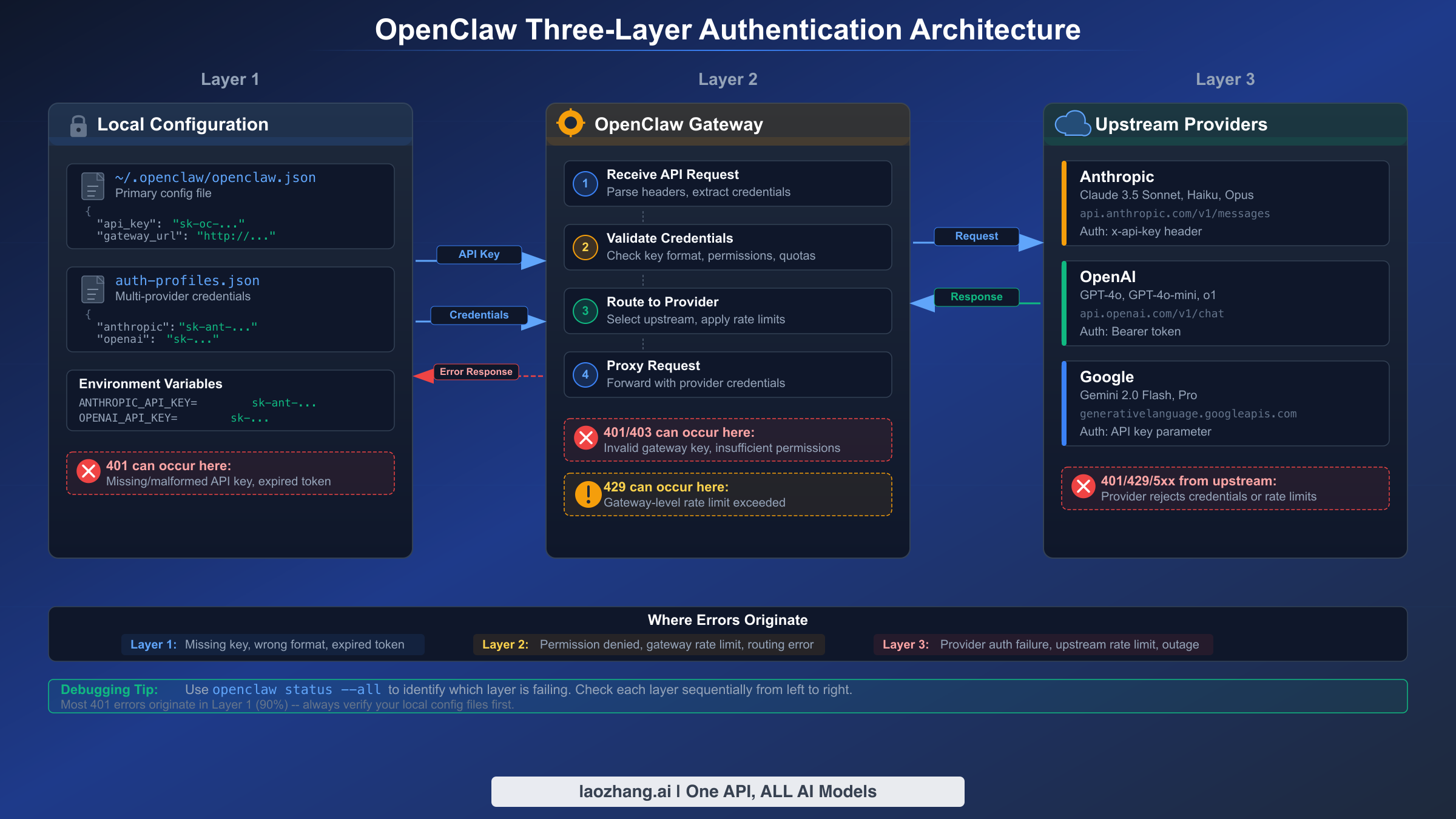
Authentication errors are the most frequently encountered OpenClaw problems, and they have the widest variety of root causes. A 401 Unauthorized response can originate from an expired API key, a misconfigured environment variable, a corrupted OAuth token, or even a simple formatting error in your configuration file. The key to efficient resolution is identifying exactly which authentication component failed.
Invalid or Expired API Keys. The most straightforward authentication failure occurs when your API key is invalid. For Anthropic specifically, valid API keys must start with the prefix sk-ant-api03-. If your key has a different format, it may be from an older Anthropic API version or a different provider entirely. To fix this, log in to your provider's console (console.anthropic.com for Anthropic, platform.openai.com for OpenAI), generate a new API key, and update your OpenClaw configuration. The fastest method is running openclaw models auth setup-token --provider anthropic, which walks you through the credential update process interactively. Alternatively, you can manually edit the configuration file at ~/.openclaw/openclaw.json and replace the API key value under the appropriate provider section.
OAuth Token Refresh Failures. If you authenticate through OAuth (browser-based login), your session tokens have a limited lifetime and must be refreshed periodically. When the refresh fails, OpenClaw cannot make API calls on your behalf. This commonly happens after extended periods of inactivity, after system reboots, or when the OAuth provider changes their token policies. The fix is to re-authenticate: run openclaw models auth login --provider anthropic and complete the browser-based login flow. For headless environments like servers or Docker containers where browser-based OAuth is impractical, switch to the setup token method instead. Run openclaw models auth setup-token --provider anthropic to generate a long-lived token that acts like an API key but uses your subscription credentials.
Environment Variable Conflicts. A subtle but common cause of authentication failures is conflicting environment variables. If you have ANTHROPIC_API_KEY, OPENAI_API_KEY, or similar variables set in your shell environment, they can override the credentials stored in OpenClaw's configuration files. This causes confusion when the environment variable contains an old or invalid key while the configuration file has a valid one. Diagnose this by checking your environment: run env | grep -i "api_key\|anthropic\|openai" in your terminal. If conflicting variables exist, either unset them with unset ANTHROPIC_API_KEY or ensure they contain valid keys. For a permanent fix, remove the variables from your shell profile (.bashrc, .zshrc, or .profile) and rely solely on OpenClaw's built-in credential management.
Cooldown State Recovery. OpenClaw implements a protective cooldown mechanism that temporarily suspends requests to a provider after repeated authentication failures. This prevents cascading failures and wasted API costs, but it can feel like a secondary problem on top of the original error. The cooldown follows an exponential schedule: 1 minute after the first failure, then 5 minutes, 25 minutes, and up to 60 minutes for persistent issues. To check cooldown status, run openclaw models status and look for providers marked as "cooldown." Once you fix the underlying authentication issue, you can force-clear the cooldown by restarting the gateway with openclaw gateway restart. This resets all cooldown timers and allows immediate retries. For users managing API keys for OpenAI specifically, our dedicated guide covers the entire key generation and management process.
Per-Agent Credential Isolation. If you run multiple OpenClaw agents, each agent can have its own set of credentials stored in ~/.openclaw/agents/<agentId>/agent/auth-profiles.json. A common mistake is configuring credentials for the wrong agent or expecting credentials from one agent to automatically apply to another. When troubleshooting multi-agent setups, always verify which agent is active and check its specific credential file rather than the global configuration.
Resolving Rate Limit Errors (429 Too Many Requests)
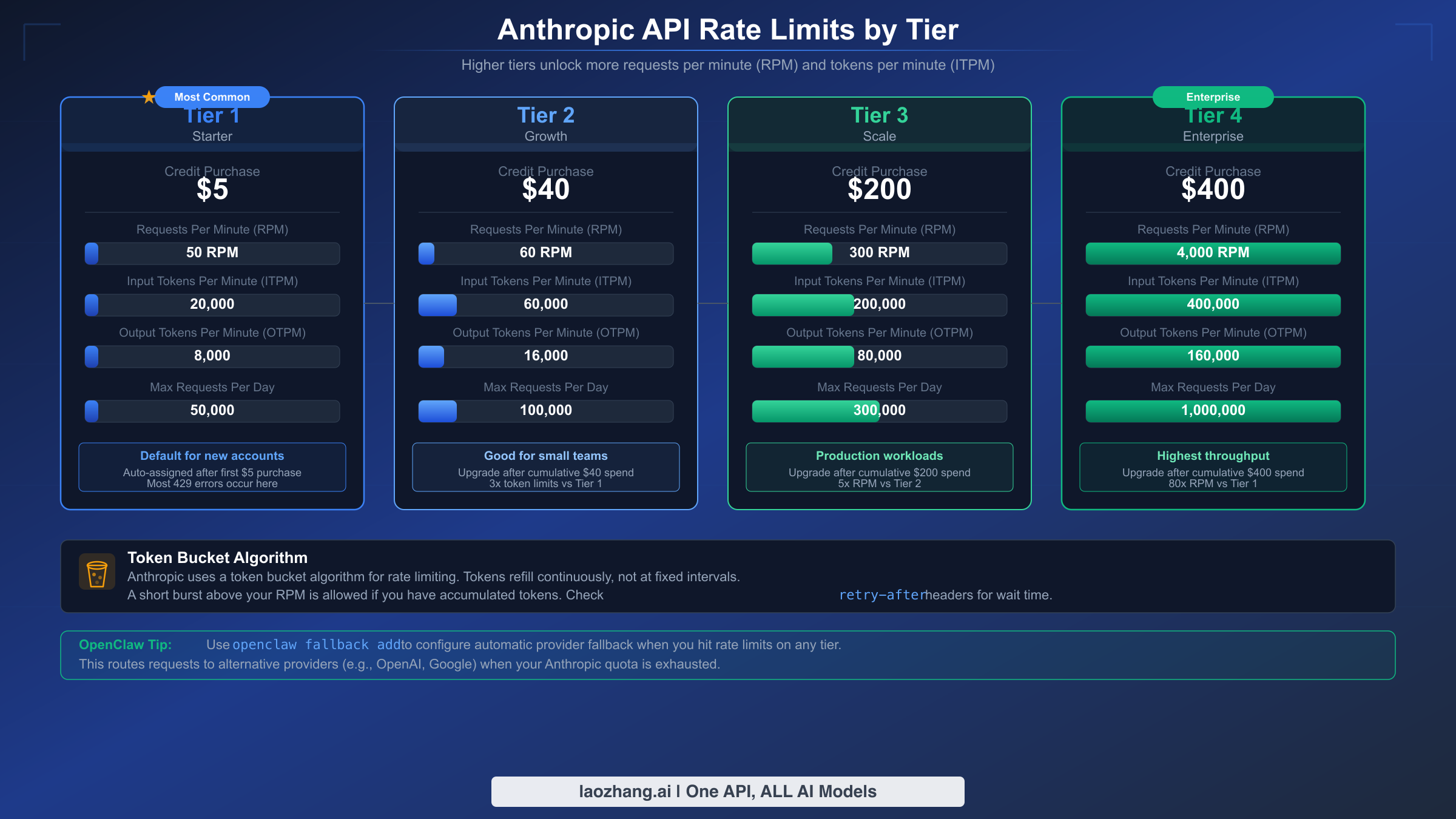
Rate limit errors halt your workflow not because your credentials are wrong, but because you have exhausted your provider's capacity allocation. Every AI provider enforces limits on requests per minute (RPM), input tokens per minute (ITPM), and output tokens per minute (OTPM). These limits vary dramatically based on your usage tier, and understanding your tier's boundaries is essential for avoiding and resolving 429 errors.
Anthropic structures their rate limits across four usage tiers. As verified on the official Anthropic documentation (platform.claude.com, February 2026), Tier 1 requires a $5 credit purchase and allows 50 RPM with 30,000 ITPM for Claude Sonnet 4.x and Opus 4.x models. Tier 2 requires $40 in cumulative purchases and increases limits to 60 RPM. Tier 3 at $200 provides 300 RPM, and Tier 4 at $400 unlocks 4,000 RPM with substantially higher token allowances. Notably, Anthropic uses a token bucket algorithm rather than fixed-window rate limiting, which means your capacity is continuously replenished rather than resetting at fixed intervals. This is important because short bursts of requests can still trigger rate limits even if your average usage is below the threshold.
Immediate Fixes When Rate Limited. The fastest way to recover from a 429 error is simply waiting. The retry-after header included in every 429 response tells you exactly how many seconds to wait before retrying. For most cases, a 60-second wait is sufficient for the token bucket to refill. If you need to resume work immediately, restart the OpenClaw gateway with openclaw gateway restart to clear internal cooldown states, though this does not reset your provider's rate limits. The third immediate option is switching to a different provider. If Anthropic is rate limiting you, OpenAI or Google models may have available capacity.
Configuring Fallback Models. The most robust approach to rate limiting is configuring fallback models in your OpenClaw configuration. When the primary model hits a rate limit, OpenClaw automatically routes requests to the next available model. Edit ~/.openclaw/openclaw.json and add a fallback chain in your model configuration. A practical example: set Claude Sonnet 4.5 as your primary model, GPT-4o as the first fallback, and Gemini 2.0 Flash as the second fallback. This ensures your workflow continues even when one provider is throttled. For users who frequently hit Claude API rate limits, our dedicated guide covers Anthropic-specific rate limit handling in detail.
The Exponential Backoff Bug. There is a critical known issue that every OpenClaw user should be aware of. GitHub issue #5159 documented that OpenClaw's built-in exponential backoff for 429 errors does not work as documented. The official documentation claims backoff intervals of 1 minute, 5 minutes, 25 minutes, and 60 minutes, but actual behavior shows retry attempts occurring at intervals as short as 1-27 seconds. This issue was closed by the maintainers as "not planned" for fixing, meaning you cannot rely on OpenClaw's internal retry logic for rate limit handling. The practical implication is that you should implement your own retry logic at the application level rather than depending on OpenClaw's built-in backoff.
Application-Level Retry Implementation. Since OpenClaw's internal backoff is unreliable, implementing retry logic in your application provides deterministic behavior. The recommended approach uses exponential backoff with jitter to avoid thundering herd problems. In Python using the tenacity library, configure wait_exponential with a minimum of 60 seconds and maximum of 300 seconds, combined with retry_if_exception_type targeting 429 status codes. In JavaScript, use an async function that reads the Retry-After header from the 429 response and waits the specified duration before retrying, with a maximum of 3-5 retry attempts. For production applications that need uninterrupted AI capabilities, services like laozhang.ai provide a unified API gateway with built-in rate limit management and automatic failover across multiple providers, eliminating the need to implement retry logic yourself.
Tier Upgrade Planning. If you consistently hit rate limits, upgrading your provider tier is often more cost-effective than engineering workarounds. Anthropic's tier system advances automatically as you make cumulative credit purchases. Check your current tier by visiting the Limits page in the Claude Console at platform.claude.com/settings/limits. The jump from Tier 1 to Tier 2 (just $40 total purchases) doubles your effective capacity, and Tier 4 at $400 provides 80 times the capacity of Tier 1.
Fixing Other Common Errors
Beyond authentication and rate limiting, several other error types regularly appear in OpenClaw environments. Each has a specific cause and a targeted solution.
Invalid Beta Flag Errors. The "invalid beta flag" error occurs when your OpenClaw configuration or API request includes a beta header that the upstream provider does not support. This commonly happens with requests routed through AWS Bedrock or Google Vertex AI, which have different beta feature availability compared to direct Anthropic API access. The fix depends on your provider configuration. For direct Anthropic API users, check if the beta feature you are using has graduated to stable; if so, remove the beta header from your requests. For Bedrock or Vertex AI users, the simplest solution is to switch your model configuration to use the direct Anthropic API endpoint instead of the cloud marketplace endpoint. You can also disable specific beta features in your OpenClaw model configuration by editing ~/.openclaw/openclaw.json and removing the beta-related entries under the model's settings.
Context Length Exceeded. This error surfaces when your request's total token count (input plus expected output) exceeds the model's context window. Claude Sonnet 4.x supports a 200K token context window by default, with a 1M token window available in beta for Tier 4 organizations. Practical fixes include clearing your session history (OpenClaw stores conversation history that accumulates over time), setting a maximum session history limit of 100 messages in your configuration, or splitting long documents into smaller chunks before processing. Run openclaw session clear to reset the current session's accumulated context. For ongoing context management, configure the maxSessionMessages parameter in your agent settings.
SSL Certificate Errors. Certificate-related errors typically appear in corporate environments with proxy servers, on systems with outdated certificate stores, or in Docker containers that lack proper CA certificates. The error message usually contains "SSL" or "certificate" and indicates that the TLS handshake between OpenClaw and the upstream provider failed. On macOS, run security find-certificate -a -p /System/Library/Keychains/SystemRootCertificates.keychain > /tmp/certs.pem and set the NODE_EXTRA_CA_CERTS environment variable to point to this file. On Linux, ensure the ca-certificates package is up to date with sudo apt update && sudo apt install ca-certificates. In Docker environments, add RUN apt-get update && apt-get install -y ca-certificates to your Dockerfile. For corporate proxies with custom certificates, add your organization's CA certificate to the system trust store or configure OpenClaw to use the proxy with proper TLS termination.
Token Mismatch and Device Authorization. When integrating OpenClaw with messaging platforms like Slack or Discord, a "token mismatch" or "unauthorized device" error means the pairing between OpenClaw and the platform has become invalid. This happens after reinstalling OpenClaw, changing the gateway host, or when the platform refreshes its bot tokens. The fix is straightforward: remove the existing channel integration with openclaw channel remove <channel-name>, then re-add it with openclaw channel add <channel-name>. Complete the OAuth authorization flow when prompted, which re-establishes the secure pairing between OpenClaw and the messaging platform.
WebSocket and Port Issues. OpenClaw's gateway communicates via WebSocket on port 18789 by default, with additional ports used for the Control UI (18791), Canvas host (18792), and dynamic agent ports (18800+). Connection failures on the primary WebSocket port indicate either the gateway process is not running, another application occupies the port, or firewall rules are blocking the connection. Run openclaw gateway status to check if the gateway process is active and which ports it is listening on. If port conflicts exist, identify the conflicting process with lsof -i :18789 on macOS/Linux or netstat -ano | findstr 18789 on Windows, then either stop the conflicting process or change the OpenClaw gateway port in your configuration. Docker users should pay special attention to port mapping in their docker-compose.yml file, ensuring that all four OpenClaw ports are properly exposed and mapped to the host. For detailed port troubleshooting across macOS, Linux, Docker, and Windows, refer to our OpenClaw port troubleshooting guide.
502 Bad Gateway and Upstream Provider Outages. A 502 error means OpenClaw's gateway successfully received your request but the upstream provider returned an invalid response or failed to respond entirely. This often indicates a temporary provider outage rather than a configuration issue on your end. First, check the provider's official status page (status.anthropic.com, status.openai.com, or cloud.google.com/status) to confirm whether there is an ongoing incident. If the provider is healthy, verify your internet connectivity and any proxy or VPN configurations that might interfere with outbound HTTPS requests. Corporate firewalls sometimes block or throttle API traffic to AI services, which manifests as intermittent 502 errors. In Docker and Kubernetes environments, ensure your container has proper DNS resolution and outbound network access to the provider endpoints.
API Key Security Best Practices
Securing your API keys is not an afterthought but a critical component of your OpenClaw setup. A compromised API key can result in unauthorized usage charges, data exposure, and service disruption. Yet most troubleshooting guides completely ignore security, focusing only on making things work without considering whether they work safely. This section addresses that gap.
Never commit API keys to version control. This is the most common security mistake among developers, and it happens more often than anyone admits. Even in private repositories, API keys in your commit history persist indefinitely and can be exposed through repository forks, backup leaks, or compromised contributor accounts. Create a .env file in your project root for all API keys and secrets, then add .env to your .gitignore file immediately. For existing repositories where keys may have been accidentally committed, use git filter-branch or the BFG Repo-Cleaner tool to scrub the keys from your commit history, then rotate every key that was exposed. GitHub and GitLab both offer secret scanning that automatically detects committed API keys and can notify you within minutes, but prevention is always better than detection.
Separate credentials for development and production. Using the same API key across development, staging, and production environments creates cascading risk. If your development key is compromised (which is more likely since development environments have weaker security), it can access the same resources as your production key. Generate separate API keys for each environment. For OpenClaw, this means maintaining separate openclaw.json configuration files or using environment-specific auth profiles. The development key should have lower tier limits to prevent accidental cost overruns during testing.
Implement regular key rotation. API keys should be rotated on a regular schedule, ideally every 90 days, and immediately when team members leave or when a potential exposure is detected. Most AI providers support having multiple active API keys simultaneously, which enables zero-downtime rotation. Generate the new key, update your OpenClaw configuration, verify the new key works, then revoke the old key. Automate this process with a simple cron job or CI/CD pipeline step. For centralized key management across multiple providers, proxy gateway services like laozhang.ai offer a single management interface that simplifies rotation and auditing.
Monitor usage patterns for anomalies. Unexpected spikes in API usage often indicate a compromised key. Configure usage alerts in your provider consoles: Anthropic, OpenAI, and Google all support spending alerts that notify you when usage exceeds a threshold. Set alerts at 50% and 80% of your expected monthly usage to catch anomalies early. Within OpenClaw itself, the openclaw usage command provides historical usage data that you can review periodically.
Protect keys in team environments. When multiple people share an OpenClaw installation, use per-agent credential isolation rather than shared global credentials. Each team member should have their own agent with their own API keys, preventing one person's credential issues from affecting the entire team. For larger organizations, delegate key management to a secrets management service like HashiCorp Vault, AWS Secrets Manager, or environment-specific configuration management tools.
Prevention, Monitoring, and Long-Term Reliability
Fixing errors reactively is necessary, but building a resilient OpenClaw setup that prevents errors proactively saves far more time over the long run. This section covers the maintenance practices and architectural decisions that keep your AI assistant running reliably.
Multi-provider failover architecture. The most effective prevention strategy is ensuring no single provider failure can take down your workflow. Configure at least two providers in your OpenClaw installation with automatic failover enabled. A practical configuration sets your preferred provider as primary with a 30-second timeout, and an alternative provider as the fallback. When the primary hits a rate limit or experiences an outage, OpenClaw automatically routes requests to the fallback within seconds. For mission-critical applications, consider adding a third provider or using a unified API gateway like laozhang.ai that aggregates multiple providers behind a single endpoint with automatic failover and load balancing built in.
Regular health checks and maintenance. Schedule a weekly maintenance routine that takes less than five minutes. Run openclaw doctor (without --fix) to check for potential issues before they become errors. Run openclaw models status to verify all provider credentials are active and no providers are in unexpected cooldown states. Check your Node.js version with node --version to ensure compatibility, because OpenClaw requires Node.js 22 or higher and version mismatches are a common source of cryptic errors after system updates. Update OpenClaw itself with npm update -g openclaw to receive bug fixes and security patches.
Monitoring and alerting configuration. For production deployments, implement monitoring that detects errors before users report them. The simplest approach is a cron job that runs openclaw status --all every 15 minutes and alerts you if any component shows a warning or error state. For more sophisticated monitoring, parse the gateway logs at ~/.openclaw/logs/ for error patterns and integrate with your existing alerting system (PagerDuty, Slack webhooks, or email alerts). Track three key metrics over time: authentication success rate (target above 99%), average request latency (baseline varies by model, but sudden increases indicate problems), and rate limit hit frequency (should decrease over time as you optimize usage patterns).
Tier upgrade and capacity planning. Review your provider tier and usage patterns quarterly. If you consistently use more than 70% of your rate limit capacity, proactively upgrade to the next tier before hitting limits. The cost of upgrading is almost always less than the productivity lost to rate limit errors. Plan for growth by estimating future usage based on team size, use case expansion, and feature adoption. Anthropic's tier advancement is automatic based on cumulative purchases, but the upgrade applies immediately upon reaching the threshold, so timing your credit purchases strategically can prevent unexpected rate limits during high-demand periods.
Staying current with updates. Subscribe to release notifications for both OpenClaw (watch the GitHub repository at github.com/openclaw/openclaw) and your configured AI providers. Major version updates sometimes change authentication flows, configuration formats, or default behaviors. Reading the changelog before updating prevents surprise errors that can be difficult to diagnose without context.
Frequently Asked Questions
How do I check if my OpenClaw API key is still valid? Run openclaw models status in your terminal. This command shows the validation status of every configured provider. A green checkmark next to a provider name means the credentials are valid and the provider is responding. A red error means the credentials are invalid or expired. You can also test a specific provider by running openclaw models test --provider anthropic, which sends a minimal test request to verify end-to-end connectivity.
What does the "invalid beta flag" error mean and how do I fix it? This error occurs when your API request includes a beta feature header that the target provider does not support. It is most common when using Claude models through AWS Bedrock or Google Vertex AI, which may not support all beta features available through the direct Anthropic API. Remove beta-specific configuration from your model settings or switch to the direct Anthropic API endpoint for full beta feature support.
Why does OpenClaw keep entering cooldown even after I fix the credentials? The cooldown mechanism uses an exponential backoff schedule that increases with each consecutive failure. If your provider experienced multiple failures before you fixed the credentials, the cooldown timer may still be active. Force-clear all cooldowns by running openclaw gateway restart, which resets the cooldown state for all providers. After restarting, verify your fix by running openclaw models test --provider <name>.
Can I use multiple API keys for the same provider to avoid rate limits? Yes, this is a valid strategy that effectively multiplies your rate limit capacity. Configure multiple auth profiles for the same provider in your auth-profiles.json file, each with a different API key from a different account or organization. OpenClaw will distribute requests across these profiles using round-robin or least-recently-used routing depending on your gateway configuration. However, be aware that some providers apply rate limits at the organization level rather than the key level. Anthropic, for instance, enforces limits per organization, which means multiple keys under the same organization share the same capacity pool. To truly increase capacity, the keys need to originate from different organizations or accounts. For Anthropic specifically, each organization's tier is determined by its own cumulative credit purchases, so a new organization starts at Tier 1 regardless of your other organizations' tiers.
How do I prevent API key exposure in a shared development environment? Use environment variables loaded from .env files that are excluded from version control via .gitignore. Never hardcode API keys directly in configuration files that might be committed. For team environments, use per-agent credential isolation so each developer has their own credentials stored in their own agent directory, preventing credential leaks from affecting the entire team. Implement pre-commit hooks that scan for API key patterns and prevent accidental commits before they reach the repository. Tools like gitleaks or trufflehog can be integrated into your CI/CD pipeline for continuous secret scanning. For an additional layer of protection, configure GitHub's built-in secret scanning feature on your repository, which automatically detects over 100 different secret patterns including API keys for Anthropic, OpenAI, and Google.
What should I do if OpenClaw works locally but fails in Docker? Docker environments introduce several common failure modes that do not exist in local installations. First, ensure your Docker image includes Node.js 22 or higher, as older base images may include incompatible versions. Second, check that your container has outbound network access to the AI provider endpoints; some Docker network configurations isolate containers from external traffic by default. Third, verify that your API keys and configuration files are properly mounted into the container using Docker volumes or environment variables in your docker-compose.yml. A common mistake is baking API keys into the Docker image at build time, which creates a security risk and makes key rotation difficult. Instead, pass keys as environment variables at runtime using docker run -e ANTHROPIC_API_KEY=your-key-here or through Docker secrets for production deployments.
How do I diagnose intermittent errors that happen randomly? Intermittent errors are often the most frustrating because they are difficult to reproduce on demand. The best approach is enabling persistent logging with openclaw logs --follow > openclaw-debug.log 2>&1 and running your normal workflow until the error occurs. Once captured, search the log for error entries to identify patterns. Common causes of intermittent errors include network instability (especially on WiFi), provider-side capacity fluctuations (more common during peak hours), and memory pressure on the host machine causing the gateway process to crash and restart silently. If the logs show the gateway restarting frequently, check your system's available memory and consider increasing the Node.js heap size with export NODE_OPTIONS="--max-old-space-size=4096" before starting OpenClaw.
Is there a way to test my entire OpenClaw configuration at once? Yes, the most comprehensive test is running openclaw doctor followed by openclaw models test --all. The doctor command validates your installation, configuration files, and system dependencies. The models test command sends a minimal request to every configured provider and reports the results. Together, these two commands verify every layer of your setup in under a minute. For automated testing in CI/CD pipelines, combine these commands with exit code checking: openclaw doctor && openclaw models test --all || echo "Configuration check failed". This pattern is particularly useful for validating deployment configurations before promoting changes to production.