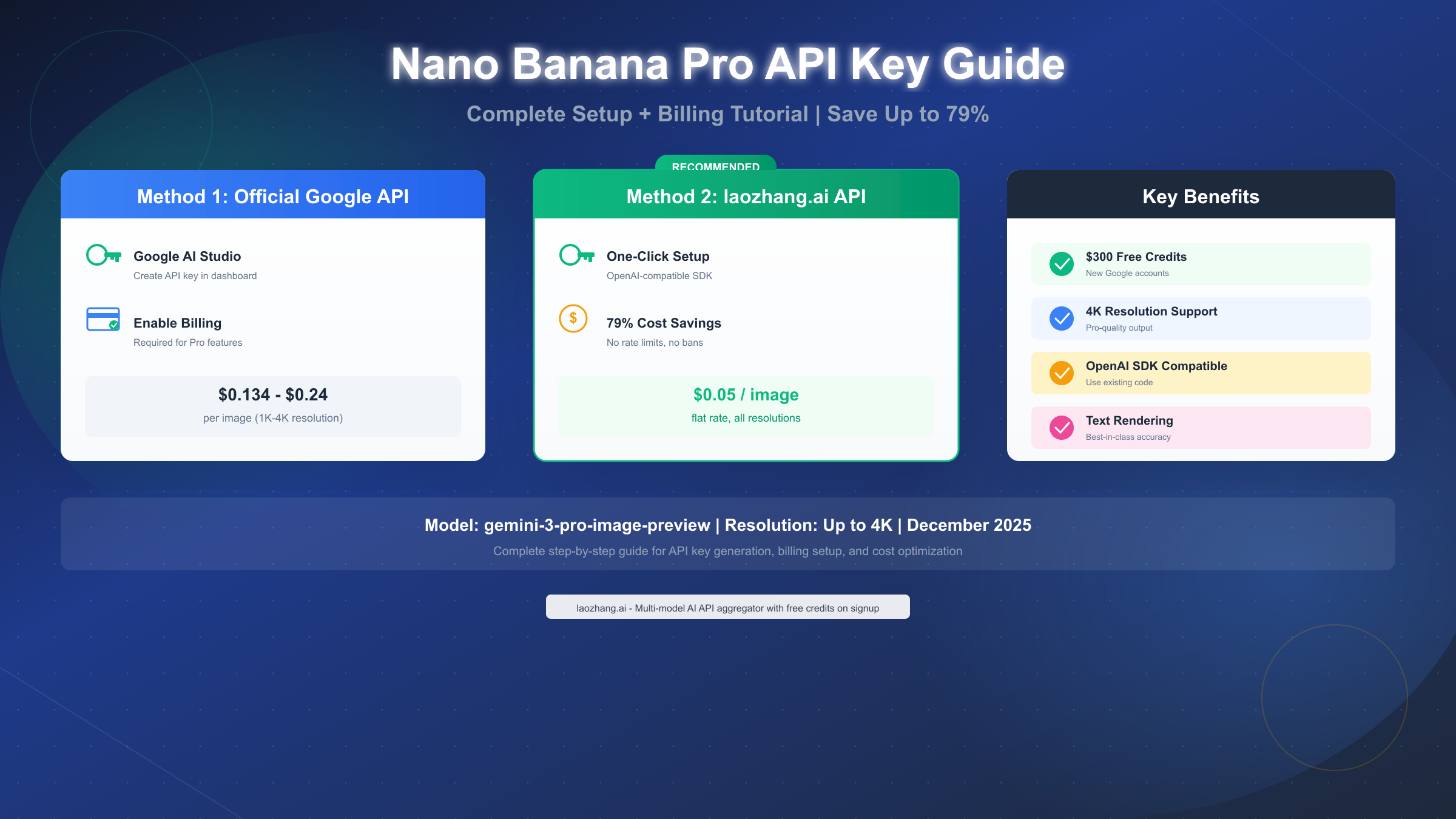
Getting a Nano Banana Pro API key involves two primary approaches: the official Google AI Studio route requiring billing configuration, or third-party API providers like laozhang.ai that offer significant cost savings at $0.05 per image compared to Google's official $0.134-$0.24 pricing. As of December 2025, the model identifier you'll need is gemini-3-pro-image-preview, and this guide walks you through every step from account creation to your first successful image generation request.
The process takes approximately 7 minutes regardless of which method you choose, though the cost implications differ dramatically. Google's official API charges $0.134 for 1K-2K resolution images and $0.24 for 4K output, while third-party aggregators like laozhang.ai provide flat-rate pricing at $0.05 per image across all resolutions—representing savings of up to 79% for high-volume usage. Both methods use OpenAI-compatible SDKs, meaning you can switch between providers without rewriting your code.
What Is Nano Banana Pro and Why You Need an API Key
Nano Banana Pro represents Google DeepMind's state-of-the-art image generation model, officially known as Gemini 3 Pro Image within Google's API ecosystem. Released in November 2025, this model builds upon the capabilities of its predecessor Nano Banana (Gemini 2.5 Flash Image) while introducing significant enhancements in resolution, text rendering, and compositional control that make it the current leader in AI image generation quality.
The technical capabilities of Nano Banana Pro set it apart from other image generation models in several meaningful ways. While standard Nano Banana caps output at 1024x1024 pixels, Nano Banana Pro supports native generation at 2K and 4K resolutions without requiring external upscaling tools. The model excels at rendering legible text directly within generated images—a capability that has historically challenged AI image generators. According to Google's official documentation (https://ai.google.dev/gemini-api/docs/image-generation ), you can include up to 14 reference images in a single generation request, enabling unprecedented control over composition and style consistency.
Understanding the Model Identifiers
When working with the API, you'll encounter two distinct model identifiers that correspond to different capabilities and pricing tiers:
| Model Name | API Identifier | Resolution | Price/Image |
|---|---|---|---|
| Nano Banana | gemini-2.5-flash-image | Up to 1024px | $0.039 |
| Nano Banana Pro | gemini-3-pro-image-preview | Up to 4K | $0.134-$0.24 |
The distinction matters because using the wrong model identifier will result in "model not found" errors that can be frustrating to debug. The gemini-3-pro-image-preview identifier specifically refers to Nano Banana Pro during its current preview phase, and this is the exact string you'll use in your API calls regardless of whether you're accessing it through Google directly or via a third-party provider.
Understanding why you need an API key clarifies the setup requirements ahead. Unlike the free Gemini App that allows 3 daily image generations, programmatic access through the API requires authentication and, for Nano Banana Pro specifically, active billing on your account. The API key serves as your authentication credential, linking your requests to your account for usage tracking and billing purposes. For the Gemini 3.0 API capabilities that Nano Banana Pro belongs to, you can explore more advanced features in our Gemini 3.0 API guide.
Prerequisites: What You Need Before Starting
Before diving into the API key setup process, gathering the necessary requirements will save you from interruptions mid-way through configuration. The prerequisites differ slightly between the official Google route and third-party providers, though both share some common elements that you should have ready.
For Official Google API Setup
The official path requires a Google account with access to Google Cloud Console or Google AI Studio. If you've ever used Gmail, Google Drive, or any Google service, you already have the account you need. What you might not have ready is a valid payment method—Google requires billing configuration before Nano Banana Pro access becomes available, as there's no free tier for the Pro model.
Google accepts most major credit and debit cards for billing setup, including Visa, Mastercard, American Express, and Discover. For users in regions where card payments present challenges, Google also supports wire transfers for accounts with higher usage volumes, though this typically requires contacting their support team for setup.
The good news for new Google Cloud users is the $300 free credit offer. When you enable billing for the first time on a new Google Cloud account, Google provides $300 in credits valid for 90 days. Based on Nano Banana Pro's pricing, this translates to approximately 2,240 image generations at 1K-2K resolution before any charges hit your payment method—sufficient for extensive testing and development work.
For Third-Party Provider Setup (laozhang.ai)
Third-party aggregators like laozhang.ai have lower barriers to entry while offering significant cost advantages. The minimum deposit starts at just $5 (approximately 35 CNY), making it accessible for developers who want to test the waters without committing to larger expenditures upfront.
The registration process accepts email-based signups and typically completes within 30 seconds. Because these services use OpenAI-compatible API endpoints, you don't need to learn new SDKs—your existing OpenAI Python or JavaScript code works with minimal modification, usually just changing the base URL and API key.
What makes the third-party option particularly attractive is the pricing model. Instead of Google's tiered pricing based on resolution ($0.134 for 1K-2K, $0.24 for 4K), services like laozhang.ai typically offer flat-rate pricing around $0.05 per image regardless of resolution. This represents approximately 63-79% savings depending on your output requirements, with the bonus of no complex token calculations to estimate costs.
Method 1: Official Google API Key and Billing Setup
Setting up Nano Banana Pro through Google's official channels requires navigating Google AI Studio and configuring billing on an associated Google Cloud project. While this path involves more steps than third-party alternatives, it provides direct access to Google's infrastructure and ensures you're always using the latest model updates as they're released.
Getting Your API Key from Google AI Studio
The journey begins at Google AI Studio (aistudio.google.com), Google's interface for experimenting with and deploying Gemini models. After signing in with your Google account, the dashboard presents various model options in the left sidebar. For Nano Banana Pro specifically, you'll select the model picker and choose "Gemini 3 Pro Image" or look for entries containing gemini-3-pro-image-preview.
To generate your API key, locate the "Get API key" button in the left navigation panel. Clicking this opens the API key management interface where you can either create a new key or manage existing ones. When creating a new key, you'll be prompted to either create a new Google Cloud project or select an existing one. For first-time users, creating a new project keeps things organized—name it something descriptive like "nano-banana-production" or "image-gen-testing" to easily identify it later.
Once the key is generated, you'll see it displayed exactly once for security reasons. Copy this key immediately and store it securely—in environment variables, a secrets manager, or an encrypted password vault. The key format typically begins with "AIza" followed by a string of alphanumeric characters. Never commit this key to version control or include it directly in your source code, as exposed API keys can lead to unauthorized usage charges.
Enabling Billing and Budget Configuration
Here's where many developers encounter friction: Nano Banana Pro has no free tier, and attempting to use your API key without billing enabled results in authentication errors that can be confusing to diagnose. The error message typically reads "Request had invalid authentication credentials" or "The caller does not have permission," which doesn't immediately suggest billing as the issue.
To enable billing, navigate to the Google Cloud Console (console.cloud.google.com) and select the project you linked to your API key. From the navigation menu, find "Billing" and click "Link a billing account." If you haven't created a billing account before, you'll be guided through adding a payment method. This is also where you'll see and can claim the $300 free credit offer if you're a new user.
Setting Budget Alerts
Protecting yourself from unexpected charges is essential, especially when experimenting with new APIs. Google Cloud allows you to configure budget alerts that notify you when spending approaches or exceeds thresholds you define.
Navigate to Billing → Budgets & alerts → Create Budget. Set a monthly budget that aligns with your expected usage—for example, $50 per month allows approximately 370 image generations at standard pricing. Configure alerts at 50%, 90%, and 100% thresholds to receive email notifications as you approach your limit. For additional protection, you can enable automatic actions that pause API access when the budget is exceeded, though this requires careful configuration to avoid disrupting production services.
Troubleshooting Common Billing Errors
Even with careful setup, you might encounter issues during the billing configuration process. The most common problems and their solutions include:
"Billing account not found" typically indicates your project isn't properly linked to a billing account. Return to Cloud Console, select your project, and verify under Billing that a billing account shows as linked. If it shows "No billing account," you'll need to link one even if you have free credits available.
Payment method declined can occur due to international transaction blocks on some cards. Contact your bank to authorize charges from Google Cloud Platform, or try an alternative payment method. Some developers find success using virtual cards from services like Privacy.com that are specifically designed for online transactions.
"Quota exceeded" errors before you've made any requests usually mean the Gemini API hasn't been enabled on your project. Navigate to APIs & Services → Enabled APIs and services, search for "Gemini API," and click Enable. This is separate from billing and easy to overlook.
For users who want more details on the overall Gemini API key process, our Gemini API key guide covers additional scenarios and troubleshooting steps.
Method 2: Third-Party API via laozhang.ai (79% Savings)
Third-party API aggregators have emerged as a practical alternative for developers prioritizing cost efficiency without sacrificing access to premium models like Nano Banana Pro. Among these providers, laozhang.ai stands out by offering Nano Banana Pro access at $0.05 per image—representing savings of 63-79% compared to official Google pricing while maintaining the same output quality.
Why Consider Third-Party Providers?
The economics of API usage become significant at scale. Consider a typical use case of generating 1,000 images monthly: through Google's official API at $0.134 per image, you'd spend $134 monthly. Through laozhang.ai at $0.05 per image, the same volume costs $50—saving $84 every month or over $1,000 annually. For development teams or applications with higher volumes, these savings multiply proportionally.
Beyond cost, third-party aggregators offer additional benefits that address common pain points. laozhang.ai aggregates over 200 AI models under a single API key and billing account, eliminating the complexity of managing separate credentials for OpenAI, Anthropic, Google, and other providers. The service uses OpenAI-compatible endpoints, meaning your existing code written for OpenAI's API works with minimal modification—typically just changing the base URL and API key.
Reliability concerns are natural when considering alternatives to official providers. Services like laozhang.ai address this by maintaining redundant infrastructure and, because they route through aggregation layers, can often route around provider-specific outages that would otherwise affect direct API users. The trade-off is adding a layer between your application and the underlying model, though in practice, the latency impact is minimal for most applications.
Complete Registration and Setup Guide
Getting started with laozhang.ai takes approximately 5 minutes from registration to first API call. The process eliminates the Google Cloud billing configuration complexity while providing immediate access to Nano Banana Pro.
Step 1: Account Registration
Visit laozhang.ai and locate the registration button. The signup accepts email registration and completes in under 30 seconds. You'll receive a verification email—click the link to activate your account and access the dashboard.
Step 2: Initial Deposit
Navigate to the billing or credits section of your dashboard. The minimum deposit is $5 (approximately 35 CNY), making it accessible for testing without significant commitment. For larger deposits, a $100 charge adds $110 in usable credits due to the bonus structure—effectively reducing costs by an additional 10%.
Payment methods vary by region but typically include credit cards, PayPal, and various local payment options. The credits don't expire, so you can deposit once and use them over time as needed.
Step 3: Generate Your API Key
In the dashboard, navigate to the API Keys section and click "Create New Key." Assign a descriptive name like "nano-banana-dev" or "production-images" to distinguish multiple keys if you create them later. The system generates a unique key starting with "sk-" that you'll use for all API requests.
Copy this key immediately and store it securely. Unlike some platforms that allow you to view keys later, the full key is only displayed once at creation time. If you lose it, you'll need to generate a new one and update your applications accordingly.
Step 4: Configure Your Development Environment
Because laozhang.ai uses OpenAI-compatible endpoints, configuration is straightforward. Set two environment variables:
export LAOZHANG_API_KEY="sk-your-key-here"
export LAOZHANG_BASE_URL="https://api.laozhang.ai/v1"
For Python projects, you can alternatively use a .env file with python-dotenv:
LAOZHANG_API_KEY=sk-your-key-here
LAOZHANG_BASE_URL=https://api.laozhang.ai/v1
The key advantage of this approach is that your actual API calls look nearly identical to what you'd write for OpenAI's API, making it easy to switch between providers or migrate existing code.
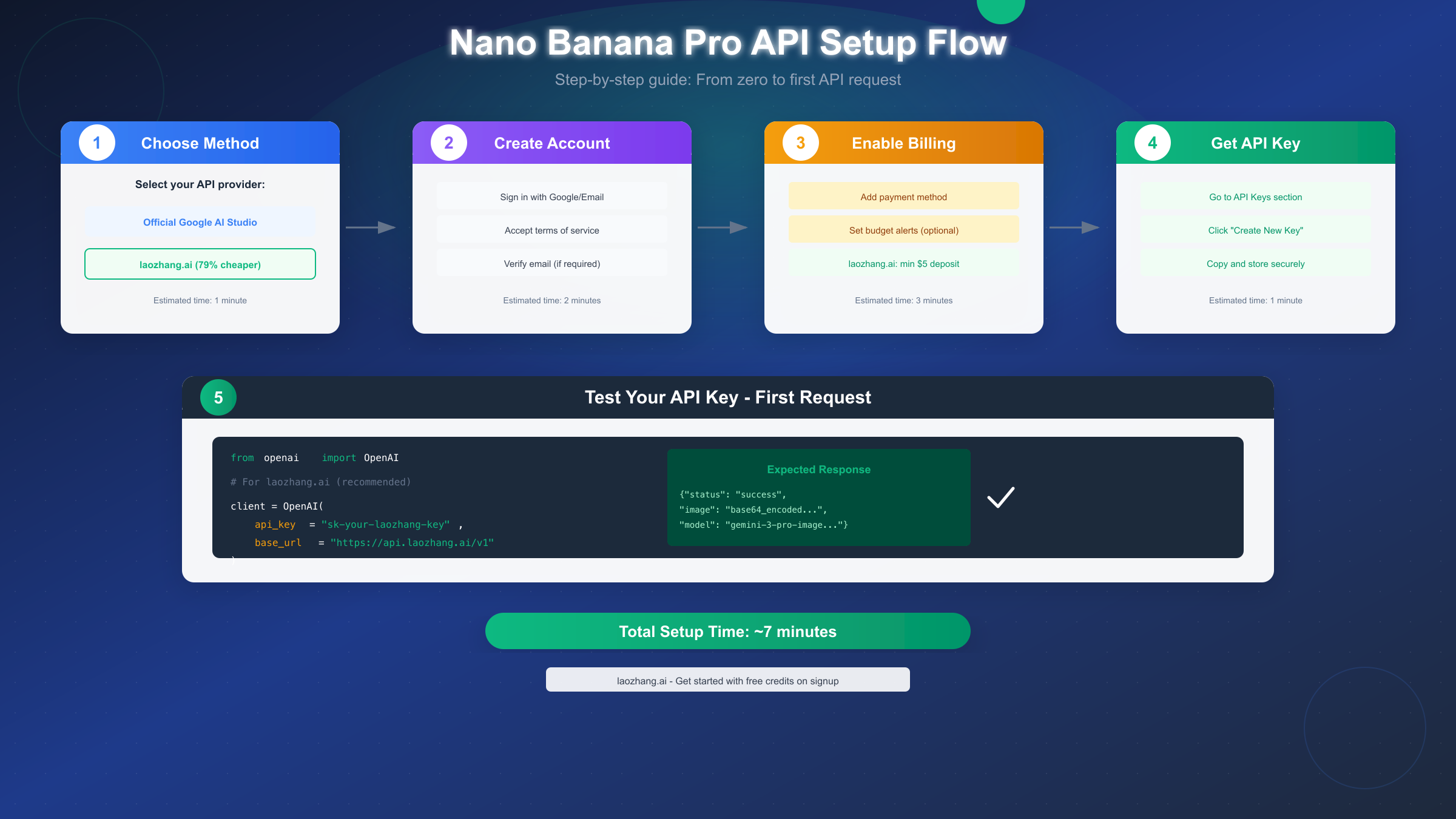
SDK Configuration for laozhang.ai
With your API key and environment configured, you can now write code that generates images through Nano Banana Pro. The following example demonstrates the complete setup using Python's OpenAI SDK:
from openai import OpenAI
import base64
import os

# Initialize client with laozhang.ai endpoint
client = OpenAI(
    api_key=os.getenv("LAOZHANG_API_KEY"),
    base_url=os.getenv("LAOZHANG_BASE_URL")
)

# Generate an image with Nano Banana Pro
response = client.chat.completions.create(
    model="gemini-3-pro-image-preview",
    messages=[
        {
            "role": "user",
            "content": "Generate a photorealistic image of a modern tech startup office with natural lighting, showing developers working on computers with plants and minimalist decor."
        }
    ],
    response_format={"type": "image"}
)

# The response contains base64-encoded image data
image_data = response.choices[0].message.content
Notice how the code structure mirrors standard OpenAI API usage—the key differences are the custom base_url pointing to laozhang.ai and the model identifier specifying gemini-3-pro-image-preview. This compatibility means you can leverage existing OpenAI tutorials and documentation while benefiting from laozhang.ai's pricing.
Your First Nano Banana Pro API Request
With your API key configured—whether through Google directly or laozhang.ai—you're ready to generate your first image. This section provides working code examples and explains how to verify successful setup while handling common errors you might encounter.
Python Implementation
The following complete example generates an image and saves it to a file, with error handling for the most common issues:
from openai import OpenAI
import base64
import os
from pathlib import Path

def generate_nano_banana_image(prompt: str, output_path: str = "generated_image.png"):
    """
    Generate an image using Nano Banana Pro and save to file.

    Args:
        prompt: Description of the image to generate
        output_path: Where to save the generated image

    Returns:
        Path to the saved image or None if generation failed
    """
    # For laozhang.ai (recommended for cost savings)
    client = OpenAI(
        api_key=os.getenv("LAOZHANG_API_KEY", "your-api-key"),
        base_url="https://api.laozhang.ai/v1"
    )

    # For official Google API, use:
    # client = OpenAI(
    #     api_key=os.getenv("GEMINI_API_KEY"),
    #     base_url="https://generativelanguage.googleapis.com/v1beta"
    # )

    try:
        response = client.chat.completions.create(
            model="gemini-3-pro-image-preview",
            messages=[
                {"role": "user", "content": prompt}
            ],
            response_format={"type": "image"}
        )

        # Extract and decode the image
        image_base64 = response.choices[0].message.content
        image_bytes = base64.b64decode(image_base64)

        # Save to file
        Path(output_path).write_bytes(image_bytes)
        print(f"Image saved to: {output_path}")
        return output_path

    except Exception as e:
        print(f"Generation failed: {e}")
        return None

# Example usage
if __name__ == "__main__":
    generate_nano_banana_image(
        prompt="A serene Japanese garden in autumn with a wooden bridge over a koi pond, "
               "red maple leaves falling, golden hour lighting, photorealistic style",
        output_path="autumn_garden.png"
    )
Understanding the Response Format
A successful API response from Nano Banana Pro contains several important fields. The primary content is the base64-encoded image data, which you'll decode and save as shown above. The response also includes metadata such as:
- finish_reason: Should be "stop" for successful generations
- model: Confirms which model processed your request
- usage: Token counts for billing purposes (if applicable)
When the generation succeeds, you'll see your image file created at the specified path. Open it to verify the content matches your prompt—this confirms your entire setup is working correctly from authentication through image delivery.
Common Errors and Solutions
Even with correct setup, you may encounter issues during initial testing. Here are the most frequent errors and how to resolve them:
"Model not found" or "Invalid model" almost always means you've specified the wrong model identifier. Double-check that you're using gemini-3-pro-image-preview exactly as shown, without additional characters or typos. The model name is case-sensitive on some endpoints.
"Authentication failed" indicates your API key is incorrect, expired, or doesn't have access to the requested model. Verify you've copied the complete key without trailing spaces. For Google's API, also confirm billing is enabled on the linked project.
"Rate limit exceeded" means you've hit usage limits. Google imposes per-minute request limits that vary by model and account status. Third-party providers like laozhang.ai generally have higher limits but may still throttle during peak usage. Implement exponential backoff in your code to handle this gracefully:
import time
from tenacity import retry, wait_exponential, stop_after_attempt

@retry(wait=wait_exponential(min=1, max=60), stop=stop_after_attempt(5))
def generate_with_retry(client, prompt):
    return client.chat.completions.create(
        model="gemini-3-pro-image-preview",
        messages=[{"role": "user", "content": prompt}],
        response_format={"type": "image"}
    )
"Content filtered" occurs when the model's safety systems reject your prompt. Nano Banana Pro includes content filtering that blocks potentially harmful requests. Review your prompt for any elements that might trigger safety filters and rephrase if necessary.
Cost Comparison and Optimization Strategies
Understanding the true cost of API usage helps you budget effectively and choose the right approach for your needs. The pricing landscape for Nano Banana Pro includes official Google rates, batch processing discounts, and third-party alternatives—each with distinct trade-offs worth considering.
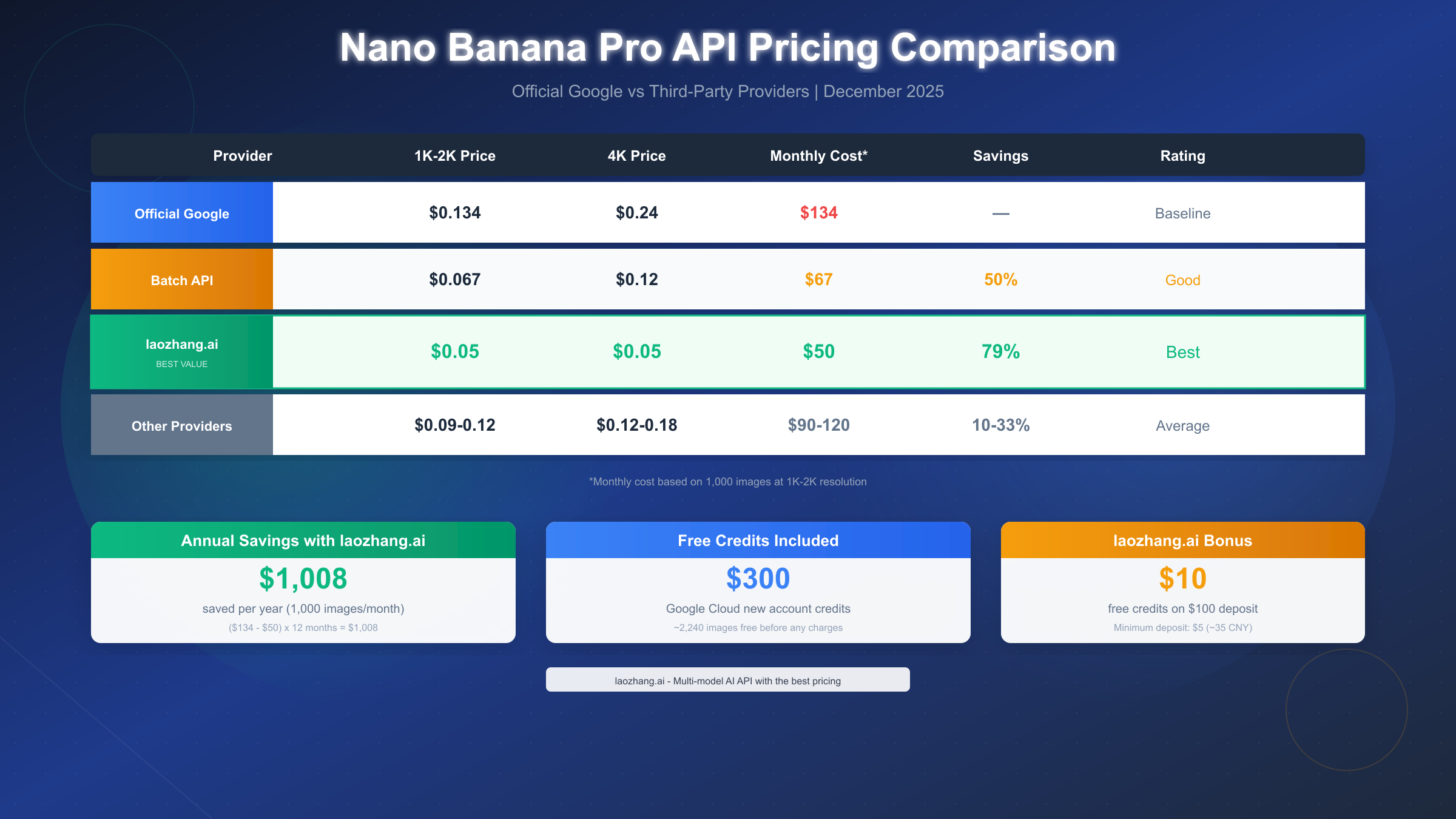
Complete Pricing Breakdown
The following table summarizes current pricing across different access methods as of December 2025:
| Provider | 1K-2K Resolution | 4K Resolution | Monthly (1000 images) | Savings vs Official |
|---|---|---|---|---|
| Google Official | $0.134 | $0.24 | $134-$240 | Baseline |
| Google Batch API | $0.067 | $0.12 | $67-$120 | 50% |
| laozhang.ai | $0.05 | $0.05 | $50 | 63-79% |
| Other Third-Party | $0.09-$0.12 | $0.12-$0.18 | $90-$180 | 10-33% |
These numbers tell a clear story: for developers focused on cost efficiency, third-party providers like laozhang.ai offer compelling economics. The flat-rate pricing model particularly benefits applications requiring high-resolution 4K output, where the savings compared to Google's tiered pricing become most pronounced.
The Batch API Option
Google offers a Batch API that provides 50% cost reduction in exchange for asynchronous processing. Instead of receiving immediate responses, you submit batch requests and retrieve results within 24 hours. This makes sense for applications where real-time generation isn't critical—background content generation, scheduled marketing assets, or bulk dataset creation.
The Batch API workflow differs from standard requests:
- Submit a batch job with multiple prompts
- Receive a job ID for tracking
- Poll the job status or configure webhooks for completion notification
- Retrieve all generated images once processing completes
For predictable, high-volume workloads, combining Batch API processing with careful scheduling can significantly reduce costs while maintaining output quality.
Monthly Cost Scenarios
Real-world usage patterns help contextualize these prices. Consider three typical developer scenarios:
Hobbyist Developer (100 images/month): At Google's standard pricing, this costs $13.40 monthly. Through laozhang.ai, the same usage runs $5. The annual difference is approximately $100—meaningful for individual developers.
Startup Application (1,000 images/month): Standard pricing totals $134 monthly or $1,608 annually. With laozhang.ai at $50 monthly, annual costs drop to $600, saving over $1,000 per year.
Production Application (10,000 images/month): The differences become substantial at scale. Official pricing approaches $1,340 monthly ($16,080 annually), while laozhang.ai costs $500 monthly ($6,000 annually)—saving more than $10,000 per year.
These calculations assume standard 1K-2K resolution. For applications requiring 4K output, Google's premium pricing makes the third-party advantage even more pronounced.
Best Practices for Cost Management
Beyond choosing the right provider, several strategies help optimize spending:
Resolution Selection: Only request 4K resolution when the output genuinely requires it. For web thumbnails, social media posts, or initial drafts, 1K-2K resolution suffices and costs less through official channels.
Caching Generated Images: If your application might request similar or identical prompts, implement caching to avoid regenerating images unnecessarily. A simple hash of the prompt can serve as a cache key.
Prompt Optimization: More specific prompts often yield better results on the first try, reducing the need for regeneration. Spend time crafting detailed, clear prompts rather than iterating through multiple generations.
Monitoring Usage: Both Google Cloud Console and third-party dashboards provide usage analytics. Review these regularly to identify unexpected consumption patterns and optimize accordingly.
For comprehensive pricing details across the Gemini model family, our Gemini API pricing guide provides additional context on how Nano Banana Pro fits within the broader ecosystem.
Choosing the Right Approach for Your Needs
With two viable paths to Nano Banana Pro access—official Google API and third-party providers—the optimal choice depends on your specific requirements, priorities, and constraints. This section provides a framework for making that decision based on common use cases.
When Official Google API Makes Sense
Choose the official route when any of these factors apply to your situation. Enterprise environments with strict vendor policies often require direct relationships with service providers, making third-party aggregators unsuitable regardless of cost savings. If your organization has existing Google Cloud commitments with negotiated pricing or support agreements, leveraging those relationships maintains consistency and may offer discounts not reflected in public pricing.
Applications requiring the absolute latest model updates benefit from direct Google access, as third-party providers may lag slightly in supporting new features or model versions. If you're building a production system where even minor version differences matter, the direct connection ensures you're always on the current release.
The $300 new user credit also factors into the decision. For initial development and testing, this free allocation covers thousands of image generations—effectively making the official API free during the exploration phase. Once you've validated your use case and projected production volumes, you can reassess whether to continue with Google or migrate to a cost-optimized provider.
When Third-Party Providers Make Sense
Cost-sensitive applications with predictable volume represent the strongest case for providers like laozhang.ai. The math is straightforward: at 79% savings, every dollar spent through official channels could generate four times more images through optimized providers. For startups operating on limited budgets or side projects where personal funds are at stake, this difference matters considerably.
The simplified billing model also appeals to many developers. Instead of navigating Google Cloud's project-based billing, quota management, and occasional surprise charges, third-party services typically offer straightforward prepaid credits with no minimum commitments. Deposit $5, use $5 worth of generations, repeat as needed.
Multi-model applications benefit from aggregator services. If your application uses multiple AI models—ChatGPT for text, Claude for analysis, Nano Banana Pro for images—managing separate accounts and keys for each becomes tedious. Aggregators consolidate this under one account, one key, and one invoice.
Hybrid Approach Considerations
Some developers implement hybrid strategies that leverage benefits from both options. Development and testing might use official Google access with free credits, while production traffic routes through cost-optimized providers. This approach requires slightly more complex configuration but maximizes value at each stage.
Implementing this pattern typically involves environment-based configuration:
import os

# Select provider based on environment
if os.getenv("ENVIRONMENT") == "production":
    api_key = os.getenv("LAOZHANG_API_KEY")
    base_url = "https://api.laozhang.ai/v1"
else:
    api_key = os.getenv("GOOGLE_API_KEY")
    base_url = "https://generativelanguage.googleapis.com/v1beta"
This flexibility allows you to test against official endpoints during development while benefiting from cost optimization in production, without changing your core application logic.
Summary and Next Steps
This guide has walked through the complete process of obtaining and configuring Nano Banana Pro API access, from understanding the model's capabilities to making your first successful image generation request. The key points worth remembering as you move forward:
The Model Identifier Matters: Always use gemini-3-pro-image-preview for Nano Banana Pro. This exact string is required for API calls regardless of whether you're using Google directly or third-party providers.
Billing Is Required for Pro Features: Unlike basic Gemini models with free tiers, Nano Banana Pro requires active billing. New Google Cloud users receive $300 in credits, but the billing account must be configured before API access works.
Cost Optimization Is Significant at Scale: The difference between official pricing ($0.134-$0.24) and optimized providers like laozhang.ai ($0.05) compounds quickly. For production applications, annual savings can exceed $1,000 for moderate usage.
SDK Compatibility Simplifies Migration: Both Google's official API and third-party providers use OpenAI-compatible endpoints, meaning you can switch providers by changing configuration rather than rewriting code.
Your Action Checklist
To get started immediately:
- Decide your initial approach (official or third-party) based on your priorities
- Create the necessary account and configure billing/credits
- Generate and securely store your API key
- Set up environment variables for your development environment
- Run the test code from this guide to verify your setup
- Begin integrating Nano Banana Pro into your application
For developers seeking cost-effective access to Nano Banana Pro and other AI models, laozhang.ai provides a practical solution with its multi-model aggregation, transparent pricing, and free credits on signup. The platform's documentation at https://docs.laozhang.ai/ covers additional integration patterns and model-specific guidance.
The image generation landscape continues evolving rapidly, with Nano Banana Pro representing the current state of the art. Whether you're building creative tools, automating content generation, or exploring AI capabilities, the setup you've completed today provides the foundation for whatever you build next.