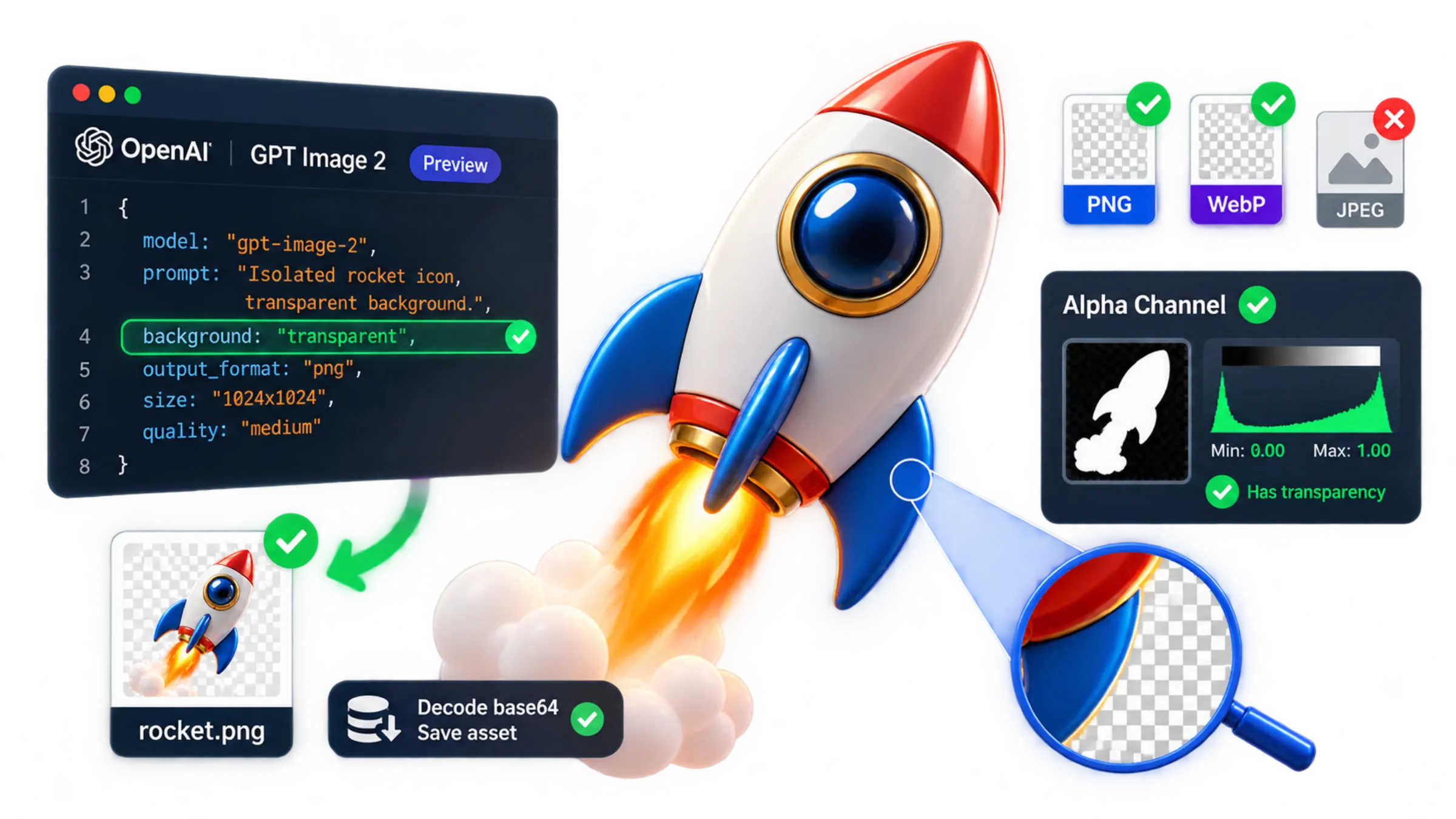
GPT Image 2 supports transparent backgrounds in preview through the OpenAI API. Set background="transparent" and request output_format="png" or "webp". JPEG cannot carry the transparent background. These are the supported combinations in OpenAI's image output documentation, checked September 8, 2026.
Getting a reusable asset takes two more steps: decode the returned image bytes without changing them, and check the saved file's alpha channel. A .png filename, an RGBA mode, or a checkerboard preview alone does not prove that the background is transparent.
The examples below use the Images API for a single asset. They follow the documented API; the local validation code can be exercised without making an image-generation request.
Check which service you are using
An older report that GPT Image 2 cannot produce transparency may describe behavior before the current preview. For a request today, start with the current documentation for the service receiving it:
- OpenAI Images API: use the explicit background and format settings above. If the request fails, keep the error message and check the actual request sent by your client.
- A third-party API or image app: confirm its model identifier and transparency support. An OpenAI-compatible request format does not establish that a provider's model alias supports the same options.
- ChatGPT: the API documentation does not establish an equivalent ChatGPT setting or guarantee that a chat-generated download has transparency. Ask for an isolated subject on a transparent background, download the original result, and check the file itself.
If you already have an image, removing its background is a different starting point from generating a new asset. Use an edit request for the existing image; when the original subject must remain pixel-for-pixel intact, use a mask or background-removal tool that preserves those pixels.
Check a downloaded image without code
Open the downloaded PNG or WebP in an editor that supports transparency. Place a solid-color layer beneath the image, then change that layer from a light color to a dark or saturated color. The empty areas should reveal each new color while the subject remains visible. If white squares or a white rectangle stay attached to the image, those areas are part of the picture.
Check the subject's outline at a useful working size, especially hair, glass, and soft shadows. Export to PNG or WebP with transparency preserved, reopen the exported file, and repeat the background test. A viewer displaying black or white behind an image is inconclusive by itself; the layer test checks how the image actually composites. For exact alpha values or an automated pipeline, use the Python inspection below.
Choose PNG or WebP before making the request
| Intended output | Request settings | What to watch |
|---|---|---|
| PNG for an original asset or further editing | background="transparent", output_format="png" | Omit output_compression. Keep the original downloaded file. |
| WebP for a web asset | background="transparent", output_format="webp" | output_compression is optional. Check quality and size on the actual output. |
| JPEG for a destination that requires it | Use a separate, deliberately flattened derivative | It cannot retain alpha; choose a background color explicitly. |
PNG is a straightforward starting point when another editor or processing job will handle the result. WebP can be delivered directly when your consuming software accepts it. The WebP format supports both RGB and RGBA, with lossy and lossless encoding. That does not make an API compression value a promise of lossless output, a percentage reduction in bytes, or a token discount.
For example, output_compression=80 is a WebP request setting, not a claim that the result will be 80% smaller. If exact preservation during a later conversion matters, choose a local lossless encoder and compare decoded pixels.
Generate an asset and save the original bytes
Install the Python libraries in your environment:
python -m pip install openai pillowThe OpenAI client reads OPENAI_API_KEY from your environment. Save this as generate_asset.py; its optional argument selects the format, including the matching filename:
import argparse
import base64
from pathlib import Path
from openai import OpenAI

parser = argparse.ArgumentParser()
parser.add_argument("format", choices=["png", "webp"], default="png", nargs="?")
args = parser.parse_args()
client = OpenAI()

options = {
    "model": "gpt-image-2",
    "background": "transparent",
    "output_format": args.format,
    "size": "1024x1024",
    "quality": "medium",
}
if args.format == "webp":
    options["output_compression"] = 80  # Optional; omit for PNG.

result = client.images.generate(
    prompt=(
        "Create one isolated enamel rocket icon, centered with space around it. "
        "Use a fully transparent background and a clean silhouette. "
        "No scene, solid backdrop, checkerboard, border, or cast shadow."
    ),
    **options,
)

if not result.data or not result.data[0].b64_json:
    raise RuntimeError("The response did not include base64 image data")

image_bytes = base64.b64decode(result.data[0].b64_json, validate=True)
output = Path(f"rocket.{args.format}")
output.write_bytes(image_bytes)
print(f"Saved {output}: {len(image_bytes)} bytes")
Run either command to request one image; these commands make billable API calls:
python generate_asset.py png
python generate_asset.py webp
The Images API returns base64 image data, as described in the generation guide. Decode it once and write it in binary form. Writing the base64 text itself into rocket.png produces a text file with an image extension. Renaming WebP bytes to .png also leaves the underlying format unchanged.
Prompt the subject as an isolated asset and exclude backgrounds or shadows that you do not want. OpenAI's prompting guide pairs that instruction with the explicit transparency parameter. A request for a transparent-looking background in the prompt alone is insufficient.
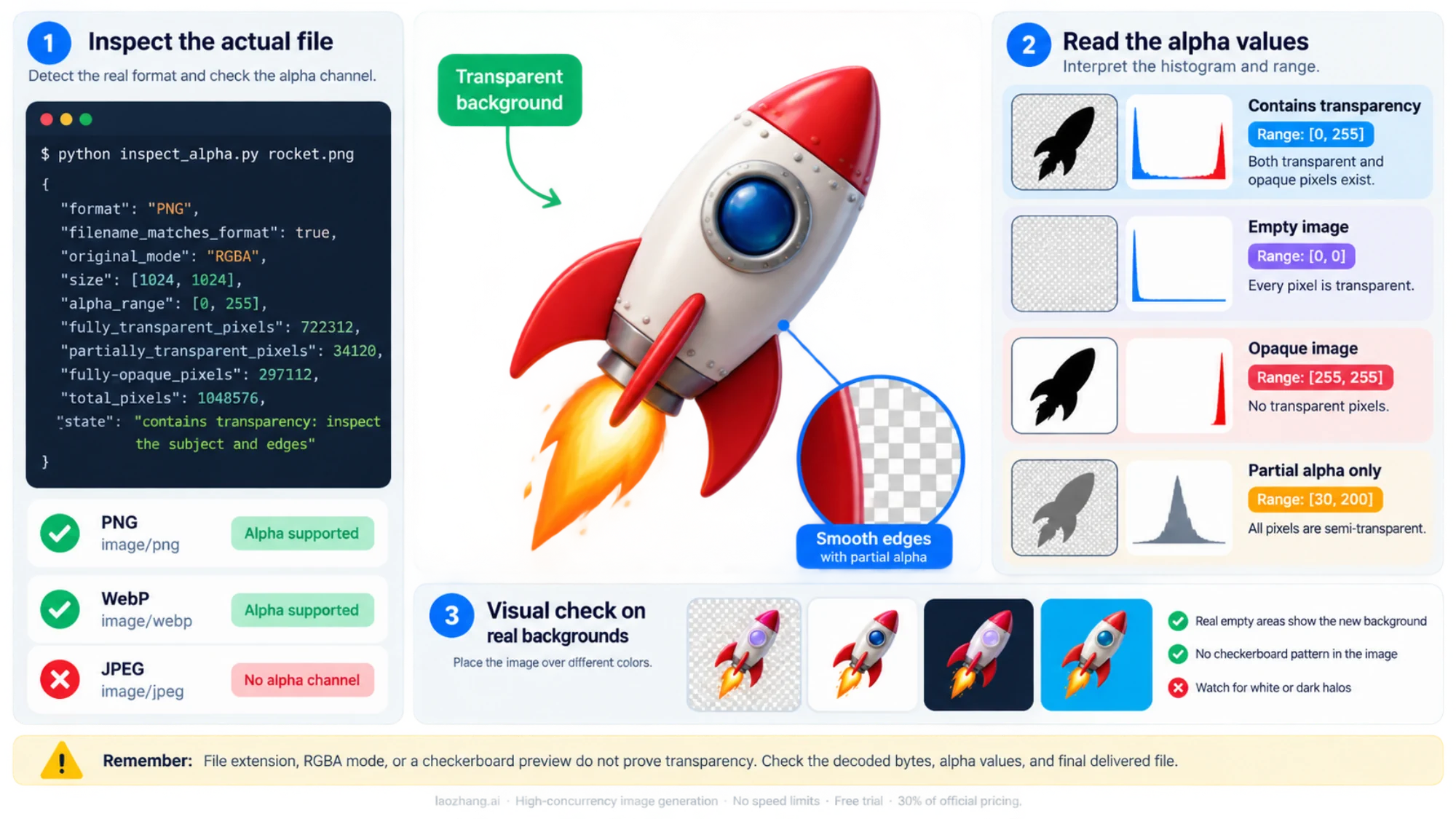
Verify the file, then interpret its alpha values
Save the following as inspect_alpha.py. It reads the detected format before converting to RGBA, checks that the image fully decodes, and reports the distribution of alpha values. Its file-format check is independent of the filename.
import json
import sys
from pathlib import Path
from PIL import Image

path = Path(sys.argv[1])
with Image.open(path) as image:
    detected_format = image.format
    image.load()
    original_mode = image.mode
    rgba = image.convert("RGBA")

alpha = rgba.getchannel("A")
histogram = alpha.histogram()
minimum, maximum = alpha.getextrema()
transparent = histogram[0]
opaque = histogram[255]
partial = sum(histogram[1:255])
pixels = rgba.width * rgba.height

if maximum == 0:
    state = "empty: every pixel is fully transparent"
elif minimum == 255:
    state = "opaque: no transparent pixels"
else:
    state = "contains transparency: inspect the subject and edges"

expected_suffix = {"PNG": ".png", "WEBP": ".webp"}.get(detected_format)
print(json.dumps({
    "format": detected_format,
    "filename_matches_format": (
        expected_suffix is not None and path.suffix.lower() == expected_suffix
    ),
    "original_mode": original_mode,
    "size": list(rgba.size),
    "alpha_range": [minimum, maximum],
    "fully_transparent_pixels": transparent,
    "partially_transparent_pixels": partial,
    "fully_opaque_pixels": opaque,
    "total_pixels": pixels,
    "state": state,
}, indent=2))python inspect_alpha.py rocket.png
python inspect_alpha.py rocket.webpPillow's image API provides the format detection, RGBA conversion, channel extraction, extrema, and histogram operations used here. Converting an opaque RGB image to RGBA simply adds opaque alpha values; it does not remove a white background.
Read the results according to the intended asset:
- Range
[255, 255]: the whole image is opaque. It may contain a painted checkerboard or solid backdrop. - Range
[0, 0]: the whole image is invisible. A transparency check that only asks whether the minimum is below 255 would wrongly accept this empty output. - Range such as
[0, 255]: both transparent and opaque pixels exist. That is consistent with a cutout, but it does not establish that the background was removed correctly. - Range such as
[30, 200]: every pixel is partially transparent. That may be intentional for smoke, glass, or a glow; it may be wrong for a solid icon.
A large transparent-pixel percentage is not a universal quality requirement. The right composition for a small sticker differs from the right composition for a translucent effect.
Finally, place the asset over light, dark, and saturated backgrounds. Real empty areas reveal the new background. A checkerboard painted into the picture remains visible. White or dark fringes around the subject indicate an edge problem that alpha statistics cannot resolve. Hair, glass, and soft shadows often need partial alpha, so forcing all pixels to either 0 or 255 can damage them.
Edit an existing image without losing the background requirement
For an existing product photograph, use client.images.edit. In the generation script above, replace the result = client.images.generate(...) call with this block and retain the same options and decoding code:
with open("product.png", "rb") as source:
    result = client.images.edit(
        image=source,
        prompt=(
            "Isolate the product on a fully transparent background. "
            "Preserve its geometry, proportions, colors, and readable label text. "
            "Keep clean edges without halos. "
            "Do not add scenery, a solid backdrop, a checkerboard, or a shadow."
        ),
        **options,
    )
Change the saved filename from rocket to a suitable product name. The source file is the edit input; output_format still selects the result's format.
Repeat both the transparent-background request and preservation instructions during subsequent edits, including small color or label changes. Inspect each saved result again. The model can redraw parts of the subject, and asking it to preserve geometry or lettering does not guarantee a pixel-exact extraction. If exact packaging text, logos, or source pixels must remain untouched, use a masking or background-removal method that retains those pixels, then repair the mask as needed.
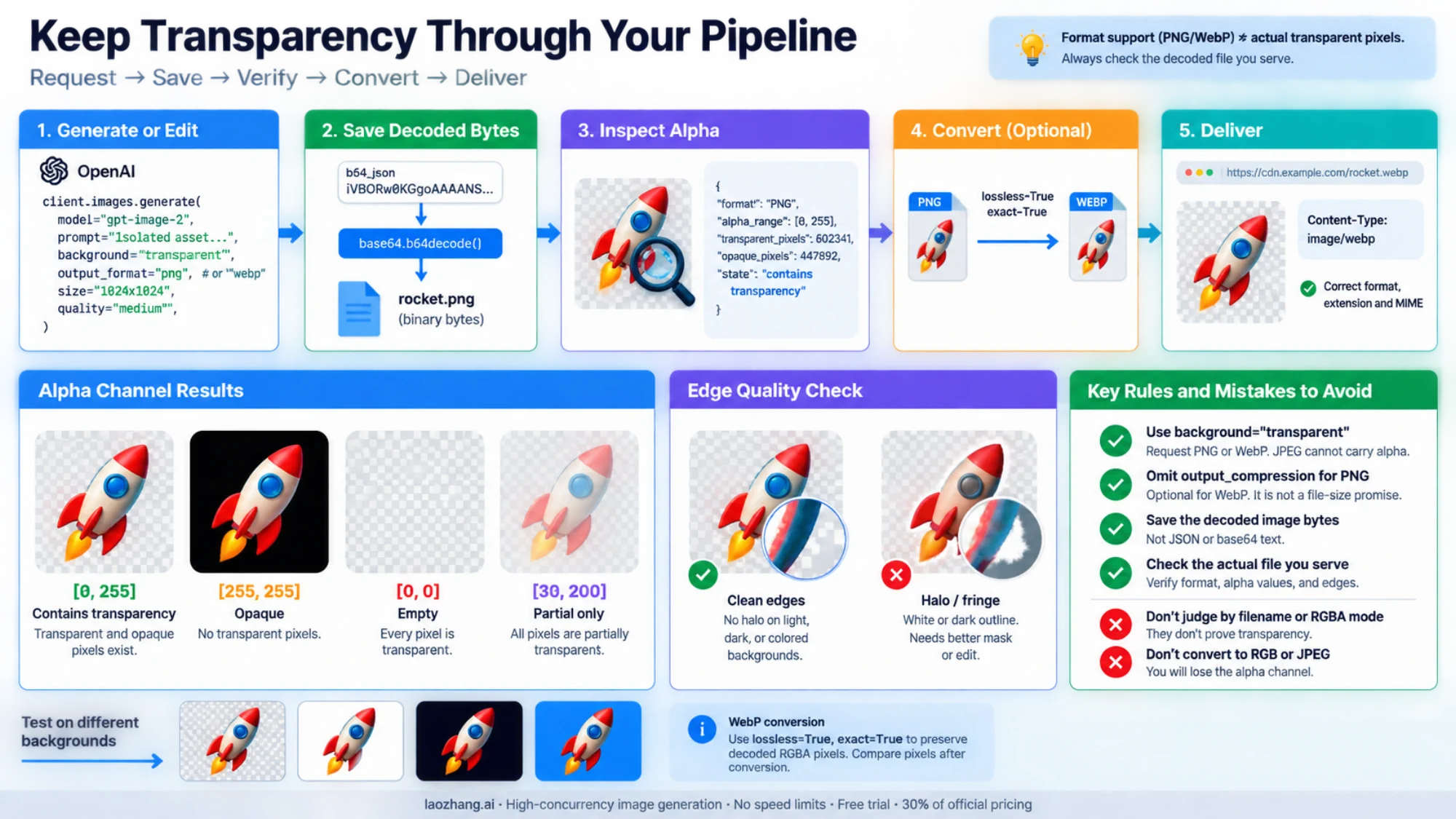
Preserve alpha through conversion and delivery
Keep the first decoded file as your original. Create delivery versions under new filenames so a thumbnail job or export cannot overwrite the only copy.
For a local PNG-to-WebP conversion that preserves decoded RGBA pixels, this Pillow example explicitly selects lossless encoding and checks the result. exact=True also preserves RGB values hidden under fully transparent pixels:
from PIL import Image

with Image.open("rocket.png") as image:
    source = image.convert("RGBA")

source.save("rocket-lossless.webp", "WEBP", lossless=True, exact=True)
with Image.open("rocket-lossless.webp") as image:
    delivered = image.convert("RGBA")

if source.size != delivered.size or source.tobytes() != delivered.tobytes():
    raise RuntimeError("Decoded RGBA pixels changed during conversion")
print("Decoded RGBA pixels match")
The Pillow WebP encoder documentation explains these encoder options. This is a local file conversion, separate from the API's output_compression setting. Equal decoded pixels do not imply identical file bytes or a smaller file. Run inspect_alpha.py on the converted file as well.
Avoid converting to RGB on a path that must retain transparency. If a destination insists on JPEG, deliberately composite onto the intended background and keep the transparent original separately.
For web delivery, align the actual format, extension, and response header: PNG with .png and image/png, or WebP with .webp and image/webp. The generation endpoint returns JSON; the image MIME type applies when your application serves the decoded asset. Download the final CDN or thumbnail output and inspect that file too. Checking only the original misses transparency lost by a later resizing or format-conversion service.
Find the first stage that changes the result
| What you observe | What to check next |
|---|---|
| The API rejects the request | Confirm the model, endpoint, explicit background, and PNG/WebP format. Remove output_compression for PNG. Preserve the actual error message. |
| The file will not decode | Confirm you saved decoded image bytes, not JSON, base64 text, or an error response. |
| Detected format and extension disagree | Fix the requested format or filename; renaming a file does not convert it. |
| The saved PNG or WebP is opaque | Inspect the final request and alpha values. A supported container can still hold an opaque image. |
| Alpha is zero everywhere | Reject the empty image as a missing visible asset. |
| The background is transparent but the outline has a halo | Examine it on multiple colors; repair the edge or use a better mask. |
| The original passes but the delivered file fails | Compare each resize, export, and CDN transformation until you find the first change. |
For a third-party OpenAI-compatible endpoint, verify that provider's model identifier and actual returned file. Accepting a parameter or returning HTTP 200 does not establish that transparency was honored. Official OpenAI support does not independently confirm support for a gateway's model aliases.
If you need to choose between the Images API, conversational image tools, and other integration options, continue with the GPT Image 2 API guide. For this asset pipeline, completion means a visible subject, the intended transparent areas, usable edges, and a correctly formatted file at the point of delivery.