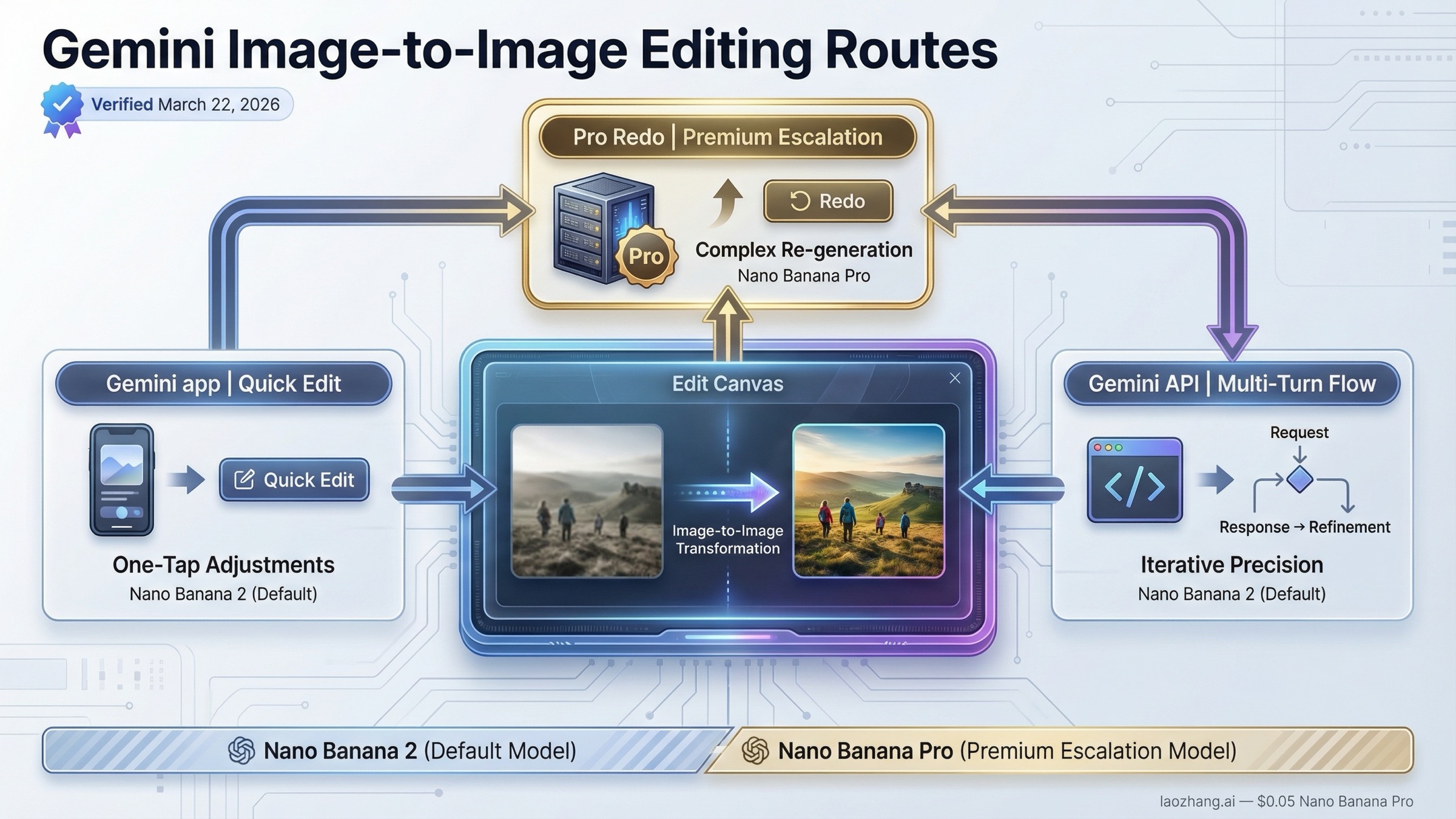
If you want Gemini to edit an existing image today, start with Nano Banana 2. Use the Gemini app for quick no-code edits, use the Gemini API when you need a repeatable workflow inside your product, and move up to Nano Banana Pro only when the image is valuable enough that higher-end quality is worth the extra cost.
The useful decision here is not whether Gemini can edit images; it can. The useful decision is which surface gets you to a good result fastest. Choose that route first, then decide how you want to upload, iterate, and integrate the workflow into production.
The short version is straightforward. Use the Gemini app if you want fast no-code edits, uploaded-image remixing, or multi-image blending. Use the Gemini API if you need a saved workflow, multi-turn control, retries, or integration into your own product. Use Nano Banana Pro only when you need more premium detail, more reliable text-heavy assets, or the paid redo path inside the Gemini app.
Key Takeaways
If you want the fastest useful answer, start here and then read the sections below for the tradeoffs and exact steps.
| Need | Best current route | Why this is the right default |
|---|---|---|
| Quick edits with no code | Gemini app with Nano Banana 2 | Fastest path for upload, edit, blend, and iterate |
| Production image-to-image workflow | Gemini API with gemini-3.1-flash-image-preview | Current default API editing model with multi-turn support and a better speed-to-quality balance |
| Text-heavy infographics or premium polished output | Gemini app redo with Nano Banana Pro, or gemini-3-pro-image-preview in the API | Higher-end route when the cost of a weak result is already material |
| Cheapest official image lane | gemini-2.5-flash-image | Still cheaper, but now clearly legacy and scheduled to shut down on October 2, 2026 |
The two date anchors that matter most are February 26, 2026, when gemini-3.1-flash-image-preview launched, and October 2, 2026, when Google's deprecations page says gemini-2.5-flash-image is scheduled to shut down. That is why the best current recommendation is usually not the cheapest old model and not the most expensive Pro lane. It is Nano Banana 2 unless your edit job gives you a specific reason to move.
Gemini can do image-to-image editing, but the right route depends on where you are working
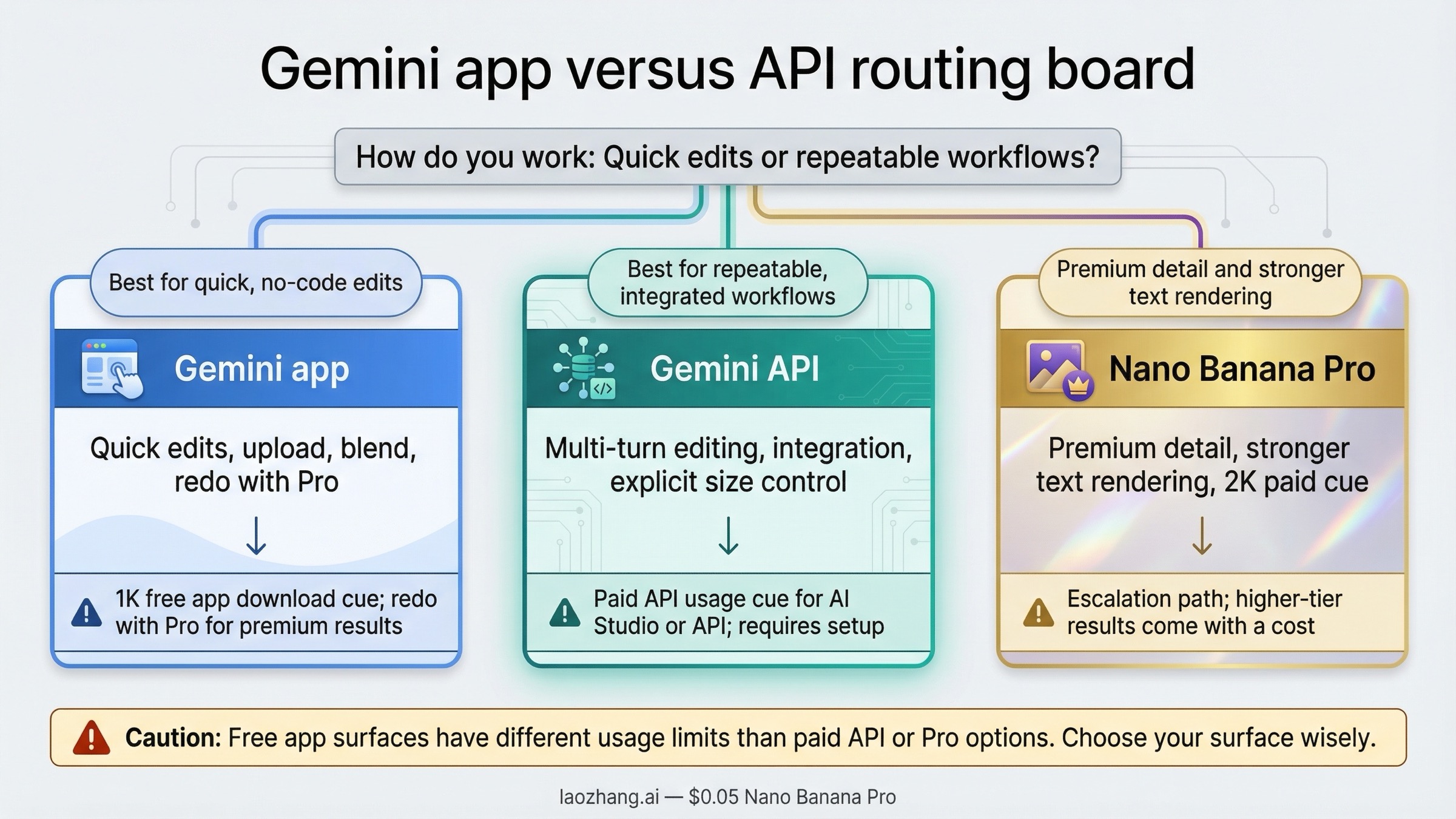
In practice, you are choosing between at least two very different surfaces. In the Gemini app, image editing is a guided consumer workflow. You can upload an image, ask Gemini to change something, keep editing the result, and even upload multiple images to create a new scene. Google's current help page says the app uses Nano Banana 2 for generate-and-edit flows, and paid subscribers can use Nano Banana Pro as a redo path after an image has already been created.
In the Gemini API, the workflow is more explicit. Google's image docs describe it as text-and-image-to-image editing: you provide an image plus an instruction, and the model returns a changed image. The same docs also say multi-turn conversation is the recommended way to keep refining images. That makes the API route better when you care about stateful edits, retries, logs, reusable prompts, or shipping image editing inside your own app.
The easiest mistake is to mix those two surfaces together and assume the access rules are the same. They are not. The current app help page says free users download at 1K, while paid subscriptions download at 2K. Google's February 26, 2026 developer launch post for Nano Banana 2 also says a paid API key is required to use the model in Google AI Studio. So if someone says "Gemini image editing is free" and someone else says "Gemini image editing is paid," they may both be talking about different surfaces.
That split is why routing comes before tactics. If you already know you are a product builder, jump to the API section. If you just want to upload a photo and change the room, outfit, background, or composition, the Gemini app is the shorter route.
Choose the right Gemini image model before you start editing
The model choice is where old tutorials go stale fastest. Google's current docs, pricing page, and deprecations page all point to the same broad picture: gemini-3.1-flash-image-preview is the current default lane, gemini-3-pro-image-preview is the premium lane, and gemini-2.5-flash-image is the still-live but legacy lane.
That does not mean the old 2.5 lane is useless. It still matters if you only care about the cheapest official 1024 output. But the moment you need a current default for new work, or you care about higher output sizes, or you want to avoid building on an announced retirement path, the answer changes.
| Model | Current status | Standard image pricing | What it is best for | What to watch |
|---|---|---|---|---|
gemini-3.1-flash-image-preview | Current preview default, released February 26, 2026 | $0.045 at 0.5K, $0.067 at 1K, $0.101 at 2K, $0.151 at 4K | Most new image-editing workflows, fast iteration, broader size control | Preview status, paid API usage, and current quota tier still matter |
gemini-3-pro-image-preview | Current premium preview lane | $0.134 at 1K or 2K, $0.24 at 4K | Higher-end asset production, better text-heavy edits, more demanding creative briefs | Roughly double the 1K price of Nano Banana 2 |
gemini-2.5-flash-image | Live legacy lane, scheduled shutdown October 2, 2026 | $0.039 at 1024x1024 | Cheapest official route while it remains live | Lifecycle risk and lower strategic value for new builds |
The strongest current default is Nano Banana 2, not because it is always the absolute best output, but because it is the most balanced route for most new editing workflows. Google positions it for speed, high-volume use, multi-turn editing, and fast advanced edits. The pricing page gives it the widest practical range for most teams: 0.5K when you need rapid iteration, 1K when you need normal web output, 2K when you want better detail, and 4K when the image is expensive enough to justify it.
Move to Nano Banana Pro when one of three things becomes true. First, you are making text-heavy images such as infographics, posters, menus, or UI-heavy concepts where better text rendering directly matters. Second, the image itself is high-value enough that redoing weak outputs costs more than the higher model price. Third, you are already in the Gemini app and want the paid redo path for a stronger final image.
Use Gemini 2.5 Flash Image only when you deliberately want the lowest current official price and understand that Google has already placed it on the retirement path. That is still a reasonable short-term decision for some batch-heavy workloads. It is just no longer the cleanest answer for a new editing tutorial in 2026.
If you need a deeper API integration guide for Nano Banana 2 itself, the best companion page in this repo is Gemini Flash Image API Guide.
How to edit images in the Gemini app without fighting the interface
The Gemini app is the shortest route if your goal is personal or creative editing rather than automation. Google's current help flow is simple: go to gemini.google.com, use Create image or upload an image in the input box, describe the change, and keep iterating from the returned image. The app now supports three common edit patterns that matter for real users, not just demos: upload one image and change it, upload multiple images and blend them into a new scene, or keep making local changes over multiple turns.
This is where Nano Banana 2 makes the biggest difference compared with older Gemini image stories. Google's August 26, 2025 app-upgrade post frames the model around likeness preservation, outfit changes, room/background edits, style transfer, and multi-turn local editing. That means the app is no longer just a place to generate a brand-new image from text. It is now a practical image-to-image editor for the kind of edits normal people actually ask for.
The app route works best when your request is concrete. Instead of "make this better," say what should change and what must stay fixed. For example: "Using this photo, change only the wall color to deep green. Keep the furniture layout, window light, and camera angle the same." That kind of instruction lines up with Google's own prompt guidance and dramatically reduces the chance that the model rewrites the whole image instead of the one thing you cared about.
There are three app-side caveats worth knowing before you start. First, the help page says availability is limited by the supported languages and countries of the Gemini app, so some users may run into access differences that have nothing to do with prompt quality. Second, Google's help page says the system may remove images if the request triggers policy checks, which can feel like the tool is broken when the real issue is a safety decision. Third, Google says all images created or edited in the Gemini app include a visible watermark plus SynthID, so this is not the right surface if you were expecting unmarked consumer output.
If you are on a paid plan, the most useful app trick is the Redo with Pro path. You first create an image with Nano Banana 2, then use the app's three-dot menu to redo it with Nano Banana Pro. That is a strong route when Nano Banana 2 already solved the composition, but you want more premium detail or stronger text rendering in the final pass.
How to do image-to-image editing with the Gemini API
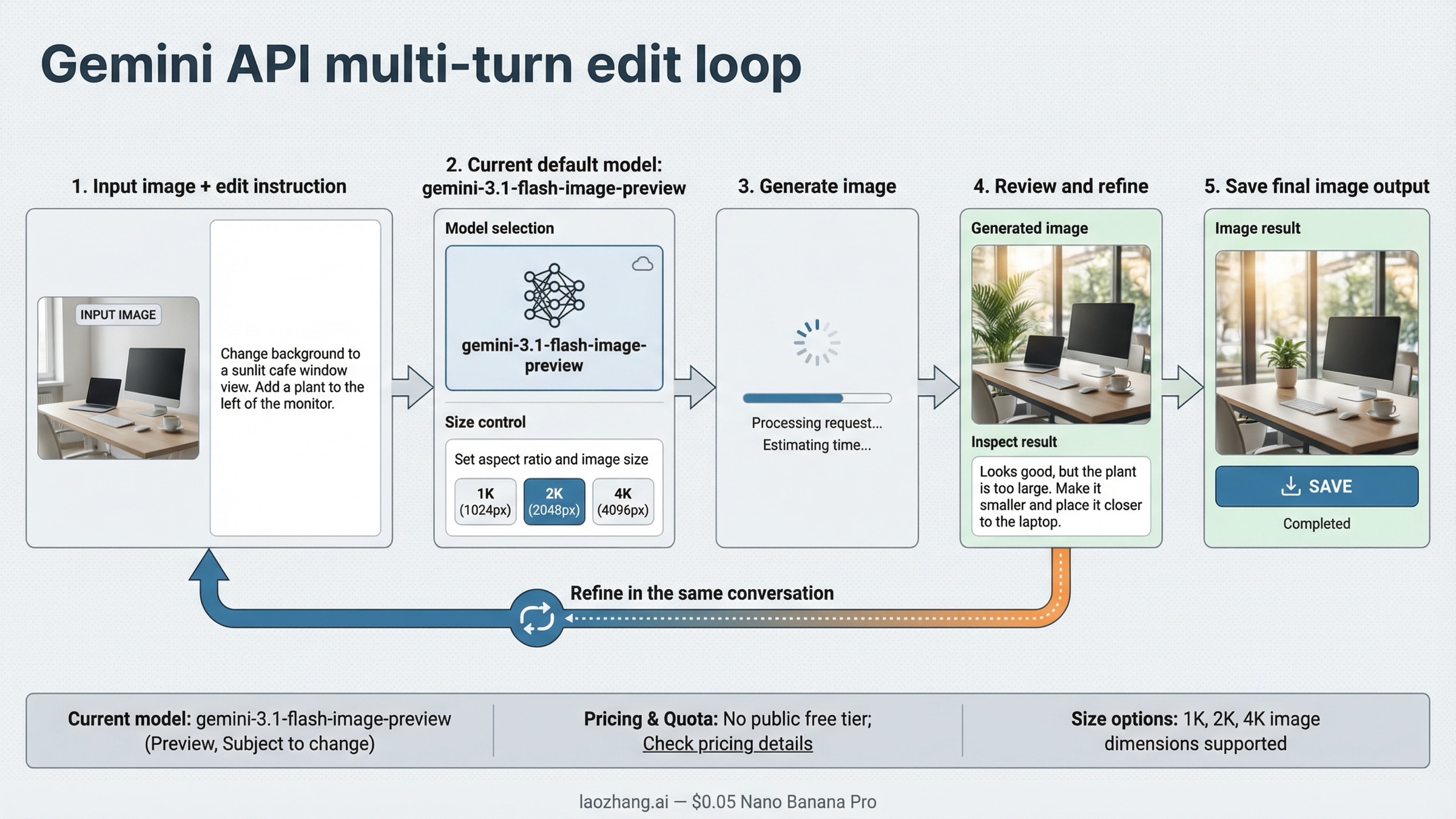
Use the API when you need reliability, repeatability, or product integration. Google's official docs treat image editing as a standard generateContent flow: you send a prompt plus an image, and the model returns text and image parts. For current work, the most sensible default is gemini-3.1-flash-image-preview.
The important idea is not just "send image, get image." Google's docs explicitly say multi-turn conversation is the recommended way to iterate on images. That matters because most image editing is not one perfect prompt. It is a sequence: change the sofa, then warm the lighting, then translate the text, then keep the rest fixed. If you design your integration as one isolated request every time, you give up one of Gemini's strongest editing advantages.
Here is a minimal Python example using the current model name and the kind of local-edit wording that works well:
pythonimport os
import base64
from google import genai
from PIL import Image

client = genai.Client(api_key=os.environ["GEMINI_API_KEY"])
source = Image.open("living-room.png")

response = client.models.generate_content(
    model="gemini-3.1-flash-image-preview",
    contents=[
        "Using the provided image, change only the blue sofa to a vintage brown leather chesterfield. "
        "Keep the pillows, room layout, camera angle, and lighting unchanged.",
        source,
    ],
)

for part in response.candidates[0].content.parts:
    if part.inline_data:
        with open("edited-room.png", "wb") as f:
            f.write(base64.b64decode(part.inline_data.data))
That example is deliberately narrow because narrow instructions are what keep image-to-image edits under control. If you need further changes, keep going in the same conversation rather than restarting with a brand-new prompt every time. Google's docs also expose imageConfig for the current Gemini 3 image models, which is where you can set aspect ratio and image size such as 1K, 2K, or 4K.
There are two API caveats that are easy to miss. First, Google's current pricing page lists no public free tier for the live Gemini image API models. Second, the current rate-limits page makes it clear that live limits depend on your current quota tier and are viewed in AI Studio, not assumed from one universal RPM number copied out of a blog post. If you are building this into a real product, budget and throttle like an API integration, not like a free toy feature.
For the broader pricing breakdown around current Gemini image models, use Gemini Image Generation Cost Per Image. For older legacy-lane migration questions, use Gemini 2.5 Flash Image Replacement.
Prompt patterns that get better Gemini edits
Most bad Gemini edits come from vague requests, not from a missing feature. Google's prompt guide for Gemini image generation makes the core rule explicit: describe the scene, do not just list keywords. That matters even more in image-to-image work, because the model is trying to preserve an existing composition while changing one or two things.
The first high-value pattern is add or remove one element cleanly. The prompt shape is: describe the original image, describe the change, and describe how it should blend in. A good example is: "Using the provided image of my cat, add a small knitted wizard hat. Make it look naturally placed and match the soft window lighting." The goal is not just to tell Gemini what to add. It is to tell Gemini how the new object should behave inside the existing scene.
The second pattern is change one area only. This is the safest route when you do not want the rest of the image to drift. The wording that works is blunt and specific: "Change only the blue sofa to a brown leather chesterfield. Keep everything else exactly the same, including the pillows, room layout, and lighting." That matches Google's own editing-template advice and usually produces much cleaner local edits than a broad restyle prompt.
The third pattern is style transfer. Here the job is not just "make it prettier." It is "take the texture, tone, or visual language from one image and apply it to another subject." Gemini supports multiple input images, so a clear version of this prompt is: "Use the subject from image one, but apply the color palette and painterly texture from image two. Keep the composition simple and preserve the subject's silhouette." That is much stronger than vaguely asking for "the same style."
The fourth pattern is multi-image composition. Google's current docs support up to 14 reference images in the current Gemini 3 image stack, which means you can do much more than a one-photo touch-up. The prompt needs to say what each input image contributes. For example: "Create a new image by placing the dog from image one on the basketball court from image two. Keep the dog's proportions realistic, match the court lighting, and use the same low-angle camera feel as image two."
The fifth pattern is preserve framing. Google's prompt guide says that when you are editing, Gemini usually preserves the input aspect ratio, but not always. The safest wording is to tell it directly: "Update the input image. Do not change the input aspect ratio." If you care about exact output size in the API, also set imageConfig.aspectRatio and imageConfig.imageSize instead of relying on prompt language alone.
The right mental model is simple: every strong edit prompt names the change, the protected parts of the image, and the visual logic that should stay consistent. That is why descriptive paragraphs outperform keyword piles.
Troubleshooting: why Gemini edits fail and how to fix them
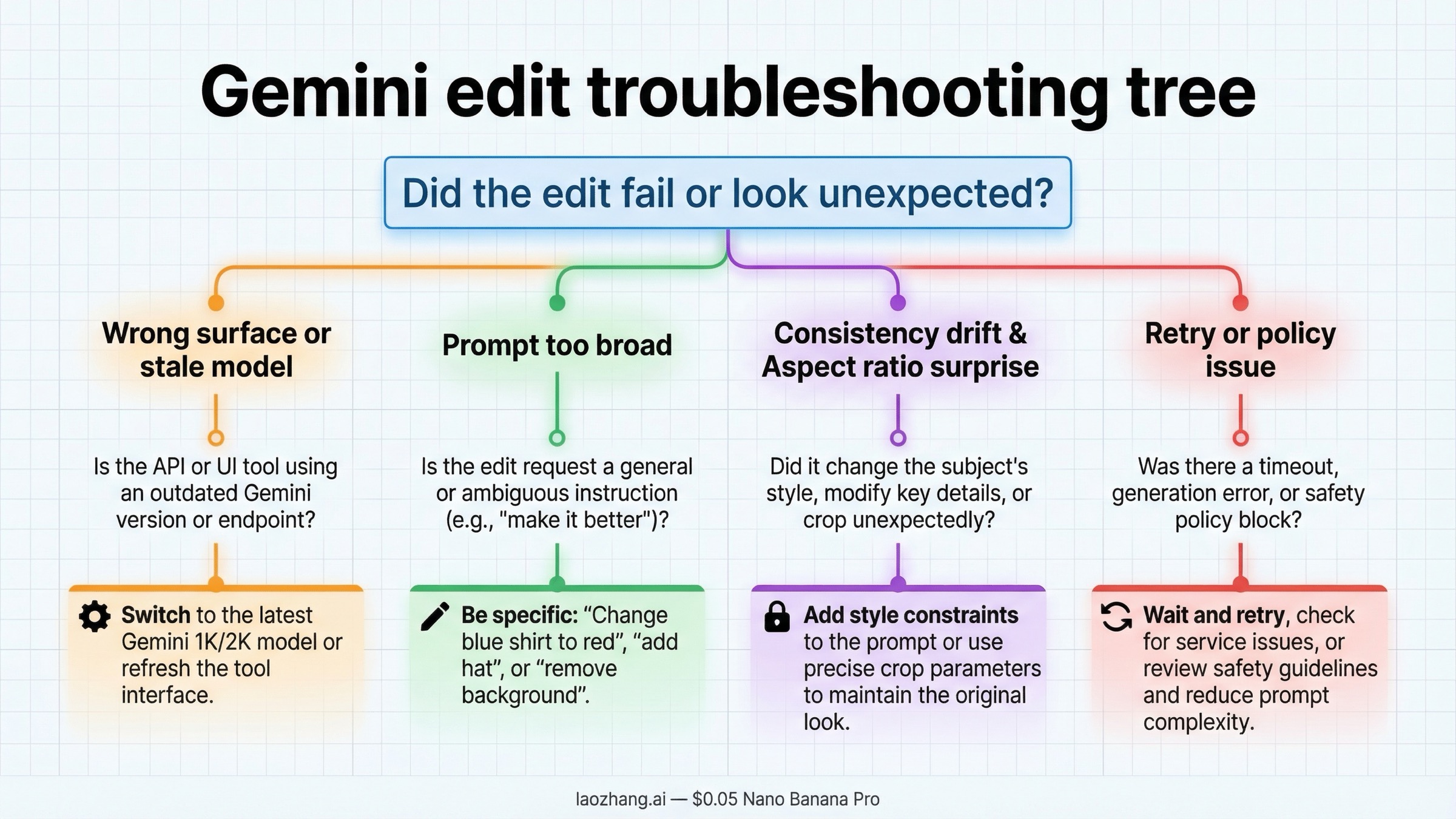
The first failure mode is using the wrong model or the wrong surface. If you are reading a 2.5-era tutorial and wondering why the settings or model name do not match, the problem may not be your prompt at all. As of March 22, 2026, the current default model story is Nano Banana 2, not the old preview lane. If you are in the Gemini app, follow app instructions. If you are building a product, follow the API docs. Do not debug across the wrong surface.
The second failure mode is asking for a global rewrite when you really wanted a local edit. "Make this room look better" gives the model permission to change almost everything. "Change only the wall color to deep green and keep the furniture, lighting, and angle unchanged" is much safer. If Gemini keeps over-editing, your prompt is probably under-protecting the parts that must stay fixed.
The third failure mode is consistency drift over repeated edits. Google's own prompt guidance says that if character consistency starts drifting after many iterative turns, the best fix is to restart a new conversation with a fresh detailed description. That sounds counterintuitive, but it is often faster than trying to rescue a chat that has already accumulated too many visual compromises.
The fourth failure mode is aspect-ratio or size surprises. In the app, this usually looks like a result that feels cropped or reframed differently than expected. In the API, the fix is clearer: set aspect ratio and image size explicitly. In both cases, if the exact frame matters, tell Gemini to preserve the original aspect ratio instead of assuming it will infer that preference.
The fifth failure mode is operational instability. Community reports on older Gemini image-preview workflows show why production code should still include retries, timeouts, and good logging. Even if the current model line is better, image generation is still an API surface, not a perfect deterministic function. If you are shipping image editing inside your app, plan for transient failures instead of acting surprised by them.
The sixth failure mode is app-side trigger or policy confusion. Some community reports suggest that users can mistake a feature trigger problem, a policy check, or a region limitation for a prompt problem. If the Gemini app refuses a benign request, first confirm that image editing is available in your region and app context, then retry in the explicit create-image flow before assuming the model itself cannot do the job.
FAQ
Can Gemini really do image-to-image editing, or is it still mostly text-to-image?
Yes. Google's current docs explicitly support text-and-image-to-image editing, and the Gemini app help page also supports editing uploaded images and combining multiple inputs into a new image.
What is the best current Gemini model for image editing?
For most users, gemini-3.1-flash-image-preview is the best current default. It is the current Nano Banana 2 lane, it handles fast iterative edits well, and Google's own docs position it as the go-to image model for general use.
When should I use Nano Banana Pro instead?
Use gemini-3-pro-image-preview when text rendering, premium polish, or more demanding creative work matters more than keeping cost down. In the Gemini app, it also makes sense as the paid redo path after Nano Banana 2 gets you close.
Is Gemini image editing free?
It depends on the surface. The Gemini app has its own access rules and current free-versus-paid behavior. The live Gemini image API models on Google's pricing page do not list a public free tier. If you need the broader split, read Gemini Image Generation Free Tier.
Can I keep editing the same image over multiple turns?
Yes. Google's current docs explicitly recommend multi-turn editing for iterative changes, and the Gemini app also supports conversational image refinement.
What is the biggest prompt mistake people make?
Being too vague. Strong Gemini edit prompts say what should change, what must stay fixed, and how the new element should fit the original lighting, style, or composition.
Bottom Line
The best current answer is not just "Gemini supports image editing." It is how to use the right Gemini route for the edit job you actually have.
Use the Gemini app if you want fast no-code editing of a photo, a background, an outfit, or a blended scene. Use the Gemini API if you need repeatable multi-turn editing, explicit aspect-ratio control, and product integration. Start with Nano Banana 2 for most work, move to Nano Banana Pro when higher-end output is worth the extra cost, and treat Gemini 2.5 Flash Image as the legacy cheapest lane rather than the default future-proof answer.
The practical takeaway is simple: choose the right surface first, use the current model names, and prompt Gemini like an editor instead of a keyword generator. Once those three decisions are right, image-to-image editing is already good enough to be useful in real workflows.