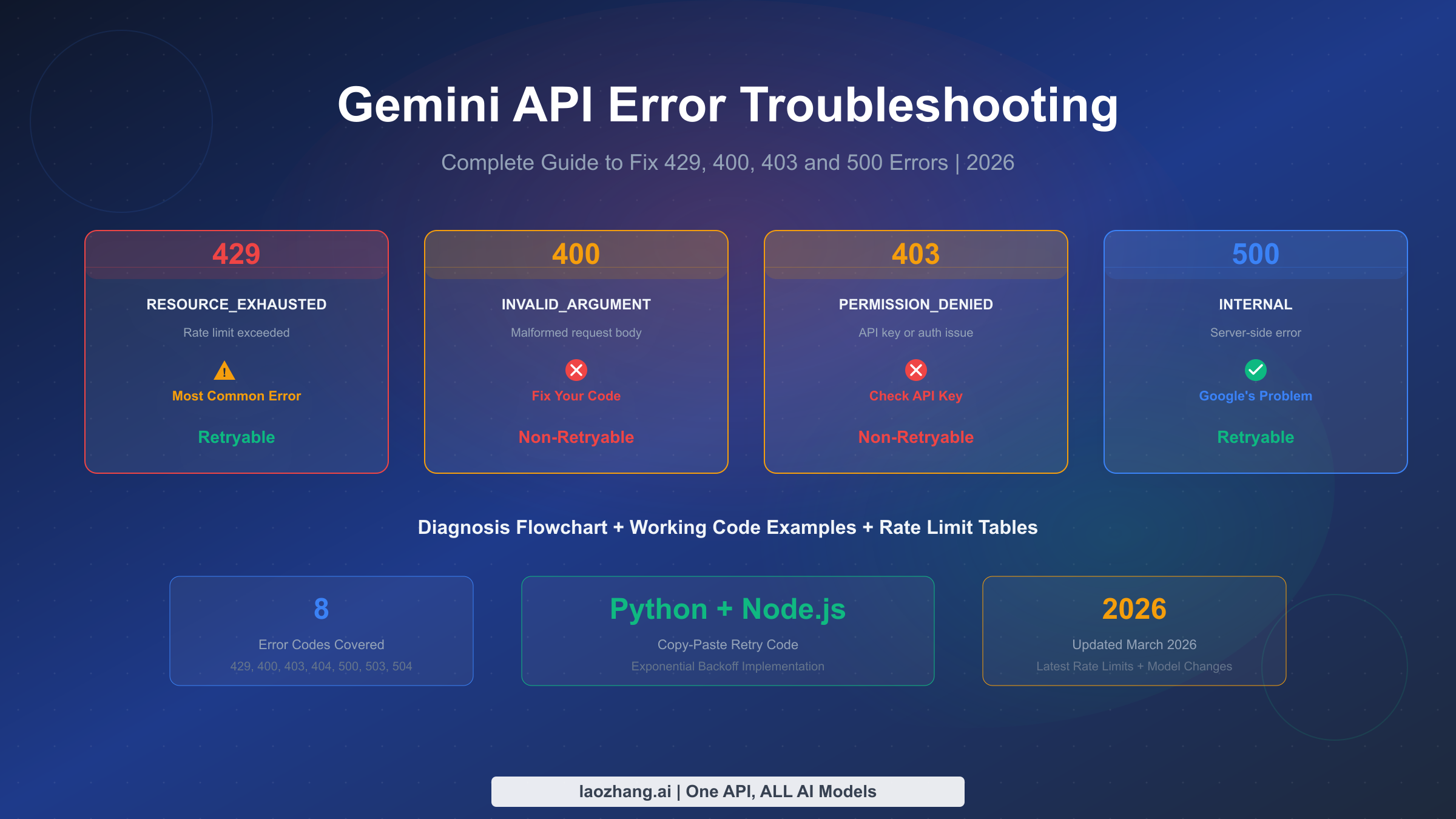
Gemini API errors fall into two categories that require completely different handling strategies: retryable errors (429, 500, 503, 504) where waiting and retrying will eventually succeed, and non-retryable errors (400, 403, 404) where your code or configuration needs to change before the request can work. Understanding this distinction is the single most important concept in API error handling, and getting it wrong means either wasting time retrying requests that will never succeed or abandoning requests that would have worked with a brief delay. This guide covers every error you will encounter, with working code you can copy into your project today.
TL;DR
Every Gemini API error maps to one of two strategies: retry with exponential backoff (for 429, 500, 503, 504) or fix and re-deploy (for 400, 403, 404). The 429 RESOURCE_EXHAUSTED error accounts for roughly 90% of developer complaints in 2026, largely because Google silently reduced free tier rate limits by 50-80% in December 2025. If you are hitting 429 errors on the free tier, your fastest path to resolution is enabling billing to unlock Tier 1 limits, which typically takes effect immediately. For server errors (500/503), check the Google AI Status Page before debugging your own code. The table below gives you a quick reference for every error code.
| HTTP Code | gRPC Status | Retryable? | First Action |
|---|---|---|---|
| 400 | INVALID_ARGUMENT | No | Check request body format |
| 400 | FAILED_PRECONDITION | No | Enable billing or change region |
| 403 | PERMISSION_DENIED | No | Verify API key and permissions |
| 404 | NOT_FOUND | No | Check model name and resource paths |
| 429 | RESOURCE_EXHAUSTED | Yes | Wait, then retry with backoff |
| 500 | INTERNAL | Yes | Retry after 5-10 seconds |
| 503 | UNAVAILABLE | Yes | Retry after 30-60 seconds |
| 504 | DEADLINE_EXCEEDED | Yes | Increase timeout, reduce input |
The Troubleshooting Decision Tree
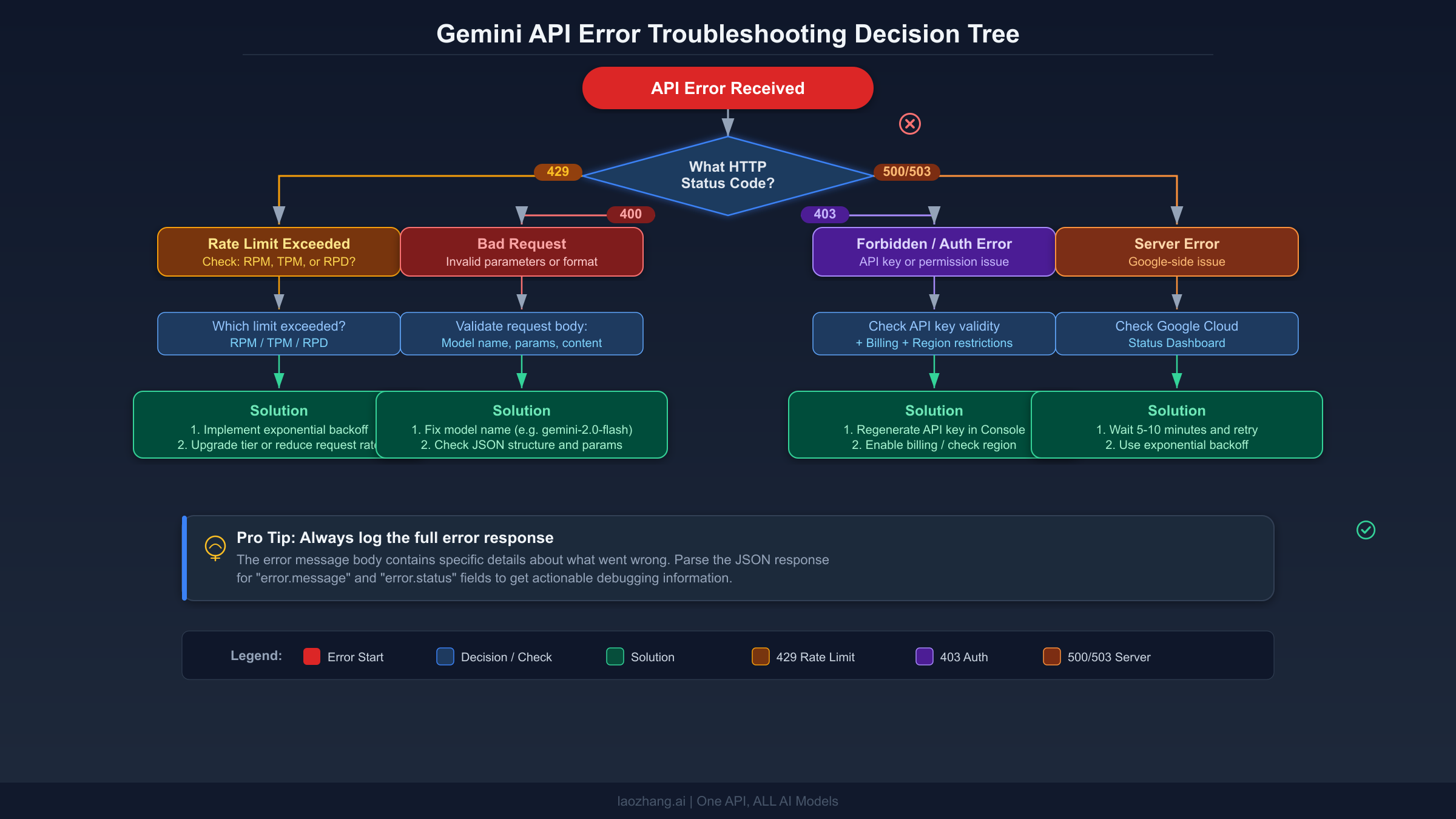
When a Gemini API request fails, the HTTP status code tells you exactly which diagnostic path to follow. The critical first step is reading the full error response body, not just the status code. Every Gemini API error returns a JSON object containing a status field with the gRPC error name and a message field with human-readable details that often point directly to the problem. Many developers make the mistake of catching exceptions at the HTTP level and discarding this detail, which turns a five-minute fix into an hour of guessing.
The diagnostic sequence works like this. First, check if the status code is in the 4xx range or the 5xx range. If it is 4xx, the problem is on your side and retrying will not help. You need to examine the error message, identify what is wrong with your request, fix it, and try again. If it is 5xx, the problem is likely on Google's side. Check the status page, and if the service appears healthy, implement retry logic with exponential backoff. The one exception to this clean split is the 429 error, which is technically a 4xx code but behaves like a transient error that resolves itself when you wait long enough or reduce your request rate.
For each error type, follow this sequence. Start by logging the complete error response including headers, particularly the Retry-After header for 429 errors. Then check whether you have seen this error before in your logs. Recurring 400 errors on the same endpoint suggest a systematic problem with how you are constructing requests. Sporadic 429 errors suggest you need rate limiting in your client code. Consistent 403 errors after a deployment suggest an environment variable or secret management issue. Understanding these patterns saves significant debugging time. If you are working with the Gemini CLI and encountering persistent 429 errors, note that the CLI has its own rate limiting behavior separate from direct API calls, as documented in gemini-cli issue #10722 on GitHub.
Deep Dive — 429 RESOURCE_EXHAUSTED (The Most Common Error)
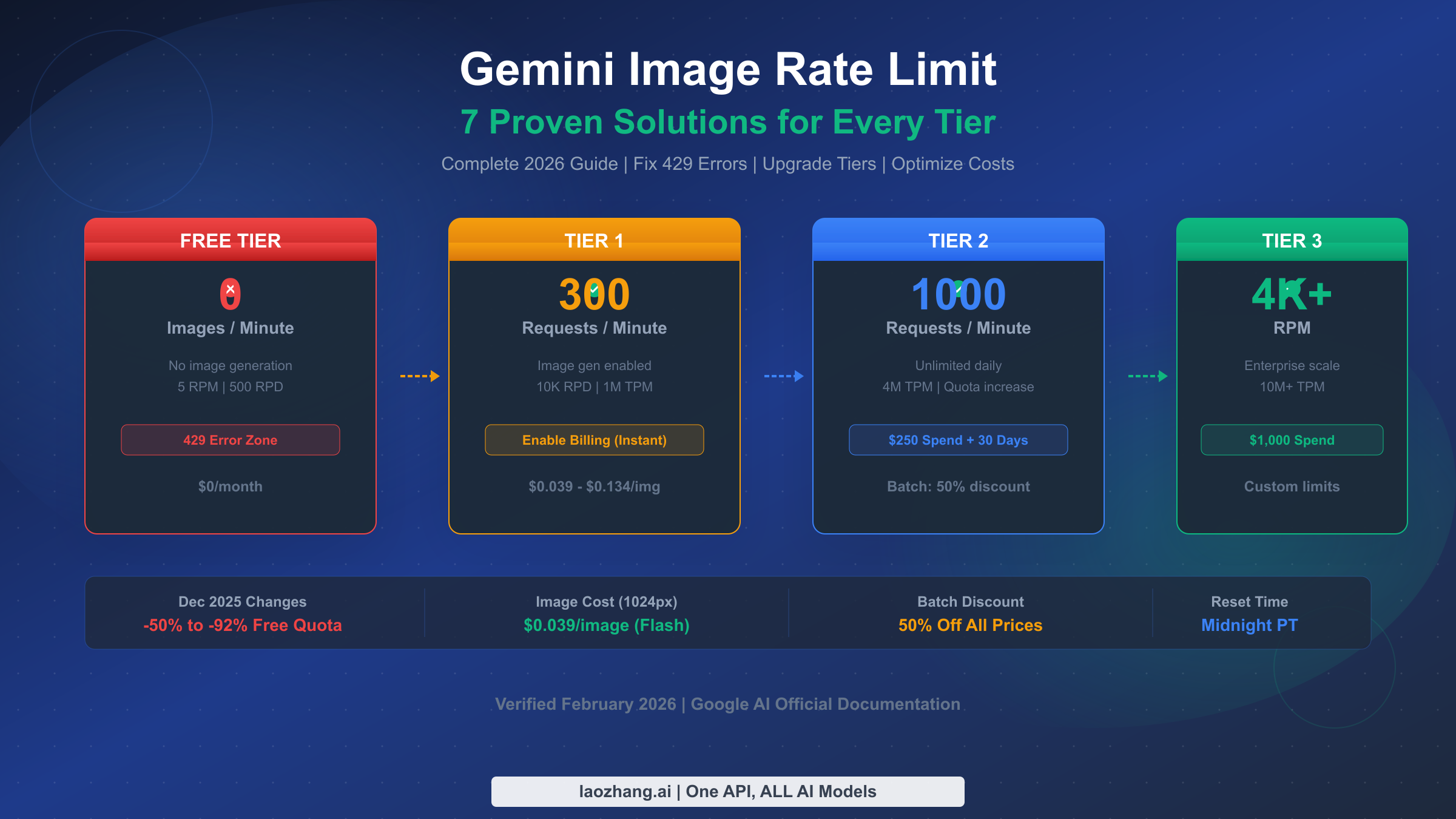
The 429 RESOURCE_EXHAUSTED error is by far the most frequently encountered Gemini API error, and its prevalence exploded after Google quietly reduced free tier rate limits by 50-80% on December 6-7, 2025. Before that date, Gemini 2.0 Flash offered 10 RPM on the free tier. After the change, it dropped to 5 RPM, and daily request limits saw similar reductions across all models. This change was not announced through official channels and caught thousands of developers off guard. If your application worked fine in November 2025 but started throwing 429 errors in December without any code changes, this is almost certainly why.
The Gemini API measures your usage across three independent dimensions, and exceeding any single one triggers a 429 error. These dimensions are RPM (Requests Per Minute), TPM (Tokens Per Minute for input), and RPD (Requests Per Day). This means you can be well within your RPM limit but still get throttled because a few large requests pushed you over the TPM threshold. The current free tier limits, verified against the official documentation on March 17, 2026, are shown below.
| Model | Free RPM | Free RPD | Free TPM |
|---|---|---|---|
| Gemini 2.5 Pro | 5 | 100 | 250,000 |
| Gemini 2.5 Flash | 10 | 250 | 250,000 |
| Gemini 2.5 Flash-Lite | 15 | 1,000 | 250,000 |
Source: ai.google.dev/gemini-api/docs/rate-limits, verified 2026-03-17
Rate limits apply per project, not per API key. This is a crucial distinction that trips up many developers. Creating multiple API keys within the same Google Cloud project does not give you additional quota. If you need more capacity, you need either a separate project (which is against Google's terms of service if done to circumvent limits) or a paid tier upgrade.
Diagnosing Which Limit You Hit
When you receive a 429 error, the response message usually tells you which specific limit was exceeded, but not always clearly. Here is how to systematically identify the bottleneck. First, check your usage in the Google Cloud Console under APIs & Services > Gemini API > Quotas. If your RPM usage spikes but TPM stays low, you are making too many small requests and should batch them. If TPM spikes but RPM is moderate, your requests contain too much input data and you should reduce context length or switch to a smaller model. If RPD is the limiting factor, you have hit the daily ceiling and need to either wait until midnight Pacific Time for the reset or upgrade your tier.
The "Ghost 429" Problem
In early 2026, multiple developers on paid Tier 1 accounts reported receiving 429 RESOURCE_EXHAUSTED errors despite their usage dashboards showing zero or near-zero consumption. This "ghost 429" phenomenon appears to be a server-side bug in Google's quota tracking system. If you are experiencing this, first verify that your dashboard is looking at the correct project. Then check whether you have any batch API jobs running, as batch operations consume separate quotas that may not appear in the real-time dashboard. If neither applies, the community consensus is to wait 15-30 minutes, as the issue typically resolves itself. If it persists beyond an hour, file a support ticket through the Google AI Developers Forum. You can find ongoing discussion about this issue in threads like this report on the Google AI Developers Forum, where several developers have shared workarounds.
Practical Steps to Reduce 429 Errors Without Upgrading
If upgrading to a paid tier is not immediately feasible, several optimization strategies can dramatically reduce your 429 error rate on the free tier. The most effective approach is request batching, where you combine multiple small requests into fewer larger ones. Since the free tier limits RPM more aggressively than TPM, sending one request with 10 questions is far more efficient than sending 10 separate requests. The Gemini API supports multi-turn conversations within a single request, making this optimization straightforward to implement.
Another powerful technique is client-side rate limiting, where your application enforces limits stricter than the API's to maintain a safety margin. If the free tier allows 10 RPM for Gemini 2.5 Flash, configure your client to send at most 8 requests per minute. This buffer absorbs timing variations and prevents the frustrating pattern of hitting the limit with your last request in a burst. You can implement this with a simple token bucket or sliding window algorithm. Adding even a 100-300 millisecond delay between consecutive requests is often sufficient to prevent burst-related 429 errors.
For applications that can tolerate higher latency, the Batch API offers a fundamentally different approach to quota management. Batch requests have their own separate rate limits (100 concurrent requests, 2GB input file limit) and are processed asynchronously, which means they do not compete with your real-time API calls for quota. Google explicitly recommends the Batch API for workloads that do not require immediate responses, such as data processing pipelines, content generation queues, and evaluation tasks. This is a commonly overlooked solution that can eliminate 429 errors entirely for suitable use cases.
For a more detailed guide specifically focused on 429 errors including advanced optimization techniques, see our detailed 429 RESOURCE_EXHAUSTED fix guide. For a comprehensive breakdown of rate limits across all tiers and models, refer to our complete rate limits breakdown for each tier.
Fixing 400 and 403 Errors (Non-Retryable)
Unlike 429 errors, 400 and 403 errors indicate a fundamental problem with your request or authentication that will not resolve by waiting. Retrying these errors without changing anything is pointless and wastes both your time and API quota.
400 INVALID_ARGUMENT — Your Request Is Malformed
The 400 error with status INVALID_ARGUMENT means the Gemini API received your request but could not process it because something in the request body is wrong. The most common causes are sending an unsupported parameter value, exceeding the maximum output token limit for a given model, passing an invalid temperature or topP value, or referencing a model name that does not exist or has been deprecated.
Here is a concrete example that catches many developers. Gemini 3.x models require the temperature parameter to remain at its default value of 1.0. Setting it to 0.2 or 0.7, which works fine with Gemini 2.5 models, can cause looping or degraded performance with Gemini 3 models and may trigger a 400 error. Always check the model-specific parameter constraints in the API reference documentation. The fix for 400 errors follows a consistent pattern: read the error message carefully, compare your request parameters against the documentation, and correct the mismatch.
python# Common 400 error: wrong model name after deprecation
# BAD - Gemini 3 Pro Preview was shut down March 9, 2026
model = "gemini-3-pro-preview"

# GOOD - Use the current model
model = "gemini-2.5-flash"

# Common 400 error: invalid parameter for model
# BAD - temperature < 1.0 can cause issues with Gemini 3.x
config = {"temperature": 0.3}

# GOOD - use default temperature for Gemini 3.x
config = {"temperature": 1.0}
400 FAILED_PRECONDITION — Regional or Billing Restriction
This variant of the 400 error means your account does not meet a prerequisite for using the API. The two most common causes are operating from an unsupported region without billing enabled, and attempting to use features that require a paid tier. If you see this error, navigate to Google AI Studio and check whether billing is enabled on your project. Enabling billing often resolves this immediately, even if you do not intend to spend money, because it upgrades your project from the free tier to Tier 1.
403 PERMISSION_DENIED — Authentication and Access Issues
The 403 error means the server understood your request but is refusing to authorize it. This is almost always an API key problem. Common causes include using an API key from the wrong project, using a key that has been revoked or leaked (Google proactively blocks leaked keys detected in public repositories), not having the Generative Language API enabled in your Google Cloud project, or attempting to access a tuned model without proper authentication.
If you are getting 403 errors specifically when accessing the API from a browser-based application, be aware that multiple Google account sign-ins can cause authentication conflicts. The browser may attempt to authenticate using a work account credential that does not have API access, even if your personal account does. The fix is to sign out of all Google accounts and sign back in with only the account that has API access enabled. This is a surprisingly common issue, as noted in Google's support forums. For more authentication troubleshooting, see our 401 authentication error troubleshooting guide which covers related credential issues in depth.
Building Bulletproof Retry Logic
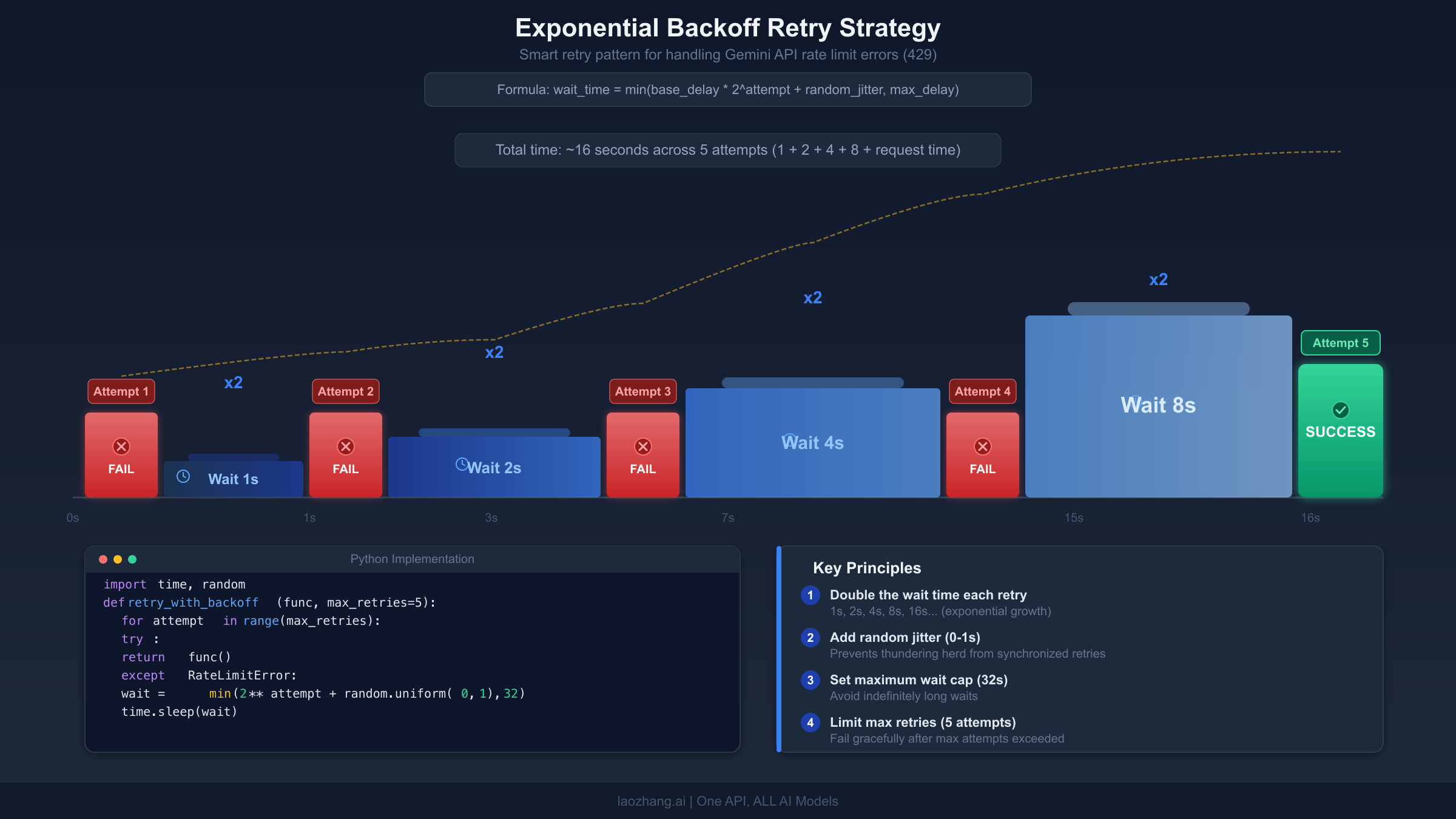
Retry logic is your first line of defense against transient errors (429, 500, 503, 504). The key principle is exponential backoff: start with a short delay, and double it after each failed attempt, adding a small random jitter to prevent all clients from retrying simultaneously. Here is a production-ready implementation in Python that handles all retryable Gemini API errors.
pythonimport time
import random
import google.generativeai as genai
from google.api_core import exceptions

def call_gemini_with_retry(
    model_name: str,
    prompt: str,
    max_retries: int = 5,
    base_delay: float = 1.0,
    max_delay: float = 60.0
):
    """Call Gemini API with exponential backoff retry logic."""
    model = genai.GenerativeModel(model_name)

    for attempt in range(max_retries):
        try:
            response = model.generate_content(prompt)
            return response

        except exceptions.ResourceExhausted as e:
            # 429 - Rate limited
            delay = min(base_delay * (2 ** attempt), max_delay)
            jitter = random.uniform(0, delay * 0.1)
            wait_time = delay + jitter
            print(f"Rate limited (attempt {attempt + 1}/{max_retries}). "
                  f"Waiting {wait_time:.1f}s...")
            time.sleep(wait_time)

        except exceptions.InternalServerError:
            # 500 - Server error
            delay = min(base_delay * (2 ** attempt), max_delay)
            jitter = random.uniform(0, delay * 0.1)
            print(f"Server error (attempt {attempt + 1}/{max_retries}). "
                  f"Retrying in {delay + jitter:.1f}s...")
            time.sleep(delay + jitter)

        except exceptions.ServiceUnavailable:
            # 503 - Service unavailable
            wait_time = min(30 * (2 ** attempt), 300)
            print(f"Service unavailable. Waiting {wait_time}s...")
            time.sleep(wait_time)

        except exceptions.InvalidArgument as e:
            # 400 - Do NOT retry, fix the request
            raise RuntimeError(f"Invalid request (not retryable): {e}")

        except exceptions.PermissionDenied as e:
            # 403 - Do NOT retry, fix credentials
            raise RuntimeError(f"Permission denied (not retryable): {e}")

    raise RuntimeError(f"Failed after {max_retries} attempts")
The same logic in Node.js using the official Google Generative AI SDK looks like this.
javascriptconst { GoogleGenerativeAI } = require("@google/generative-ai");

async function callGeminiWithRetry(modelName, prompt, maxRetries = 5) {
  const genAI = new GoogleGenerativeAI(process.env.GEMINI_API_KEY);
  const model = genAI.getGenerativeModel({ model: modelName });

  for (let attempt = 0; attempt < maxRetries; attempt++) {
    try {
      const result = await model.generateContent(prompt);
      return result.response.text();

    } catch (error) {
      const status = error.status || error.httpStatusCode;

      // Non-retryable errors — fail immediately
      if ([400, 403, 404].includes(status)) {
        throw new Error(`Non-retryable error ${status}: ${error.message}`);
      }

      // Retryable errors — wait and retry
      if ([429, 500, 503, 504].includes(status)) {
        const delay = Math.min(1000 * Math.pow(2, attempt), 60000);
        const jitter = Math.random() * delay * 0.1;
        console.log(`Error ${status}, attempt ${attempt + 1}/${maxRetries}. `
                   + `Waiting ${((delay + jitter) / 1000).toFixed(1)}s...`);
        await new Promise(r => setTimeout(r, delay + jitter));
        continue;
      }

      throw error; // Unknown error, don't retry
    }
  }
  throw new Error(`Failed after ${maxRetries} attempts`);
}
Three critical details that many retry implementations get wrong. First, never retry 400 or 403 errors. These indicate a problem in your code or configuration that will not resolve with time. Retrying them wastes quota and delays your actual fix. Second, add random jitter to your delays. Without jitter, all clients that hit a rate limit at the same time will retry at the same time, creating a "thundering herd" that triggers another round of 429 errors. Third, set a maximum delay cap. Exponential backoff without a cap can produce absurdly long waits after several failures. Sixty seconds is usually a reasonable maximum for interactive applications.
Handling 500 and 503 Server Errors
Server errors (5xx) mean something went wrong on Google's infrastructure, not in your code. The correct response is almost always to retry after a delay, but there are important nuances for each error type that affect how you should respond.
500 INTERNAL errors can be genuinely transient or they can indicate that your input is too large for the model to process. If you consistently get 500 errors on the same request but other requests work fine, try reducing your input context length. The Gemini API documentation notes that overly long input contexts are a known trigger for 500 errors, particularly with models that support the 1 million token context window. If you are processing large documents, consider breaking them into smaller chunks and making multiple requests rather than sending everything in one call.
503 UNAVAILABLE errors typically indicate that the Gemini service is under heavy load. These are more likely during peak usage periods and during model rollouts. When you encounter a 503, your first action should be checking the Google Cloud Status Dashboard to see if there is a known incident. If there is, there is nothing to do but wait. If the status page shows all services as healthy, implement retry logic with longer initial delays, starting at 30 seconds rather than the 1-second starting delay used for 429 errors.
504 DEADLINE_EXCEEDED errors mean your request took longer to process than the server's timeout allows. This is most commonly caused by very large prompts or requests that trigger extensive model computation (such as complex reasoning tasks with Gemini 2.5 Pro's thinking mode). The fix is typically to increase your client-side timeout setting. If you are using the Python SDK, you can pass a timeout parameter. If you are making raw HTTP requests, adjust your HTTP client timeout to at least 120 seconds for large requests. If 504 errors persist even with increased timeouts, consider switching to the Batch API, which does not have per-request timeout constraints.
Building a Monitoring Dashboard for Error Patterns
Understanding your error patterns over time is far more valuable than debugging individual errors. A simple monitoring setup that logs every API response status code, latency, and token count can reveal patterns invisible to one-off debugging. For instance, if 429 errors cluster at specific times of day, you may be competing with other users in your region during peak hours. If 500 errors correlate with specific prompt lengths, you have identified a context window boundary issue.
The most practical approach is to log API responses to a structured format that you can query later. Include the timestamp, HTTP status code, error message, model name, input token count, and response latency in every log entry. Even a simple CSV file or SQLite database provides enough structure to spot trends. Many developers discover that their 429 errors come from a single feature or endpoint that makes unexpectedly high request volumes, and fixing that one bottleneck eliminates the majority of their errors. If you prefer a managed solution, Google Cloud Operations (formerly Stackdriver) can automatically monitor your Gemini API usage through the Cloud Console, though this requires your project to be linked to a Google Cloud billing account.
When to Upgrade — Free vs Paid Tier Analysis
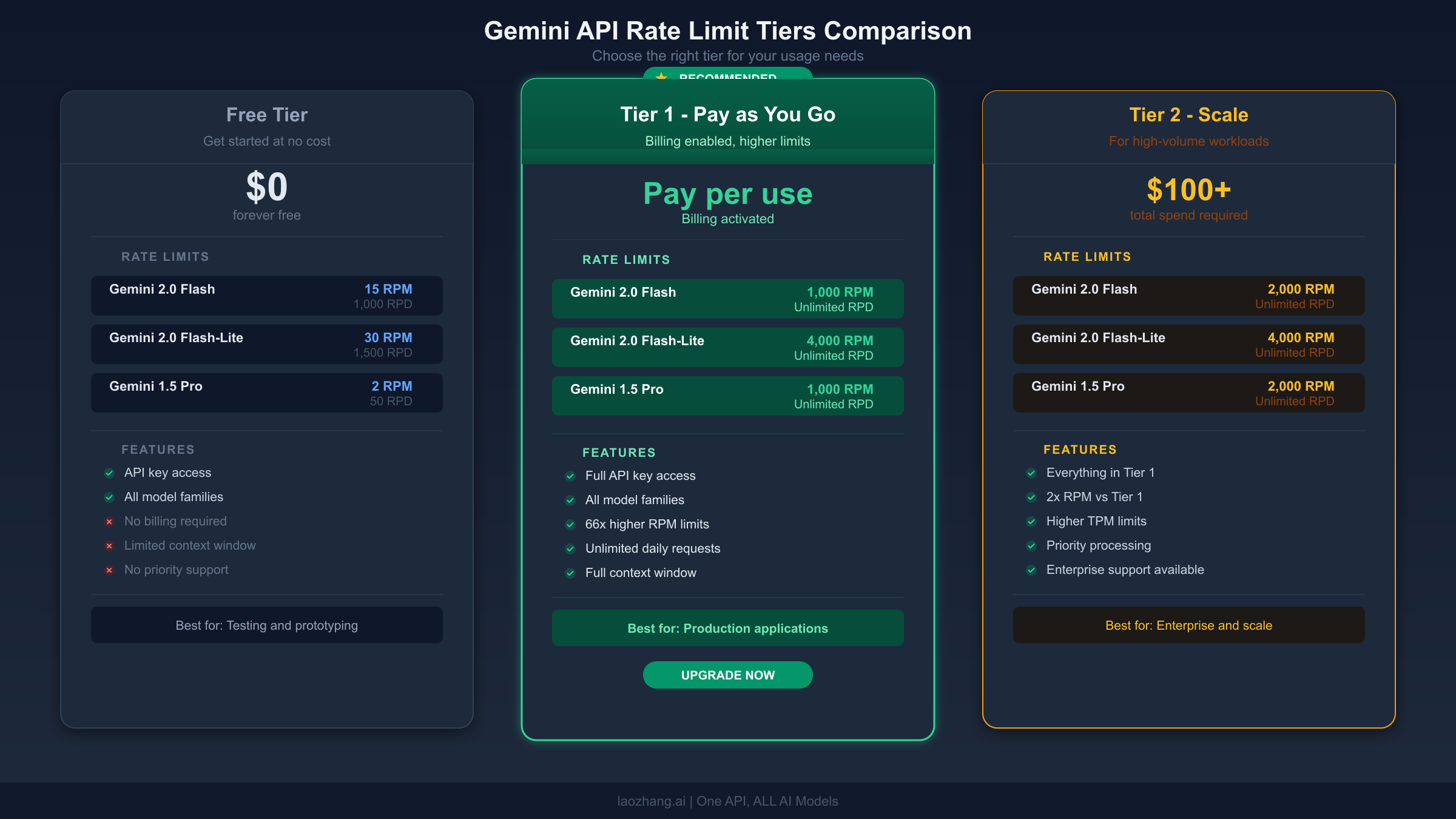
The decision to upgrade from the free tier to a paid tier is straightforward once you understand the cost structure. The Gemini API uses a tiered system where your rate limits increase automatically as your cumulative spending grows. Here is how the tiers work, verified against the official documentation on March 17, 2026.
| Tier | How to Qualify | Key Benefit |
|---|---|---|
| Free | Sign up with Google account | Limited but functional for testing |
| Tier 1 | Activate a billing account | Immediate RPM/RPD increase (often 10-20x) |
| Tier 2 | $100+ cumulative spending + 3 days | Substantial capacity for production |
| Tier 3 | $1,000+ cumulative spending + 30 days | Enterprise-grade limits |
Source: ai.google.dev/gemini-api/docs/rate-limits, verified 2026-03-17
The upgrade from Free to Tier 1 is the highest-impact change you can make. Simply activating a billing account, even before spending any money, unlocks Tier 1 limits which are typically 10-20x higher than the free tier. The upgrade takes effect immediately. If you are hitting 429 errors regularly, this single step will resolve most cases. Note that starting April 1, 2026, Google will begin enforcing tier spend caps, so review the billing documentation to understand any new limits that may apply to your account.
For production workloads where even Tier 1 limits are insufficient, consider a unified API gateway like laozhang.ai that aggregates requests across multiple providers and offers higher rate limits without per-provider throttling. This approach is particularly valuable when your application needs to support burst traffic patterns that exceed any single provider's limits. You can explore the documentation at docs.laozhang.ai to see how it handles rate limiting across providers transparently. For a complete breakdown of Gemini API pricing across all tiers and models, see our Gemini API pricing and quotas guide. You can also compare the free tier limitations in detail in our free tier rate limits guide.
Cost reality check for individual developers. Gemini 2.5 Flash, the most popular model for cost-sensitive applications, is priced at $0.30 per million input tokens and $2.50 per million output tokens on the paid tier (ai.google.dev/gemini-api/docs/pricing, verified 2026-03-17). For a typical application making 1,000 requests per day with average prompt sizes, the monthly cost works out to roughly $5-15 depending on output length. This is a trivial cost for any application generating real value, and the reliability improvement from eliminating 429 errors more than justifies the expense. The Gemini 2.5 Flash-Lite variant offers an even cheaper option at $0.10 per million input tokens for applications where maximum quality is not critical.
For teams building production applications that need to access multiple AI providers (Gemini, OpenAI, Anthropic, and others) through a single endpoint, a unified API gateway like laozhang.ai can simplify your infrastructure while providing built-in rate limiting, load balancing, and automatic failover between providers. This is particularly useful when you want to fall back from one provider to another when hitting rate limits, rather than simply retrying against the same throttled endpoint.
2026 Model Changes That Affect Error Handling
The Gemini model landscape has changed significantly in early 2026, and several of these changes directly impact error handling. If you are encountering errors that started recently without code changes on your end, one of these model transitions may be the cause.
Gemini 3 Pro Preview was deprecated and shut down on March 9, 2026. If your code references gemini-3-pro-preview or similar preview model names, you will receive 400 INVALID_ARGUMENT errors or 404 NOT_FOUND errors. The recommended migration path is to use gemini-3.1-pro-preview or gemini-2.5-pro as a stable alternative. Preview models inherently carry this risk, and production applications should always target stable model versions where available.
Gemini 2.0 Flash is deprecated and scheduled for shutdown on June 1, 2026. If you are currently using gemini-2.0-flash or gemini-2.0-flash-lite, plan your migration to gemini-2.5-flash or gemini-2.5-flash-lite before the deadline. The newer models offer better performance at the same or lower cost, but they may have slightly different parameter behaviors that could trigger 400 errors if your configuration relied on model-specific defaults.
Gemini Embedding 2 was announced as the first fully multimodal embedding model. If you are building RAG applications, this new model may reduce errors related to input format mismatches when embedding different content types. The current model lineup includes Gemini 3.1 Pro Preview, 3.1 Flash-Lite Preview, 3 Flash Preview, and the full Gemini 2.5 family (Pro, Flash, Flash-Lite) along with their TTS variants. Always verify the exact model name string against the official models list before using it in production code, as even small typos in model names will cause 404 errors.
FAQ — Common Questions About Gemini API Errors
How do I fix Gemini API error 429 Too Many Requests?
The fastest fix is to add a delay between requests, even 100-300 milliseconds is often enough to prevent high-frequency bursts. For a longer-term solution, implement exponential backoff retry logic (see the Python and Node.js code examples in the retry section above). If you are on the free tier and hitting 429 errors regularly, upgrading to Tier 1 by enabling billing will immediately increase your rate limits by 10-20x.
What causes error 403 PERMISSION_DENIED in Gemini API?
Error 403 almost always indicates an API key problem. The most common causes are: using an API key from a different Google Cloud project than the one with Gemini API enabled, using a key that Google has blocked because it was detected in a public repository, not having the Generative Language API enabled in your project, or browser authentication conflicts when multiple Google accounts are signed in. Check your key in Google AI Studio and regenerate it if needed.
Why am I getting 429 errors even though my usage dashboard shows zero?
This is the "ghost 429" issue reported by multiple developers in early 2026. It appears to be a server-side bug in Google's quota tracking. First verify you are looking at the correct project in the dashboard. Check for any running batch API jobs that consume separate quotas. If neither applies, wait 15-30 minutes as the issue typically self-resolves. If it persists, report it through the Google AI Developers Forum.
Is error 500 my fault or Google's?
Error 500 INTERNAL is almost always a Google-side issue, but there is an important exception. If your input context is extremely large, approaching or exceeding the model's context window, the server may fail to process it and return a 500 error instead of a more descriptive error code. Start by checking the Google Cloud Status Dashboard to see if there is a known incident. If the service appears healthy but you consistently get 500 errors on the same request while other requests work fine, try reducing your input size. Cut your prompt in half and see if the error goes away. If it does, you have found the boundary. For sporadic 500 errors that affect random requests, simply implement retry logic with exponential backoff. Google's servers experience transient failures like any distributed system, and most 500 errors resolve within seconds.
What is the difference between 503 UNAVAILABLE and 504 DEADLINE_EXCEEDED?
Error 503 means the Gemini service is temporarily overloaded and cannot accept your request right now. This is a capacity issue on Google's side, similar to getting a busy signal when calling a phone line. It usually resolves within minutes and is most common during peak usage periods or immediately after Google announces a new model feature. Error 504, on the other hand, means the server accepted your request and started processing it, but could not finish within the allotted time. This is typically caused by very large prompts or complex reasoning tasks, especially with models like Gemini 2.5 Pro in thinking mode. For 503, wait 30-60 seconds and retry. For 504, increase your client timeout setting to at least 120 seconds for large requests, or consider breaking your input into smaller chunks.
How do I prevent API errors from affecting my users?
The best strategy is defense in depth. First, implement retry logic with exponential backoff for all retryable errors, so transient failures are invisible to your users. Second, add a circuit breaker pattern that stops sending requests after multiple consecutive failures, preventing cascading errors. Third, configure fallback behavior, such as returning cached responses or switching to a different model when your primary model is unavailable. Fourth, set up monitoring and alerting so you know about error spikes before your users complain. Even a simple daily email showing your error rate by status code can catch issues early. For production applications, consider maintaining API access through multiple providers so that a rate limit or outage on one provider does not take down your entire application.
Can I get banned from the Gemini API for hitting too many 429 errors?
Google does not ban accounts simply for hitting rate limits, as 429 errors are an expected part of normal API usage. However, Google does proactively block API keys that are detected in public repositories, as these represent a security risk. If your API key appears in a public GitHub repository, Google will block it and you will receive a specific error message stating that your key was reported as leaked. The solution is to generate a new API key through Google AI Studio and ensure it is stored securely using environment variables rather than hardcoded in your source code. Additionally, creating multiple Google Cloud projects to circumvent rate limits is against Google's terms of service and could result in account-level restrictions.