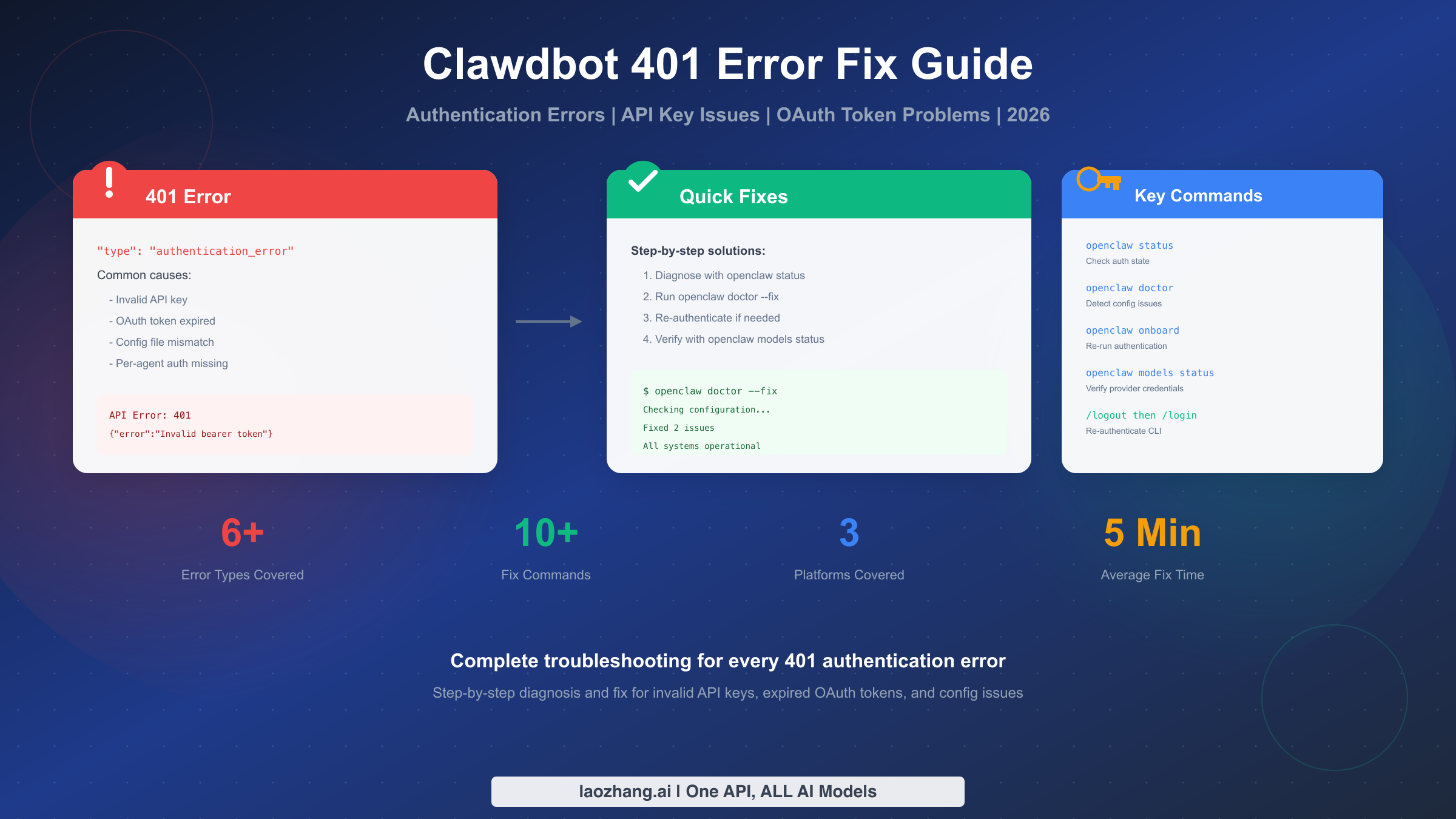
Clawdbot 401 authentication errors occur due to invalid API keys, expired OAuth tokens, or configuration mismatches. Fix immediately using openclaw doctor --fix for auto-repair, or run openclaw models status to diagnose which provider credentials are missing. This guide covers complete fixes for all 401 error types including API key regeneration, OAuth re-authentication, config profile repair, and platform-specific solutions for macOS Keychain and Linux credential storage. Updated for OpenClaw February 2026.
Quick Diagnosis - Identify Your Error
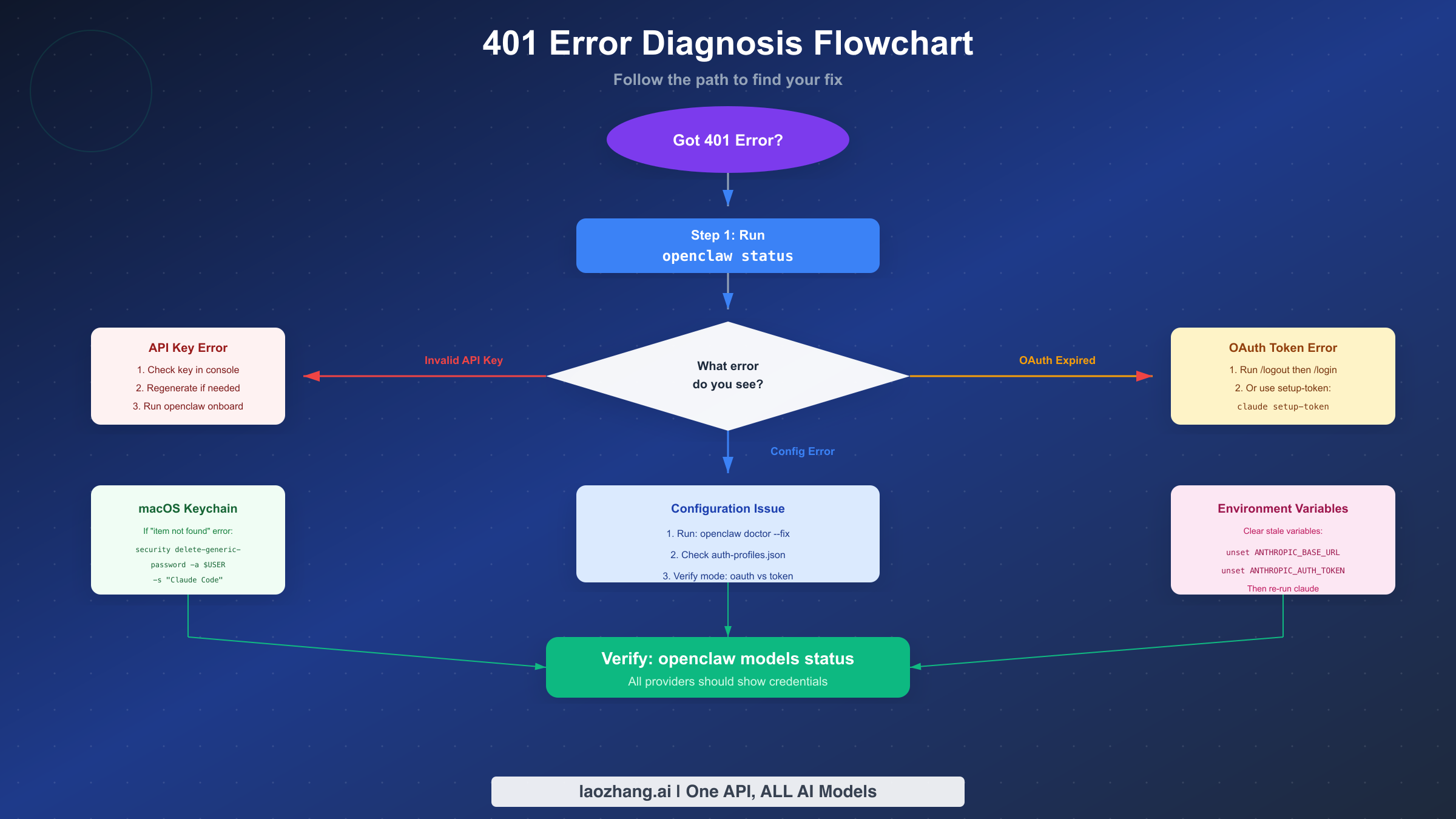
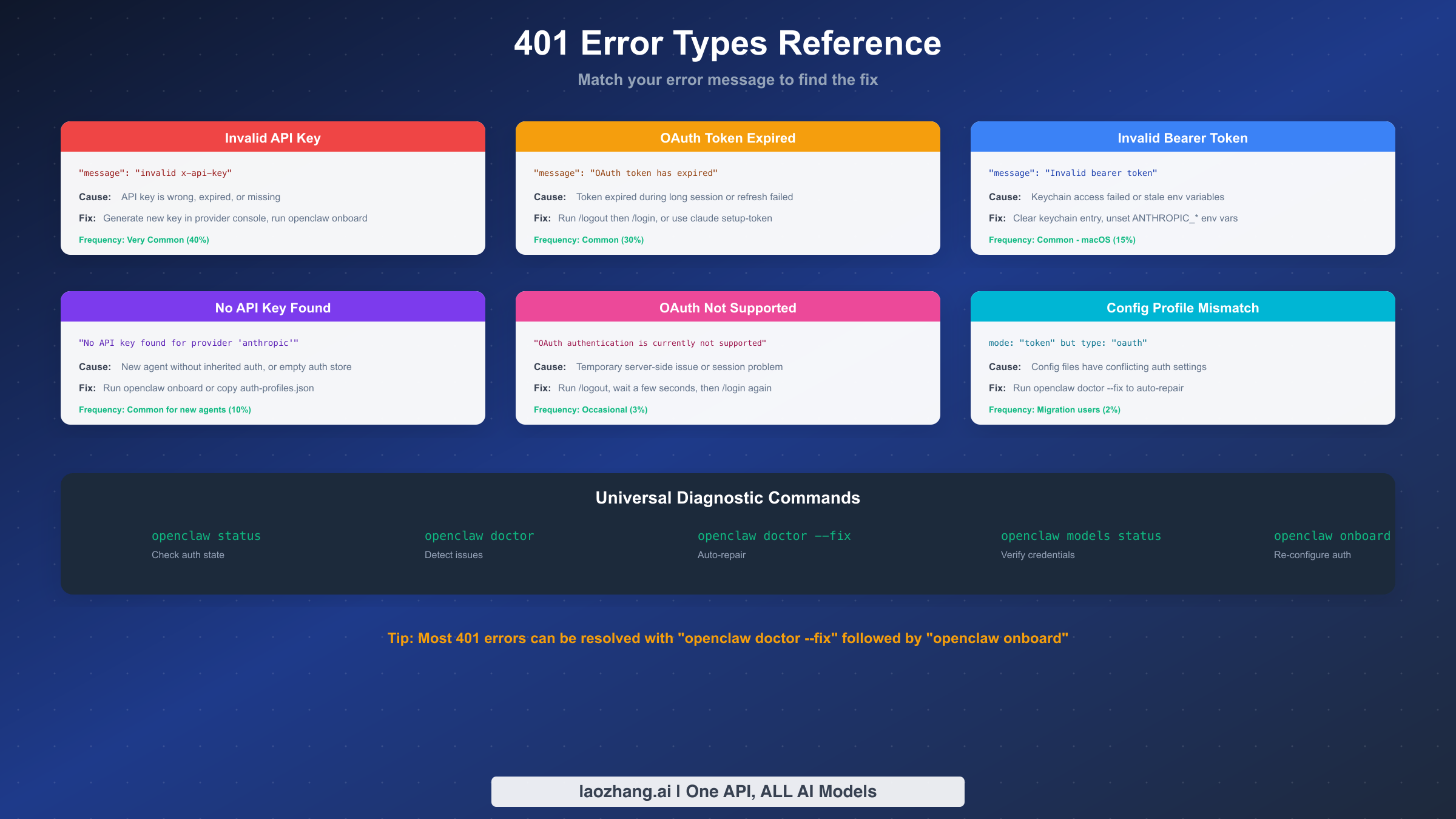
Before attempting any fix, you need to identify exactly which type of 401 error you're experiencing. Clawdbot (now officially OpenClaw) returns different error messages depending on the root cause, and applying the wrong fix wastes time while potentially creating new problems. This section provides a systematic approach to error identification that takes under two minutes but saves significant debugging effort.
The most reliable first step is running the diagnostic command openclaw status which displays your current authentication state, configured providers, and any detected issues. This command doesn't modify anything—it only reads and reports—so it's completely safe to run even if you're unsure what's wrong. The output tells you whether your credentials exist, which providers are configured, and whether the gateway can access them.
Error Message Lookup Table
| Error Message | Error Type | Go To Section |
|---|---|---|
"invalid x-api-key" | Invalid API Key | Section 3 |
"Invalid bearer token" | Bearer Token Issue | Section 3 or 6 |
"OAuth token has expired" | OAuth Expiration | Section 4 |
"OAuth authentication is currently not supported" | OAuth Temporary Issue | Section 4 |
"No API key found for provider" | Missing Credentials | Section 5 |
mode: "token" but type: "oauth" mismatch | Config Mismatch | Section 5 |
If your exact error message isn't listed, run openclaw doctor to get a more detailed diagnosis. This command analyzes your configuration files, checks for common problems, and often identifies the specific issue even when the error message itself is cryptic. The doctor command's output includes actionable recommendations tailored to your specific situation.
Understanding the Error JSON Structure
When Clawdbot returns a 401 error, the response follows a consistent JSON format that contains useful diagnostic information. A typical error looks like: {"type":"error","error":{"type":"authentication_error","message":"..."}}. The inner type field always shows authentication_error for 401 issues, while the message field provides the specific cause. Learning to read this structure helps you quickly extract the relevant information rather than being overwhelmed by the full error output.
Understanding 401 Authentication Errors
A 401 error in Clawdbot indicates that your request reached the API server but was rejected because the server couldn't verify your identity. This differs from connection errors (which mean the request never arrived) and permission errors (which mean your identity was verified but you're not authorized for that specific action). Understanding this distinction matters because the troubleshooting approach differs significantly for each category.
Authentication in Clawdbot works through a layered system that involves your local configuration, the OpenClaw gateway, and the upstream provider (Anthropic, OpenRouter, or others). When you make a request, your credentials flow through each layer, and a 401 error can originate from any of them. The error message usually indicates which layer rejected the request, though sometimes you need the diagnostic commands to pinpoint the exact location.
The Three Authentication Layers
The first layer is your local configuration stored in ~/.openclaw/openclaw.json and the per-agent auth profiles in ~/.openclaw/agents/<agentId>/agent/auth-profiles.json. Problems here include missing keys, incorrect key formats, or mismatched profile references. These are the most common issues because they're where user configuration happens.
The second layer is the OpenClaw gateway, which validates your local credentials and manages the connection to upstream providers. Gateway issues typically involve token mismatches between the gateway's expected format and what your config provides, or stale cached credentials from previous sessions.
The third layer is the upstream provider—Anthropic, OpenRouter, or whichever service you're using. These providers independently validate credentials, and their rejections appear as 401 errors even though the problem originates outside Clawdbot itself. A key that works in one context might fail in another if it's been revoked, expired, or exceeds rate limits.
Why 401 Errors Happen More Often Than Expected
Several factors make 401 errors more common in Clawdbot than in simpler API clients. The per-agent authentication model means new agents don't automatically inherit credentials from existing ones—each agent needs its own configuration. The OAuth flow for Claude subscription users involves token refresh that can fail silently, especially during long-running sessions. The migration from ClawdBot to OpenClaw (the rebranding that happened in late 2025) left some users with conflicting configuration files that cause subtle auth issues.
Additionally, environment variables can interfere with CLI authentication. If you've manually set ANTHROPIC_BASE_URL, ANTHROPIC_AUTH_TOKEN, or similar variables, they may override the credentials that the CLI would otherwise use correctly. This interference is particularly common among developers who previously worked with direct Anthropic API calls before switching to Clawdbot.
Fixing Invalid API Key Errors
Invalid API key errors are the most straightforward 401 issues to diagnose and fix. The error message "invalid x-api-key" or "Invalid bearer token" tells you that the key itself is the problem—either it's wrong, expired, revoked, or simply not configured. This section covers verification, regeneration, and proper configuration of API keys for all supported providers.
Step 1: Verify Your Current Key Configuration
Run openclaw models status to see which providers have configured credentials and their current state. The output shows each provider with a status indicator—green checkmarks for working credentials, warnings for issues, and errors for missing or invalid configurations. If you see a provider marked as having issues, that's where to focus your attention.
For a deeper look at what keys are actually stored, check the configuration files directly. Your main config lives at ~/.openclaw/openclaw.json, and provider-specific auth profiles are in ~/.openclaw/agents/<agentId>/agent/auth-profiles.json. Look for the env section containing API keys and verify the key format matches what your provider expects. Anthropic keys start with sk-ant-, OpenRouter keys with sk-or-, and OpenAI keys with sk-.
Step 2: Regenerate the API Key
If the key is definitely invalid, generate a fresh one from your provider's console:
For Anthropic, visit the Anthropic Console, navigate to API Keys, and create a new key. Copy it immediately—Anthropic only shows the full key once. For OpenRouter, go to openrouter.ai and create a new key in your account settings. The format should be sk-or-v1-....
Before configuring the new key, verify it works by making a direct API call. This isolates whether the problem is the key itself or your Clawdbot configuration. A simple curl command to the provider's API endpoint with your new key confirms it's valid before you add complexity.
Step 3: Configure the New Key
The recommended way to update your API key is through the onboarding flow:
bashopenclaw onboard --auth-choice apiKey --token-provider anthropic --token "sk-ant-your-new-key"
This command updates your configuration files correctly and validates the key works before saving. If you need to configure OpenRouter instead, change the --token-provider accordingly.
For manual configuration, edit ~/.openclaw/openclaw.json and update the relevant key in the env section:
json{
  "env": {
    "ANTHROPIC_API_KEY": "sk-ant-your-new-key"
  }
}
After updating, run openclaw models status again to verify the new key is recognized and working. If you still see errors, check that your agent's auth-profiles.json references the correct provider configuration.
For users who want comprehensive API configuration beyond single-provider setup, the Clawdbot API key and OpenRouter integration guide covers multi-provider configuration, model fallbacks, and advanced authentication scenarios.
Fixing OAuth Token Errors
OAuth token errors affect users who authenticate with their Claude subscription rather than a direct API key. These errors manifest as "OAuth token has expired" or "OAuth authentication is currently not supported" messages, and they require different fixes than API key issues because the authentication mechanism is fundamentally different.
Understanding OAuth Token Lifecycle
When you authenticate with OAuth, Claude Code (which powers Clawdbot's Claude integration) obtains an access token and a refresh token. The access token grants immediate API access but expires relatively quickly—often within an hour. The refresh token lasts longer and is used to obtain new access tokens automatically. When refresh fails or both tokens expire, you see a 401 error.
OAuth token issues typically appear in these scenarios: after long-running sessions where token refresh was never triggered, when switching between different machines or environments, when Anthropic's OAuth servers experience temporary issues, or after software updates that change how tokens are stored.
Quick Fix: Re-authenticate
The simplest fix for most OAuth issues is to log out and log back in:
bash# In the Claude Code CLI
/logout
# Wait a few seconds
/login
This discards the old tokens and starts a fresh OAuth flow. Your browser opens to Anthropic's login page, you authenticate, and new tokens are stored. If re-authentication succeeds, your 401 errors should resolve immediately.
Alternative: Setup Token Method
For automation or headless environments where browser-based OAuth isn't practical, use the setup token method. This generates a long-lived token that acts like an API key but uses your subscription:
bash# Generate setup token via Claude Code
claude setup-token

# Apply it to OpenClaw
openclaw models auth setup-token --provider anthropic
openclaw models status
The setup token approach is more reliable for scripts and background processes because it doesn't depend on OAuth token refresh. It's also useful when you're behind corporate firewalls that interfere with OAuth redirect flows.
Persistent OAuth Issues
If /login fails repeatedly or immediately returns expired token errors, the problem may be temporary on Anthropic's end. Users have reported instances where OAuth issues spontaneously resolved after several hours (GitHub issue #19078 documents this pattern from January 2026). In these cases, switching temporarily to an API key or setup token provides a workaround while the OAuth infrastructure stabilizes.
For long-running sessions or batch processing, consider proactively re-authenticating before starting. This ensures fresh tokens throughout the session. Some users schedule automatic re-authentication every few hours using cron or similar scheduling mechanisms, though this adds operational complexity.
Fixing Configuration Errors
Configuration errors result from mismatches between your config files, conflicting settings from different sources, or corruption during updates and migrations. These issues produce cryptic error messages that don't directly point to configuration as the cause, making them harder to diagnose than straightforward key or token problems.
Running the Doctor
OpenClaw includes a built-in diagnostic tool specifically for configuration issues:
bash# Diagnose without changing anything
openclaw doctor

# Diagnose and automatically fix what's possible
openclaw doctor --fix
The doctor command checks for common problems including: mismatched mode and type settings in auth profiles, references to non-existent profiles, deprecated configuration options, conflicting environment variables, and permission issues on config files. When run with --fix, it automatically corrects issues that have safe, deterministic solutions.
Profile Mismatch Issues
A common configuration error involves mismatched profile settings between your main config and auth profiles. Your openclaw.json might reference a profile with mode: "token" while the actual auth-profiles.json has type: "oauth". This mismatch causes authentication to fail because the system doesn't know which credential format to use.
To manually fix profile mismatches, ensure consistency between files. If you're using OAuth (Claude subscription), both files should indicate OAuth:
In openclaw.json:
json{
  "auth": {
    "profiles": {
      "anthropic:claude": {
        "mode": "oauth"
      }
    }
  }
}
In auth-profiles.json:
json{
  "anthropic:claude": {
    "type": "oauth",
    "provider": "anthropic"
  }
}
The profile names must match exactly between files, including the colon separator and any suffixes.
Per-Agent Authentication
OpenClaw isolates authentication per agent, meaning each agent has its own credential storage. Creating a new agent doesn't copy credentials from existing agents—this is intentional for security but confuses users expecting inherited access.
To configure a new agent's authentication:
bash# Option 1: Run onboarding for the new agent
openclaw agents add myagent
# Follow the wizard prompts for authentication

# Option 2: Copy auth from existing agent
cp ~/.openclaw/agents/main/agent/auth-profiles.json ~/.openclaw/agents/myagent/agent/
After copying, verify with openclaw models status that the new agent has proper access.
Migration Cleanup
Users who upgraded from ClawdBot (the original name) to OpenClaw may have conflicting configurations from both systems. The old ClawdBot stored config in ~/.clawdbot/ while OpenClaw uses ~/.openclaw/. If both directories exist and contain different settings, the system may behave inconsistently.
Clean up migration artifacts:
bash# Check for old ClawdBot config
ls ~/.clawdbot 2>/dev/null && echo "Old ClawdBot config exists"

# If migrating cleanly, backup and remove old config
mv ~/.clawdbot ~/.clawdbot.backup

# Re-run OpenClaw setup
openclaw onboard
Platform-Specific Troubleshooting
Authentication errors sometimes have platform-specific causes that require OS-level fixes rather than Clawdbot configuration changes. This section covers the most common platform-specific issues and their solutions.
macOS: Keychain Access Issues
On macOS, Claude Code stores OAuth credentials in the system Keychain. If the Keychain entry becomes corrupted or inaccessible, you'll see "Invalid bearer token" errors with underlying messages about items not being found in the keychain.
To fix Keychain issues:
bash# Remove the existing Claude Code keychain entry
security delete-generic-password -a $USER -s "Claude Code"

# Re-authenticate
claude login
If the security command returns "item not found," the keychain entry doesn't exist—the problem is elsewhere. Check that Keychain Access.app shows no locked entries that might block access.
Some corporate macOS setups use managed keychains with restricted access. In these environments, you may need to use environment variables or configuration files instead of keychain storage. Consult your IT department about Keychain policies if you suspect this applies.
Linux: File Permission Issues
On Linux, credential files in ~/.openclaw/ must have correct permissions—readable only by your user. If permissions are too open, security checks may fail:
bash# Fix permissions on OpenClaw config directory
chmod 700 ~/.openclaw
chmod 600 ~/.openclaw/*.json
chmod 600 ~/.openclaw/agents/*/agent/*.json
Additionally, some Linux distributions run terminal emulators in sandboxed environments (Flatpak, Snap) that can't access home directory files normally. If you're using a sandboxed terminal, either grant it home access or run OpenClaw from a non-sandboxed terminal.
Environment Variable Conflicts
Both platforms can suffer from stale environment variables interfering with authentication. If you previously set ANTHROPIC_* variables for direct API work, they may override Clawdbot's configuration:
bash# Check for conflicting variables
env | grep -i anthropic

# Clear if present
unset ANTHROPIC_BASE_URL
unset ANTHROPIC_AUTH_TOKEN
unset ANTHROPIC_API_KEY
After clearing, start a new terminal session to ensure the changes take effect, then retry your Clawdbot commands. For permanent removal, check your shell's configuration files (.bashrc, .zshrc, etc.) for export statements setting these variables.
Preventing Future Authentication Errors
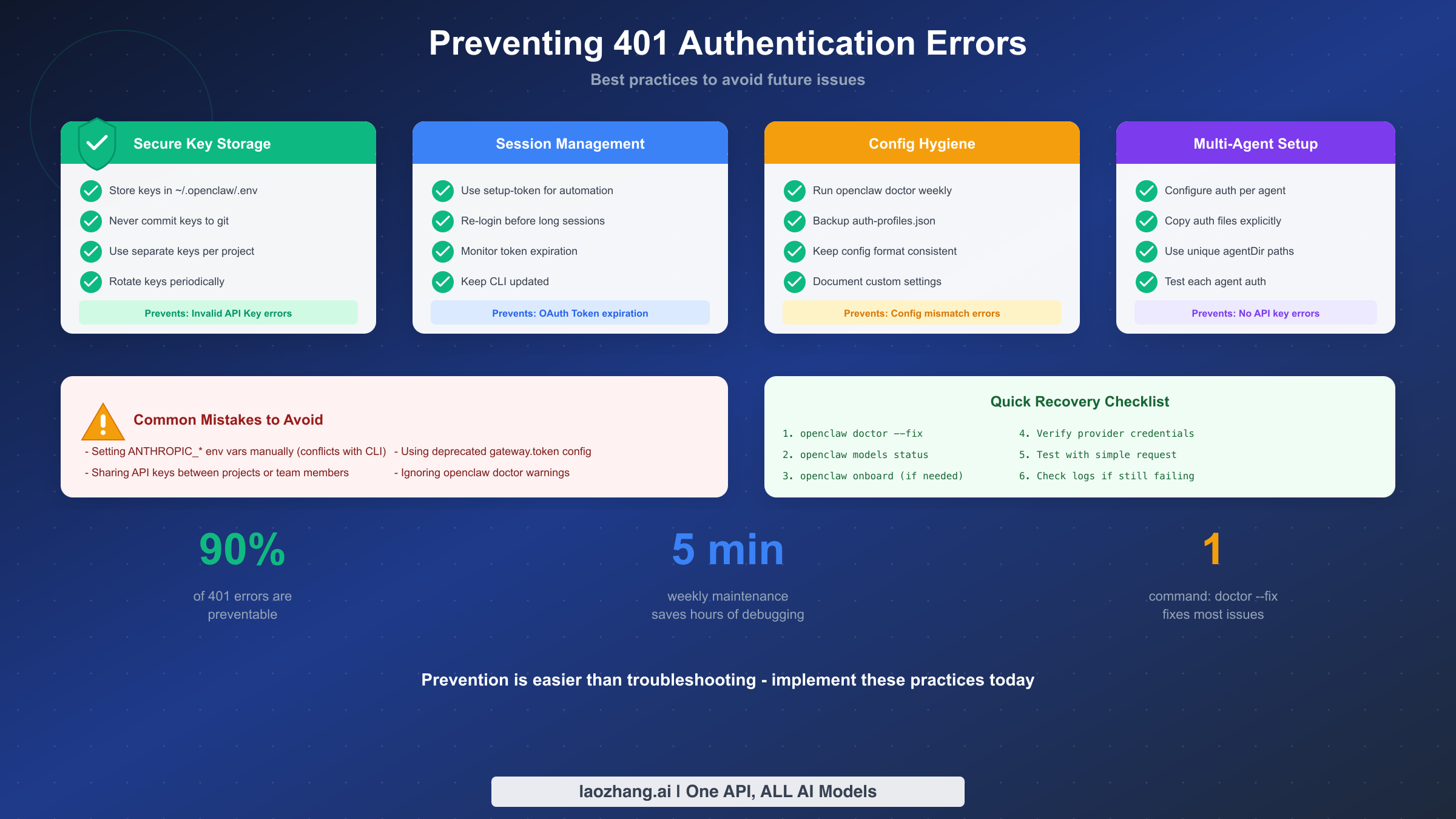
Fixing a 401 error once is useful; preventing future occurrences saves significant time and frustration. This section covers best practices that reduce authentication issues to rare exceptions rather than regular disruptions.
Secure Key Storage
Store API keys in ~/.openclaw/.env rather than environment variables or scattered config files. This centralized storage simplifies rotation and prevents accidental exposure:
bash# Create or edit the env file
echo 'ANTHROPIC_API_KEY=sk-ant-your-key' >> ~/.openclaw/.env

# Secure the file
chmod 600 ~/.openclaw/.env
Never commit API keys to git repositories. Use .gitignore patterns to exclude configuration directories, and consider git-secrets or similar tools to catch accidental commits.
Regular Maintenance
Run openclaw doctor weekly as part of routine maintenance. This catches configuration drift before it causes errors:
bash# Add to your weekly routine
openclaw doctor --fix
openclaw models status
Keep OpenClaw updated—authentication bugs get fixed regularly, and older versions may have known issues that newer releases resolved. Check the OpenClaw GitHub releases page for security-relevant updates.
Session Management
For OAuth users, re-authenticate before long sessions rather than hoping token refresh works throughout. A proactive /login at the start of a work session takes seconds and prevents mid-session disruptions.
For automation, use setup tokens instead of OAuth. Setup tokens don't expire during execution and don't require browser interaction for refresh.
Backup Auth Configuration
Before making changes, backup your working configuration:
bashcp -r ~/.openclaw ~/.openclaw.backup.$(date +%Y%m%d)
If something breaks, you can restore immediately rather than reconstructing your setup from scratch.
For initial setup guidance before authentication issues arise, the Clawdbot installation guide covers proper configuration from the start, reducing the likelihood of authentication problems.
Conclusion & Quick Reference
Authentication errors in Clawdbot follow predictable patterns with reliable fixes. The key is proper diagnosis before attempting fixes—running openclaw status and openclaw doctor tells you exactly what's wrong, preventing trial-and-error troubleshooting that often makes things worse.
Command Quick Reference
| Situation | Command |
|---|---|
| Check auth state | openclaw status |
| Diagnose issues | openclaw doctor |
| Auto-fix issues | openclaw doctor --fix |
| Verify credentials | openclaw models status |
| Re-configure auth | openclaw onboard |
| OAuth re-login | /logout then /login |
| Setup token | openclaw models auth setup-token --provider anthropic |
Error Resolution Priorities
Most 401 errors resolve with: openclaw doctor --fix followed by openclaw onboard. If the quick fix doesn't work, identify your specific error type from the table in section 1 and follow the corresponding detailed fix.
For persistent issues that don't respond to standard fixes, check the OpenClaw GitHub issues for recent reports of similar problems. Temporary service issues sometimes affect authentication, and the community often identifies these before official announcements.
For users managing multiple AI providers or seeking redundancy against authentication issues, API aggregation platforms like laozhang.ai offer unified access to multiple model providers, reducing single-point-of-failure risks in production environments.
The diagnostic approach in this guide—identify, verify, fix, confirm—applies beyond authentication to most Clawdbot troubleshooting. Master the diagnostic commands and you'll spend less time debugging and more time building.