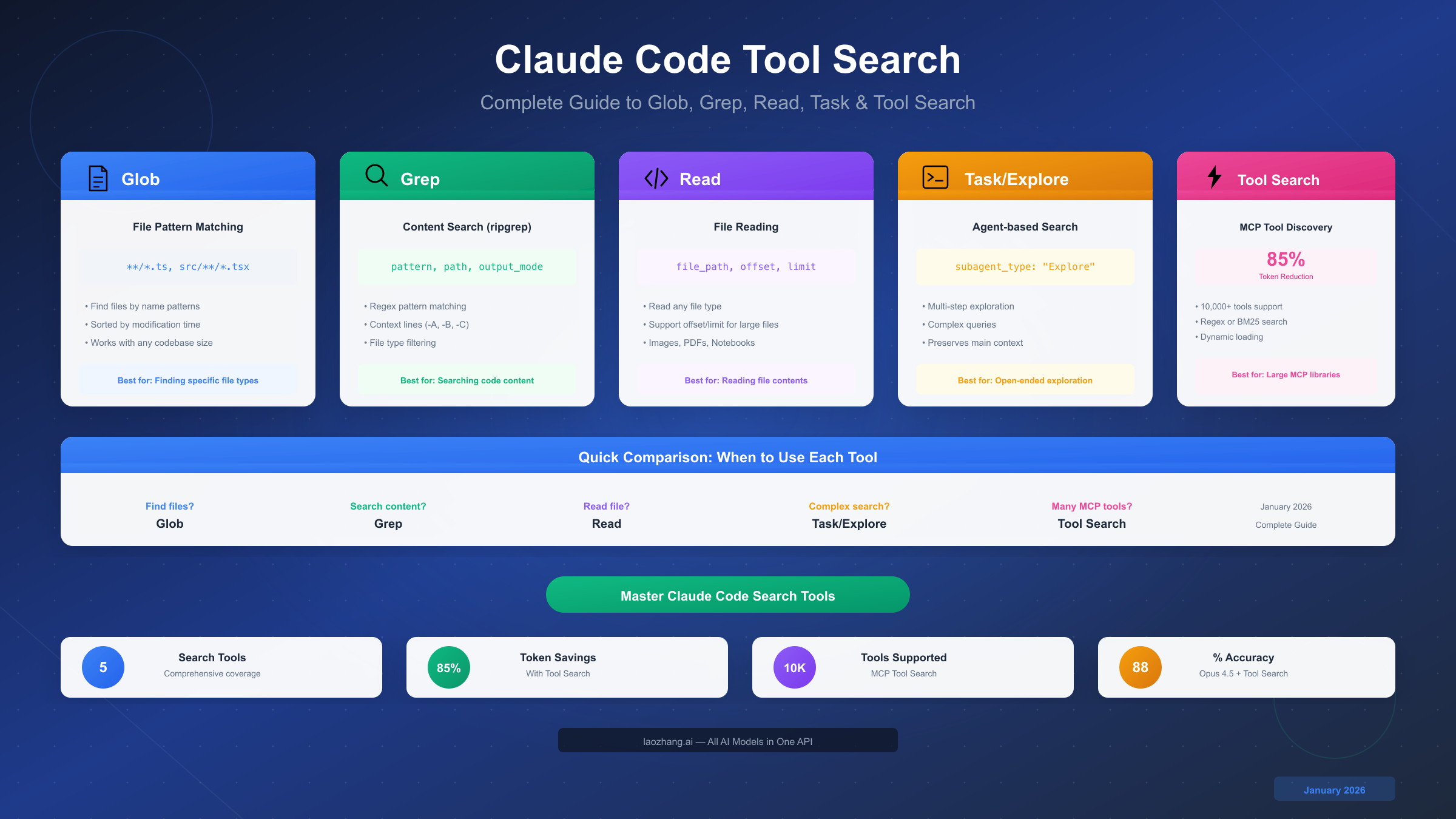
Claude Code provides five powerful search tools for navigating codebases: Glob for file pattern matching, Grep for content searching with regex, Read for file reading, Task/Explore agents for complex multi-step searches, and Tool Search for dynamic MCP tool discovery. In January 2026, Tool Search reduces token usage by 85% when working with large tool libraries, while Glob and Grep remain the go-to options for everyday code exploration. This comprehensive guide explains exactly when to use each tool, with practical examples and optimization strategies.
Key Takeaways
Before diving into the details, here are the essential points you need to know about Claude Code's search tools:
- Glob is the fastest option for finding files by pattern (e.g.,
**/*.ts,src/**/*.tsx) - Grep is built on ripgrep and excels at searching file contents with regex patterns
- Read is your tool for viewing file contents, supporting images, PDFs, and Jupyter notebooks
- Task/Explore agents handle complex multi-step exploration while preserving main context
- Tool Search saves 85% of tokens when working with 10+ MCP tools, supporting up to 10,000 tools
The key principle: start with Glob and Grep for simple tasks, escalate to Task/Explore for complex exploration, and enable Tool Search when working with large MCP tool libraries.
Understanding Claude Code Search Tools
Claude Code is Anthropic's terminal-native AI coding assistant that understands your entire codebase. Unlike traditional code editors that require manual file navigation, Claude Code uses intelligent search tools to find exactly what you need. Understanding these tools is essential for efficient development workflows.
The search tool ecosystem in Claude Code consists of two categories. The first category includes built-in tools that come standard with every Claude Code installation: Glob, Grep, and Read. These tools handle the majority of everyday search tasks—finding files, searching content, and reading file contents. They're fast, efficient, and require no additional configuration.
The second category includes advanced tools for complex scenarios. Task and Explore agents launch specialized subprocesses that can perform multi-step searches without consuming your main conversation context. Tool Search, the newest addition, dynamically discovers and loads MCP (Model Context Protocol) tools on-demand, solving the critical problem of context window pollution when working with large tool libraries.
Why does Claude Code use multiple search tools instead of one universal search? The answer lies in optimization. Each tool is purpose-built for specific scenarios. Glob uses file system indexing optimized for pattern matching, returning results sorted by modification time. Grep leverages ripgrep's parallel processing for blazing-fast content search across thousands of files. Read provides intelligent file viewing with support for binary formats like images and PDFs.
When you ask Claude Code a question like "where is the authentication logic?", it automatically selects the appropriate tool. However, understanding how these tools work gives you the ability to be more specific in your requests, leading to faster and more accurate results. For example, saying "use Grep to find all calls to handleAuth" is more efficient than "search for authentication code"—the former triggers a targeted ripgrep search, while the latter might involve multiple tool calls.
The tools also differ in their context consumption. Glob and Grep are lightweight—they return file paths or matched lines without loading entire files. Read loads file contents, which is necessary for understanding code but consumes more context. Task/Explore agents use separate context windows, preserving your main conversation. Tool Search reduces context usage by 85% compared to preloading all tool definitions.
Complete Tool Reference
This section provides a comprehensive reference for all Claude Code search tools. Use the comparison table below to quickly identify which tool fits your needs, then refer to the detailed parameter documentation for implementation.
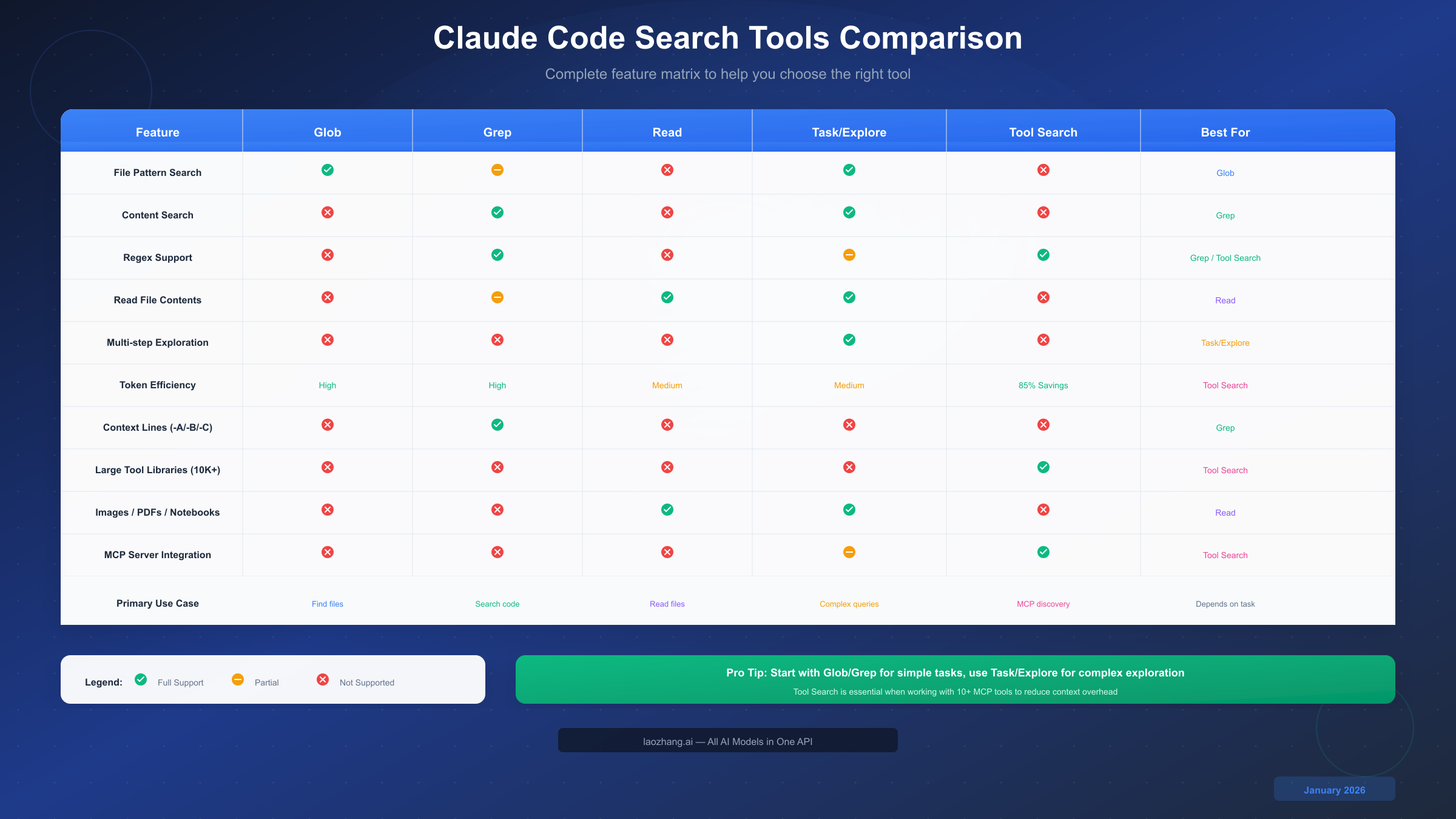
Glob: File Pattern Matching
Glob is a fast file pattern matching tool that works with any codebase size. It uses standard glob syntax to match file paths and returns results sorted by modification time.
Parameters:
| Parameter | Required | Description |
|---|---|---|
pattern | Yes | Glob pattern like **/*.ts or src/**/*.tsx |
path | No | Directory to search in (defaults to current directory) |
Common patterns:
**/*.ts          # All TypeScript files
src/**/*.tsx     # React components in src
**/test*.js      # Test files anywhere
config.*         # Config files with any extension
!node_modules/** # Exclude node_modules
When to use Glob: Finding files by extension, locating configuration files, identifying test files, or searching for files matching a naming convention.
Grep: Content Search with Ripgrep
Grep is a powerful content search tool built on ripgrep. It supports full regex syntax and provides multiple output modes for different use cases.
Parameters:
| Parameter | Required | Description |
|---|---|---|
pattern | Yes | Regex pattern to search for |
path | No | File or directory to search |
glob | No | Filter files by pattern (e.g., *.js) |
type | No | File type filter (js, py, rust, etc.) |
output_mode | No | content, files_with_matches, or count |
-i | No | Case-insensitive search |
-A, -B, -C | No | Context lines after/before/both |
multiline | No | Enable multiline matching |
Example searches:
pattern: "function\\s+handle\\w+"     # Functions starting with "handle"
pattern: "TODO|FIXME"                  # Find todo comments
pattern: "import.*from ['\"]react"    # React imports
When to use Grep: Searching for function definitions, finding where variables are used, locating TODO comments, or identifying import statements.
Read: File Reading
Read retrieves file contents from the local filesystem. It supports various file formats including images, PDFs, and Jupyter notebooks.
Parameters:
| Parameter | Required | Description |
|---|---|---|
file_path | Yes | Absolute path to the file |
offset | No | Starting line number |
limit | No | Number of lines to read |
Supported formats:
- Text files (any programming language)
- Images (PNG, JPG, etc.) - displayed visually
- PDF files - extracted text and visuals
- Jupyter notebooks (.ipynb) - cells with outputs
When to use Read: Viewing specific file contents, examining configuration files, reading documentation, or analyzing notebook outputs.
Task/Explore: Agent-Based Search
Task with the Explore subagent is ideal for complex, multi-step search operations. It launches a specialized agent that can use Glob, Grep, and Read to answer questions while preserving your main conversation context.
Parameters:
| Parameter | Required | Description |
|---|---|---|
prompt | Yes | Description of what to explore |
subagent_type | Yes | Set to "Explore" for search tasks |
description | Yes | Short description (3-5 words) |
Example usage:
{
  "prompt": "Find all API endpoints and their authentication requirements",
  "subagent_type": "Explore",
  "description": "Explore API auth"
}
When to use Task/Explore: Understanding how a feature works, investigating unfamiliar codebases, finding all related files for a concept, or answering architectural questions.
Tool Search: MCP Tool Discovery
Tool Search enables Claude to work with hundreds or thousands of MCP tools by dynamically discovering and loading them on-demand. Instead of preloading all tool definitions (which consumes massive context), it searches your tool catalog and loads only what's needed.
Key benefits:
- Reduces token overhead by 85% (from ~77K to ~8.7K tokens)
- Supports up to 10,000 tools in your catalog
- Returns 3-5 most relevant tools per search
- Two variants: Regex and BM25 (natural language)
According to Anthropic's documentation (platform.claude.com/docs/en/agents-and-tools/tool-use/tool-search-tool), Tool Search improved accuracy significantly: Opus 4.5 went from 79.5% to 88.1% accuracy with Tool Search enabled.
When to use Tool Search: Working with multiple MCP servers (Jira, Slack, GitHub, databases), managing large tool libraries, or optimizing context window usage.
How to Choose the Right Tool
Selecting the right search tool can significantly impact your productivity. This decision guide helps you quickly identify the best tool for any scenario.
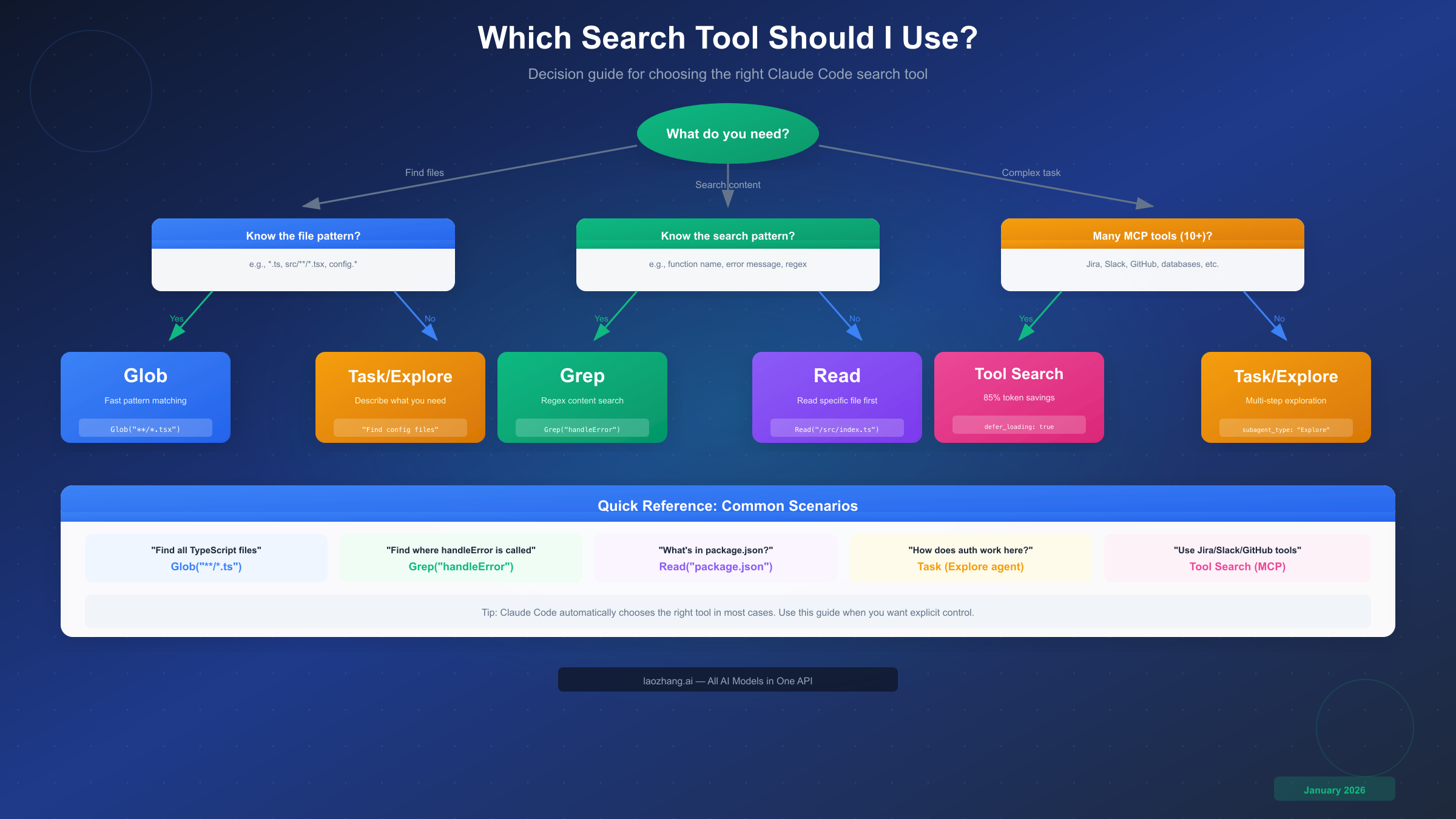
Start by identifying your primary goal. Ask yourself: what am I trying to accomplish? The answer usually points directly to the right tool.
If you need to find files, Glob is almost always the answer. The question then becomes whether you know the file pattern. If you know you're looking for TypeScript files, React components, or configuration files, use Glob with the appropriate pattern. For example, searching for all test files becomes Glob("**/*.test.ts"). If you don't know the exact pattern but can describe what you're looking for ("find the main entry point" or "locate config files"), Task/Explore can help by understanding your intent and using multiple searches.
If you need to search content, Grep is your primary tool. When you know the search term—a function name, error message, or specific code pattern—Grep with regex provides fast, accurate results. The -C parameter adds context lines, which helps understand matches without reading entire files. However, if you're exploring conceptually ("how does authentication work here?"), Task/Explore is better because it can follow the code flow across multiple files.
If you need to read file contents, use Read directly when you know the file path. If you're not sure which file contains what you need, combine Glob or Grep to locate the file first, then Read to examine it.
If you're working with MCP tools, the tool count determines your approach. With fewer than 10 tools, standard tool definitions work fine. With 10+ tools—especially when connecting multiple MCP servers like Jira, Slack, and GitHub—enable Tool Search to avoid context window pollution. As documented by Anthropic, a five-server setup can consume 58 tools and approximately 55K tokens before your conversation even starts.
The decision flowchart simplifies to this: Glob for file finding, Grep for content searching, Read for file viewing, Task/Explore for complex multi-step exploration, and Tool Search for large MCP tool libraries.
Here's a practical example that demonstrates this decision process. Imagine you're debugging an authentication error. You might start with Grep("AuthenticationError") to find where the error is thrown. This returns a file path. You then use Read on that file to understand the context. If the error handling involves multiple files, you might use Glob("**/auth*.ts") to find all authentication-related files, then Task/Explore to understand how they interact. Throughout this process, if you're using MCP tools for Jira tickets or GitHub issues, Tool Search ensures those tools don't consume excessive context.
Tool Search for MCP (Advanced)
Tool Search represents a significant advancement in how Claude Code handles large tool libraries. Before Tool Search, connecting multiple MCP servers could consume over 100K tokens in tool definitions alone—before you even started working.
The context pollution problem is severe. Developer Scott Spence documented starting a Claude Code session and watching 66,000 tokens disappear before typing anything. Add a few more MCP servers, and you're approaching the context limit without having done any actual work. As reported in the article "MCP Tool Search Claude Code Context Pollution Guide" (atcyrus.com), the most common failures were wrong tool selection and incorrect parameters, especially when tools had similar names.
Tool Search solves this through dynamic loading. Here's how it works:
- Detection: Claude Code checks if MCP tool descriptions exceed 10K tokens
- Deferral: Tools are marked with
defer_loading: true - Search: When needed, Claude searches the tool catalog using regex or BM25
- Loading: Only 3-5 relevant tools (~3K tokens) are loaded per query
Two search variants serve different needs. The regex variant (tool_search_tool_regex) uses Python regex patterns—useful when you know exact tool names or want to match patterns. The BM25 variant (tool_search_tool_bm25) uses natural language queries—better when you're describing what you want to accomplish.
Configuration example:
tools=[
    {
        "type": "tool_search_tool_regex_20251119",
        "name": "tool_search_tool_regex"
    },
    {
        "name": "get_weather",
        "description": "Get weather for a location",
        "defer_loading": True
    }
]
The performance impact is substantial. According to official Anthropic benchmarks, Tool Search preserves 191,300 tokens of context compared to 122,800 with traditional approaches—an 85% reduction. Accuracy also improves because Claude can focus on relevant tools rather than being overwhelmed by hundreds of options.
Best practices for Tool Search include writing clear tool descriptions (since searches match against names, descriptions, and parameters), keeping 3-5 most frequently used tools as non-deferred, and adding MCP server instructions that help Claude know when to search for specific tools.
For teams working with complex MCP setups, Tool Search is essential. If you're interested in learning more about MCP configuration, check out our MCP plugin configuration guide for detailed setup instructions.
Optimizing Search Performance
Efficient search isn't just about choosing the right tool—it's about using each tool optimally. These strategies help you minimize token usage while maximizing search effectiveness.
Start specific, then broaden if needed. Begin with the most targeted search possible. If you're looking for a function called handleUserAuth, start with Grep("handleUserAuth") rather than Grep("auth"). The specific search is faster and produces fewer irrelevant results. Only broaden your search if the specific query returns nothing.
Use output modes strategically. Grep's default files_with_matches mode returns only file paths—perfect when you need to know where something exists but don't need the actual matches yet. Switch to content mode with context lines (-C 3) when you need to understand the matches. Use count mode when you need statistics about pattern frequency.
Leverage file type filters. Both Glob and Grep support filtering by file type. Searching only TypeScript files with type: "ts" is faster than searching all files then filtering results. This also reduces false positives—you won't match TypeScript patterns in markdown documentation.
Combine tools efficiently. A common pattern is Glob → Read or Grep → Read. First, locate files with Glob or identify matches with Grep, then Read specific files for detailed analysis. This two-step approach consumes less context than reading multiple files upfront.
Use Task/Explore for exploratory work. When you're not sure what you're looking for, Task/Explore agents are more efficient than multiple manual searches. The agent maintains its own context, performing multiple searches without consuming your main conversation window. Describe your goal clearly: "Find all files related to user authentication and explain how they interact" is better than multiple vague queries.
For MCP users, enable Tool Search proactively. Don't wait until you hit context limits. If you're connecting 10+ tools or multiple MCP servers, configure Tool Search from the start. The 85% token savings compound over a long conversation.
Monitor your token usage. Claude Code's usage statistics help identify optimization opportunities. If you notice high token consumption from tool definitions, that's a signal to enable Tool Search. If file reading dominates, consider using offset and limit parameters to read only relevant portions.
For developers who want to try Claude Code, our free trial guide explains how to get started without commitment.
Real-World Search Workflows
Theory becomes practical through real examples. These workflows demonstrate how experienced developers combine search tools to solve actual problems.
Workflow 1: Debugging an Error
You encounter an error: "UserAuthenticationError: Invalid token format". Here's the systematic approach:
# Step 1: Find where the error is defined
Grep("UserAuthenticationError", output_mode="files_with_matches")
# Returns: src/errors/auth-errors.ts

# Step 2: Find where the error is thrown
Grep("throw.*UserAuthenticationError", type="ts")
# Returns: src/services/auth.ts:142, src/middleware/auth.ts:38

# Step 3: Read the relevant section
Read("src/services/auth.ts", offset=135, limit=20)
# Shows the token validation logic

# Step 4: Find related tests
Glob("**/auth*.test.ts")
# Returns: src/__tests__/auth.test.ts, src/services/__tests__/auth.test.ts
Workflow 2: Understanding a New Codebase
You've joined a project and need to understand its structure:
# Step 1: Use Task/Explore for high-level understanding
Task(
  prompt="Explain the overall architecture of this project.
          What are the main directories and their purposes?",
  subagent_type="Explore"
)

# Step 2: Find entry points
Glob("**/index.ts")
Glob("**/main.ts")
Glob("**/app.ts")

# Step 3: Understand key configurations
Read("package.json")
Read("tsconfig.json")

# Step 4: Explore specific subsystems
Grep("export.*function", glob="src/services/*.ts")
Workflow 3: Refactoring a Function
You need to rename getUserData to fetchUserProfile across the codebase:
# Step 1: Find all usages
Grep("getUserData", output_mode="count")
# Returns: 47 matches in 12 files

# Step 2: See the distribution
Grep("getUserData", output_mode="files_with_matches")
# Lists all 12 files

# Step 3: Check for test coverage
Grep("getUserData", glob="**/*.test.ts")
# Returns: 8 matches in test files

# Step 4: Identify the definition
Grep("export.*function getUserData", output_mode="content", -C=2)
# Shows the function definition with context
Workflow 4: MCP Tool Integration
You're working with Jira, Slack, and GitHub MCP servers:
# Configure Tool Search to avoid context pollution
tools = [
    {"type": "tool_search_tool_bm25_20251119", "name": "tool_search"},
    # All MCP tools marked for deferred loading
    {"name": "jira_create_issue", "defer_loading": True, ...},
    {"name": "slack_send_message", "defer_loading": True, ...},
    {"name": "github_create_pr", "defer_loading": True, ...},
    # ... 50+ more tools
]

# When you need to create a Jira ticket, Tool Search finds the right tool
# Only jira_create_issue is loaded, not all 50+ tools
For more advanced MCP workflows, see our comprehensive MCP guide.
FAQ
What's the difference between Glob and Grep?
Glob searches file names and paths using patterns like **/*.ts, returning matching file paths sorted by modification time. Grep searches file contents using regex patterns, returning matches or file paths depending on the output mode. Use Glob when you know the file naming pattern but not the location; use Grep when you know what's inside the file but not which file contains it.
When should I use Task/Explore instead of Grep?
Use Task/Explore when your question requires multiple steps to answer, when you're exploring conceptually ("how does X work?"), or when you want to preserve your main conversation context. Task/Explore agents can make multiple Glob, Grep, and Read calls autonomously, synthesizing the results into a coherent answer. Grep is better for targeted searches where you know exactly what pattern to match.
How does Tool Search save 85% of tokens?
Without Tool Search, all MCP tool definitions are loaded into context upfront—50 tools might consume 10-20K tokens. With Tool Search, only the search capability is loaded initially (~500 tokens). When Claude needs a specific tool, it searches and loads only that tool (~600 tokens). Instead of 20K tokens for 50 tools, you use ~1K for search + ~3K for the 3-5 tools actually needed.
Can I use multiple search tools in one request?
Yes, Claude Code can invoke multiple tools in a single response when the operations are independent. For example, it might run two Grep searches in parallel if they don't depend on each other. However, when tools have dependencies (Glob → Read), they run sequentially. This parallel execution improves performance significantly.
What's the best way to search large codebases?
Start with the most specific search possible to avoid overwhelming results. Use file type filters (type: "ts") to narrow scope. Leverage Glob's modification-time sorting to find recently changed files first. For complex exploration, use Task/Explore agents which maintain their own context and can perform multiple searches without polluting your main conversation. If your codebase exceeds 100K files, consider using external code search MCP plugins like claude-context for semantic search capabilities.
Conclusion
Claude Code's search tools form a powerful ecosystem for navigating codebases efficiently. Glob handles file pattern matching, Grep enables content search with ripgrep's speed, Read provides intelligent file viewing, Task/Explore agents tackle complex multi-step exploration, and Tool Search optimizes context when working with large MCP tool libraries.
The key to mastery is matching the right tool to each situation. Start with Glob and Grep for most everyday tasks—they're fast, efficient, and consume minimal context. Escalate to Task/Explore when questions require multiple steps or conceptual understanding. Enable Tool Search whenever you're connecting 10+ MCP tools to avoid context pollution.
For teams looking to optimize their AI development workflow, combining Claude Code with efficient API access can significantly reduce costs. For more information on API options and pricing, check the documentation at docs.laozhang.ai.
The search tools continue to evolve—Tool Search was a recent addition that solved real pain points around context management. As Claude Code develops, expect these tools to become even more powerful while maintaining their core design principle: the right tool for each specific task.