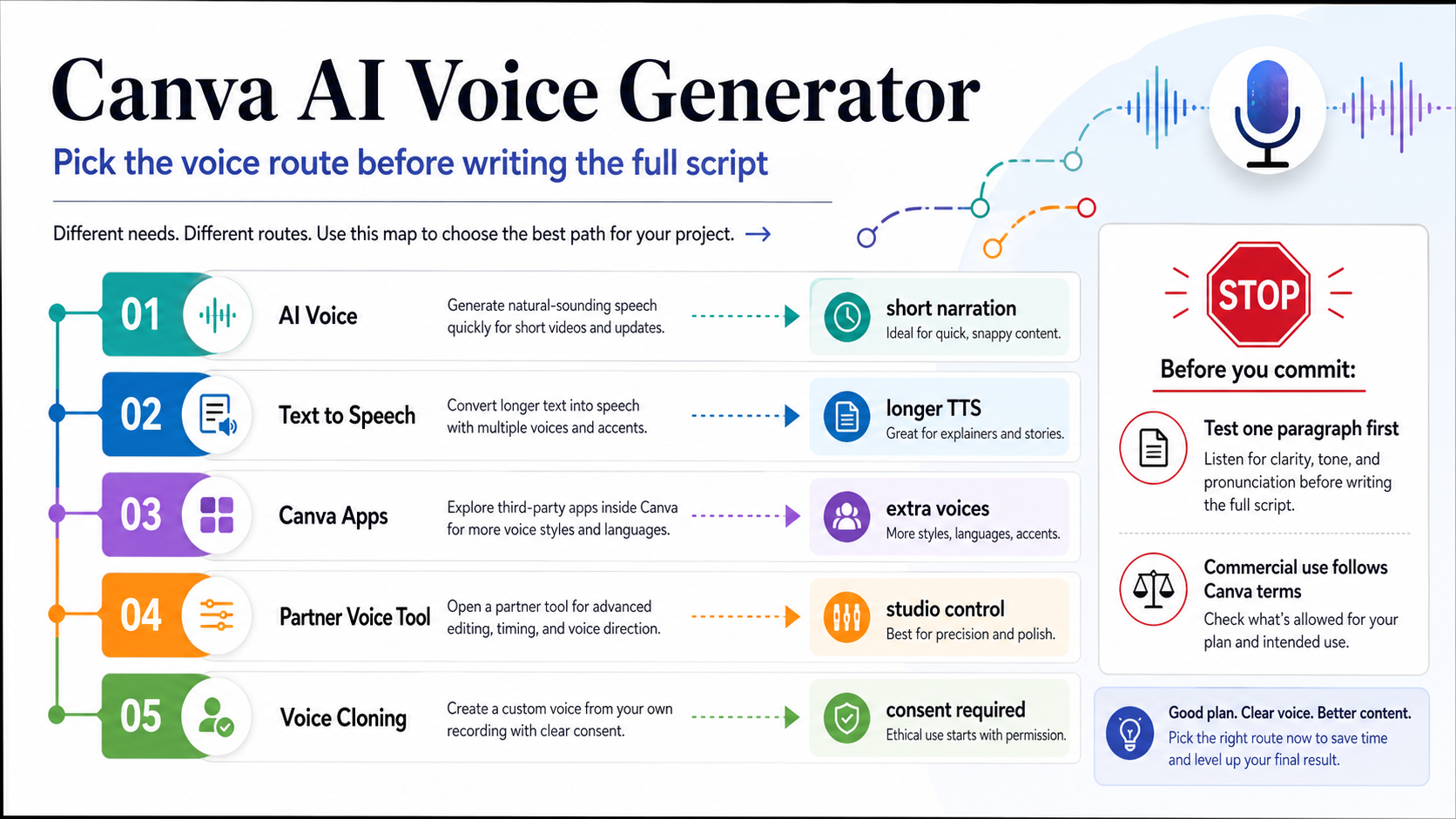
Canva can generate AI voiceovers, but the useful answer is route-specific. Use built-in AI Voice for short Canva-native narration, Text to Speech or a Canva App when you need different limits or voices, a partner voice tool when you need more production control, and Voice Cloning only when you have consent and can disclose that the voice is synthetic.
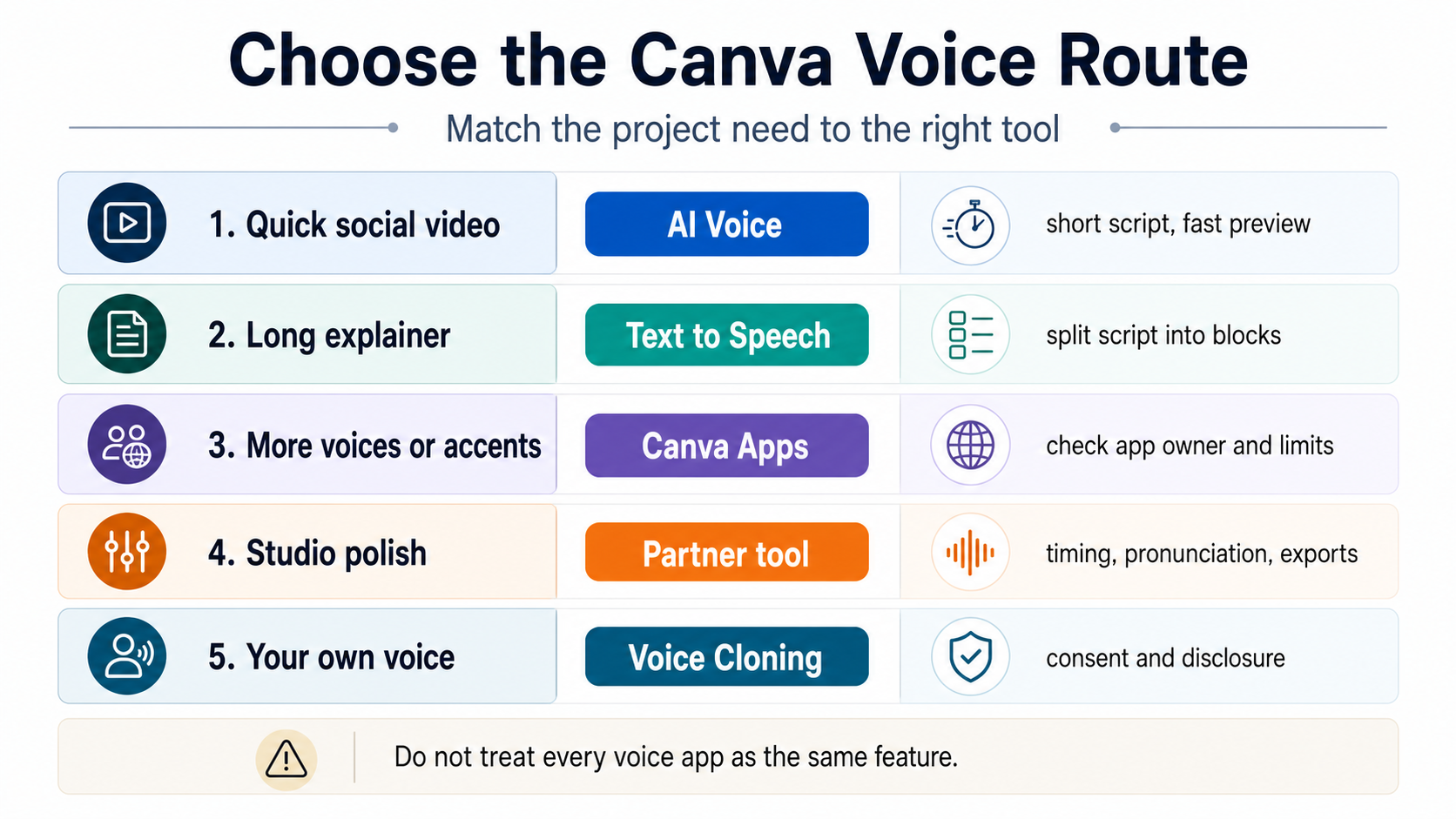
| Project need | Start with this route | Watch before generating the full script |
|---|---|---|
| Short social video, ad, reel, or classroom clip | AI Voice inside Canva | Keep the first script short enough to test quickly |
| Longer narration that still belongs in a Canva design | Text to Speech | Split the script into blocks instead of pasting a full script at once |
| More voices, accents, or app-specific workflows | Canva Apps | Check who owns the app, its limits, and whether it is currently working |
| Studio-style control, pronunciation work, or exports outside Canva | Partner voice tool | Use Canva for layout and timeline assembly, not as the entire voice stack |
| A cloned voice | Voice Cloning | Confirm permission, synthetic-voice disclosure, and whether the route is appropriate for the audience |
Treat the first generation as a one-paragraph test, not the final narration. Canva's voice routes can have different character limits, app behavior, and rights terms, and the relevant Canva and partner pages cited below were checked on May 17, 2026.
Do not describe Canva AI voice as simply copyright free. Canva's AI terms allow AI audio inside eligible projects, but they do not turn generated voice into standalone audio you can resell or use without consent, app-specific limits, or disclosure judgment.
Start by deciding what kind of voiceover you need
The first decision is not "Canva or not Canva." It is what the voiceover has to do inside the project. A 20-second product reel, a teacher's slide narration, a three-minute training video, a brand voice clone, and a polished podcast-style intro are different jobs. They may all begin in Canva, but they should not all use the same voice route.
For short narration that will live inside a Canva video, presentation, or social design, the built-in Canva AI Voice Generator is the first test. Canva's feature page describes a text-to-voice workflow: enter text, choose a voice, generate the voiceover, preview it, and place it into the design timeline. That route is useful when speed and Canva-native assembly matter more than detailed voice direction.
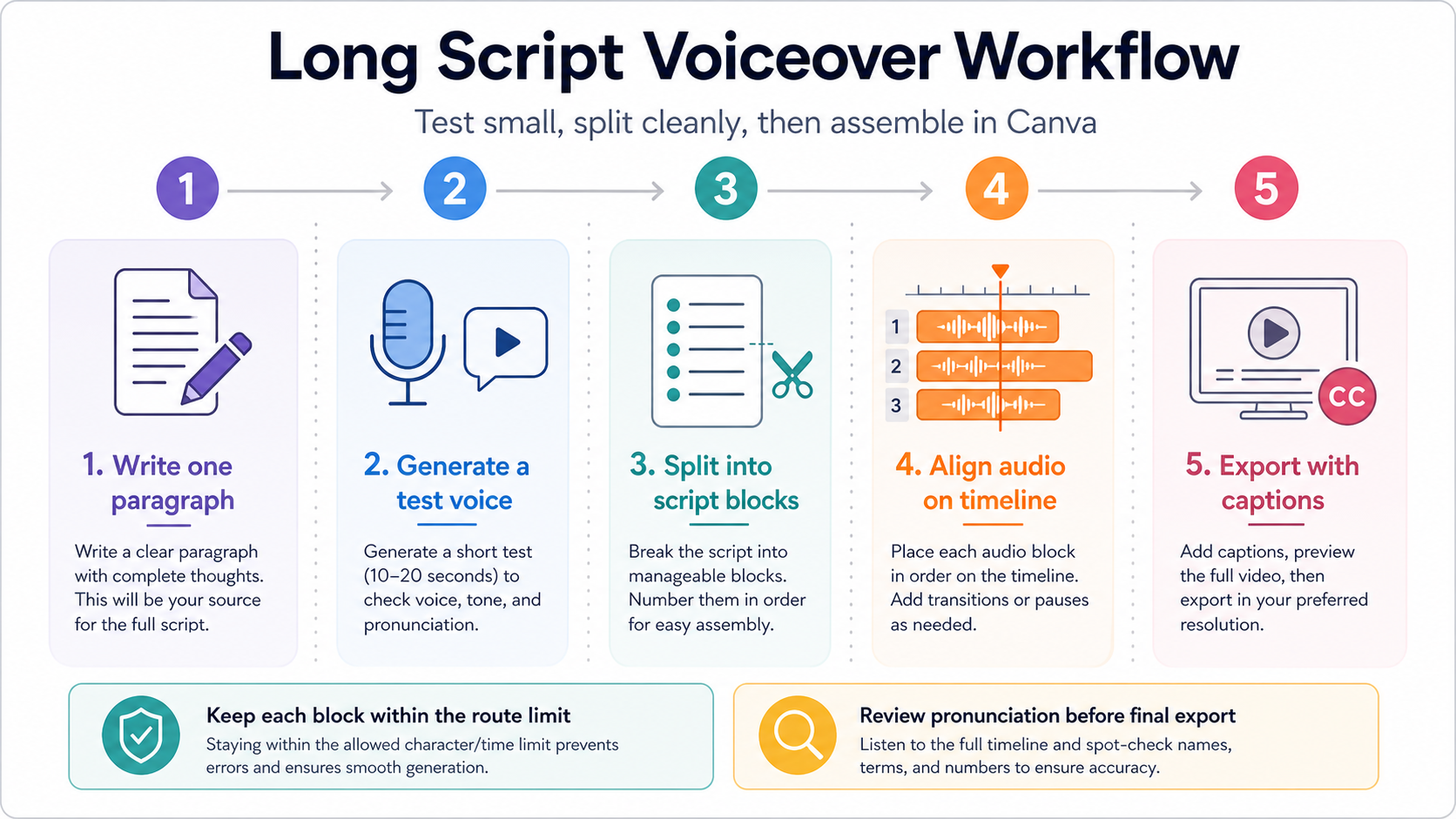
For a longer explainer, the nearby Canva Text to Speech route may fit better, but it still needs segmentation. Do not start by pasting the whole script. Generate one paragraph, listen for pronunciation and pacing, then split the script into blocks that match the route's current limit. Long narration fails less often when it is treated as a production workflow instead of one giant prompt.
For extra voices, accents, or provider-specific behavior, Canva Apps become part of the route. Those apps can be useful, but the app owner, limits, terms, current availability, and upload behavior matter. Treat each app as its own mini-product inside Canva, not as proof that all Canva voice tools share one entitlement.
For high-control voice work, a specialist voice tool may be the better audio engine while Canva remains the layout and timeline workspace. That is especially true when the job depends on detailed pronunciation control, multiple takes, exports outside Canva, a voice style guide, or repeatable team production.
Generate a short voiceover before committing the script
The safest Canva workflow starts with a small test. Open the design or video where the narration will live, choose the voice route, paste a paragraph that represents the hardest part of the script, generate the audio, and listen before writing the rest around that route.
That paragraph should include the words that are most likely to fail: product names, acronyms, names, prices, dates, technical terms, and any sentence where timing matters. If the route handles that paragraph well, you can expand with more confidence. If it mispronounces the core product name or creates awkward pauses, you have learned that before producing the full narration.
After the test sounds acceptable, place it on the timeline with the visual sequence it needs to support. This step matters because a voice that sounds fine by itself may not match the speed of the slide, caption, or product demo. Canva makes it easy to assemble audio and visuals in one workspace, but that convenience can hide timing problems until export if you do not preview early.
For short videos, the result may be enough: one or two generated blocks, aligned to the design, with captions or on-screen text adjusted around the voice. For longer videos, the test becomes a style sample. Keep the same voice, pacing target, and paragraph length across blocks so the finished narration feels consistent.
If the voiceover is for client, classroom, training, or advertising work, save a simple production note: which route was used, which voice or app was selected, when the limits were checked, and whether a human reviewed the final audio. That note is not bureaucracy. It prevents confusion when a teammate needs to revise the audio a month later and the Canva interface or app limits have changed.
Free access and limits are route-owned, not universal
Canva's voice pages support free entry points, but that does not mean every voice, every app, every language, or every account has unlimited generation. The practical rule is to treat limits as route-owned and account-sensitive.
| Route | Checked limit or boundary | How to use it safely |
|---|---|---|
| Canva AI Voice Generator | Canva's AI Voice page says up to 1,000 characters per speech conversion | Use it for short blocks and preview before writing the full narration |
| Canva Text to Speech | Canva's Text to Speech page says up to 2,000 characters | Split long scripts into blocks and keep pacing consistent |
| Canva Apps | Limits vary by app and provider; direct app pages may require a supported browser or Canva context | Check the app panel, terms, and current status before relying on hard numbers |
| Murf Canva app | Murf's help page says generation consumes allotted minutes and one voiceover block has a 1,000-character limit | Use partner-owned limits only for that partner route |
| Voice Cloning | Canva's cloning page lists reference-audio requirements and usage rules | Use only with permission and a clear disclosure plan |
The important editorial mistake is turning one limit into the Canva limit. A user may see a different practical cap because of route choice, app owner, plan, language, account state, or a temporary incident. Canva's AI Product Terms also describe usage limits as operational controls that can be modified for performance, fairness, security, or reliability. That is a reason to write the script in modular blocks, not to argue with the interface after a long generation fails.
For long narration, segment by meaning rather than by an arbitrary word count. A good block usually maps to one slide, one scene, one product step, or one idea. Keep each block self-contained enough that it can be regenerated without damaging the rest of the video. If you need to change a date, price, or name later, you should be able to regenerate that block instead of the whole track.
Use a naming convention when the project has many blocks. For example: intro-01, feature-demo-02, pricing-note-03, closing-04. Canva projects can become hard to maintain when every generated clip has a generic name and similar waveform. Clean labels are a production advantage, especially when a teammate must adjust the timeline.
Free access also deserves careful wording. It is fair to say Canva provides a free way to try AI voice generation when the route is available to the account. It is not fair to promise unlimited free voiceovers, all voices for free, or permanent access to a specific app's current allowance. If a voice route is central to a paid campaign or client deliverable, check the active app panel and terms before building the schedule around it.
For a long script, make a tiny voice style test set before production: one opening paragraph, one explanatory paragraph, one list paragraph, and one closing call to action. The same Canva voice can fit a calm tutorial and still feel wrong for a fast product ad, so the first test should check style fit as well as character limits.
Commercial use needs a more careful answer than copyright free
Canva's AI Product Terms give a useful but narrower answer than "copyright free." Canva says AI audio output may be used in personal and commercial projects such as videos, advertisements, podcasts, and presentations. The same terms also say users do not own AI-generated audio output and may not sell, license, sublicense, distribute it standalone, grant third-party rights in it, or claim or register intellectual-property rights in it.
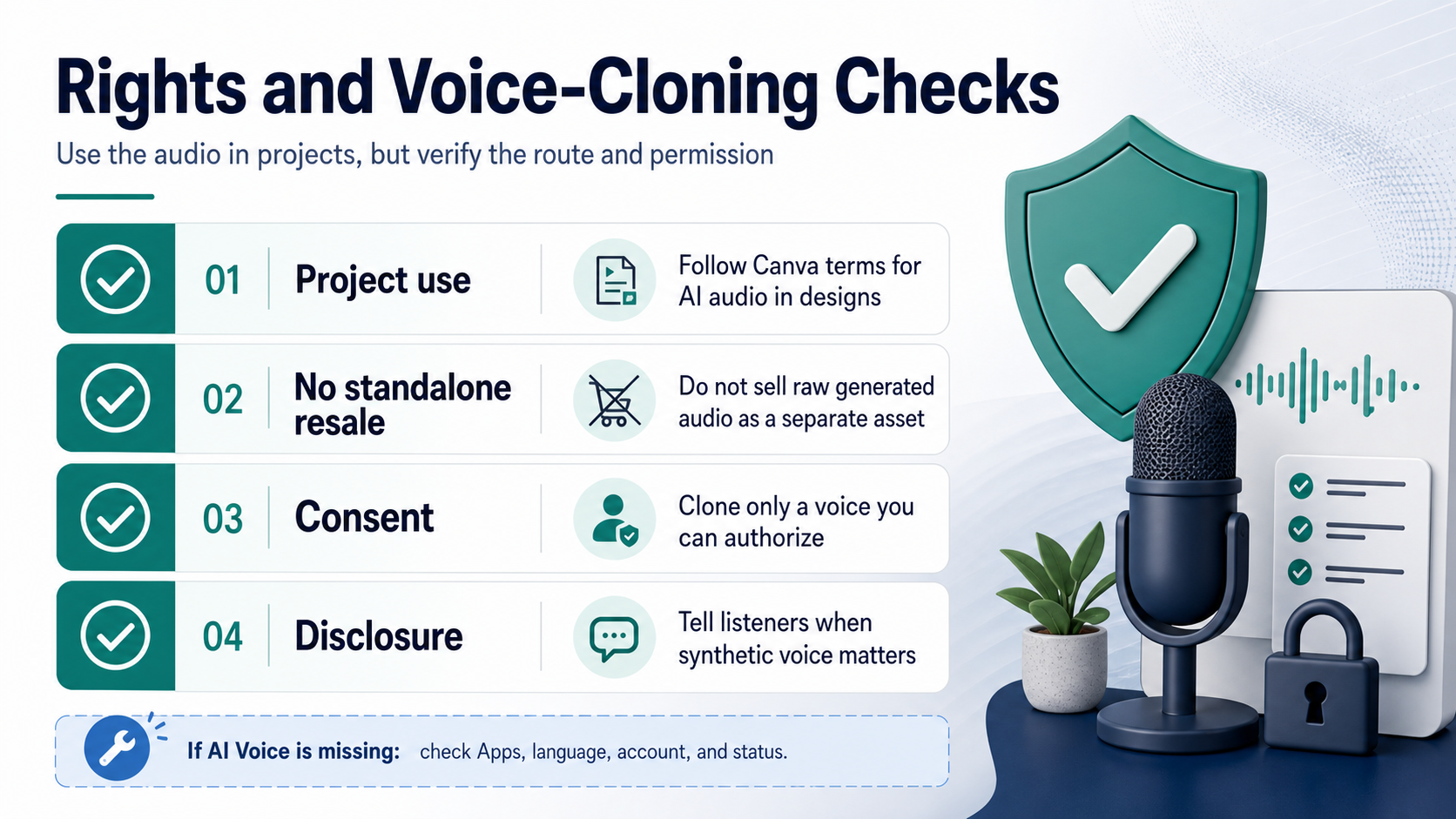
That difference matters. A Canva voiceover embedded in a product video, lesson, internal presentation, podcast episode, or ad creative can be a permitted project use under Canva's terms. The raw generated audio file sold as a voice pack, licensed to another party, uploaded as a standalone stock asset, or claimed as proprietary voice IP is a different risk.
The terms also sit on top of Canva's Acceptable Use Policy. If the script, the voice sample, the audience, or the claim violates the acceptable-use layer, "commercial project" does not rescue it. This is especially relevant for impersonation, sensitive claims, political or public-facing persuasion, medical or legal contexts, and projects that could mislead listeners about who is speaking.
For ordinary business use, the safest language is specific: "Canva permits AI audio in eligible projects under its AI Product Terms." That is stronger and more accurate than calling the output copyright free. It tells the team what they can likely do, while preserving the boundaries that matter if the audio is reused, resold, sublicensed, or attached to a cloned voice.
Treat voice cloning as a separate consent workflow
Canva's AI Voice Cloning route is not just another text-to-speech voice. It starts from reference audio and creates a synthetic voice style, so the permission and disclosure bar is higher.
Canva's cloning page describes reference-audio requirements such as clear WAV or MP3 audio, a minimum length, a maximum file size, and a range for uploaded audio used to create the clone. Those requirements may change, so the article should not turn them into the main reason to choose cloning. The main reason to choose cloning is that the project genuinely needs a specific authorized voice and the speaker, organization, and audience understand the synthetic-voice use.
Do not clone a colleague, customer, teacher, public figure, employee, actor, or family member because the audio is technically available. Consent is not a file format. A voice sample from a meeting, podcast, class, livestream, or sales call does not automatically give permission to create a reusable synthetic voice. Canva's cloning page also warns against rights violations, impersonation, defamation, and failing to disclose that the voice is AI-generated.
A practical consent note should answer four questions: who owns or controls the voice, what project the clone is allowed for, whether reuse is allowed after this project, and how the audience should be told when synthetic voice matters. If you cannot answer those questions, use a standard AI voice route or record a real voiceover instead.
If AI Voice is missing or limited, troubleshoot by route
When the AI Voice option is missing, the wrong fix is to keep clicking around the same panel. First identify which route you expected: built-in AI Voice, Text to Speech, a Canva App, a partner app inside Canva, or Voice Cloning. A missing built-in route and a partner app that has reached its own limit are not the same problem.
Start with the project surface. Voice options can appear in different places depending on whether you are editing a video, presentation, app flow, or design type. Then check language, account, region, plan, workspace controls, browser support, and whether the route is available in the current Canva editor. If the expected option belongs to a third-party app, open that app's panel and check its own limit or status rather than assuming Canva's built-in feature is down.
If several clean projects and accounts fail at the same time, check Canva status before calling the script or account broken. User reports and status mirrors have shown that AI Voice availability can have temporary incidents, but an old incident is not a current diagnosis. Use status only as a live recovery step, not as a generic explanation.
When the route is blocked and the deadline is close, choose the smallest fallback that preserves the project. For a short clip, use another Canva voice or a partner app. For a longer training video, generate narration in a specialist tool and place the audio back into Canva. For a voice clone that cannot be created safely, switch to a non-cloned voice and disclose the synthetic narration where appropriate.
When Canva is enough and when to leave Canva
Canva is often enough when the project is design-led: social videos, presentation narration, short ads, classroom clips, internal explainers, and lightweight product demos. In those cases, the advantage is not just voice generation. It is the ability to keep voice, captions, timing, and layout in one editing workspace.
Leave Canva for the voice engine when the audio itself is the product. Long-form narration, brand voice systems, multi-language campaigns, strict pronunciation control, team voice libraries, API automation, batch generation, or audio files that must be reused across many platforms usually deserve a specialist workflow. Canva can still be the design and assembly layer, but it should not carry the entire production burden.
The same distinction helps avoid confusion with transcription. Generating a Canva voiceover is the opposite direction from turning audio into text. If the actual job is to transcribe an existing recording, use a transcription route such as the one explained in Can ChatGPT Transcribe Audio?, then bring the edited text back into Canva if you need a narrated design.
The best Canva AI voice workflow is therefore simple: pick the route, test one paragraph, segment long scripts, check terms before commercial use, and keep cloning behind a consent gate. That sequence is slower than pasting the full script once, but it prevents the failures that are hardest to fix after the video is already built.
FAQ
Does Canva have an AI voice generator?
Yes. Canva has AI voice generation routes, including the AI Voice Generator feature page, Text to Speech, app-based voiceover routes, partner tools, and AI Voice Cloning. The important part is choosing the route that matches the project, because limits, voices, rights, and recovery steps differ by route.
Is Canva AI Voice free?
Canva's AI Voice page describes free preview and a selection of free voices, with upgrade paths for more voices. Treat that as a free entry point, not a promise of unlimited free generation. Check the active Canva route or app panel before building a long or client-facing script around a specific allowance.
What is the Canva AI Voice character limit?
There is no single universal number for every Canva voice route. Canva's AI Voice page says up to 1,000 characters per speech conversion, while Canva's Text to Speech page says up to 2,000 characters. Partner apps can have their own limits; Murf's Canva app help page, for example, lists a 1,000-character block limit. Split scripts into blocks and check the route you are actually using.
Can I use Canva AI voice for commercial projects?
Canva's AI Product Terms allow AI audio output in personal and commercial projects such as videos, ads, podcasts, and presentations. The same terms say users do not own the AI-generated audio output and cannot sell, license, sublicense, distribute it standalone, grant third-party rights in it, or claim IP rights in it. Use "permitted in projects under Canva terms," not a blanket copyright-free claim.
Can I clone my own voice in Canva?
Canva offers a Voice Cloning route, but it should be treated as a consent workflow. Use reference audio only when you have the right to use that voice, and disclose synthetic voice use when the audience could reasonably care who is speaking. Do not clone someone else's voice just because you have a recording.
Why do I not see AI Voice in Canva?
First identify the route you expected: AI Voice, Text to Speech, a Canva App, a partner app, or Voice Cloning. Then check design type, account, region, language, browser support, workspace controls, app limits, and current Canva status. If the route is still unavailable, use a nearby Canva app or generate the voice in a specialist tool and import the audio into the Canva timeline.
Is Canva better than a specialist AI voice tool?
Canva is better when the project is design-led and the voiceover only needs to support a video, slide, ad, or social post. A specialist tool is better when the voice itself needs advanced control, long-form consistency, API automation, pronunciation tuning, or reuse across many platforms. Many teams use both: specialist audio generation first, Canva assembly second.